
PDF to Grayscale: How to Turn Any PDF Black and White Online
My uncle once printed a 40-page report for a meeting. Colorful charts, a blue header on every page, a green footer. Halfway through, the printer made a sad noise and quit. The cyan cartridge was empty. He still had plenty of black ink. The printer just wouldn’t use it, because the pages were in color. That’s when people find out about grayscale. Here’s how to turn a PDF to grayscale, and the one catch that can make your charts hard to read.
Further Reading:What Is an N-up PDF? (And How to Make One Online)
What Is Grayscale?
A page that uses only shades of gray, from white to black. No reds, blues, or greens. Each color turns into the gray that matches its brightness. Bright yellow becomes light gray. Deep blue becomes dark gray.
Think of an old black and white photo. You keep all the detail and lose the color.
Why Do It?
- To save color ink. Color cartridges cost more and run out faster.
- To get cleaner printouts. Some documents look messy in color, with loud backgrounds or clashing shades. Gray is calmer.
- To shrink the file. Color images carry more data, so a grayscale copy can sometimes be smaller. It depends on the file.
- To meet a rule. Some schools and offices ask for black and white copies.
- To read on certain devices. E-readers can look washed out with color PDFs.
Why Not Just Use the Printer Setting?
You can. Most printers have a “black and white” option, and it’s fine for one print.
But changing the file itself has perks. It stays grayscale no matter who opens it or which printer they use. You can email it or upload it and the look stays the same. And you don’t have to hope a shared office printer remembers your setting.
How to Convert PDF to Grayscale Online with Plainscan
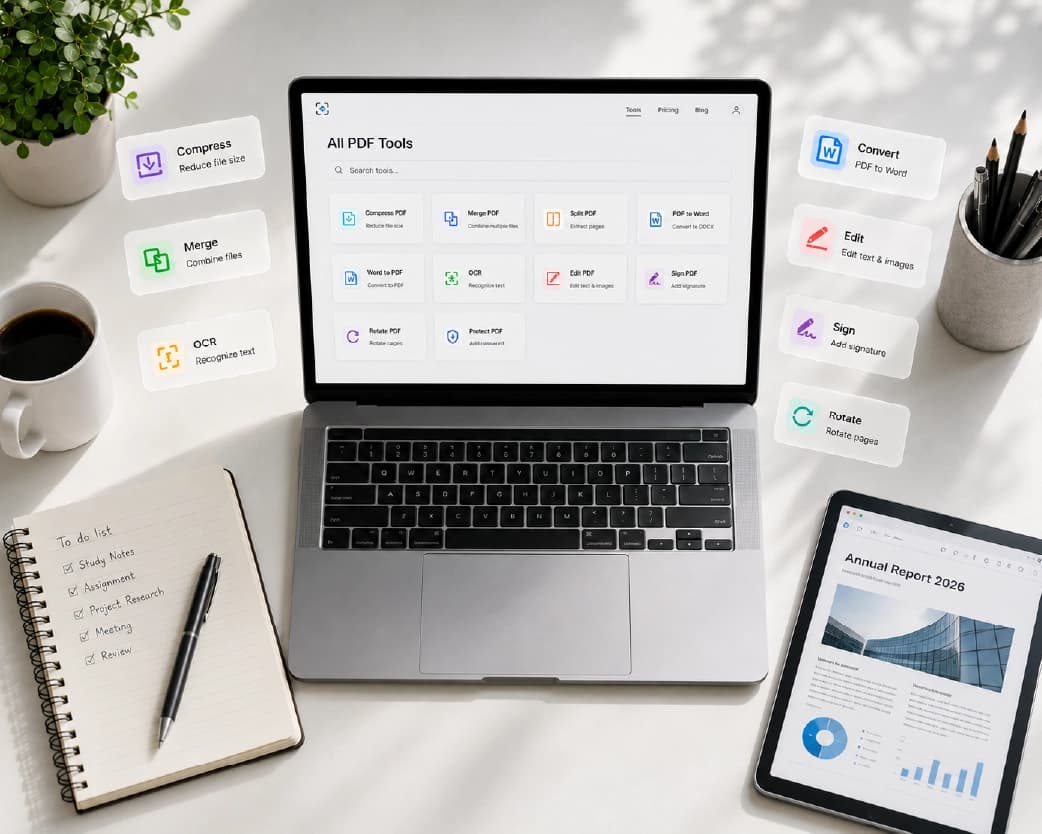
Plainscan runs in your browser and has over 100 document tools. Nothing to download. Laptop, tablet, or phone, it all works.
Find the tool. Go to the tools page and look for the one that makes a PDF grayscale, or open the PDF to Grayscale tool directly.
Upload your PDF. Drag it in or browse for it. Free accounts can upload up to 50 MB.
Convert it. Click the button and wait a few seconds. Files with lots of images take longer.
Download and check. Scroll through the new file and make sure everything’s still easy to read.
Plainscan processes the entire document in seconds, transforming all colored images, vector artwork, backgrounds, and text into crisp monochrome tones.
Is it free?
To start, yes. After you create a free account, you can process up to 4 documents a day with the basic PDF tools, and it resets every 24 hours. The PDF to Grayscale tool falls under that free daily allowance. AI features and unlimited use need a paid plan, or you can buy credits and use them when you need them.
The Catch: Color Can Carry Meaning
People forget this one. A lot of documents use color to say something, and gray can wipe that out.
Picture a chart where red means “bad” and green means “good.” In grayscale, both can turn into the same gray. Or a graph with four colored lines. Suddenly it’s four gray lines you can’t tell apart. Maps, highlights, and color-coded tables have the same problem.
Before you convert, ask, “Does the color here mean something?” If yes, check the gray version carefully, or keep a color copy of that page.
Keeping It Readable
Check the charts first. If you can’t tell lines or bars apart, add labels or different line styles in the original, then convert again.
Watch light colors. Pale yellow text looks fine on screen and nearly vanishes in gray.
Check highlights. They can turn into gray blocks that hide the words. A darker font or an underline helps.
Zoom in on small text. Gray can look blurry, especially on a colored background.
And keep the original. Someone will ask, “Do you have this in color?”
I always print one test page before the whole stack to verify that all the grayscale tones and shaded charts look clear on physical paper.
What About Scans?
Scans often benefit the most. A yellowish paper tone or a faint stain can look cleaner in grayscale. If the scan is sideways, fix it first with the Rotate PDF tool. And if you need the words as text, the Scan & OCR tool can read it for you.
Who Uses This?
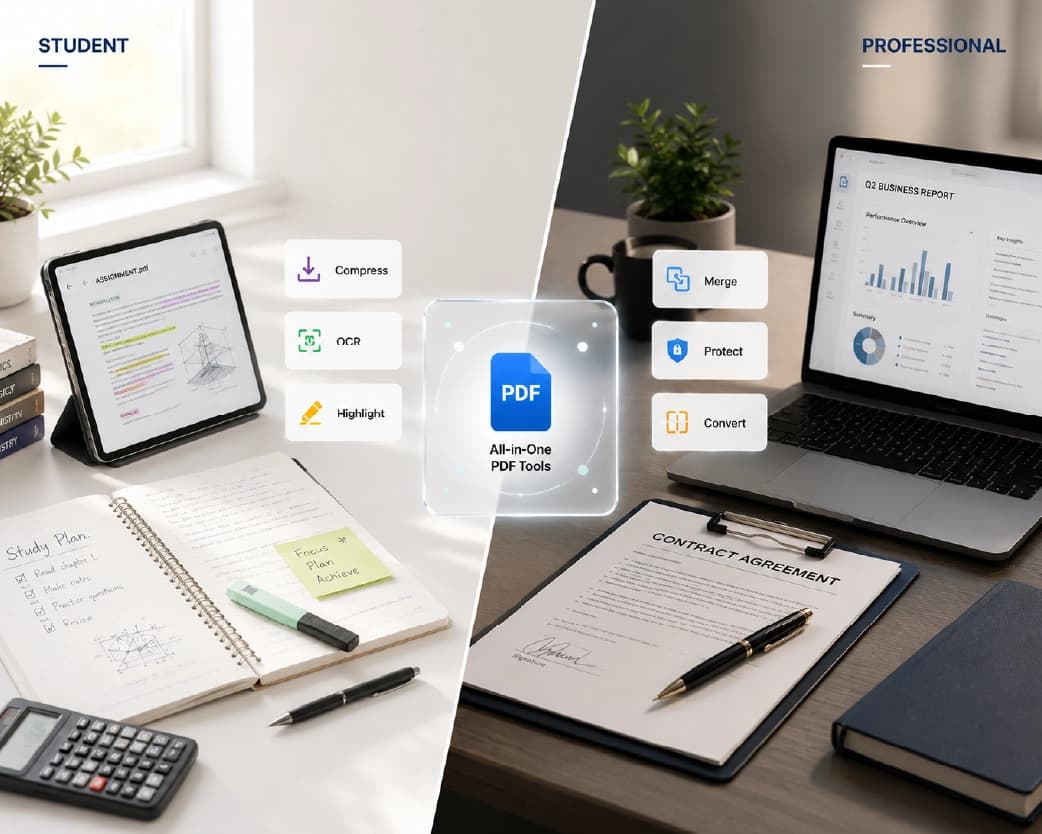
Students printing slides and study guides. Office workers who print big reports every week. Teachers making worksheets for a class. Small business owners sending forms to be printed or faxed. E-reader fans.
Anyone who’s stared at a printer that’s out of color ink.
Is Uploading Safe?
Fair question. Plainscan uses encrypted HTTPS connections, and uploaded files are deleted automatically within 24 hours.
Still, be careful with very sensitive files like ID details or bank info on any website. Skim the privacy policy of a new tool first. And delete extra copies you don’t need.
Mistakes to Skip
Skipping the check. Scroll through the file before you print.
Forgetting about charts.
Losing the color original.
Expecting a tiny file every time. Grayscale can shrink image-heavy PDFs, but not always by much.
Forgetting the limits. Check file size and your daily cap before a batch.
Continue Reading:How to Flatten PDF Files (and Why Your Forms Need It)
Conclusion
Turning a PDF to grayscale is quick, and it can save you ink, money, and printer drama. Upload the file, convert it, and check the result before you print or send it. If you’ve got a PDF that’s too colorful for its own good, try Plainscan on it today. It’s an easy way to convert PDF to grayscale, and the other free PDF tools are worth a look too.
Related insights







Get the Plainscan App for iOS & Android