
Print Optimize PDF: How to Get Sharp, Clean Printouts Every Time
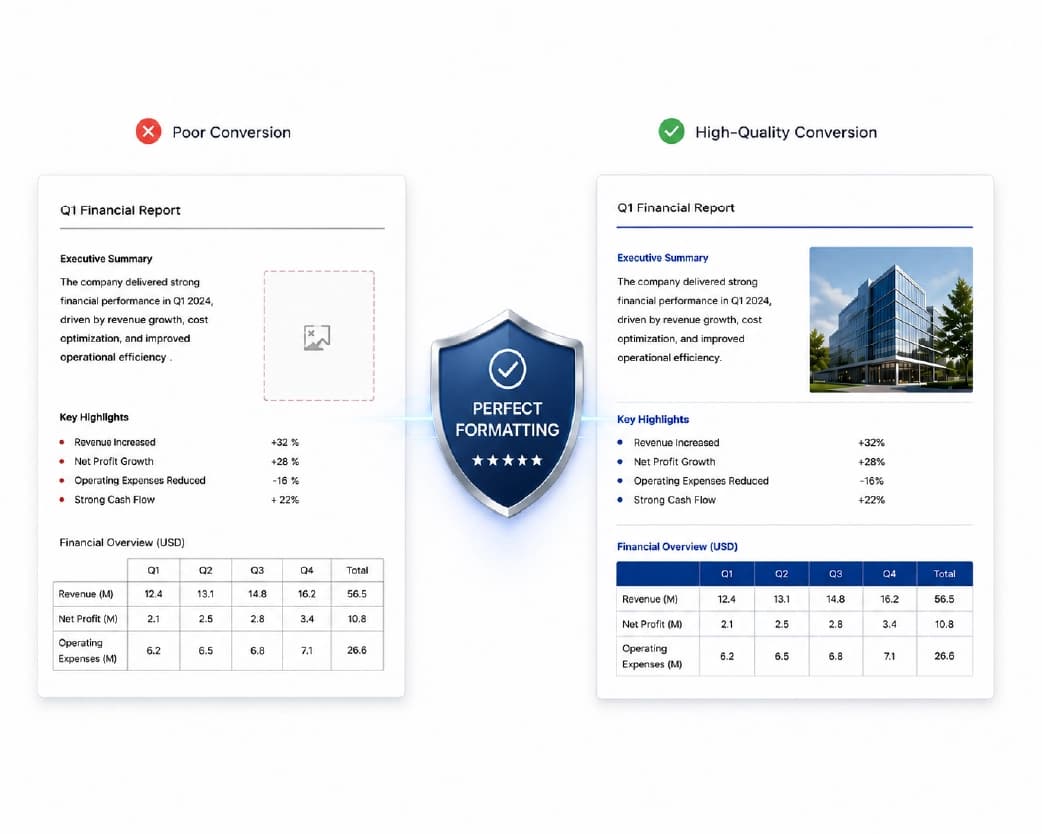
My sister designed flyers for her yoga class. On her screen, they looked fantastic. She sent the PDF to a print shop, paid for fifty copies, and picked them up the next day. The logo was blurry. The text near the edge was sliced off. And the soft pink background she picked had turned into a muddy brown. Fifty flyers, straight into the recycling bin. She was not happy, and the print shop guy just shrugged and said, “Your file wasn’t print-ready.” That phrase confuses a lot of people. So here’s what it means, how to print optimize PDF files, and a checklist you can use before you hit print.
Why Does a PDF Look Different on Paper?
Screens and printers speak different languages. A screen makes color with light. A printer makes color with ink. A screen is happy with a small, low-detail picture. Paper shows every flaw.
So a file that looks sharp on your laptop can print soft, dull, or cut off. Printing amplifies small problems. That’s why a little prep makes a big difference.
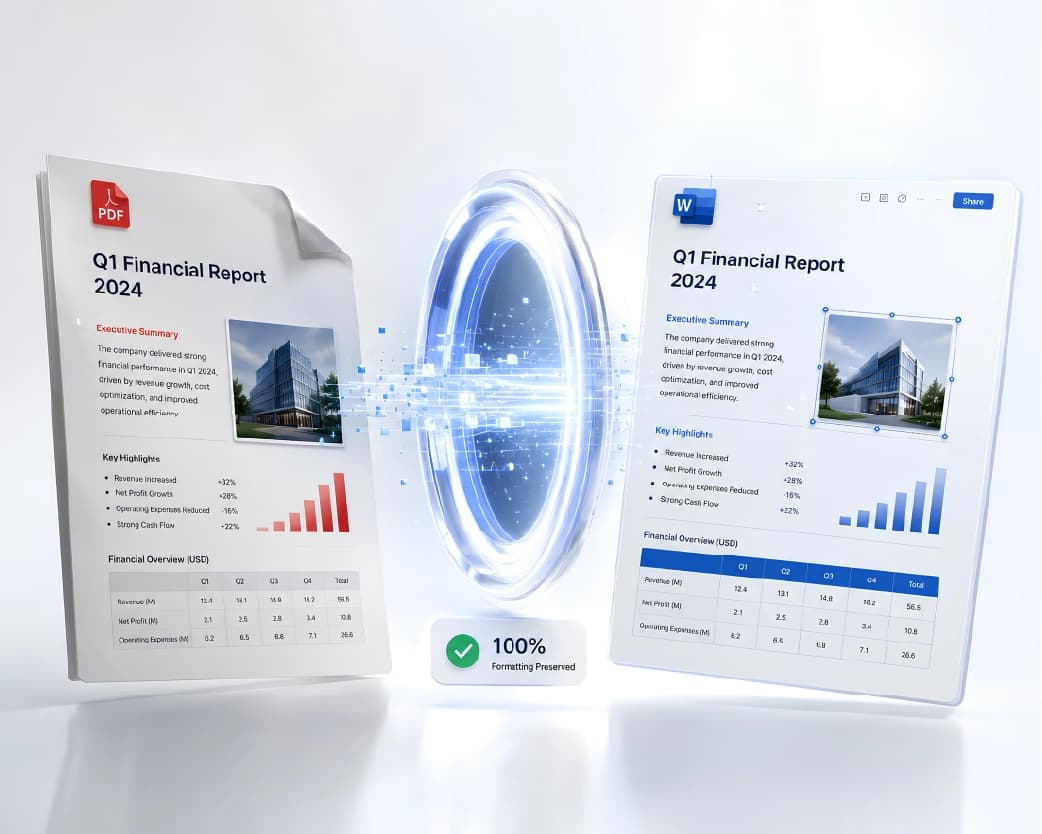
What Does “Print Optimize” Actually Mean?
It means getting your PDF ready so it prints the way you expect. That usually covers a few things:
- Sharp images. Pictures with enough detail to look crisp on paper
- The right page size. So nothing shrinks, stretches, or gets cut off
- Safe margins. So text isn’t too close to the edge
- The right colors. Color or grayscale, depending on what you want
- A sensible file size. Not so huge it won’t upload, not so small it looks fuzzy
- Clean content. Forms, notes, and layers that print properly
You don’t have to do all of this for every file. A homework printout needs less care than 500 brochures. But it helps to know the list.
Step 1: Check Image Quality
This is the biggest cause of blurry prints.
Images need enough detail for paper. A common rule is about 300 DPI, which just means 300 dots of detail per inch of printed size. A picture that looks fine on screen may only have 72 DPI. Blow it up on paper and it turns soft and chunky.
If your image is too small, start with a bigger version if you can. If you can’t, the Image Upscaler can help a little, but it can’t invent detail that was never there. Be honest with yourself about it. A tiny, blurry logo will stay a tiny, blurry logo.
I always ask for the original high-resolution logo or vector file, never a phone screenshot or low-res web snippet.
Step 2: Get the Page Size Right
A very common problem is a size mismatch. A PDF made for A4 paper printed on Letter paper, or the other way around. The printer either shrinks everything or cuts off the edges.
Check your page size before you print. If you’re sending the file to a print shop, ask what size they want. If you’re printing at home, make sure the paper size in your printer settings matches your document.
Step 3: Watch Your Margins
Most printers can’t print all the way to the edge of the paper. Text that sits too close gets cut off. Keep important words and logos at least a quarter inch inside the edge, and more if you can.
If your design has a background color or picture that runs to the edge, a print shop may ask for something called a “bleed.” That’s a little extra color past the edge of the page, so there’s no thin white strip after trimming. If you’re not sure, just ask them how much they need.
Step 4: Think About Color
Colors can shift on paper. Bright, glowing colors from a screen often look duller when printed. That’s what happened to my sister’s pink.
If you don’t need color, turning the file to grayscale saves ink and avoids surprises. If you do need it, print one test page first. What you see on the paper is the truth, not what you see on the screen.
Step 5: Fix Sideways Pages and Odd Layouts
Sometimes a PDF has a page turned the wrong way, or a mix of portrait and landscape pages. That makes printing messy. Fix those first with the Rotate PDF tool, so every page comes out the right way up.
How to Print Optimize PDF Files Online with Plainscan
Plainscan runs in your browser and has over 100 document tools. Nothing to download. It works on a laptop, a tablet, or a phone. Here’s the general flow.
- Find the tool. Go to the tools page and look for the one that prepares a PDF for printing, or open the Print Optimize PDF tool directly.
- Upload your PDF. Drag it in or browse for it. Free accounts can upload files up to 50 MB.
- Choose your settings. Pick your optimization preset (such as standard, office, or high-res pre-press), target DPI (up to 300 DPI), paper size, quality percentage, and whether to force grayscale or fit multiple pages per sheet.
- Process and download. Open the new file and scroll through it.
- Print one test page. Look at it on paper before you print the whole batch.
Plainscan processes even complex multi-page files in seconds, adjusting raster resolutions, color modes, and page bounds smoothly.
Is it free?
To start, yes. After you create a free account, you can process up to 4 documents a day with the basic PDF tools, and it resets every 24 hours. The Print Optimize PDF tool falls under that free daily allowance. AI features and unlimited use need a paid plan, or you can buy credits and use them when you need them.
What About Huge Files?
Here’s a trap. Some people make files tiny so they email easily, then print them. Tiny files often mean squashed images, and squashed images print badly.
If you need one version for email and another for printing, make two. A small one for sending around, and a high-quality one for the printer. If a PDF is full of big photos and you just need it lighter, the Compress Image tool can shrink the pictures first. Just check the printed result, not only the screen.
Printing Scanned Documents
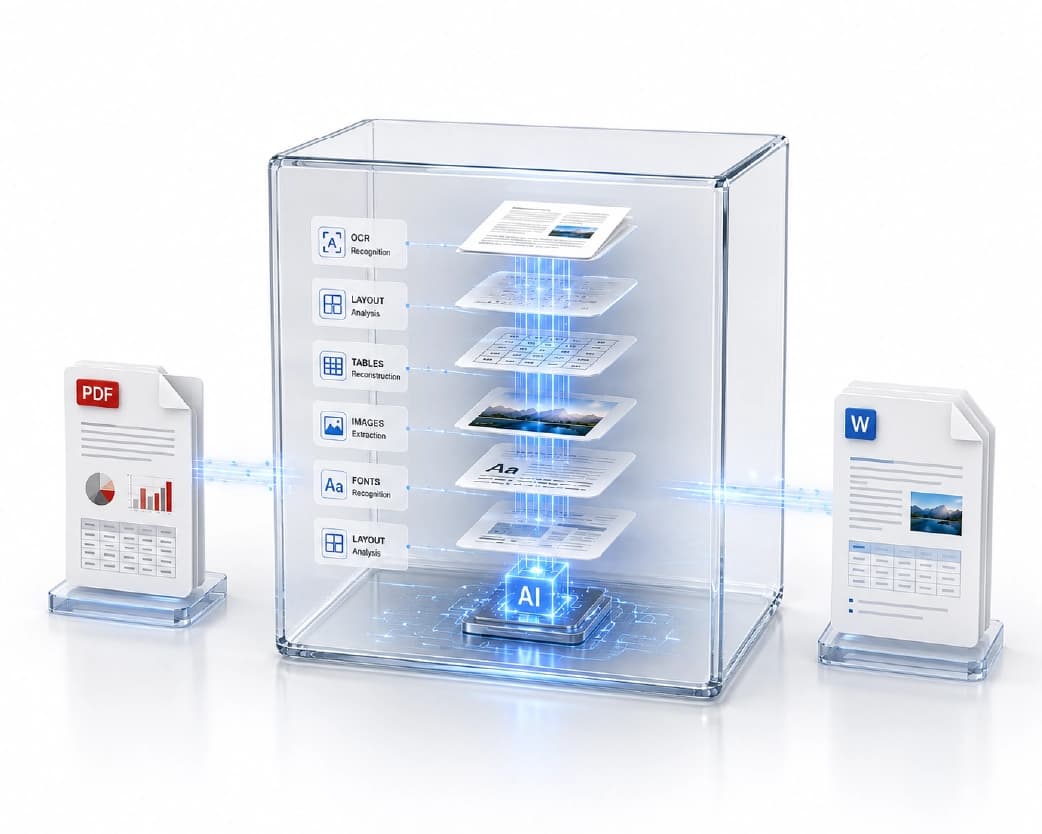
Scans can look okay on screen and terrible on paper, especially if they’re crooked, dark, or low resolution. Rescan at a higher quality if you can, and straighten the page. If you need the words from the scan as text, the Scan & OCR tool can read it, so you can rebuild a cleaner document.
Who Needs This?
Students printing posters and projects. Small business owners printing flyers, menus, and invoices. Teachers making worksheets and handouts. Event planners printing programs and name cards. Anyone who’s ever sent a file to a print shop and held their breath.
Is It Safe to Upload My File?
Fair question. Plainscan uses encrypted HTTPS connections, and uploaded files are deleted automatically within 24 hours.
Still, be careful with very sensitive documents, like ID details or bank info, on any website. Skim the privacy policy of a new tool first. And delete extra copies you don’t need.
Mistakes I’d Skip
- Printing without a test page. One sheet saves a stack.
- Using screenshots instead of original images. They’re almost always too small.
- Putting text too close to the edge.
- Trusting the screen for color. Paper tells the truth.
- Forgetting to keep the original file. Save an untouched copy before you change anything.
- Ignoring the limits. Check file size and your daily cap before a big batch.
Further Reading:How to Crop PDF Pages (Cut the Extra Stuff Out)
Conclusion
Print optimizing a PDF is mostly common sense. Check your images, page size, margins, and colors, fix any sideways pages, and always print one test page first. If you’ve got a PDF headed to the printer, try Plainscan on it today. It’s an easy way to print optimize PDF files, and there are plenty of other free PDF tools to look at while you’re there. My sister’s second batch of flyers came out perfect, and the pink stayed pink.
Related insights







Get the Plainscan App for iOS & Android