
How to Edit PDF Online (Even If You’re Not a Tech Person)
Let me guess. You just found a typo in your resume. Right after you sent it. Or maybe you’ve got a form that needs a signature, and the thought of printing it, signing it, and scanning it again makes you want to lie down. Or a page is sideways and you’ve been tilting your head for ten minutes. Whatever it is, you click around the PDF and nothing happens. It just sits there. Looking smug. Here’s the good news. You can edit PDF online without paying for expensive software, and most fixes take a few minutes. I’ll go through the most common problems one by one.
Recommended to Read:How to Reorder PDF Pages Online (Without Starting Over)
Why Won’t My PDF Let Me Change Anything?
Because PDFs are built to stay put. That’s the whole point. Open one on your phone, your laptop, or an ancient office computer, and it looks the same everywhere.
Great for sharing. Terrible for fixing typos.
Think of a Word file as a whiteboard. Erase, rewrite, done. A PDF is more like a poster glued to the wall. You can look at it, but you can’t just scribble on it.
So when someone says “I need to edit this PDF,” they usually mean one of a few things. Change some words. Turn a page. Join files. Add a signature. Stamp a watermark. Each of these has its own easy fix.
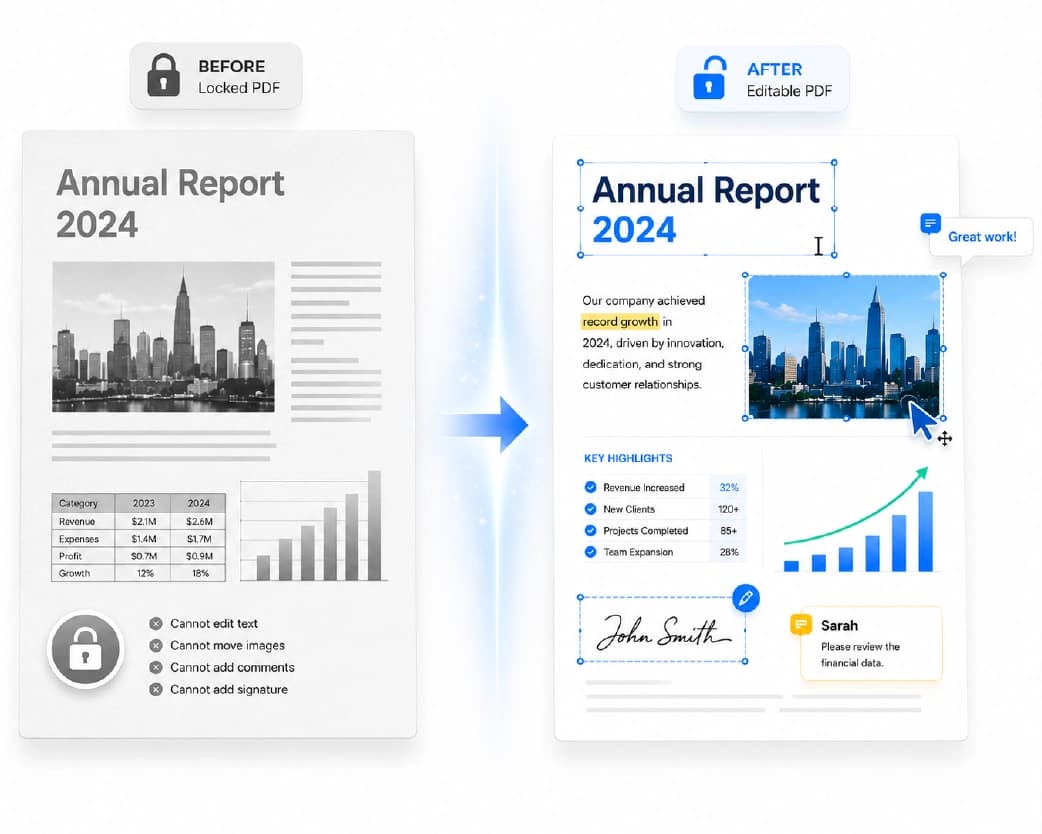
The Usual Problems (and the Usual Fixes)
“I need to change the text”
The classic. A typo, an old address, a date that moved.
Here’s the trick. Turn the PDF into a Word file, fix what you need, then save it as a PDF again. Plainscan’s PDF to Word tool does the first part. Fair warning, the layout can shift a little when you convert, so glance over it before you send it anywhere.
“My page is sideways”
Scans do this constantly. Use the Rotate PDF tool, turn the page, and save the new file. And don’t trust your PDF viewer’s rotate button on its own. It often only changes what you see, not the actual file. Sneaky.
“I’ve got six files and need one”
Resume here, certificates there, ID proof somewhere else. Merge PDF puts them all together, which is what most job and college forms want anyway.
“This needs my signature”
You don’t need a printer for this. Sign PDF lets you add your signature online and move on with your day.
“I want to label this file”
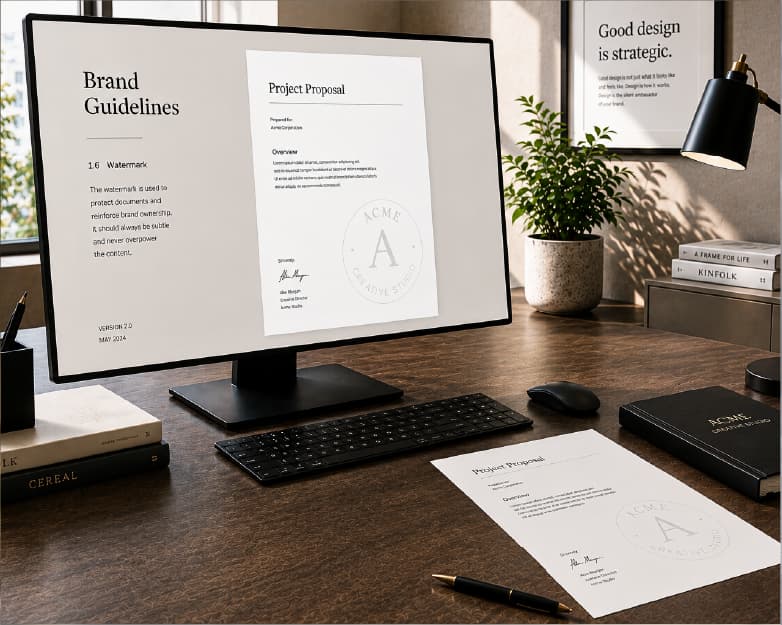
Sending a draft? Something private? A watermark can say “confidential” or carry your company name. Add Watermark is the tool for that.
“I can’t select any of the words”
That means it’s a scan. A scanned PDF is really just a photo of a page, so there’s no text to grab. Scan & OCR reads the image and turns it into text you can actually work with.
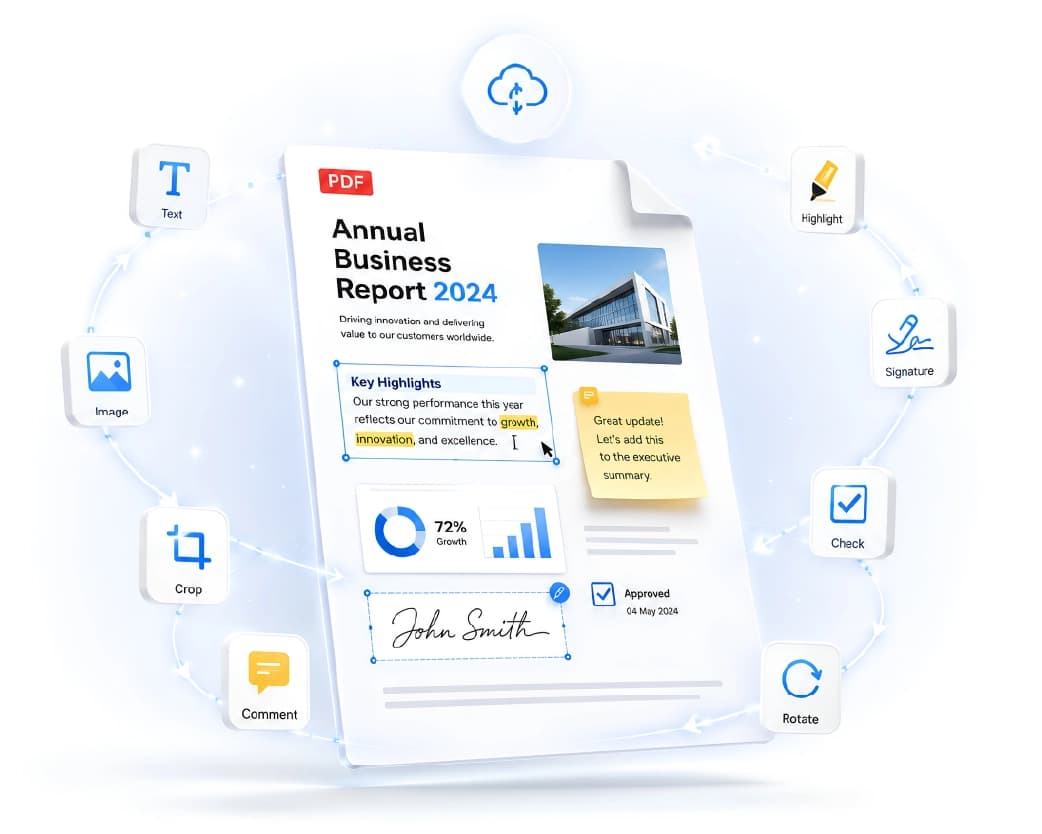
How to Edit PDF Online with Plainscan
Plainscan runs in your browser. Nothing to download, and it works on a phone, tablet, or laptop. The site has over 100 document tools, and they all follow about the same routine, so once you’ve used one, the rest feel easy.
One: pick the tool that matches your problem on Plainscan’s tools page. Sideways page? Rotate. Too many files? Merge.
Two: upload your file. Drag it in or pick it from your device. If you’re on the free plan, you can upload files up to 50 MB, which handles most normal documents.
Three: make your change. Follow the options on the screen and start it. Bigger files can take a bit longer, so be patient.
Four: download the new file, open it, and scroll through every page. Check that your fix worked and nothing else went weird. If something looks wrong, go back to your original and try again.
That’s it. Same four steps, over and over.
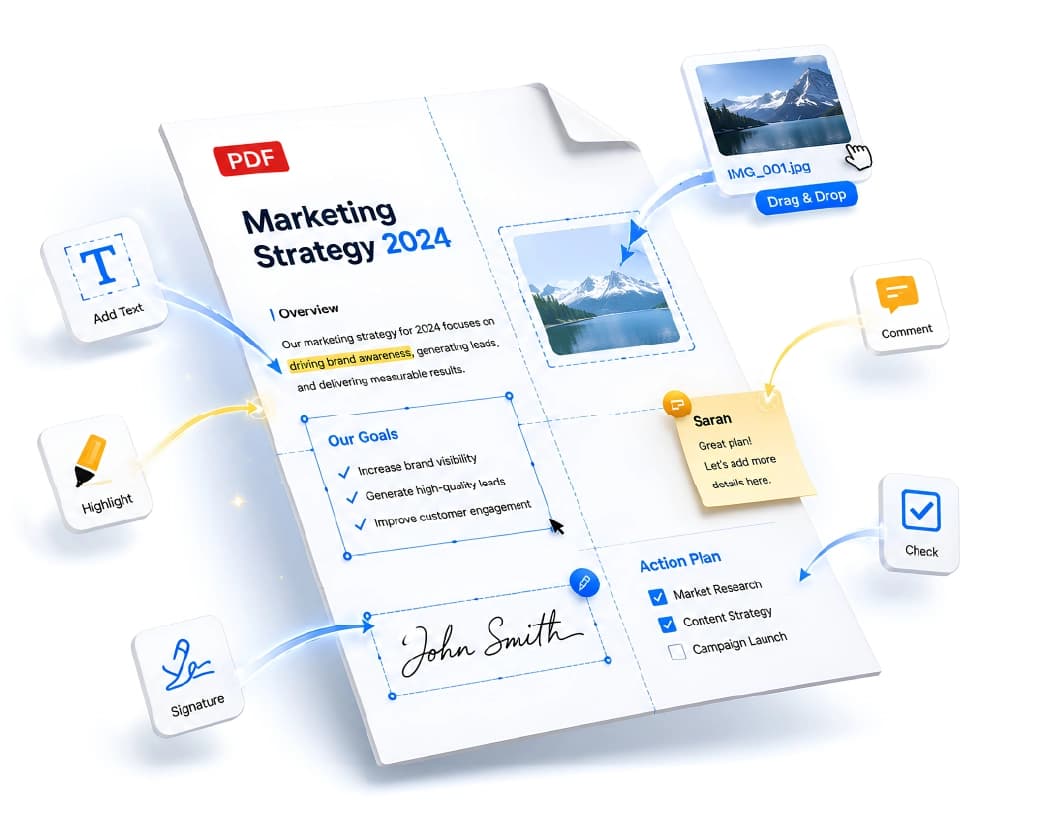
Little Habits That Save You Trouble
Keep your original. Every time. If an edit goes sideways (sorry), you’ll have a clean copy waiting.
Think about order, too. I usually go content first, meaning text and page direction, then merge, then sign, and compress last if the file is too big. If you do it in a random order, you’ll end up redoing stuff.
Speaking of size, Compress PDF can squeeze a heavy file down so it fits in an email.
And name your files like a normal human. “Resume-updated-October” beats “scan0042 (3)” every time.
Is It Safe to Edit PDFs Online?
Always a smart question.
Plainscan uses encrypted HTTPS connections, so your file is protected while it travels. Uploaded files are deleted automatically within 24 hours, and the site says it doesn’t share them with third parties. For everyday papers like resumes, notes, and invoices, that seems fine to me.
But if your PDF has really private things in it, like bank details or ID numbers, stop and think before uploading it to any website. That’s true for every online tool, not just this one.
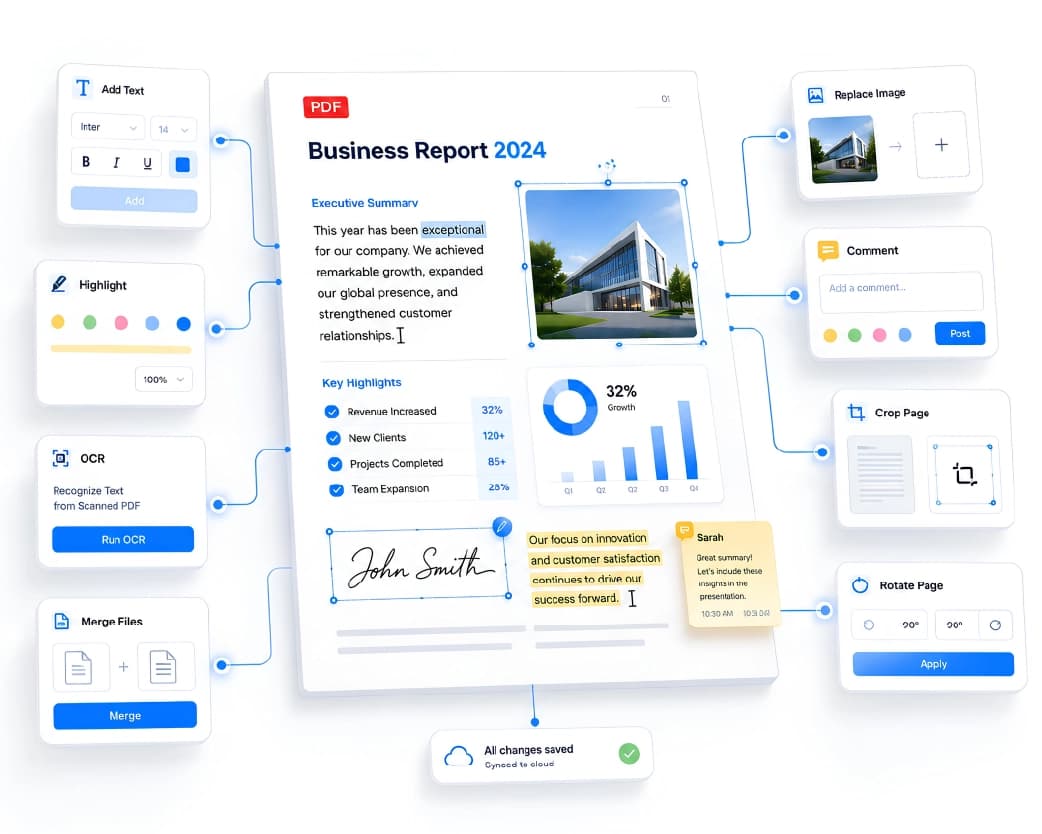
What’s Free?
Enough to get started. Make an account and you can process up to four documents a day with the basic PDF tools. The count resets every 24 hours, so you get a fresh four tomorrow.
If that’s not enough, the Pro plan removes the daily limit and the file size cap. There’s also pay-as-you-go, where you buy credits only when you need them. If you only fix a PDF now and then, free will probably do the job.
Mistakes People Make
Skipping the final check is the big one. Open the finished file and scroll through it. A minute, tops. It can save you from sending a broken document to your boss.
Another is expecting a converted file to look exactly the same. When you go from PDF to Word, fonts and spacing can shift a little. You’ll catch it with a quick look.
Also, try not to edit the same file again and again, each time from the newest version. Every round is another chance for something to go wrong. Go back to your clean original when you can.
And before you share anything, take out what doesn’t belong. Extra pages, private details, old notes. Less is safer.
Check Also:How to Split PDF Files Without the Stress
Conclusion
PDFs can feel stubborn, but fixing them isn’t a big deal. Once you know which tool matches which problem, most edits take a few minutes. Next time a PDF needs a change, don’t stress. Open Plainscan, pick the right tool, and edit PDF online in a few clicks. Then hit send and don’t look back.
Related insights






Get the Plainscan App for iOS & Android