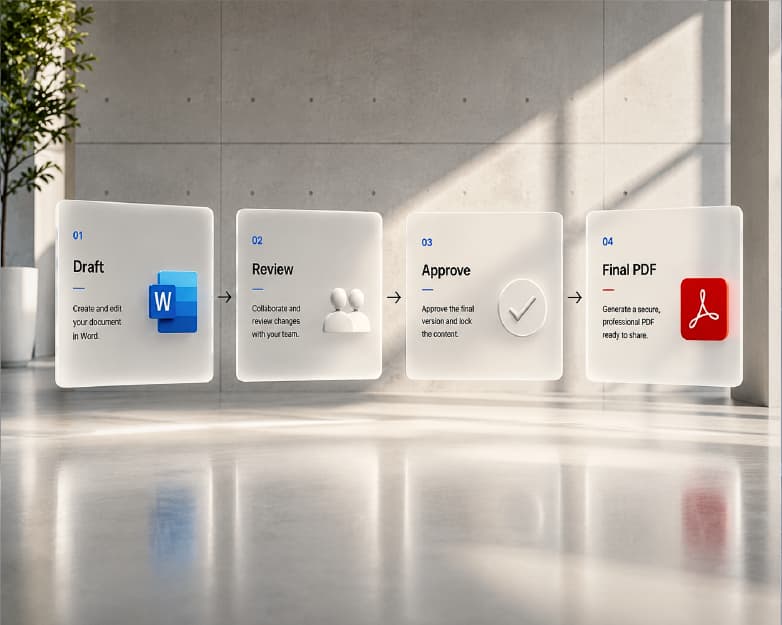
My favorite kind of email is the one that says “see attached” and then attaches a 150-page PDF. Great. Which page did you want me to look at? If you’ve ever been on either side of that, you already get why people want to split PDF files. Maybe your teacher sent one huge file and you only need chapter four. Maybe your accountant asked for the last three pages of a contract, not all forty. Good news, it’s a quick fix. Let me walk you through it.
What Does “Split a PDF” Even Mean?
Pretty much what it sounds like. You take one PDF and turn it into smaller ones.
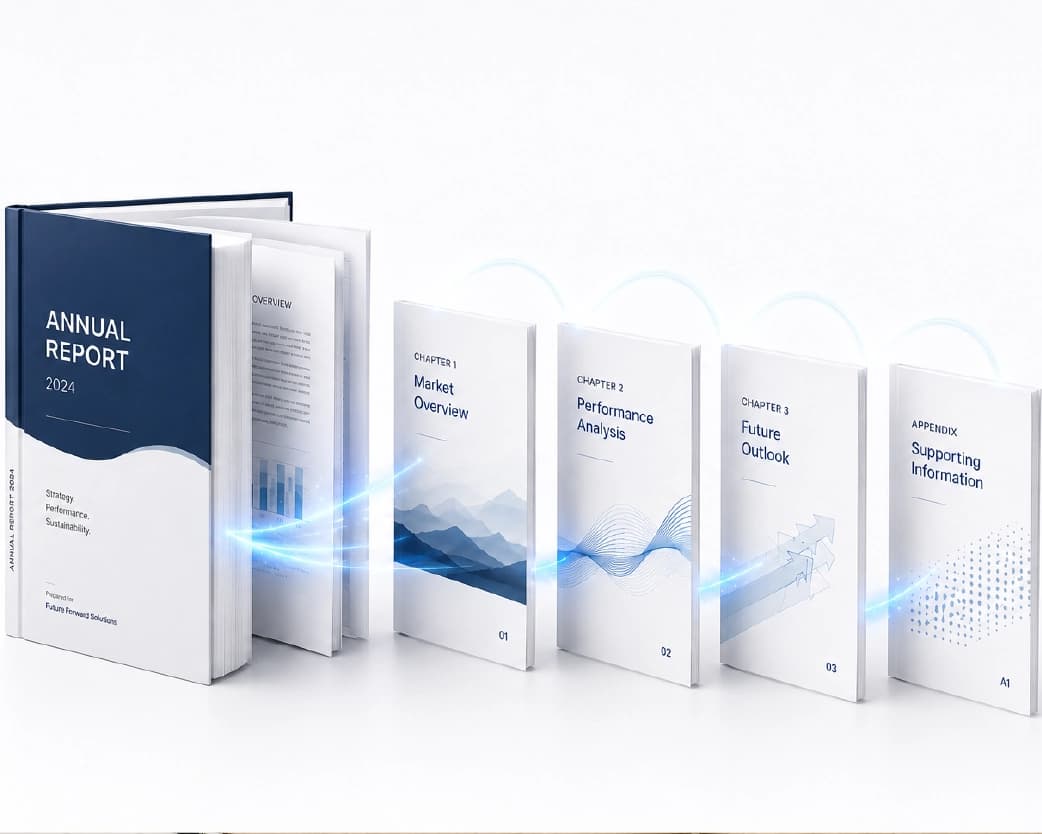
Picture a thick notebook. You tear out one section and hand it to a friend, and the rest stays on your desk. Same idea here. You pick the pages you want, and you end up with a new, smaller file. Some people call this separating PDF pages, and others say extracting pages from a PDF. It’s all the same thing in the end.
Your original file stays as it is, which is a nice safety net.
Why Bother Splitting?
A few reasons come up again and again.
Size is the obvious one. Big PDFs get rejected by email services and upload forms all the time. Privacy matters too. If a document has ten pages but only two are meant for the person you’re writing to, why send the other eight? And then there’s just plain sanity. Nobody enjoys scrolling through 80 pages to reach page 61.
A smaller file is easier to read, easier to print, and way easier to find again three months from now.
How to Split PDF Online with Plainscan
Plainscan runs in your browser, so you don’t have to download anything. Phone, tablet, laptop, whatever’s closest. It has over 100 document tools, and splitting PDFs is one of the useful ones.
Go to the tool
Open the Split PDF page on Plainscan. The upload area is the first thing you’ll see.
Add your PDF
Drag the file in or pick it from your device. If you’re on the free plan, each file can be up to 50 MB. That’s enough for most reports, forms, and study material.
Pick your pages
Choose the pages or sections you want to separate. Slow down for a second here. It’s really easy to be off by one page when you’re in a hurry.
Save the new file
Download it and open it. Scroll through quickly and make sure the right pages are there. Something wrong? Go back to the original and try again.
A Little Prep Goes a Long Way
I know, nobody wants to prep. But two minutes now can save you from doing the whole thing twice.
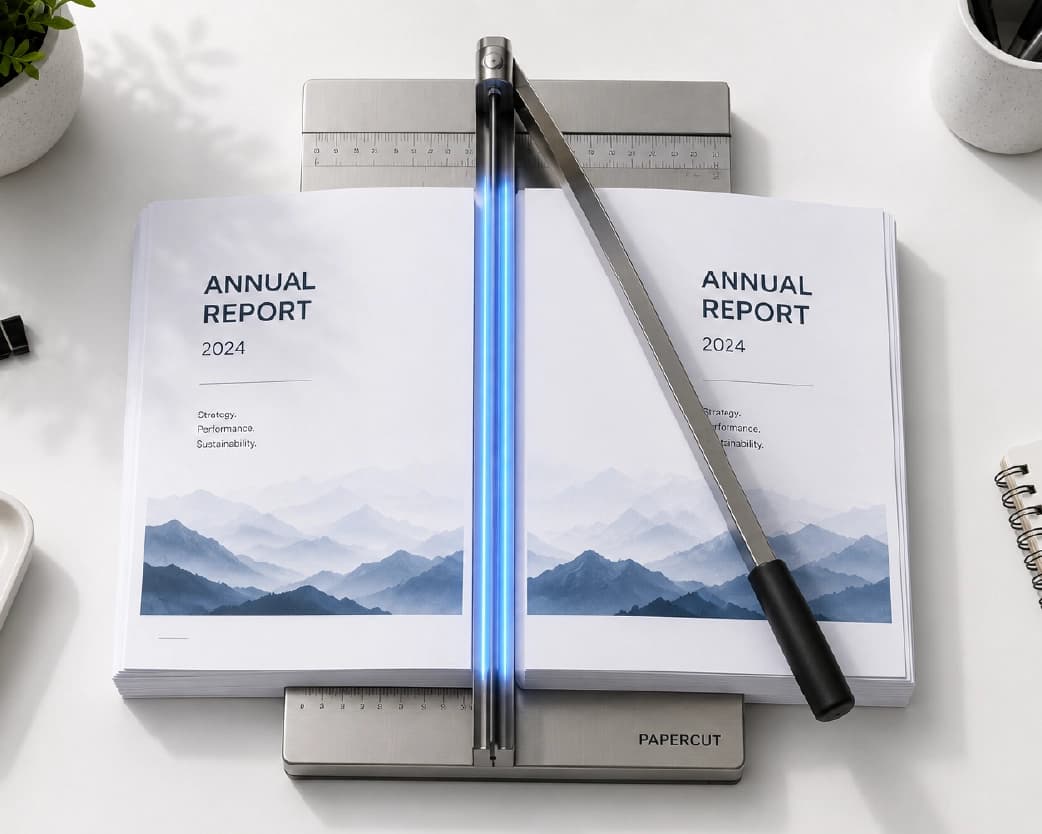
Look through your file first and jot down the pages you need. If you’re cutting a long document into chapters, write down where each one starts and ends. A rough note on paper works fine.
Check for pages that are sideways or upside down, too. They’ll stay that way after you split. You can fix them first with the Rotate PDF tool.
And think about file names. After splitting you might have several files, and “final-final-2” is not going to help you later. Something like “Chapter-4-Notes” will.
Who Gets the Most Out of This?
Students
Say you’ve got one massive PDF with an entire textbook or a whole year of notes. Split it into chapters and carry around only what you need. Studying from a 15-page file feels a lot less scary than from a 300-page one. If some of your pages are scans, Scan & OCR can turn them into text you can search.
People applying for jobs
Maybe your resume, certificates, and ID proof are all stuck together in one file, and the portal wants them uploaded separately. Splitting sorts that out fast.
Small business owners
Scanned a stack of invoices into one file? Split it so each client only gets their own. It looks more professional, and it keeps other people’s details private.
Anyone dealing with paperwork
Bank statements, rental agreements, school forms. Most of the time you only need to share a few pages of them. Split first, then send exactly what’s needed and nothing more.
What to Do After You Split
Splitting is often just one step in a longer job.
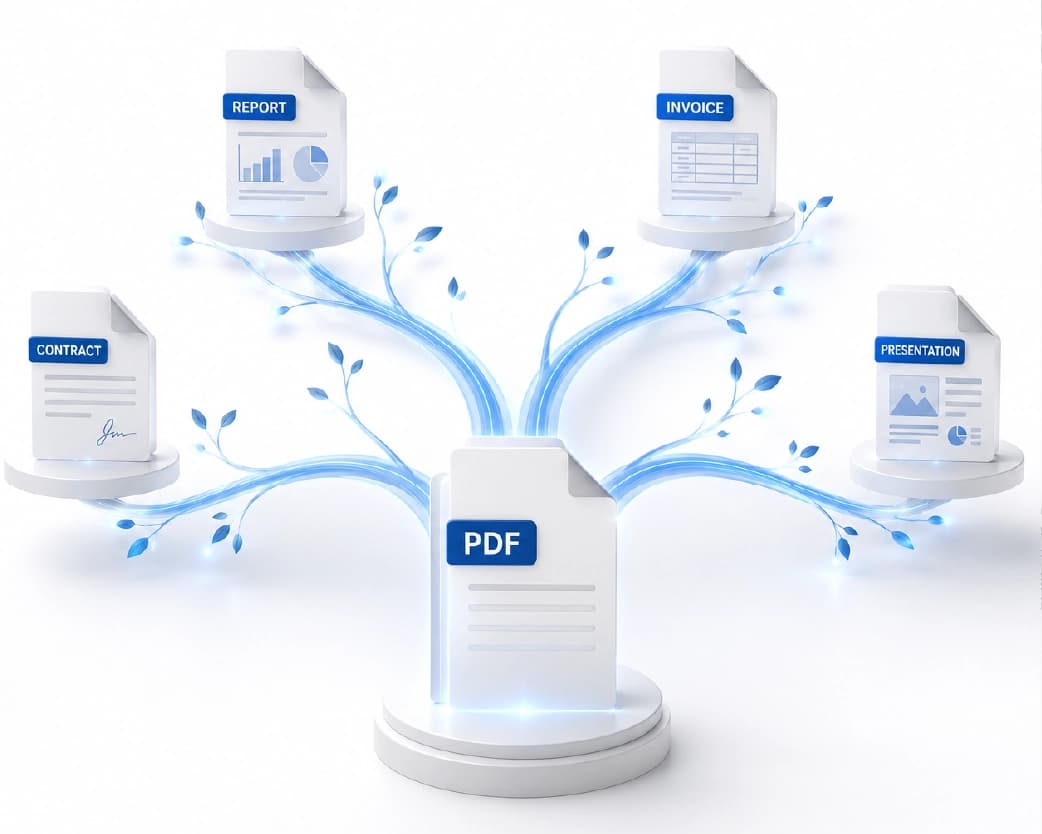
If your new file is still too heavy, run it through Compress PDF. If you split something and then realize you need to stick a few parts back together, Merge PDF is the one to use. And if one of the new files needs your signature, Sign PDF can handle that before you send it.
It’s much nicer having all of it in one place than hopping between five different sites.
Is It Safe to Split PDFs Online?
That’s a smart thing to ask. Plainscan uses encrypted HTTPS connections, and uploaded files are deleted automatically within 24 hours. The site also says it doesn’t share your files with third parties.
For everyday documents like notes, resumes, and invoices, that seems like a reasonable setup to me. But if a file has really private stuff in it, like bank details or ID numbers, I’d think twice before uploading it to any website. That’s true for every online tool, not just this one.
What the Free Plan Gives You
You can start free. Create an account and you can process up to four documents a day with the basic PDF tools. The counter resets every 24 hours, so you get a fresh four tomorrow.
Need more? The Pro plan removes the daily limit and the file size cap. There’s also a pay-as-you-go option, where you buy credits only when you need them. If you only split a PDF once in a while, the free plan will probably cover you.
Easy Mistakes to Avoid
Picking the wrong pages is the big one. It happens when you’re rushing, so check your page numbers twice.
Skipping the final look is another. Open every new file and scroll through it. That takes a minute, and it can save you from sending the wrong pages to your boss or a college office.
Don’t delete your original too early, either. If you suddenly realize you needed one more page, you’ll want the full file to go back to.
And watch your file names. A folder full of “split-1”, “split-2”, and “split-3” gets confusing fast.
Further Reading:Trapped Data in Reports? 7 Smart Ways to Pull Tables Into Excel.
Conclusion
You don’t have to send a giant file when someone only needs a few pages. Once you know how to split PDF files, you can share exactly what’s needed, keep the rest private, and save everybody some scrolling. So next time a huge document lands in your inbox, open Plainscan’s Split PDF tool, pick your pages, and download the new file. Quick and done.
Related insights







Get the Plainscan App for iOS & Android