
Sign Contracts From Anywhere: A Remote-Ready Paperwork Playbook
Remote contract signing allows two or more people to sign legal agreements online without meeting in person or sending physical documents via mail. You upload the document, add your signature with a few clicks, and send it back. This signature is backed by encryption and an 'audit trail' (a record of the process), making it legally valid in most countries-including under the US ESIGN Act, UETA, and the EU's eIDAS regulation. That is the short answer. Now, let's look at how it actually works, what makes it legally valid, and how it can be done securely.
Recommended to Read:Why Files Look Different on Every Device?(Format Fixes Inside)
What Counts as a Remote Signature?
A remote or electronic signature refers to any mark, typed name, drawn signature, or digital stamp that a person adds online to indicate their consent to a document. It is not the same as a scanned image of a handwritten signature, although the latter can sometimes also be considered valid.
Most tools allow you to create a signature in one of three ways:
- Typing your name in a selected font
- Drawing the signature using a mouse, finger, or stylus
- Uploading an image of your handwritten signature
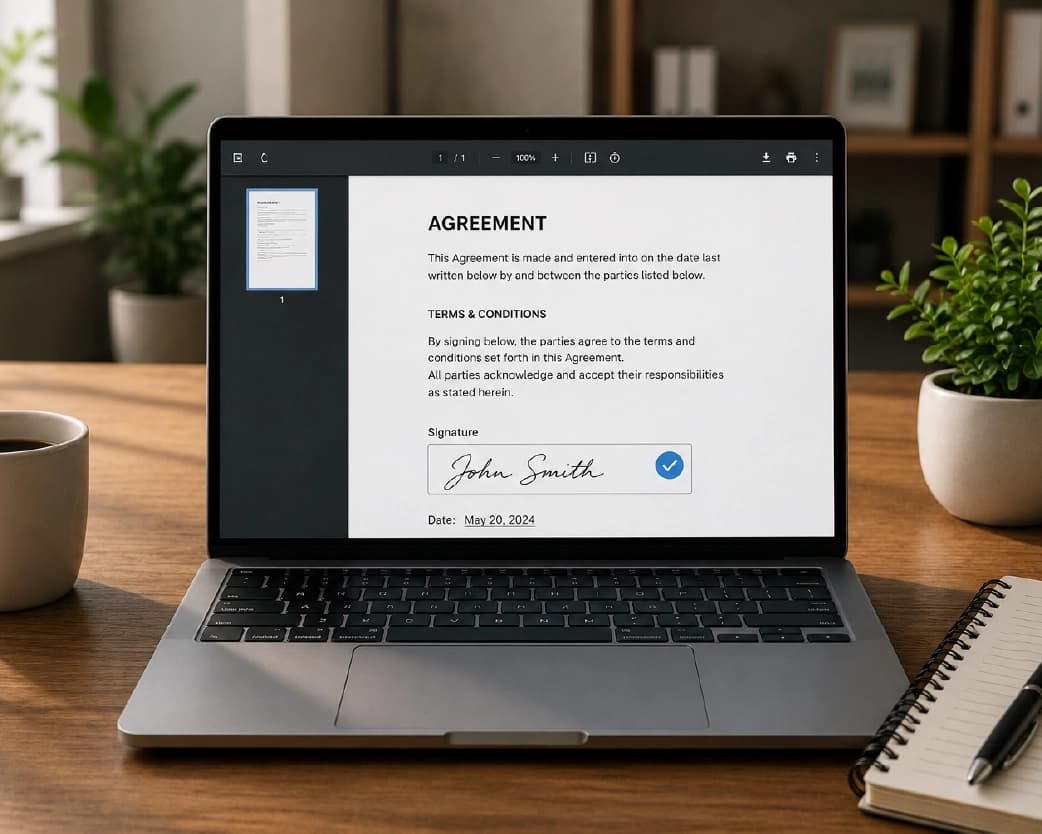
Once added, the signature is securely linked to the document along with a timestamp and a record of who signed it, as well as when and where it was signed.
Is Digital Signature Validity a Real Concern?
Short answer: Generally, no-provided you use the right platform. In most major regions, laws already recognize electronic signatures as legally valid, subject to certain conditions:
- The signer must have the intent to sign.
- The signer must consent to signing electronically.
- The signature must be linked to the document in a way that prevents subsequent alteration.
- There must be a reliable record of the signing process.
In the United States, this is covered by the ESIGN Act and UETA. In the European Union, it falls under the eIDAS regulation, which grants electronic signatures the same legal validity as handwritten signatures. Similar rules apply in most countries outside these regions. However, depending on local laws, certain documents-such as wills or specific types of property transfers-may require a 'wet-ink' signature (traditional signature with ink) or notarization. Therefore, always verify this before signing anything unusual online.
How to Sign Documents Remotely: The Basic Process
Specific screens vary between tools, but the workflow remains largely the same:
- Upload the document. Most platforms accept PDFs, Word documents, and even scanned images.
- Add the people who need to sign. Enter their names and emails, and set a signing order if multiple people are involved.
- Place signature and date fields. Drag them to the specific locations where each person needs to sign.
- Send it out. The platform emails a secure link to each signer.
- Track progress. You can see who has opened, viewed, or signed the document and send reminders if anyone is slow to respond.
- Download the finished file. Once everyone has signed, you receive the completed PDF along with a built-in audit trail.
If you simply need to sign a document yourself rather than sending it to others, the process is much shorter. You simply open the file, place your signature, and save or export it. Tools like Plainscan allow you to do this directly in your browser without creating an account-useful when you just need to quickly sign a document and move on.
What to Look for Before You Pick a Tool?
Not every e-signing tool offers the same level of protection or convenience. Before you commit to one, check these points:
- Legal compliance. The tool should follow ESIGN, UETA, and eIDAS standards, so your contracts hold up if ever questioned.
- A clear audit trail. This is a log of who viewed, opened, and signed the document, along with timestamps and IP addresses. It is your proof if a dispute ever comes up.
- Simple file support. Look for a tool that works with PDFs, Word files, and scanned images without forcing you to convert formats manually first.
- Security basics. Encryption during upload and storage, password protection for sensitive files, and the option to set an expiry or auto-delete files after use.
- Ease of use. If a client or new hire struggles to figure out how to sign, you lose the speed advantage that paperless contracts are supposed to give you.
Why Are Businesses Moving to Paperless Contracts?
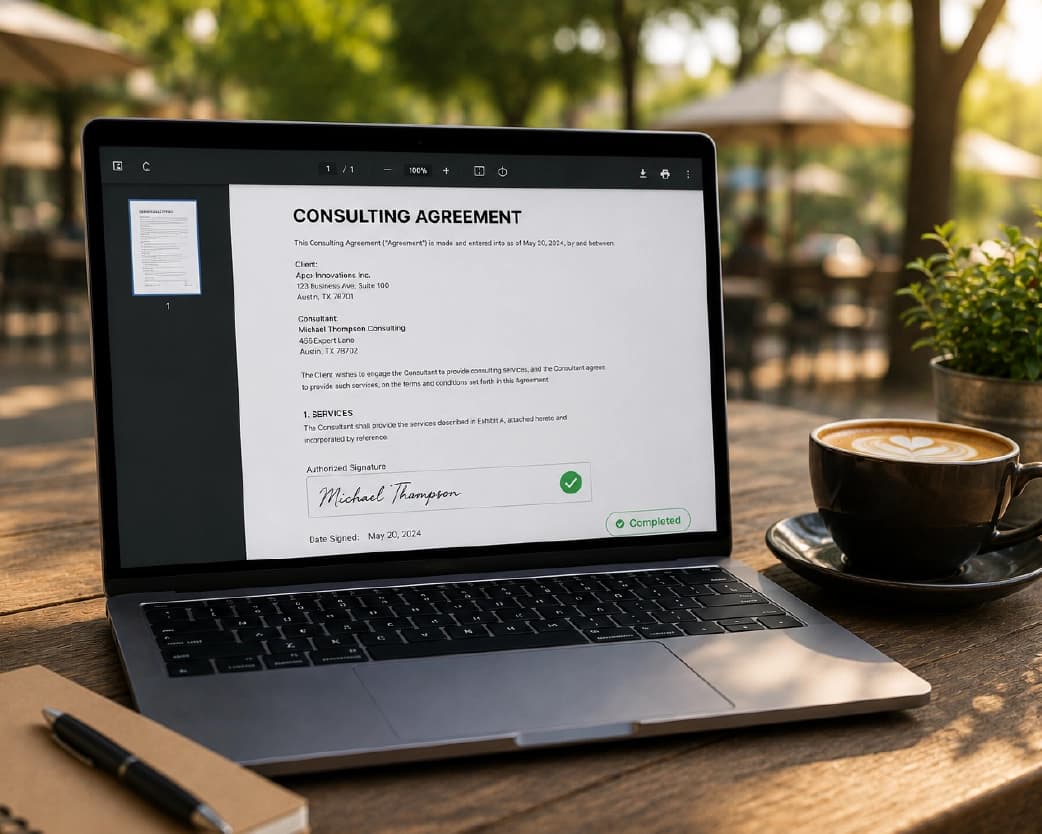
Going paperless is not just about convenience; it transforms how quickly deals are closed and reduces the costs associated with managing them.
- Faster turnaround. Contracts that once took a week via mail can now be signed in minutes.
- Lower costs. No printing, no postage, and no need for physical storage space.
- Fewer errors. Mandatory fields prevent signers from leaving signature or date sections blank.
- Better record-keeping. Signed files are stored digitally, making them easily searchable and accessible during audits.
- Works across time zones. A signer in another country can complete their part without waiting for office hours to align.
This is particularly important for remote teams and freelancers-whether you are hiring someone in another state, closing a deal with an overseas client, or onboarding a new employee who has never set foot in your office. Paperless contracts eliminate friction in all these scenarios.
Common Mistakes to Avoid
Even with the right tool, a few habits can undo the benefits of remote signing.
- Signing without reading carefully. Just because a document loads fast doesn't mean you should skip reading every clause.
- Using an unverified email link. Always confirm the request came from the actual sender before entering personal details or signing.
- Skipping the audit trail check. Before relying on a signed contract, glance at the audit log to confirm it matches what you expect.
- Ignoring file format issues. A document that looks fine on one device can shift or break on another. PDF remains the safest format because it keeps its layout everywhere.
- Forgetting to store a backup copy. Keep your own saved copy of every signed agreement, separate from the platform you used to sign it.
A Few Practical Tips
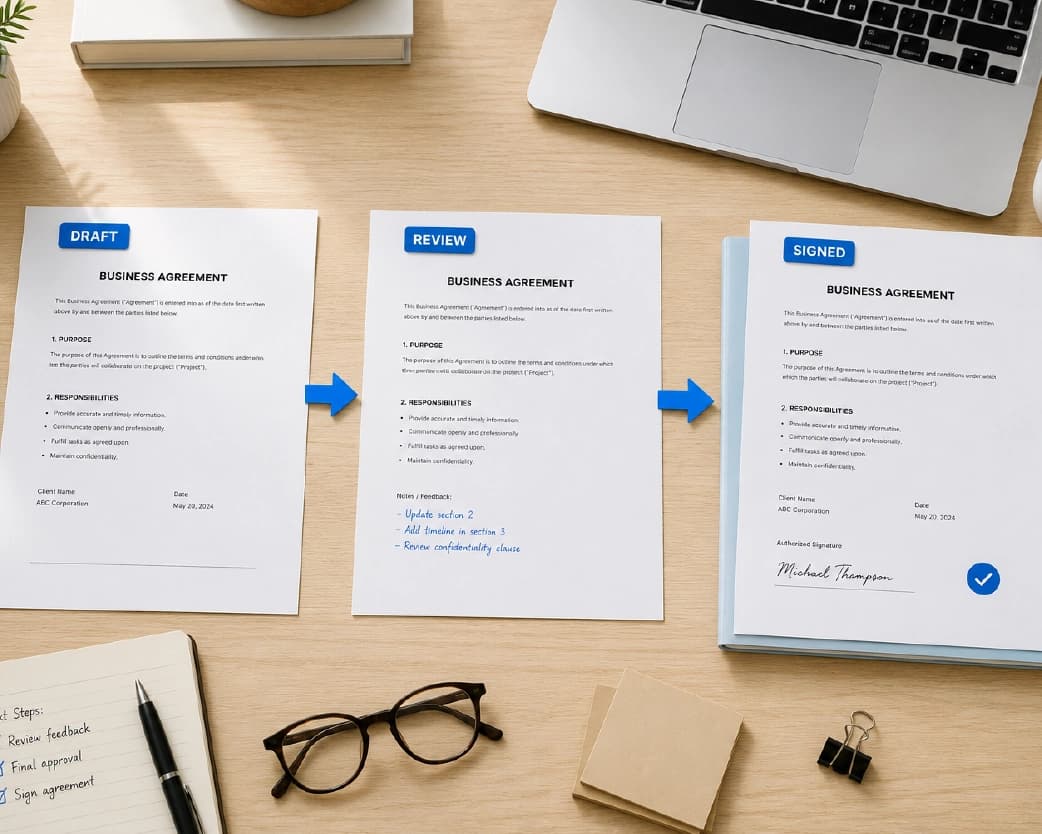
If you frequently work with contracts, adopting a few simple habits can save you a significant amount of time:
- Keep a 'template' ready for recurring contracts (such as NDAs or freelance agreements) so you don't have to start from scratch every time.
- Instead of manually following up via email, set up automated reminders for signing.
- If a document requires quick edits, compression, or a format change before being sent, you can prepare the file within the same browser session using a simple online tool like Plainscan; there is no need for separate software.
- When working across different countries, check whether the recipient's local laws require additional procedures-such as identity verification-for the signature to be considered valid.
Frequently Asked Questions
Q1. Is signing a contract remotely legally equivalent to signing on paper?
Yes, in most cases. Laws such as the US ESIGN Act, UETA, and the EU's eIDAS regulation grant properly executed electronic signatures the same legal validity as handwritten signatures.
Q2. Can I sign a contract remotely using my phone?
Yes. Most e-signature tools work in mobile browsers, allowing you to open the document, add your signature, and send it back without needing a computer.
Q3. What happens if someone refuses to sign a document electronically?
This is where an 'audit trail' plays a crucial role. It records the signer's IP address, device, and timestamp, which can serve as evidence to prove the authenticity of the signature.
Q4. Do I have to pay for e-signature software to sign documents remotely?
Not always. Many tools offer free options for signing a single document, whereas paid plans become useful when you need to regularly send contracts to multiple people or track multiple signatures simultaneously.
Q5. Are there any documents that still require a physical (wet-ink) signature?
Yes, depending on local laws, certain documents-such as wills, court filings, or property deeds-may still require a handwritten signature or notarization. Always check the regulations applicable to your specific type of document.
Q6. How can I tell if a digital signature on a contract is secure?
Look for features such as encryption during upload and storage, a visible audit trail, and compliance with recognized standards like eIDAS or ESIGN. Avoid signing via links sent from unverified sources.
Q7. Can both parties sign a contract remotely and at different times?
Yes. Most platforms allow each person to sign at their convenience, and the document is considered finalized only after all involved parties have signed.
Conclusion
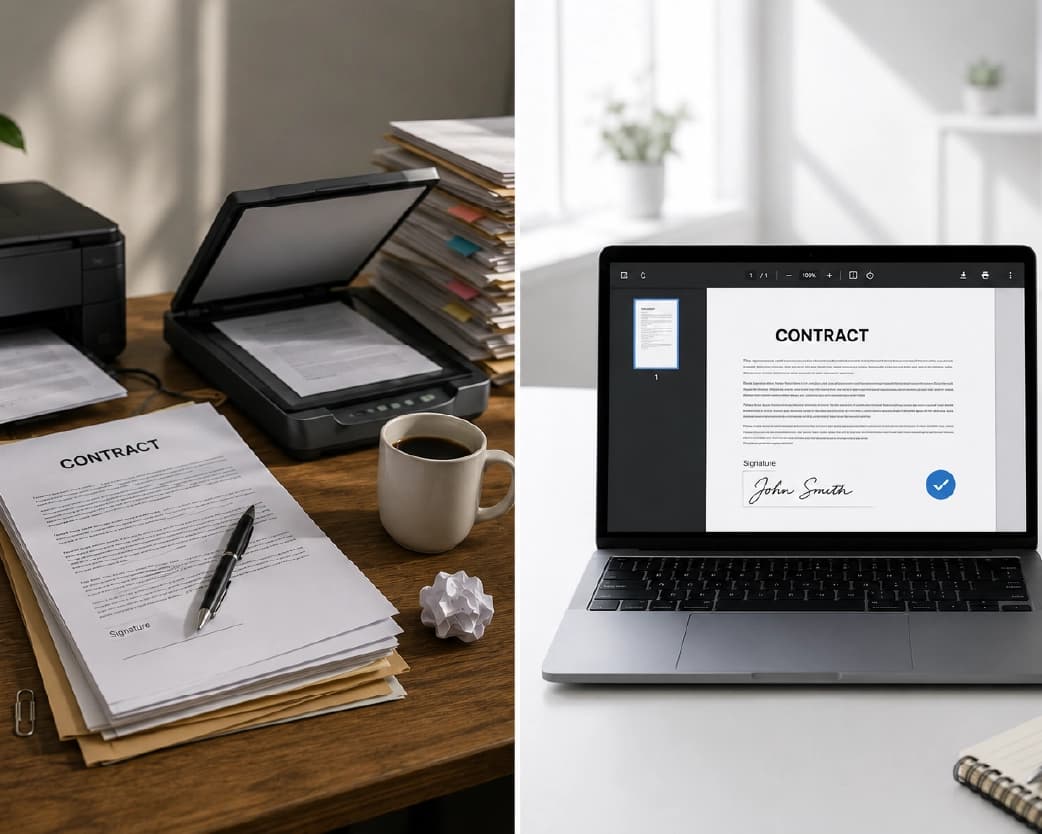
You no longer need a printer, a scanner, or a trip to the post office to sign a contract. With the right platform, there is rarely any need to worry about the validity of a digital signature; you simply need to ensure the essentials are in place-namely consent, a clear audit trail, and a reliable tool. Whether you are finalizing a single deal or managing dozens of contracts a month, adopting a paperless signing process saves time, reduces costs, and keeps your paperwork organized-even when your team is working remotely.
Related insights








Get the Plainscan App for iOS & Android