
How to Convert Scanned PDF Forms into Fillable & Editable Word Documents
Have you ever received a paper form as a scanned PDF and had no way to fill it in on your computer? You try to click on the text, and nothing happens. You try to copy a line, and you get an error. This happens because a scanned PDF is not real text. It is just a picture of text. The good news is that you can fix this. With the right steps, you can turn any scanned PDF form into a Word document that you can edit, type into, and even turn into a fillable form. This guide walks you through the full process, from checking your file to cleaning up the final document, using simple steps anyone can follow.
What Is OCR and Why Does It Matter for Scanned Forms?
Before you convert anything, you need to understand one small but important idea: OCR.
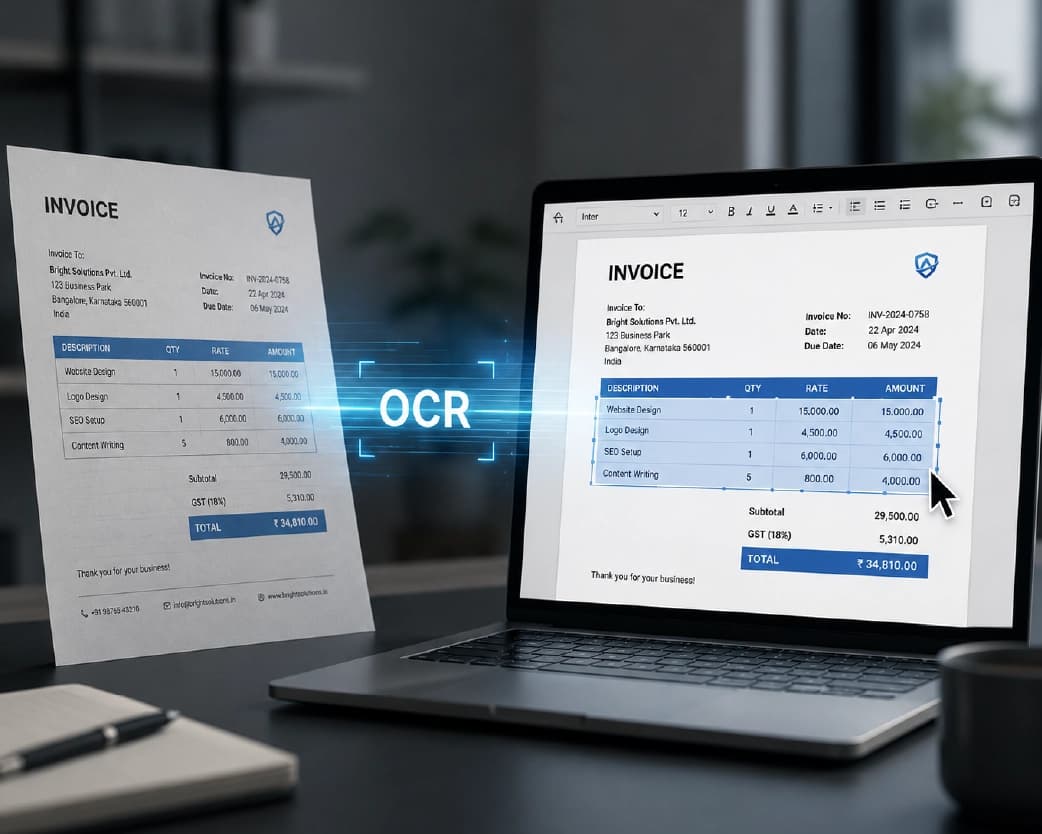
OCR stands for Optical Character Recognition. It is a technology that looks at a scanned document or image and finds the letters and words inside it. It then turns those letters into real, editable text that your computer understands. Without OCR, a scanned PDF stays locked as a picture forever, no matter how many times you try to copy it into Word.
This matters a lot for forms. Application forms, government forms, medical forms, and old office forms are often scanned from paper. OCR is the only way to turn that scanned image into something you can actually type into, correct, or reuse.
How to Tell If Your PDF Form Is Actually a Scanned Image
Not every PDF needs OCR. Some PDFs already contain real, selectable text. You only need OCR when your file is a scan.
Here is a simple test you can do in a few seconds:
- Open the PDF and try to click and drag your mouse over a line of text.
- If the text highlights like a normal webpage, your PDF already has real text. You can convert it to Word directly.
- If nothing highlights, and the whole page acts like one flat image, your PDF is scanned. This means it has no real text layer, and Word cannot edit it properly until you run OCR on it.
This quick check saves you time, because you will know exactly which method to use before you start converting. If you're curious why this happens in the first place, this piece on why scanned PDFs aren't searchable explains it in more detail.
Step-by-Step: How to Convert a Scanned PDF Form to Word
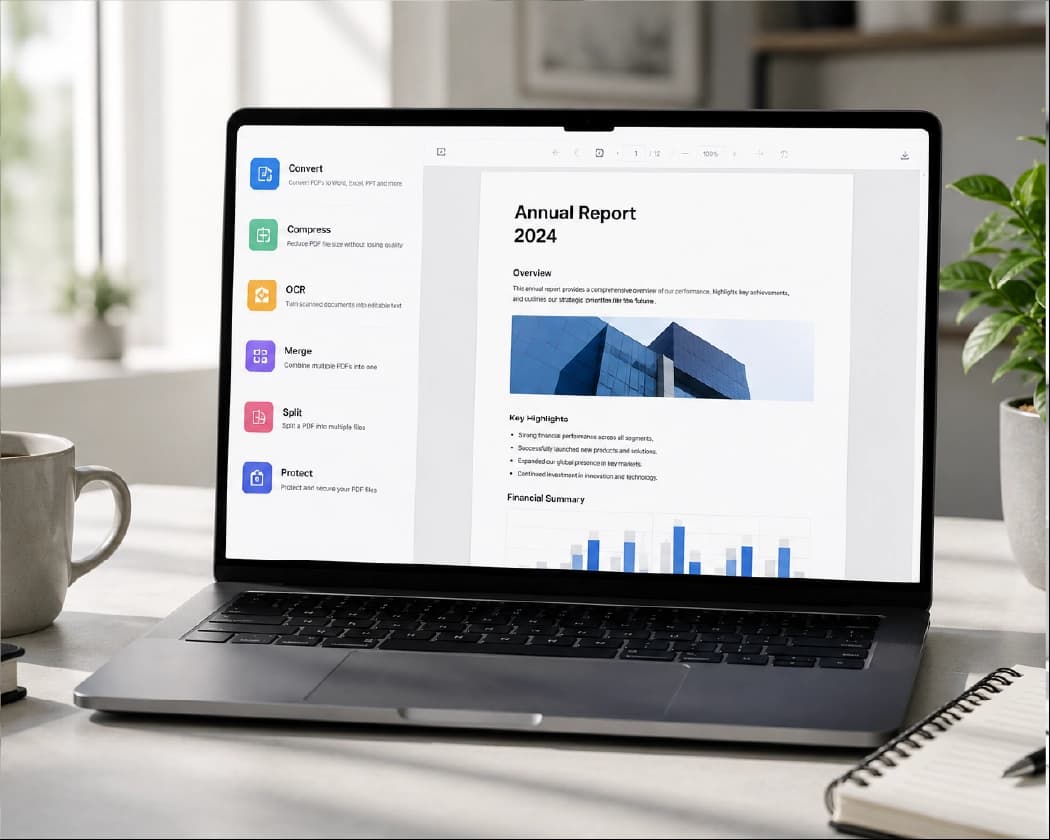
Once you know your PDF is scanned, the conversion process itself is short and simple. Most tools, including a converter like Plainscan, follow the same basic steps:
- Upload your scanned PDF form to the converter.
- Turn on the OCR option so the tool can read the text inside the scan, not just the image.
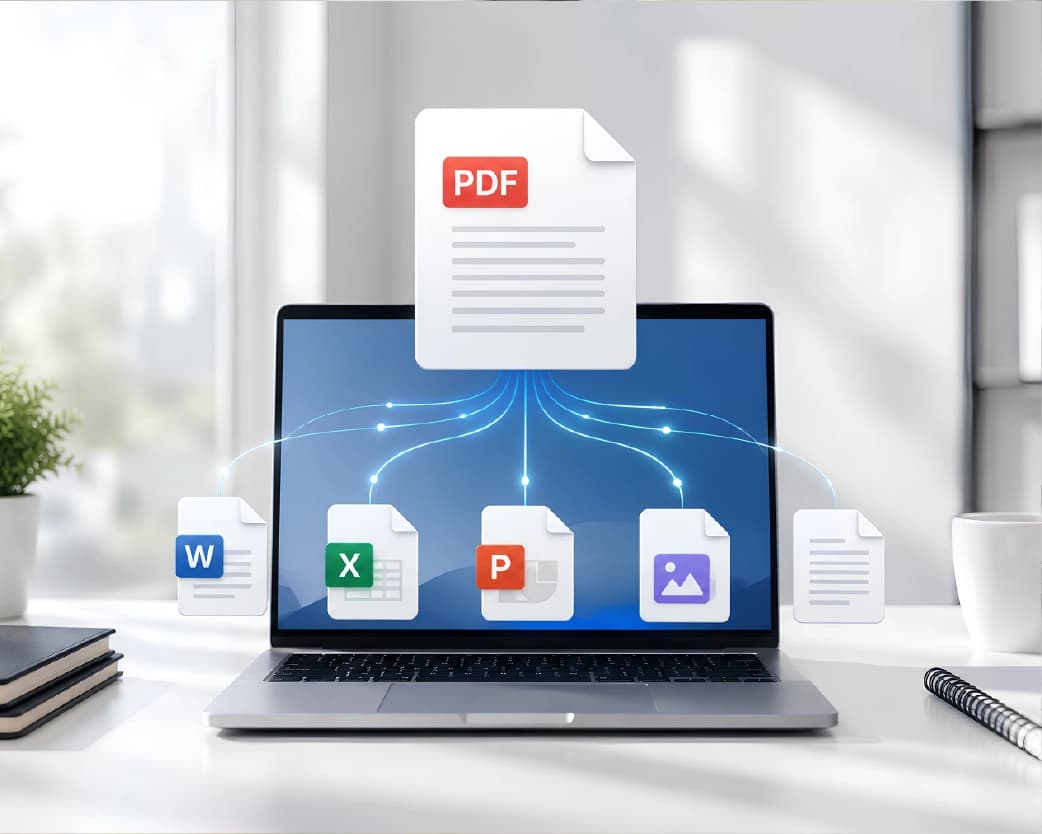
- Let the tool convert the file into an editable Word document using a PDF to Word converter.
- Download the finished .docx file and open it in Microsoft Word or Google Docs.
That's the whole process. In under a minute, your scanned form goes from a locked image to a document you can type into, edit, and reshape however you need.
How to Get Cleaner OCR Results Before You Convert
OCR is smart, but it still depends on the quality of your scan. A clean, clear scan gives you a clean, accurate Word file. A messy scan gives you messy text.
Before you convert your form, check these points:
- Text clarity: If you cannot read the words easily with your own eyes, OCR will struggle too.
- Contrast: Dark text on a plain, light background always converts better than faded or grey text.
- Straight pages: A crooked or tilted scan often causes broken lines and strange spacing in the final document.
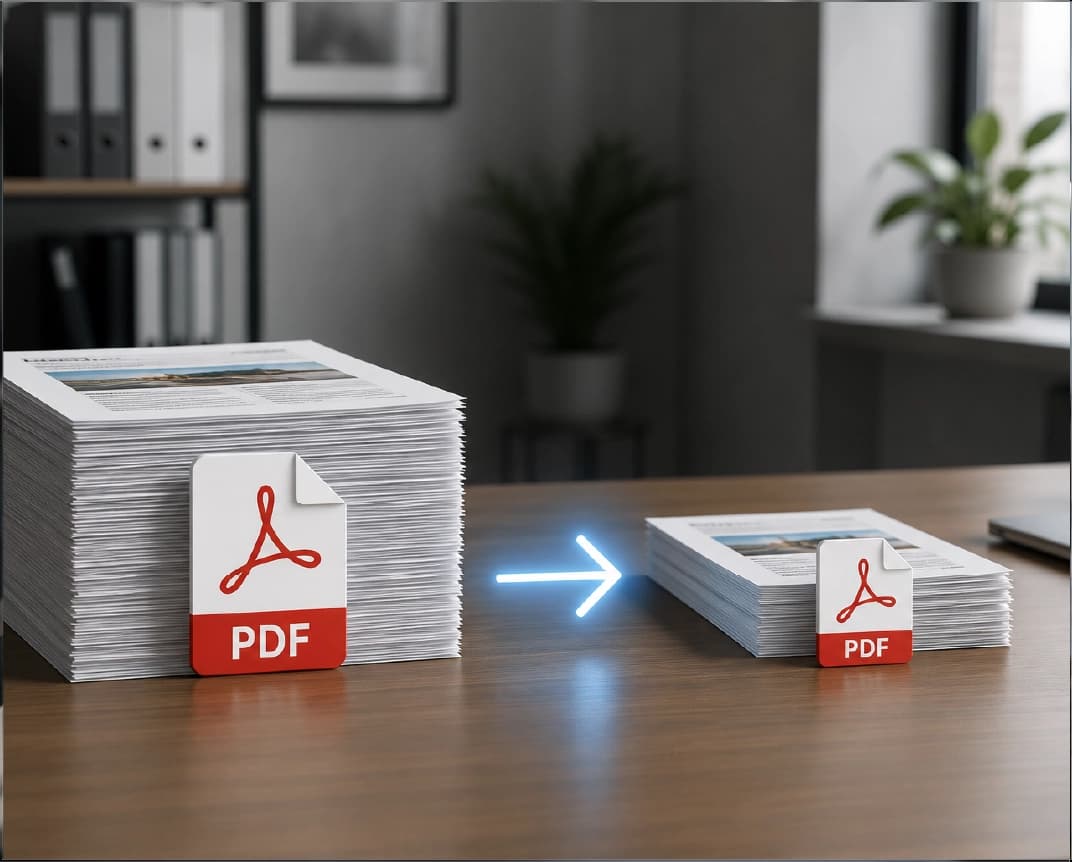
- Resolution: A scan at 300 DPI usually gives sharper, more accurate results than a low-quality scan.
If you are the one scanning the paper form, try to keep the page straight, use good lighting, and scan in grayscale for text-heavy pages. These small habits make a big difference in how clean your final Word form looks.
Common Formatting Problems After Conversion (and How to Fix Them)
Even with good OCR, your converted Word document may need a bit of cleanup. This is completely normal, and most problems are easy to solve.
Here are the formatting issues people run into most often, and simple fixes for each one:
- Wrong or mismatched fonts: Since a scan has no real font information, OCR has to guess. If the font looks off, just apply a clean, simple font like Calibri or Arial across the whole document.
- Shifted text or broken layouts: This usually happens with multi-column pages or complex tables. After converting, scroll through the whole document and check that no text or image has moved out of place.
- Blurry or pixelated images: Photos and logos inside the scan can lose quality during conversion. If this happens, you may need to pull the image out separately and add it back into the Word file.
- Random line breaks or extra spaces: This is common with skewed scans. Use the Find and Replace tool in Word to clean up repeated spaces or broken lines quickly.
Always double-check your document after converting, since even a strong OCR tool can misread a tricky word or shift a table by mistake.
Why You Should Not Just Open a Scanned PDF Directly in Word
Microsoft Word lets you open a PDF file directly, and it will try to turn it into an editable document on its own. This feels like a shortcut, but it does not work well for scanned forms.
When Word opens a scanned PDF without a proper OCR tool, it does not reliably read the text inside the image. You often end up with a document that keeps the general page look but fails to extract clean, editable text from the scan. For a real, working fillable form, a dedicated OCR-based converter gives you far more reliable results than Word's built-in open feature.
Online vs Offline OCR Tools: Which One Should You Pick?
Once you start converting scanned forms often, you may wonder if you should use an online tool or install offline software. Both work, but they suit different needs.
An online converter, like Plainscan, works straight from your browser. You do not install anything, and you can convert a file in seconds from any device. This is great for quick, one-time conversions. The trade-off is that your file needs to be uploaded to a server, and most free online tools limit you to one file at a time.
Offline software, on the other hand, runs directly on your computer. It does not need the internet, it usually has no file size limit, and it can convert many files together in one batch. This suits people who convert scanned forms regularly, such as office staff handling stacks of paperwork every week.
If you only need to convert a form once in a while, an online tool is faster and simpler. If you handle scanned forms often, offline software saves you more time in the long run.
How to Turn Your Converted Word Document into a Fillable Form
Converting the scan into Word is only half the job. To make it a true fillable form, you need to add real form fields that people can click into and type.
Here is how you do it in Microsoft Word:
- Open the Developer tab in Word. If you don't see it, turn it on through Word's Options menu under "Customize Ribbon."
- Place your cursor where you want a fillable box, such as next to "Name" or "Date."
- Click Plain Text Content Control for text boxes, or Check Box Content Control for tick boxes.
- Repeat this for every blank line or field on the form.
- Once every field is added, save the file and lock the rest of the document so people can only type in the boxes you created.
This step turns a plain, editable Word page into a real digital form that anyone can fill out on their screen, without printing or writing by hand.
Real Uses for Fillable Word Forms
Turning scanned forms into fillable Word documents helps in many everyday situations:
- Old paper forms: Government forms, school admission forms, or old employee forms can be rebuilt in Word and reused digitally instead of being printed and filled by hand.
- Contracts and agreements: Scanned contracts can be turned into editable Word files so legal or sales teams can update terms without retyping the whole document.
- HR and admin paperwork: Employee forms, leave applications, and internal documents become much faster to update once they exist as clean Word files.
- Client and business documents: Invoices, proposals, and reports that only exist as scanned PDFs can be refreshed, rebranded, or corrected in minutes.
Once a scanned form becomes an editable Word file, you save hours of retyping every time it needs to be filled, shared, or updated.
Frequently Asked Questions (FAQs)
Can I convert a scanned PDF form to Word for free?
Yes. Many online tools, including free plans, let you upload a scanned PDF, run OCR, and download an editable Word file at no cost, though some advanced OCR features may need a paid plan.
Will the converted Word document keep the original form layout?
In most cases, yes, especially with a clear, straight scan. Complex tables or multi-column forms may need small manual adjustments after conversion.
Do I need special software to make a Word document fillable?
No. Microsoft Word already has a built-in Developer tab that lets you add text boxes, checkboxes, and other fillable fields for free.
Why does my converted form have strange spacing or line breaks?
This usually happens because of a skewed or low-quality scan. Re-scanning the page straight, or using Find and Replace in Word, fixes most of these issues.
Is OCR accurate for handwritten forms?
OCR works best on printed text. Handwriting is much harder to recognize accurately and may need manual correction after conversion.
Can I convert scanned PDF forms to Word on my phone?
Yes. Most online converters work in a mobile browser, so you can upload a scanned form, apply OCR, and download the Word file directly from your phone.
Recommended to Read:Image to PDF Converter: Convert Phone Photos into Professional Documents
Conclusion
A scanned PDF form does not have to stay stuck as an image forever. With OCR, a good scan, and a few cleanup steps, you can turn it into a clean, editable Word document, and then into a true fillable form that anyone can complete on screen. Whether you convert forms once in a while or every week, tools like Plainscan make the process quick, so you spend your time actually using your documents instead of fighting with them.
Related insights








Get the Plainscan App for iOS & Android