
Why Files Look Different on Every Device?(Format Fixes Inside)
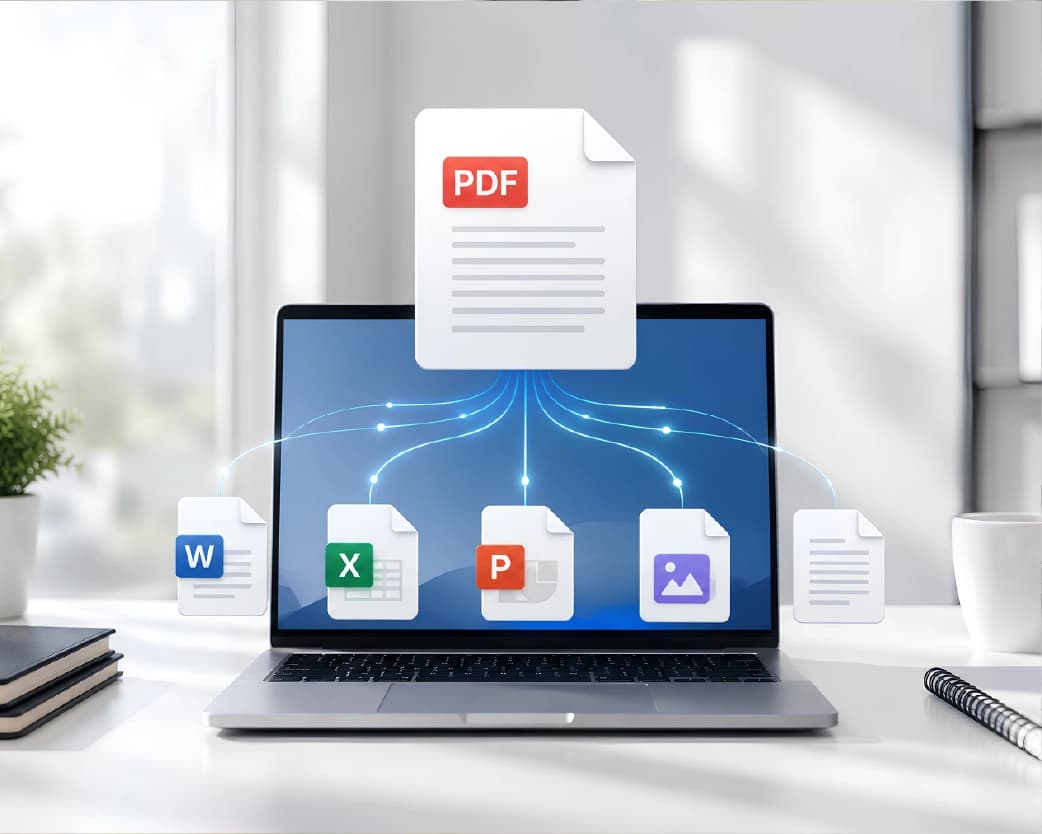
Your file looks different on another device because each device uses its own fonts, software versions, and screen settings to 'rebuild' the file from scratch. A Word file does not contain a fixed image of itself-it merely holds instructions, and each device follows those instructions slightly differently. This is the primary cause of most file format compatibility issues, and it is also the reason why a PDF generally looks the same everywhere. Once you understand this, the solution is simple: convert documents that need to look identical across different platforms into a 'locked' format, such as PDF, before sharing them.
Why Does the Same File Look Different Everywhere?
A Word, Excel, or PowerPoint file is not a photograph of your page. It is a set of instructions-such as "use this font, this size, and this spacing"-that the software on the receiving device reads and renders. If the device lacks any specific information or component, it makes an estimate, and that estimate rarely matches the original document exactly.
1. Missing or different fonts
This is the primary cause of document formatting issues. If you use Calibri or a custom brand font that isn't installed on the other device, the software substitutes it with a "similar" font. Since the substitute font rarely occupies the exact same amount of space, sentences shift, line breaks change, and the total page count in long documents can vary significantly (increasing or decreasing).
2. Printer settings alter the layout
Word uses the currently selected printer-even if you never actually print anything-to determine page size, margins, and line breaks on the screen. Two people viewing the same document might see different page counts if they have different default printers, because Word is formatting the layout for a printer that isn't actually being used.
3. Different Software Versions
Word, Excel, and PowerPoint often change their formatting rules with almost every new version. Minor settings-such as the spacing between paragraphs sharing the same style-function differently across versions. A document meticulously crafted in one version may experience changes in spacing, bullet styles, or table layouts when opened in an older or newer version.
4. Desktop, Web, and Mobile Applications
Desktop applications utilize robust rendering engines designed for precise, print-accurate layouts. In contrast, web and mobile versions rely on simpler, browser-based engines that do not support the full range of features. This is a primary cause of issues when viewing documents across different devices; for instance, a document created in desktop Word may undergo formatting changes, table simplification, or content rearrangement when opened on a phone or in a web browser.
5. Hidden Templates and Styles
Every Word document is based on a "base template." In workplaces where IT departments utilize shared company templates, two seemingly identical documents may actually contain different internal style rules; As a result, the same heading or bullet point may appear differently depending on the computer used to create it.
6. Differences in screens and displays
Screen resolution, color calibration, and zoom levels do not alter the file itself, but they do affect its readability. Text that appears clear and well-spaced on one monitor might look cramped or blurry on another.
Word vs PDF Difference: Why One Changes and the Other Doesn't
This is the question behind most of these problems, so it's worth answering directly.
A Word document is an editable format. It stores instructions, not a fixed image, so it depends on the fonts and settings of whatever device opens it.
Continue Reading:How to Remove a Password From a PDF Without Any Software?
A PDF is a locked format. It captures the exact visual layout - fonts, spacing, images, page size - and freezes it into the file itself. Opening a PDF on a laptop, a phone, or a different operating system shows the same result every time, because the device isn't rebuilding anything; it's just displaying what's already fixed in place.
The simple rule:
| Need | Best Format |
|---|---|
| Someone needs to edit or comment on the content | Word (.docx) |
| Someone just needs to read or sign the content | |
| You're sending a final, finished version | |
| You're collaborating on a draft | Word or Google Docs |
How to Fix Formatting Issues Before You Share a File?
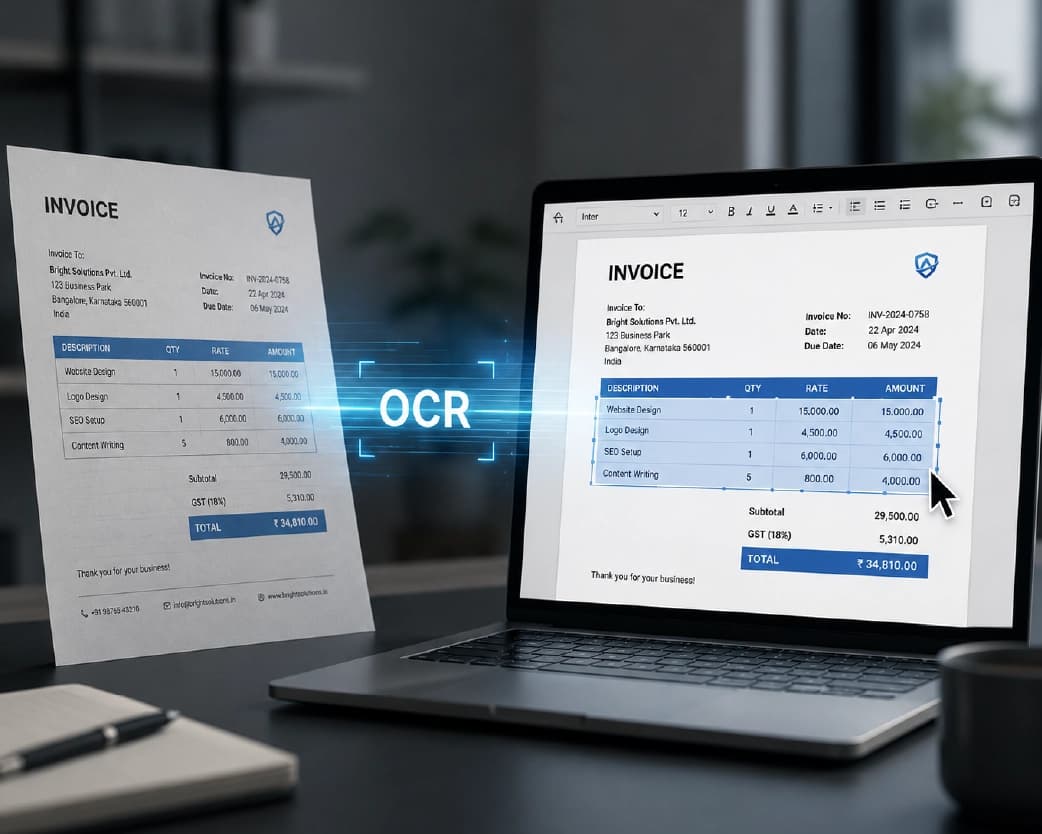
- Convert it to PDF for final sharing. If no further changes are required, save or export the document as a PDF. This is the most reliable method for sharing files across different platforms, as it completely eliminates uncertainties regarding fonts and software versions. Browser-based tools like Plainscan allow you to convert a Word file to PDF (or vice versa) in seconds without installing any software; this proves particularly useful when working on a device that does not have Word installed.
- Stick to common fonts. Arial, Calibri, Times New Roman, Georgia, and Verdana are installed on nearly every system. Avoid decorative or custom fonts in documents you plan to share widely.
- Embed fonts in Word files. If you must send an editable Word file with a specific font, go to File → Options → Save → and turn on "Embed fonts in the file." This packs the font data into the document itself.
- Avoid tight, pixel-perfect layouts in Word. If exact positioning matters (brochures, forms, certificates), design it as a PDF or image from the start instead of fighting Word's layout engine.
- Test on a second device before sending important files. Open the file on a phone, a different computer, or in a web browser before you send it to a client or print it in bulk.
- Use simple tables and inline images. Complex nested tables and floating images are the most likely elements to break when opened in Word Web or on mobile.
Common Mistakes People Make
- Assuming that because something looks fine on your computer, it will look fine everywhere else.
- Sending a Word file even when the recipient only needs to read the document (and not edit it).
- Using custom fonts without embedding them or without checking if the recipient has those fonts installed.
- Failing to check how the document looks on a mobile device before sending it to a large group.
- Mixing formats across different tools (e.g., writing in one app and editing in another) without checking the final layout.
A Quick Way to Think About It
Think of a Word file as a 'recipe' and a PDF as the 'finished dish.' A recipe depends on the kitchen (device) where it is prepared-results can vary slightly due to different ovens and available ingredients. A finished dish, however, looks the same to everyone. If you want consistency, serve the dish-not the recipe.
Frequently Asked Questions
Q1: Why does my Word document have more pages on another computer?
This usually happens due to font substitution or a different default printer. If a font is missing, the text may take up more or less space; Additionally, Word adjusts the page layout based on the printer selected for that device, even if nothing is actually being printed.
Q2: Will a PDF always look the same on every device?
In most cases, yes. PDF locks the layout, fonts, and spacing, ensuring it appears consistently across computers, phones, and operating systems. Exceptions may occur only with outdated or corrupted PDF readers that do not fully support the file format.
Q3: Can I convert a Word file to PDF without losing formatting?
Yes. Exporting or saving a Word file as a PDF preserves its formatting exactly as it appears at that moment; this makes it the safest option for sharing a finished document.
Q4: Why does my document look fine on my laptop but appear distorted (messy) on my phone?
The mobile and web versions of Word use a simplified rendering engine that does not support every formatting feature. Elements such as complex tables, custom fonts, and specific spacing may shift or disappear on smaller screens.
Q5: How can I send an 'editable' file that looks exactly the same everywhere?
In a Word file, 'embed' the fonts via 'File → Options → Save → Embed fonts' and use only commonly available fonts. This reduces the risk of formatting changes across different devices, though it does not eliminate the possibility entirely.
Q6: Is it better to send a Word file or a PDF for a job application or an official document?
For any official matter, PDF is generally the safer option because the layout does not change and formatting is not lost when the file is opened, regardless of the software or device used by the recipient.
Conclusion
Just because files look different doesn't mean something is wrong. They appear different because editable formats rely on the device opening them-specifically, the fonts, software version, and screen. Once you understand this, the solution is simple: use Word files for collaboration, and convert them to PDF when the document needs to be read, signed, printed, or shared as a final version. Quick conversion using a browser-based tool like Plainscan can save you from unexpected formatting issues before sending an important file.
Related insights








Get the Plainscan App for iOS & Android