
How to Compress Video Files Online Without Losing Quality?
Instead of arbitrarily reducing the file size, the fastest way to compress a video while maintaining its quality is to use an online video compressor to lower its bitrate and resolution. You simply upload the video, select your desired size or quality level, and download the smaller file within minutes. There is no need to install software or create an account, and if you choose the right tool, the final video will not have a watermark. This guide explains how video compression actually works, how to do it step-by-step, and how to avoid common mistakes that degrade image quality.
What Happens When You Compress a Video?
A video file is made of three things: resolution (how many pixels it has), bitrate (how much data it uses per second), and codec (the method used to pack that data). Compression works by adjusting one or more of these.
- Lowering the bitrate removes some fine detail but keeps the same resolution.
- Reducing the resolution (say, from 4K to 1080p) cuts file size a lot, since fewer pixels need data.
- Changing the codec helps too. Newer codecs like H.265 can store the same picture in a smaller file than older H.264, though not every device or app supports H.265 well yet.
A good compressor balances these three settings so the drop in quality is barely visible, even though the file shrinks a lot.
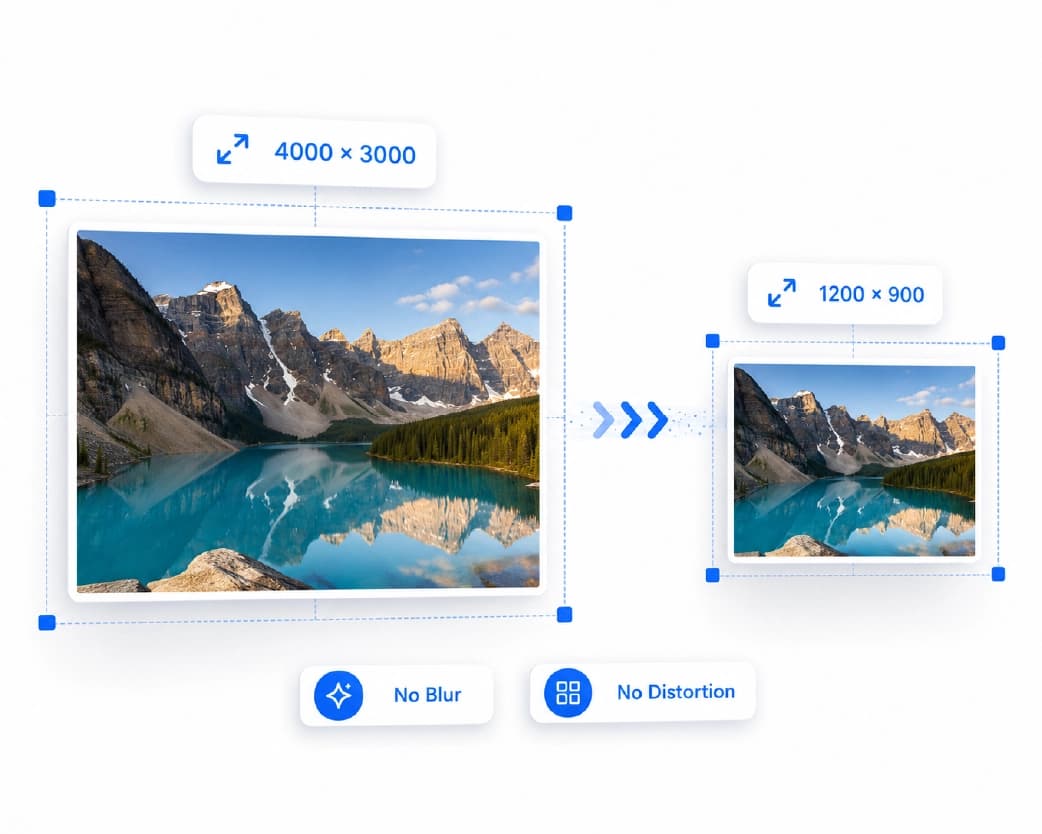
How to Compress Video Online for Free?
Most free online video compressors follow the same basic steps:
- Upload the video - drag and drop your MP4, MOV, MKV, or AVI file.
- Pick a compression goal - either a target file size (like 25 MB) or a quality level (like "balanced" or "smaller file").
- Adjust resolution if needed - drop from 1080p to 720p for extra savings.
- Compress and download - the tool processes the file and gives you a download link.
Most tools finish this in one to five minutes, depending on the video length and your internet speed. Because everything runs in the browser, you don't need to install any software on your phone or laptop.
Compress MP4 Online: What You Should Know
MP4 is the most common video format and generally the best choice for compression, as it is supported by almost all phones, apps, and platforms in India. If your original video is in MOV (common on iPhones) or MKV format, converting it to MP4 during compression usually results in the smallest and most compatible file. When compressing MP4 files, ensure the tool preserves the original audio track; some low-quality tools remove or degrade audio quality to save extra space-something unnecessary with modern compressors.
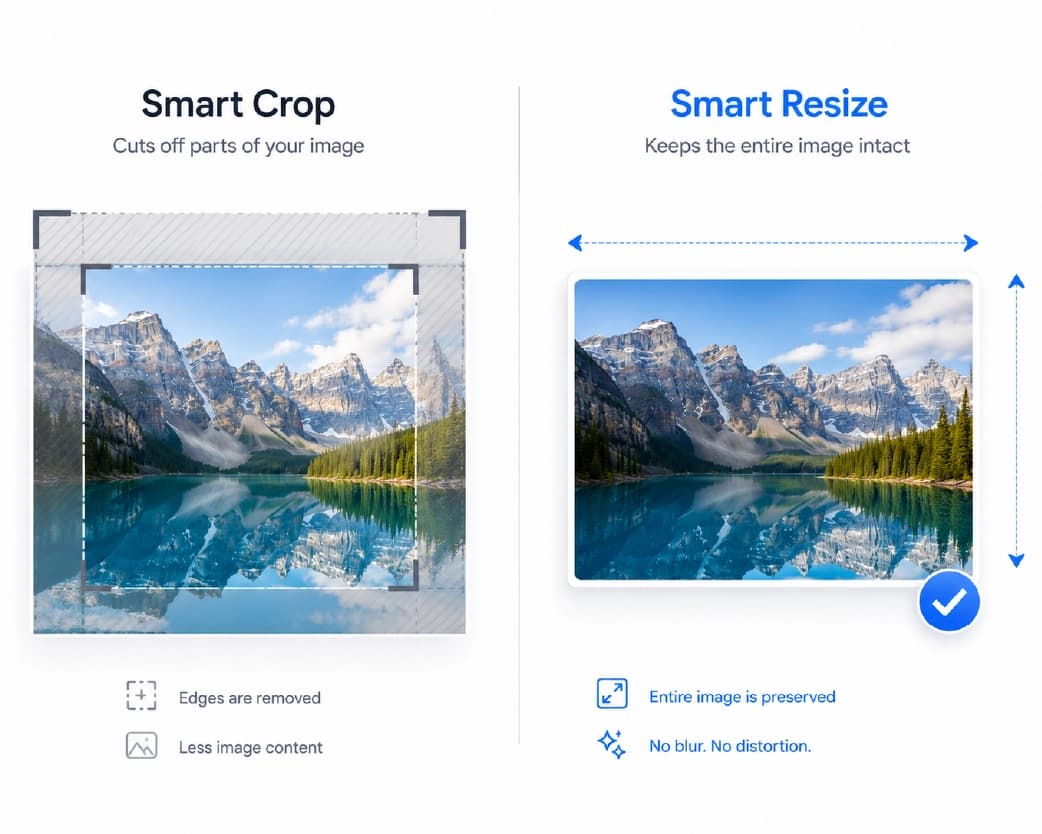
How to Shrink a Video File for Email and Messaging Apps?
In India, file-size limits are one of the biggest reasons people search for video compression tools in the first place:
- Gmail attachments are capped at 25 MB.
- WhatsApp compresses videos automatically when sent through chat, which often lowers quality on its own - sending a pre-compressed file gives you more control.
- College or job portals frequently cap uploads at 10-50 MB.
To hit a small target size without wrecking quality, use a compressor that lets you set an exact target size rather than a vague "high/medium/low" slider. Aim for 480p resolution and a bitrate of around 1,000-2,000 kbps if you need a video under 25 MB for email.
Why Does "No Watermark" Matters More Than People Expect?
Many free video compressors seem truly free at first, but they often add a small logo or watermark to the exported video unless you subscribe to a paid plan. This is common among well-known tools, where the free version includes a watermark and the best compression modes are reserved for paying users. For personal videos, this might not be an issue. However, if the video is for a business page, a university project, or a client, a watermark creates the impression of unfinished or unprofessional work.
Before using any compressor, specifically check whether the free plan completely removes the watermark or if that feature is available only in the paid plan. Truly free tools should allow you to download the file.
What "No Sign-Up" Really Means?
"No-sign-up" tools do not require an account creation process; consequently, you can upload, compress, and download files without providing an email address or creating a password. This is significant for two reasons: it is fast, and your files are not linked to a specific account. Plainscan adopts this same approach for its browser-based tools-files are processed directly and automatically deleted after a short period, ensuring nothing remains stored on the server longer than necessary. If you are compressing a video for email or a form, tools like Plainscan can also assist with related tasks on the same page, such as compressing large PDFs or images to be sent alongside the video.
Tips to Avoid Losing Quality
- Start with the highest-quality original you have. Compressing an already-compressed video (like a downloaded Instagram clip) gives worse results than compressing the original recording.
- Don't over-compress in one step. If a tool lets you preview the result, check it before committing to the smallest size.
- Match resolution to where the video will be watched. A video for WhatsApp doesn't need 4K; 720p looks fine on a phone screen and saves a lot of space.
- Keep the frame rate stable. Dropping frame rate can make motion look jerky, so only lower it if file size is still too large after adjusting bitrate and resolution.
Common Mistakes to Avoid
- Uploading the same file to multiple tools and picking whichever finishes fastest, without comparing quality.
- Ignoring the output format - a video compressed to an unsupported codec may not play on some older phones.
- Assuming "compressed" always means "smaller and clear." Very aggressive compression can create blur or blocky patches, especially in fast-motion scenes.
- Trusting a tool's "up to 90% smaller" claim as an average - most everyday phone videos shrink by 50-80%, and the exact number depends on the original file.
Frequently Asked Questions
Q1. Does compressing a video always reduce its quality?
Yes, a slight drop in quality is inevitable because data is removed during compression. Good compressors minimize quality loss to the point where it is barely noticeable, especially if you don't reduce the file size drastically in a single step.
Q2. What is the best video format to use after compression?
The MP4 format with the H.264 codec is the safest choice, as it plays smoothly on almost every phone, laptop, and app without requiring additional software.
Q3. Can I compress a video without losing audio quality?
Yes. Most modern compressors preserve the original audio bitrate while adjusting only the video stream, so the sound quality remains intact even as the file size decreases.
Q4. How much can I reduce the video file size without a noticeable drop in quality?
Standard videos and screen recordings captured on phones can be reduced by 50-80% with barely perceptible changes. Videos that have already been exported at an efficient bitrate (using editing software) allow for less compression.
Q5. Is it safe to compress videos online instead of using desktop software?
It is safe only if the tool securely processes your file and then deletes it. Choose compressors that clearly state an 'auto-delete' policy and do not ask for unnecessary account details.
Q6. Why does my WhatsApp video look poor after sending?
WhatsApp automatically compresses videos sent via chat, often resulting in lower quality than what is achieved with a dedicated compressor. Manually compressing the file beforehand gives you greater control over the final result.
You may also like:How to Summarize 50+ Page Academic Papers and Research PDFs in Minutes
Conclusion
Compressing a video online is simple once you understand the three levers: resolution, bitrate, and codec. Pick a compressor that lets you target an exact file size, skips the sign-up step, and gives you a genuinely watermark-free download - that combination covers most needs, whether you're emailing a video, uploading it to a college portal, or sharing it on social media. Plainscan's browser-based tools follow this same no-signup, privacy-first approach, which is worth checking if you're already compressing other file types alongside your video.
Recommended to Read:How to Convert Scanned PDF Forms into Fillable & Editable Word Documents
Related insights








Get the Plainscan App for iOS & Android