
How to Summarize 50+ Page Academic Papers and Research PDFs in Minutes
Picture this. You have a 60-page research paper due for review by tomorrow morning. You open it, see wall after wall of dense text, and your heart sinks a little. This happens to students, researchers, and busy professionals every single day. The good news is that you do not need to read every line to understand a paper. With the right approach and a good PDF summarizer, you can pull out the key findings, methods, and conclusions of a long academic paper in just a few minutes. This guide walks you through exactly how to do that. You will learn what a PDF summarizer really does, how AI reads your document, and the simple steps that turn a 50-page beast into a short, clear summary you can actually use.
What Is a PDF Summarizer?
A PDF summarizer is a tool that reads a long document and pulls out the most important ideas. Instead of you scanning page after page, the tool scans the file for you and hands back a short version that keeps the meaning intact. A good summarizer does not just chop out random sentences. It understands what the paper is arguing, what evidence backs up that argument, and what the author concludes at the end.
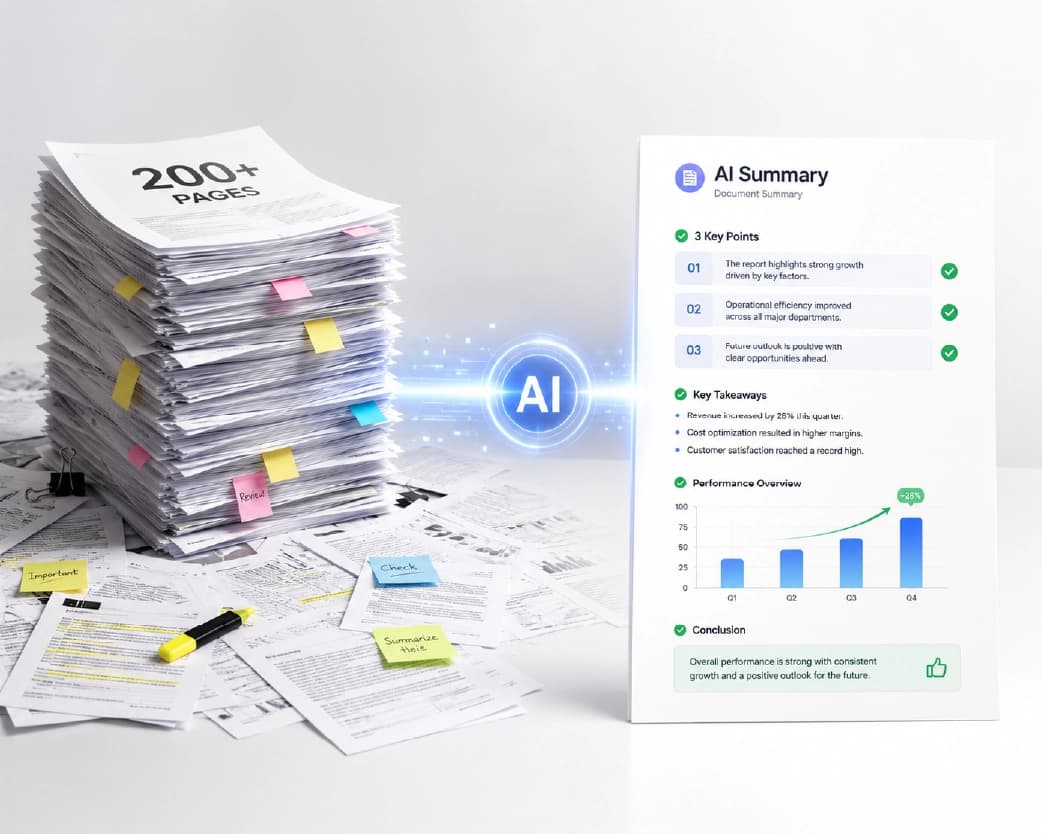
Tools like the Plainscan AI document summarizer use this kind of technology to turn research papers, reports, and long PDFs into summaries you can read in under a minute. This matters most for academic papers, where the ideas are packed tightly and one missed detail can change how you understand the whole study.
Why Summarize Academic Papers with AI in the First Place?
Reading is slow work when a paper stretches past 50 pages. A typical research paper of that length can hold over 15,000 words, filled with technical terms, citations, and long explanations of method and data. Reading it from start to finish, then taking notes, easily eats up two to three hours. Multiply that by ten papers for a single literature review, and you can see why so many students and researchers now turn to AI.
An AI-based summarizer reads the whole paper in seconds and gives you the shape of the argument right away. You still get to read the full paper later if you need to dig deeper, but now you can decide which papers are actually worth that deep read first.
Step 1: Skim the Paper Before You Summarize It
Before you even touch a summarizer, it helps to skim the paper the smart way. This is not the same as reading every word. It means looking at specific parts of the paper first so you already have a mental map before the AI gives you its version.
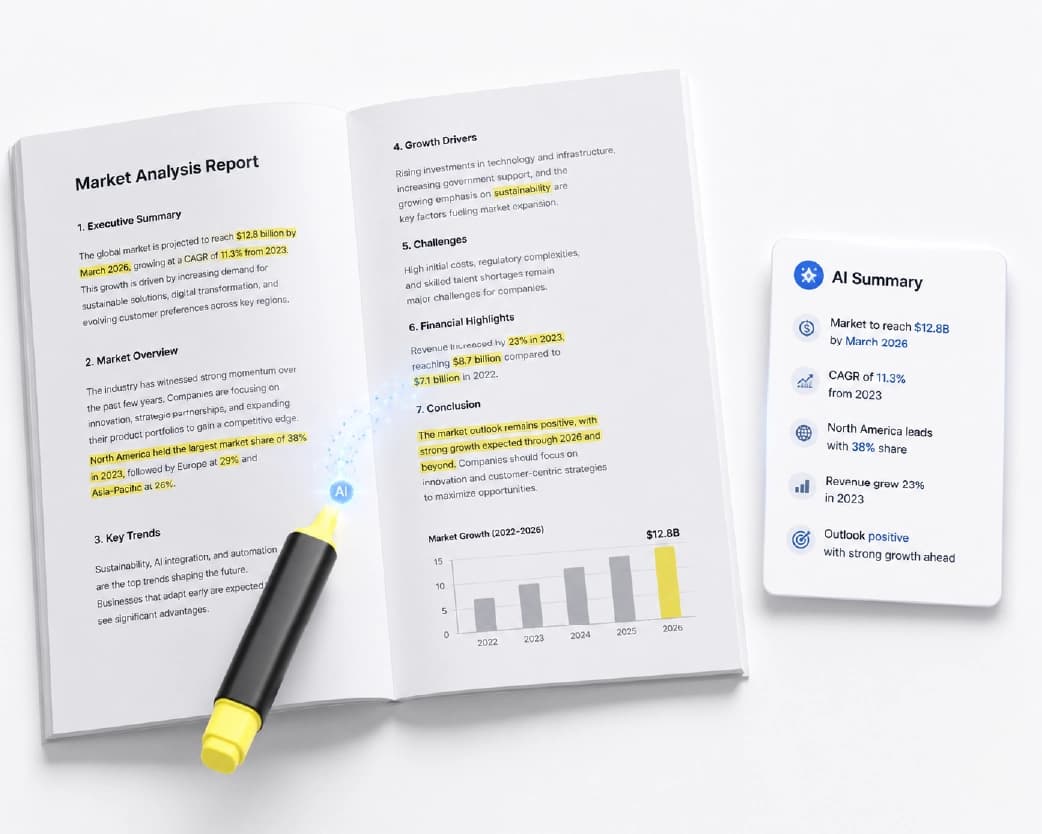
Start with the abstract, since it usually holds the research question, method, and main finding in a single paragraph. Then glance at the introduction and the conclusion, because together they carry most of the paper's argument. After that, scan the headings and any charts or tables, since these often hold the data points that matter most. Doing this quick pass first means you can check the AI's summary against your own first impression, and you will spot right away if the tool missed something important.
Step 2: Understand How AI Actually Reads and Shortens Your Paper
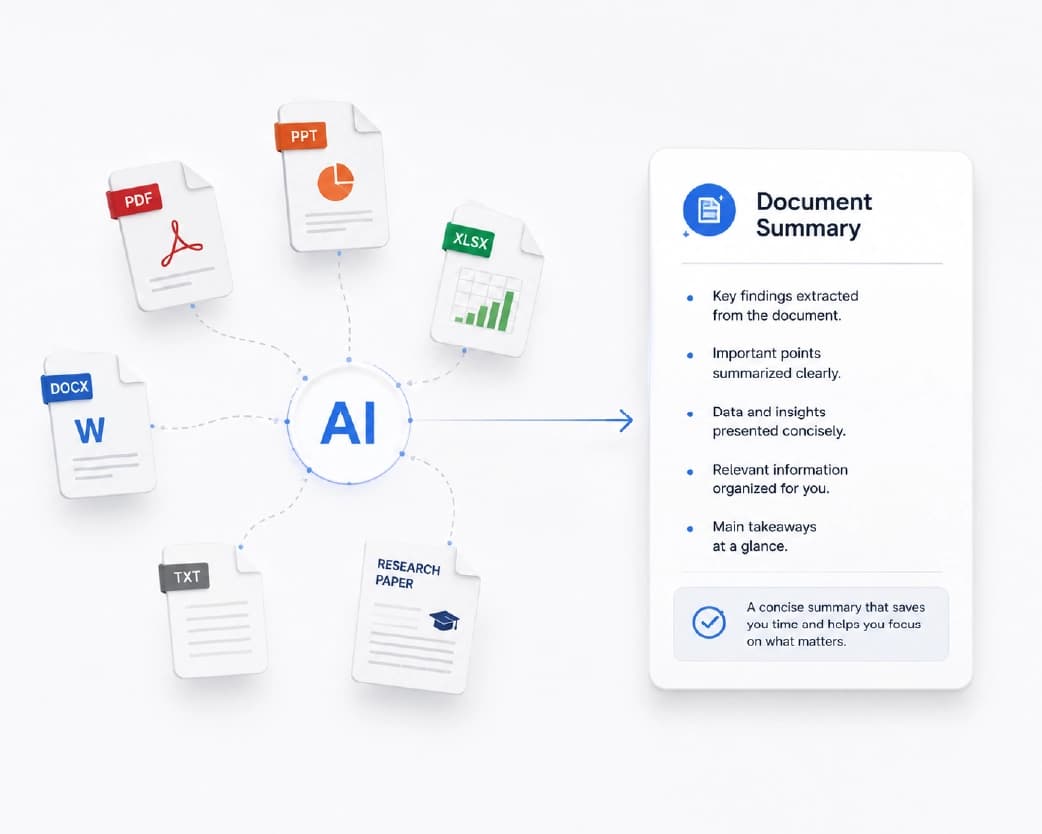
It helps to know what happens behind the screen when you upload a PDF. AI summarizers use a mix of technology to turn a long document into a short one. First, the tool reads the layout of the file, picking out headings, paragraphs, tables, and footnotes, so it understands how the paper is organized rather than treating it as one giant block of text.
Next, a language model studies the actual words. It tells the difference between the main argument and the background information, and between a strong finding and a passing comment. There are two main ways it shortens the text. One method pulls out the most important sentences exactly as written, which keeps the wording accurate but can feel a bit choppy. The other method writes brand-new sentences that capture the same meaning in plainer language, which reads more naturally but carries a small risk of losing a nuance here and there. The strongest tools blend both methods, pulling exact numbers and facts directly from the source while writing smooth explanations around them.
Step 3: Use a Simple Upload-Review-Ask Process
Once you understand how the tool works, using it is refreshingly simple. Most modern summarizers, including Plainscan, follow the same basic flow. First, you drag and drop your PDF file or pick it from your device. Second, the tool generates a summary within seconds, and you read through it to check the key points. Third, if something is unclear or you want more detail on one section, you can ask the tool a follow-up question, almost like chatting with the document itself, and copy the parts you need for your notes or report.
This three-step flow removes almost all the friction from summarizing. There is no need to install anything or learn a complicated interface. You just upload, read, and ask.
Who Gets the Most Value From This?
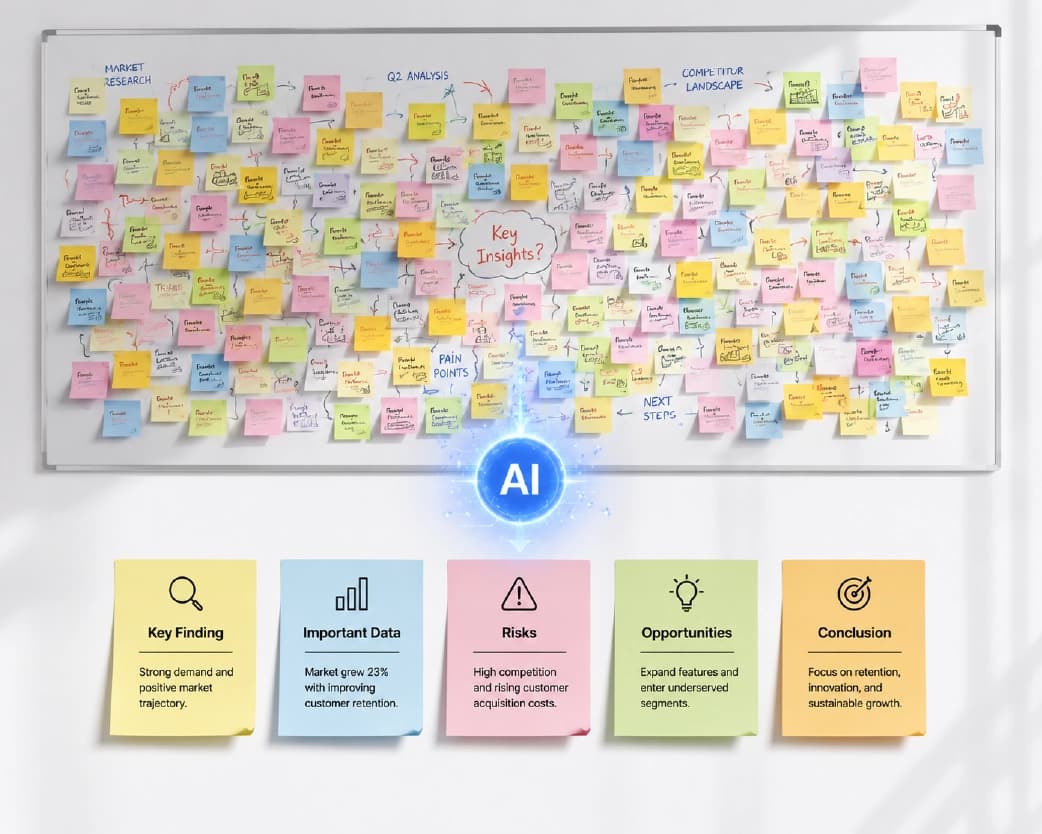
Students and researchers are the biggest winners here. If you are working through hundreds of pages of assigned readings, a summarizer helps you catch the core findings and methodology of a 50-page paper in minutes rather than hours. This means you can review far more sources in the same amount of time, which usually leads to stronger essays, sharper arguments, and more thorough literature reviews. Teachers benefit too, since they can quickly scan long academic articles to pull out the exact concepts they want to teach, then build focused lecture notes around them. Business professionals get similar value when they need to prepare for a meeting using a long report but do not have hours to read it cover to cover.
Why an AI Summary Beats Reading Just the Abstract
Many people assume that reading a paper's abstract is enough. It is not. An abstract tells you what the authors want you to notice. A full AI summary, on the other hand, reads through the entire paper, including the methods, results, and limitations, and gives you a fair picture of what the paper actually contains, not just its highlight reel.
This difference matters most when you are working through a stack of papers for a literature review. Instead of spending a full day reading twenty abstracts and hoping you picked the right five to read in full, you can run each paper through a summarizer first. This lets you sort the papers quickly, spend deep reading time only on the ones that truly matter, and skip past the ones that turn out to be less relevant once you see the full picture.
Features That Actually Matter in a Good Summarizer
Not every PDF summarizer is built the same way, so it helps to know what to look for. A strong tool should let you regenerate a summary if the first version does not quite hit the mark, since academic writing can be tricky and a second pass often reads better. It should also include built-in text recognition so it can read scanned pages, old journal articles, or photographed textbook chapters, not just clean digital files. Security matters too. Your files should be encrypted while they are uploaded and processed, and ideally deleted automatically once you are done, especially if you are working with unpublished research or sensitive data. Finally, check that the tool works smoothly on your phone as well as your laptop, since a lot of reading now happens on the move, between classes or during a commute.
Choose a Tool That Fits Your Research Workflow
The best summarizers do more than shrink a single paper. They help you work across many papers at once. Look for a tool that lets you compare findings between studies, pull out the sample size used in a study, or gather statistics across a set of papers. This turns a plain summarizer into a research partner, since your reading phase now feeds directly into your literature review instead of ending in a pile of disconnected notes. When choosing between tools, think less about flashy features and more about whether the summary connects naturally to your next step, whether that is writing a review or drafting your own paper.
Watch Out for Free Plan Limits
Free versions of PDF summarizers are a great way to start, but almost all of them come with limits. Some cap you at a handful of documents per day, others cap the length of the summary itself, and some restrict how many pages they will process in one file. These limits work fine for a single assignment, but a full research project with dozens of long papers will likely bump into them quickly. Check the page limits, daily caps, and word limits of any free tool before you rely on it for a deadline.
Advanced Tips for Getting Better Summaries
A few small habits make a big difference in the quality of your results. Always ask for a specific summary length or format, such as bullet points for a quick scan or a paragraph for a smoother read, since a targeted request beats a generic one every time. When you are working with a technical paper, ask the tool to explain a specific formula, methodology, or results table in plain language rather than trying to summarize the whole section at once. It also helps to cross-check any number or statistic the AI gives you against the original paper, especially before you quote it in your own work, since even the best tools can occasionally misread a table or condense a finding too aggressively. Treat the AI summary as your first pass, not your final answer, and you will get the speed benefit without losing accuracy.
Frequently Asked Questions (FAQs)
Can I accurately summarize a 50-page academic paper?
Yes, modern AI tools handle long academic papers well, especially when the paper has a clear structure with headings, an abstract, and a conclusion. Always double-check key numbers and quotes against the original text before using them in your own work.
Is it safe to upload research papers to an online summarizer?
Most reputable tools encrypt your files during upload and processing, and many delete your document after the summary is generated. If your paper contains sensitive or unpublished data, check the tool's privacy policy first.
How long should a summary of a 50-page paper be?
A useful summary usually runs a few hundred words, covering the research question, method, key findings, and conclusion. You can always ask the tool for a shorter or longer version depending on your needs.
Can a PDF summarizer read scanned or photographed pages?
Yes, as long as the tool includes optical text recognition. This lets it convert scanned images or old printed pages into readable text before summarizing them.
Should I still read the full paper after summarizing it?
If the paper is central to your work, yes. Use the summary to decide whether a paper deserves a full, careful read, and to refresh your memory on papers you have already read in depth.
Conclusion
A 50-page research paper does not have to eat up your entire afternoon anymore. By skimming smartly first, understanding how AI actually processes your document, and using a simple upload-review-ask routine, you can pull out everything you need from a long academic paper in minutes rather than hours. Tools like Plainscan make this process fast and simple, but the real skill is knowing how to use AI summaries wisely, as a shortcut to understanding, not a replacement for careful reading when it truly counts. Once you build this habit, you will read more, understand faster, and spend your time on the work that actually needs your full attention.
Recommended to Read:Image to PDF Converter: Convert Phone Photos into Professional Documents
Related insights








Get the Plainscan App for iOS & Android