
How to Compress Large PDFs for Email Attachments Without Losing Text Clarity
You attach a PDF to an email, hit “send,” and then it’s done. The email bounces back with an error message. The file is too large. Most email providers only allow attachments between 20 MB and 25 MB, and a PDF filled with scanned pages, screenshots, or high-resolution images can quickly exceed that limit. The good news is that you don’t have to crop the content or ruin your document to fix this. PDF compression reduces the file size while keeping your text sharp and readable. This guide will explain why PDFs get bulky, how compression actually works, and what specific steps you can take to shrink your file for email without losing text clarity.
What Is PDF Compression?
PDF compression is the process of reducing the size of a PDF file so that it is easier to store, upload, and send. The compression tool looks inside your document and removes or shrinks the parts that take up the most space, without touching the words on the page.
Most large PDFs are heavy for two main reasons: fonts and images. When a document uses many different font styles or includes high-resolution, full-color images, its size increases rapidly. The compressor works on these two areas to reduce the file size and make your text appear exactly as it was intended. This is why a compressed PDF still reads clearly, even though it takes up a fraction of the space.
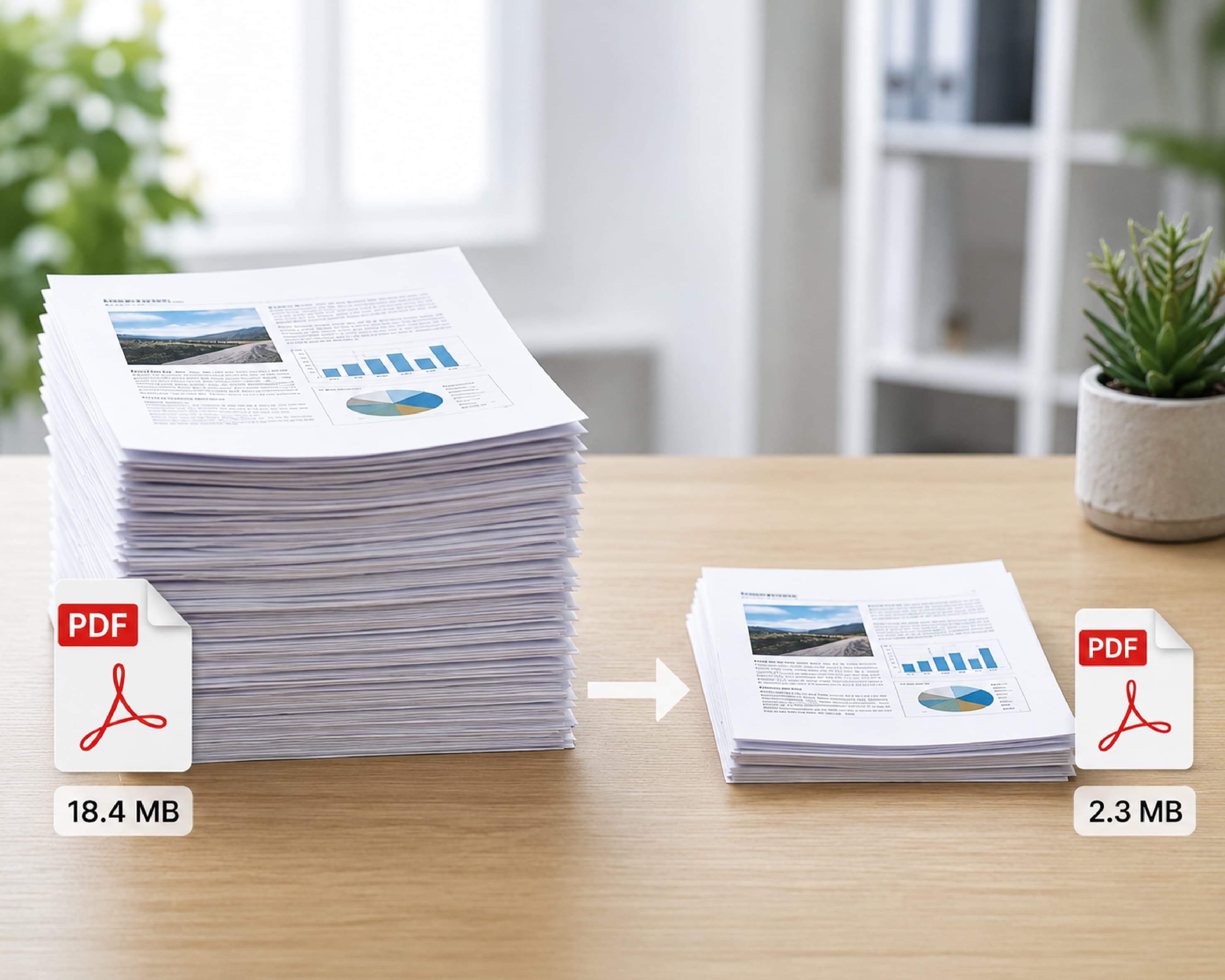
Why You Need to Compress PDFs Before Emailing
Email isn't designed to carry large files. Each email service sets a maximum attachment size, and once your PDF exceeds that number, it either bounces back or stops loading permanently on the recipient's end.
Compressing your file before you hit send solves this problem at the source. A smaller PDF fits comfortably within the normal attachment limit, uploads quickly, and arrives in the other person's inbox without any errors. It also saves storage space on both ends, which is important if you're regularly sending contracts, reports, or scanned forms. Tools like PlainScan make this step faster, so you don't have to think twice before attaching a document to an important email.
How Does PDF Compression Actually Work?
Behind the scenes, the compressor doesn't just randomly "squeeze" your file. It uses a few specific techniques, and understanding them can help you understand why your text remains legible even after the file is compressed.
First, this tool removes font information that isn't necessary for the page to display properly, cutting out extra data hidden in the file. Second, it reduces the size of embedded images based on their resolution (measured in DPI), since images typically take up the most space in a PDF. Third, it slightly reduces the image quality, which has the biggest impact on the overall file size but barely affects how the document looks on the screen. Finally, it compresses the internal structure of the PDF, cleaning up formatting data that adds bulk without adding value.
Documents made up mostly of images compress very well using this process. Files containing only text don't shrink as dramatically, simply because there isn't much extra data to remove in the first place. If your PDF is really just a folder of scanned images stitched together, it's often worth running the individual images through an image compressor before you even build the PDF.
Step-by-Step: How to Compress a Large PDF for Email
Compressing a PDF online usually takes less than a minute. Most tools, including PlainScan, follow this general process:
- Open the compression tool in your browser and select the PDF you want to compress, either by clicking on it to upload it or by dragging it into the upload box.
- If the tool offers options like Basic, Moderate, or Strong, choose the compression strength based on how small you want the file to be.
- Wait a few seconds for the tool to process your document and automatically reduce its size.
- Download the compressed PDF, check that the text is still clear, and attach it to your email.
This entire process works from any browser, so you don't need to install additional software just to send a large document.
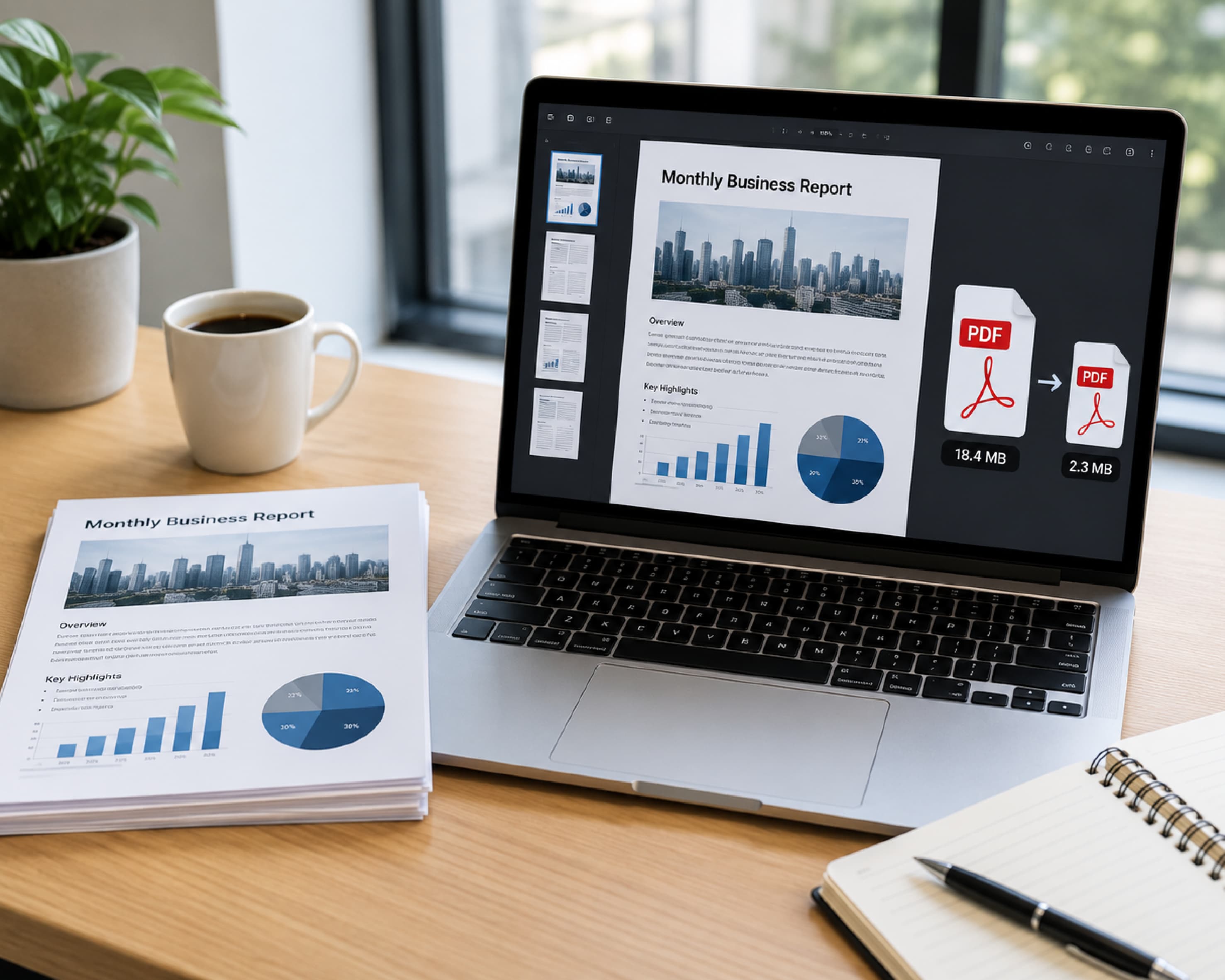
Choosing the Right Compression Level
Not every PDF needs the same amount of compression. Most tools allow you to choose between compression levels, which are usually labeled low, medium, and high.
Choosing high compression gives you the smallest file possible, which works well for documents that contain mostly images or for quick, casual sharing where absolute image sharpness isn't important. Medium or low compression reduces the file size less but maintains a high level of visual quality, which is a better choice for professional documents, presentations, or anything with detailed diagrams and charts that need to be kept clear. If your goal is simply to shrink an email attachment without compromising the readability of the text inside, the medium setting is usually the safest starting point.
Free Ways to Compress a PDF Without Any Extra Tool
If you're on a Windows computer and don't want to use an online tool right away, you already have two built-in options.
One method is using Microsoft Word. Open Word, go to File, then Open, and select your PDF. Word will convert it to an editable document. Once it's open, go to File, then Save As, select PDF as the format, click Options, and select "Minimum size (publishing online)" instead of the standard setting. This works because Word optimizes images for screen viewing rather than high-quality printing, and it can shrink a document from several megabytes to just one or two. (If you'd rather skip the manual conversion, our PDF to Word tool handles this conversion directly in the browser.)
Another built-in trick is to print your PDF to a new PDF file. Open the document, press Ctrl + P, and under Printer options, select "Microsoft Print to PDF." This rebuilds the entire file from scratch and often removes extra information from the original file, such as unused metadata or large embedded objects. Just keep in mind that this method may remove bookmarks, hyperlinks, or digital signatures, so it works best for simple documents that you just need to email quickly. If you need to re-add a signature afterward, you can do that with a free online PDF signer.
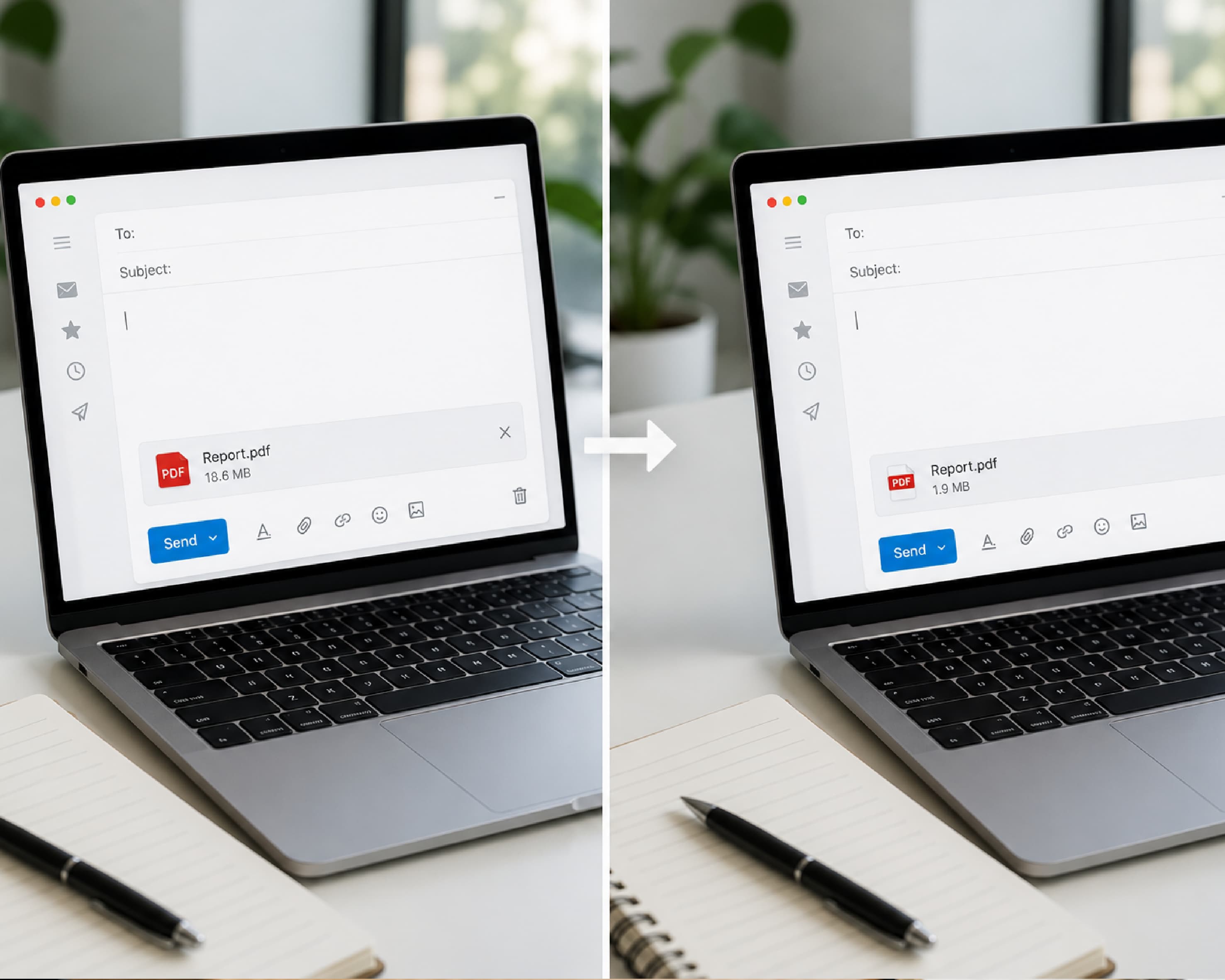
Will Compression Affect Your Text and Fonts?
This is one of the biggest concerns people have, and it's a valid one. Fortunately, a good compression tool doesn't change your fonts in any way during the process. Your text styles, sizes, and embedded fonts remain exactly as they were, so the document maintains its professional, readable look from start to finish.
The file size reduction comes almost entirely from the images and internal structure of the PDF, not the words. This means you can compress a text-heavy report, resume, or scanned contract and still expect every sentence to look clear when the recipient opens it.
Handling Multiple or Password-Protected PDFs
Sometimes you're not just working with a single file. If you have a lot of large PDF files to send, look for a tool that supports batch compression, so you can upload multiple documents at once and download them all at once, rather than repeating the process for a single file.
It's also worth checking if your compressor can handle password-protected PDF files. Some tools support this directly, allowing you to enter a password so that the file is unlocked, compressed, and ready to send, all without having to remove its protection first.
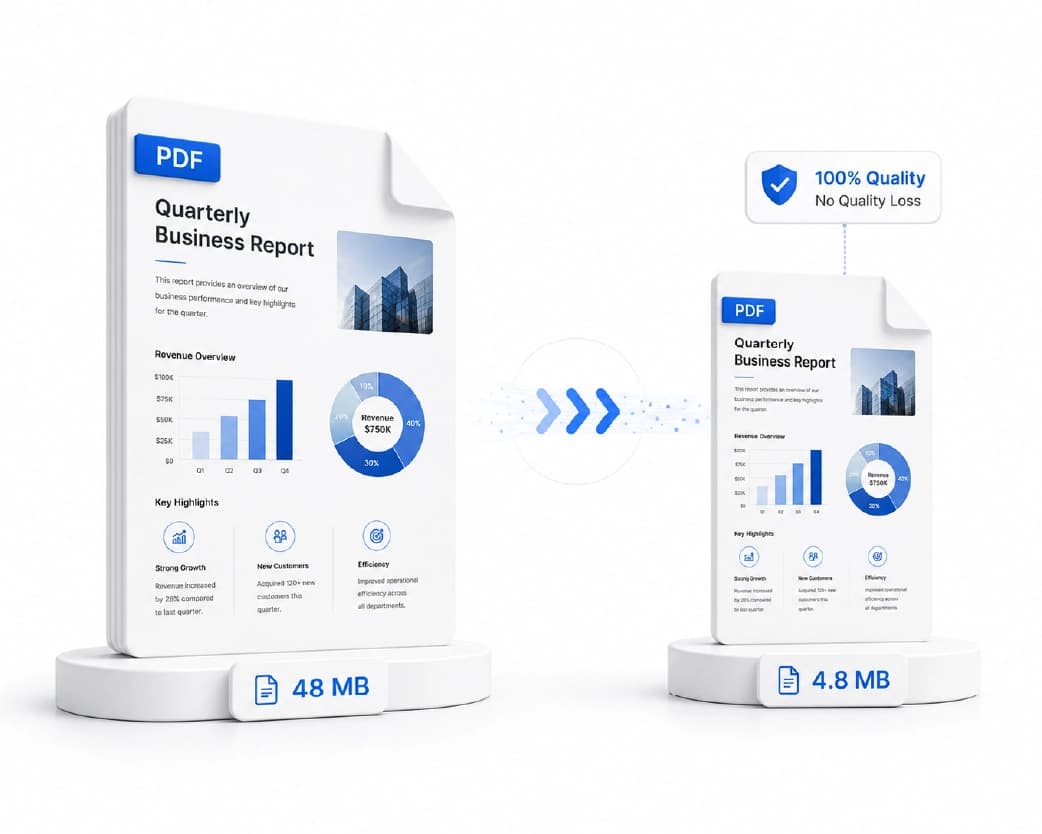
Benefits of Compressing PDFs for Email
Compressing your PDF before sending it has some obvious benefits beyond avoiding bounced emails.
- Faster uploads and downloads. Smaller files move faster over the internet, which is important when you or the recipient are on a slow connection.
- More storage room. Compressed files take up less space in your inbox and cloud drives, which can add up over time if you send documents frequently.
- Fewer errors. Staying under your email provider's connection limits means you won't need to resend the file via a separate link or cloud upload.
- Easier collaboration. Teams sharing reports, invoices, or scanned papers benefit from files opening faster on any device.
Advanced Tips to Avoid Quality Loss
A few small habits can help you get a smaller file without sacrificing important parts.
Avoid over-compressing a document with lots of images or detailed fonts, as pushing the compression too far can make images look blurry or slightly distort thin text, even with a reliable compressor. If the PDF is full of images, keep only the images that are truly necessary before compressing, as fewer images naturally mean a smaller file with less risk to quality. For documents with almost entirely scanned pages or graphics, a special high-powered image compression mode can shrink the file dramatically, which is useful for archiving old scanned records where extreme sharpness is not needed. And if you regularly work with PDFs along with other file conversions, using an all-in-one online suite that bundles compression with converting, merging, and editing tools can save time compared to switching between separate websites for each task.
Frequently Asked Questions (FAQs)
Does compressing a PDF reduce text quality?
No. Compression primarily reduces the size of the image and removes unnecessary internal data. Your text, fonts, and layout remain clear and unaffected.
What is the best compression level for email attachments?
The Medium or Medium setting usually provides the best balance. It shrinks the file to fit within most email limits while keeping images and text sharp.
Can I compress scanned PDFs without losing readability?
Yes. Scanned PDFs are mostly images, so they compress well. Just avoid the highest compression settings if the scan already contains small or blurry text.
How can I compress multiple PDFs at once?
Look for a tool that supports batch compression. You can upload multiple files at once and download them all as a single folder instead of processing each one separately.
Is there a way to compress a PDF without downloading any software?
Yes. Online compression tools work directly in your browser, so there's nothing to install. You can also use Microsoft Word's "Minimum Size" save option or the "Print to PDF" method if you're on Windows.
Can I compress a password-protected PDF?
Some tools allow this by asking for a password before processing the file. Once compressed, you can choose to keep the same security or remove it, depending on your needs.
Conclusion
A PDF that's too big for email doesn't have to slow you down. Once you understand that compression primarily targets images and internal file structure, not your text, it becomes much easier to trust the process. Whether you use a dedicated online tool like Plainscan, a built-in Windows trick, or a medium compression setting for a professional document, you can significantly reduce the size of your file while keeping every word sharp and easy to read. Choose the method that suits your document type, compress it, and send your email without worrying about size limits again.
Related insights








Get the Plainscan App for iOS & Android