
Why Scanned PDFs Are Not Searchable and How to Fix It Permanently
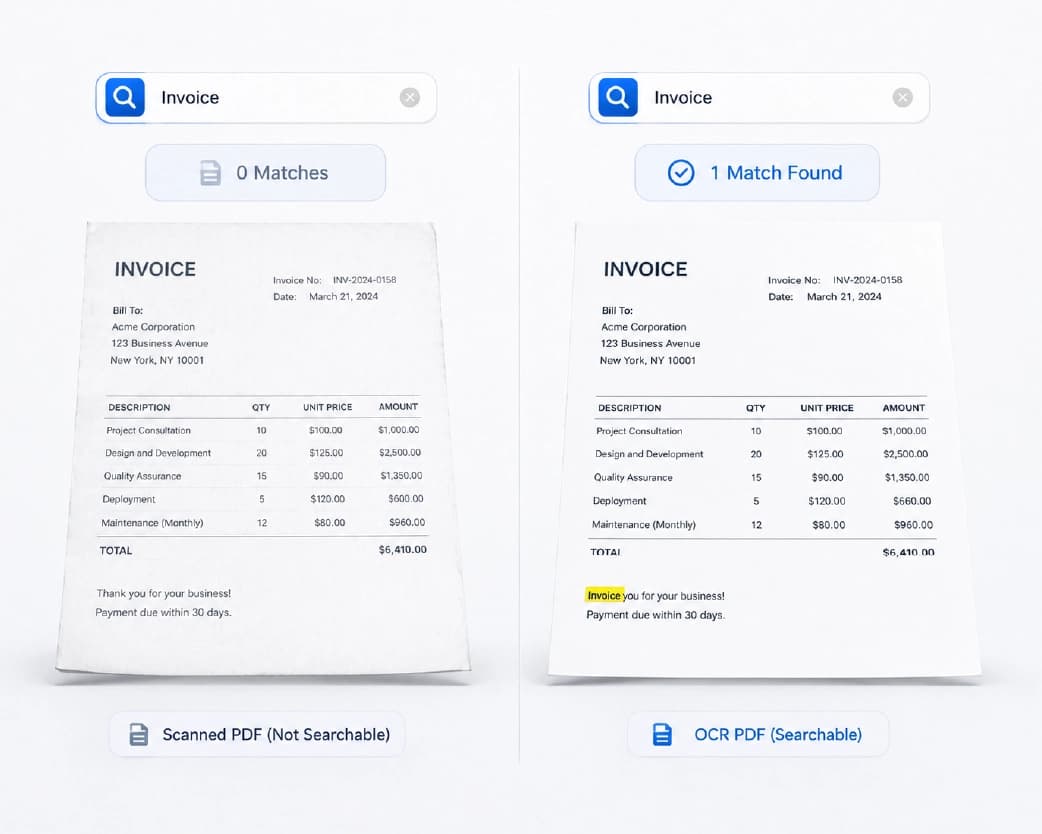
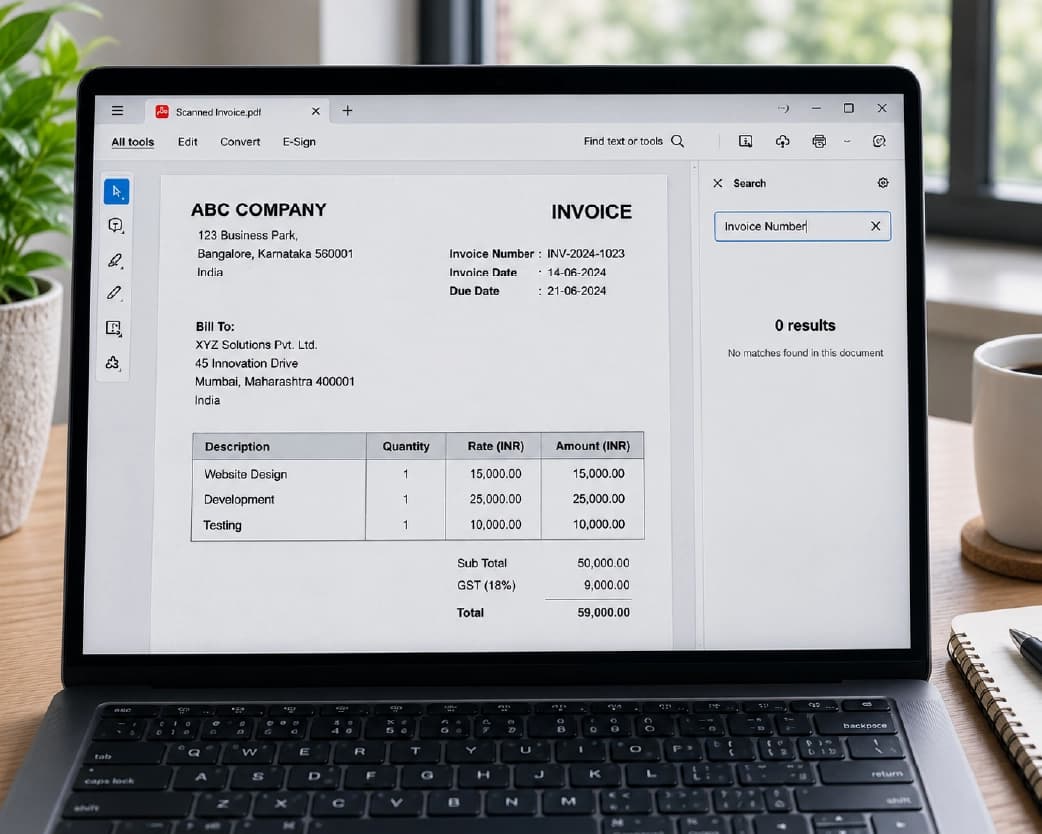
Short Answer: No, a scanned PDF isn’t searchable since it’s not text but rather an image of text. You’ve photographed the words and not the words themselves.You should try using the Ctrl + F function to discover that there is nothing to look for because there is no text at all. The problem can be easily solved through the OCR application. The OCR technology recognizes the text in the picture and adds the hidden text below it. You will have a searchable file after running it through the OCR app in one minute. If you have ever tried to search for a clause number in a scanned contract using Ctrl+F and come up empty, despite seeing the content clearly on the screen, then you know what this is about. This is neither a problem with your PDF reader nor your computer. It's the predictable result of how scanned files are created. Once you understand why, the fix becomes obvious.
Pixels Aren't Words
Not every PDF is built the same way, even though they all look identical on screen. There are really only two kinds.
A native PDF is one that results from exporting your document to a PDF or “printing” a document to a PDF from applications such as Microsoft Word, Google Docs, or web browsers. Behind the scenes, each character in this document is encoded as a character – a codepoint defined by Unicode in a specific font at a specific location in the page. When you search for a term in the document, the software searches through machine readable data.
Scanned (image) PDFs are created by a scanner or a phone camera. What gets saved isn't characters. It's a photograph. The file contains a grid of colored pixels arranged in shapes that happen to look like letters to a human eye. There's no character data anywhere in the file. To your computer, the "word" you're trying to find doesn't exist as a concept; it's just a pattern of dots, no different in kind from a photo of a mountain.
It is easy to find out what kind it is within ten seconds. Hit Ctrl+F (or Command+F on Mac computers), then look up for one visible word. If there is no highlighted text, it is likely to be an image. Another trick to try: try clicking and dragging to select a word. If your mouse cursor only draws boxes instead of highlighting any text, you are working with an image, not a document.
Every tool you rely on for working with a document (search, copy-paste, highlighting, screen readers, keyword indexing) is built to operate on text objects.None of them have a means for interpreting an image. Therefore, searching using Ctrl+F will result in a blank search despite the word being in there in the document since the software cannot identify any instance of that word due to the absence of words and sentences to begin with, copying and pasting the text results in either nothing at all or garbage characters, while highlighting doesn't give you the option of selecting "the third word in the second sentence" since PDF files have no idea about words or sentences.
Why This Is More Than a Minor Annoyance
Document management systems can't index what they can't read. If your company's file search relies on keyword indexing, a scanned PDF contributes nothing to that index; the file might as well be blank as far as the search engine is concerned. For an organization with a growing archive of them, this becomes something closer to a structural problem than a one-off inconvenience. As an archive grows, the proportion of "invisible" content grows with it, and the archive becomes progressively less useful as a source of truth even as it gets larger.
This creates a strange paradox that shows up in a lot of organizations: they've technically "digitized" their paper records by scanning everything, but they still can't search their own archive the way they'd expect a digital system to work. The files exist as images sitting in folders, discoverable only if someone remembers the filename or the folder structure. OCR is the step that actually completes the digitization, not just turning paper into a file, but turning a file into information a system can use.
This is also an accessibility issue. Screen reader software reads the text layer of the document out loud, one word at a time, in sequence. If a scanned page lacks a text layer, there's nothing for the screen reader software to read. To a blind person, it is as good as blank, although it is filled with readable information for everybody else. The screen reader uses the text layer, and not the visual presentation, which means that companies providing forms, reports, or any other documents in the form of image-only scanned copies are basically locking themselves out of their own audience's reach. OCRing the document prior to distribution is practically free.
And it compounds quietly over time. For any single document, an unsearchable scan is an annoyance. For a student re-reading photographed lecture notes to find one quote, or a manager retyping figures from a scanned report into a spreadsheet because copy-paste won't work, each instance costs a few minutes in isolation. Across a semester or a year of routine document handling, those minutes add up. It's a real cost for a problem whose fix takes under sixty seconds per file.
How OCR Quietly Fixes This
OCR (Optical Character Recognition) is the layer of technology that bridges this gap. In plain terms, it reads the image the way you do, then writes down what it sees as actual, structured text.
This is another problem of accessibility. When a screen reader software tries to read out the text layer in the document, it starts reading the layer word by word sequentially. In case the page does not contain any text layer, there will be nothing left for the screen reader software to read. For a visually impaired person, such a page will seem to be blank because even though it contains lots of useful information for others, there is nothing to read for a blind person. Screen readers use text layers and not visual representation; hence firms sending out forms, reports, or other documents in image-based scans are locking themselves out from reaching their target audience.
The result is quietly elegant: the page still looks exactly like your scan. Nothing about its appearance changes. But now there's a real, selectable, searchable layer of text sitting invisibly underneath it. Ctrl+F works. Copy-paste works. Screen readers can read it aloud. Keyword search finds it. The document has effectively become two things stacked on top of each other: the picture you see, and the text your software can finally use.
Old OCR systems operated using the template-based technique which meant that an image of a certain letter was compared against the database of all possible letters of the same type. This worked great in ideal conditions when there was a perfectly scanned standardized font; however, this became impossible when there was something wrong with either typography or scanning quality. Modern OCR systems utilize neural networks that work exactly the same way as the human brain recognizes images.
That contextual layer is what makes the biggest practical difference. If a scan is slightly degraded and a character could plausibly be read as either "l" or "1," a modern engine doesn't just guess. It looks at the surrounding word and picks whichever reading actually forms a real word in context. This accounts for a large share of the accuracy gap between older and newer OCR technology, especially on documents that aren't pristine to begin with: slightly faded ink, an off-center scan, a page that's been folded and unfolded a few times.
These latest developments take the technology one step further, as the software will analyze the entire page as a single coherent image instead of analyzing each line separately. This is particularly important when it comes to structured documents with multi-column formatting or tables with merged cells where the comprehension of the whole page will allow getting the right result.
When You Actually Need It (and When You Don't)
Not every PDF needs the treatment.
- If the document has been saved to a file by software applications such as Microsoft Word or online services such as Google Docs, then OCR is not necessary since it will be possible to perform searches using Ctrl+F.
- If the document is a scan or a photo, then OCR is required because you won’t be able to highlight individual words or perform searches.
Some honest limitations that one needs to know from the outset include that very blurry or tilted images, or even those that have low resolutions will affect accuracy at times. In addition, handwriting is a different issue altogether. Traditional OCR systems are not equipped to handle cursive handwriting as opposed to typeset letters and the output in such cases can be quite variable. Complicated page layouts such as those having multiple columns or merged cells in a table might need another look after scanning. This does not make OCR ineffective, but just that the better the input, the better the output.
How different document types tend to hold up:
| Document type | Typical difficulty | Why |
|---|---|---|
| Standard printed text (contracts, letters, reports) | Easiest | Clean typeset fonts, predictable layout |
| Forms and structured documents | Moderate | Text itself is easy, but matching answers to labels in dense grids can need a manual check |
| Financial documents | Moderate (needs a glance-back) | A misread digit (1→7, dropped decimal) can silently turn a right number wrong |
| Older / historical documents | Hardest | Period letterforms differ from the contemporary text most models are trained on |
The 60-Second Fix, Step by Step
Here's the actual workflow, and it really is close to a minute once you've done it once.
- Open an OCR tool. Use any browser, on any device. No account required.
- Upload your file. Drag your scanned PDF onto the upload area, or click to browse. For a large multi-file bundle, splitting it first keeps things fast.
- Choose the document’s language. This is not merely cosmetic; picking the right language makes a big difference in terms of how accurately the software recognizes the text, particularly for accented or foreign languages.
- Choose your output format. You have two options: PDF or editable Microsoft Word. The PDF option gives you an exact scan image with a layer of searchable text. Editable Word allows you to edit the scanned content back into text form.
- OCR process and download. In 90% of cases, the OCR task will be done in about 15 to 60 seconds (longer documents may take a couple of minutes).
- Check if it works. Open your scanned PDF or Word, press Ctrl + F, and find any word that you know is in the document. See if you can select a sentence and copy it.
- Save the new file. Your original scan will be automatically deleted after 24 hours on the server side, so there is no step of deleting files on your end needed.
Getting Reliably Good Results, Long-Term
OCR accuracy isn't just about the engine. It's heavily shaped by what you feed it.
- Scan at 300 DPI for standard text, and no lower than 150 DPI even for large, clear fonts. Anything under about 100 DPI tends to produce noticeably higher error rates no matter how good the engine is.
- Straighten pages before or during scanning. A tilted or skewed photo throws off character recognition in ways that are easy to avoid with a quick crop or a scanner's auto-deskew setting.
- Watch your lighting and contrast. Shadows, glare, and faded ink all reduce the visual contrast the engine needs to tell characters apart.
- Select the correct language every time, particularly for documents with accented characters or specialized terminology.
- Re-run OCR on tricky layouts. If a multi-column page or a dense table doesn't come out cleanly the first time, a second pass (sometimes with the columns cropped separately) usually resolves it.
- Keep the searchable version as your master file. Once a document is OCR-processed, don't let a fresh, unprocessed scan silently overwrite it later.
When OCR Doesn't Go Perfectly
Even with a proper tool and a decent scan, the output cannot be perfect the first time around.
For instance, if there are some inaccuracies in terms but the rest of the page is correct, it is all right. It can happen on the papers that have faded writing or contain uncommon words. A cursory check will spot those inaccuracies that require fixing.
If the processed file remains non-searchable, make sure that you choose an option for creating a searchable PDF, not an image only version, and check whether the process was finished successfully and not interrupted because of a very large file size.
In case of problems with formatting in a Word-document, consider the extracted text as correct and use it while correcting formatting afterwards. Reconstruction of the formatting based on an image is more difficult than the translation of the text directly.
Also, if the entire document has low accuracy, then in most cases it is the problem of scanning rather than the engine limitations. Just rescanning it with a higher DPI and uncurling it will fix the problem.
Browser-Based OCR or Desktop Software?
It is appropriate to use browser-based OCR applications in most common scenarios – small volumes of documents, no installation necessary, quick processing within a minute or two. Desktop or locally installed OCR applications are justified only in limited scenarios – large, repetitive batches of documents; when it is important to integrate with the existing document management system; or in certain regulatory contexts.
| Browser-based (online) | Desktop / local software | |
|---|---|---|
| Setup | None, just open a tab | Install + configure |
| Best for | A handful of docs, occasional use | Large recurring batches |
| Speed for single files | Under a minute | Varies by hardware |
| Data handling | Processed via encrypted connection, often auto-deleted within 24 hrs | Stays entirely on local infrastructure |
| Fits compliance-heavy work (legal, healthcare)? | Case-by-case | Often required |
| Cost to try | Free, no account | Usually a paid license |
For the overwhelming majority of everyday cases (invoices, contracts, class notes, reports), a browser-based tool hits the right balance.
Where This Actually Shows Up in Daily Work
The gap between "I can see the words" and "my software can use the words" isn't abstract. It shows up constantly, usually at the worst possible moment.
- Contracts and legal papers. Rather than searching page by page through a contract document for a particular indemnification clause, a searchable document searches all pages where that particular clause appears in just a few moments.
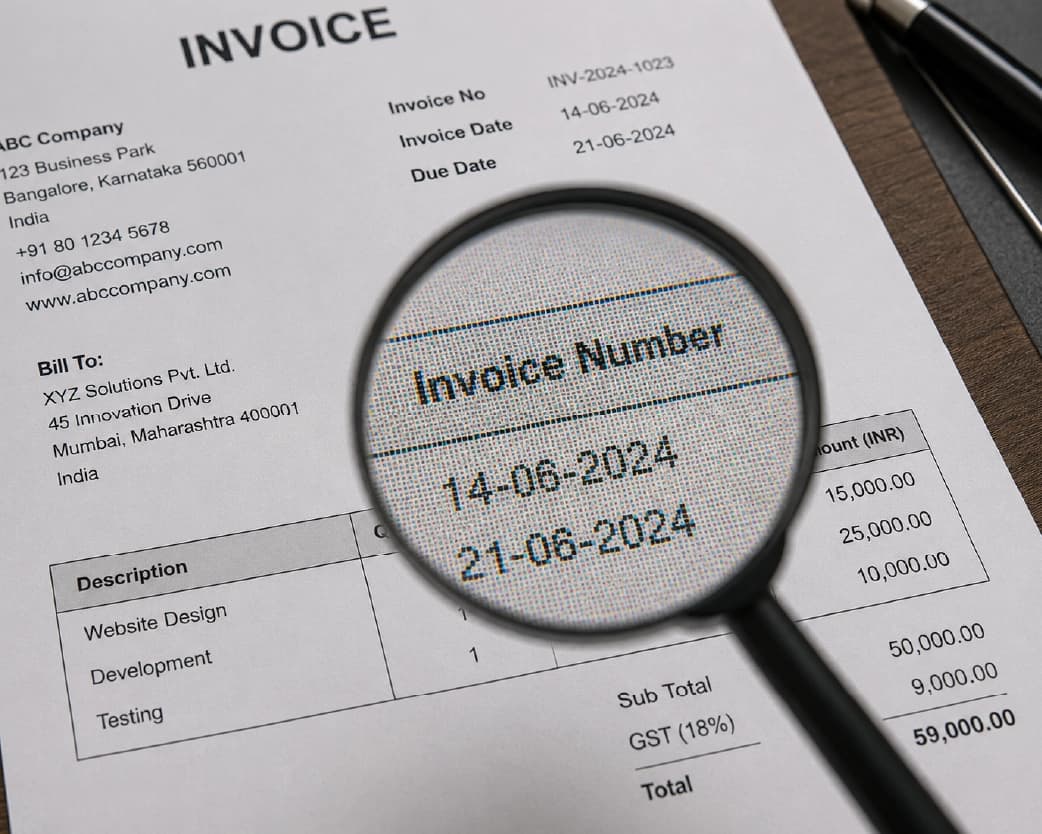
- Invoices and receipts. When auditing or reconciling invoices or receipts, searching using the name of the vendor or invoice number saves a time-consuming process of scanning file after file.
- Research papers and reports. Rather than flipping through pages and pages of information for the one page where a particular term is mentioned, the user simply searches for the term.
- Lecture notes and scanned textbook pages. A student writing an essay can pull a quote or locate a term instantly instead of re-reading pages of photographed notes to find it again.
- Old filing-cabinet archives. An organization that's scanned years of paper records but never OCR'd them has technically "digitized" its archive without actually making it useful. Running them through OCR is the step that turns storage into something you can query.
Native vs. Scanned PDFs, at a Glance
| Native (Text) PDF | Scanned (Image) PDF | |
|---|---|---|
| What's actually stored | Real text + font data | A picture of the page |
| Ctrl+F search | Works instantly | Fails, nothing to search |
| Select and copy text | Works normally | Fails until OCR is applied |
| Typical origin | Exported from Word, Docs, a browser | Scanner, phone camera, screenshot |
| Needs OCR? | No | Yes |
| Editable afterward? | Often, with an editor | Only after OCR or conversion |
Making It a Habit, Not a One-Time Fix
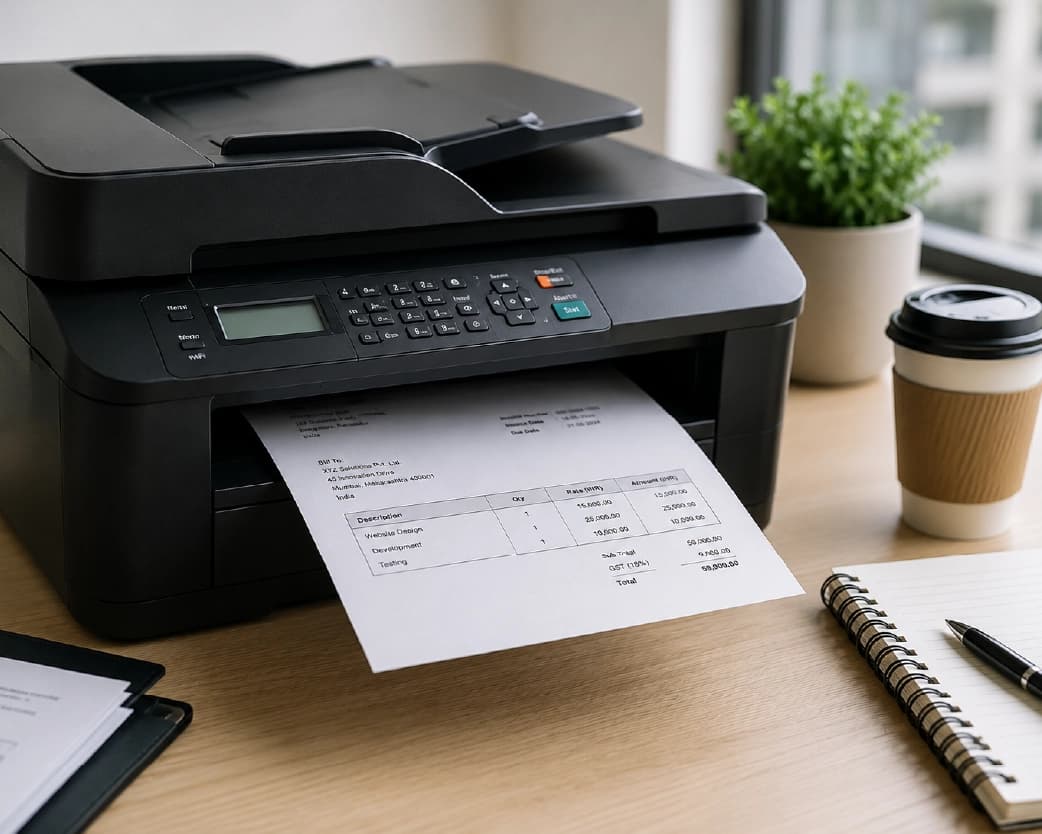
The best way to be proactive about dealing with this issue is not trying to address each instance of scanned files by manually processing them when the exasperation occurs. Rather, OCR should be incorporated in the process right from the point of document scanning itself. Most scanning applications and MFPs today have the facility of adding an OCR feature in the initial stage itself and include text right there while storing the file. In cases where this is not possible, making use of OCR as a routine check is key.
For an existing backlog of old scans, it rarely makes sense to try to fix everything at once. Start with whatever gets searched most often: an active contract library, current-year invoices, or a folder people actually open on a regular basis. Older, rarely-touched archives can be worked through gradually without holding up anything urgent.
Once a document is fully searchable, it becomes the foundation for more advanced processing - feeding the text into an AI summarizer, running structured data extraction to pull out invoice numbers or line items, or batch-processing hundreds of forms into a database. All of these require a clean, reliable text layer first; OCR isn't just the end goal, it's often the prerequisite step that unlocks the rest of a document workflow.
Frequently Asked Questions
Why can I see the text but not search for it?
Because what you're seeing is a picture of text, not text itself. The characters exist visually but not as data your software can read. OCR adds the missing data layer without touching how the page looks.
Does making a scanned PDF searchable change how it looks?
No. The visible page stays exactly the same. The OCR text layer sits invisibly beneath the image. Only search functions and copy commands interact with it.
Will OCR work on handwriting?
Only partially, and results vary a lot. Standard OCR engines are trained primarily on printed text; handwriting recognition is a genuinely different and harder problem. For mostly printed pages with a little handwritten annotation, expect the printed portions to come out clean and the handwriting to be hit-or-miss.
Is it safe to use an online OCR service to scan my document?
In most cases, it is safe. A trustworthy website uses encryption technology when uploading your file and then deletes your file after some period of time (usually 24 hours). With regard to documents that have highly sensitive classification (for example, medical or legal documents), you should consider this individually.
Does Optical Character Recognition impact on the legality of the document?
In the case of PDF, which can be used for searching purposes, no, it does not. The original image is maintained in its original format, while the text layer remains a hidden feature and not any change to the visible one. In the case of a Word document created through OCR, it is a derivative work that is not an exact copy of the original document.
How long does OCR actually take?
Most single documents finish in 15 to 60 seconds. Long, image-heavy, multi-page bundles can take a couple of minutes, occasionally longer at very high resolution.
Can I OCR a document from my phone?
Yes. Browser-based OCR tools generally work fine on mobile browsers, so you can photograph a page and process it without installing anything.
Recommended to Read:12 Best PDF to Word Converters in 2026: Free, Accurate, and Built for Real Work
Conclusion
Your PDF scan is not damaged, nor is your search function. The problem is that your document never had searchable text in it. Once you understand this, solving the issue will no longer be magic; it will be routine – anytime you receive a scanned document, do a simple OCR process before putting it in your notes, archive, or email. It takes less than one minute to turn an image of a document into something truly useful. Ready to fix one now? Upload your file to an OCR tool and see the difference for yourself.
Related insights









Get the Plainscan App for iOS & Android