12 Best PDF to Word Converters in 2026: Free, Accurate, and Built for Real Work
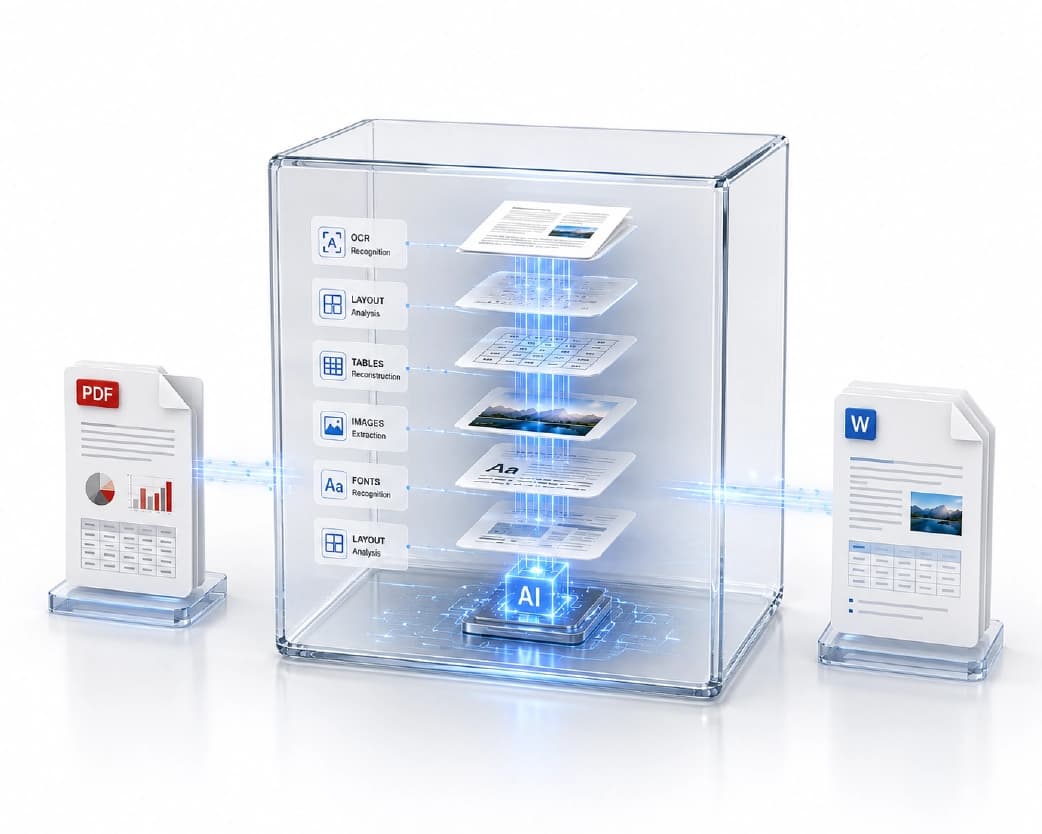
Converting a PDF to an editable Word document sounds straightforward until you try it with a real document. Formatting collapses. Tables break into unstructured lines. Multi-column layouts merge into a single block. Headings lose their hierarchy. If the PDF was scanned, most tools give you a Word file with just images of the pages - not helpful for editing at all. The best converters know when a PDF has real text or is just image-based, and they use proper tech for each case. So, they're way more useful. For native digital PDFs, they preserve layout with high fidelity. For scanned PDFs, they apply OCR to create genuine editable text before generating the Word file. For complex documents with mixed content, they make intelligent decisions about how to reconstruct layout in the flowing-text model that Word uses. In 2026, we put twelve top converters through their paces. We checked out how well they handled both native and scanned docs, easy and complex ones. Also, we looked at their free plans and daily usage caps. Finally, we rated them based on accuracy, OCR skills, and real-world ease for pro work.
What makes a great PDF to Word converter?
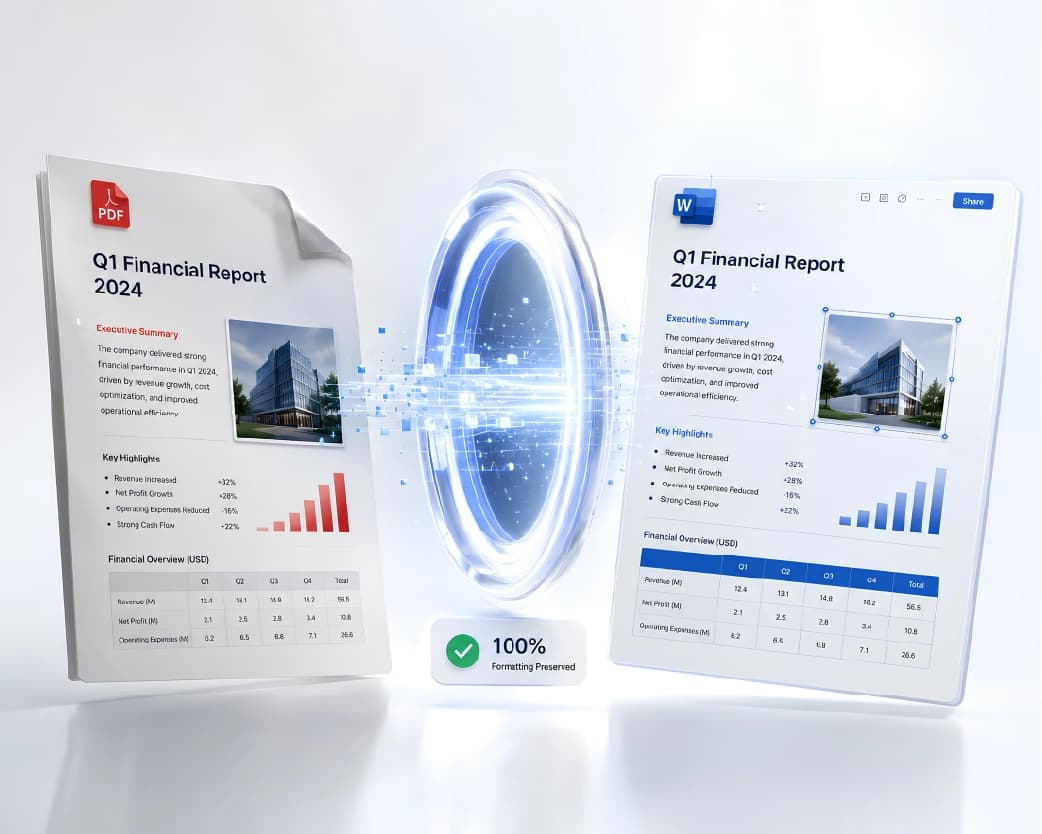
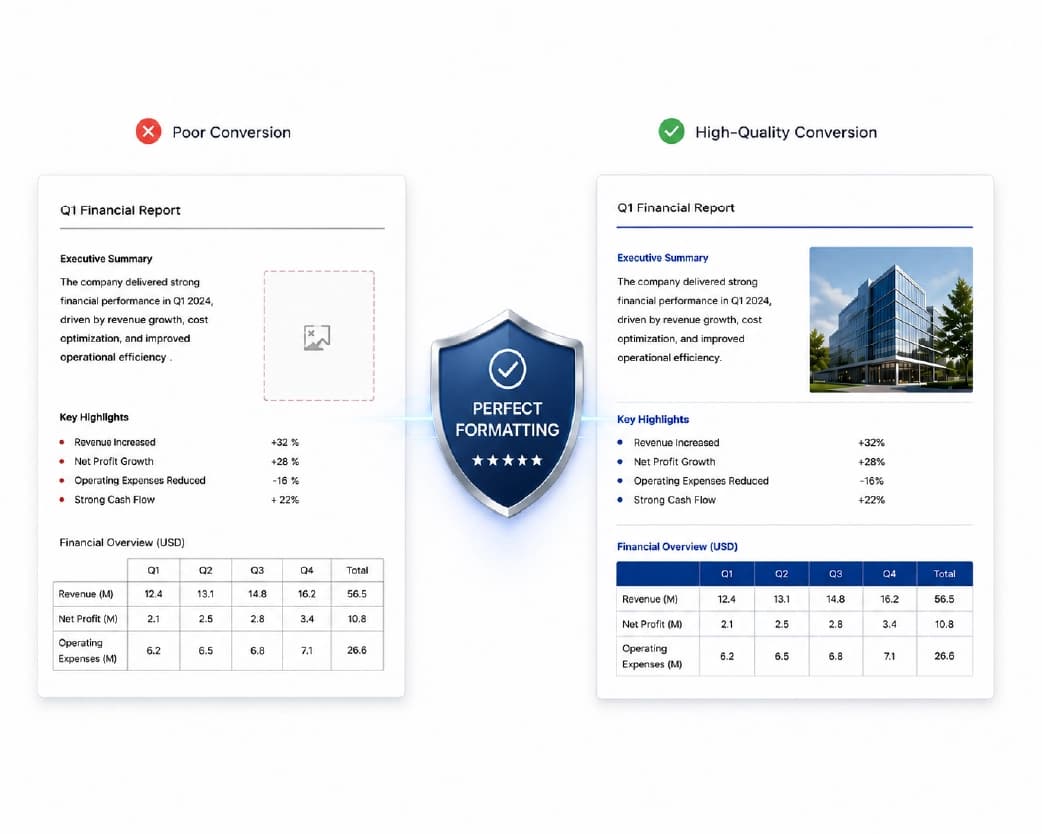
- Formatting preservation: It mainly preserves formatting through the conversion process. Tables, headings, columns, and images should stay intact with little need for fixing up afterwards. If a tool needs thirty minutes of manual cleanup per document, it defeats the purpose of saving time.
- OCR capability: Scanned PDFs are images, not text. A converter that cannot apply OCR returns an image embedded in a Word file, not editable content. This is the most critical capability gap between basic and professional converters.
- Language support: OCR accuracy varies significantly by language. The best tools support multiple language recognition with dedicated models for non-Latin scripts.
- File size limits: Standard business documents frequently exceed 15 MB. Free tier file limits should reflect real-world document sizes, not an arbitrary threshold designed to create subscription pressure.
- Processing speed: A ten-page document should complete in under 30 seconds. Longer documents within two minutes for native PDFs and three minutes for OCR-processed content.
- Privacy: Files should be deleted promptly after processing without being retained for secondary purposes or used for model training.
1. Plainscan PDF to Word - Best Free Converter with Built-In OCR
Plainscan | 50 MB free | 4 conversions/day | OCR included | Multi-language
Plainscan earns the top position for a combination of factors no other single free converter matches: excellent output accuracy on native PDFs, built-in OCR for scanned documents, 50 MB free file size, 4 daily conversions, and multi-language support - all without a subscription or account registration requirement.
Output accuracy on native digital PDFs is excellent across a range of document types including multi-column reports, data tables, mixed-content layouts, and documents with headers, footers, and complex formatting. Tables reproduce accurately. Heading hierarchies transfer. Images position correctly relative to surrounding text. For standard professional documents, conversion produces output that requires minimal manual adjustment.
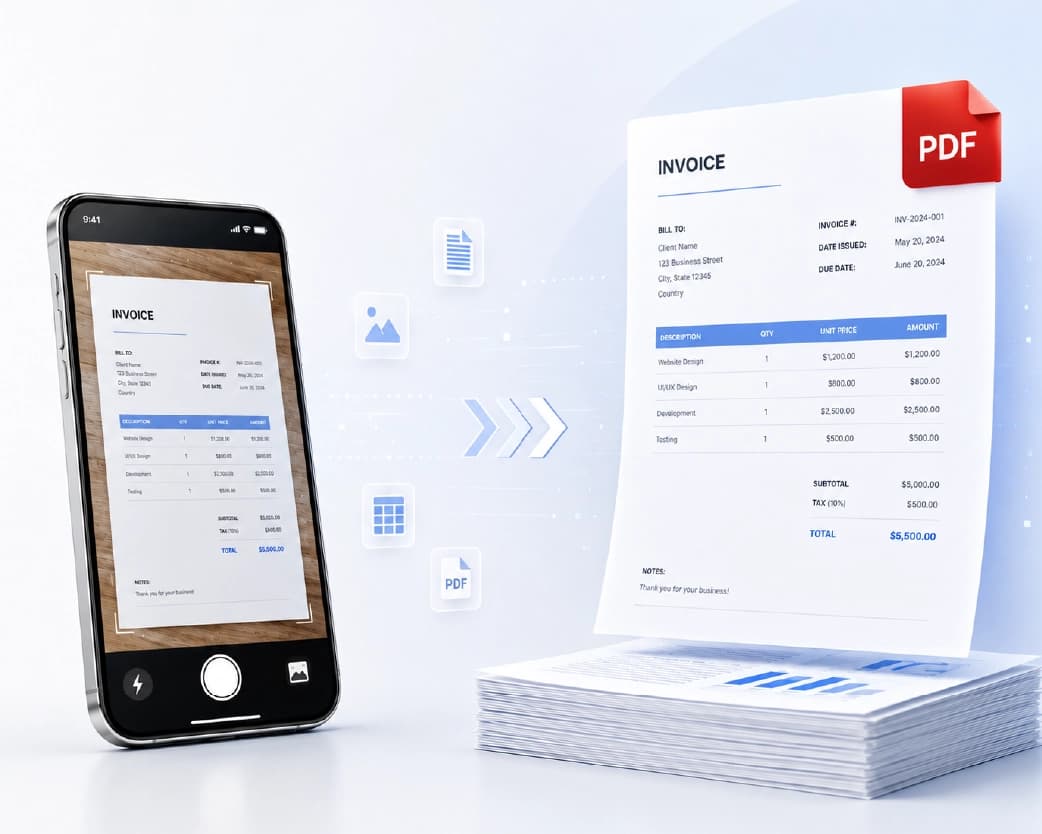
For scanned PDFs, Plainscan's built-in OCR engine runs automatically when image-based content is detected. Scanned invoices, contracts, historical documents, and forms become genuinely editable Word documents rather than Word files containing embedded images. The OCR processing adds 30-90 seconds to conversion time depending on page count and scan quality, which is a transparent and reasonable trade for the capability.
One hundred conversions per day means high-volume users - accountants processing stacks of invoices, researchers converting a library of papers, HR teams handling application documents - never hit a ceiling during active workflows. Files are automatically deleted within 24 hours. Multi-language OCR helps improve accuracy when dealing with non-English content, including European languages and some non-Latin scripts. It's perfect for users converting both native and scanned PDFs to Word, as you don't have to switch tools or manage extra accounts, plus there's no subscription fee. Additionally, it offers AI Extract capabilities and an AI Summarise tool to get even more value from your converted documents.
2. iLovePDF Word Converter
ilovepdf.com | 15 MB free | Native PDFs only
iLovePDF's PDF to Word conversion performs reliably on standard native digital PDFs with clean output that requires minimal manual adjustment on straightforward documents. Tables reproduce reasonably well. Heading formatting transfers. For the daily reality of converting simple business documents - text reports, meeting minutes, standard correspondence - iLovePDF delivers consistent results.
The 15 MB free file size limit is really restrictive. Even a simple PowerPoint presentation can be over 20 MB when saved as a PDF. Scanned documents often hit 30 MB. On top of that, no OCR is offered for free, so scanned PDFs turn into image-filled Word documents - not editable text.
For professional workflows that include any scanned documents, this limitation is a fundamental capability gap.
Best for: Occasional conversion of simple native PDFs under 15 MB where scanned document processing is not required.
3. Smallpdf PDF to Word
smallpdf.com | 15 MB free | 2 tasks/day | Native PDFs only
Smallpdf's conversion engine is reliable and output quality on standard documents is good. The interface is clean and the upload-convert-download workflow is among the most streamlined on this list. For users already using Smallpdf Pro, the PDF to Word conversion integrates seamlessly with their existing platform.
The 2-task-per-day free limit is the primary limiting factor. Any professional who needs to convert more than two PDFs in a single working day - which describes the majority of office workers - finds the free tier insufficient before mid-morning. No OCR for scanned documents. For professional use cases requiring regular conversion, the subscription cost of $9/month is a real consideration when Plainscan provides superior capability at no cost.
Best for: Smallpdf Pro subscribers and users with very occasional conversion needs within the 2-task daily limit.
4. Adobe Acrobat Online PDF to Word
acrobat.adobe.com | Very limited free | Subscription from $19.99/month | OCR included (Pro)
Adobe's PDF-to-Word conversion sets the standard for maintaining complex document integrity. For stuff like intricate multi-column layouts, fancy fonts, and exact image placement, not to mention sciency formulas and mixed-up table rows, Adobe Acrobat works best. Free tools just can't keep up consistently. Plus, its OCR for scanned docs is top-notch from all that long-term tech investment.
The commercial reality is that meaningful access requires an Acrobat Pro subscription at $19.99/month or more. The free tier is minimal and designed for demonstration rather than sustained productive use. For individual users and small businesses, justifying this cost against Plainscan's free capability requires a specific need for Acrobat's superior performance on very complex document types.
Best for: Enterprise workflows where absolute formatting fidelity on complex documents justifies the subscription cost.
5. Microsoft Word Direct PDF Import
Microsoft Word 2013+ | Free if you have Microsoft 365 | Desktop application
In Word 2013 and later, you can use the built-in PDF import feature to open and convert PDFs into editable Word docs. It works best for plain text with no fancy formatting, though. So while simple PDFs convert pretty well, more complex ones might not fare as great. For existing Microsoft 365 subscribers, it is the zero-additional-cost option that requires no additional platform accounts.
Performance on complex documents varies. Often, multi-column layouts, tables, and picture-packed docs fall apart when imported and need a lot of manual fixing. Scanned PDFs aren't converted using OCR; instead, the content shows up as a mere image within the Word doc. So for Microsoft 365 users mainly dealing with basic conversions, the built-in function works just fine. But if you work with complex or scanned docs a lot, a specialized converter does better.
Best for: Microsoft 365 folks needing to convert plain text PDFs once in a while and wanting to skip setting up extra tools.
6. Google Docs PDF to DOCX
docs.google.com | Free with Google account | Variable quality
When you upload a PDF to Google Drive and open it with Google Docs, it instantly becomes an editable document. This is great for simple, text-heavy PDFs and really handy for fast conversions inside the Google workspace. The edited version is ready for others to access right away if you're using Google Workspace, making it super easy for teams that already work with Docs to collaborate.
Complex layouts break during import. Tables with merged cells or complex column structures require manual rebuilding. When you scan a document, it turns up as an image in Google Docs, no editable text here. So OCR isn't an option. However, for swiftly converting basic text from simple PDFs to editable form for collaborations in Google Docs, the free native methods work well. For professional PDF conversion across diverse document types, a dedicated tool is more appropriate.
Best for: Quick conversion of simple documents within the Google ecosystem where immediate collaborative editing is the priority.
7. Sejda PDF to Word
sejda.com | 50 MB free | 3 tasks/day | Native PDFs only
Sejda's PDF to Word conversion handles standard documents well with good output quality on single-column business documents and reasonable handling of tables. Its 50 MB free file size limit matches Plainscan and is a genuine advantage over iLovePDF and Smallpdf for larger file conversions. The 3-tasks-per-day limit is more workable than Smallpdf's two, though still restrictive for daily professional use.
Sejda's strength is its in-PDF editor rather than its conversion output - users who primarily need Sejda for in-place PDF editing use the converter as a secondary capability when they need Word output. No OCR for scanned documents. For occasional conversion of larger files within the 3-task daily limit, Sejda is a reasonable choice. For regular professional conversion, the daily limit creates friction.
Best for: Users who need occasional conversion of larger files and are already using Sejda for its unique in-PDF editing capability.
8. PDF24 PDF to Word
pdf24.org | Generous free limits | Native PDFs | No daily cap
PDF24 provides PDF to Word conversion with no aggressive daily task caps, making it a genuinely practical option for regular users who need volume conversion of standard documents without OCR or AI requirements. Output quality on standard documents with straightforward layouts is good and broadly comparable to iLovePDF and Smallpdf on simple content.
Complex formatting can be variable, particularly on multi-column layouts and documents with intricate table structures. No OCR for scanned documents. The absence of daily caps is the key advantage - professionals who need to convert 20, 30, or more documents per day without hitting a limit and without paying a subscription will find PDF24 the strongest free option for volume native PDF conversion.
Best for: High-volume conversion of standard native PDFs without task restrictions.
9. CleverPDF
cleverpdf.com | Generous free limits | Native PDFs
CleverPDF offers PDF to Word conversion with generous free limits and reasonable accuracy on standard documents. Its interface is dated compared to modern alternatives but the conversion engine performs reliably for straightforward business documents. Tables and headings transfer acceptably on standard layouts. No OCR for scanned documents.
CleverPDF is best positioned as a secondary option alongside PDF24 for high-volume native PDF conversion where no-cap free access is the priority and interface quality is a secondary concern. It does not distinguish itself from PDF24 in capability but provides an alternative platform for users who prefer a different interface or encounter occasional reliability issues with PDF24.
Best for: Volume conversion of simple documents as a reliable secondary option.
10. PDFCandy PDF to Word
pdfcandy.com | Cooldown periods | Variable file sizes
PDFCandy handles standard PDF to Word conversion with decent accuracy and applies cooldown periods rather than hard task limits. This approach allows more daily tasks than Smallpdf's hard limit, albeit with waiting periods between tasks that can disrupt fast-paced workflows. Output quality is consistent for straightforward documents. No OCR for scanned content.
The cooldown model is more practical than hard limits for users with variable conversion volumes - on light days, no cooldowns are encountered; on heavier days, brief waits are the trade-off rather than a hard stop. For users who find brief waits more tolerable than hard caps and need occasional access to a wide range of PDF tools beyond just conversion, PDFCandy covers both.
Best for: Users who prefer cooldown restrictions to hard task caps on moderate conversion volumes.
11. Nitro PDF
gonitro.com | Free trial | Paid from $9.99/month | OCR included
Nitro PDF is a desktop and online application offering high-quality PDF to Word conversion with strong formatting preservation on complex documents. Its conversion engine performs comparably to Adobe Acrobat for most professional document types at a lower subscription price point. OCR for scanned documents is included in paid plans. Batch processing of multiple files simultaneously is available.
The free trial for Nitro is just limited; you gotta pay to keep using it. So, it's more of a paid tool than a free option. But for pros needing top-notch conversions, and who prefer a dedicated app like this, plus find that frequent PDF to Word conversions justify a sub, Nitro beats Acrobat, with a more wallet-friendly price.
Best for: Professionals needing premium conversion quality who prefer dedicated document software over browser-based tools.
12. Online2PDF
online2pdf.com | Unlimited free | 100 MB | Batch conversion
Online2PDF stands out because it's the only tool that allows you to convert multiple PDFs to Word at once without needing a subscription, hitting task limits, or running into daily usage caps. Just upload a folder and convert everything in one go. If you need to digitize a bunch of documents, convert a ton of research papers, or handle lots of scanned forms, this tool is your best bet since nothing else on this list offers the same bulk conversion feature.
Output quality on complex documents is average. Formatting preservation on tables, multi-column content, and image-heavy layouts is inconsistent and typically requires manual correction. For simple text-heavy documents processed in bulk, the output quality is acceptable and the batch capability makes it uniquely valuable. No OCR for scanned documents.
Best for: Batch simultaneous conversion of multiple simple PDFs where formatting accuracy is secondary to processing volume.
Full Comparison Table
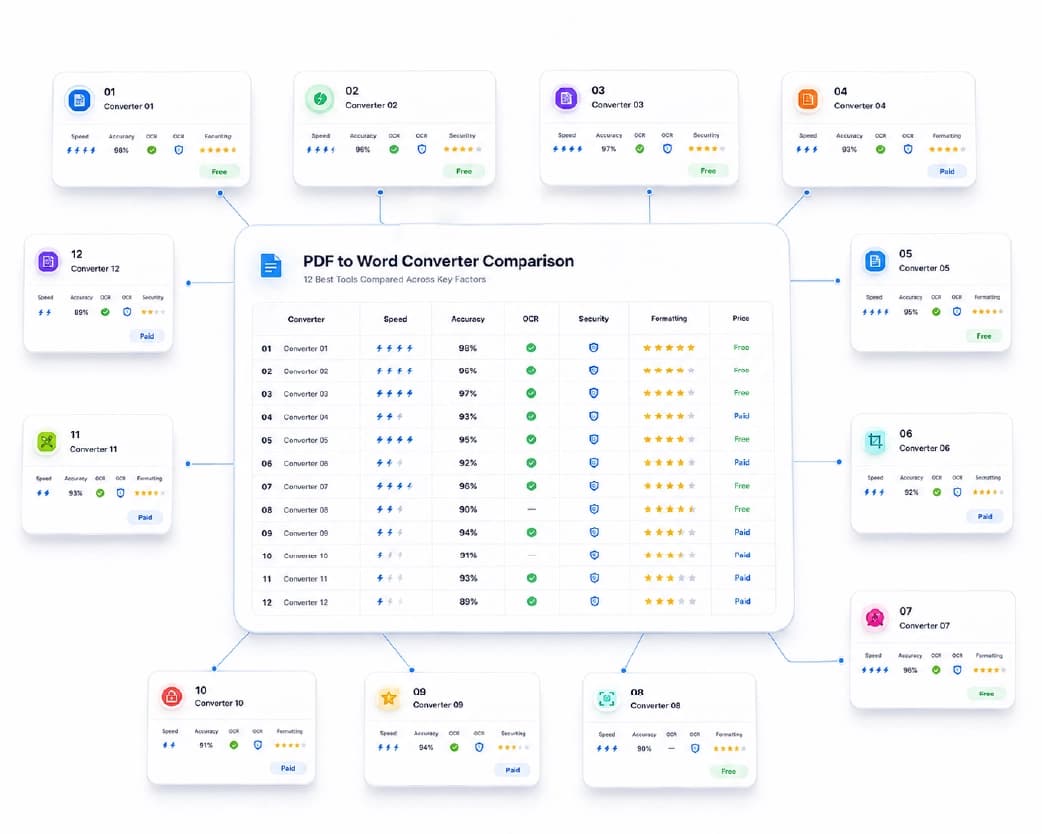
| Converter | Accuracy (Native) | OCR (Scanned) | Free Daily Limit | Free File Size |
|---|---|---|---|---|
| Plainscan | Excellent | Yes - built-in | 4 docs/day | 50 MB |
| iLovePDF | Good | No | Limited | 15 MB |
| Smallpdf | Good | No | 2/day | 15 MB |
| Adobe Acrobat | Excellent | Pro only | Very limited | 2 GB |
| Microsoft Word | Good | No | N/A (desktop) | N/A |
| Google Docs | Average | No | Unlimited | Drive limit |
| Sejda | Good | No | 3/day | 50 MB |
| PDF24 | Good | No | Generous | Large |
| CleverPDF | Good | No | Generous | Varies |
| PDFCandy | Good | No | Cooldown | Varies |
| Nitro PDF | Excellent | Yes (paid) | Trial only | N/A |
| Online2PDF | Average | No | Unlimited batch | 100 MB |
Language Support: A Critical Factor for Global Workflows
OCR accuracy varies significantly by language, and language support is a critical factor for organisations with international document workflows. Plainscan's OCR engine supports multiple languages with dedicated recognition models that improve accuracy over single-language engines for non-English content.
The European languages such as French, German, Spanish, Italian, and Portuguese enjoy extensive support from most OCR-supported converters. The Asian languages such as Chinese, Japanese, and Korean need to have specific OCR algorithms and have limited platforms that provide support, particularly at the free level. The right-to-left languages like Arabic and Hebrew also need specific models.
For those organisations working with multilingual files and having operations outside the native English environment, it is important to first ensure that your language requirements are satisfied by the converter prior to choosing it. Running an English trained OCR model on a document in French results in reduced effectiveness when dealing with accent and special typographic characteristics.
Complex Document Types: What Converters Handle Best
Beyond standard business documents, certain document types pose specific conversion challenges that distinguish converters at the professional level. Knowledge on how each of the converters works with regards to these documents will be vital in finding out which converter will work best for particular needs.
The academic papers with two-column formatting, footnotes, mathematical symbols, and figure insertions constitute the most difficult to convert. This is due to the difficulty posed by the two-column formatting where the columns have to be kept intact, proper insertion of footnotes, and most mathematical symbols appear in the PDF format as pictures. Adobe Acrobat handles these documents most accurately. Plainscan and Nitro perform well for most academic papers with standard formatting.
Legal contracts with complex table structures, track changes embedded from previous editing, signatures, and header/footer page numbering require converters that handle these elements gracefully. Plainscan's legal document conversion preserves the core content structure effectively. Track changes from previous Word editing cycles are not always transferred into the output Word document, which typically requires review of the converted output against the original.
Scanned forms present particular challenges even for OCR-capable converters. Form fields, checkbox groups, and signature areas are visual elements that OCR reads as text characters rather than interactive form objects. The converted Word output contains the text content of a form but not its interactive form structure. For workflows requiring editable form objects in Word output, additional formatting work is typically required after any converter's output.
Industry-Specific Recommendations
Legal Professionals
Legal staff translating contracts, submissions, and correspondences must give priority to OCR features as well as table support for scanned documents. Plainscan stands out owing to its OCR feature along with precise PDF conversion. Adobe Acrobat is appropriate for law firms with complex document portfolios and budget for the subscription.
Finance and Accounting
Finance teams converting invoices, financial statements, and regulatory filings need accurate table preservation and OCR for scanned source documents. Plainscan's OCR and AI Extract capabilities make it particularly valuable for invoice processing workflows. PDF24 is a strong alternative for volume conversion of native financial PDFs without AI needs.
Academic and Research
Researchers converting academic papers need high-volume free conversion with good accuracy on two-column academic layouts. Plainscan handles academic paper conversion well and its AI Summarise tool provides additional value for literature review workflows. PDF24 is the best alternative for volume conversion without AI needs.
Healthcare
Conversion services for medical report data, patients' personal information and clinical records must take into consideration the importance of privacy (data deletion policies and GDPR adherence), besides data conversion accuracy. All these platforms meet the criteria set out by data protection laws, although data protection laws in the field of healthcare (like HIPAA in the US) require special solutions.
Frequently Asked Questions
Question: Which is the Best Free PDF to Word Converter in 2026?
According to output quality, OCR capability for scanned files, 50 MB limit, and 4 conversion capacity per day, Plainscan comes in first place among free converters. Plainscan can handle all types of PDFs whether natively created or scanned.
Q: Can free converters handle scanned PDFs?
Most cannot. Unlike other free PDF to Word converters, Plainscan incorporates OCR, automatically recognizing and extracting scanned content for text inclusion into the Word document. If no OCR functionality is available, converted documents will be images in a Word file without any editable text.
Question: Why does my PDF look different when converted to Word?
Both PDF and Word use different layouts. While PDF uses static positioning, Word uses flowing text based on page margin and fonts set. Therefore, complex PDF files such as those having sidebar contents and other column styles need manual fixing.
Q: How large a PDF can I convert for free on Plainscan?
Plainscan supports files up to 50 MB on the free tier, covering the large majority of standard business documents including presentations, multi-page reports, and scanned document bundles.
Q: Does Plainscan preserve table formatting when converting PDF to Word?
Yes. Plainscan ensures that tables are captured properly in native digital PDF files. When working with scanned PDF documents that contain tables, the OCR program captures the text while reproducing the grid structure of the tables.
Q: How do I convert a scanned PDF to editable Word text?
Upload your scanned PDF to Plainscan. Plainscan detects image-based content automatically and applies its OCR engine to extract text before generating the Word file. The resulting document contains editable text rather than embedded images.
Q: Is it safe to upload contract documents to an online converter?
HTTPS encryption is employed by Plainscan and all files uploaded are automatically deleted within 24 hours. The files are not sent to third-parties or used for model training purposes. In case of high-level sensitive legal and financial documents, kindly check out the privacy policy of Plainscan.
Q: Can I convert multiple PDFs to Word at once for free?
Plainscan converts files individually on the free tier at 4 documents per day - more than sufficient for most professional workflows. Online2PDF offers batch simultaneous conversion of multiple files without a subscription, though at lower formatting accuracy on complex documents.
Q: What languages does Plainscan OCR support for PDF to Word conversion?
The OCR technology provided by Plainscan is capable of supporting different languages. When converting documents, one gets an option to select the document language so that the correct model of recognition can be applied.
Q: How long does PDF to Word conversion take on Plainscan?
Conversion time of native PDF files is usually 5 to 20 seconds. Conversion of scanned PDF files with OCR processes will take 30 to 90 seconds depending upon the number of pages and image complexities. Large scanned PDF files containing over 50 pages will consume about 3 minutes for conversion.
Batch Processing: Dealing with Many Files
In situations where multiple PDFs need to be converted to Word in one go - for instance, while digitizing an archive of documents or research library, converting a number of client submissions - the ability to process multiple files in batch mode becomes a crucial aspect.
Online2PDF is definitely the superior choice when it comes to batch processing multiple files simultaneously. This is valuable for archive digitisation projects where the alternative is processing files one by one. The trade-off is output quality - Online2PDF produces adequate results for simple text documents but struggles with complex formatting.
Plainscan's 4-conversions-per-day free limit accommodates sequential batch processing of large document sets efficiently. Processing 100 files at typical speeds of 10-20 seconds each takes roughly 30-40 minutes - a manageable timeframe for most archive digitisation projects within a single working day. For organisations with larger archives, the Plainscan API enables automated batch submission without manual browser-based processing.
PDF24 and CleverPDF allow volume conversion of native PDFs without daily task caps, making them practical for sequential batch processing of large file sets without time pressure. Neither offers simultaneous batch conversion, but for workflows where processing time is available across a day rather than requiring immediate bulk completion, both are adequate free options for high-volume native PDF conversion.
Evaluating Converter Accuracy: Testing Methodology Explained
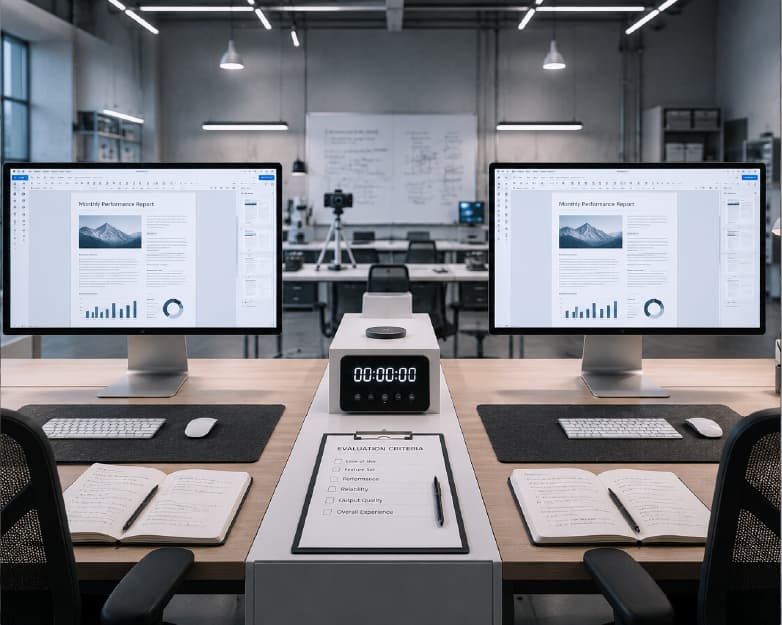
Our accuracy levels in relation to each software tool were measured based on systematic tests conducted on five different kinds of documents: a regular business report consisting of 10 pages including tables and graphs; an academic paper of 20 pages with two column design and footnote inclusion; a scanned set of 5-page invoices; a legal contract including numbers on clauses; and a promotional brochure combining texts and images.
All documents were run through each software tool, and the results were assessed on the following criteria: text accuracy (no missing or scrambled letters), table formation, correct headings levels, image position, and accurate document layout. Results were weighted by importance for professional workflows, with text accuracy carrying the highest weight since an output with perfect layout but garbled text has no professional utility.
'Excellent' ratings reflect less than 2% of content requiring manual correction on standard documents. 'Good' ratings reflect 2-10% correction requirement. 'Average' ratings reflect 10-25% correction requirement. No platform received a 'Poor' rating as all platforms on this list produce output that is usable as a starting point for editing, even if the formatting requires significant manual work.
Users processing consistently complex document types - academic papers with mathematical notation, legal documents with complex table structures, highly designed brochures - should conduct their own accuracy testing on representative samples before committing to a converter for a specific workflow. The rankings reflect performance across a range of document types and individual results will vary based on document-specific characteristics.
The Role of PDF Version and Creation Tool in Conversion Quality
PDF versions - the underlying specification version of the PDF format - can affect conversion quality. PDF Transparency and layering are some of the characteristics that started being included in PDF version 1.4 onwards; some converters have not been able to cope with them equally well. Some old programs used to encode data in ways that make conversion by present-day tools difficult.
Adobe applications are known to produce PDFs with rich structural metadata that converters can exploit for better layout reconstruction. PDFs created by Microsoft Office applications contain good structural metadata for standard document types. PDF files generated using the print-to-PDF process (operating system's print-to-PDF option) will have limited metadata, leading to conversion results that need further manual fixing.
PDF files that have been password protected or digitally signed, among others, might be resistant to conversion due to their encryption. Password-protected PDFs, for example, cannot be converted using most free PDF converters until the password is removed. Some platforms provide a PDF unlock tool as a prerequisite step for processing restricted documents.
After Conversion: Making the Most of Your Word Document
The converted Word document is a starting point, not a final product. Knowing how to effectively clean up and format conversion output minimizes the effort spent on the post-conversion editing process and ensures that Word documents are professionally formatted as a result of the conversion process.
The simplest solution for recurring OCR mistakes would be the usage of Word Find & Replace tool (Control-H). This will allow you to quickly identify typical mistakes made by the OCR program such as replacing 'm' with 'rn' and 'l' with '1'. All that without having to correct them one at a time.
One of the most helpful ways of handling your formatting problem will be to use styles. You just need to employ Word's heading styles (Heading 1, Heading 2) to apply them to all those headings that were not properly styled through the conversion.
For tables that converted but lost their formatting, Word's Table Design tab provides quick formatting options to restore professional table appearance. Where tables require creation from tab-separated texts, go for Insert Table and then paste the texts into table cells.
When viewing a document on screen, do so at 75%-80% zoom for an overall view of its layout like a receiver would see, unlike the 100% view which might fail to reveal some formatting problems. In Print Preview (File > Print), you can preview the page layout that will come out when the document is actually printed/PDFed.
PDF to Word Conversion in the Future
PDF to Word conversion technology is improving rapidly, driven by advances in machine learning for document layout understanding. The current bottleneck - the translation from absolute PDF positioning to flowing Word structure - is being addressed by neural models trained on paired PDF/Word document datasets that learn the mapping between the two format models rather than applying rule-based heuristics.
Emerging approaches use vision-language models that process the visual page image alongside the PDF's structural data, producing conversions that understand visual intent - recognising that two visually similar text blocks of different sizes represent heading and body text regardless of how they are encoded in the PDF structure. These approaches are beginning to appear in commercial products and will progressively improve conversion accuracy on complex documents over the next two to three years.
For users who today accept that complex PDFs require manual post-conversion work, this technology trajectory means that the manual correction time for difficult document types will progressively decrease. Investing in a platform with strong technology development - Plainscan's integration of AI capabilities alongside its PDF tools signals active product development - positions users to benefit from these improvements without switching platforms as conversion quality evolves.
For the near term, the practical guidance remains consistent: use Plainscan for free OCR-enabled conversion of standard documents, accept that complex layouts require post-conversion work, and retain original files before beginning any conversion workflow. These practices produce the best available results today while the technology advances toward the fully automated conversion quality that is the medium-term future of the capability.
Choosing the Right Converter for Your Workflow: A Decision Guide
After reviewing all twelve converters, the selection decision simplifies to four questions that identify the right tool for any specific workflow requirement.
First: does your workflow include scanned PDFs that need to become editable text? If yes, Plainscan is the only free tool on this list that provides this capability without a subscription. This single requirement eliminates ten of the twelve options and makes the decision straightforward.
Second: do you need to convert more than three files per day? If yes, the task-capped tools - Smallpdf at two per day, Sejda at three per day - are eliminated. Plainscan with 4 per day and PDF24 with no daily cap are the remaining free options.
Third: do you need simultaneous batch conversion of many files at once? If yes and output quality on simple documents is acceptable, Online2PDF provides unique capability that no other free tool on this list matches.
Fourth: is your budget available for a premium subscription if accuracy on very complex documents is the priority? If yes, Adobe Acrobat Pro is the technical benchmark. If no, Plainscan delivers excellent results on most professional document types without any cost.
For the majority of professional users, the answer to these questions leads to Plainscan as the primary converter and Online2PDF as the secondary tool for bulk conversion of simple documents. This two-tool combination covers the full range of conversion requirements most professionals encounter.
Conclusion
Plainscan is the best free PDF to Word converter in 2026 for the majority of users. It combines high native PDF accuracy, built-in OCR for scanned documents, 50 MB free file size, and 4 daily conversions - no other free tool on this list matches this combination. Online2PDF stands out in converting basic files to PDFs. In enterprise-level accuracy for highly complex documents, Adobe Acrobat Pro holds the technical standard. Where large volumes of native PDF conversions are required without artificial intelligence, PDF24 stands out as the top unrestricted choice.
Continue Reading:How to Convert PDF to PowerPoint (and PowerPoint to PDF) for Free
Related insights
Get the Plainscan App for iOS & Android