
Adding a watermark to a PDF - whether it's a company logo, a "Confidential" stamp, or a name across a page - comes down to uploading the file, placing the watermark where you want it, adjusting its opacity so it doesn't obscure the text underneath, and downloading the result. No design software, no installation, and for occasional use, no account required. This guide covers the practical details that determine whether a watermark looks professional or just gets in the way: opacity, placement, using a logo versus plain text, page selection, and batch-watermarking a whole set of PDFs at once.
Recommended to Read:AI Document Summarizer: Summarize Any File for Free
Why People Watermark PDFs
Protecting shared work is the most common driver - freelancers sending draft documents before a contract is signed, anyone distributing a PDF they don't want copied and passed off as someone else's.
Branding consistency is another major reason - businesses stamping a logo across outgoing reports and proposals so the source is unmistakable wherever the file ends up, intentionally or not.
Marking document status covers watermarks like "Draft," "Confidential," "Do Not Distribute," or "Sample" - a quick, unmissable visual signal about a document's status that doesn't require anyone to read fine print to understand.
Copyright and ownership marking - a name and copyright symbol across a document, for instance - serves as a visible deterrent against unauthorized use, even though a determined person can still remove or crop around a watermark; it raises the effort required rather than making misuse impossible.
Step-by-Step: Add a Watermark to a PDF
By using the watermark feature available at Plainscan:
- Upload your PDF.
- Choose text or a logo/image watermark. Text watermarks are typically customizable for font, size, and color; a logo watermark uses a file you upload (commonly a PNG with a transparent background, covered in more detail below).
- Position and size the watermark. Common placements include centered diagonally across the page, tiled in a repeating pattern, or positioned in a single corner - which one makes sense depends on what you're protecting against, covered further down.
- Adjust opacity. This is the setting that most determines whether a watermark looks professional - too opaque and it hides the text beneath it, while too light and it can't perform its function of being visible.
- Apply to all pages or selected pages, depending on whether every page of the document needs the same watermark.
- Download the finished PDF.

Text Watermarks vs. Logo Watermarks
Text watermarks are the right choice for status marking ("Confidential," "Draft," "Sample") and for simple copyright or name attribution where a logo isn't necessary or doesn't exist yet. They're quick to set up and don't require any additional asset beyond typing the text itself.
Logo watermarks are the right choice for branding - stamping a business's actual logo across outgoing reports, proposals, or contracts so the source is visually unmistakable. For a clean result, the logo file should ideally be a PNG with a transparent background rather than a JPG with a solid white box around it - a watermark with a visible rectangular background looks noticeably less professional than one that blends directly onto the page, since the point of a watermark is usually to sit unobtrusively over the content rather than announce itself with a hard edge.
If a business doesn't yet have a logo saved with a transparent background, that's worth creating once - a background-removal tool can strip a white or solid background from an existing logo file, producing a transparent version that then works cleanly as a watermark going forward, rather than needing to redo this step every time.
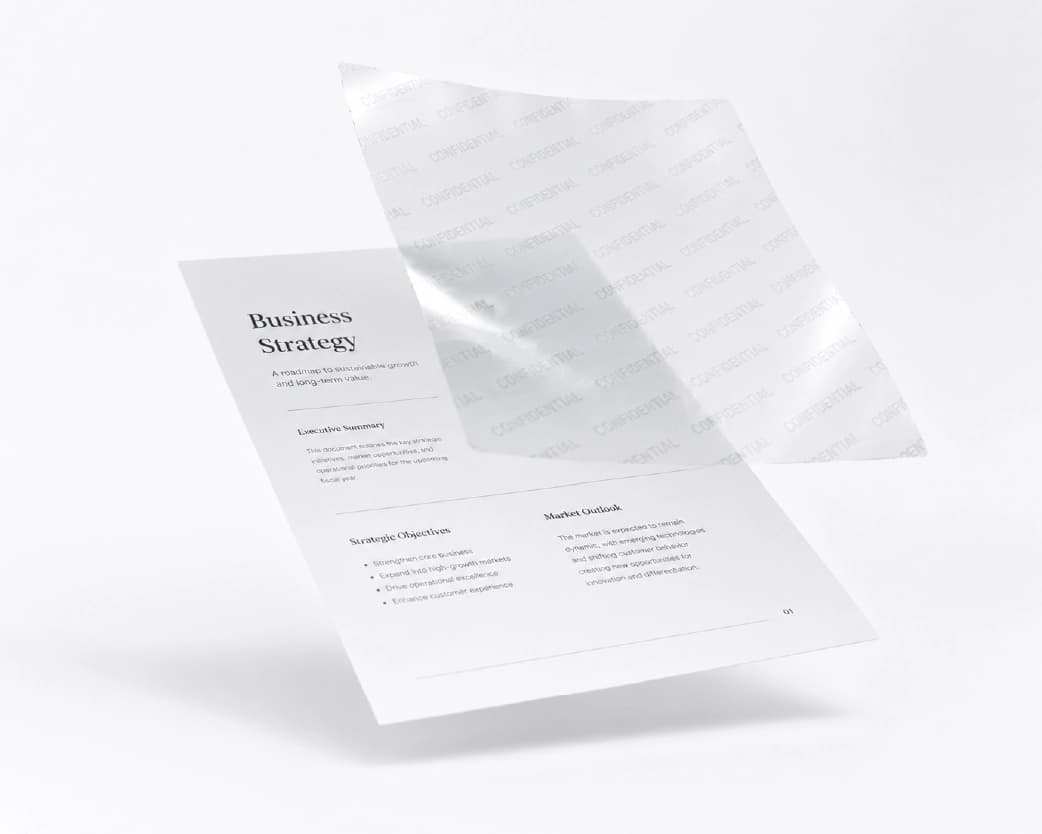
Choosing Placement and Pattern
Diagonal, centered placement is the most common choice for protecting draft documents, since it's difficult to crop out without losing a meaningful portion of the actual content - a corner watermark, by contrast, can often simply be cropped away, defeating the point.
Tiled/repeating placement - the same watermark repeated multiple times across the page - offers the strongest protection against cropping, since removing every instance is considerably more work than removing a single mark, but it's also the most visually intrusive option, appropriate mainly for genuinely sensitive draft material rather than anything meant to still look presentable.
Single corner placement is the lightest-touch option, appropriate for branding purposes where the goal is attribution rather than active protection against misuse - a logo in the bottom corner of a report, for instance, where the priority is looking clean and professional rather than being difficult to remove.
The right choice depends on what you're actually trying to accomplish: if the goal is protection against unauthorized reuse, diagonal or tiled placement with reasonably high visibility is more effective; if the goal is branding or light attribution on material you're not worried about being copied, a subtler corner placement looks more polished.
Getting Opacity Right
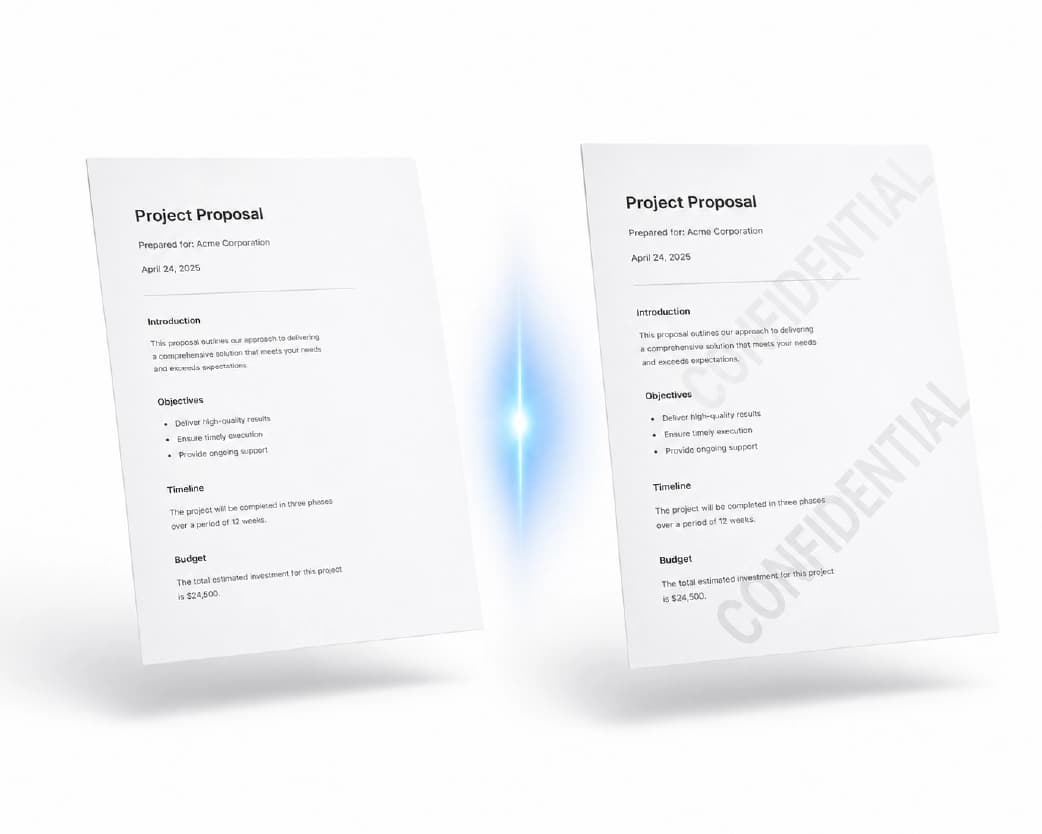
This is the single detail most likely to make or break how a watermark actually looks. Too opaque, and the watermark competes with or obscures the document's text - defeating the purpose if the file still needs to be readable in its watermarked form (a draft someone still needs to review). Too faint, and the watermark fails at its actual job of being clearly visible and hard to casually crop or clone out.
A reasonable starting point for most purposes is somewhere in the 20-40% opacity range - visible enough to serve its purpose without making the underlying text hard to read. Status-marking watermarks like "Draft" or "Confidential" can generally run a bit more opaque than lighter branding marks, since document text tends to remain legible around a moderately visible stamp.
Watermarking Multiple PDFs at Once
For anyone protecting or branding more than a handful of files - a full batch of contracts, a set of reports going out to different recipients - applying the same watermark one file at a time becomes the real bottleneck. Checking whether the tool supports uploading and watermarking multiple PDFs in a single batch, with consistent placement and opacity settings applied across all of them, is worth doing before starting a large job rather than repeating the manual setup for every individual file.
For a genuinely large batch, it's worth watermarking a small sample first and reviewing the placement across a couple of different page layouts, since a watermark positioned well on a mostly-text page can land somewhere awkward on a page dominated by a table or a fullpage chart if the batch mixes layouts - confirming the settings work across the actual variety in your batch before committing to the full run avoids having to redo everything after noticing a problem partway through.
Page Selection and Consistency
For multi-page PDF documents, it's worth deciding upfront whether every page needs the same watermark or whether it makes more sense to apply it selectively - a cover page might not need the same "Draft" stamp as the internal pages, or a long report might only need watermarking on the pages containing genuinely sensitive figures rather than uniformly throughout. Most watermarking tools support applying to all pages by default, with an option to select a specific page range if uniform coverage isn't actually what the situation calls for.
It's also worth confirming the watermark's position stays visually consistent across pages of different content density - a diagonal watermark that looks fine crossing a mostly-empty page can land awkwardly across a page dense with text or a table, so a quick scroll-through of the finished document before distributing it catches any pages where the placement looks off relative to the rest.

Is Watermarking a Reliable Way to Protect a Document?
It's worth being honest about what a watermark actually accomplishes and what it doesn't. A watermark makes unauthorized use more visible and somewhat more effort to remove - someone determined to strip it out can often do so with enough effort, and a watermark doesn't prevent someone from simply screenshotting or re-photographing a page in a way that carries the mark along regardless. What a watermark reliably does is make casual, loweffort misuse (a draft document circulated as though it were approved) considerably less likely, since the mark is immediately visible to anyone who encounters the file, and it signals clearly that a more genuine version exists. For situations where content protection genuinely matters at a legal level - licensing terms, copyright - a watermark supports that position visually but isn't a substitute for the underlying legal protections themselves.
Is It Safe to Watermark PDFs Online?
The same general privacy considerations apply here as with any browser-based tool - for a low-stakes document, there's little at stake in uploading it; for anything genuinely sensitive that you're marking "Confidential" in the first place, it's worth checking the tool's file retention policy before uploading it anywhere, even briefly. Plainscan deletes uploaded files within 24 hours of processing, over an encrypted connection, without requiring the file to remain on a server any longer than needed to apply the watermark.
How This Compares to Other Watermarking Options
Adobe Acrobat includes PDF watermarking as one feature among many within a much broader, typically paid, application - reasonable if you're already using it for other work, but more than necessary if watermarking is the only task at hand. Standalone browserbased tools like Plainscan focus narrowly on the watermarking task itself - upload, place, adjust opacity, download - without requiring a subscription to a larger creative suite for something that's fundamentally a quick, repeatable operation.
Free vs. Paid: What to Expect
Watermarking a handful of PDFs occasionally is squarely within what a free tier is built for - check the specific tool's stated daily limit, since this varies by tool rather than following one universal pattern across Plainscan's toolset, as covered in other guides on this site. A paid tier matters more for genuinely high-volume, regular watermarking needs - a company batch-stamping large volumes of outgoing reports - where a modest daily freetier allowance would become a real bottleneck rather than an occasional inconvenience.
Best Practices for Watermarking PDFs
Match placement to purpose. Diagonal or tiled for genuine protection against cropping or casual reuse; a single corner for lighter branding where the priority is a clean, professional look rather than active deterrence.
Use a transparent PNG for logo watermarks, not a JPG with a visible background box, for a result that looks intentionally placed rather than pasted on.
Get opacity right through a quick test rather than guessing. Apply the watermark to one representative file first, check that it's visible without obscuring the text, and adjust before running the same settings across a larger batch.
Consider your document's actual layout before finalizing placement. A watermark that looks fine on a simple, text-only page can look different crossing a page with a table or dense figures - check a few varied pages if your document or batch isn't visually uniform.
Understand watermarking's real limits. It deters casual misuse and signals ownership clearly; it's not an unbreakable technical barrier against someone determined to remove it, and it's worth having realistic expectations about what it protects against.
Common Problems and How to Fix Them
The watermark is invisible against parts of the page. This typically happens when the watermark color is too close to the underlying content's color in that specific area - a light gray watermark disappears against a white page background. Choosing a watermark color with good contrast against the majority of your document, or using a tool that supports an outlined or shadowed text style, helps it stay visible across varied pages rather than only the ones it happens to contrast well against.
The logo watermark looks pixelated or low-quality even though the document is sharp. This usually means the logo file used as the watermark itself is low-resolution - since the watermark gets scaled to fit the placement you choose, a small, low-quality source logo will look rough once enlarged. Using the highest-resolution version of a logo file available avoids this.
Batch watermarking placed the mark in an awkward spot on some files but not others. This generally comes down to inconsistent page layouts within the batch - a watermark position calibrated for a text-heavy page can land oddly on a page dominated by a table or chart. Reviewing a few different examples from within the batch before committing to the full run, as covered above, catches this before it becomes dozens of files needing individual correction.
The watermark was applied, but the file size grew unexpectedly. Adding a watermark - especially a detailed logo image, as opposed to simple text - adds some data to the file, though this is usually modest. If the increase is more significant than expected, it's worth checking whether the watermark source image itself was unnecessarily large or highresolution relative to how it's actually displayed, since scaling down an oversized source watermark before applying it can meaningfully reduce this effect.
Text watermarks look different across different PDF viewers. This can happen if the tool uses a font that isn't universally embedded or available across every PDF viewer, causing a substitute font to render instead. Checking the finished file in more than one viewer, or choosing a very standard, widely-available font for text watermarks meant to display consistently everywhere, reduces this inconsistency.
Real-World Use Cases for PDF Watermarking
Legal and business teams watermark draft contracts, term sheets, and internal documents with "Draft" or "Confidential" to prevent a document still under negotiation from being mistaken for a finalized, signed version if it's shared or forwarded before that point.
Educational institutions watermark question banks, course materials, and internal PDFs to discourage unauthorized redistribution and to clearly mark internal-use-only material, especially material that shouldn't circulate beyond an enrolled class or specific cohort.
Businesses and agencies watermark outgoing reports and proposals with a logo or brand name for consistent branding across every recipient and platform a document might be forwarded to.
Consultants and freelancers watermark deliverable previews before a contract or invoice is finalized, protecting the work from being used or claimed as final before the transaction is complete.
Watermarking PDFs on Mobile
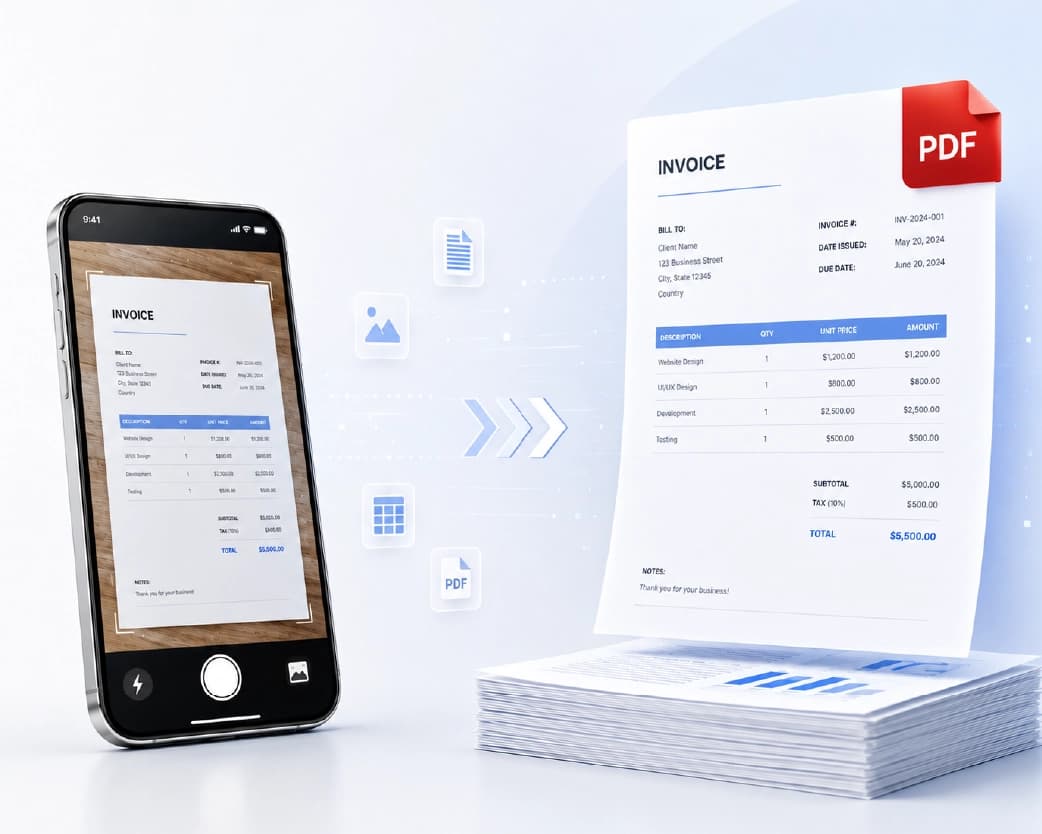
The process works the same way in a mobile browser as it does on desktop - upload a PDF directly from your phone, apply the watermark, and download the finished file. This is particularly useful for anyone who needs to watermark and send a document without needing to transfer files to a computer first.
Choosing Watermark Color and Style for Visibility
Dark watermarks tend to work better against plain, light document backgrounds like a standard white PDF page, while a lighter color may be appropriate over a page with dark or shaded sections. For a document that varies significantly in background - mixed light and dark sections, for instance - a watermark style with a subtle outline or shadow effect (if the tool supports it) maintains visibility across both light and dark areas better than a flat, single-color watermark that only contrasts well against one.
Watermarks and Copyright: What They Do and Don't Establish Legally
A watermark itself doesn't create copyright protection - copyright generally exists automatically the moment an original work is created, in most jurisdictions, regardless of whether it carries a visible mark. What a watermark does is make ownership visually explicit to anyone viewing the file, which serves a practical rather than a strictly legal function: it's harder for someone to claim they reasonably believed a document was free to use when a visible copyright notice or business name is right there on it. Adding a copyright symbol (©) alongside a name and year is a common, simple way to reinforce this visually, though the underlying legal protection doesn't depend on that symbol being present.
For genuinely high-value content - proprietary business documents, licensed material - a watermark is a reasonable and standard practice, but it works alongside actual copyright registration and clear licensing terms rather than substituting for them. If enforcement ever becomes necessary, having clear documentation of ownership (original files, timestamps, registration if applicable) matters more than the watermark itself, which is primarily a deterrent and an attribution signal rather than a legal instrument.
Building a Reusable Watermark Template
For anyone watermarking regularly - a business stamping every outgoing report, a legal team marking every draft contract - setting up a consistent, reusable watermark configuration once saves meaningfully more time than reconstructing the placement, opacity, and style settings from scratch each session. If the tool supports saving a watermark preset (a specific logo file, position, opacity, and size combination), using that saved configuration keeps every watermarked file visually consistent, which matters more than it might initially seem - a business's watermark shifting slightly in position or opacity from one document to the next looks inconsistent and slightly unpolished in a way that's easy to avoid by locking in the settings once.
Even without a formal saved-preset feature, keeping a simple written note of your standard settings (opacity percentage, placement choice, which logo file version to use) means anyone on a team watermarking files - not just the person who originally figured out the right settings - can replicate the same look without guessing or re-deriving it each time.
Watermarking Scanned PDFs
A specific and common case worth calling out: watermarking a document that started as a physical scan - an internal policy document, a scanned contract, a form. Since a scanned PDF is fundamentally a page image (the same underlying structure covered in OCR-related guides on this site), watermarking works the same way as it does for any other PDF - the watermark layers on top of the existing page content regardless of whether that content is genuine text or a scanned image. One thing worth checking specifically for scanned documents: if the scan itself is already somewhat faint or low-contrast, a watermark placed directly over text-dense areas can make already-marginal text harder to read than it would be on a cleaner, digitally-generated PDF - a slightly lower opacity setting or a placement that avoids the densest text areas helps preserve legibility on scans that don't have much contrast margin to begin with.
When to Watermark in Your Overall Workflow
Timing matters more than it might seem - watermarking should generally happen close to the point where a document is about to leave your control, not far earlier in a broader editing or preparation process. Watermarking a document before finishing other edits means redoing the watermark if those edits change the document's page count or layout significantly; watermarking too far in advance of when a document actually gets shared risks the file being edited or updated afterward in a way that isn't reflected in the watermarked version, leaving an outdated watermarked copy in circulation alongside a newer, unwatermarked one. As a general rule, treating watermarking as one of the last steps before export or distribution - after all other edits are finalized - avoids both of these problems and keeps the watermarked file an accurate, final representation of what's actually being shared.
Frequently Asked Questions
Is it free to add a watermark to a PDF online?
Yes, for everyday use - upload a file, add a text or logo watermark, and download the result without cost. Higher-volume or batch use may run into a daily limit depending on the specific tool's free-tier allowance.
Can I add my logo as a watermark instead of text?
Yes - most watermarking tools support uploading an image file (ideally a transparent PNG) to use as the watermark instead of typed text, which is the standard approach for branding purposes.
What opacity should I use for a watermark?
Somewhere around 20-40% is a reasonable starting point for most purposes - visible enough to serve its purpose without obscuring the text underneath. The right level varies by use case; status-marking text can generally run a bit more visible than a lighter branding mark.
Can I watermark multiple PDFs at once?
Many tools support batch watermarking with consistent settings applied across all uploaded files in one session, which is worth using for anything beyond a handful of files rather than watermarking one at a time.
Does a watermark actually stop someone from using my document without permission?
Not completely - a determined person can often remove a watermark with enough effort, and a watermark doesn't prevent screenshotting or re-photographing. What it reliably does is deter casual misuse through low-effort means, and ensures that unauthorized use is readily apparent upon coming across the document.
Is it possible to add a watermark on selective pages of a PDF document?
Yes - most tools support selecting a specific page range rather than requiring the watermark to apply uniformly across the entire document.
What's the difference between a diagonal watermark and a corner watermark?
Diagonal (especially tiled/repeating) placement is harder to crop out and offers stronger protection against unauthorized reuse; a single corner placement is more subtle and better suited to branding purposes where active protection matters less than a clean, professional appearance.
Can I remove a watermark from a PDF once I've added it?
If you still have the original, unwatermarked file, simply use that instead of the watermarked version - watermarking tools generally don't include a way to reverse the process on an already-watermarked file, so keeping the clean original on hand is the practical safeguard.
Does watermarking reduce document quality?
No - the watermark is added as an overlay on top of the existing page content; the underlying document data isn't recompressed or degraded as part of the process.
Does adding a watermark give me copyright protection?
No - copyright generally exists automatically upon creating an original work in most jurisdictions, regardless of whether it's watermarked. A watermark makes ownership visually explicit and serves as a practical deterrent against casual misuse, but it doesn't create legal protection that wasn't already there the moment the work was made.
What's the best watermark color to use?
It depends on your document - dark watermarks tend to read most clearly against plain, light document pages, while a lighter color may suit pages with darker or shaded sections. For a document with mixed light and dark areas, a watermark style with an outline or shadow effect maintains visibility more consistently across both.
Can I add a watermark using my phone?
Yes - the process works the same way in a mobile browser as on desktop, uploading a PDF directly and downloading the finished file to your phone.
Can I save my watermark settings to reuse them later?
If the tool supports saving a preset (logo, position, opacity, size), using that saved configuration keeps every watermarked file visually consistent and saves time versus reconfiguring the settings each session. Without that feature, keeping a written note of your standard settings achieves a similar result for a team.
Can I watermark a scanned PDF the same way as a regular PDF?
Yes - watermarking layers on top of existing page content regardless of whether that content is genuine digital text or a scanned image. For lower-contrast scans specifically, a slightly lower opacity or placement that avoids dense text areas helps preserve legibility.
When in my workflow should I add a watermark?
Generally as one of the last steps, after all other edits (formatting, content changes) are finalized. Watermarking too early risks the watermark not reflecting later changes, or needing to be redone if the file's page count or layout changes afterward.
Can I use a symbol like © alongside my watermark text?
Yes - adding a copyright symbol, name, and year alongside a text watermark is a common, straightforward way to reinforce ownership visually, though it's worth remembering this is a visual convention rather than what actually establishes the underlying copyright itself.
Is a tiled watermark better than a single centered one?
For genuine protection against cropping or casual reuse, yes - a tiled, repeating watermark is considerably harder to remove entirely than a single mark, since every instance would need to be individually removed or cloned out. For branding purposes where active protection matters less than a clean, polished look, a single well-placed watermark in a corner or center is usually the better visual choice.
Should I watermark the same document differently depending on where it's going?
Often yes - a version headed to a private client review might use a lighter, less intrusive watermark than a version being distributed more broadly where protection against reuse matters more. It's reasonable to maintain two or more distinct watermark presets for different distribution contexts rather than assuming one single setting fits every situation a file might end up in.
Conclusion
A good watermark comes down to a few deliberate choices rather than defaults: placement that matches your actual purpose (protection versus branding), opacity that's visible without obscuring the content, and a transparent logo file if you're branding rather than just stamping text. For the overwhelming majority of everyday needs - protecting draft work, branding outgoing PDFs, marking documents clearly - a browser-based tool handles this in under a minute per file, with batch support for anyone watermarking at real volume, and with realistic expectations about what a watermark can and can't actually prevent. Plainscan's watermark tool (/tools/add-watermark) handles PDF watermarking directly, with files automatically deleted within 24 hours and no software installation required.
Related insights







Get the Plainscan App for iOS & Android