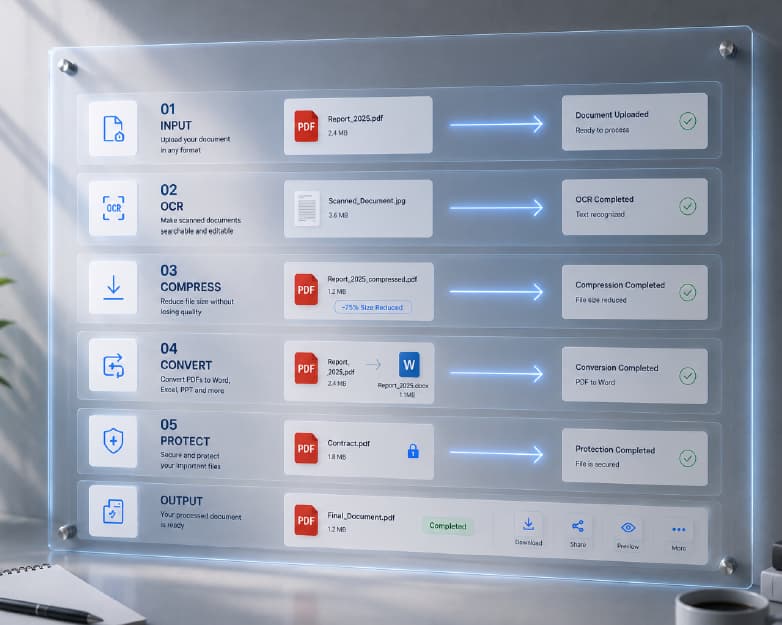
PDF to Word, Compression, OCR & More: The All-in-One Document Tool
It is not uncommon for you to be in such a scenario where you have to edit the PDF file but it does not allow you to do so. You go on Google to search for converters; you then upload your file, wait, and get a watermark-covered file back. You then visit yet another website and start all over again. It's ridiculous. And it happens to students, professionals, and business owners every single day. That's the whole reason Plainscan exists. It's one platform that handles everything - converting, compressing, editing, signing, scanning, summarising, plagiarism checking, background removal - so you're not bouncing between a dozen tabs just to manage your documents. Let's walk through what it actually does.
Recommended to Read:How to Convert PDF to PowerPoint (and PowerPoint to PDF) for Free
Why Using Five Different Tools Is Costing You More Than You Think
Think about your current document setup. There's probably one site you use to convert PDF to Word, another for compression, a separate one for e-signatures, maybe another for OCR. Each time you switch, you're uploading your files - sometimes sensitive ones - to a server you know nothing about, creating accounts you'll forget about, and wasting time you don't have.
Beyond the inconvenience, it's a genuine privacy issue. The fewer places your documents end up, the better.
Plainscan keeps it all in one place. One login, one interface, everything connected. It sounds simple because it is.
Table of Contents
- Why Using Five Different Tools Is Costing You More Than You Think
- File Conversion - Every Format You'll Actually Need
- File Compression - When Your File Is Just Too Big
- AI Writing Tools - Where Plainscan Goes Beyond Conversion
- OCR - Making Any Document Editable and Searchable
- Document Management - Edit, Sign, Merge, Split, Protect
- The Specialist Tools Most People Don't Expect
- Who Actually Uses Plainscan?
- Your Files Are Private - Here's What That Means in Practice
- FAQs
File Conversion - Every Format You'll Actually Need
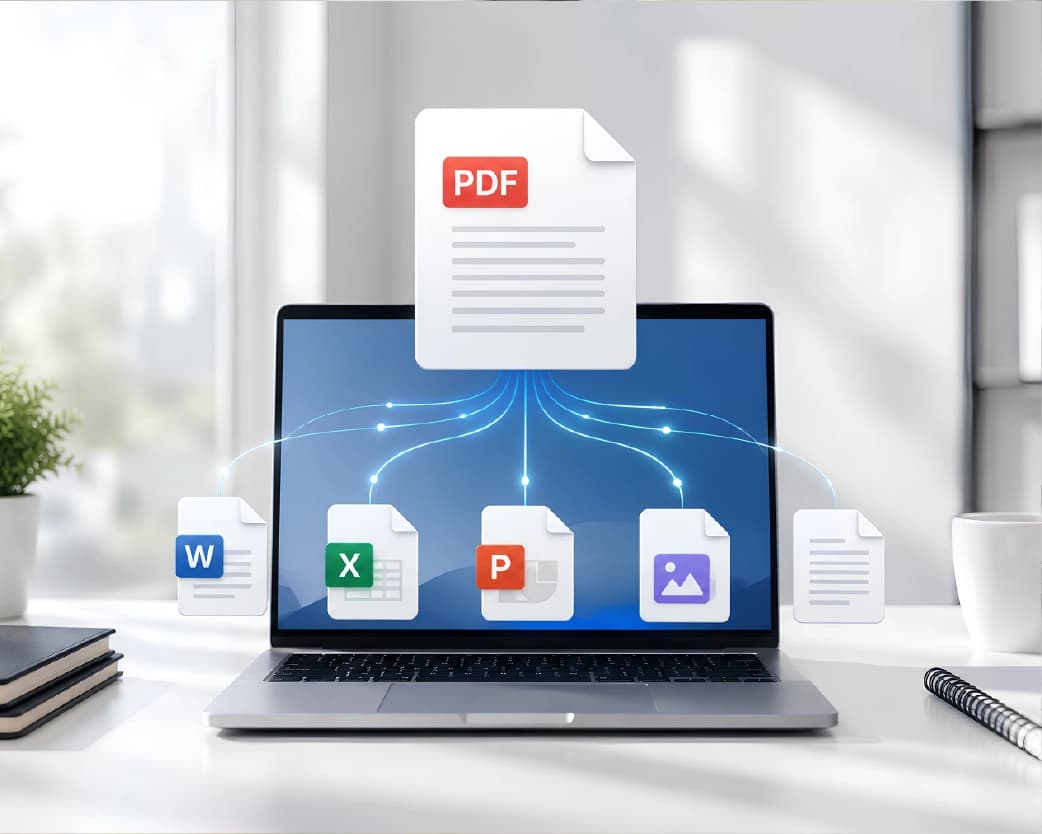
PDF to Word: The One Everyone Struggles With
Conversion from PDF to Word may very well be the most searched document operation on the Internet, and the reasons for that are quite obvious. The beauty of PDF files is the perfect presentation that does not change no matter what device you open it on, and it stops being beautiful when you try to do anything with it.
This is where Plainscan converter works correctly. It does not just dump all the text on a clean Word file, it keeps your headlines, tables, font style, and everything else so it would look more or less like the original one.
What makes it better than most free tools is OCR support. If your PDF is a scanned image - a photographed contract, a photocopied form, an old printed report - standard converters will either fail completely or give you garbage output. Plainscan's OCR engine reads the text from the image first, then converts it. Old documents, handwritten notes, physical receipts - it handles all of them.
No watermarks. No page limits for standard use. No software to install. You can convert from PDF to:
- Word (.docx and .doc)
- Excel
- PowerPoint
- Google Docs format
- Plain text
- Images
Word to PDF: When You Need It to Look Right for Everyone
Sending a Word doc to someone on a different computer is a gamble. Fonts shift. Formatting breaks. What looked perfect on your screen looks wrong on theirs. Converting to PDF fixes that - everyone sees exactly what you created.
Plainscan converts Word files to PDF cleanly, keeping every table, image, heading, and page break exactly where it should be. It also works the other way for a full range of formats - images to PDF, Excel to PDF, PowerPoint to PDF, and more.
File Compression - When Your File Is Just Too Big
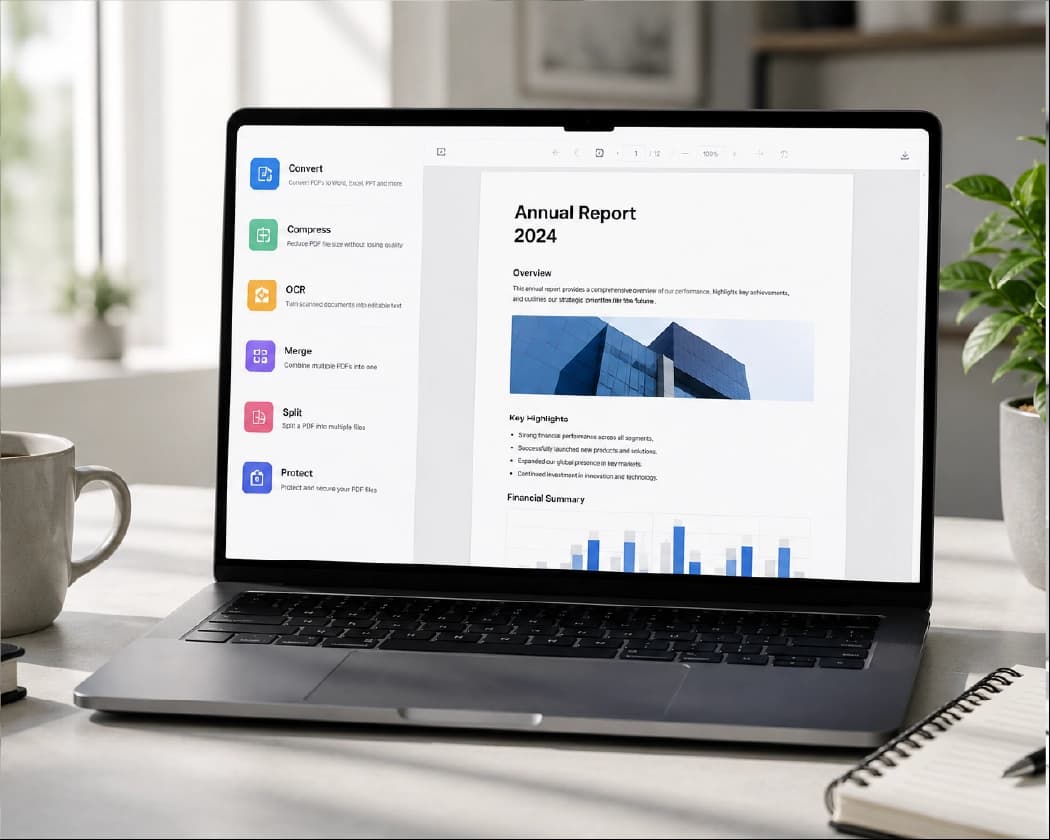
Email attachments. Government portal uploads. WhatsApp. Every platform has a size limit, and it's always the important files that are too large.
Compressing PDFs
Most searched document conversion job is converting PDF to Word. And the reason behind that is obvious. PDF files look nice and they are compatible with all devices, but as soon as you want to make changes to them, the problems begin.
This problem is solved by Plainscan's PDF to Word Converter. They don't just paste the content in a new Word file. They preserve all your headings, tables, fonts and paragraphs so that the output is almost same as the original one. With most files, you can just convert it and then start making edits.
Compressing Images
Whether you have an image of a product or a document that needs to be included in your report, Plainscan will ensure that your files become smaller in size without losing their quality. This is because the algorithm discards the information in the files that is not even visible to the naked eye.
Compressing Videos
Video compression is technically demanding, but Plainscan makes it simple. Upload your clip, pick a target quality or size, and download a version that's actually sendable. No video editing knowledge needed.
AI Writing Tools - Where Plainscan Goes Beyond Conversion
This is the part that surprises most people. Plainscan isn't just a converter with a compression tool bolted on. It has a full suite of AI-powered writing tools built in.
AI Summariser
Are you working on a 40-page report which you ought to be able to grasp in ten minutes' time? All you need to do is to paste/upload your paper, and Plainscan will pull out the key points, findings and conclusions in your work. In deed, it is very useful to any individual learner, either professional or an individual who wants to get to the core.
Grammar Correction
Unlike Word's inherent grammar check system, Plainscan takes into consideration the context of whatever it is you are writing on, and is thus able to pick out such grammatical errors as subject-verb agreements, inappropriate phrases, wrong placement of modifiers, and even punctuation marks which are grammatically correct but weird. Plainscan is particularly useful to people who use English as their second language.
Text Rewriting
There are cases when your text is grammatically perfect but not delivering the intended message in the right manner, either being too casual for a formal document, too formal for an informal letter or email, or too complex for a presentation slide. Plainscan has text rewriting features to enhance sentence structure and flow while still retaining the original meaning of your text.
AI Content Detection
As an educator, editor, or content manager, you are required to find out whether the text has been generated through AI or written by an actual human being. Plainscan analyzes the text in search of the patterns typical of AI-generated content – sentence homogeneity, patterns in the phrasing, statistical regularities – and provides an assessment for you. This is not always accurate, but it is still quite informative.
Plagiarism Detector
Unintentional plagiarism occurs more often than one might think. The problem may come in form of paraphrasing a source too close to the original, quotation of the source from memory, or reusing the same phrase you have heard somewhere. Plainscan searches the text against the vast database of previously published content, including websites, academic articles, publications, and so on. Use it prior to publishing the text to avoid serious problems.
Data Extraction
If you are often getting PDF files which include tables, forms, and invoices and need to make use of such data in spreadsheets or databases, then data extraction software like Plainscan becomes extremely important. Rather than copy-pasting data from a PDF file into an Excel spreadsheet, Plainscan extracts all the required data for you.
OCR - Making Any Document Editable and Searchable
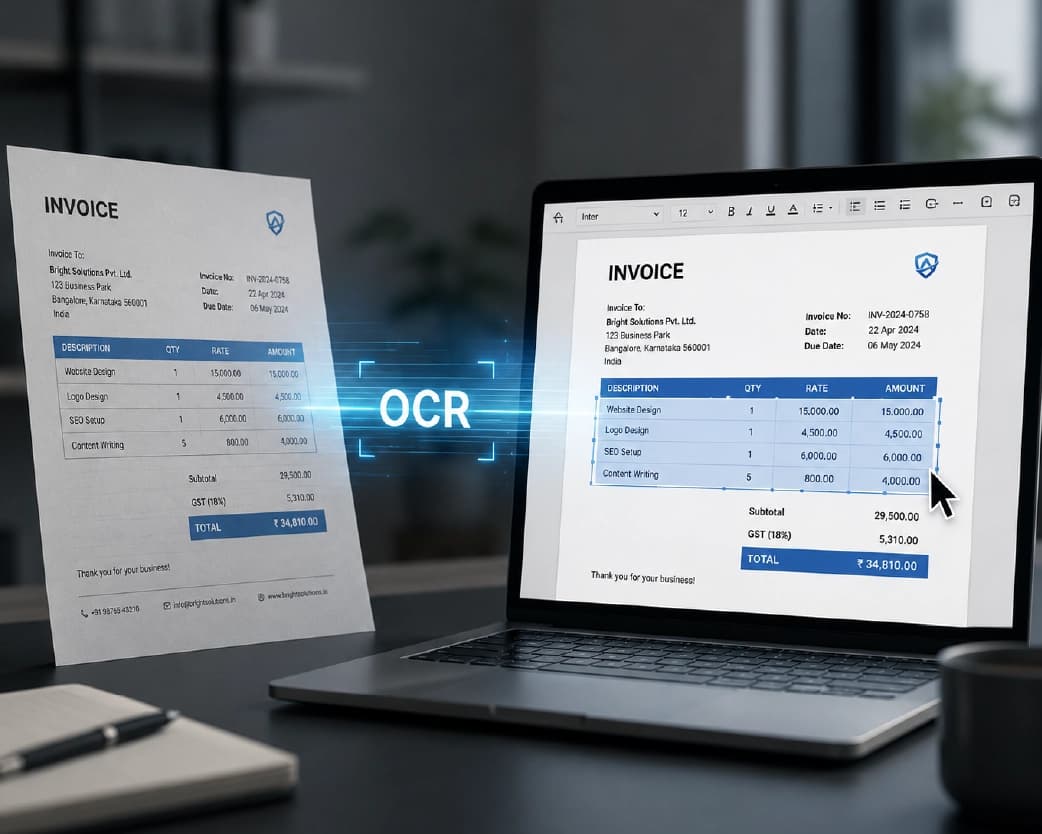
OCR (Optical Character Recognition) is the technology behind your phone's ability to scan a business card and save it as a contact. Plainscan brings the same capability to your full document workflow.
Upload a photo, a scanned PDF, or any image with text in it, and Plainscan extracts every readable character as editable text. It works with:
- Printed documents - receipts, letters, forms, reports
- Handwritten notes (as long as the handwriting is reasonably clear)
- Image-based PDFs - files that look like PDFs but are actually just photographs with no selectable text layer
- Phone camera photos of physical documents
The practical value here is massive for anyone working with older documents. Instead of retyping a 10-page printed contract, you scan it and get an editable Word file in seconds. And unlike a scanned image file, the result is fully searchable - Ctrl+F actually works.
Document Management - Edit, Sign, Merge, Split, Protect
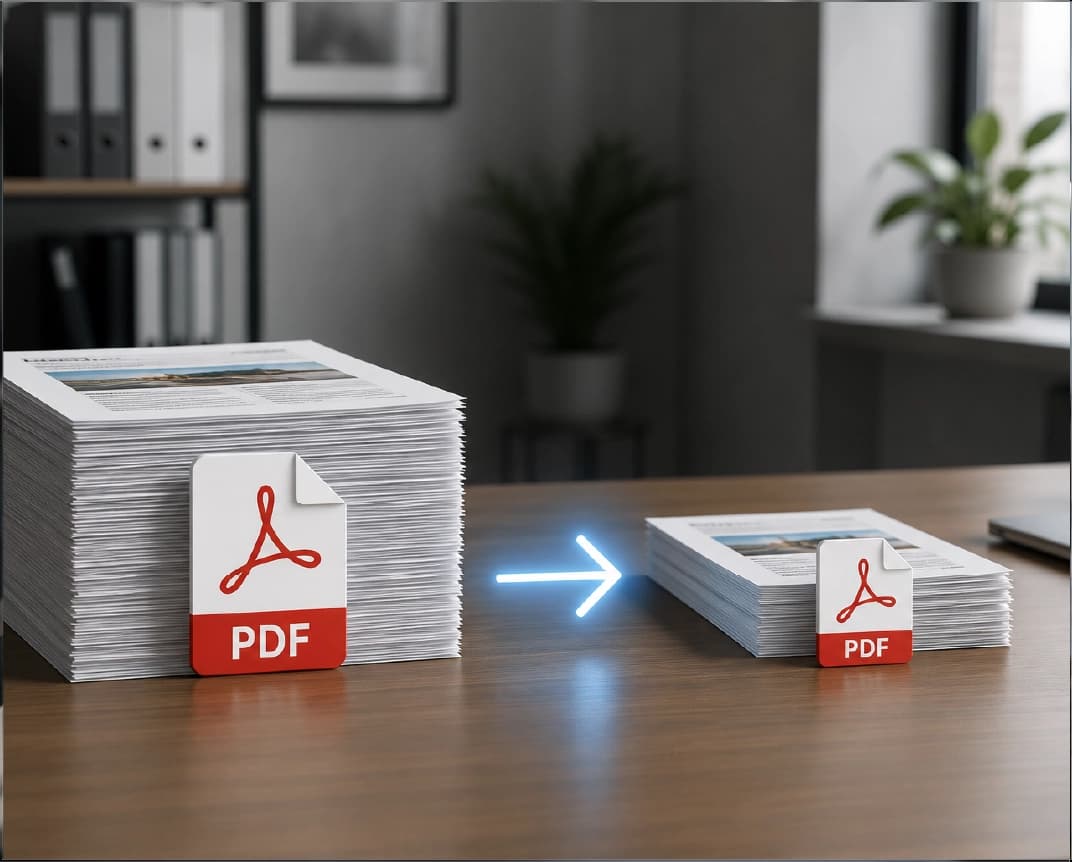
Getting the file into the right format is only half the job. Plainscan also gives you the tools to actually manage and work with documents once you have them.
Edit PDFs Directly
You don't always need to convert a PDF to Word to make changes. For small edits - fixing a typo, adding a note, updating a date - Plainscan's PDF editor lets you modify the file directly. Add text, insert annotations, adjust content, without the risk of formatting shifting during a round-trip conversion.
Digital Signatures
Printing, signing, scanning, and emailing back is an absurd process in 2026. Plainscan lets you add a digital signature to any PDF - draw it, upload a photo of your handwritten signature, or type it in a styled font. Digital signatures are legally accepted in the vast majority of jurisdictions for most document types.
Merge PDFs
CV, cover letter, and writing sample together in a single PDF before sending? Invoices from an entire month in a single document for accounting purposes? Upload your documents, arrange them, and then download a single PDF file.
Split PDFs
The opposite problem - you have one big PDF and you only need specific pages. Plainscan lets you pull out exactly the pages you want as a new file. One chapter from a textbook, one form from a bundle, one invoice from a batch.
Password Protection
Before you send anything sensitive, lock it down. Plainscan lets you add a password to any PDF so it can't be opened without it. You can also restrict permissions - preventing recipients from printing, copying, or editing the file even after they've opened it.
The Specialist Tools Most People Don't Expect
These tools are genuinely useful and most people don't realise Plainscan has them.
- Passport Photo Maker - Getting passport photos right is fussier than most people expect. Wrong background colour, wrong dimensions, face too small or too large - any of these can get your application rejected. Plainscan crops, resizes, and formats your photo to meet official requirements automatically.
- ID Card Generator - Creating staff or student ID cards without a design team or specialist software is painful. Plainscan's templates let you fill in the details, add a photo, and produce print-ready cards without touching a design app.
- Certificate Creator - Whether it's a completion certificate for a course, an award for a competition, or an appreciation letter for a volunteer, Plainscan's templates let you create professional-looking certificates in minutes.
- Background Remover - Point Plainscan's AI at any image and it removes the background cleanly. Great for product photos, profile pictures, document ID photos, and anything else you need on a transparent or different background.
- Image Resizer - Every platform has different image dimension requirements. Instead of guessing or distorting, Plainscan lets you set exact pixel dimensions or pick from preset sizes for common platforms.
Who Actually Uses Plainscan?
- Students - Converting lecture slides and textbook PDFs into editable notes. Checking essays for plagiarism before submission. Fixing grammar in a second language. Compressing large project files to get under a portal's upload limit.
- Office professionals - Converting contracts and reports between PDF and Word. Signing approval documents digitally without printing anything. Merging multi-document submissions into one clean file. Protecting sensitive files before they're shared over email.
- Small business owners - Handling invoices and proposals in PDF without expensive software. Creating ID cards for new staff. Removing backgrounds from product photos for online listings. Compressing marketing materials to send over email.
- Freelancers - All of the above, without an IT department or an enterprise software budget. Plainscan gives you the same tools as the big players, without the subscription cost or the complexity.
Your Files Are Private - Here's What That Means in Practice
When you upload a document to any online tool, there's always a reasonable question: what happens to it? With Plainscan, uploaded files are not stored permanently, not shared with third parties, and not used to train AI models. All transfers use encrypted connections.
Whereas in case you have sensitive data like legal papers, human resource papers, personal documents, it will be ideal if you went for adding a password lock in your final document so that whoever may open the file, he won't be able to access it.
FAQs
How can I convert my PDF into Word?
The quality of the result depends mostly on the quality of the source PDF. If it was originally created as a digital document, the conversion will be very clean - formatting, tables, and fonts carry over well. If it's a scanned image, you need OCR to read the text first before anything can be converted. Plainscan handles both automatically. For complex layouts with multiple columns or overlapping elements, some minor tweaks in Word afterwards are normal - no converter is completely perfect for every document type.
Is it safe to convert PDF to Word online?
Certainly, but only when you use a trustworthy website. It is essential that the link in your address bar begins with "HTTPS," and there should be no mention in the privacy policy that the document will be saved on the site. Plainscan ticks all of those. For genuinely confidential documents - legal, medical, financial - the safest approach is always a locally installed tool that doesn't transmit the file anywhere. But for most everyday documents, online conversion with a reputable platform is perfectly fine.
Is it difficult to convert PDF to Word?
Not at all. On Plainscan it's upload, convert, download - about 30 seconds. The difficulty people run into is usually from using tools that produce messy output that then needs significant manual fixing. A good converter means you rarely have to touch the Word file after downloading it.
Why is my PDF not converting to Word correctly?
Three common reasons. First, it might be a scanned PDF - meaning there's no actual text layer, just an image. A standard converter can't read that; you need OCR. Second, the layout might be unusually complex - lots of columns, text boxes, or overlapping elements are hard for any tool to replicate perfectly in Word format. Some manual adjustment after conversion is normal. Third, if the PDF is password-protected, you need to remove the protection before converting.
What are the typical issues that arise while converting to PDF?
The typical issues include: fonts being rendered differently on other machines because they haven't been embedded in the process, images not looking as good as they should be, non-working links, and much bigger files sizes than expected. Our converter from Word to PDF takes care of all of these issues.
What is the best PDF to Word Converter?
The essential features for most individuals would be the following: can work with both scanned and digitally created PDFs, accurate formatting, no watermark and no installation of software required. Plainscan fulfills all of the above requirements and does not charge any fee for basic usage. In case of very complex document layout, manual editing will be required regardless of the software used.
Can I convert a scanned PDF to Word?
Yes. A scanned PDF is just a photograph of a document packaged as a PDF file - there's no actual text for a standard converter to work with. Plainscan's OCR engine reads the text from the image and produces an editable Word document. It works well on clearly printed documents and typed pages. Handwriting can be hit or miss depending on how legible it is. A sharp, well-lit scan will give you near-perfect results.
How do I convert PDF to Word without losing formatting?
Use a converter with a proper formatting engine rather than a basic text extractor. Start with the highest quality version of the PDF you have. And for documents with complex layouts - multiple columns, mixed text and images - accept that a small amount of manual adjustment afterwards is normal and realistic. Plainscan preserves tables, headings, bold and italic text, and image placement better than most free alternatives.
How do I convert PDF to Word without paying?
Plainscan's conversion tools are free for standard use. No subscription required, no watermarks, no account creation to download your file. Some platforms that claim to be free hide restrictions behind the download button - Plainscan doesn't do that.
How do I convert Word to PDF for free?
Go to Plainscan's Word to PDF converter, upload your file, and download the PDF. Free, no software needed, formatting preserved. If you have Microsoft Word on your computer, File > Save As > PDF also works well since it comes directly from the application that made the document.
How do I convert PDF to Excel?
Upload the PDF file to Plainscan's PDF to Excel converter and set the desired output format as Excel. This software will be able to detect the tables from the PDF file and arrange them as rows and columns in the spreadsheet to provide you with an .xlsx file that is ready for use right away.
How do I open a PDF in Word?
You can go to File > Open in Word and select the PDF directly - Word will try to convert it automatically. Results vary quite a bit depending on the document's complexity and your version of Word. For more reliable output, convert it through Plainscan first and then open the resulting .docx file normally.
Can I convert a PDF to Word on my phone?
Yes. Plainscan works in any mobile browser - no app installation needed. Go to the site on your phone, upload the PDF from your camera roll or files app, convert, and download the Word file directly to your device.
How do I edit a PDF without converting it?
Use Plainscan's PDF editor. You can modify text, add annotations, insert or remove pages, and add signatures - all directly on the PDF. This is the better option when you only need to make small changes, because it avoids the formatting risk that comes with a full conversion and back again.
How do I edit a PDF file?
It depends on how much you need to change. For small corrections - a typo, a date, a signature - use Plainscan's PDF editor and work directly on the file. For larger changes - rewriting sections, restructuring content, adding images - convert to Word, make your edits, and convert back to PDF. Both paths are available in Plainscan.
How do I compress my PDF file to decrease its size?
Load your file in Plainscan's PDF compressor. It will analyze the document, reduce the size of all pictures included, strip off any unnecessary information, and create a smaller copy of it. Most PDF files can be compressed down by 50-80% without losing their quality. There is also an option to choose the compression ratio yourself.
How do I convert PDF to JPG Online?
Plainscan's PDF to Image Converter is the solution you need in this case. Simply select the required PDF file, select JPG as the format of the output files, and each page will be converted into a separate image file that can be downloaded as a separate file or in compressed form as a ZIP file.
What is the optimal way to make a PDF?
First, create the file in Word or Google Docs and then use Plainscan to convert it to PDF. It also tends to produce cleaner PDFs than exporting directly from some other applications.
How do I increase PDF quality when converting?
PDF quality can be measured in terms of two main parameters: the resolution of images and fonts. When you want to convert Word to PDF, you need to make sure that all the images used in your document are of high resolution - it should not be lower than 150 DPI for digital viewing and 300 DPI if you plan to print the document. In case of PDF to Word conversion, the quality depends upon the source file.
How do I fix formatting after converting PDF to Word?
Open the document that was converted by Plainscan and check the easy things first: Are the headings properly formatted? Are the tables still there? Have the images been inserted in their proper location? Common fixes include resetting heading formats using Word's Styles menu, resetting table column widths, and repositioning any images that may have floated out of place.
DOC or DOCX - which should I convert to?
DOCX, almost always. It's the current standard, supported by every modern word processor - Microsoft Word, Google Docs, LibreOffice, Pages. DOC is the older format with more limited support. The only reason to use DOC is if you specifically need compatibility with a legacy system that can't open DOCX files.
Why can't I convert my PDF to Word?
It's probably one of three problems: the PDF is password protected (unprotect it first); it's an image PDF with no text layer (use OCR); or the PDF file itself is corrupt. If it isn't any of those, try a different web browser or clear your browser cache - sometimes conversion problems are browser-related, not file-related.
How do I remove a background from an image?
Go to Plainscan's Background Remover and upload your image as a JPG or PNG file. The process is handled by AI, which analyzes your photo, removes the background, and returns a PNG image with a transparent background. It works especially well on product images and portraits. Complex or busy backgrounds may need a bit of manual touch-up afterward.
Why do I need a plagiarism checker?
Because unintentional plagiarism is far more common than people think. It can come from paraphrasing a source too closely, quoting something from memory without realizing it, or reusing a phrase picked up from somewhere else. For a student, a plagiarism finding can have serious academic consequences. For a content team, duplicate content actively hurts search rankings. Running text through Plainscan's checker only takes a few seconds.
Conclusion
Document management doesn't need to be complicated. You shouldn't need a different website for every task, and you shouldn't have to upload sensitive files to five different servers just to get your work done. Plainscan puts everything in one place - conversion, compression, editing, signing, OCR, AI writing tools, and more. It's free to use for the most common tasks, it works in any browser, and it doesn't require you to create an account just to get a file back. If you're still doing the five-tab shuffle, it's worth trying a different approach.
Related insights









Get the Plainscan App for iOS & Android