How to Convert PDF to PowerPoint (and PowerPoint to PDF) for Free
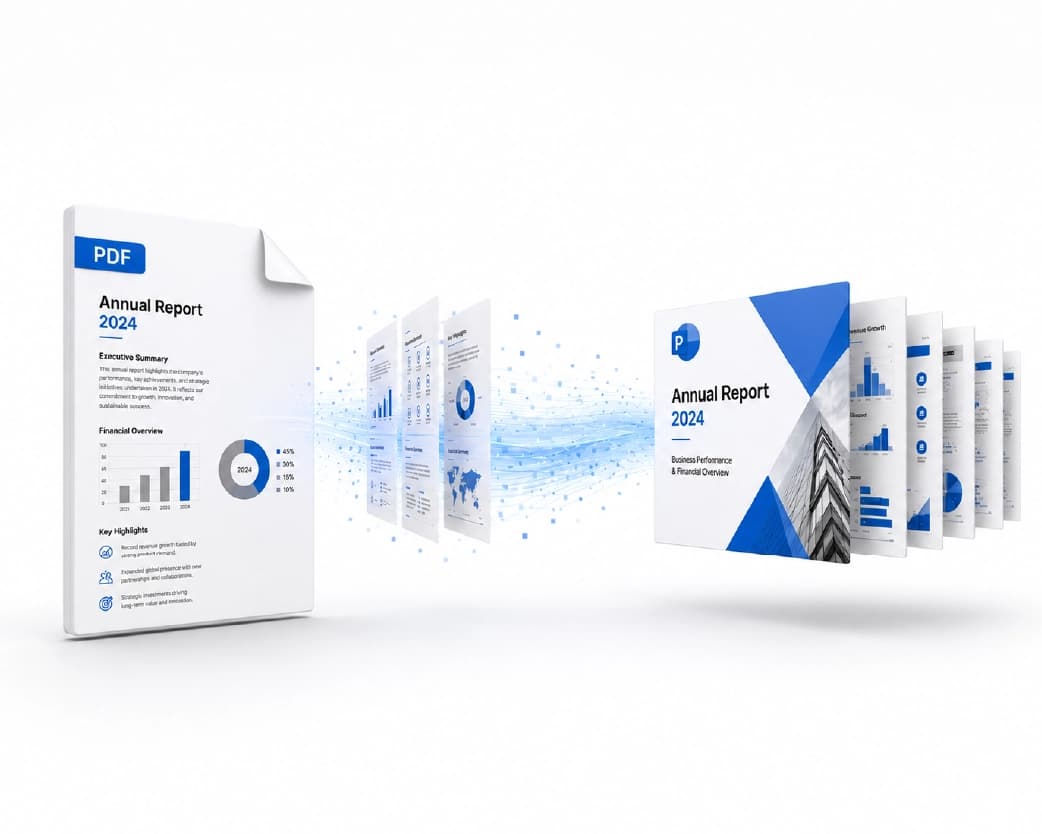
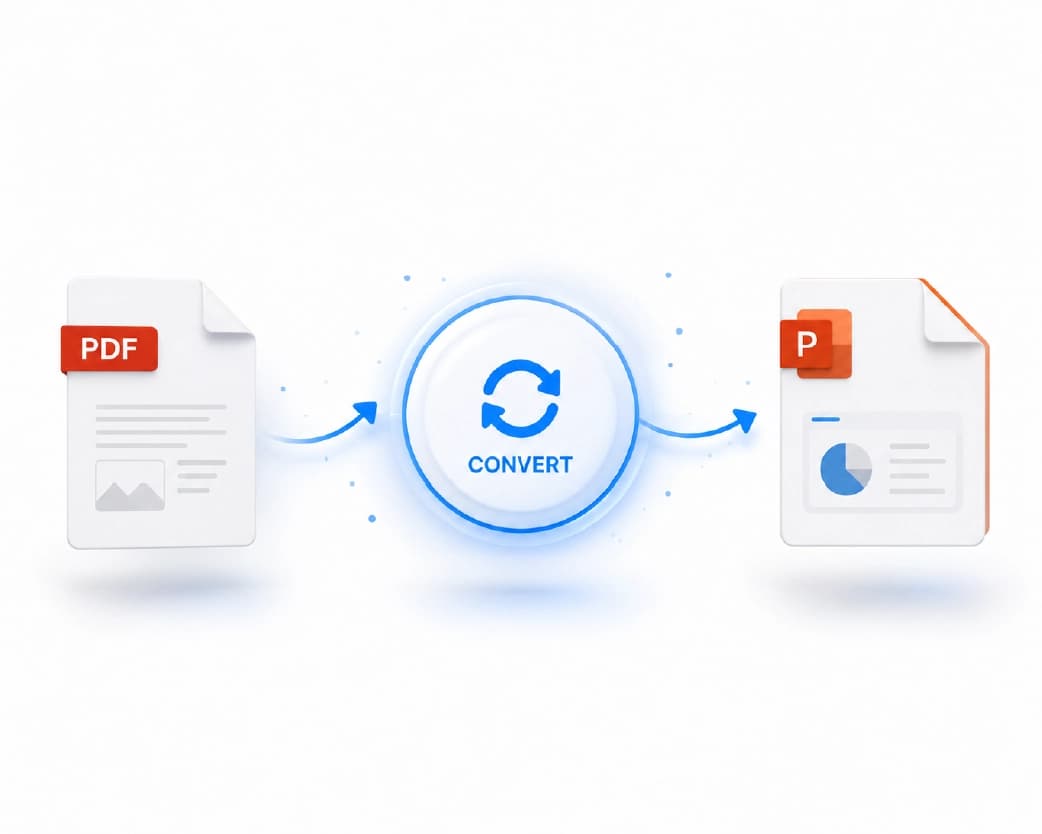
Converting a PDF into an editable PowerPoint presentation, or a finished PowerPoint deck into a locked, shareable PDF, both come down to the same basic move: upload the file, let the converter rebuild it in the other format, and download the result - no software installation required for either direction. The two conversions solve opposite problems. Going PDF to PowerPoint rescues content that's stuck in a static, read-only format so you can actually edit and present it. Going PowerPoint to PDF locks a finished deck in place so it looks identical wherever it's opened, without anyone accidentally editing it. This guide is comprehensive on both these fronts: the features of a PDF to PowerPoint conversion that do get preserved, and the features that usually don't survive the conversion; the use of OCR in scanning PDFs; typical formatting issues that one should be prepared for when converting; and vice versa - how to convert a nicely formatted PowerPoint presentation into a PDF.
Recommended to Read:How to Remove the Background from an Image for Free (No App, No Photoshop)
Why People Convert PDF to PowerPoint
A PDF is fundamentally a fixed, page-based format - great for consistent viewing, bad for reuse. A common scenario: a report, a client deliverable, or a set of slides someone sent you only as a PDF needs to become an editable presentation, whether that's because you're building on someone else's content, updating an old deck that only survived as a PDF export, or pulling charts and text out of a report to present the findings live rather than just distributing the document.
Manually recreating a PDF's content as slides - retyping text, redrawing tables, rebuilding charts - can easily eat an hour or more for a report of any real length. A proper PDF-to-PowerPoint converter is trying to skip that manual rebuild entirely, reconstructing the PDF's content as actual editable PowerPoint elements (text boxes, tables, images) rather than just screenshotting each page onto a slide.
Why People Convert PowerPoint to PDF
This direction solves the opposite problem. PowerPoint files are inherently editable and somewhat fragile in distribution - open the same .pptx file on a different computer and fonts can substitute, embedded images can shift, and formatting that looked exactly right on your machine can look subtly (or dramatically) different on someone else's, depending on what fonts and PowerPoint version they have installed. A PDF export locks all of that down: whoever opens it sees exactly what you built, with no risk of someone accidentally editing a final version, and no dependency on the recipient having PowerPoint installed at all.
This matters most for anything meant to be final rather than collaborative - a pitch deck going to an investor, a report converted to slides for a client, a presentation being archived or printed exactly as designed. It's also simply more portable: a PDF opens reliably in a browser, on a phone, or in any basic PDF viewer, while a .pptx file specifically needs PowerPoint or a compatible application to display correctly.
Step-by-Step: Converting PDF to PowerPoint
Using Plainscan's PDF-to-PowerPoint converter:
- Upload your PDF. The tool accepts PDFs regardless of how they were originally created - a digitally generated report, an exported document, or a scanned paper original.
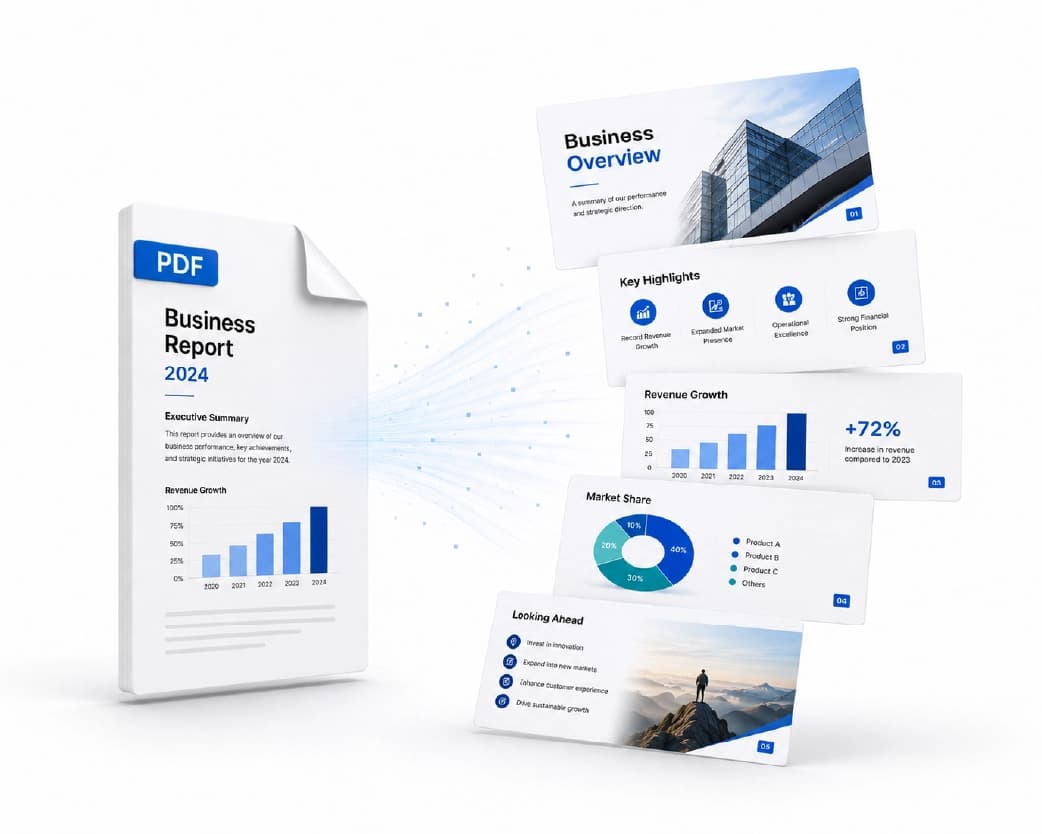
- Let the converter recognize the structure of the document. It is recognizing texts, pictures, tables, and other elements on each page of the document to recreate them as slide elements, not just convert them into an image of a page.
- Check the created slides. Usually, every PDF page converts into one slide, where text, images, and tables are recreated separately as editable objects.
- Download the PPTX file and view it in PowerPoint (or Google Slides).
What a Good Conversion Actually Preserves - and What Tends to Break
It's worth being direct about this rather than implying any converter produces a flawless result every time, because expectations matter here.
The types of items that usually convert easily: simple text-based information, simple tables with defined borders or proper spacing, normal pictures/photos, and single-column layouts with a definite reading order. A typical report containing a header, some paragraphs, and some charts will easily get converted into slides that can be used for presentations with minimal editing work done on them.
Things that normally require manual cleanup: complicated multi-column layouts (because there is no way for the program to know how to read the columns, and multi-column academic articles and newsletters are particularly problematic), heavily formatted pages where graphics overlap, charts that are inserted into the original document as images and not as actual, editable chart objects (since this normally converts as an image and not as a live chart in PowerPoint), and fonts that are not common enough to keep the same and must be replaced by another.
A realistic expectation: conversion gets you from "static PDF" to "editable starting point" dramatically faster than rebuilding from scratch, but for anything beyond simple text-and-image content, budget some time for cleanup - adjusting spacing, checking that tables landed correctly, and confirming charts and complex graphics look right - rather than expecting a publish-ready deck straight off the conversion.
Scanned or Image-Based PDFs: Why OCR Matters Here Too
A PDF that's actually a scan - a photocopied report, a printed document that was scanned back in, or any PDF made up of page images rather than real text - has no underlying text layer for a converter to work with directly, the same fundamental issue covered in OCR-focused guides generally. Converting a scanned PDF to PowerPoint requires OCR (optical character recognition) to first read the text within those page images, before that text can become editable slide content rather than a picture of text pasted onto a slide.
This is taken care of by Plainscan’s PDF to PowerPoint conversion utility through automatic OCR, should it be determined that there is no text layer in the source PDF. Similar considerations apply to OCR as with any other OCR process – a sharp, clearly illuminated, high resolution scan will convert easily into clean text, whereas a fuzzy, skewed or low quality scan is likely to yield mistakes in text and possibly a corrupted table structure that will need to be corrected manually.
Step-by-Step: Converting PowerPoint to PDF
Using Plainscan's PowerPoint-to-PDF converter:
- Upload your presentation file. The following extensions may be used for the source file: .ppt or .pptx.
- Configure export parameters (if needed). These include the number of slides you would like to export (all of them or a particular range), whether speaker notes need to be exported separately, and images parameters in case you have many images in your presentation.
- Give the converter some time to work. Every slide will correspond to one PDF page, maintaining exact look of your presentation as it was made.
- Save the completed PDF document. The document will open the same on any device and software used by your recipient.
Native PDFs vs. Scanned PDFs: Why It Changes Everything About the Conversion
Before converting, it's worth understanding which kind of PDF you're actually working with, since it fundamentally changes what the converter can do. A native PDF - one exported directly from Word, PowerPoint, a web page, or similar software - has real, selectable text embedded in it, along with defined image and table objects. Converting this kind of PDF to PowerPoint is closer to a structural translation: the converter is reading actual text and layout data and rebuilding it as slide elements.
A scanned PDF - created by photographing or scanning a physical page - has none of that. As covered above, it's just a picture of a page, and OCR has to run first to generate any usable text at all before conversion can produce anything beyond an image pasted onto a slide. The practical difference: a native PDF converting to PowerPoint generally produces cleaner, more accurate editable text and layout than a scanned PDF going through the same process, since OCR - however accurate - is still working from a reconstruction of the text rather than the text itself. If you have a choice between the original digital file and a scanned copy of the same document, starting from the native version produces a meaningfully better conversion result.
Real-World Use Cases
Market reports, financial statements, or research papers may be received by business analysts and consultants only in the form of a PDF file and they have to extract important information and create a presentation for clients – this process usually takes less time than creating all charts and figures again after reading the PDF.
Students and scholars edit the PDF lectures, journal papers or other readings in editable presentation formats that can be used as study material or to present the findings of an academic paper in a classroom environment.
Marketing and Sales Teams transform one-pagers, case studies, and product specification sheets from PDF files into presentation form because the static PDF format is not suitable for the dynamic nature of sales presentations.
HR and training teams convert PDF policy documents, onboarding guides, or compliance materials into slide-based training presentations, which tend to be more digestible in a training session than asking people to read through a dense policy PDF.
Anyone archiving or distributing a finished presentation uses the reverse direction - PowerPoint to PDF - to create a stable, final version for a client, an investor, a printed handout, or a company archive where the presentation's exact appearance needs to be locked in rather than left editable.
Choosing PPT vs. PPTX as Your Output Format
PPTX is the modern PowerPoint format, used by default in every current version of PowerPoint, Google Slides, and LibreOffice Impress, and it's what Plainscan's converter - and most modern converters - produce by default. The older PPT format is a legacy format with more limited feature support, relevant mainly if you specifically need compatibility with a very old version of PowerPoint (2003 or earlier) that doesn't support PPTX. Unless there's a specific reason to need the older format, PPTX is the better default choice, the same logic covered for XLSX versus the older XLS format in spreadsheet conversion.
Redesigning After Conversion: Content vs. Polish
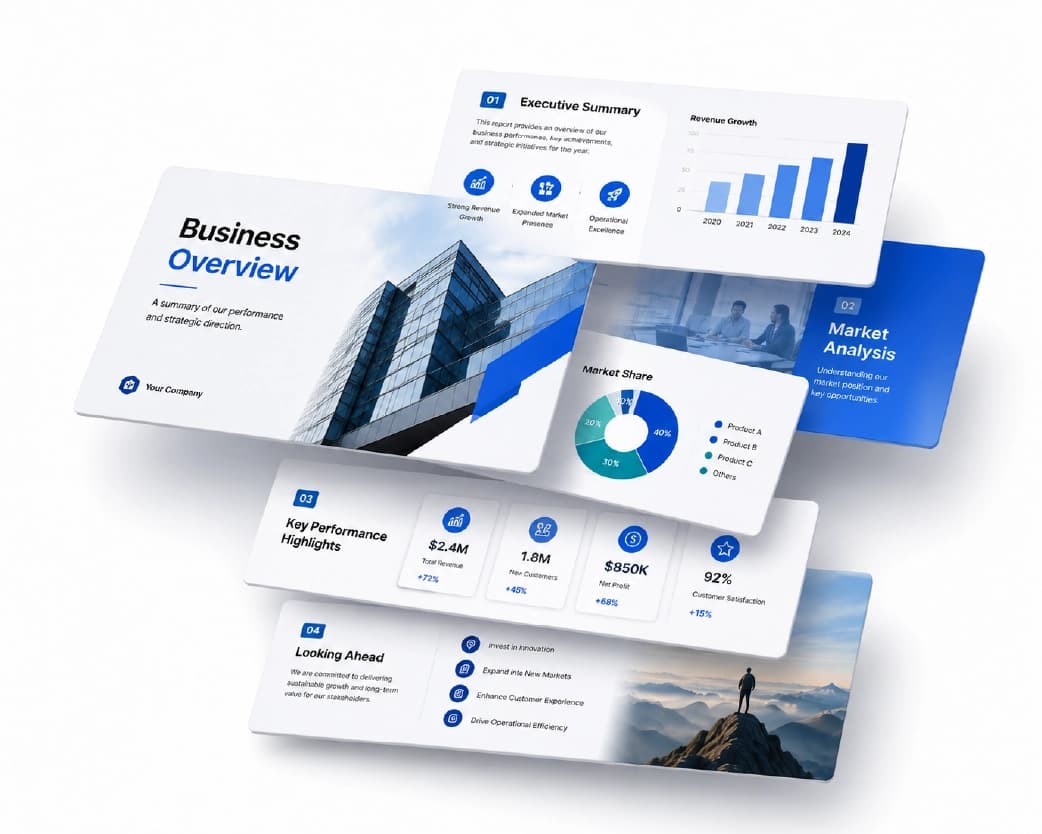
It's worth setting the right expectation here: a PDF-to-PowerPoint conversion gets you the content - the text, tables, and images, reconstructed as editable elements - but it doesn't automatically give you a professionally designed deck. A converted presentation will generally look closer to "the PDF's content, now on slides" than to a deck built with intentional presentation design - consistent slide templates, deliberate visual hierarchy, appropriate use of whitespace, and a cohesive color and font scheme. If the presentation is genuinely going to be presented - rather than just serving as an editable reference - plan for a design pass after conversion: applying a consistent slide template or theme, adjusting text density (PDF pages are often far more text-dense than a well-designed slide should be, since presentation slides work best with less text than a printed page), and reorganizing content that made sense as continuous document flow but doesn't work as a sequence of slides. Converting handles the tedious extraction work; the design pass is still a separate, worthwhile step for anything client-facing or presented live.
What Happens to Embedded Video and Audio
If a source PowerPoint presentation includes embedded video or audio - a product demo clip, background music, a recorded narration - converting it to PDF strips that multimedia content out entirely, since a PDF has no mechanism for embedded playable media the way a presentation file does. What typically remains in the PDF is either a static placeholder image (often the video's first frame or a generic icon) or, in some cases, nothing visible at all where the media element was. This is expected behavior rather than a conversion flaw, but it's worth checking specifically if a presentation relies on embedded media, since the PDF version will need those moments addressed separately - either by noting in the PDF where the original media can be found, or by accepting that the PDF version is intentionally a stripped-down, presentation-only-when-live version of the deck.
Printing and Handout Considerations
If the goal of converting PowerPoint to PDF is specifically to create a printed handout rather than a digital reference, it's worth thinking about layout before exporting. A direct one-slide-per-page PDF export can be an inefficient use of paper for a long presentation - multiple smaller slide thumbnails per printed page (sometimes called an "N-up" layout) is generally more practical for handout purposes, letting an audience follow along without needing a page per slide. If your conversion tool doesn't offer this directly as an export option, converting to a standard one-slide-per-page PDF first and then combining multiple pages per sheet as a separate step achieves the same practical result.
PDF to PowerPoint vs. Manually Rebuilding Slides
It's worth being explicit about why converting is generally faster than the manual alternative, rather than assuming it's obviously true. Manually rebuilding a PDF report as slides means opening the PDF, reading through each section, retyping the text into new slides, recreating any tables from scratch, and re-inserting images one at a time - for a report of any real length, this routinely takes an hour or more of pure manual transcription before any actual design work even begins. A converter automates that first pass entirely: text lands as editable text, tables land as table structures (even if imperfect), and images land as actual image objects already positioned - turning what would be an hour of transcription into a few minutes of review and correction. The time saved scales with document length and complexity; a two-page one-pager converts almost instantly either way, but a forty-page report is where conversion's advantage becomes dramatic.
Compatibility with Google Slides and Other Presentation Software
The PPTX file obtained by conversion from PDF to PowerPoint is not tied specifically to Microsoft PowerPoint; it's a common file type that works without problem in Google Slides (uploaded to Slides or "Open with Google Slides"), LibreOffice Impress, Apple Keynote (which requires some format transformation) and pretty much any other presentation program. This is important because in the case where your work process is based on Google Slides and not desktop PowerPoint, you'll still get an editable document by conversion from PDF, but you'll need to upload it to Google Drive and open in Slides, not open it directly in some desktop program. Overall, opening PPTX in Google Slides works quite well, although any translation between file formats may result in slight changes to formatting from what you would see in PowerPoint.
Common Issues Going PowerPoint to PDF
Fonts look different than they did in PowerPoint. This happens when the presentation uses a font that isn't embedded in the file and isn't available on the system doing the conversion - the same font-substitution issue that affects PowerPoint file sharing generally, not something specific to PDF conversion. Embedding fonts directly in the PowerPoint file before exporting (available in PowerPoint's save options) prevents this, ensuring the exact typeface carries through regardless of what's installed wherever the conversion happens.
Animations and transitions disappear. This is expected, not a bug - a PDF is a static format with no concept of animation or slide transitions, so anything that relied on movement (text flying in, a build sequence revealing bullet points one at a time) collapses into however the slide looks in its final, fully-revealed state. If a presentation depends heavily on animated reveals for its actual content logic, that logic is lost in the PDF version, and it's worth reviewing whether the static final state of each slide still makes sense on its own.
Speaker notes don't show up in the main PDF. Speaker notes are typically excluded from a standard PDF export by default, since they're meant for the presenter, not the audience - most converters offer a separate option to include them as an appended section or a notes-page layout if you specifically need them included, rather than assuming they should appear automatically.
Hyperlinks stop working, or work differently. Most PDF converters do preserve clickable hyperlinks from the original presentation, though behavior can vary slightly depending on the PDF viewer used to open the result - some embed the link as a proper clickable PDF annotation, which should carry through cleanly in any standard PDF viewer.
Large presentations with lots of images produce a huge PDF file. Since each slide's visual content, including all embedded images, gets rendered into the PDF, a graphics-heavy deck can produce a considerably larger PDF than the flat file size might suggest. Adjusting the image quality export setting down slightly (most converters offer this) reduces the resulting file size without a visible quality difference for typical viewing and printing.
When PDF-to-PowerPoint Conversion Isn't the Right Tool
It's worth knowing when converting isn't actually the fastest path, rather than forcing every situation through a conversion tool. If a PDF's content is genuinely complex - heavily designed with custom graphics, overlapping visual elements, or content that needs a completely different visual treatment as a presentation than it had as a document - rebuilding the key points as fresh slides from scratch, using the PDF as a reference rather than a conversion source, is often faster than converting and then extensively cleaning up a messy result. Conversion earns its value most clearly on content-heavy, visually simple PDFs (reports, text-heavy documents, straightforward data tables) where the actual content matters more than a specific existing visual design - for those, letting the converter do the heavy lifting of extracting and structuring the content is a genuine time-saver over retyping everything by hand.
Batch Converting Multiple Files
For anyone converting more than a handful of files - a folder of client reports that all need to become presentation-ready decks, or a batch of finished presentations that all need to go out as PDFs - processing files one at a time becomes the bottleneck rather than the conversion itself. Checking whether the tool supports uploading and converting multiple files in a single session, rather than one file per session, is worth doing before starting a large batch, and for genuinely large batches, converting a small sample first to confirm the results meet your quality bar before committing the rest of the files is a reasonable safeguard against discovering a systematic formatting issue only after processing everything.
Converting on Mobile
Both directions of this conversion work the same way on a phone or tablet browser as they do on desktop - upload the file from your device's storage or a connected cloud drive, let the tool process it, and download the result. This is particularly useful for the PDF-to-PowerPoint direction specifically, since it means a report or document received on a phone (over email or a messaging app) can be turned into an editable presentation without needing to be at a desktop computer with PowerPoint installed first.
Is It Safe to Convert Documents Online?
This is a reasonable question for anything containing business-sensitive or confidential content - a client report, an internal presentation, a financial document. Files uploaded to Plainscan's converters are transferred over an encrypted connection and are automatically and permanently deleted from Plainscan's servers within 24 hours of processing, rather than retained indefinitely. For genuinely sensitive material in a regulated context, the most cautious approach is always a tool that processes files locally rather than uploading them anywhere - but for everyday business and personal use, a reputable online converter with a clear, short retention window is a reasonable balance between convenience and caution.
How This Compares to Other Conversion Options
Adobe Acrobat's conversion tools are widely considered a strong benchmark for accuracy, in large part because Adobe created the PDF format itself and has deep experience with its internal structure - but the fullest version of that capability sits behind a paid Acrobat Pro subscription, which is a heavier commitment than an occasional conversion need justifies. Adobe's free online converter offers a lighter version with some limitations on file size and daily use. Canva's PDF-to-PPT tool leans toward letting you redesign the result with Canva's own templates and editing tools rather than purely reconstructing the original layout, which suits some use cases better than others depending on whether you want a faithful conversion or a fresh design pass. Standalone converters like Plainscan, Smallpdf, and iLovePDF sit in a similar space to each other - focused, browser-based conversion without requiring a broader paid subscription, suited to occasional-to-moderate use where a full Acrobat Pro plan wouldn't be worth the cost.
Best Practices for Cleaner Conversions
- Start from the cleanest possible source file. For PDF-to-PowerPoint, a PDF with genuine embedded text (not a scan) and simple, consistent formatting converts far more reliably than a heavily designed or scanned original. For PowerPoint-to-PDF, embedding fonts and confirming the deck looks correct in PowerPoint itself before exporting avoids carrying formatting issues into the PDF.
- Review tables and charts specifically after converting PDF to PowerPoint. These are the elements most likely to need manual adjustment - a table that looks right at a glance can have subtly misaligned columns, and a chart that was originally a static image will convert as an image, not as an editable chart object.
- Decide on speaker notes and animations before exporting to PDF, rather than after - if speaker notes matter for the PDF's purpose, select that export option explicitly, and if a presentation relies heavily on animated builds, consider whether the static final state of each affected slide still communicates clearly on its own.
- For large or image-heavy files, check the export settings for image quality and file size before finalizing - a slight reduction in image quality settings can meaningfully shrink a graphics-heavy PDF without a visible difference at normal viewing size.
- Budget cleanup time proportional to the source's complexity, not zero. A simple, text-heavy PDF might need almost no post-conversion editing; a densely designed or scanned document should be expected to need a real editing pass rather than being treated as a one-click, publish-ready result.
How Conversion Tools Actually Reconstruct Layout
It's worth briefly understanding what's happening technically, since it explains why some content converts cleanly and other content doesn't. A PDF, structurally, stores content as a collection of positioned elements on a page - text runs at specific coordinates, image objects, vector graphics - without an inherent concept of "this is a paragraph" or "this is a table" the way a word processor document does. A conversion tool has to infer that structure: recognizing that a cluster of text runs arranged in a grid pattern is actually a table, that a block of text sharing consistent spacing is a paragraph, and that visual elements grouped together belong on the same slide region.
This inference process is what determines conversion quality, and it's also why the same underlying limitation shows up across every tool in this space, not just one - a PDF with clear, consistent structure (real table borders, consistent paragraph spacing, a predictable single-column reading order) gives the inference engine strong signals to work from, while a PDF with inconsistent or ambiguous visual structure (tables without visible borders, irregular spacing, complex multi-column layouts with unclear reading order) gives it much weaker signals, and the result is proportionally less reliable. Understanding this explains both why conversion works as well as it generally does on everyday documents, and why it's unrealistic to expect a perfect result on a document that was never structured with machine-readable clarity in the first place.
Frequently Asked Questions
Can I convert a PDF to PowerPoint for free?
Yes - Plainscan's PDF-to-PowerPoint converter handles standard conversions without requiring payment for everyday use, with no software installation needed.
Will my PDF's formatting be preserved exactly when converted to PowerPoint?
Mostly, for straightforward content - simple text, tables, and images generally convert cleanly as editable slide elements. Complex layouts, heavily designed pages, and embedded charts (which convert as images rather than live chart objects) are more likely to need manual adjustment afterward.
Can I convert a scanned PDF to PowerPoint?
Yes, through OCR - the converter reads the text and table structure from the scanned page images and reconstructs them as editable slide content. Clean, high-resolution scans convert most reliably; blurry or skewed scans may need some manual correction.
Why do animations disappear when I convert PowerPoint to PDF?
PDF is a static format with no concept of animation or transitions, so this is expected behavior rather than an error. Each slide converts to its fully-revealed final state, with any build or reveal sequence collapsed into that single static view.
Why did the fonts change when I converted my presentation to PDF?
This happens when a font used in the presentation isn't embedded in the file and isn't available on whatever system performed the conversion, causing a substitute font to be used instead. Embedding fonts in PowerPoint before exporting prevents this.
Do speaker notes show up in a converted PDF?
Not by default - most converters exclude speaker notes from the standard export since they're meant for the presenter rather than the audience. A separate export option is typically available if you specifically need notes included.
Can I convert multiple PDF or PowerPoint files at once?
Many conversion tools support batch processing for multiple files in a single session, which is worth using for anything beyond a handful of files rather than converting one at a time.
Does converting PDF to PowerPoint work on my phone?
Yes - the process works the same way in a mobile browser as on desktop, without needing PowerPoint or any dedicated app installed on the phone itself.
What happens to hyperlinks when I convert PowerPoint to PDF?
They're generally preserved as clickable links in the resulting PDF, carrying through to any standard PDF viewer.
Is it safe to convert business or financial documents using an online converter?
For everyday use, yes, provided the tool processes files over an encrypted connection and states a clear, short file retention policy - Plainscan deletes uploaded files within 24 hours. For genuinely sensitive material in a regulated context, a tool that processes files locally rather than uploading them is the more cautious choice.
Why does my converted PowerPoint look messy for a table-heavy PDF?
Complex tables - especially ones with merged cells, irregular spacing, or unclear borders in the original PDF - are a genuinely harder case for any converter to interpret perfectly. A quick manual check of table structure after conversion catches most of these issues.
Should I convert a PDF to PowerPoint, or just rebuild the slides from scratch?
For text-heavy, visually simple PDFs - reports, articles, straightforward data documents - converting is almost always faster, since it automates the tedious transcription work. For a heavily designed PDF with complex, overlapping graphic elements, rebuilding key points as fresh slides using the PDF as a reference is often faster than converting and then extensively cleaning up a messy automated result.
Will a converted PDF-to-PowerPoint file open correctly in Google Slides?
Yes, generally - PPTX is a widely supported format, and uploading the converted file to Google Drive and opening it with Slides works well for standard content. Complex layouts may shift slightly in cross-platform format translation, the same as moving any PPTX between different presentation applications.
Does converting a PDF to PowerPoint keep the original design and colors?
Color schemes and overall visual look usually translate pretty decently; a completely customized design (customized slide layouts, decorations, complex layouting) is more difficult to maintain and will likely require post-editing if the visual aspect is as important as the content itself.
What will happen to the hyperlinks embedded in a PDF file while converting it into PowerPoint?
Hyperlinks embedded in the original PDF file will remain the same in the new PowerPoint slide despite the conversion of the file from one format into another.
Can I choose only selected pages from the PDF to convert them into PowerPoint?
There are chances that most of the converters would allow you to do that since there may be lots of pages in the PDF file which have no relevance in the PowerPoint presentation.
Do I need PowerPoint installed to convert a PDF into a presentation?
Not at all – the conversion takes place within the browser itself, and after that, all you would require is PowerPoint or Google Slides (or some other application that can open such files), if you wish to edit your downloaded files further. PowerPoint is also not necessary to view the presentation.
Can I convert a password-protected PDF to PowerPoint?
Generally, the PDF needs to be unlocked first - a converter can't read pages it doesn't have permission to open. If you have legitimate access to the password, removing the protection before converting resolves this.
Is there a difference between converting a PDF created in PowerPoint versus one created in Word or another tool?
Not fundamentally - the converter works from the PDF's underlying structure (text positioning, tables, images) rather than knowing or caring what software originally generated it. A PDF that started life as a PowerPoint export may retain slightly more slide-like proportions and structure, but a well-structured PDF from any source converts on the same underlying principles covered above.
Conclusion
Conversion from one file format to another, PDF to PowerPoint and vice versa, addresses two different issues. The first one is to extract information from a fixed format where it can be modified and then presented while the second issue is how to ensure that the information remains fixed in that same format and displays the same regardless of the device. Both conversions address the simpler elements such as text, basic tables and images but the more complex visual elements require manual checking. Plainscan's PDF-to-PowerPoint and PowerPoint-to-PDF converters handle both directions directly, including OCR for scanned PDFs, without requiring software installation or a paid subscription for everyday use.
Related insights









Get the Plainscan App for iOS & Android