How to Compress a PDF Without Losing Quality: The Complete 2026 Guide
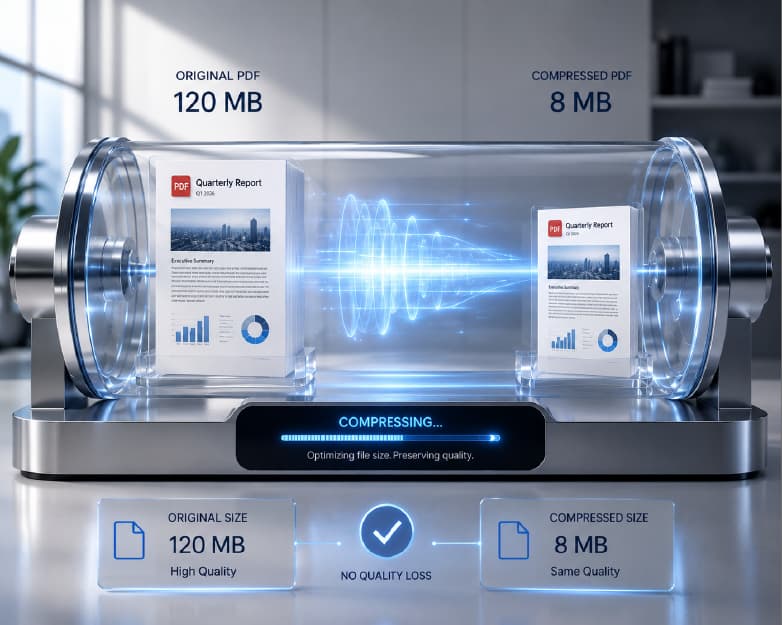
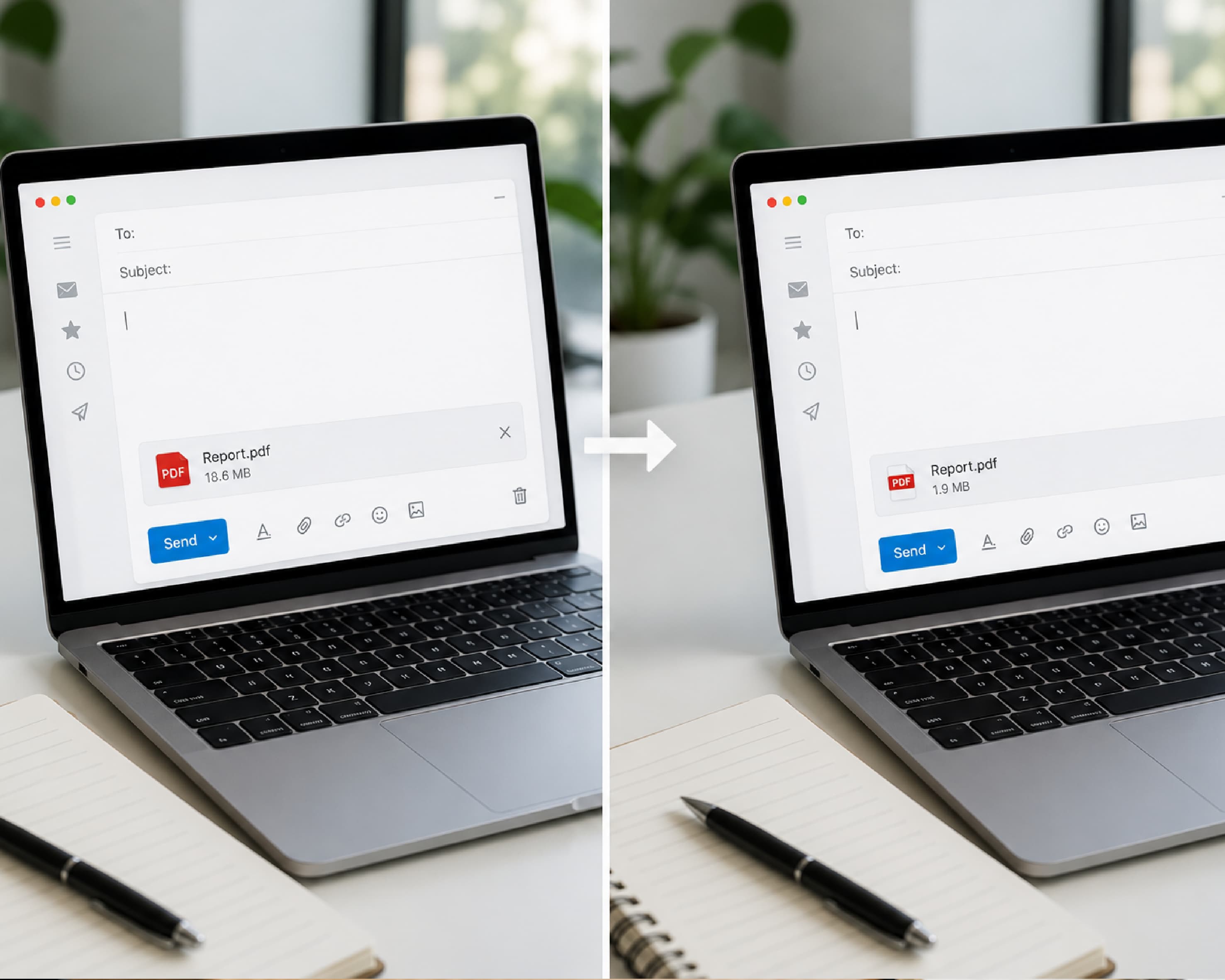
Question answered quickly: If you need to compress your PDF without affecting its quality, then do this on Plainscan. Choose Medium compression and press the Compress button. With Medium compression, a document will get compressed from 40 to 70 percent. This process takes less than a minute to complete. A PDF that cannot be sent via email. An attachment rejected at upload. A file that takes 45 seconds to open on a client's laptop. These are the symptoms of uncompressed PDF bloat, and they are almost always preventable with the right compression approach and the right tool. PDF compression is one of the most commonly needed document tasks and also one of the most misunderstood. Many users avoid it because they fear losing the visual quality that makes their document worth sending. Others compress and then regret the result after noticing image degradation that was completely unnecessary given the settings they chose. This guide removes that uncertainty entirely. In this comprehensive guide, you'll get all the information needed: Why do PDF files grow too big? What happens to your document when applying PDF compression? How can you pick the perfect level of compression for each particular case? Where and how can you compress on the fly? Everything you need is explained in a step-by-step tutorial that gives you the best result.
Why Do PDF Files Become Too Big
1. Embedded High-Resolution Images
This is the leading cause of bloated PDFs. Images such as screenshots, photos, diagrams, or charts that have been added to your document prior to creating a PDF file are embedded at their full resolution. The full resolution of a screenshot taken on a modern high-DPI display screen may be up to 3 to 8 megabytes. A presentation containing 20 full-resolution screenshots would exceed 80 MB in size even before considering any additional material.
The strange thing is that while many of these images may have originally been created at a print resolution, they will likely never be printed, but viewed on-screen instead. If an image is scanned in 300 DPI, then it has four times the amount of data compared to when it was scanned in 150 DPI, and nine times more than when it is scanned in 100 DPI. In case the document doesn't need to be enlarged, none of that data is actually needed.
2. Suboptimal PDF Export Settings
The application you use to create your PDF significantly affects output size. The PDF document generated by Microsoft Word using the Print Quality mode incorporates images within a resolution that is sufficient for printing. The default document generated by PowerPoint also contains slides that have been optimized for printing. If you have never changed these default settings, you have been producing print-quality PDFs for screen distribution throughout your career.
Most PDF creation applications offer alternative export settings such as Minimum Size, Screen Optimised, or Web Ready. These settings compress images during export and produce dramatically smaller files. A presentation that exports at 45 MB on default settings may produce an 8 MB file on screen-optimised settings with no visible quality difference on a recipient's screen.
3. Embedded Font Files
PDFs embed font files to ensure consistent rendering across devices that may not have those fonts installed. Standard system fonts add minimal overhead. Custom, decorative, or non-Latin fonts can be several megabytes each. A document using three custom typefaces may embed 3 to 10 MB of font data before any content is factored in.
4. Uncompressed Internal Data Streams
However, there is another aspect to consider, which is related to the internal construction of the file format, where data streams describe page layout, vector graphics, colors, and other elements. In many cases, certain software for creating PDF files may generate such streams without any compression applied internally. Post-processing compression addresses this by recompressing these internal streams efficiently using algorithms designed for the specific data types involved.
5. Revision History and Metadata
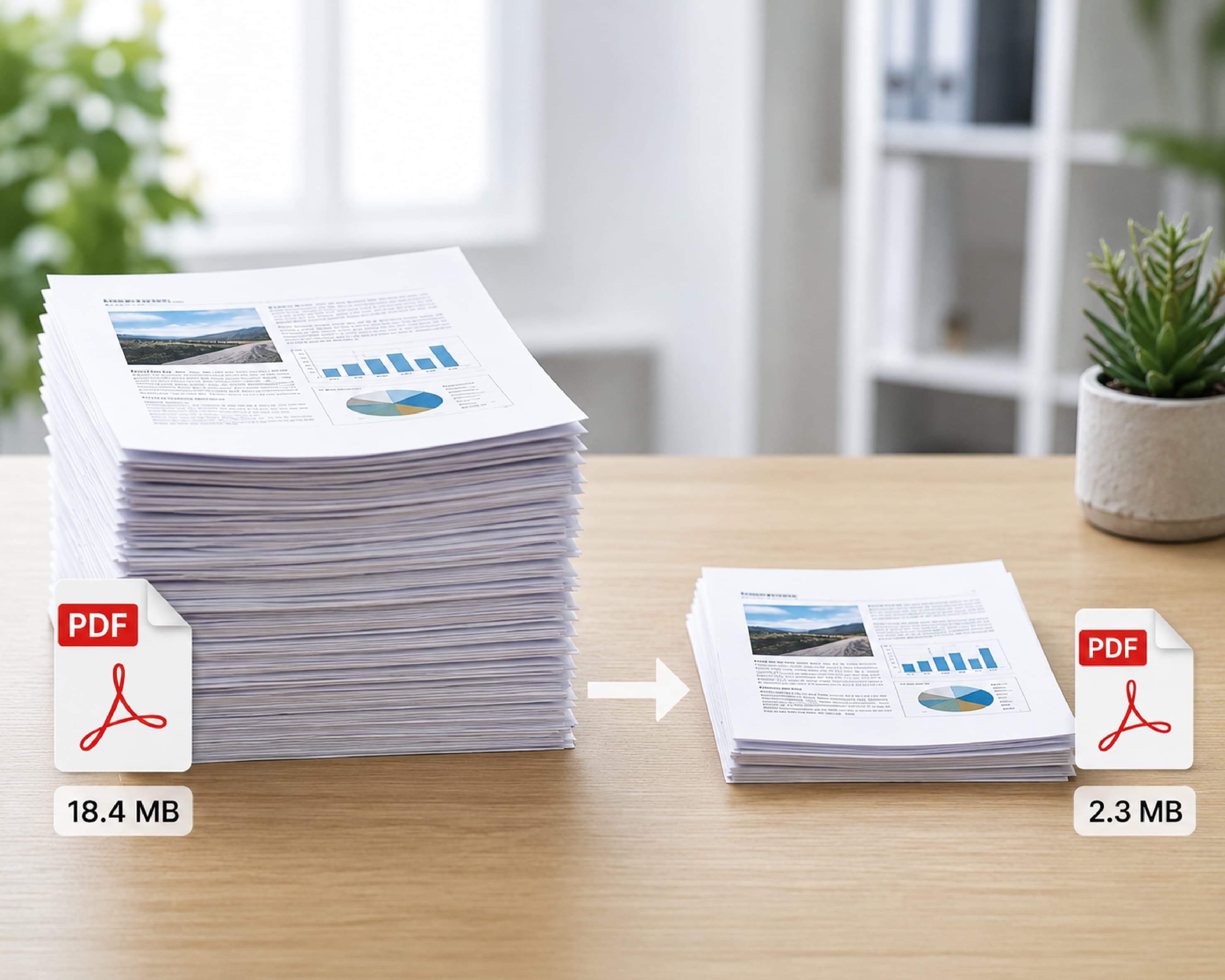
Revision history information can be accumulated for PDF documents that have been edited several times in software like Adobe Acrobat. But with every saved version, there is always an extra layer with more data compared to the previous one. This is why even when a document has not been edited significantly since its creation, with each editing session its size increases. For example, from 2 MB a document can be enlarged to 8 MB after several edits. Compression will discard all the extra layers leaving just the latest version.
Understanding PDF Compression Technology
PDF files use multiple compression algorithms for different content types within the same document. Understanding which algorithms are applied to which content types helps explain why compression results vary between documents of superficially similar size.
JPEG compression is applied to photographic images embedded in PDFs. This involves reducing the high frequency information content of images using the Discrete Cosine Transform (DCT), which basically eliminates fine details that are not as easily perceptible by the human eye. Lossy compression means that once quality has been reduced through JPEG compression, it cannot be regained. JPEG compression quality will determine this balance.
JBIG2 compression is applied to black-and-white and bitonal images, typically scanned text pages. It is significantly more efficient than standard JPEG for text-dominant scanned documents and is the primary reason high-quality PDF compression tools can reduce scanned document sizes dramatically without visible text quality loss.
Deflate (ZIP-style) compression is applied to text streams, vector graphics, and other compressible data within PDF documents. It is lossless - no data is removed, only redundancy is eliminated. The deflate method can be considered responsible for reducing the file size despite large amounts of text present in PDFs, which will not influence the quality of the final file.
Another method called JPEG2000 can be employed when preparing high-quality PDFs. This method allows achieving smaller file sizes with the same level of quality and employs wavelet-based compression techniques, although the process takes more time. JPEG2000 is not used in all PDF generators, but it does yield smaller files than JPEG.
Understanding these algorithms explains why medium compression on a photograph-heavy document has more visible effect than medium compression on a text document - the JPEG compression of images is where quality reduction occurs, while the Deflate compression of text data is always lossless.
Understanding PDF Compression Types
Lossless Compression
Lossless compression involves eliminating unnecessary data from within the image, compressing the data stream, and deleting collected metadata without making any changes to the visible information in the image. Lossless compression achieves modest size reductions of 10 to 30 percent on most documents but is appropriate for documents where any quality change is unacceptable - archival files, legal documents with precise reproductions, or original source materials intended for future printing.
Lossy Compression
Lossy compression reduces image resolution and quality within the PDF to achieve greater size reduction. Images embedded at 300 DPI are reduced to 150 or 96 DPI. The effectiveness of this optical illusion will depend upon the contents of the original picture as well as how much compression is being done to the picture. For documents that include more text than pictures, moderate-level lossy compression will go unnoticed even when viewed at a normal distance. For documents containing bleed photographs or technical illustrations, image softening can be observed through magnification.
Choosing the Right Level for Your Use Case
| Compression Level | Best For | Expected Size Reduction | Quality Impact |
|---|---|---|---|
| Low (near-lossless) | Archival, legal, print-critical docs | 10-30% | None visible |
| Medium (recommended) | Email, web sharing, client delivery | 40-70% | None visible on screen |
| High | Internal archives, non-critical storage | 60-85% | Minor on images at high zoom |
Step-by-Step: How to Compress a PDF on Plainscan
- Open your browser on any device and go to Plainscan. The website does not require any sign-up, and you don't need to install any software as everything can be done from the web browser.
- Drag and drop your PDF file into the file upload box or click on the file upload box to browse through your computer files and select the desired document. Plainscan's website lets you upload PDF files up to a maximum size of 50 MB. For larger files, please visit Plainscan to split your documents.
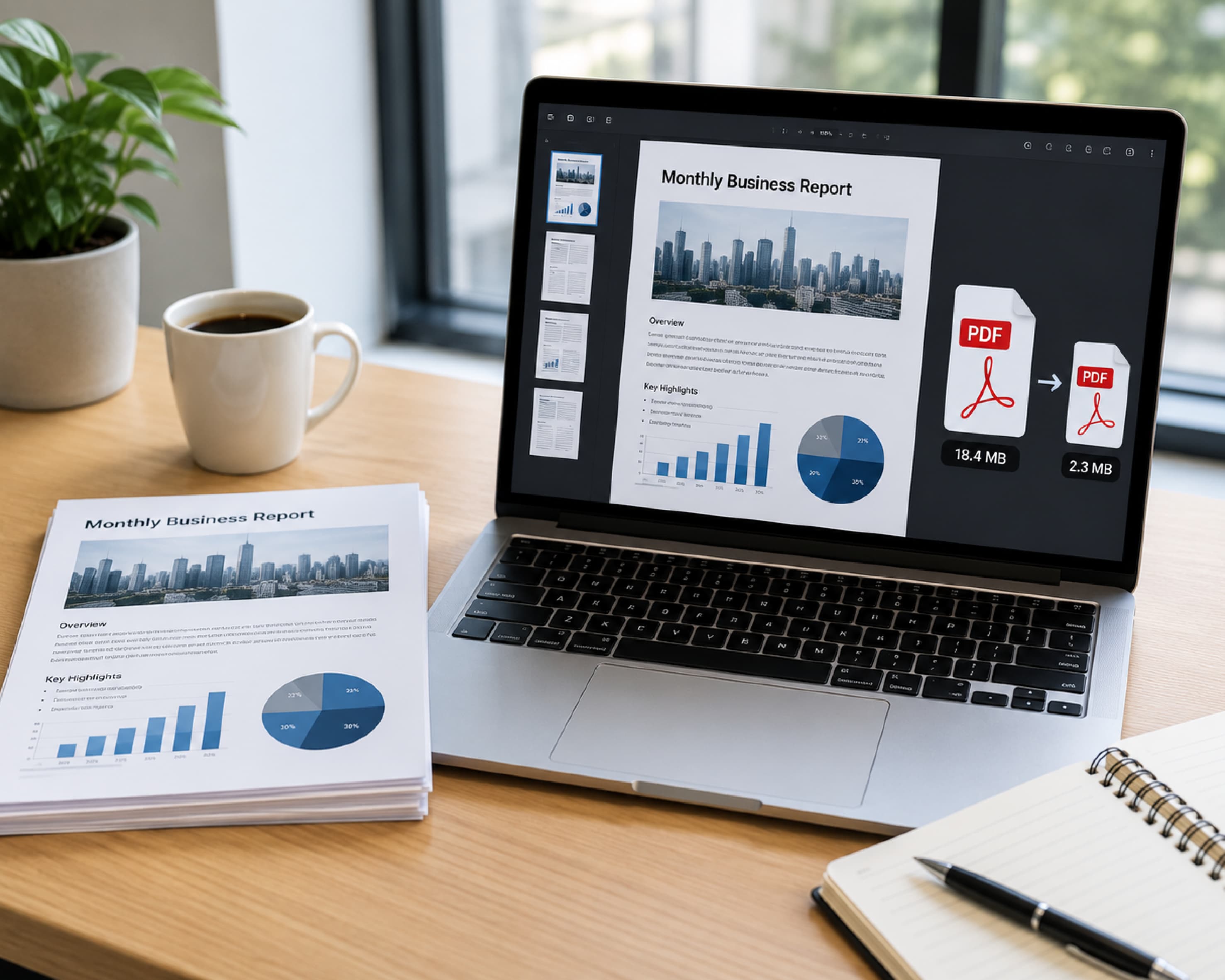
- The tool displays your uploaded file with its original file size visible. Please take note of the above graphic before continuing because you will be able to compare it to the compressed file to determine if it satisfies your needs.
- Choose your compression settings. When using email/web publishing, choose the setting "Medium" for typical files with a size reduction of up to 40-70%. For files that contain professional photographs or graphics, choose the setting "Low". For archiving or internal distribution where maximum size reduction is the priority, select High.
- Click Compress PDF. A processing indicator shows progress. The average duration to compress standard business files is about 5 to 20 seconds. Image-based documents can take up to 60 seconds due to the fact that the compression tool analyses every embedded picture.
- The outcome shows not only the compressed file size but also the amount of reduction accomplished. Check this against the targeted value. If you have to send any email to a corporate email address, try to ensure that the size is below 10MB.
- In case the output does not match your required size of the file, then you can compress it again with a high level of compression. It should be noted that repeated compression of the compressed file yields minimal gains but incurs high-quality losses. Compression starting off from scratch with a higher compression level is more advantageous than repeated rounds.
- Click "Download" to download the compressed file. The file will now become immediately available for attachment to emails and uploads to your document management system.
- Open up the compressed file and inspect it visually. Check any image content for visible quality changes. For most standard documents on medium compression settings, no visible difference will be apparent compared to the original.
- If distributing the document to multiple people or storing for future access, retain your original uncompressed file separately in a clearly named archive location. Compression, particularly lossy compression, is permanent and the original resolution cannot be recovered from the compressed output.
Expected Results by Document Type
| Document Type | Typical Original | After Medium Compression | Quality Impact |
|---|---|---|---|
| Text report - no images | 2.5 MB | 0.5–1 MB | None visible |
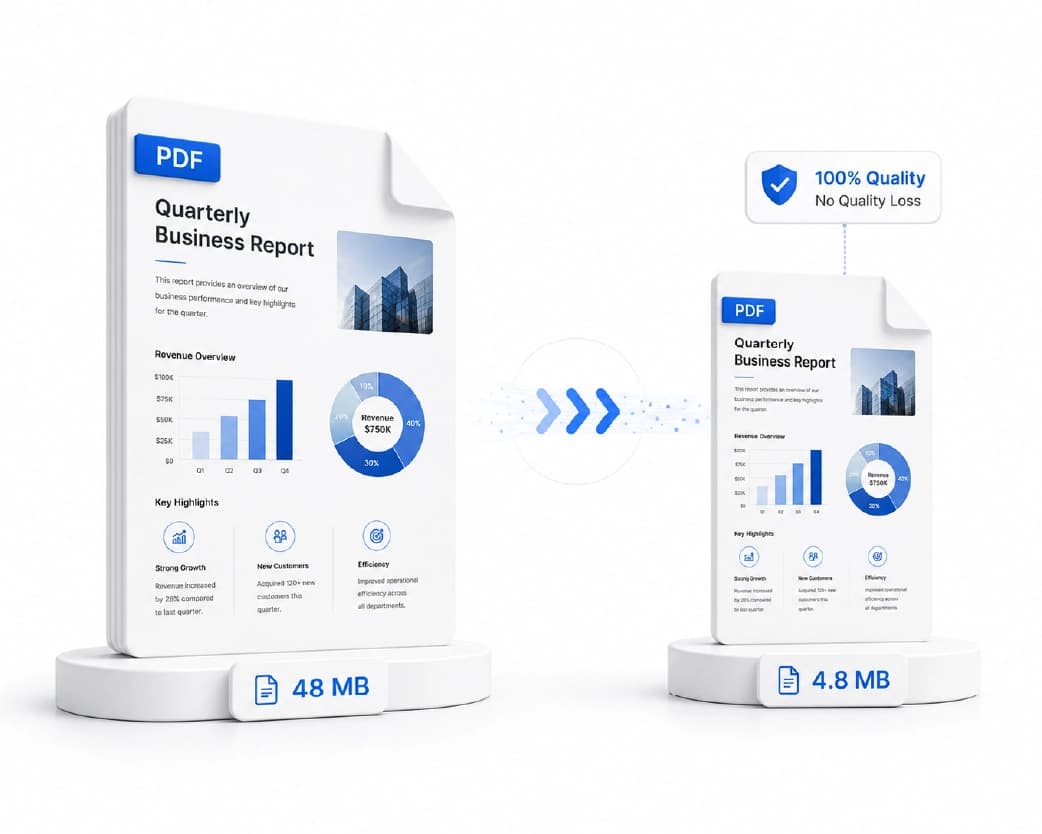
| Business presentation - screenshots | 18 MB | 5–8 MB | Minimal on screen |
| Scanned invoice - single page | 3.5 MB | 0.8–1.5 MB | None visible |
| Scanned document - 20 pages | 35 MB | 8–14 MB | None visible |
| Design portfolio - high-res photos | 55 MB | 15–25 MB | Minor on zoom |
| Academic paper with charts | 9 MB | 2–4 MB | None visible |
| Legal contract - text only | 1.2 MB | 0.3–0.6 MB | None visible |
| Product catalogue - mixed content | 40 MB | 12–18 MB | Minor on photos |
Compression Standards and Methods for Industry-Specific Requirements
Legal and Professional Services
The legal profession commonly sends lengthy contracts, court filings, and due diligence reports through email messages. It is important that individual message documents not exceed 10 MB in order to ensure their consistent delivery. Contract bundles and multi-exhibit packages often exceed 50 MB even after individual document compression, at which point cloud sharing is more practical than email attachment for ensuring reliable delivery.
For legal documents, use Low or Medium compression to preserve image quality in exhibits and signatures, which may be reviewed at high zoom by recipients. Never use High compression on documents with embedded photographic exhibits or reproduced signatures that require clear legibility under forensic review. Maintain original uncompressed copies in your document management system as the authoritative version regardless of what compressed copies are distributed.
Healthcare
Medical reports, radiology images, and clinical documentation often need compression for electronic distribution. For clinical PDF documents that are for informational reading rather than diagnostic imaging, Medium compression is appropriate. Radiological images and photographic medical documentation should use Low compression to preserve diagnostic-quality detail. Documents subject to HIPAA distribution should use secure file transfer methods rather than standard email regardless of compression level.
Education
Students compressing thesis documents, coursework portfolios, and reading materials for submission should target the file size limit specified by their institution's submission portal, typically 10 to 25 MB. Medium compression is appropriate for text-heavy academic documents, reducing a 30-page illustrated thesis from 18 MB to 4-6 MB with no quality impact on the text content. For teaching materials distributed to classes, email-safe compression below 10 MB ensures reliable delivery to diverse student email environments.
Marketing and Creative
Marketing teams creating campaign materials, pitch decks, and brand documents for client distribution should use Low compression to preserve brand image quality - compressed photography in brand presentations can undermine the visual impression the document is designed to create. For internal review versions and working drafts, Medium compression is appropriate. For archived campaign assets, original uncompressed files should be retained separately from any compressed distribution versions.
PDF Compression in Automated Systems
Where large numbers of documents need to be processed frequently, file by file compression becomes impractical. The Plainscan API makes it possible to submit files for compression automatically, making it easy to incorporate into workflow applications. A finance team receiving invoices by email can automate compression before archiving. A marketing team publishing PDFs to a CMS can compress automatically before upload.
Plainscan's browser-based program caters to Windows API-less users and effectively performs manual batch scanning within the free daily limit of 100 pages. Manual batch scanning of 10-20 documents takes less than 30 minutes to complete. For larger automated volumes, the API model is more appropriate than manual browser-based batch processing.
Document management systems with integrated compression capabilities - such as SharePoint with PDF processing plugins or dedicated DMS platforms with built-in PDF optimisation - are appropriate for enterprise environments where document compression needs to be enforced consistently as a policy rather than applied manually. Plainscan's API integration provides a path for connecting its compression capability to these enterprise systems.
Advanced Compression Techniques
Compress Before Merging
If at any time, you plan on merging multiple PDFs into a single PDF document, the most effective way of doing so would be to compress each of the PDF files individually before putting them together. The reason behind this being that when you compress merged files, you compress all different types of data equally.
Image Optimization Before Creating PDF
The most effective long-term approach is preventing large files at the source. Compressing pictures should be done by using the Compress Pictures function in Picture Format when working in MS Word. When using MS PowerPoint, the same method can be applied to compress all the pictures used in the document before converting it into a PDF document. This is because this process minimizes the size of the original document.
Use Screen-Optimised Export Settings
If you use Word, PowerPoint or any other application for making your document, select screen optimized or minimum size when converting to PDF instead of the print quality that is by default selected. This results in a lower image resolution which makes the file much smaller. A presentation that exports at 45 MB on print settings may produce an 8 MB file on screen settings with visually identical results for any recipient viewing on a screen.
When NOT to Compress
PDF compression is not always the right approach. Documents intended for professional printing should not be compressed before print delivery - printers need the original resolution data. Legal documents that have been digitally signed should not be compressed after signing, as some compression tools modify the document structure in ways that can invalidate digital signature cryptographic verification. Archival copies intended as the definitive record should be stored uncompressed with compression applied only to distribution copies.
Quality Assessment of Compression
Once the process of compression of the file is complete, there should be an assessment of the compressed file to determine whether it meets your requirements. There are three main aspects that should be considered in the assessment of quality.
For visual quality, open the compressed file, and zoom to 150 percent on those pages that contain a lot of images. The compression ratio used on these pages was too high if the images look distorted at this magnification level. Apply a lower compression setting and recompress from the original file. At 100% viewing zoom - the level at which most recipients will read the document - medium compression on standard business content should show no perceptible quality difference.
In terms of structural soundness, check if all the pages are there, if there is no damage to table formats, whether text can be read clearly in normal size, and if all links and other interactive components work properly. This does not necessarily mean that compression will strip away material, but it's always better to be sure.
For file size against target, compare the compressed size against your distribution requirement. For email, target below 10 MB for business recipients with unknown server configurations. For web upload or cloud sharing, the compressed size is relevant only to load time rather than strict delivery limits.
Compressing PDFs on Different Devices
On Windows and Mac
Use the link provided below: Plainscan via Google Chrome, Mozilla Firefox, Apple Safari, or Microsoft Edge browser. You can drag and drop your file in the upload window from your desktop or File Explorer on your PC. This whole procedure will happen through your browser and no installation of any software is required.
For iPhone and iPad
Open Plainscan in Safari or Chrome on iOS. Tap on the upload icon and choose the file from either the Files app, iCloud Drive, or any other file storage app. The compressed file will be downloaded directly to your device and will be available via the Files app for attachment or transfer.
On Android
Open Plainscan in Chrome on Android. Click on the "Upload" box and select the file stored on your computer or Google Drive. This compressed file will then be downloaded to your computer and can be accessed using the "Files" app for e-mailing purposes.
Common Problems in File Compression
File is barely smaller after compression
The PDF is likely already compressed or contains primarily vector graphics and text with minimal image data. Text-based PDFs compress very efficiently in their source format and have little room for further size reduction through image compression algorithms. Try the High compression setting if size reduction is critical, but expect modest additional reduction.
File is smaller but images look blurry
High compression was applied to a document with significant photographic or detailed graphic content. Re-compress from the original file using Medium or Low compression settings. If the original is not available, the blurry output cannot be reversed - always retain the original file before applying compression.
File still exceeds email limit after high compression
The document should be broken down into several pieces using the PDF Split function available on the Plainscan website Plainscan and then attached in separate emails accordingly. Otherwise, the document can be shared through any cloud-based platform like Google Drive or OneDrive as there might be an upper limit for attachment sizes.
Frequently Asked Questions
Q: Does compressing a PDF cause permanent loss in quality?
The process of lossy compression lowers the quality of images permanently. This means that there is no way to recover the original quality from the compressed document. On medium compression settings, the quality reduction is typically imperceptible on screen for standard business documents.
Q: How much can PDF file size be reduced through compression?
On Plainscan's medium compression setting, most standard business documents see file size reductions of 40 to 70 percent. Images-based files such as product brochures and image-loaded presentations could be compressed up to 80 percent depending on the level of compression applied.
Q: How large can a file be with Plainscan and have it compressed for free?
The file size limit of Plainscan with free plan is 50MB. However, for larger files, you will need to employ PDF splitter to cut the file into several parts.
Q: Is there any way to compress a scanned PDF without rendering its contents unreadable?
Yes. Plainscan's medium compression settings preserve the legibility of scanned text in most cases at standard print sizes and screen viewing. For documents that will be viewed at high zoom or printed at large format, use low compression to minimise image quality reduction.
Q: Why is my PDF still large after compression?
The document may already be compressed, consist primarily of vector graphics and text without embedded images, or have been created with settings that leave little room for further reduction. Very text-heavy PDFs with no embedded images have limited compressibility beyond their source file size.
Q: Can I compress a PDF on my phone?
Yes. Plainscan works fully on mobile browsers including iOS Safari, iOS Chrome, and Android Chrome. All compression options are accessible from a phone without installing any application.
Q: What is the difference between low, medium, and high PDF compression?
Low compression applies primarily lossless optimisation with minimal image quality reduction, suitable for archival and print-critical documents. Medium compression reduces image resolution moderately for a balance of quality and file size, suitable for most email and web distribution. High compression aggressively reduces image resolution for maximum size reduction at the cost of visible quality reduction in image-heavy content.
Q: Should I compress a PDF before or after adding a digital signature?
Compress before signing. Adding a digital signature after compression preserves the signature integrity. Compressing a signed document can modify the file's internal content structure in ways that invalidate the digital signature's cryptographic verification - a particular concern for legal and contractual documents where signature validity is essential.
Q: How do I know which compression level to choose for my document?
Use the document's purpose as your guide. For documents that will be read on screen by recipients and never printed, medium compression is appropriate for the vast majority of content. For documents with professional photography or technical illustrations where image detail matters to the reader, use low compression. For archiving your own reference copies where you need the file smaller than the original but retain all quality, medium compression is still appropriate since you have the original separately.
Q: Is Plainscan's compression safe for sensitive documents?
Plainscan uses HTTPS encryption for all file uploads and processing. All uploaded files are automatically deleted within 24 hours. Files are not shared with third parties or used for model training. For documents with the highest sensitivity classification, review Plainscan's full privacy policy and consider whether cloud-based processing is appropriate for your specific security requirements.
Comparing Compression Tools: How Plainscan Stacks Up
The PDF compression market includes both dedicated tools and compression capabilities embedded within broader PDF platforms. Understanding how these compare helps users choose the right tool for their specific compression requirements.
Plainscan's compression engine delivers results comparable to Smallpdf and iLovePDF for standard business documents at equivalent compression levels, with the significant advantage of 50 MB free file size support versus 15 MB on the alternatives. For image-heavy documents where compression quality matters most, all three platforms deliver similar output quality at medium compression settings.
PDF24's compression is among the strongest of the no-daily-cap free tools, with good output quality on standard documents and no usage restrictions for volume compression workflows. For organisations compressing large numbers of documents daily without AI or image needs, PDF24 is the strongest free alternative to Plainscan for pure-compression workflows.
The compression capabilities of Adobe Acrobat are the most advanced because it offers content-aware compression capabilities, where different compression methods are used for different kinds of content in the same document by taking into consideration their exact nature. In case there is an image in the document, JPEG2000 format compression is applied, which is specifically meant for images. If the document has a scanned page of texts, JBIG2 compression is applied. The downside is that you need an Acrobat Pro subscription for such advanced compression.
Compression for Different Output Destinations
Compression for Email Attachment
The target for email attachment compression is consistently below 10 MB for business recipients with unknown server configurations. This target provides a comfortable margin below typical corporate inbound limits. On Plainscan's medium compression setting, standard business documents of 5-20 MB original size consistently hit this target. Second pass at high compression rate or splitting and compressing is usually required for files that exceed 20 megabytes in size.
Compression for Web Upload and CMS
While content management systems and web-based platforms allow loading of more substantial files than emails with sizes of up to 10-100 MB being normal, still, the larger the PDF file to be uploaded to the browser is, the worse the experience for the users. This means that during compression of web-based documents, files shorter than ten pages should be less than 5MB, while longer files should not exceed 10MB.
Compression for Cloud Archiving
If documents have been archived into cloud storage systems such as Google Drive or OneDrive, where there are charges, then the amount of space required will be lowered through compression. For personal free-tier cloud storage with limited capacity (Google Drive's 15 GB free tier), compressing documents before archiving extends the useful life of free storage allocations. For business cloud storage where capacity is less constrained, the benefit of compression is primarily operational - smaller files load faster and sync more quickly to mobile devices.
Compression for Print
Documents intended for professional printing should not be compressed using standard PDF compression tools before submission to a print provider. Print processes require the full resolution of embedded images - typically 300 DPI minimum - to produce acceptable print quality. Compressing to email-distribution standards before printing produces noticeably degraded print output. Submit original uncompressed files to print providers and apply compression only to screen-distribution copies.
File Size Compression Limitations
There will always be limitations to how much compression can occur on some PDFs, and having knowledge of those limitations is key to setting proper expectations prior to compressing files. For example, documents which have already been highly optimized in their initial form - made at screen resolution and with properly subsetted fonts, and pre-compressed images - may see only about 5 to 15 percent compression, while larger documents with high-quality screenshots and a long revision history may see up to 80 percent compression.
The floor for compression is set by the intrinsic information content of the document. A text document with 10,000 words has a minimum file size determined by the character data, the font information, and the page structure - removing all redundancy from these elements leaves a file that cannot be made smaller without removing visible content. This floor is typically much smaller than the actual file size of real-world documents, which means most documents have meaningful compression headroom.
Conclusion: Always try compressing the files before assuming that they can't be made any smaller. You can determine this from this test if your files are optimized or can be further compressed. This is because if the difference is less than 10%, then it means that your files are well-optimized and you need to look at other alternatives like cloud sharing or reducing the file size.
Compression as Part of a Document Quality Culture
The most professionally effective approach to PDF file size management is not reactive - compressing files only when they fail to send - but proactive: building compression and file optimisation into the document creation and distribution workflow as a standard step rather than an exception.
Organisations that develop a document quality culture - where file size, searchability, accessibility, and professional formatting are considered standard elements of document preparation rather than technical concerns for IT - produce better professional output and reduce the time their teams spend on document-related friction. Compressing PDFs before sharing is one of the most accessible entry points into this broader document quality mindset, requiring minimal time investment and delivering immediate and measurable workflow benefits.
A document quality checklist before sending any PDF might include: Is the file compressed for its distribution channel? Does the filename communicate the content clearly? Does the document have a text layer (or has OCR been applied if it is scanned)? Are required signatures applied? Is any sensitive content redacted before external sharing? Each of these questions takes seconds to answer and prevents the document-related workflow interruptions that cost professionals and organisations disproportionate time relative to the simple habits that prevent them.
Plainscan's tools address each item on this checklist directly - compression, OCR, digital signing, and PDF redaction are all available within the same platform. This integration means that developing a comprehensive document quality workflow does not require managing multiple specialist tools. A single browser bookmark to plainscan.com provides access to every capability needed to prepare documents to a professional standard before they leave your hands.
Building the Compression Habit: Five Minutes That Save Hours
The professionals who handle document compression most efficiently are those who have built it into their sending workflow as an automatic step rather than a reactive fix. Like spell-checking before sending an email, compression before attaching a PDF becomes a two-minute step that prevents the much larger time cost of bounced emails, client follow-up calls, and resending workflows.
Building this habit requires only three conditions: knowing that the problem exists (oversized PDFs do not always deliver reliably), having a tool that makes the solution fast enough not to be resisted (Plainscan's 60-second compression workflow), and having a clear decision rule for when to compress (all PDF attachments to business recipients).
The decision rule is the critical component. 'Always compress PDFs before emailing to external recipients' is simple enough to apply consistently without requiring file-by-file judgment. This blanket rule catches every case where compression matters without requiring assessment of whether a specific file is likely to cause problems. The cost of applying compression unnecessarily - 60 seconds - is trivially small compared to the cost of a missed delivery.
Over a month of consistent practice, the compression step becomes as automatic as saving a file before closing it. The habit is built not through willpower but through the simplicity of the tool and the clarity of the rule. Plainscan's browser-based interface - a bookmark away, no login, drag and drop - is designed specifically to make the right behaviour the effortless behaviour.
Conclusion
Always try compressing the files before assuming that they can't be made any smaller. Over a month of consistent practice, the compression step becomes as automatic as saving a file before closing it. The habit is built not through willpower but through the simplicity of the tool and the clarity of the rule. Plainscan's browser-based interface - a bookmark away, no login, drag and drop - is designed specifically to make the right behaviour the effortless behaviour.
Related insights

Get the Plainscan App for iOS & Android