
How to Convert PDF to Word: The Complete Free Guide for 2026
PDFs are designed to lock formatting in place. That is their core advantage for sharing documents and their central frustration when you need to edit them. Whether you are updating a contract, extracting data from a form, revising a report you received without the source file, or repurposing content from a document you did not create, converting a PDF to Word is one of the most frequently needed operations in professional and academic work. The challenge is that not all PDFs convert equally, and not all converters handle the full range of PDF types. Understanding the difference between a native digital PDF and a scanned PDF determines which approach will produce genuinely editable text versus a Word file containing an image you still cannot edit - which defeats the entire purpose of the conversion. This guide covers the complete conversion process from upload to polished output, addresses both types of PDFs, provides strategies for getting the cleanest results on complex documents, explains how to handle the most common formatting issues in the converted output, and covers conversion from every major device type including mobile phones and tablets.
Two Types of PDFs: Why the Distinction Matters
| PDF Type | How It Was Created | Contains | Converts to Editable Text? |
|---|---|---|---|
| Native PDF | Exported from Word, Docs, PowerPoint, InDesign | Actual text data and fonts | Yes - directly, high accuracy |
| Scanned PDF | Photographed or scanned from physical document | Image pixels - no text data | Only with OCR processing |
| Mixed PDF | Combination of digital and scanned pages | Both text data and images | Partially - OCR needed for scanned pages |
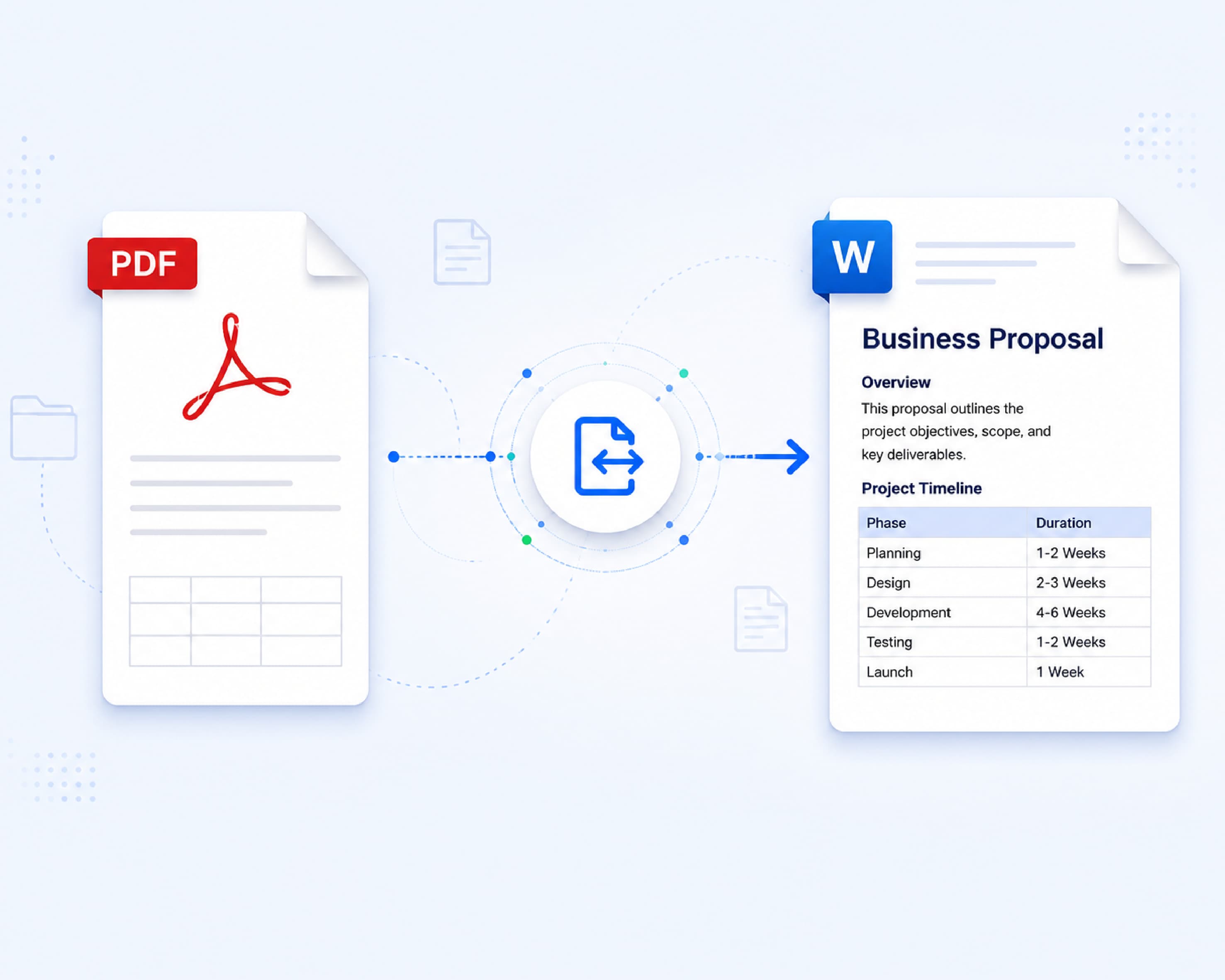
Text in a native PDF document is machine readable. After conversion using the converter, all it does is read the text and convert it to a Word document. However, when it comes to scanned PDF documents, there are no texts in them. There are images of the pages, and the texts that one sees on the screen are just pixels. Without OCR, a converter has no text to extract and the Word output contains an embedded image rather than editable content.
Plainscan recognizes both varieties and uses OCR technology on the scanned document before creating the Word file. The user does not have to recognize whether his or her PDF is either of those kinds prior to uploading.
How to Convert Native PDF to Word
- Open Plainscan in any browser on desktop or mobile.
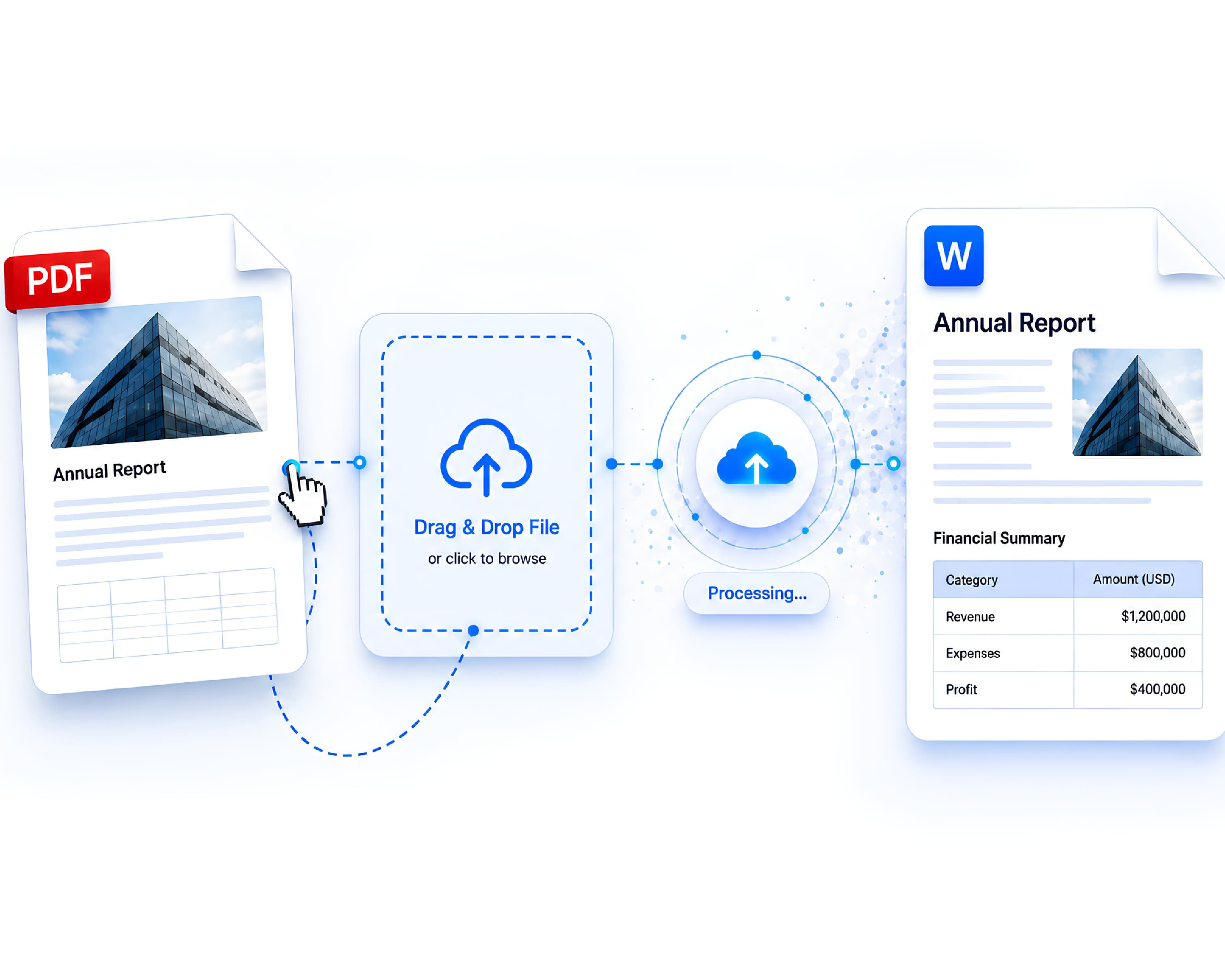
- Drag and drop your PDF file in the upload area or click on the Browse files button to select your file. Plainscan can handle files up to 50 MB size under the Free plan. In case of files bigger than 50 MB, you can split your PDF using the split PDF tool.
- Plainscan performs a document structure analysis to detect text boxes, headings hierarchy, table layout, and images positioning. For native PDFs, this analysis completes in seconds.
- Click Convert to Word. Processing time depends on document complexity. Conversion time for a ten-page text report would be from 5 seconds to 15 seconds. Conversion time for a 50-page document with images and tables could be up to 45 seconds.
- After successful conversion, check the preview for any issues that may be present. Ensure that all tables have been preserved, proper heading hierarchy exists, and images have been correctly placed in relation to the text around them.
- Download the file by clicking on the Download button. Your file will download as a .docx file.
- Open the converted file and scroll through it to check formatting. Most standard business documents require minimal or no manual adjustment after conversion on Plainscan.
Your PDF file will automatically be removed from Plainscan 24 hours after its upload. No further action on your part is required concerning the removal of the file.
Conversion of Scanned PDF File to Editable Text in Word
It follows the exact same procedure as the one above. Upload your scanned PDF to Plainscan. Plainscan detects the image-based content and applies its OCR engine automatically before generating the Word output. Processing time is longer for scanned documents due to the OCR analysis step, typically 30 to 90 seconds depending on page count and image complexity.
Getting the Best OCR Results
- Scanner resolution: Employ 150 DPI at minimum when screen-distributing and 300 DPI for texts where readability and OCR accuracy is important. Scanning below 100 DPI results in accuracy loss that cannot be corrected by any OCR engine.
- Page alignment: Scanned pages tilted more than 2 to 3 degrees reduce OCR accuracy significantly. Ensure documents are flat and straight in the scanner bed before scanning. Most scanner software includes automatic deskew correction - enable this where available.
- Background contrast: High contrast between text and background improves character recognition. Scan text documents in black and white or greyscale rather than colour mode for best results on standard text documents.
- Document condition: Faded ink, water damage, and torn edges reduce OCR accuracy. Where possible, clean and flatten physical documents before scanning. Tape tears carefully before scanning to minimise background noise in the image.
- Selection of language: In case the OCR tool allows you to select the language, ensure that you select the right one. Selecting the wrong language will lower the effectiveness, especially when dealing with documents using non-Latin script.
Common Format Problems after Conversion
Why Formatting Changes Happen
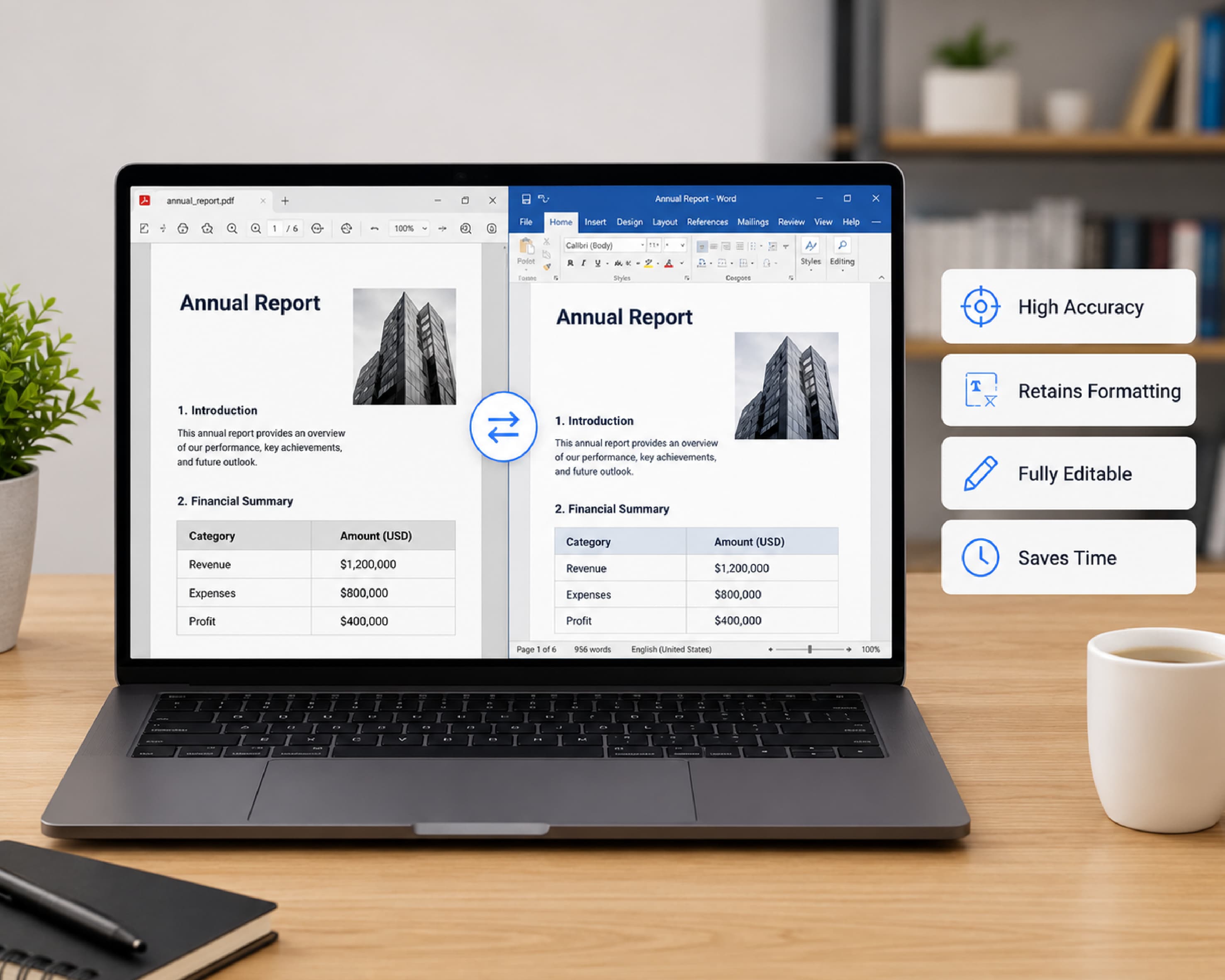
PDF and Word use fundamentally different approaches to document layout. PDF places every element at an absolute position on the page - an image is at exactly X,Y coordinates regardless of surrounding content. Word uses a flowing text model where content reflows based on page margins, font size, and style settings. Translating from absolute positioning to flowing text requires the converter to infer relationships between elements that the PDF format does not explicitly state.
For most standard documents, this inference is accurate and the output requires minimal adjustment. For documents with unusual layouts, decorative elements, or complex column structures, some manual adjustment is typically required. Understanding why an issue occurred helps you fix it efficiently in the converted output.
Tables
Tables in native PDFs generally convert well. The converter recognizes the table structure and converts it into a Word table. For PDFs where the tables have been created by inserting tabs instead of tables, the tables created will be of the form of tabbed text, which can then be turned into a table via the use of the "Table" function in Word. However, in scanned PDFs with tables, although the text will be accurately extracted using OCR, the table itself might have to be recreated manually.
Multi-Column Layouts
Multi-column documents like newsletters, scholarly journals, and newspaper designs are some of the hardest to convert from PDF to Word format. The conversion process can result in the merging of the columns into one continuous text or even create non-flowing text boxes. When dealing with such multi-column documents, one should be prepared for post-conversion adjustments to be made in the Word document regarding the document layout design.
Fonts & Typography
In case the fonts used in the original PDF file do not exist on your computer, Word replaces such fonts with other similar fonts. Such replacement will affect the line spacing, the length of the text, and also paragraphing in some cases. Thus, in case you need exact replication of fonts, you should install the necessary fonts on your computer before opening the new file.
Images and Logos
Images in native PDFs generally transfer to the converted Word document accurately, though they may appear as floating objects rather than inline images. Positioning images through floating means may lead to their displacement due to changes in the text around them. To avoid that problem, just select the image, click on Layout Options, and set the wrap setting as In Line with Text.
Specifics in Conversion of Languages
The quality of conversion from PDF to Word depends on the type of document's language. This information is important to be aware of because PDF files may contain languages that have specific needs when it comes to translation.
European languages using Latin scripts with diacritical marks - French, German, Spanish, Italian, Swedish, Polish - convert accurately from native PDFs with character fidelity preserved. For these languages, the OCR accuracy of Plainscan's multi-language OCR software is good when the right language is chosen.
The Arabic language, Hebrew language, and others which write from right to left need special treatment. Native PDF documents with RTL text convert with direction preserved in most cases. Scanned Arabic or Hebrew documents require an OCR engine specifically trained for RTL scripts and Arabic or Hebrew character recognition - Plainscan's language selection covers major RTL languages.
Chinese, Japanese, and Korean (CJK) scripts have dense character sets requiring dedicated recognition models. Native PDFs with CJK text convert accurately as the character data is preserved in the PDF structure. Scanned CJK documents require high scan resolution - minimum 300 DPI - and dedicated CJK OCR models for reliable character recognition.
Industry-Specific Conversion Challenges
Legal Documents
Legal contracts, court documents, and regulatory documents each require certain types of conversion due to the nature of such documents. This includes the accurate translation of page numbers, headers, footers, cross-references, and exhibits. Plainscan preserves these elements accurately for native PDFs. For the specific case of converting signed PDFs to Word, the signature image transfers as an embedded graphic and the underlying contract text becomes fully editable - which is appropriate for working from a signed contract to create a revised version while retaining the signature as a reference image.
Medical and Healthcare Documents
Medical reports, clinical guidelines, and patient records often use structured layouts with clinical tables, checkbox fields, and measurement formats. Native PDF conversion preserves these structures accurately for Plainscan. Scanned medical records - handwritten clinical notes, legacy paper-based records being digitised - require OCR processing with careful review of medical terminology accuracy, as specialised medical vocabulary may have lower OCR accuracy than standard text.
Financial Documents
Financial statements, balance sheets, and invoice bundles contain critical numerical data that must transfer with absolute accuracy. A misread digit in a financial conversion can create significant errors downstream. For native PDF financial documents, Plainscan's conversion is highly accurate for standard financial table formats. For scanned financial documents, OCR accuracy on numerical content is high but a systematic review of all figures against the original is appropriate for any document where the numbers will be acted upon rather than simply read.
Academic and Research Documents
Academic papers present the specific challenge of two-column layouts with footnotes and bibliographic references. Plainscan handles single-column academic documents accurately. Two-column layouts require manual reformatting after conversion in most cases. Mathematical notation in academic PDFs is typically stored as images rather than editable formula objects, meaning the converted Word document will contain formula images rather than editable equations. For papers where editing mathematical content is required, dedicated scientific PDF editors are more appropriate than general PDF-to-Word converters.
Converting Complex Document Types
PDF Forms
PDF forms with interactive form fields - text boxes, checkboxes, dropdown menus - convert to Word as static text. The interactive form structure is not carried into the Word output. The visible label text and any pre-filled content transfer accurately as readable text, but the form becomes a standard Word document rather than a fillable form. This is appropriate for workflows where you need to extract or edit the form content, but for workflows where maintaining the interactive form structure is the requirement, using a PDF form editor rather than a Word converter is the appropriate approach.
PDF Portfolios and Collections
PDF portfolios - single PDF files containing multiple embedded documents - require extracting the embedded files before conversion. Plainscan's PDF split tool can separate portfolio contents for individual processing. Converting the portfolio directly without splitting typically produces a single Word document combining all embedded content, which may not be the desired output structure.
After Conversion: Post-Processing Workflows
Cleaning Up the Output
For native PDF conversions, most cleanup is minor. Common adjustments include correcting line breaks inserted mid-paragraph during conversion, adjusting image positioning using Word's Layout Options, restoring any heading styles that did not transfer correctly by applying them from Word's Style Gallery, and removing any spurious blank paragraphs or spacing artifacts.
Collaborative Editing After Conversion
Converted Word documents are immediately ready for collaborative editing in Microsoft Word, Google Docs, or any compatible word processor. For team review workflows, share the converted document via SharePoint, Google Drive, or OneDrive with appropriate comment and edit permissions. Track Changes can be enabled in Word to maintain an audit trail of edits made to the converted content - particularly useful for legal and contract document workflows.
Converting Back to PDF After Editing
After editing your converted Word document, use Plainscan's Word to PDF tool to convert back to a clean PDF for distribution. This creates a native digital PDF from your edited Word file with accurate formatting preservation. The round-trip conversion process - PDF to Word for editing, then Word back to PDF for distribution - is a standard workflow for document revision that Plainscan's complete toolset supports without leaving the platform.
Converting on Different Devices
- Windows: Open Plainscan in any browser. Drag the file from Windows Explorer onto the upload area. The converted document will be saved in your Downloads folder and automatically opened in Microsoft Word from the browser window notification bar.
- Mac: Visit Plainscan using Safari or Chrome. Select files to convert by browsing from Finder or dragging from desktop. The converted document will be saved in your Downloads folder and automatically opened in Microsoft Word for Mac, Apple Pages, or LibreOffice Writer. For those who use Google Docs, select the converted .docx file and upload to Google Drive.
- iPhone & iPad: Visit Plainscan using Safari on iOS. Use the "Upload" button and select the PDF file either from the Files or iCloud Drive application. The output .docx file is automatically saved on your device and accessible in the Files application, and if you use Microsoft Word for iOS, it will be opened directly.
- Android: Open Plainscan in Chrome on Android. Upload your document from your phone's storage or from Google Drive. Your newly converted document will download into your Downloads folder and open up in Microsoft Word Android or any other word processing program installed on your device.
Questions and Answers
Q: How can I convert my scanned PDF to an editable Word document?
A: It is a pretty simple procedure that involves uploading your scanned PDF to Plainscan. Using OCR technology, Plainscan identifies the images in your document and converts them into an editable text file.
Q: Why is my Word conversion not editable?
A: If your PDF was scanned, the converter may have processed it as an image without OCR. Ensure you are using a converter with OCR capability such as Plainscan. In case the file remains uneditable even after converting it with the OCR tool, you might need to rescan it in order to achieve better results - its resolution might be too poor for text recognition.
Q: How much time does it take to convert PDF to Word on Plainscan?
A: Native PDFs typically convert in 5 to 20 seconds. The scan PDFs that need OCR process will take 30 to 90 seconds depending on number of pages and image complexity. Sometimes large scans with many pages can even take 3 minutes.
Q: What is the maximum file size for free PDF to Word conversion?
A: On the free version Plainscan can process files up to 50 MB. If you have larger files, you should use the PDF splitting functionality prior to conversion.
Q: Will my table formatting be preserved after conversion?
A: For native digital PDFs, Plainscan preserves table structures accurately in most cases. Complex tables with merged cells may require minor manual correction. The text data from PDF files with tables is extracted successfully but the table grid can sometimes require manual recreation.
Q: Can several PDF files be converted to Word simultaneously?
A: Plainscan converts files individually on the free tier at 4 documents per day. For batch conversion of multiple files, process them sequentially within the daily limit - at typical processing speeds,4 documents can be processed in well under two hours.
Q: Does converting a PDF to Word affect the original PDF file?
A: No. Plainscan creates a new Word document from the uploaded PDF. The original PDF is not modified. Your uploaded file is automatically deleted from Plainscan's servers within 24 hours.
Q: Is it safe to upload legal or confidential documents for conversion?
A: Plainscan uses HTTPS encryption for all file transfers and auto-deletes uploaded files within 24 hours. Files are not shared with third parties or used for model training. For those documents that are very sensitive in nature, take a look at Plainscan's privacy policy before uploading.
Q: Is it possible to convert password protected PDF to Word?
A: In order to be able to convert password protected PDF to Word, it is essential that password protection on the document be stripped off first using Plainscan's PDF unlock service.
Q: What version of Word format does Plainscan output?
A: The software converts the files to standard .docx files which are compatible with Microsoft Word 2007 and onwards, Google Docs, Apple Pages, LibreOffice Writer, and all other modern word processing software that supports the Open XML document format.
Conclusion
The conversion of a PDF file into Word is a necessity in document processing. It is essential to identify which kind of PDF file it is and apply the right methods for converting it the way you wish. Conversion into Word is preferable when there is a need to make considerable changes in content (insert, delete, or rewrite large text passages), if there is collaborative editing of the document, or the content is intended to be repurposed in another document.
Related insights








Get the Plainscan App for iOS & Android