
PDF to Excel & Excel to PDF: The Complete Free Conversion Guide (2026)
Your bank statement, your invoice, your report is sitting there in a PDF file, and the figures contained in it must be moved to a spreadsheet for budgeting, expense reporting, or whatever else may require some calculation. And so you do what everyone does: You open the PDF file, copy the table, paste it in Excel, and see it turn into a useless column where each row's data is packed into a single cell. Or it's the other way around. You've built a clean report or a financial summary in Excel, and you need to send it to someone as a PDF - because Excel files break when they open on someone else's machine with different column widths, missing fonts, or a different regional number format, and a PDF just looks the same everywhere. Both directions of this problem are common, and both are solvable in about thirty seconds once you're using a converter that actually understands table structure instead of just dumping text.
You may also like:How to Split a PDF Into Multiple Files (Free, Online, No Software)
Why People Need to Convert PDF to Excel
That is precisely what is happening here since the PDF file is not the mentioned spreadsheet, but some kind of content, for which the accurate representation is crucial. While the rows and columns might seem to be arranged perfectly according to your perception, after looking deeper into what is going on, you will discover that there is no more than the plain text placed somewhere on the page coordinates. There is no cells or any other elements; the only tool the spreadsheet application has is the text formatting. The transformation of this kind of information into the spreadsheet format turns out to be quite tricky.
And this happens time after time in practice:
Banks and their financial statements. Statements from banks are mostly made available in PDF format but no one would want to type in 40 lines of entries manually just to reconcile them or import into any accounting system.
Invoices and purchase orders. Finance and procurement teams regularly need line-item data from vendor PDFs pulled into a spreadsheet for tracking, auditing, or bulk processing.
Reports and data exports. A lot of tools and government portals still only export PDFs, even when the underlying data is fundamentally tabular - survey results, tax filings, government registries, academic datasets.
Research and academic tables. Anyone doing a literature review or compiling data from published papers usually finds the numbers they need sitting inside a PDF table, not a downloadable dataset.
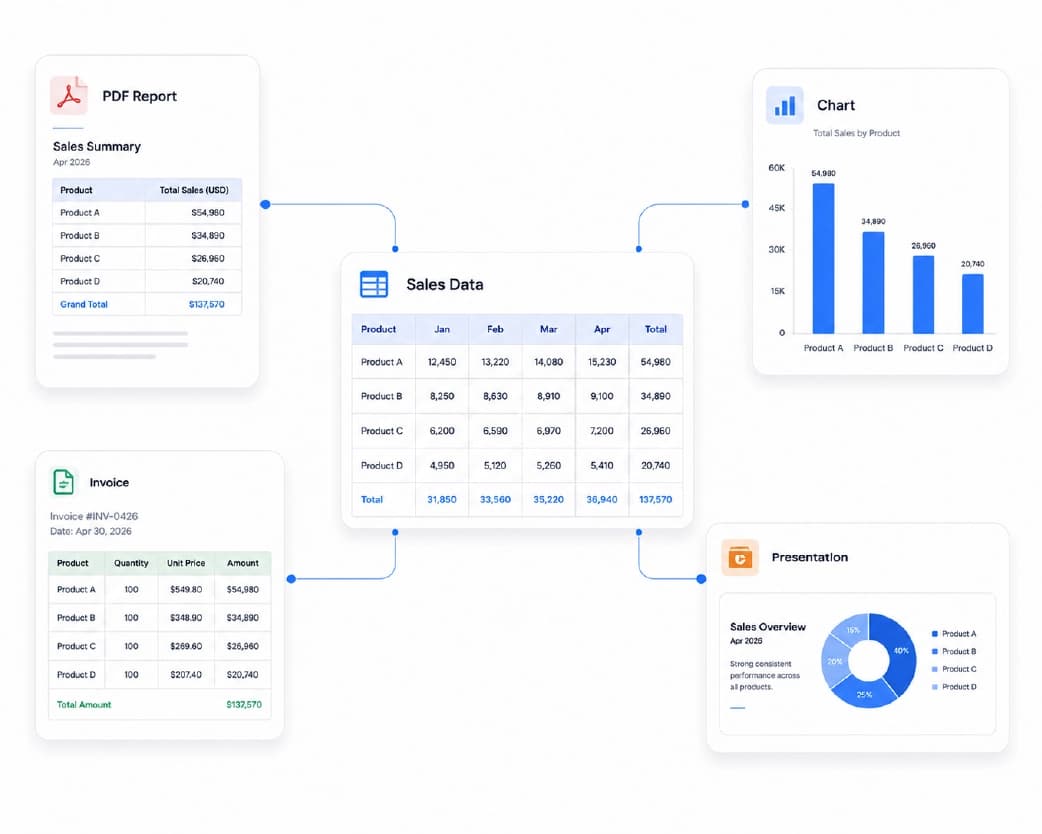
Why People Need to Convert Excel to PDF
This process is equally frequent for another reason. By design, Excel documents are editable; they were created specifically for editing, which means that they are not the best medium to distribute the completed document because font differences are possible on various computers, column widths can vary depending on the default zoom settings of the viewer, and the recipient may not even have the proper software to view the file.
Converting to PDF locks the layout in place. Whoever opens it, on whatever device, sees exactly the same thing you built - same column widths, same fonts, same page breaks. That matters most for:
- Financial reports going to clients or stakeholders - nobody wants a client accidentally editing a number in a report meant to be final.
- Customer invoices – a professional looking PDF format invoice is common practice; an editable Excel spreadsheet is considered unprofessional.
- Print ready documents - any document going to the printers requires the document formatting to be correct, which is not always guaranteed by Excel.
- Audit trail – PDF is a picture of what you see, it is a snapshot which will remain the same forever; it won’t change once created.
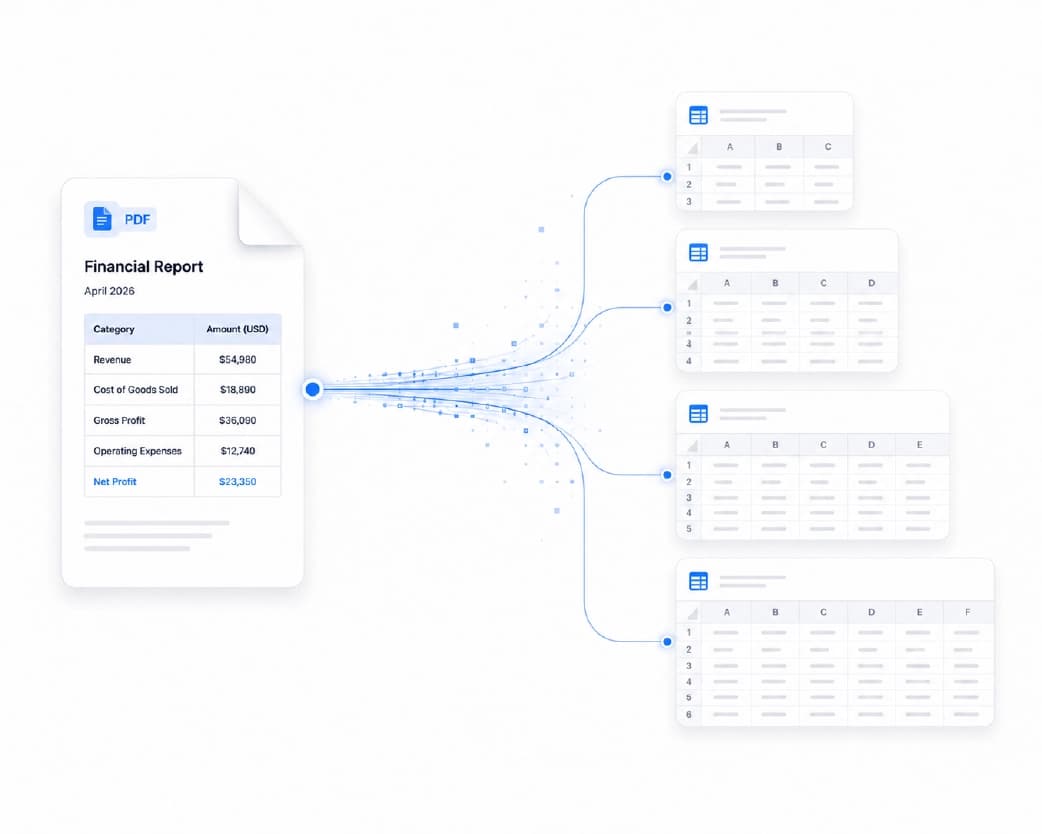
Converting PDF to Excel with Plainscan
Here's the actual process, step by step.
Step 1: Go to the PDF to Excel converter.
No installation, no account required to try it.
Step 2: Upload your PDF.
Drag and drop the file, or browse to select it. Plainscan accepts PDFs regardless of how they were created - digitally generated reports, exported statements, or scanned paper documents.
Step 3: Let the converter recognize your tables.
This engine of Plainscan recognizes how the tables are structured within the document; it recognizes rows and columns, their headers, and cell contents, not just copies the text into the document. As for an image of a table in the PDF document, the OCR engine will recognize the text and convert it into a table.
Step 4: Download your Excel file.
You will get a normal .xlsx file that contains your data in rows and columns for sorting, filtering, summing, or calculations.
What good conversion actually preserves:
- Column and row structure, matching the original table layout
- Header rows and labels, positioned correctly
- Numeric values as actual numbers (not text), so formulas work immediately
- Multiple tables on a single page, kept separate rather than merged together
- Multi-page tables, stitched into one continuous sheet where appropriate
Converting Excel to PDF with Plainscan
This direction is simpler, but getting it clean still matters.
Step 1: Go to the Excel to PDF converter.
Step 2: Upload your spreadsheet.
Works with .xlsx, .xls, and .csv files.
Step 3: Choose your export settings if needed.
For spreadsheets with a lot of columns, you can select a specific print area, orientation (portrait or landscape), and whether to fit everything onto a single page width or let it span multiple pages - this matters a lot for wide financial models that would otherwise get awkwardly cut off.
Recommended to Read:Convert Image to PDF Online Free (And Back to JPG, PNG, or WebP)
Step 4: Download your PDF.
Plainscan preserves cell formatting, borders, colors, fonts, merged cells, and formulas' displayed values (a PDF is static, so formulas convert to their calculated result, not the formula itself).
💡 Tip: If your spreadsheet has more columns than fit comfortably on one page, switch to landscape orientation before converting, or select a smaller print area - this avoids the common problem of a PDF export cutting off columns on the right-hand edge.
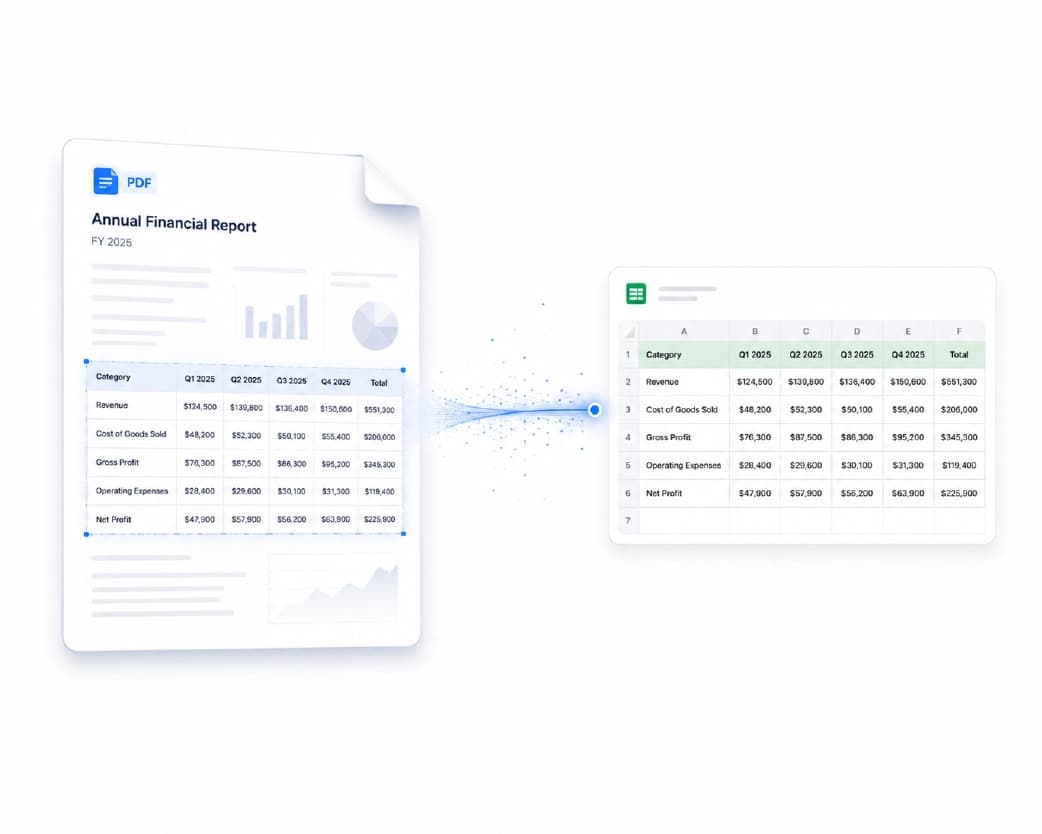
What About Scanned PDFs and OCR?
"Convert PDF to Excel" searches have a lot of users who work with scanned documents – a scanned bank statement, a copied invoice, or an old document. This is not even actual text, but a picture of the page, and any regular software has nothing to convert since it doesn’t see any text layer at all.
The OCR engine of Plainscan copes with that task by analyzing the text and the structure of the table on the picture page-by-page, character-by-character, and cell-by-cell. The quality of conversion largely depends on the quality of the scan:
- Clean, well-lit scans with clear typed text - near-perfect extraction, including numeric alignment.
- Slightly skewed or lower-resolution scans - usually still workable, though you may need to double-check a few cells, particularly where numbers run close together.
- Handwritten tables - the hardest case for any OCR engine. Clear block handwriting has a reasonable success rate; cursive or messy handwriting will need manual review.
If you scan bank statements and invoices on a regular basis, you can increase the quality of scanning by doing a few simple things, like increasing your resolution to 300 DPI or more, ensuring that your page is flat and brightly lit during scanning.
Common Formatting Problems and How to Avoid Them
Merged or split cells. PDFs with complex table layouts - a header that spans multiple columns, for instance - can sometimes convert with the merge either lost or applied to the wrong cells. After conversion, a quick check of your header row usually catches this fast.
Conversion of numbers to text. This usually occurs when using PDF documents that have been scanned, whereby OCR may mistake a number for text, preventing its use in any calculation via a formula. The indication that something is wrong in a SUM formula is a return of 0, which could be an indication that the numbers in the column are left aligned.
Several tables combined to form one table. If there are two or three separate smaller tables on a PDF page, then some converters merge all those into one big table that looks messy. Plainscan's table detection technology is designed so that the separate tables remain separate; however, in some cases where the tables are very tightly packed or placed weirdly, a manual split may be required.
Currency symbols or formatting issues. The problem with symbols such as ₹, $, or € occurs because they are added in the same cell with numbers, and therefore, the latter cannot be recognized as numeric. This can be solved using find/replace function or applying a currency formatting to Excel cells.
Columns do not fit when converting from Excel to PDF. This problem, as noted above, can be fixed either by changing the orientation to landscape or by changing the print area before conversion.
PDF to Excel vs. Manual Copy-Paste
It's worth being direct about why this is worth using a proper converter for, rather than just copy-pasting.
Whenever one uses the copy-paste method to transfer text from a PDF viewer to Excel, it gets pasted in the same order as it is internally stored in the PDF viewer, and not necessarily in left to right, top to bottom order as the visual format would have been seen by you. The result is that you may get a total jumble: full rows pasted into one cell, incorrect arrangement of columns, numbers and text being separated.
A proper converter reconstructs the visual table structure - the actual rows and columns you see on the page - rather than relying on the PDF's raw internal text order. That's the entire value proposition: it does the reconstruction work a human would otherwise have to do by hand.
Is It Safe to Convert Financial Documents Online?
This is a fair question, since bank statements and invoices are exactly the kind of document people are cautious about uploading anywhere.
With Plainscan, files are transferred over an encrypted connection and are not stored permanently on the server - uploaded files are automatically deleted after a short retention window, and nothing you upload is used to train AI models or shared with third parties.
That said, for genuinely sensitive financial records - especially in a regulated context - the most cautious approach is always a tool that processes files locally rather than uploading them anywhere at all. For everyday personal or small-business use - reconciling your own bank statement, converting an invoice for your own records - using a reputable online converter is a reasonable trade-off between convenience and caution.
Frequently Asked Questions
How do I convert a PDF to Excel for free?
Upload your PDF to Plainscan's PDF to Excel converter and download the resulting .xlsx file - no account or payment required for standard use. The tool detects tables automatically and reconstructs them as proper spreadsheet rows and columns rather than dumping raw text.
How do I convert a scanned PDF to Excel?
A scanned PDF has no real text layer - it's just an image of a page - so it needs OCR before it can become a spreadsheet. Plainscan reads the visible text and table structure from the image directly and rebuilds it as an editable spreadsheet. Clean, well-lit scans convert best; blurry or skewed scans may need some manual review afterward.
Can I convert a PDF bank statement to Excel?
That’s right, and this is one of the most popular uses for such a converter. You just upload your statement PDF file, and Plainscan will convert it into Excel spreadsheet with transaction data presented in columns with dates, descriptions, and amounts. In case if your statement is scanned, OCR will do the job first.
Why does my converted Excel file have numbers stored as text?
Sometimes happens with OCR scanning where the number gets identified as a text entry rather than a numeric value. This should be evident by the fact that the numbers are not aligned to the right, but to the left, and they will not total up correctly using the SUM formula. Solving this issue would require converting the column back to a numeric value within Excel, which can be done in just two steps.
How do I extract a particular table from a PDF into Excel?
If there are several tables in your PDF file but you want just one, you should first convert your entire PDF document and delete all unnecessary sheets/sections after conversion into Excel. Or you can use a tool that will allow you to convert a certain number of pages (for example, Plainscan).
Is PDF to Excel conversion accurate for complex tables?
For clearly structured tables with visible borders or consistent spacing, accuracy is generally very high. Tables with merged headers, nested subtables, or unusually irregular spacing are harder for any converter to interpret perfectly, and may need a quick manual check after conversion. Straightforward financial and data tables - which make up the vast majority of real-world use cases - convert cleanly in most cases.
How do I convert Excel to PDF without losing formatting?
Select a converter which will convert the spreadsheet the same way it prints out rather than one which only extracts the data from the cells. Plainscan maintains the font, color, border, and formatting of the cell while converting the file. For large spreadsheets, you may change orientation to landscape before converting.
Can I convert an Excel file with formulas to PDF?
Yes. Since a PDF is a static, non-editable format, formulas convert to their calculated result - you'll see the numbers a formula produces, not the formula itself. This is expected behavior, not a conversion error; PDFs aren't designed to hold live calculations.
How do I convert multiple PDF pages of tables into one Excel sheet?
Upload the entire PDF in one file – Plainscan recognizes tables on all pages and when there is clear continuity between two or more pages, it joins them into one sheet instead of producing individual sheets for each page.
What's the difference between PDF to XLS and PDF to XLSX?
XLSX is the modern Excel format, supported by every current version of Excel, Google Sheets, and LibreOffice. XLS is the older, legacy format with more limited feature support. Unless you specifically need compatibility with a very old version of Excel, XLSX is the better choice, and it's what most converters - including Plainscan - produce by default.
Can I convert a PDF invoice to Excel for bookkeeping?
Yes. Upload the invoice PDF, and the converter will extract the line items - descriptions, quantities, unit prices, totals - into spreadsheet columns. This is one of the most common business uses of PDF to Excel conversion, particularly for teams processing invoices from multiple vendors who each use a different PDF layout.
Does converting PDF to Excel work on mobile?
Yes. Plainscan works in any mobile browser without needing an app. Upload the PDF from your phone's file storage or camera roll, convert, and download the Excel file directly to your device.
How do I convert Excel to PDF on a single page?
It is important to make sure the scaling and print area in Excel or in the export options of Plainscan are adjusted properly to be able to fit the spreadsheet onto one page width and height prior to conversion. The most common ways to achieve this are reducing font size, columns width and even switching to landscape view.
Conclusion
Manually retyping tables out of PDFs - or fighting with a spreadsheet that won't print the way it looks on screen - is one of those small frictions that eats far more time than it should. A converter that actually understands table structure, in both directions, turns a 20-minute manual task into a 20-second one. Plainscan's PDF to Excel and Excel to PDF converters are free for standard use, work on any device without installing anything, and handle both clean digital documents and scanned paper originals through built-in OCR. Upload, convert, download - the data comes out the way it looked going in.
Related insights








Get the Plainscan App for iOS & Android