
How to Remove a Password From a PDF Without Any Software?
Back to Blog

How to Remove a Password From a PDF Without Any Software?

P
Plainscan Team
September 29, 2026
5 min read
Share

You can remove a password from a PDF without installing any software by using your web browser's 'print-to-PDF' feature or a browser-based online tool. Both methods take less than a minute, require no downloads, and work on Windows, Mac, Android, or iPhone. You simply need the current password to unlock the file-none of these methods can remove the password if you do not know it. This guide explains both software-free methods, provides information on the two types of PDF passwords, and outlines what to consider when choosing a tool.

Why "No Software" Is the Right Approach?

Most PDF password removal tools require you to download a desktop program. For a task that might only need to be done once, this involves an extra step, consumes additional storage space, and sometimes even requires a subscription.

Since your browser can open, print, and save PDFs on its own, you do not need any of those external programs. Whether you use Chrome's print trick or an online PDF password remover, the entire process takes place directly within the web browser.

First, Know What Kind of Password You Have?

Before attempting to remove protection from a PDF, it helps to understand the two different types of locks:

  • Open Password (User Password): Prevents the file from opening at all; you must enter this to view the content.
  • Permission Password (Owner Password): Allows the file to be opened freely but restricts printing, editing, or copying.

You can remove either of these if you know the password. However, if you do not know the open password, no free tool or trick can legally or technically bypass it. This is a common source of confusion, so it is worth checking which type of password your file has before trying anything else.

Method 1: Remove a PDF Password Using Chrome's Print Trick

This is the fastest way to decrypt (remove password protection from) an online PDF file without using any additional tools.

  • Open the password-protected PDF in Google Chrome or Microsoft Edge.
  • Enter the password when prompted so that the file opens normally.
  • Press Ctrl + P (or Cmd + P on Mac) to open the print menu.
  • Change the destination and select 'Save as PDF'.
  • Click 'Save' and choose where to save the new file.

The new file will open without requiring a password. This method works because, instead of modifying the original locked file, you are printing the already unlocked content as a new PDF.

Keep in mind: This method removes the 'open password' (the password required to open the file), but it may sometimes also remove other PDF features, such as fillable form fields or embedded links. If your PDF contains such features, carefully check the new file after saving it.
Method 1 Chrome Print Trick

Method 2: Unlock PDF Online Using a Browser-Based Tool

If you want a cleaner result that keeps your original formatting, fonts, and links intact, an online pdf password remover is a better fit. This is also the easiest way for most people to unprotect a PDF without touching any settings.

The general process looks the same across most trusted tools:

  • Go to the tool's unlock PDF or remove password page.
  • Upload your protected file.
  • Enter the current password when prompted.
  • Download the unlocked, security-free PDF.

Platforms like plainscan offer this kind of tool as part of a wider set of browser-based PDF utilities, so you can remove pdf security online free and then compress, convert, or merge the same file without switching tools. Since everything runs in the browser and files are deleted automatically after a short time, you're not left with copies sitting on someone else's server.
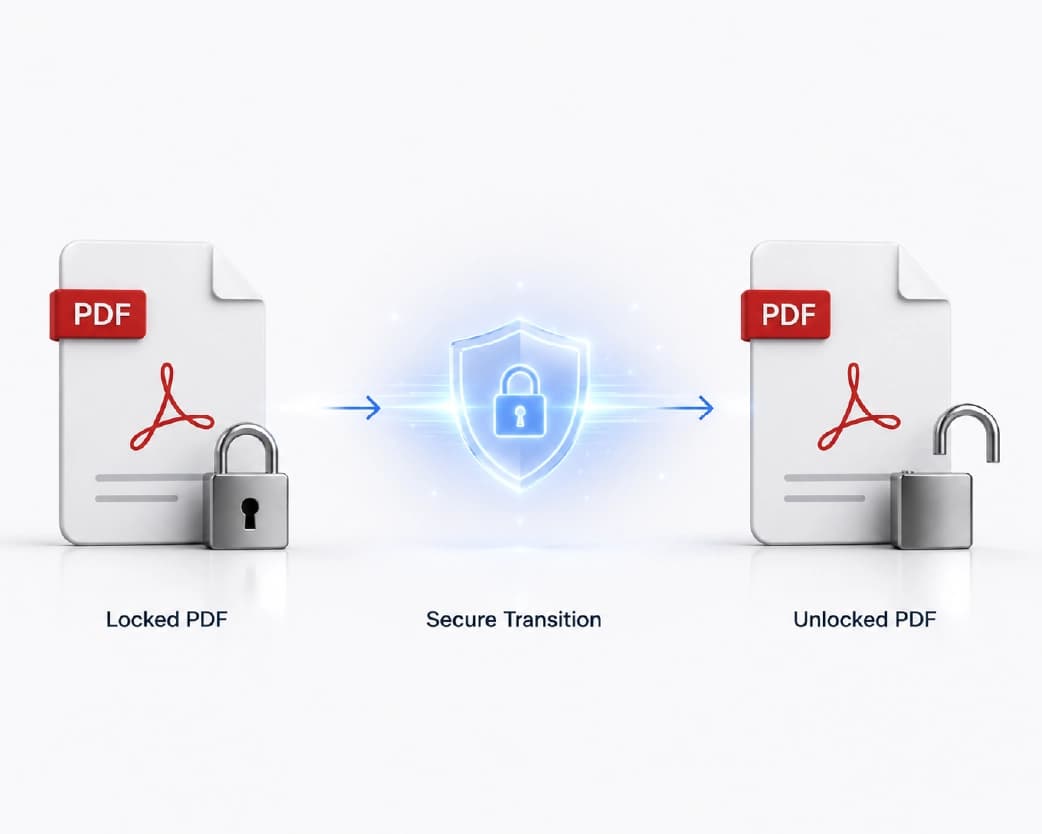
Method 2 Unlock PDF Online

Important Considerations Before You Remove a PDF Password

  • Only unlock files that you own or have permission to edit. Removing security from someone else's protected document without consent could violate privacy regulations or company policy.
  • Consider privacy before uploading sensitive files. If your PDF contains financial details, medical records, or legal information, verify that the tool deletes the files after processing and does not store them permanently.
  • Keep a backup of the original protected file. If something goes wrong during the unlocking process, you may want to try again with the original version.
Important Considerations

Common Mistakes to Avoid

  • Downloading "password recovery" software from unknown sites. Some tools claiming to guess or crack forgotten passwords are flagged by antivirus programs as containing malware. Avoid installing anything that promises to "recover" a password you never had.
  • Assuming that every tool can remove every type of password. A tool designed for permission passwords may not be able to handle open passwords, and vice versa.
  • Uploading confidential documents to random tools that lack a privacy policy. Before uploading any sensitive data, always check if the tool explains how long it retains your file.

Also, do not forget to check the file afterwards; always open the unlocked PDF to ensure the password prompt is gone and the content appears correct.

What If You Don't Know the Password?

If you have genuinely lost the password-specifically the "open" password-there is no ethical or reliable free way to bypass it. Your best options are:

  • Contact the person who created or sent the PDF and ask for the password again.
  • Check your password manager or browser, as many people save PDF passwords without realizing it.
  • If it is your own document and you set a "permissions" password (rather than an "open" password), some editing tools can remove that restriction without requiring the original password, since you already have full access to the content.
Choosing a Safe Online PDF Password Remover

Choosing a Safe Online PDF Password Remover

When picking a tool to unlock pdf online, look for:

  • No login or account required
  • Files deleted from the server automatically after processing
  • Support for your file size and PDF version
  • A simple three-step flow: upload, unlock, download

Tools such as plainscan fit this pattern, since they're browser-based, require no signup, and remove files after a short window automatically. That said, whichever tool you choose, always confirm its privacy practices if you're working with sensitive documents.

Frequently Asked Questions

Q1. Can I remove a PDF password without knowing it?
No. If the file has an 'open password' (required just to view the content), no authorized tool can bypass it without entering the correct password. This is a security feature, not a bug.

Q2. Is it legal to unlock a password-protected PDF?
Yes, provided you own the file or have permission from the owner to remove its security protection. Unlocking someone else's protected document without consent could violate privacy or confidentiality agreements.

Q3. Does removing the PDF password alter the file's content or formatting?
Using a proper online PDF password remover generally leaves formatting, images, and text completely intact. Chrome's print method can sometimes affect interactive elements like form fields, so it is advisable to check the result.

Q4. Is it safe to use free online tools to decrypt PDF files?
It is safe when the tool clearly states that it deletes uploaded files after processing and does not ask for unnecessary personal information. Avoid tools that request excessive permissions or do not provide information about their data handling practices.

Q5. What is the difference between unlocking and decrypting a PDF?
The terms are often used interchangeably to mean removing password protection. Technically, "decrypting" refers to reversing the encryption used for PDF security, whereas "unlocking" is a general term used for the same outcome.

Q6. Can I remove the password from a PDF on my phone?
Yes. Browser-based tools work on Android and iPhone just as they do on a computer, because the process takes place through your mobile browser rather than an app.

Conclusion

You do not need to install any software to remove a password from a PDF. If you know the current password, this task can be completed in less than a minute using a simple 'print-to-PDF' method in your browser or an online tool like 'plainscan'. Just remember to unlock only those files you have permission to access, and check the tool's privacy policy before uploading any sensitive information.

Related insights

Trapped Data in Reports? 7 Smart Ways to Pull Tables Into Excel.

ARTICLE

Trapped Data in Reports? 7 Smart Ways to Pull Tables Into Excel.

To extract tables from reports into Excel, match the method to the file type. Use Excel's built-in PDF import feature for clean digital reports. Use OCR for scanned documents and photos. Use automation tools for repetitive tasks. Finally, verify the totals before relying on the figures. Below are seven ways to do this, along with simple tips for cleaning spreadsheet data. First, Know What Kind of Report You Have The file type determines the best method. A digital PDF contains actual text, whereas a scanned report is merely an image. Some reports exist as web pages, emails, or Word documents. Here is a quick test: try highlighting the text with your mouse. If it works, the file is digital. If it doesn't, you need OCR. OCR is software that reads characters within images. Additionally, not all tables have visible borders. Some tables consist simply of text arranged in columns, and tools might overlook them.

Plainscan Team·October 3, 2026
7 min read
Sign Contracts From Anywhere: A Remote-Ready Paperwork Playbook

ARTICLE

Sign Contracts From Anywhere: A Remote-Ready Paperwork Playbook

Remote contract signing allows two or more people to sign legal agreements online without meeting in person or sending physical documents via mail. You upload the document, add your signature with a few clicks, and send it back. This signature is backed by encryption and an 'audit trail' (a record of the process), making it legally valid in most countries-including under the US ESIGN Act, UETA, and the EU's eIDAS regulation. That is the short answer. Now, let's look at how it actually works, what makes it legally valid, and how it can be done securely.

Plainscan Team·October 2, 2026
6 min read
Why Files Look Different on Every Device?(Format Fixes Inside)

ARTICLE

Why Files Look Different on Every Device?(Format Fixes Inside)

Your file looks different on another device because each device uses its own fonts, software versions, and screen settings to 'rebuild' the file from scratch. A Word file does not contain a fixed image of itself-it merely holds instructions, and each device follows those instructions slightly differently. This is the primary cause of most file format compatibility issues, and it is also the reason why a PDF generally looks the same everywhere. Once you understand this, the solution is simple: convert documents that need to look identical across different platforms into a 'locked' format, such as PDF, before sharing them.

Plainscan Team·October 2, 2026
5 min read
Plainscan vs Adobe Acrobat: Which Free PDF Tool Wins in 2026?

ARTICLE

Plainscan vs Adobe Acrobat: Which Free PDF Tool Wins in 2026?

If you want to edit, convert, sign, or compress PDFs without any cost, Plainscan is a great option. It allows you to use tools like merging, converting, compressing, OCR, and e-signing for free, without requiring an account or imposing daily limits. In contrast, most actual editing features in Adobe Acrobat are available only under paid plans (starting at around $13 per month). Its free version, 'Acrobat Reader,' is limited to viewing files, adding comments, and filling out simple forms. In short: Plainscan is excellent for everyday, free PDF tasks. However, Adobe Acrobat remains superior for enterprise-level document control-though it comes at a cost.

Plainscan Team·September 29, 2026
6 min read
How to Compress Video Files Online Without Losing Quality?

ARTICLE

How to Compress Video Files Online Without Losing Quality?

Instead of arbitrarily reducing the file size, the fastest way to compress a video while maintaining its quality is to use an online video compressor to lower its bitrate and resolution. You simply upload the video, select your desired size or quality level, and download the smaller file within minutes. There is no need to install software or create an account, and if you choose the right tool, the final video will not have a watermark. This guide explains how video compression actually works, how to do it step-by-step, and how to avoid common mistakes that degrade image quality.

Plainscan Team·September 23, 2026
7 min read
How to Redact Sensitive Information from a PDF (Permanently, Not Just Hide It)

ARTICLE

How to Redact Sensitive Information from a PDF (Permanently, Not Just Hide It)

To properly redact sensitive information from a PDF, you need to remove the data from the file itself rather than simply covering it with a black box. A genuine PDF redaction tool completely deletes the original text, images, or figures so that no one can subsequently select, copy, or recover them. If you merely draw a black rectangle over a name or account number, the original information usually remains underneath. This guide will show you how to permanently remove text from a PDF, how to avoid mistakes that expose information in "redacted" documents, and how to choose a free online PDF redaction tool that is truly effective.

Plainscan Team·September 23, 2026
7 min read
Is It Safe to Convert Sensitive Legal Documents Online? Privacy Guide for 2026

ARTICLE

Is It Safe to Convert Sensitive Legal Documents Online? Privacy Guide for 2026

Picture this. You have a signed contract, a court filing, or a client NDA sitting on your laptop. You need it in a different file format, fast. So you type an online PDF converter into Google, click the first free link, and drop your file in. Ten seconds later, you have your converted file. But here's the question almost nobody stops to ask: where did your original document just go? This guide answers that question in plain words. We look at what really happens when you upload a legal file to a random website, why extra care matters here, and how you can convert sensitive documents without putting your privacy at risk. By the end, you will know exactly when an online converter is fine to use, and when you should stay far away from one.

Plainscan Team·August 22, 2026
7 min read
How to Summarize 50+ Page Academic Papers and Research PDFs in Minutes

ARTICLE

How to Summarize 50+ Page Academic Papers and Research PDFs in Minutes

Picture this. You have a 60-page research paper due for review by tomorrow morning. You open it, see wall after wall of dense text, and your heart sinks a little. This happens to students, researchers, and busy professionals every single day. The good news is that you do not need to read every line to understand a paper. With the right approach and a good PDF summarizer, you can pull out the key findings, methods, and conclusions of a long academic paper in just a few minutes. This guide walks you through exactly how to do that. You will learn what a PDF summarizer really does, how AI reads your document, and the simple steps that turn a 50-page beast into a short, clear summary you can actually use.

Plainscan Team·August 22, 2026
8 min read
How to Convert Scanned PDF Forms into Fillable & Editable Word Documents

ARTICLE

How to Convert Scanned PDF Forms into Fillable & Editable Word Documents

Have you ever received a paper form as a scanned PDF and had no way to fill it in on your computer? You try to click on the text, and nothing happens. You try to copy a line, and you get an error. This happens because a scanned PDF is not real text. It is just a picture of text. The good news is that you can fix this. With the right steps, you can turn any scanned PDF form into a Word document that you can edit, type into, and even turn into a fillable form. This guide walks you through the full process, from checking your file to cleaning up the final document, using simple steps anyone can follow.

Plainscan Team·August 22, 2026
7 min read
How to Extract Editable Text from Scanned Handwritten Notes & Low-Quality Images

ARTICLE

How to Extract Editable Text from Scanned Handwritten Notes & Low-Quality Images

Have you ever taken a photo of your class notes and wished you could copy them instead of rewriting them? Or maybe you scanned an old letter and the text is blurry, making it hard to read. It happens to almost everyone. The good news is that you don’t have to type everything by hand anymore. Today, smart tools can read text from pictures and turn it into text that you can edit, copy, and paste. This process works even on messy handwriting and low-quality images. In this guide, you’ll learn what this technology is, how it works, where you can use it, and how to get the best results even from a rough scan.

Plainscan Team·August 22, 2026
7 min read

Get the Plainscan App for iOS & Android







