
How to Extract Editable Text from Scanned Handwritten Notes & Low-Quality Images
Have you ever taken a photo of your class notes and wished you could copy them instead of rewriting them? Or maybe you scanned an old letter and the text is blurry, making it hard to read. It happens to almost everyone. The good news is that you don’t have to type everything by hand anymore. Today, smart tools can read text from pictures and turn it into text that you can edit, copy, and paste. This process works even on messy handwriting and low-quality images. In this guide, you’ll learn what this technology is, how it works, where you can use it, and how to get the best results even from a rough scan.
What is OCR?
OCR stands for Optical Character Recognition. It’s a technology that allows a computer to “read” the words inside an image, scanned page, or photo. It doesn’t matter if the text is printed or handwritten. OCR looks at the shapes in the image and turns them into real, digital text that you can select, copy, and edit.
The process happens in a few steps. First, the image is cleaned up a bit, a step that removes noise, straightens crooked pages, and adjusts contrast. Next, the software breaks the image into smaller pieces, such as single letters or entire words. Each piece is compared to a known character shape. Finally, the tool puts all the valid characters back together as text.
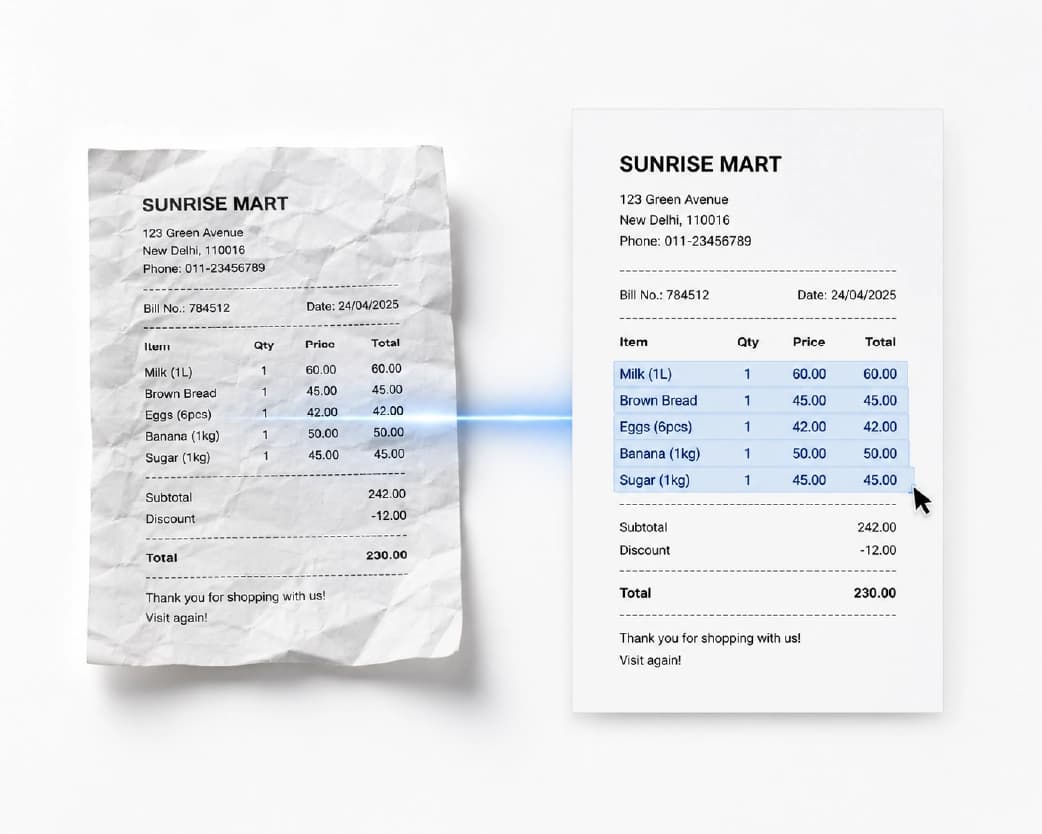
Without OCR, an image remains just a picture. You can't search for it, you can't copy from it, and you can't edit it. OCR breaks down that barrier. It turns a flat image into a computer, and you can actually work with it. This is why OCR plays such a big role in schools, offices, hospitals, and even in translating documents from one language to another. You can try this yourself with a free OCR scanner that handles both printed and handwritten text.
How Does Text Extraction Work? (Step-by-Step)
Extracting text from a scanned page or image is a lot easier than most people expect. You don’t need any technical skills. Most online tools follow the same basic pattern:
You start by uploading your scanned file or photo, or pasting a link to it if it’s already online. Next, you can choose the language that will appear in your document, as choosing the right language helps the tool read the words more accurately. Then, you press a button to start the process and wait a few seconds while the software scans the image and extracts the text. Once it’s done, you simply copy the result or download it as a text file, ready to paste anywhere you want, like a Word document, an email, or your Notes app.
That's really the whole process. There's no installation, no manual typing, and no waiting for hours. If your end goal is a fully formatted Word file rather than plain text, a PDF to Word converter can carry the extracted text straight into an editable document.
Where Can You Use Text Extraction?
This type of tool is useful in many more places than people realize. Here are some common situations where it can be a real time saver:
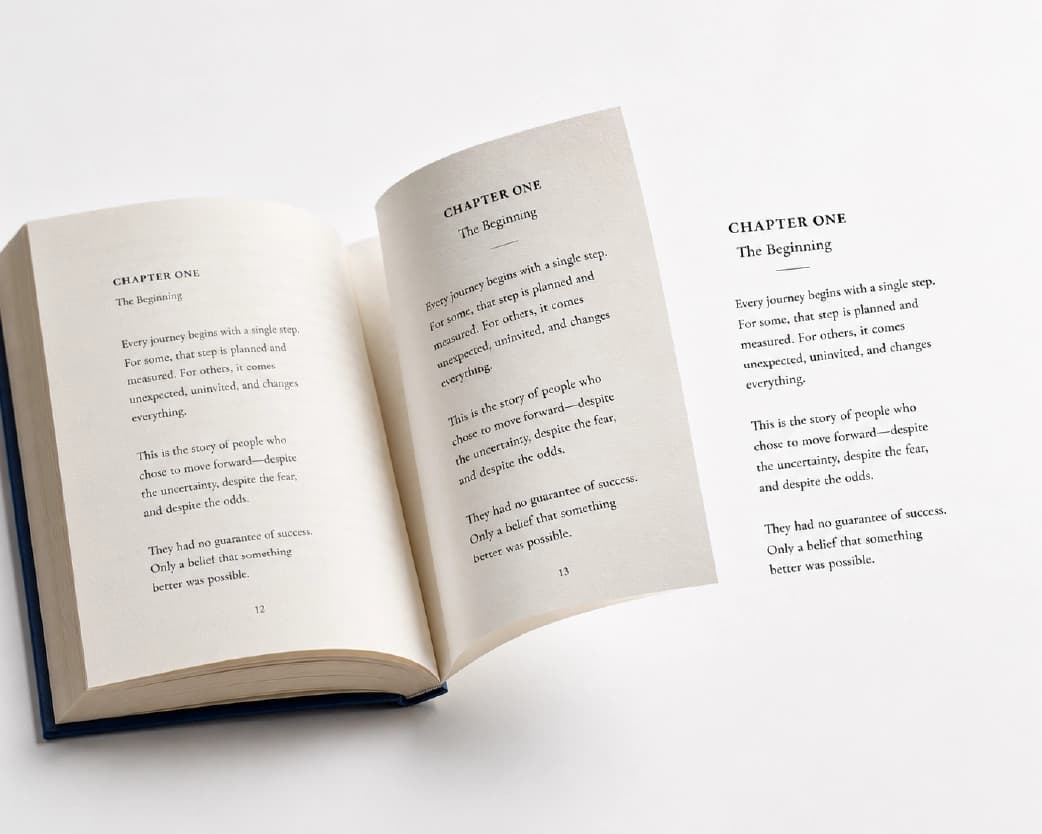
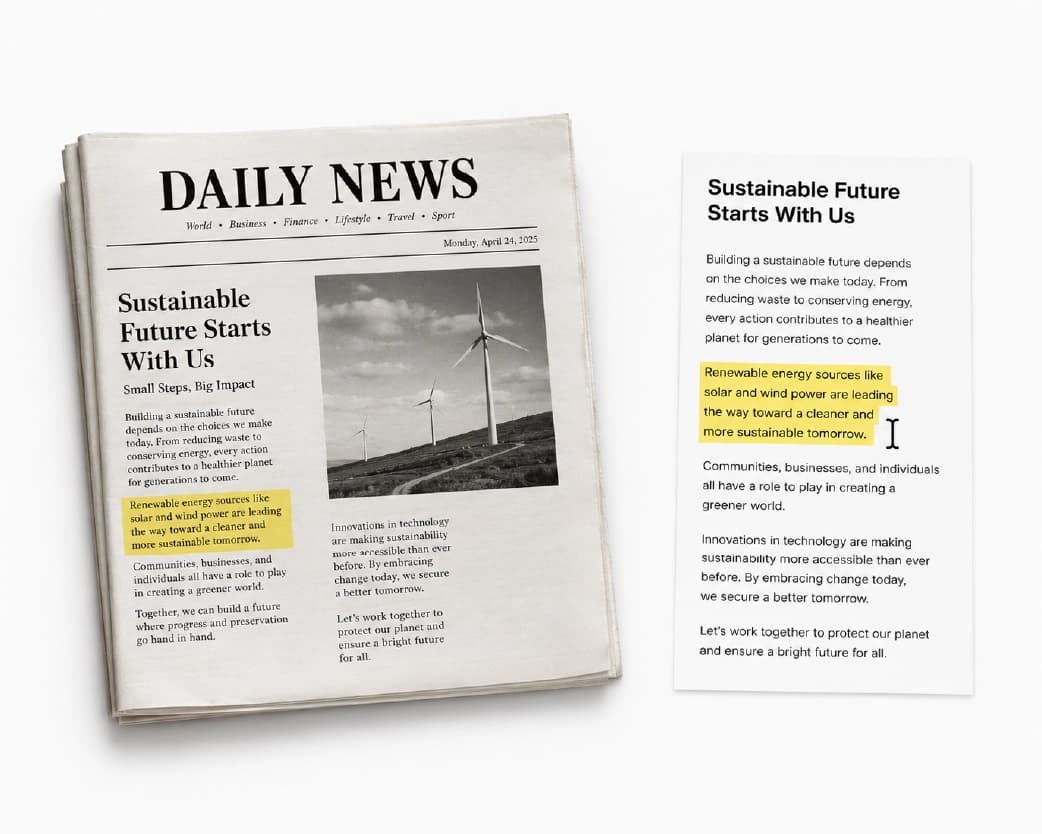
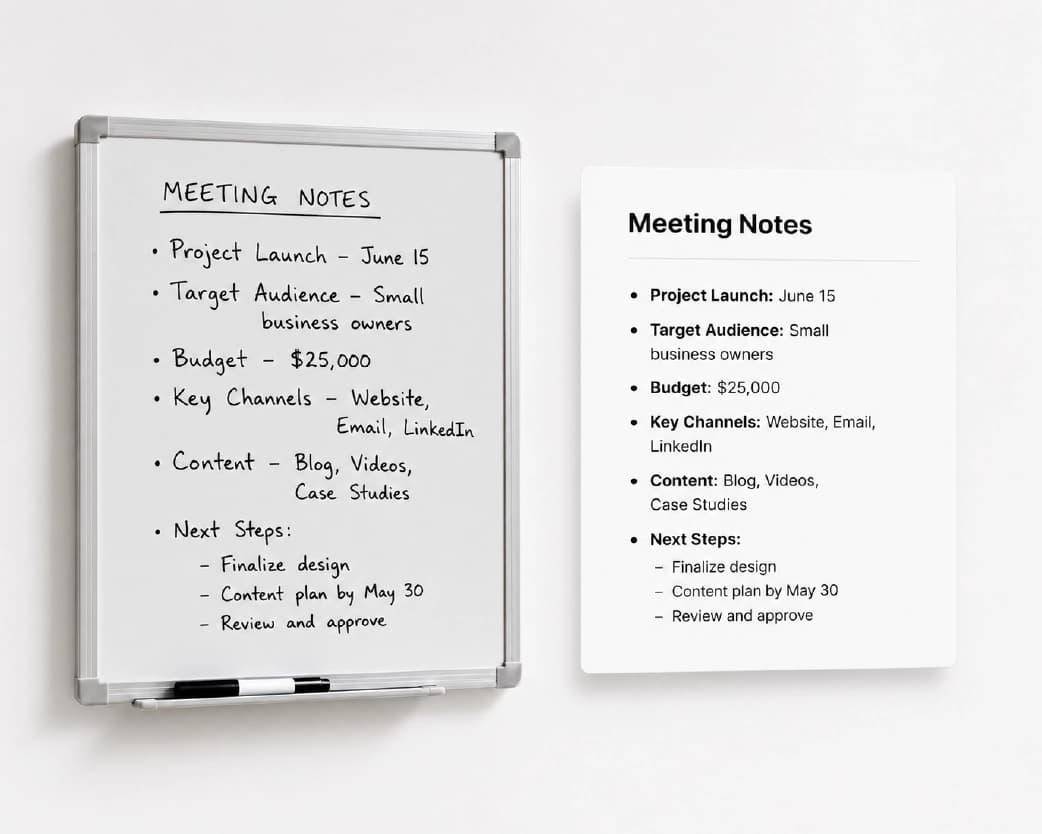
You can share news in a group chat by extracting text from newspaper clippings, instead of typing it out word for word. You can turn old paper office documents into digital files so they are easier to edit and store. Students can save their handwritten class notes by taking a photo and turning it into text that they can later revise. Businesses use it for data entry, because typing out large amounts of handwritten forms takes hours, while scanning them takes seconds. You can also lift contact details like phone numbers or emails directly from business cards or posters. And of course, people use it to extract captions or quotes from social media posts, screenshots, or images they find online.
Basically, wherever text is trapped in a picture, this technology can free it.
Handwriting and Low-Quality Images: The Real Challenge
Most tools are fairly easy to read printed text. Handwriting is a different story, and blurry or low-quality photos make it even more difficult. People often ask why their scanned handwriting comes out wrong, or full of strange symbols.
There are a few common reasons for this. Bad lighting or shadows on the page confuse the software. Tilted or crooked photos make the letters look distorted. Low-resolution or blurry camera shots mean that the fine details of each letter are lost. It’s inherently difficult to separate messy or connected handwriting into individual letters compared to neat, printed fonts.
There’s also something to know before uploading any sensitive document to a free online tool: Many of these websites send your image to their servers for processing. If your notes contain personal details, passwords, or private information, it’s wise to check the tool’s privacy policy first or choose to have it delete your file immediately after processing. A privacy-friendly tool like PlainScan processes your file quickly and doesn't keep it longer than necessary.
For best results with difficult images, always use a clear, well-lit photo with good contrast, straighten the page before taking the picture, avoid shadows and creases, and choose a common image format like JPG or PNG. Also, make sure the file isn't corrupted and try to match the correct language setting in the tool so that it can recognize accents and special characters correctly.
Get Your Image Ready Before You Scan
A little preparation goes a long way. Before uploading an image, take a moment to fix a few minor issues. If your photo looks crooked, the tool's "deskew" or straighten option can automatically fix the tilted page. If the image has shadows or faded colors, using a grayscale or contrast filter can often make the letters stand out more clearly against the background, an image cropping tool can also help you trim out distracting margins before you scan. And it's also important to remember that many free tools work best with machine-printed text, so if your document has a mix of typed and handwritten sections, you can check both sections separately for accuracy.
Taking these small steps before conversion can turn a messy, unreadable scan into a clean one that the software can actually understand.
Benefits of Using Text Extraction Tools
Switching from manual typing to automatic text extraction really has its benefits, especially if you deal with documents frequently.
- It saves time. Instead of typing an entire page, you get text in seconds.
- It reduces errors. Manual typing often leads to typing errors, especially with long or repetitive text. A good tool captures words accurately, so you don’t have to double-check every sentence.
- It works in multiple languages. Most modern tools can recognize dozens, even hundreds of languages and scripts, which helps students, travelers, and international teams alike.
- It keeps your files flexible. You can usually download the result in a variety of formats, such as plain text or a Word file, so it fits into whatever work you’re doing next.
- It handles rough images better than before. Modern tools use smart processing that can adjust for shadows, tilt, and low resolution, so even a slightly blurry photo can produce a usable result.
Together, these advantages explain why students, office workers, and even large companies have moved away from manual retyping.
Practical Tips for Better Results
Even the smartest software works better with a little help. Keep these tips in mind whenever you extract text from an image:
Make sure your image is clear before uploading. Good lighting is more important than people think, and creases or folds in the paper can obscure parts of the text. Choose the right method for the job. If you have a quick photo, a simple online tool works well, but if you’re converting a lot of pages, a batch tool or dedicated software like PlainScan will save you even more time. Always plan to review the output. Even the best tools aren’t perfect, so reading the results quickly can help you catch and correct small errors, especially in names, numbers, or handwriting. Expect to redo some formatting. Extraction usually extracts words, not the original layout, so you may need to add headings, bullet points, or spacing back.
If you're curious how OCR fits into a broader document workflow, our post on the all-in-one AI-powered document and productivity platform walks through how scanning, conversion, and AI tools work together.
Frequently Asked Questions (FAQs)
Can OCR accurately read handwritten notes?
Yes, modern OCR tools can read handwriting, although accuracy depends on how neat and clear the writing is. Clear, well-spaced text produces better results than fast, complex writing.
What image format works best for text extraction?
Common formats like JPG and PNG usually work well. Just make sure the photo is sharp, well-lit, and not blurry.
Is it safe to upload personal documents to an online OCR tool?
It depends on the tool. Always check whether the website stores or deletes your file after processing, and avoid uploading sensitive documents to tools without a clear privacy policy.
Why are there errors in my scanned text?
This is usually caused by poor lighting, a tilted photo, low image resolution, or very messy handwriting. Fixing these issues before scanning greatly improves accuracy.
Can I extract text from an image without installing any software?
Yes, most text extraction tools work directly in your browser. You simply upload the image, and the tool processes it online without requiring any downloads.
Does text extraction preserve the original formatting of the document?
Not always. Most tools focus on extracting words correctly, so you may need to manually format headings, spacing, or bullet points after extracting the text.
Conclusion
It used to seem impossible to turn a scanned page, a photo of handwriting, or a faded old document into editable text without spending hours retyping. Now, with OCR technology, this task takes just a few clicks. Whether you’re a student trying to preserve your notes, a professional digitizing old paper, or someone who just wants to copy a quote from a photo, text extraction tools make the task quick and easy. The key to getting great results lies in preparing your image well, choosing the right tool for your needs, and giving the output a quick review afterward. With a little care, even messy handwriting and low-quality scans can be transformed into clean, usable text.
Related insights








Get the Plainscan App for iOS & Android