
Image to PDF Converter: Convert Phone Photos into Professional Documents
You're standing in a parking lot, phone out, trying to photograph a signed lease agreement before the wind flips the page over. Or you're at your kitchen table at 11 PM, snapping five pictures of a medical form because the office "only accepts PDF submissions." Either way, you end up with a camera roll full of slightly crooked, slightly yellow-tinted photos, and a deadline that doesn't care that your phone isn't a scanner. This happens more than anyone likes to admit. Paper still runs the world: leases, ID copies, insurance claims, school forms, invoices, visa applications, warranty cards, and the occasional handwritten note someone insists on mailing you a photo of. But most of us don't own a scanner anymore. We own a phone. The point at which most people stumble in their desire to go from “I took a picture of this” to “I have a document I can submit” is a much more common occurrence than it should be for something as simple as this. It’s a point, though, which this guide covers entirely: from the process itself of converting pictures into PDFs to knowing when you’ve made a file that looks professional versus amateurish, to the subtle pitfalls that will ruin your conversion, to the times when a bare conversion isn’t sufficient on its own.
Why a Photo Isn't the Same Thing as a Document
A JPG and a PDF solve different problems, even when they contain the same information. A photo is built to capture a scene: colors, lighting, whatever was in frame, including the corner of your desk and your coffee mug. A PDF is built to represent a page. It's fixed, printable, and structured the way a document is supposed to be structured, with a consistent size, the right orientation, and one file instead of six loose images. That difference is exactly why so many offices reject image uploads outright. A bank processing a wire transfer, an HR department onboarding a new hire, a government portal accepting ID verification: none of them want to open five separate photos and guess which one goes first. They want one file, correctly oriented, that reads like it came from an actual scanner, whether or not it actually did. This is also why \"image to PDF\" gets searched constantly by people who've already tried just attaching the photo and gotten a rejection email back. There's also a quieter reason PDFs are the default expectation almost everywhere: predictability.There’s no need for any specific application in order to see the format of a PDF file in either a Windows notebook computer, a MAC, an old printer from your office, or a mobile device using a web browser application; while a picture may appear at different sizes due to different devices, attaching multiple individual photos in an email will compel the other party to assemble the document once again in his/her mind by opening all the files. That is not a good way to waste people’s precious time, and that is precisely why a submission may be marked incomplete despite nothing being missing from it.
What Actually Makes a Converted PDF Look Professional
Most guides on this topic stop at \"select your photo, tap convert, done.\" That's the easy part. The part that actually matters is what separates a document someone will accept without a second glance from one that gets bounced back with \"please rescan.\" The edges matter first. In case you have any object on your table, such as your hand, the page itself or a sticky note in the shot, it would be interpreted as a photo rather than a scan, meaning that the crop at the exact edge of the page would make a visible difference right away. The point might appear insignificant until you actually look at the two versions of the same page, placed side by side. Orientation matters just as much. Every page in the file should be right-side up and facing the same direction, since one sideways page in the middle of a five-page PDF is the fastest way to make the whole document look careless.This is certainly an odd psychological phenomenon, but when there is a turned page in the photo, the reader tends to think about the whole document being unreliable and not only that page. Lighting is the third part of the puzzle, and it is the one which people tend to overlook more than any other as it is the most difficult to detect on the tiny screen of the phone. A bright line running through the center of the text, caused by light from the above or even from the window, is not only unpleasant to view, but it makes the reading impossible in parts and should be corrected while taking the photo.This too is much easier to achieve when taking good photographs, than to fix it later. Lastly, in case the text is longer than can be put into one document, then they all must be combined together in the appropriate order. Sending five separate JPG files in an e-mail is totally different from sending a well organized PDF document, despite the fact that their contents are exactly alike. Anyone going through a common mailbox or a document manager will almost certainly view the former much more reliably than a bunch of images, irrespective of how good they may all be individually. With these four criteria being met – cropping, orientation, lighting, and sequencing – then there is virtually no difference between the file produced and one created by scanning machine. Not meeting all these criteria, however, renders the \"conversion\" stage meaningless, since all the latter does is change the format of the file.
How to Convert Photos to PDF on Mobile
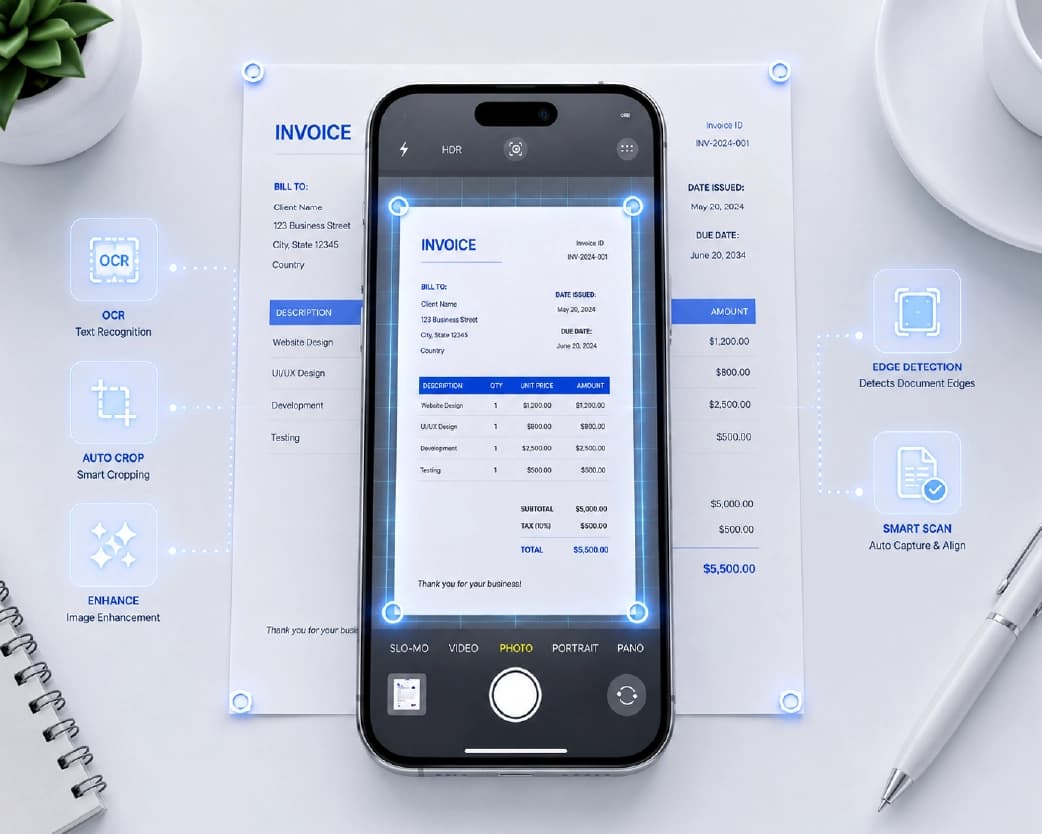
Since most of this starts on a phone, here's the practical workflow: the version that actually accounts for how people take these photos in real life, not in a studio with a tripod and a lightbox.First, arrange the framing of the shot before making the photo. Place the document on a contrasting flat surface where one can be either darker while another one is lighter and vice versa. This helps in distinguishing the edges of the paper from its background. Switch off any overhead light, which illuminates the page directly from its top because such light almost always leaves a reflection spot in the middle of the frame. The light of the natural diffused daylight through the window is preferred in nearly all situations rather than ceiling light bulb while the lamp can be used to eliminate the glare while being held in a direction where its light will illuminate the document indirectly. Always hold the device horizontally to the surface of the paper and if there are gridlines on the screen of the application then it should be used in order to frame edges precisely.Just one simple action can prevent all of the \"trapezoid effect,\" which results in scanned pictures appearing not very professional because the top part of the picture looks either too wide or too narrow compared to the bottom one, depending on whether the phone was turned to the side during taking the picture. It is a little detail, but it will be the determining factor for an even picture versus an awkwardly stretched picture that won't seem right to your eye but will be difficult to figure out what specifically went wrong with the picture. Check the picture after taking it instead of automatically assuming it to be perfect. Zoom in to see any details like text or signatures.
In case of bluriness or any washout, do the retake immediately, rather than doing all that at once, as this will only slow you down compared to redoing the entire conversion later when you have uploaded and sorted all your images. In case of multiple conversions of pictures to a single document, sort the pages beforehand rather than after; sorting pages within a finished PDF is more complicated than sorting all your pictures prior to conversion in either your gallery or file browser. When opening a PDF, check it yourself and don't rely only on looking at the first page of the converted document. That's the full JPG to PDF on mobile process. None of it is complicated, but skipping the setup or the alignment step is why so many people end up with usable-but-ugly PDFs that technically satisfy the requirement without actually looking the part.
How to Make a PDF From Pictures on Desktop
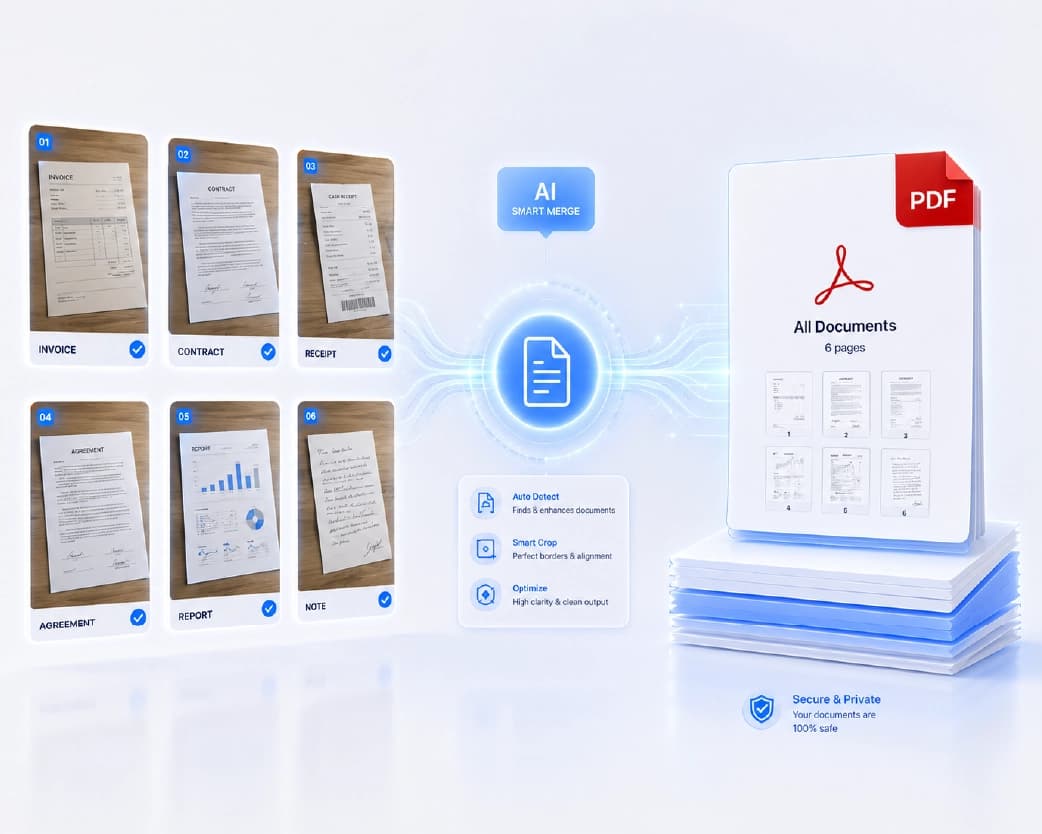
However, if your sources are pictures stored on your computer, taken on your cell phone, or downloaded from some drive, the procedure does not change, only that you do not have to tell the program to hold your phone steadily. You load up the pictures in the proper order, then convert. It should be noted that one needs to pay extra attention when using desktop because pictures from multiple sources, such as a picture from your cell phone placed right next to the one downloaded from somewhere else, differ drastically in size. Before converting, make sure the pages will come out as a consistent size, since a document that alternates between portrait pages of different proportions looks disjointed even if every individual page is sharp and legible. This is especially common when a document was partly photographed on a phone and partly scanned on an office machine at some earlier point, then combined later. Taking a moment to check that every page fills the frame in roughly the same way before converting saves a round of corrections afterward. Conversion to desktop tends to be a more practical approach when you are dealing with multiple, say, at least ten photographs that you wish to convert into a single document as it would be more convenient to arrange pages via mouse in contrast to doing that using your thumb on the phone screen. Provided that your folder is organized using a sensible file naming system, then chances are, your software will arrange pages in that order automatically.
The Mistakes That Quietly Ruin an Otherwise Good Conversion
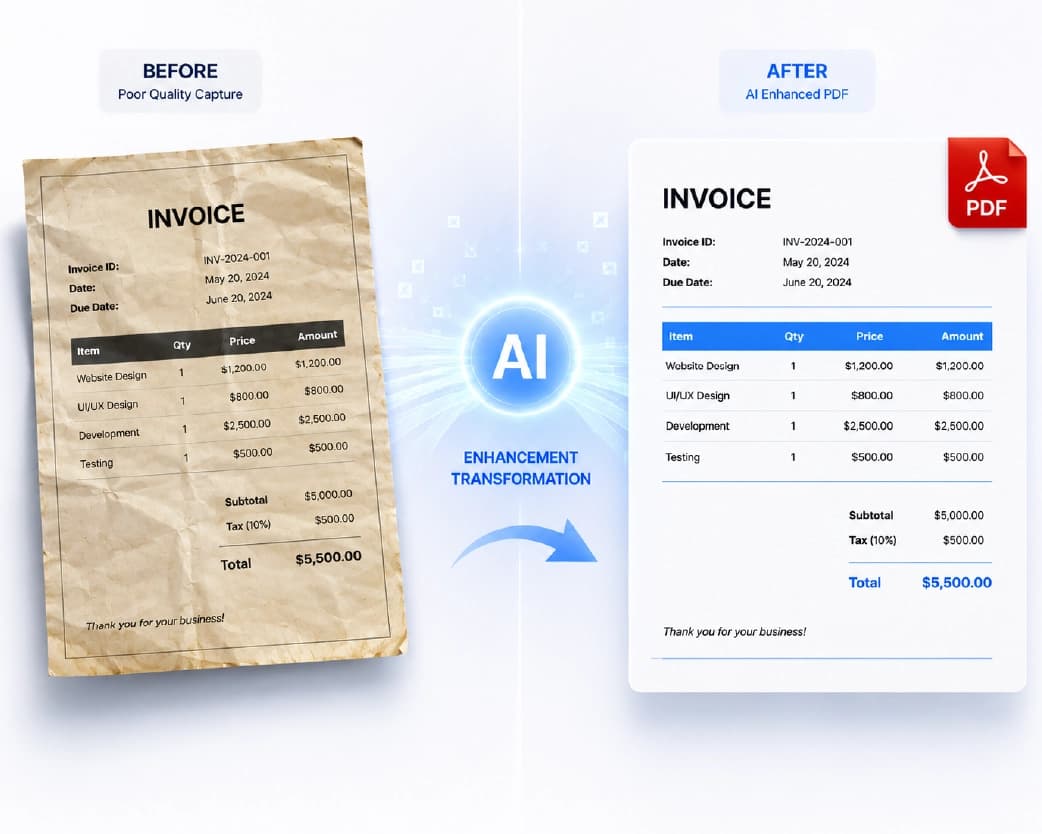
But there are a couple of things that continually cause problems not because of the difficult use of software itself, but simply because they can go unnoticed by a photographer and can only be spotted with another person?Ts help. Leaving the crop out and having all the unnecessary elements remain on the picture is probably one of the quickest ways to ruin any document and make it appear as an unofficial paper despite the fact that the information itself is completely clear and readable. Another problem that causes trouble is connected to forgetting about the right page order and conversion in the wrong order. Mixing portrait and landscape pages is another common slip, since one rotated page buried in the middle of a stack is easy to miss until the recipient opens it and has to tilt their head or their laptop to read it. So is accepting the first photo you took even when it has glare, blur, or shadow, when retaking the shot would have been far easier than trying to clean it up afterward with cropping or filters that can't actually restore detail that was never captured. There's also a subtler mistake worth naming: treating file size and resolution as if they don't matter. A photo taken at extremely high resolution can produce a PDF that's needlessly large and slow to upload or email, while a photo compressed too aggressively, often because it was forwarded through a messaging app first, can lose enough detail that fine print becomes genuinely hard to read.Conversion from the original photographic file instead of an image captured via a screenshot or compressed many times already makes for considerably better quality images. Moreover, it should be noted that even a neat conversion may not be the end result in itself. In case the recipient is supposed to work with the document in any way apart from just reading it - finding certain fragments, copying or editing the text - such conversion won't be sufficient.
When You Need More Than a PDF: Making It Searchable
The solution to making a photo a PDF takes care of the issue of how the document looks like. However, this won't automatically give you the ability to copy the content contained therein because from the perspective of the file format, the picture has not really changed; only its container has. It's readable and printable, yet not selectable nor copy-pastable since at the file level, it is only a picture stored in a PDF. But if you need to convert the file so it will be searchable, e.g., when you are making an archive out of your past invoices by searching for specific keywords or a form must be text-selectable for accessibilities reasons, then a further processing of this converted file using OCR technology must be done. OCR analyzes the image, identifies the shapes of letters and words, and layers actual selectable text underneath the visual scan, so the page still looks like the original document but now behaves like a text file underneath it.In that regard, we will discuss this matter at great length in our article dealing with conversion of scanned PDFs to searchable files; something that could come in useful for anyone stuck in your same position. This matter is important enough to be made clear from the start since this tends to cause the greatest level of confusion in people?Ts minds. The conversion of the image to the PDF file alters the format of the file itself. The execution of the OCR operation on this PDF will then alter its capabilities regarding the use of the text.
Choosing How to Convert: What Actually Matters
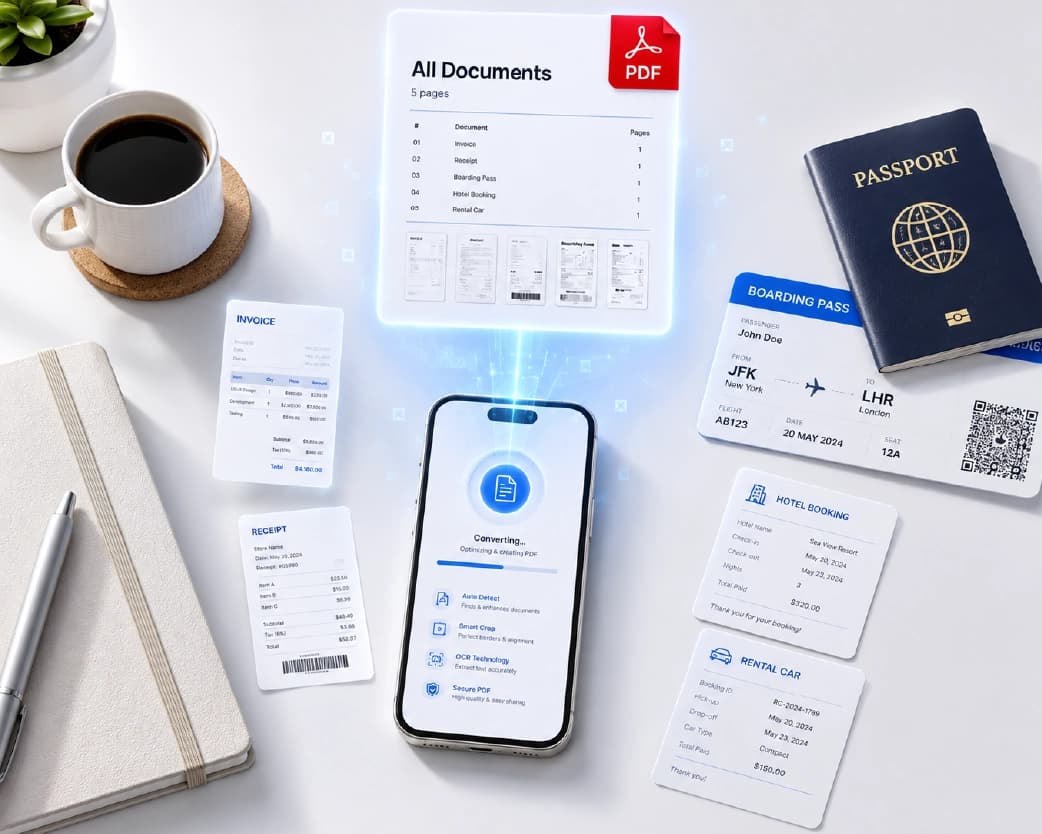
Converting an image to PDF can be done in multiple ways - ranging from phone camera settings and scanning applications to browser online converters. The best choice depends mostly on how frequent such conversions will be and how much control you would like to have on the conversion process itself. Should it be a single-time conversion, then the most effective option will be the use of a browser-based converter, as this requires minimum amount of time for the entire process.For the person who does regular conversions either of his weekly receipts or the paperwork of the household, the ability of the tool to remember the last conversions or to process all the documents together will be much more valuable than conversion speed for any individual document. The output quality settings should also be considered where they are provided. Some converters tend to compress images heavily to make the size of each document smaller, which is good for casual files but bad for documents containing detailed information ?" such as certificates with a watermark, documents with tables of data. If there is such an opportunity, one should select the option to convert the document into higher output quality.
Common Situations Where This Comes Up
It helps to look at a few real scenarios, since the \"best\" approach shifts slightly depending on what the document actually is and who's going to receive it. Job applications and HR paperwork are one of the most frequent cases.The new employee might be required to send a passport size photograph, offer letter signed by himself and in some cases also a void cheque from bank and the tax form together in the same packet. If these are submitted individually as four image files then it will slow down the process for HR department to verify as each of these files needs to be separately opened and matched against the list. If these are bundled together in a single, organized PDF document, where the ID first, followed by the signed offer letter and finally any financial document in case of their presence, then it will make it much easier to check and will reduce chances of packet being marked as missing a file. These documents are usually multi-page, and page order matters enormously, since a lease with its clauses out of sequence can genuinely cause confusion about what was agreed to. Taking photos of each sheet in order and creating them as one file rather than sending them through email one by one will avoid all this. The most difficult forms to work with in terms of neatness and quality are the medical and insurance forms since they need to be processed with a certain amount of care since the person handling them might be going through a field or date in a claim or record that needs to be verified against a certain field or date on the form. This is the category where it's worth taking the extra thirty seconds to check each photo before converting, rather than assuming it'll be fine. Academic and certification documents, degree certificates, transcripts, training completions, show up constantly for job applications and further education.Usually, such conversions happen only one time but are very important, as the resubmission of the application due to an incorrect file format will cause its rejection. Because these files should be converted every time when it is necessary, it makes sense to preserve the well-converted copy of it.
Troubleshooting Common Phone Camera Issues
Even in cases when all the tips on photography were observed and followed to the last detail, there is always a few common mistakes which should definitely be taken into consideration and explained to prevent them from happening again in the future. First of all, a blurry or an overly bright image normally occurs when the phone's automatic adjustment tries to compensate for a light source in the frame – this way, the light source is normally located behind the document but not behind the phone itself. Shifting the source in such a way so that it would be located behind the phone solves the problem.This tends to happen when a photo has been forwarded through a messaging app before being uploaded, since most messaging platforms compress images automatically to save bandwidth. Working from the original photo saved directly to the camera roll, rather than a version that's been shared and redownloaded, usually solves this. Color casts, where the whole page looks slightly yellow, blue, or green, are almost always caused by indoor lighting rather than anything wrong with the document itself. Warm indoor bulbs cast a yellow tint, while some LED lighting can cast a cooler, bluish tint. This rarely affects legibility, but for documents where color actually matters, a certificate with a colored seal, for instance, shooting near a window in daylight avoids the issue almost entirely.
A Quick Note on Privacy
If you're converting anything sensitive, a signed contract, an ID, a medical form, or financial paperwork, it's fair to ask what happens to the file once it's uploaded. Photos you convert are processed to generate your PDF and are not kept around indefinitely; files are removed from our systems on a routine deletion schedule after processing.In case privacy is your particular concern, regarding the document that needs to be converted into a certain format, you may want to take a look at the particular privacy policy of the program, instead of making assumptions. It is true in regard to any type of converter, not just to this one, and it is a perfectly acceptable move on your part.
Frequently Asked Questions
How do I convert a photo to a PDF on my phone?
Take or select the photo, crop it to the document's edges, upload it to a converter, and export as a PDF. For multi-page documents, upload all the photos together and set the order before converting.
Can I combine multiple photos into one PDF?
Yes, this is one of the most common reasons people search for an image-to-PDF tool in the first place. Instead of sending several separate image files, you can merge them into a single, properly ordered PDF document that reads the way the original paper document did.
Is converting JPG to PDF free?
Basic conversion is a standard, widely available feature across most online tools, PlainScan included. Always check a specific tool's current pricing page for details on any limits that might apply to larger batches or higher-resolution output.
Why does my converted PDF look blurry?
Because in most cases it is because the photograph in question is blurred, darkly lit, or taken from an awkward angle. The conversion does not change the quality of your image; rather, it leaves it in the condition in which you originally found it.
Does it matter if I use JPG or PNG before converting?
Not significantly for most everyday documents. JPG is usually the smaller, more practical choice for phone photos. PNG can preserve slightly more detail but results in a larger file, rarely worth it for a standard document conversion unless you're working with something like a diagram or a document with fine linework.
Will the PDF be editable text, or just an image?
By default, it's an image inside a PDF wrapper: you can view, print, and share it, but you can't select or search the text. If you need editable or searchable text, that requires an OCR step after conversion.
How many photos can I combine into one PDF?
Most converters can handle a reasonably large batch, though very large sets, dozens of high-resolution images, may take longer to process and produce a larger final file. If you're working with a large volume of pages, checking a tool's specific limits before you start is worth the extra minute.
Do I need a scanning app, or does a regular camera photo work?
A regular camera photo works fine as long as it's well-lit, cropped, and taken straight-on. Dedicated scanning apps can help with automatic edge detection and perspective correction, which is useful if you're converting documents often, but they're not strictly necessary for an occasional conversion.
Building a Habit Out of It
If converting photos to PDF is something you do more than occasionally, whether for a small business tracking receipts and invoices, a household keeping records of medical and school paperwork, or someone managing paperwork for aging parents, it's worth turning the process into a small routine rather than relearning it each time. Keeping a consistent, clutter-free surface set up for photographing documents, near a window if possible, removes most of the setup work from each individual conversion. Using a format to name and save converted files either by date or category is another way of surprising savings of time, as locating one file after six months will be much easier than looking for an unmarked downloaded file. Another consideration should be checking regularly whether the older conversion is still relevant.A PDF file that was rushed a year back, even with slight glare and slight page rotations, tends to go unnoticed until it comes to use in an occasion that makes the flaws more relevant. Going through a collection of valuable documents occasionally, and redone whatever seems rushed, is a minor habit that saves a larger hassle in future.
Continue Reading:Why Scanned PDFs Are Not Searchable and How to Fix It Permanently
Conclusion
It is easy for any user to convert an image into PDF; almost every software allows for it just by pushing a few buttons. The real challenge lies in the stage prior to conversion since the success of your process depends entirely on such factors as how the image was taken, if the cropping of the image has been properly done, if the lighting in the photograph is even and if the order of pages in the resulting document is correct. If everything mentioned above is taken into account, a telephone image will be indistinguishable from scanned one.
Ready to convert your photos? Try PlainScan's Image to PDF tool to upload your photos, arrange your pages, and download a clean, ready-to-send PDF in seconds.
Related insights








Get the Plainscan App for iOS & Android