
How to Edit a PDF Online for Free Without Installing Any Software
Everyone will come across one of these minor emergencies at least once in their life: a pdf that requires a quick modification. This could be a typo in the résumé, an absence of signature in the lease agreement, or filling in the current date in some form and having no Adobe Acrobat on your computer, not wanting to install any software, but needing it done now! It's a strangely Common issue when taking into account just how many processes nowadays rely on PDFs: software applications, bills, contracts, assignments from universities, official papers, etc., often come in one format, but almost no one owns desktop application for editing PDF documents. Luckily, you don't have to use any software on your desktop computer to perform these types of changes. Browser applications can do everything from changing text to swapping images, reordering pages, filling in forms, and e-signing documents without even one download. What used to require a paid license and a lengthy install process can now be done in a browser tab, often faster than it would take to find your old Acrobat installer and wait for it to update. This guide is written for the people who deal with PDFs occasionally rather than professionally, students submitting assignments, job seekers tweaking a resume, freelancers sending contracts, small business owners handling invoices, and office workers stuck on a locked-down company laptop where installing software isn't even an option. If you fall into any of these categories, or you've simply never needed a PDF tool often enough to justify buying one, you're in the right place. We will guide you through all that an online PDF editor is capable of, selection criteria for choosing a trustworthy PDF editor, the process of editing, common mistakes made by novices, and the privacy considerations that should be taken into account prior to uploading files.
You may also like:Why Scanned PDFs Are Not Searchable and How to Fix It Permanently
About the Author & How We Tested
This guide was put together by a small documents-and-productivity research team that spends a fair amount of time testing PDF, scanning, and file-conversion tools as part of covering the online document tools space. The goal wasn't to write a marketing comparison, but to actually sit down and use these tools the way an ordinary person would, without technical shortcuts or developer-level familiarity with the software.
Our approach was straightforward: we tested a range of free browser-based PDF editors across desktop browsers (Chrome, Edge, Safari) and mobile browsers, running the same set of common tasks on each, editing existing text, adding new text boxes, replacing an image, reordering and rotating pages, filling in form fields, and adding a typed and drawn signature. We also tested a few edge cases, like uploading a lightly scanned document and a form-heavy government-style PDF, since those tend to expose the biggest gaps between tools. Along the way, we noted which steps worked cleanly, where formatting broke, where a tool tried to upsell a paid plan mid-task, and how long each edit actually took from upload to download.
This isn't a lab-grade technical audit, and we're not claiming to have tested every tool on the market. It's a practical, hands-on look at what an everyday user will actually experience when they open one of these editors for the first time with no prior experience.
What You Can and Can't Edit in a PDF Online
Free online PDF editors have gotten genuinely capable over the past few years, but it helps to know their boundaries before you start, so you don't waste time trying to force a tool to do something it was never built for.
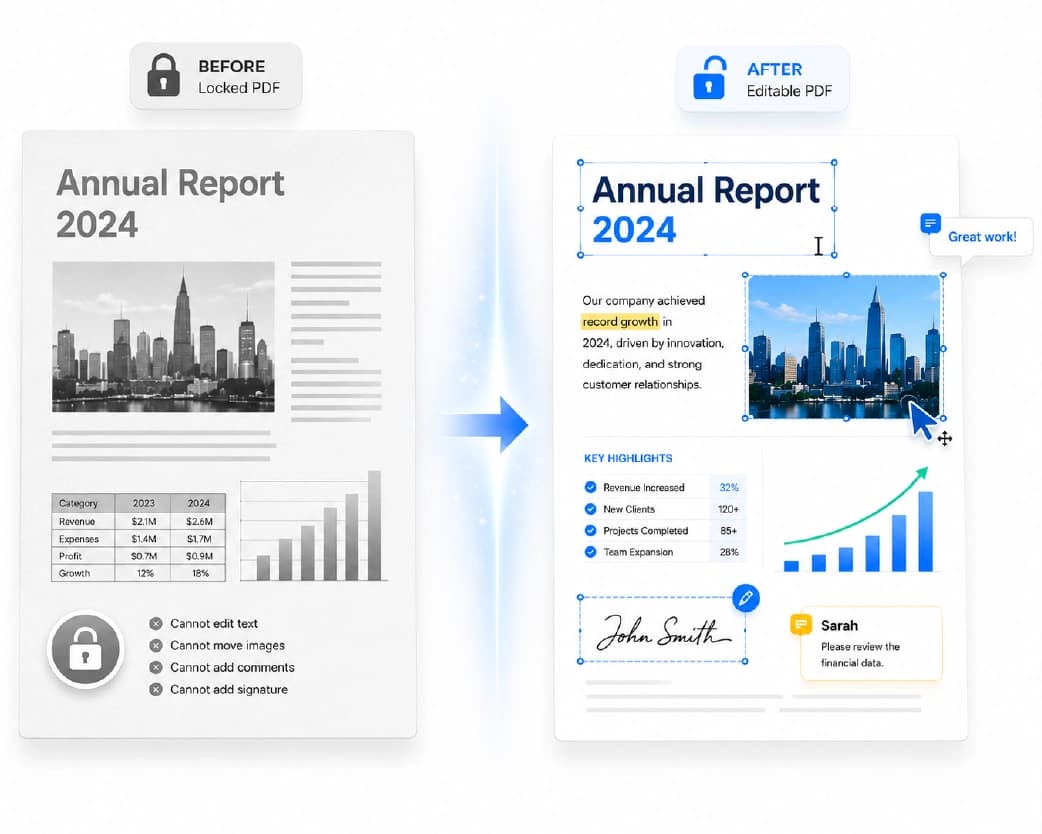
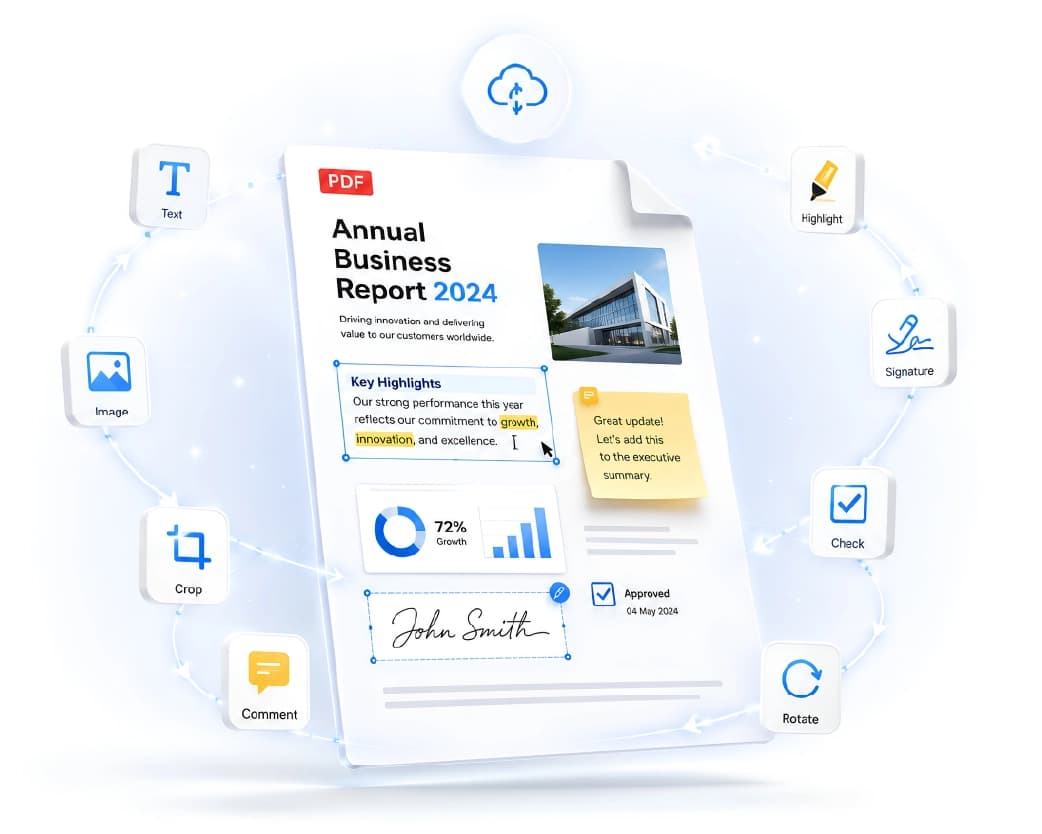
In practice, you can usually edit existing text, changing a name, date, or number in a textbased PDF, and add new text boxes anywhere on the page, which covers most of the small corrections people actually need. Most tools also let you insert, replace, or resize images, which is handy for updating a logo, swapping a photo, or refreshing an outdated graphic in a flyer. Beyond that, you can typically add or delete or reorder or rotate pages, which matters more often than people expect, scanned documents in particular tend to come out sideways or in the wrong order. Annotation tools are common too: highlighting, underlining, or dropping in comment-style notes, which is useful for reviewing a document rather than fully editing it. And of course, most editors handle the two tasks people search for most, filling out form fields such as text boxes, checkboxes, and dropdowns, and adding a signature, whether typed, drawn, or uploaded as an image. When the edit is too heavy for a PDF editor to handle gracefully, most tools also offer basic conversions, like PDF to Word or Word to PDF, so you can make bigger structural changes elsewhere and bring the file back into PDF form afterward.
There are real limits, though, and they're worth understanding upfront rather than discovering halfway through an edit. Scanned or image-only PDFs aren't actually text underneath, they're pictures of text, the same way a photograph of a page is just pixels, not words a computer can select. To edit them, you first need OCR (optical character recognition) to convert the image into selectable, editable text, and not every free tool includes this, or it may be locked behind a paid tier. Complex layouts are another common snag: multi-column brochures, PDFs with heavy design elements, or documents built with unusual or licensed fonts can shift or break when edited, especially if the tool has to guess at font substitutions it doesn't have access to. Password-protected or digitally signed PDFs often need to be unlocked first before any editor can touch them, and editing a digitally signed PDF may invalidate that signature entirely, which matters a great deal for legal or certified documents where the signature itself carries weight. And file size limits are common on free tiers, so large scanned files or design-heavy PDFs may need compressing before upload, or may simply exceed what the free version of a tool allows.
Knowing these limits upfront saves you from picking the wrong tool for the job, and from getting partway through an edit only to discover the file needs a step you didn't plan for.
Why Use an Online PDF Editor?
Installing a full desktop PDF suite makes sense if you edit documents every single day as part of your job. For everyone else, which is most people, an online editor solves a much more specific and much more common problem.
Browser-based tools work the same on a personal laptop, a shared library computer, a work machine with restricted admin rights, or a tablet, since there's no installation required and nothing to configure. This matters more than it might seem: plenty of people only have access to a locked-down office computer during the day, and installing anything new simply isn't an option without IT approval that may take days to come through. An online tool sidesteps that entirely.
They're also a good fit for one-off edits. If you need to change a single line of text or add a signature once, downloading and learning full software is overkill for the job at hand, you'd spend more time installing and figuring out the interface than the edit itself would ever take. And for most everyday tasks, they're free: basic editing, form-filling, and signing are typically available at no cost, with paid tiers reserved for heavier features like batch processing, advanced OCR, or removing daily task limits. For someone who edits a PDF once every few months, paying for a subscription rarely makes sense, and a free browser tool covers the gap nicely.
For occasional use, this combination of convenience, accessibility, and zero commitment is hard to beat, which is why these tools have become the default choice for so many casual PDF tasks.
Step-by-Step: How to Edit a PDF Online for Free
Step 1 – Choose a Trustworthy Online Editor
Not all "free PDF editor" search results are equal, so it's worth comparing a few well-known options rather than clicking the first ad you see. A few reputable names that regularly come up in independent reviews and comparisons are worth knowing, and each tends to have a slightly different strength.
Smallpdf offers a clean, beginner-friendly interface with a solid free tier for basic edits, though daily task limits apply on the free plan, which can be a minor annoyance if you're editing several documents in one sitting. iLovePDF covers a broad toolset spanning editing, conversion, and merging, with some advanced editing features sitting behind a login or subscription, so it's a good starting point for lighter tasks. Sejda is known for handling larger and more complex documents well, which makes it a solid pick for longer reports or multi-page contracts, though free usage is capped by page count and daily task limits. TinyWow offers a large, free toolset with relatively generous limits, making it a reasonable choice when you're hitting caps elsewhere, though the interface leans more utilitarian than polished. FreeConvert is particularly strong for conversions and compression alongside Lightweight editing, which is helpful when your primary issue is the file size, not the changes in its content.
These tools have some minor differences in their capabilities, and thus, it is recommended to verify current limitations and policies on watermarks and OCR for these services on their websites before using, as free-tier conditions tend to change quite frequently. Among our test samples, the fastest and most painless edits were possible with tools that allowed to perform edits right away from the start. editing immediately after upload, without forcing an account signup first, that single design choice made a noticeable difference in how quick and painless the whole process felt.
Step 2 – Upload Your PDF Securely
Once you've picked a tool, take a moment before uploading, since this is the one step where a little carelessness can actually cost you something. Ensure you're using the official website by looking out for HTTPS and the padlock symbol in your web browser's address bar, and be careful of websites which may appear similar to legitimate tools, as there are many such websites which are only designed to exploit typographical mistakes or wrong search engine results. Use websites you are familiar with or which come up in comparison listings. than the first unfamiliar link that promises to be "100% free" in the page title.
Most reputable tools process your file temporarily on their servers and auto-delete it after a set window, commonly a few hours, rather than storing it indefinitely, but policies vary between providers, so check the specific tool's privacy page if you're unsure rather than assuming every site handles this the same way. It's also worth avoiding uploads of highly sensitive documents, IDs, financial statements, signed legal contracts, to a service you haven't verified, especially one with no clear privacy policy or one that's difficult to find at all. If a site makes its data-handling policy hard to locate, that's usually worth treating as a signal in itself.
This step takes seconds, but it's the one place in the whole process where a little caution genuinely goes a long way.
Step 3 – Edit Text, Images, or Pages
Once your file is uploaded, most editors will open it in a canvas view with an editing toolbar running along the top or side of the screen. To edit existing text, select the text tool, click directly on the line you want to change, and type over it, some tools edit in place, letting you click and type almost like a word processor, while others convert the page into editable text Place blocks before adding any text since this might take a while to load. If you want to insert any text, select the "Add Text" or "Insert Text Box" option and simply place it wherever you wish to have it on your page; you should be able to change the font size, style, and color from the toolbar that comes up after the text box is created.
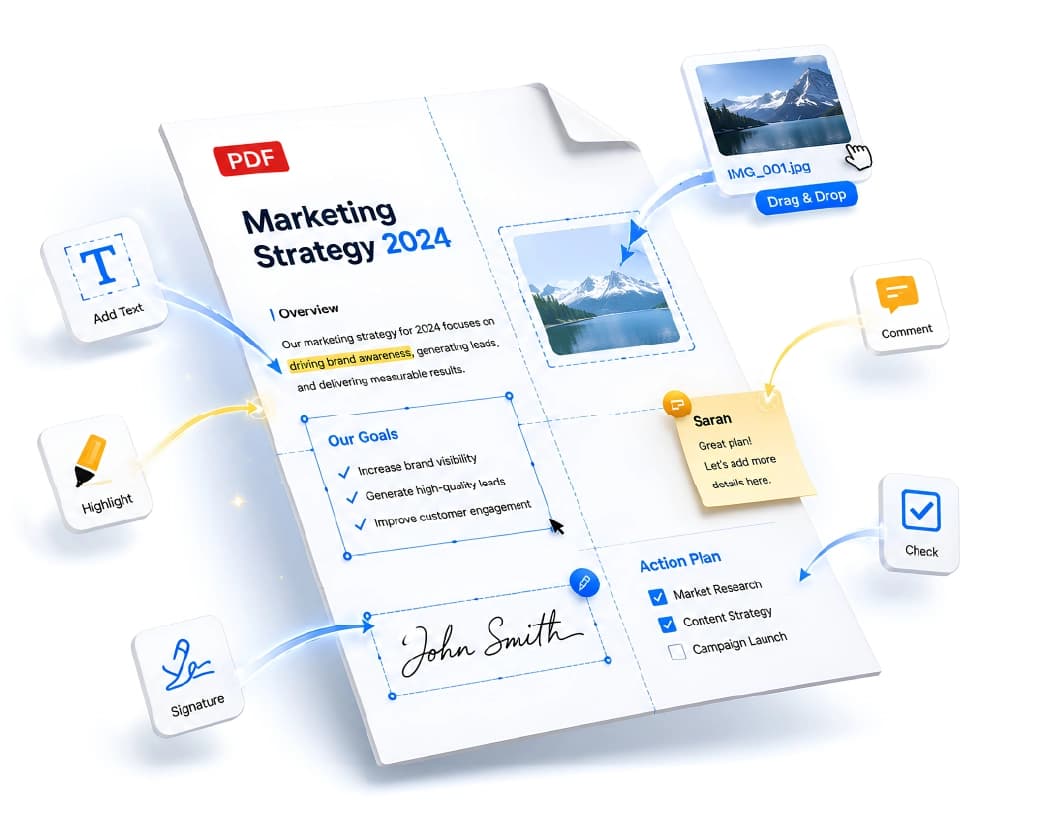
When inserting images, search for an option like "Insert Image" or "Replace Image," select the image and drag and drop it onto the existing one so that it matches your requirement. This is particularly helpful when changing a company's logo or updating a brochure. And for pages, switch to the page or thumbnail view, where you can usually drag pages into a new order, rotate them if they came in sideways, or delete unwanted ones with a single click, this view is also where you'll typically insert blank pages or merge in pages from another document, if the tool supports it.
Recommended to Read:Plainscan vs Sejda: Which One Actually Protects Your Documents?
A few tips help avoid layout problems along the way. Try to match the original font as closely as possible when adding text, since font substitutions are the most common cause of an edited PDF looking noticeably "off" compared to the rest of the document. Keep changes minimal where you can, since the more you alter on a single page, the more likely something shifts unexpectedly elsewhere. And if a document needs a full redesign rather than small tweaks, say, you're rewriting several paragraphs or restructuring a whole page, it's usually faster and cleaner to convert it to Word, make the changes there where the tools are built for that kind of work, and export back to PDF once you're done.
Step 4 – Fill Forms and Add Signatures (If Needed)
Many everyday PDF edits are really about forms and signatures rather than free-form editing, and this is often the fastest part of the entire process once you know where to look. If the PDF has built-in form fields, the kind you'd find in a government form, job application, or official template, most editors will detect them automatically, showing text boxes, checkboxes, dropdowns, or radio buttons you can click directly into and fill out like any online form. If the form isn't interactive, which happens with older or scanned documents, some tools let you place your own text boxes and checkmarks manually over a flat PDF, essentially recreating the form fields yourself in the right positions.
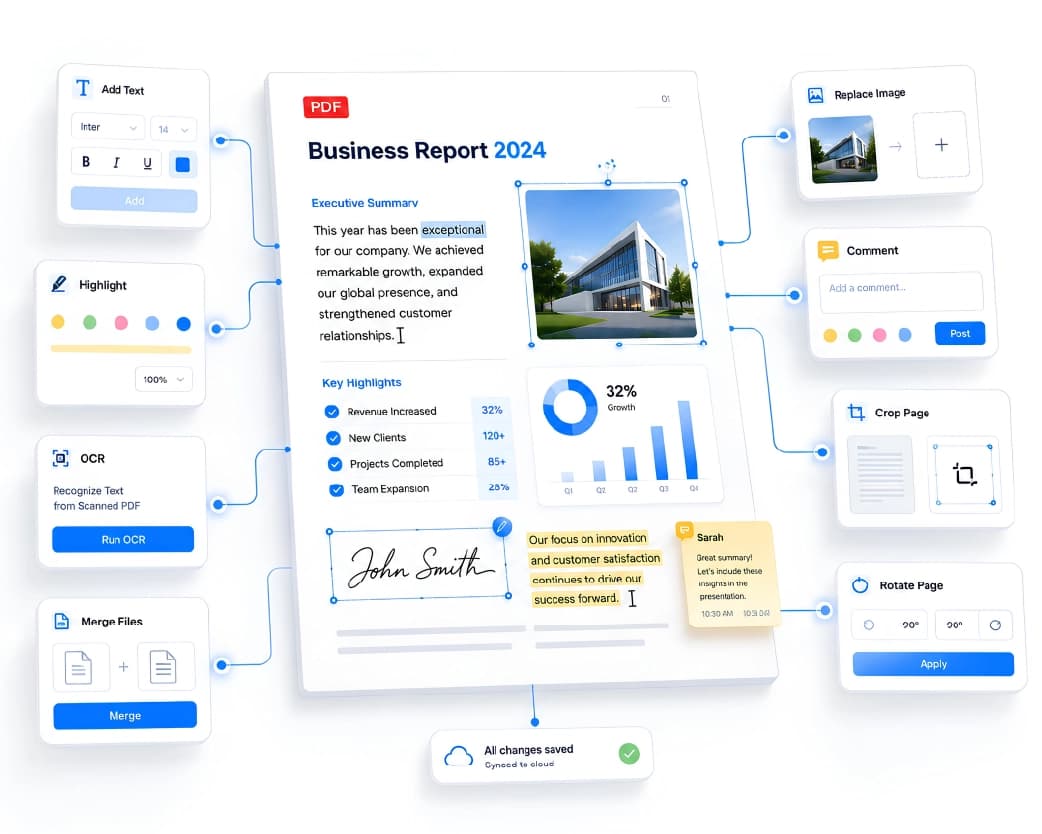
For signatures, look for a "Sign" or "Add Signature" tool, where you'll typically get three options: draw your signature with a mouse, trackpad, or finger on a touchscreen; type your name and have it rendered in a script-style font that mimics handwriting; or upload a photo of your actual handwritten signature, often on a plain white background for a cleaner result. Once created, you can drag and resize it into place on the document, and most tools will let you save it for reuse, so you don't have to redraw or re-upload it every time you sign something new.
This is one of the most common reasons people turn to online editors in the first place, and for good reason, it's usually the fastest step in the whole process, often taking less time than the upload itself.
Step 5 – Save, Export, and Verify
Before you consider the job done, download the edited file, usually via an "Export" or "Download" button, and save it with a new file name so you don't lose track of versions or accidentally confuse the edited copy with the original. Check the file size and quality once it's downloaded, since heavy image edits can sometimes bloat file size noticeably or reduce image sharpness in ways that aren't obvious until you look closely.
Then open the downloaded PDF in a different viewer or device, your phone, say, if you edited on a laptop, or a different PDF reader if you're on the same device, to confirm the text, images, and layout all look correct outside the editor's own preview window. This step catches problems that the editor's built-in preview sometimes hides, since the rendering engine used while editing isn't always identical to the one used by other PDF viewers.
That final check matters more than it seems. Some layout issues, font substitutions, or misplaced elements only show up once the file leaves the editor's own rendering environment and gets opened somewhere else, which is exactly the situation your recipient will be in when they open the file you send them.
Best Use Cases
Online PDF editors work well for simple editing tasks, but not for comprehensive re-design of documents, and knowing where your task belongs will help you save time. They shine when you're filling out job applications, school forms, or government paperwork, where the structure is already set and you're simply entering information into existing fields. They're equally useful for making quick contract edits, like updating a name, date, or dollar amount on an agreement without having to recreate the whole document from scratch.
Adding a signature to a letter, job offer, or rental agreement is another common and quick use case, especially when the alternative would be printing, signing by hand, and scanning the document back in. Fixing typos or outdated details in handouts, resumes, or reports is a similarly small job that online editors handle well, since it usually only involves one or two lines of text rather than a full rewrite. And swapping a logo or photo in a simple flyer or brochure tends to work cleanly too, as long as the layout isn't overly complex.
If your task fits one of these, a free online editor will likely get you done faster than opening desktop software, finding the right menu, and exporting, often by a matter of minutes rather than seconds, but minutes still add up when you're doing this occasionally rather than as part of your daily workflow.
Tips for Better Results
A handful of habits separate a clean edit from a messy one, and most of them come down to restraint rather than any particular technical skill. Matching fonts where possible, using something as close to the original as you can find, prevents obvious visual mismatches that make an edited document look tampered with at a glance. Keeping edits minimal helps too, the fewer changes you make on any given page, the more stable the overall layout stays, since PDF layouts are often more fragile than they look.
For heavy redesigns, it's usually worth converting to Word or Google Docs, editing there where the tools are built for that kind of work, and exporting back to PDF rather than fighting a PDF editor's more limited layout tools. If your file is large and you're hitting size limits on a free tier, compress it before uploading, most tools that offer editing also offer a compression tool, often as a separate but related feature on the same site. And whatever you do, keep the original file somewhere safe. Save your edited version under a new name so you can go back to the source if something goes wrong partway through, rather than discovering too late that your only copy has already been altered.
It is also important to take your editing process in small bits instead of doing everything all at once, changing one thing and then seeing how that turns out before proceeding. This makes it much easier to spot exactly where a layout issue crept in, rather than untangling several changes at the end.
Common Errors and Ways to Avoid Them
Even simple changes can be done poorly for a variety of common mistakes are easy to avoid once you know to look out for them.
One of the most common is uploading sensitive documents to unknown sites. IDs, bank statements, and signed legal contracts deserve a verified, well-reviewed tool, or an offline alternative if you're at all unsure about where the file will end up. Another is assuming "free" automatically means unlimited, when many free tiers actually add watermarks, cap page counts, or limit how many tasks you can run per day, reading the fine print before you start saves the frustration of getting halfway through an edit only to hit a wall.
People also tend to ignore font and layout shifts as they go, which is why previewing the document before downloading matters more than checking it only after the fact, when it's harder to undo. Overwriting the original file is another easy trap to fall into, especially when you're in a hurry, saving edits as a new file keeps a clean fallback copy on hand in case anything needs to be redone. And finally, skipping the final device check can bite you later, since a PDF that looks perfect in the editor's own preview can render differently once it's opened elsewhere; always confirm on a second device or app before you consider the job finished and send the file off.
A less obvious mistake worth mentioning is rushing the tool-selection step entirely and just grabbing whatever appears first in a search result. Spending an extra minute comparing two or three options, especially for anything even slightly sensitive, tends to pay for itself the moment something doesn't go as planned.
Privacy, Security, and Safety Notes
Because editing a PDF online usually means uploading it to someone else's server, it's worth a moment of due diligence before you get started, even for documents that don't feel particularly sensitive at first glance. Stick to well-known tools with a clearly published, specific privacy policy, since vague or missing policies are a reasonable red flag on their own. Look for HTTPS, explicit statements like "files deleted after a set number of hours," and no mention of automatic sharing with third parties buried somewhere in the terms.
For genuinely sensitive documents, signed contracts, medical records, financial statements, anything with identifying personal information, it's worth considering a desktop or offline tool that processes files locally on your device instead of uploading them anywhere at all. The convenience of an online editor isn't worth the risk for documents where a leak or breach would actually matter.
When you're checking whether an editor is safe to use, a few things are worth confirming before you upload anything: HTTPS and a valid, current privacy policy; a clear file-retention or auto-deletion policy that states an actual time window rather than vague language; no forced account creation just to view or download your own file; and no unexplained sharing or "training data" clauses buried in the terms of service. None of these take long to check, and doing so once per tool, rather than once per document, is usually enough to feel confident using it going forward.
FAQ
Is it really free to edit PDFs online?
Yes, for most basic tasks, text edits, page changes, and simple signatures, but many tools cap free usage by daily task count, page limits, or add a watermark to exported files. Check the specific tool's current free-tier terms before relying on it for anything urgent, since these limits do change over time.
Will my file be saved or shared by the website?
Reputable tools typically process your file temporarily and delete it after a set window, often a few hours. Policies vary by provider, so check the privacy page of whichever tool you use rather than assuming every service handles retention the same way.
Can I edit scanned PDFs without installing software?
Yes, provided that the software uses OCR (optical character recognition) to convert the scanned document into an editable form of text. This may not be available in all free software, or the free version might have restrictions on this feature. a scanned document expecting to edit the text directly.
Are there file size limits on free tools?
Usually, yes. Free tiers commonly cap file size or page count, and these limits differ quite a bit between providers. If your document is large, compress it first or check the tool's stated limits before uploading.
Can I edit a password-protected PDF online?
You'll typically need to unlock or decrypt it first, usually by entering the password in the tool before editing. Editing a digitally signed PDF may invalidate that signature entirely, so treat certified or officially signed documents with extra care.
Is it safe to edit bank or legal documents online?
Only with a well-reviewed, clearly documented tool, and even then, it's worth considering an offline or local-processing option for anything highly sensitive, since online editing means uploading the file to a server somewhere, even briefly.
Do online editors add watermarks?
Some do on their free tier, particularly for exports or advanced features, while others don't watermark basic edits at all. Check the specific tool's free-plan terms, since this varies quite a bit between providers and can change between updates.
Can I do this on mobile (Android/iOS)?
Yes, most browser-based PDF editors work on mobile browsers, though the interface is often more cramped than desktop and some editing tools can be fiddlier with a touchscreen. For frequent mobile editing, some tools also offer a dedicated app as an alternative, which can be a smoother experience than the mobile browser version.
Conclusion
Editing a PDF online is genuinely free, fast, and safe for most everyday tasks, as long as you pick a reputable tool, understand its limits, and take a few basic precautions with sensitive files. For a quick text fix, a signature, or a form to fill out, there's rarely a need to install anything at all, and the whole process usually takes less time than it would to find and open a desktop program. If you haven't tried it yet, start with a non-sensitive document, an old resume or a sample form, just to get comfortable with the process before you rely on it for something that matters. Once you've done it once, most of these tools become second nature, and the next PDF emergency will take a fraction of the time this one might have. Need to convert files? Try our Word to PDF tool.
Related insights









Get the Plainscan App for iOS & Android