
Plainscan vs Adobe Acrobat: Which Free PDF Tool Wins in 2026?
If you want to edit, convert, sign, or compress PDFs without any cost, Plainscan is a great option. It allows you to use tools like merging, converting, compressing, OCR, and e-signing for free, without requiring an account or imposing daily limits. In contrast, most actual editing features in Adobe Acrobat are available only under paid plans (starting at around $13 per month). Its free version, 'Acrobat Reader,' is limited to viewing files, adding comments, and filling out simple forms. In short: Plainscan is excellent for everyday, free PDF tasks. However, Adobe Acrobat remains superior for enterprise-level document control-though it comes at a cost.
Recommended to Read:How to Remove a Password From a PDF Without Any Software?
What Is Plainscan?
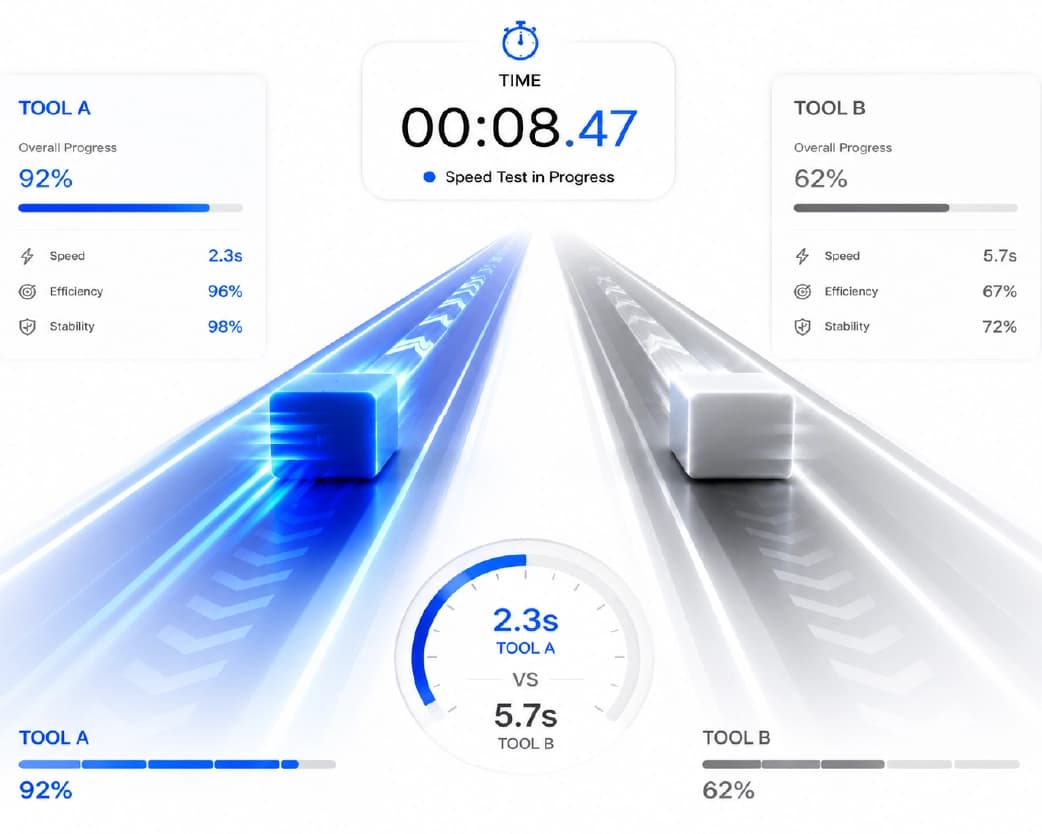
Plainscan is a browser-based platform that allows you to work with PDFs, images, and Word files without installing software or creating an account. It offers over 70 tools in total, including approximately 21 specialized PDF tools for merging, splitting, compressing, and converting PDFs to Word or Excel formats. It also features OCR (Optical Character Recognition) capabilities, converting scanned pages into searchable and editable text. Additionally, it includes AI tools that summarize documents, translate text, and rewrite content, alongside features like digital signing, watermarking, and table data extraction. You simply upload a file, select a tool, and download the result-a process typically completed in three steps. Files are automatically deleted after 24 hours, ensuring no data remains stored on the server for an extended period.
What Is Adobe Acrobat?
Adobe Acrobat is the original PDF software, developed by the very company that created the PDF format. It is available in four tiers: Acrobat Reader (free), Acrobat Standard, Acrobat Pro, and Acrobat Studio. Reader allows you to view and print PDFs, add comments, and fill out and sign standard forms. All advanced features-such as actual editing, page reorganization, OCR, redaction of sensitive information, and batch processing-require a paid subscription.
Acrobat is available on desktop, mobile, and web. It is widely trusted in the legal, corporate, and government sectors, where the accuracy and long-term support of PDFs are of particular importance.
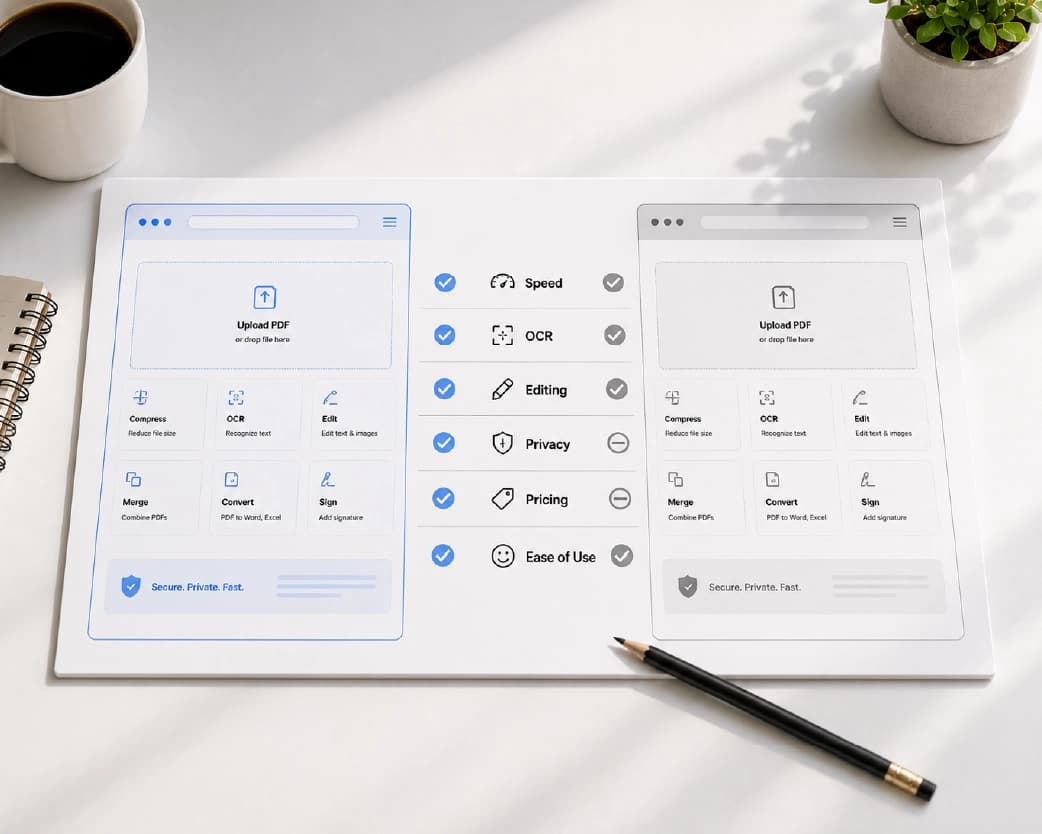
Adobe Acrobat Free vs Paid: What You Actually Get
The general classification of these tiers is as follows:
- Acrobat Reader (Free): Viewing and printing PDFs, adding basic annotations, filling out and signing forms, 5GB cloud storage
- Acrobat Standard (approx. $13/month): Text editing, file conversion, e-signatures, password protection, 100GB storage
- Acrobat Pro (approx. $20/month): Advanced editing, OCR, PDF comparison, redacting sensitive data, batch processing
- Acrobat Studio (approx. $24/month): All Pro features, plus an AI assistant and document summarization capabilities
Note that OCR-one of the most essential features-is available only in the Pro tier. Batch processing is also included in that tier. If your work involves scanned documents or requires handling multiple files simultaneously, the free Acrobat tier will not be sufficient for your needs.
Plainscan vs Adobe Acrobat: Feature-by-Feature
- PDF Editing: Plainscan allows you to edit for free. Acrobat requires a Standard or higher plan.
- OCR (Scanned text recognition): Free in Plainscan; paid-only in Acrobat.
- Converting PDF to Word/Excel: Free in Plainscan; requires a paid Acrobat plan.
- E-signatures: Both offer this, though Acrobat's free tier supports only basic signing.
- AI features (summarization, translation): Free in Plainscan; bundled only in Acrobat's top-tier Studio plan.
- Account requirement: No account is needed for Plainscan. Acrobat requires an Adobe account, even for the free tier.
- Desktop application: Acrobat has one; Plainscan operates entirely within the browser.
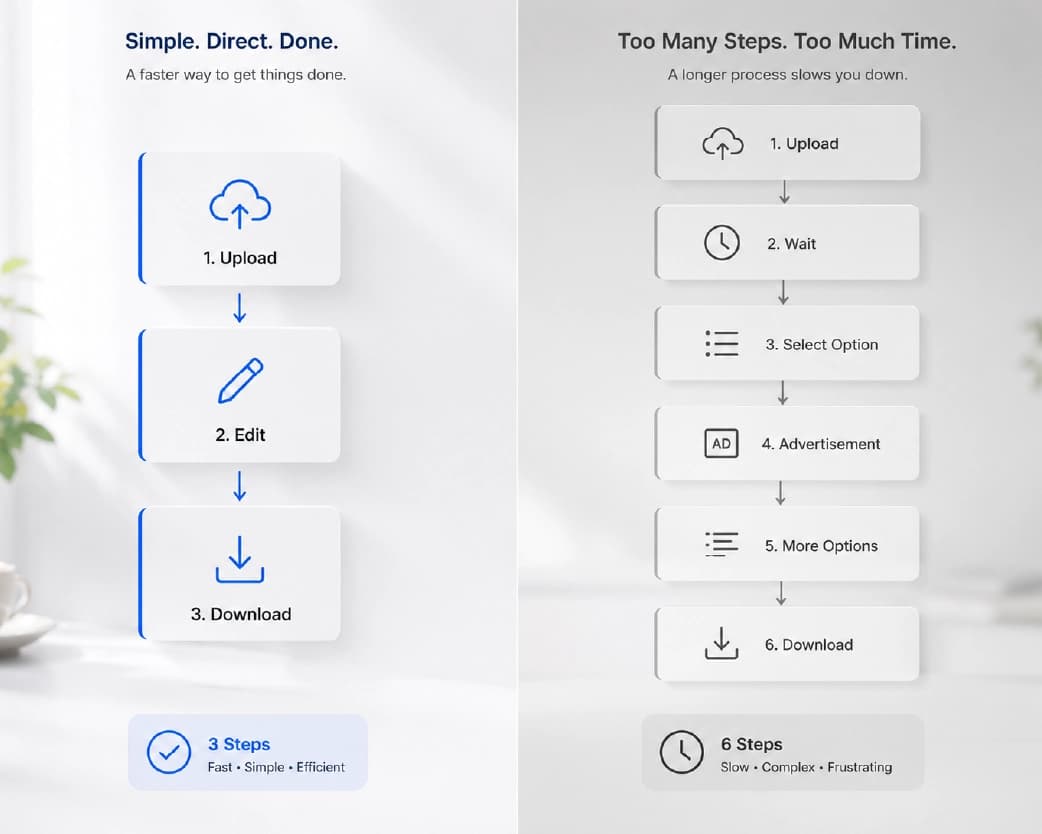
What "Free" Really Costs You?
Every PDF tool has to pay its own bills somehow, even the free ones. When a tool says "free," the cost usually shows up in one of three places:
- Limits - daily task caps or file-size ceilings designed to nudge you toward upgrading.
- Your privacy - some tools keep uploaded files on a server longer than needed, or use usage data to support ad revenue.
- Friction - forced sign-ups, watermarks on your finished file, or constant upgrade prompts.
This is worth checking before you commit to any free tool, not just Adobe's. A tool that deletes files quickly and skips the account requirement, like Plainscan, avoids two of these three costs outright.
Why Do People Look for an Adobe Acrobat Alternative?
Adobe Acrobat is powerful, but frequent complaints often drive people toward alternatives:
- Cost – Acrobat Pro can cost over $200 a year, which is often quite expensive for basic PDF tasks.
- Unused features – Most people never use Acrobat’s advanced prepress or enterprise tools, yet they still pay for the full package.
- Setup friction – Acrobat often requires a desktop installation and an Adobe account before you can even get started.
- Subscription lock-in – Canceling a plan is notoriously difficult, involving multiple steps and retention offers.
- Platform limitations – The full desktop application is designed primarily for Windows and Mac, leaving out Chromebook or tablet users.
If your PDF needs are simple-such as merging files, converting formats, or signing forms-paying a monthly fee for software built around enterprise workflows rarely makes sense.
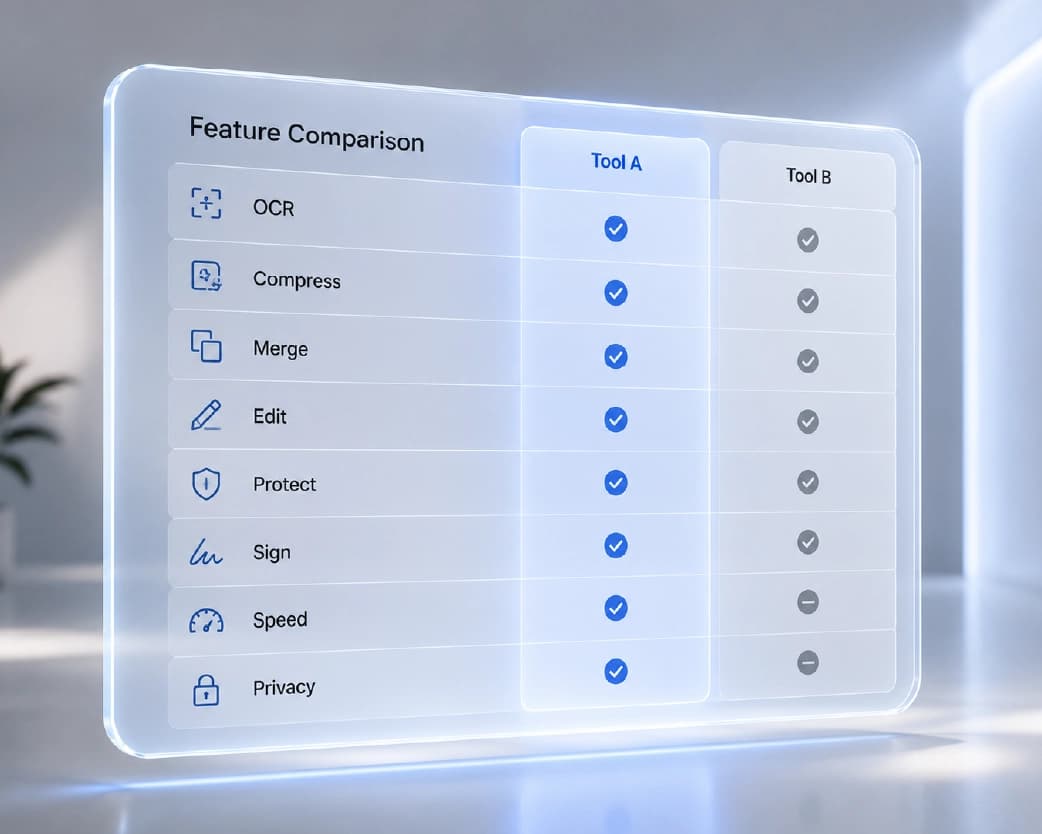
What to Check Before You Pick a Free PDF Tool?
Not all free PDF tools are equal, so it helps to look past the "free" label:
- No watermark on your finished document.
- Clear privacy policy, including how long files stay on the server before deletion.
- Works on any device - browser-based tools are more flexible than install-only software.
- Covers the tasks you actually need rather than a long feature list you'll never use.
One common mistake worth avoiding: treating a pasted signature image as a real digital signature. A copied or dragged image can be lifted and reused elsewhere, which weakens its value as proof of consent. If a document needs to hold up legally, use a signing tool that ties the signature to the file itself, not just a picture placed on top of it.
Which One Should You Use?
Choose Plainscan if you need to edit, convert, compress, OCR, or sign PDFs occasionally or regularly, without paying or creating an account.
Choose Adobe Acrobat if your organization already pays for Creative Cloud, needs certified digital signatures for compliance, or handles complex forms and redaction at scale.
For most individuals, students, and small teams, a free browser tool covers the everyday PDF tasks completely. Paid Acrobat plans make more sense once your work genuinely needs enterprise-level document control.
Frequently Asked Questions
Q1. Is Plainscan truly free to use, or are there hidden costs?
Plainscan's core tools-such as editing, converting, compressing, OCR, and signing-can be used for free without creating an account. There are no hidden costs for these everyday tasks.
Q2. Can I edit scanned PDFs for free?
Yes, but only if the tool's free version includes OCR capabilities. Adobe Acrobat's free 'Reader' does not include OCR; it is part of the 'Pro' plan (a paid feature). Plainscan offers OCR functionality without requiring any paid plan.
Q3. Does the free version of Adobe Acrobat allow me to convert PDFs to Word?
No. PDF-to-Word and similar conversions require at least the paid Acrobat Standard plan.
Q4. Are free PDF tools safe for sensitive documents like contracts or ID scans?
It depends on how the tool handles your files. Check if files are automatically deleted and whether creating an account is required. Tools with a clear 'auto-delete' policy (such as Plainscan's 24-hour file removal feature) reduce the risk of your data remaining on the server longer than necessary.
Q5. Do I need to install software to use Plainscan or Adobe Acrobat?
Plainscan works entirely within your browser and does not require installation. Adobe Acrobat offers a desktop app for full functionality, although document viewing features are generally available online as well.
Q6. Are free e-signatures created using these tools legally valid?
In most countries, electronic signatures are legally recognized, provided there is a clear intent to sign and the signature is linked to the document. Avoid simply pasting an image of your signature, as it can be copied and lacks a document-level association.
Conclusion
Adobe Acrobat is a well-known name in this field, but its free version is intentionally limited to just viewing documents and basic signing. Features like actual editing, OCR, and file conversion require a paid plan. Plainscan bridges this gap by offering these same functions for free, without requiring an account or imposing artificial limitations. For everyday PDF tasks in 2026, it proves to be a more practical choice for most people-though Acrobat remains significant for complex, compliance-driven document workflows.
Related insights








Get the Plainscan App for iOS & Android