How to Reorder PDF Pages Online (Without Starting Over)
Back to Blog

How to Reorder PDF Pages Online (Without Starting Over)

P
Plainscan Team
October 23, 2026
4 min read
Share

Picture this. You attach your PDF, hit send, and then, three seconds later, you notice it. The last page is the first page. The signature page is hiding in the middle. Oh no. Now you’re sitting there thinking you’ll have to rebuild the whole thing from scratch. You won’t. You can reorder PDF pages online in a few minutes, with no software and no meltdown. Let me show you how, and I’ll throw in a few tricks I wish more people knew.

Why Are My Pages Out of Order?

Honestly? Usually something silly.

Scanners are the top suspect. You feed in a stack of paper, one sheet goes in crooked, another gets grabbed late, and your PDF ends up looking like somebody shuffled it on purpose.

Then there’s the double-sided trap. Some scanners only do one side at a time, so people scan all the fronts first, then all the backs. You end up with 1, 3, 5, 7, then 2, 4, 6, 8. Sorting that by hand? No thanks.

Merging files can do it too. Join a few PDFs and the pages land in whatever order you added them. Mix in some last-minute edits, and a page or two will always end up in the wrong spot. It’s almost a law of nature.
Why Are My Pages Out of Order?

What Does Reordering Actually Do?

Not much, which is the beauty of it. It changes the order of your pages and nothing else.

Maybe you want one page at the front. Maybe two pages need to swap places. Maybe a whole section belongs somewhere else. You’ll hear it called rearranging pages, changing page order, or moving pages around. They all mean the same thing.

Your text and images stay exactly as they were. Only the sequence changes.

Reorder PDF Pages Online with Plainscan

Plainscan runs right in your browser. No downloads. Laptop, tablet, phone, use what’s closest. The site has more than 100 document tools, which is handy because PDF problems love to come in groups.

First, open the Reorder PDF page on Plainscan. The upload box is waiting for you.

Second, add your file. Drag it in, or pick it from your device. On the free plan, files can be up to 50 MB, and that covers most reports, forms, and scans.

Third, set the new order. Move your pages where you want them. Take your time with this one. Rushing is how you move the wrong page, and then you’re fixing the fix.

Last, download the new file and open it. Scroll through every page. Looks right? Perfect. Looks off? Go back to your original and give it another go.

Yep, that’s it.
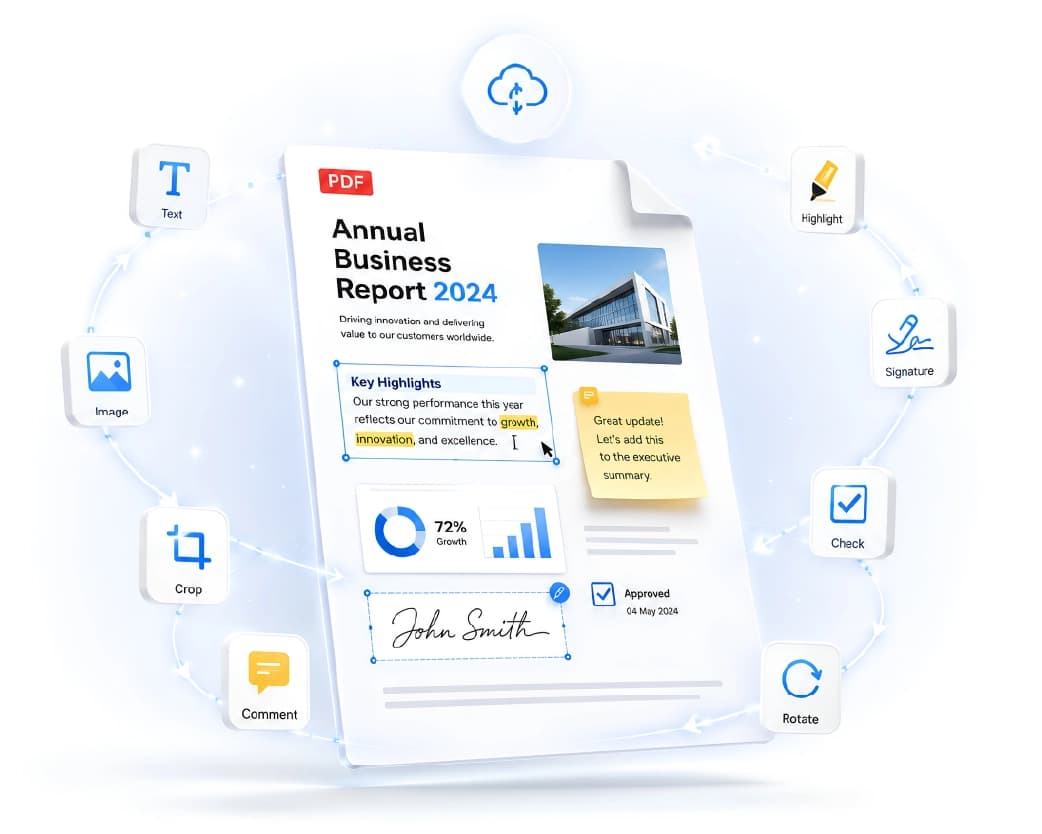
Reorder PDF Pages Online with Plainscan

A Little Planning Saves a Lot of Pain

I can already hear you groaning. Stick with me, it’s quick.

Before you touch anything, open the file and write down the order you want. Something like “3, 1, 2, 4” on a sticky note works great. It stops you from changing your mind halfway through and making a bigger mess.

While you’re looking, check for sideways pages. If you find one, turn it first with the Rotate PDF tool. Spot any blank pages or duplicates? Delete them now, so the final file is clean.

And keep your original. I can’t say this enough. If something goes wrong, you’ll be so glad that copy is still sitting there.

Who Runs Into This?

Everybody, basically.

Say you’re a student and you’ve scanned your notes after class. The pages came out jumbled, and now your friends are asking which page comes first. Fix the order before you share them. If some pages are scanned images, Scan & OCR can turn them into text you can search later.

Job hunting? A resume that starts on page two looks careless. A certificate sitting in front of your cover letter doesn’t help either. A quick fix makes you look organized, even if the morning was chaos.

Running a small business? Check your contracts, quotes, and invoices before they go out. The terms should come before the signature page, and the signature page should be at the end. Clients notice that stuff.

And if you’ve ever worked on a long report, you know pages get added, moved, and forgotten over weeks of edits. A quick reorder before you share saves everyone a headache.
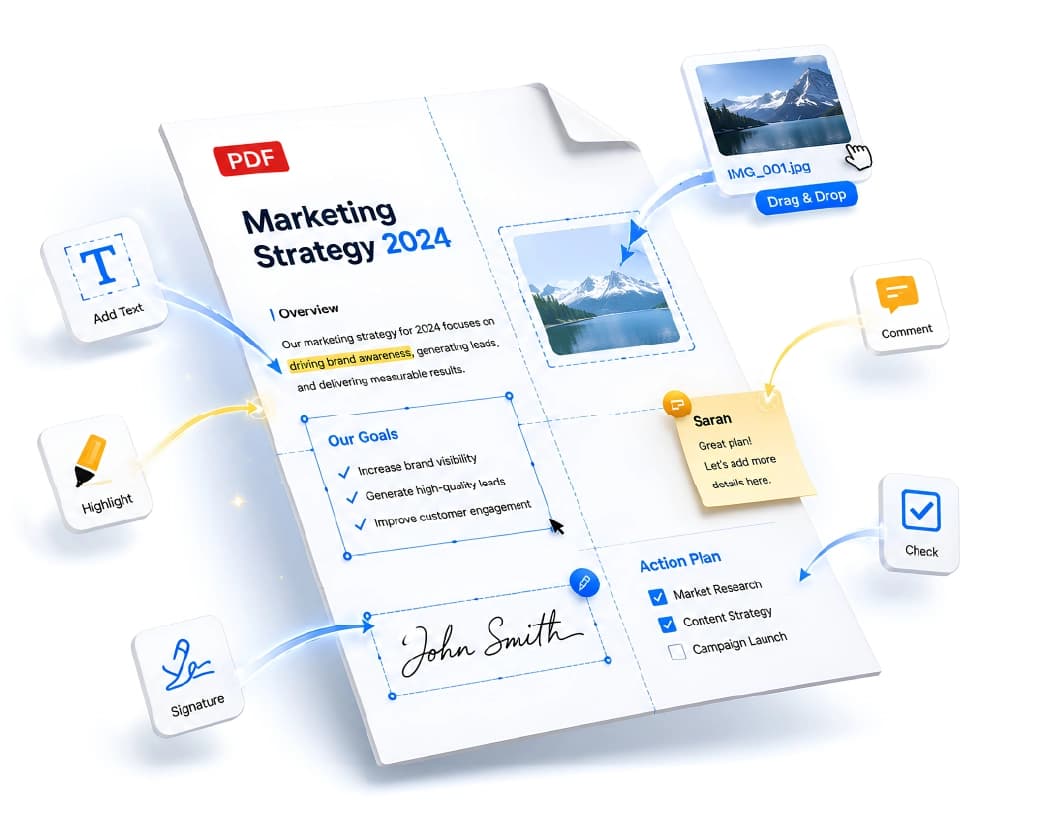
Organizing and Reordering PDF Pages

What Else Might You Need?

Fixing the order is rarely the only job.

Got a few files that belong together? Merge PDF puts them into one document. Is the final file too big for email? Compress PDF can shrink it down. Need a signature on one page? Sign PDF handles that before you send it off.

Having them all in one place beats bouncing around five different websites. Trust me on that.

Is It Safe to Reorder PDFs Online?

You should always ask. Always.

Plainscan uses encrypted HTTPS connections, so your file is protected while it travels. Uploaded files are deleted automatically within 24 hours, and the site says it doesn’t share them with third parties. For everyday papers like notes, resumes, and invoices, that seems perfectly fine to me.

But if your PDF has really private stuff in it, like bank details or ID numbers, stop and think before uploading it to any website. That’s good advice for every online tool out there, not just this one.
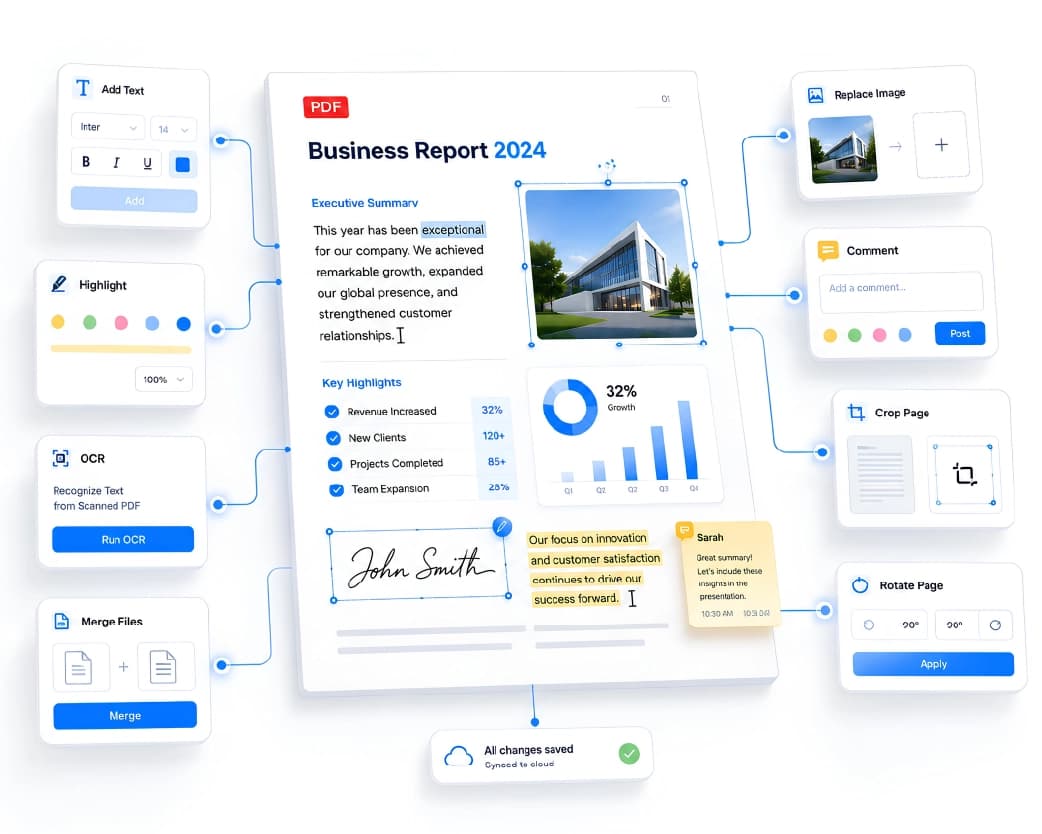
Safe and Secure PDF Reordering Online

What Do You Get for Free?

Plenty to start. Make an account and you can process up to four documents a day with the basic PDF tools. The count resets every 24 hours, so tomorrow you get a fresh four.

If you need more, the Pro plan removes the daily limit and the file size cap. You can also buy credits and pay only when you need them. If you only rearrange pages now and then, free will probably be enough.

Common Slip-Ups

Not checking the finished file is the classic. Scroll through it from start to end. One minute. That’s all it takes, and it can save you from a really awkward email.

Moving pages with no plan is another. You shift one, then another, then forget where everything was supposed to go. Write the order down first.

Don’t delete your original too soon either. Wait until you know the new one is right.

And please name your files properly. “Report-final-2” and “Report-final-FINAL” will confuse you in about a week. “Report-fixed-order” is much clearer.

Conclusion

A messy page order is a small problem that feels huge when it lands in front of your boss, your teacher, or a client. But the fix takes a few minutes. Next time your pages show up in the wrong order, open Plainscan, reorder PDF pages online, give the result a quick look, and send it off. Then go do something more fun with the time you saved.

Related insights

How to Convert Word to PDF (and Keep Everything Looking Right)

ARTICLE

How to Convert Word to PDF (and Keep Everything Looking Right)

My friend Rohan spent a whole evening polishing his resume. Clean layout, neat columns, a font he was proud of. He emailed it as a Word file and went to bed happy. The recruiter wrote back the next day: “I think your file got scrambled.” On her computer, the columns had slid apart, the font had changed to something plain, and his name sat in the middle of a bullet list like a typo. His file was fine. Word documents just look different depending on the computer, the app, and the fonts installed. A PDF would have looked the same everywhere. So here’s how to convert Word to PDF, and what to check first.

Plainscan Team·October 26, 2026
4 min read
How to Convert PDF to Word (and Keep Your Layout Looking Right)

ARTICLE

How to Convert PDF to Word (and Keep Your Layout Looking Right)

My cousin needed to update her resume. Easy job. Change one phone number, add one new job. But all she had was a PDF, because the Word file died with her old laptop. So she retyped the whole thing. Every line, every bullet. An hour and a half later she was still fixing the spacing, and one of her job dates had somehow turned into 2019. When I told her she could have converted the PDF to Word in about a minute, she just stared at me. Then she said, “Why does nobody tell you this?” So here it is. How to convert PDF to Word, what to expect, and what to fix afterward.

Plainscan Team·October 26, 2026
4 min read
Free PDF Invoice Generator Online: Make a Professional Invoice in Minutes

ARTICLE

Free PDF Invoice Generator Online: Make a Professional Invoice in Minutes

A friend of mine does freelance photography. She’s really good. Weddings, birthdays, the occasional dog in a tiny bow tie. Her photos are the kind that make you stop scrolling. Her invoices, though? Chaos. For a long time she’d open a blank document, type INVOICE in huge letters, guess at the layout, save it, and hit send. Sometimes she forgot her phone number. Once she forgot to put the total. Yes, the actual amount you owe. I’m not joking. Then one client took three weeks to pay her. When she finally asked what was going on, he said, “Oh, I didn’t see a due date, so I figured there was no rush.” Three weeks of waiting because of one missing line. That’s the moment she decided to get serious. Here’s how a free PDF invoice generator online can help, what every invoice needs, and a few habits that get you paid faster.

Plainscan Team·October 26, 2026
4 min read
Free PDF Repair Tool: How to Fix a Corrupted PDF Online

ARTICLE

Free PDF Repair Tool: How to Fix a Corrupted PDF Online

My brother-in-law is a freelance accountant. A few weeks ago a client sent him a 60-page report as a PDF. He downloaded it, double-clicked, and got a message: the file is damaged and can’t be opened. The report was due the next morning. He tried again. Same error. Different app. Same error. He called me at 10 p.m. and asked, “Is it just gone?” It wasn’t. A broken PDF can often be saved, or at least partly saved. Here’s how to use a free PDF repair tool, and how much to expect from one.

Plainscan Team·October 26, 2026
4 min read
Print Optimize PDF: How to Get Sharp, Clean Printouts Every Time

ARTICLE

Print Optimize PDF: How to Get Sharp, Clean Printouts Every Time

My sister designed flyers for her yoga class. On her screen, they looked fantastic. She sent the PDF to a print shop, paid for fifty copies, and picked them up the next day. The logo was blurry. The text near the edge was sliced off. And the soft pink background she picked had turned into a muddy brown. Fifty flyers, straight into the recycling bin. She was not happy, and the print shop guy just shrugged and said, “Your file wasn’t print-ready.” That phrase confuses a lot of people. So here’s what it means, how to print optimize PDF files, and a checklist you can use before you hit print.

Plainscan Team·October 24, 2026
4 min read
PDF to Grayscale: How to Turn Any PDF Black and White Online

ARTICLE

PDF to Grayscale: How to Turn Any PDF Black and White Online

My uncle once printed a 40-page report for a meeting. Colorful charts, a blue header on every page, a green footer. Halfway through, the printer made a sad noise and quit. The cyan cartridge was empty. He still had plenty of black ink. The printer just wouldn’t use it, because the pages were in color. That’s when people find out about grayscale. Here’s how to turn a PDF to grayscale, and the one catch that can make your charts hard to read.

Plainscan Team·October 24, 2026
4 min read
What Is an N-up PDF? (And How to Make One Online)

ARTICLE

What Is an N-up PDF? (And How to Make One Online)

Last-minute printing is a special kind of stress. You’ve got a 40-page PDF, a meeting in twenty minutes, and a printer that’s already making that grinding noise. Then you notice the stack of paper growing. And growing. Here’s the thing most people don’t know. You can fit two, four, or even six pages on a single sheet. It’s called N-up, which sounds like something from a math test, but it’s really not. I’ll show you what it means, when it’s worth using, and how to make an N-up PDF online without any software.

Plainscan Team·October 24, 2026
4 min read
How to Crop PDF Pages (Cut the Extra Stuff Out)

ARTICLE

How to Crop PDF Pages (Cut the Extra Stuff Out)

A friend of mine downloaded a recipe PDF to read on her tablet while cooking. Great recipe. Awful layout. The actual text sat in the middle of each page, wrapped in about two inches of empty white space on every side. On a small screen, that meant zooming in, sliding the page around, zooming out, and losing her place. Meanwhile the onions were burning. She texted me a photo of the tablet with the caption, “Why is it like this?” I told her to crop it. She said, “Crop a PDF? You can do that?” Yes, you can. It takes less time than chopping an onion. Here’s how to crop PDF pages, when it’s worth doing, and the one thing cropping can’t do that catches a lot of people off guard.

Plainscan Team·October 24, 2026
4 min read
How to Flatten PDF Files (and Why Your Forms Need It)

ARTICLE

How to Flatten PDF Files (and Why Your Forms Need It)

A friend of mine fills out a lot of paperwork for her small business. One day she typed answers into a PDF form, saved it, and emailed it to a supplier. The supplier wrote back, “This form is empty.” It wasn’t empty on her computer. Every box was full. But on the supplier’s phone, the typed answers had vanished, because the phone didn’t read the form fields right. The fix was one word: flatten. Here’s what it means to flatten PDF files, when to do it, and what to watch out for.

Plainscan Team·October 24, 2026
4 min read
How to Compare PDF Files Online (and Catch Every Change)

ARTICLE

How to Compare PDF Files Online (and Catch Every Change)

A friend of mine works at a small property company. Last year a landlord sent back a lease with a note: “Just a couple of tiny edits.” She read it twice. Looked the same. It wasn’t. The rent increase date had moved up a month, and a line about repairs had quietly disappeared. She only caught it because her boss remembered the old date. Nobody should have to rely on luck for that. Here’s how to compare PDF files online, and what to check first.

Plainscan Team·October 24, 2026
4 min read

Get the Plainscan App for iOS & Android