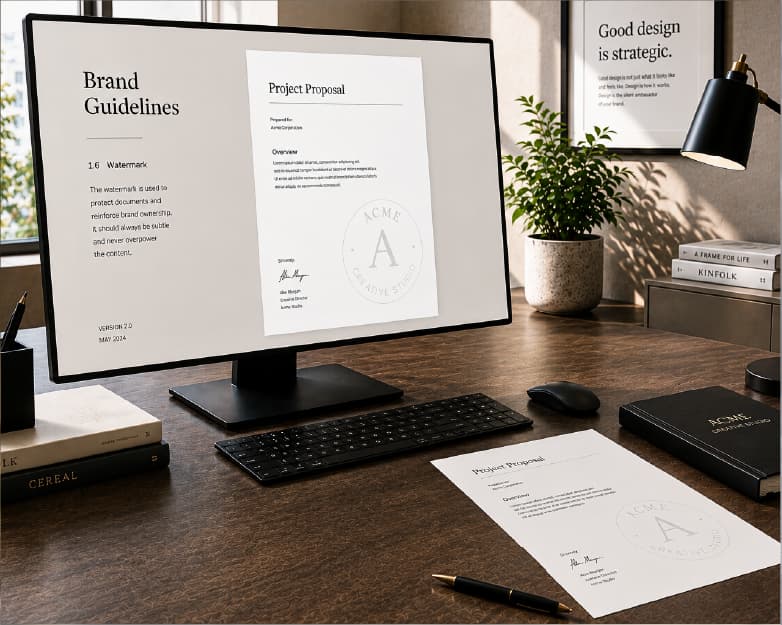
How to Add Header and Footer to PDF (Free and Easy)
Back to Blog

How to Add Header and Footer to PDF (Free and Easy)

P
Plainscan Team
October 23, 2026
4 min read
Share

I once printed a 60-page report for a meeting. Nice and neat, stapled in the corner. Then a coworker grabbed it, the staple popped, and 60 loose pages slid across the table like a deck of cards. No page numbers. No title on top. Nothing. We spent ten minutes putting it back in order, and I felt pretty silly. Because I knew better. A few lines of text at the top and bottom of each page would have saved the whole mess. So let’s fix that for you. Here’s how to add header and footer to PDF files, why it’s worth the minute it takes, and how to keep it looking clean.

What Are Headers and Footers, Really?

A header is the little strip of text at the top of a page. A footer is the one at the bottom. They repeat on every page, so you set them up once and you’re done.

People usually put things like these in them:

  • Page numbers, like “Page 3 of 20”
  • The document title
  • A date or version number
  • A company or school name
  • A label like “Draft” or “Confidential”

Pick up any book, contract, or school essay and you’ll see them. Once you notice them, you can’t stop noticing.
What Are Headers and Footers

Why Bother With Them?

Page numbers keep things in order. That’s the big one. They also make meetings easier, because when someone says “check page 12,” everybody gets there fast.

A clean title and number make a file look professional. Readers don’t think about it, but they feel it. Someone took the time.

In a long document, a header with the section name tells people where they are, like a sign on a highway.

And a date or version in the footer is a lifesaver. Ever had two files called “final” and “final2” and no clue which one’s newest? A date in the footer settles that.

Wait, the PDF Is Already Finished

Yes, and that’s the tricky part. Once a PDF is made, the layout is mostly locked. You can’t click at the top of a page and start typing like in Word.

If you still have the original Word or Google Doc, the easy fix is to add the header and footer there and export a new PDF. I’d do that every time if I could. But a lot of the time, all you have is the PDF. Maybe a client sent it. Maybe the original is on a laptop you no longer own.

That’s where an online tool helps. It puts text on every page for you, so you don’t have to rebuild anything.
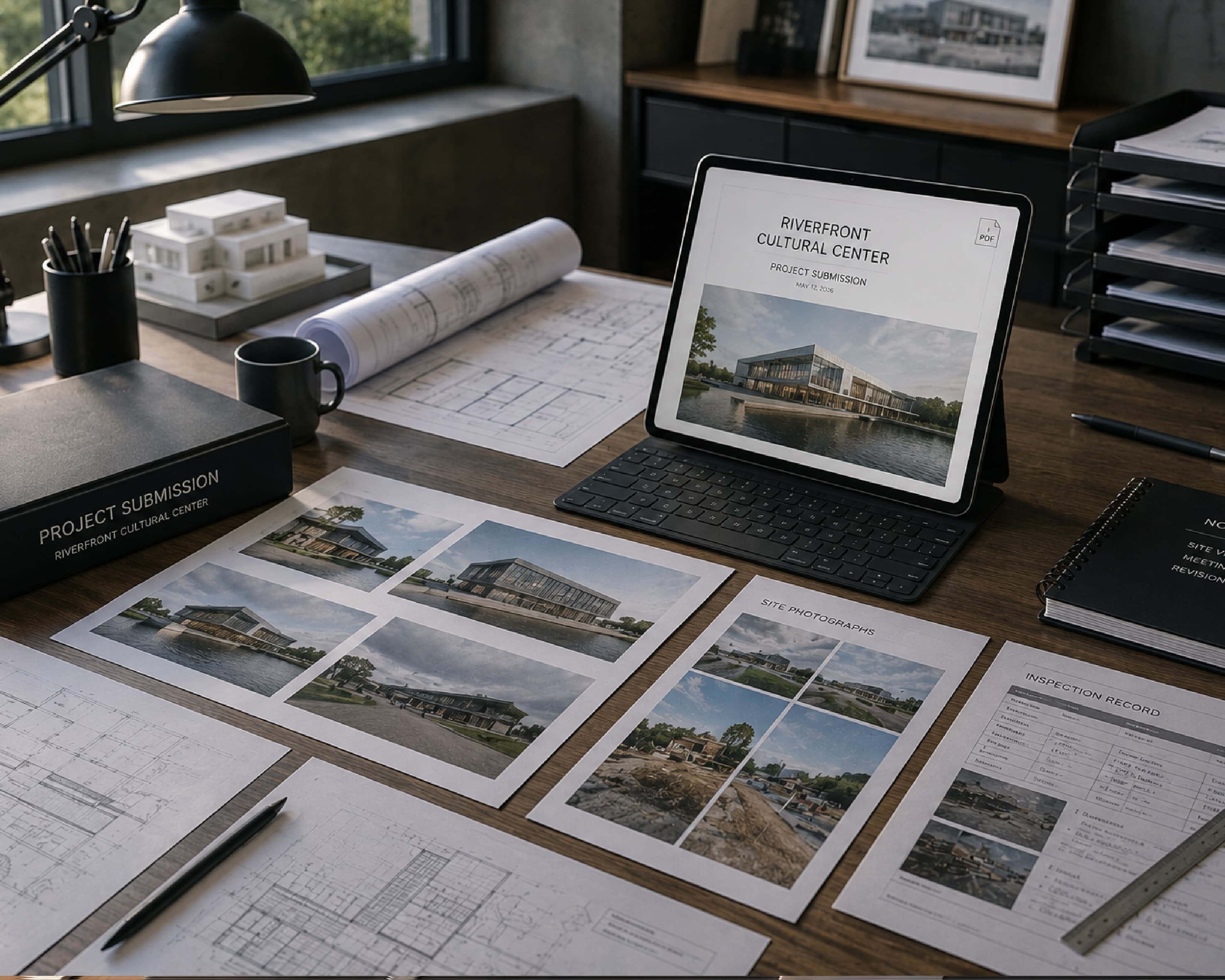
Adding Headers and Footers to Finished PDFs

How to Add Header and Footer to PDF with Plainscan

Plainscan runs in your browser and has over 100 document tools. Nothing to download, which I appreciate, since my laptop is already crowded. It works on a laptop, a tablet, or a phone.

Find the tool. Go to the tools page and look for the one that adds page numbers or text to each page, or open the Add Header & Footer to PDF tool or the Page Numbers tool directly.

Upload your PDF. Drag it in or browse for it. Free accounts can upload files up to 50 MB, which covers most documents.

Set up your text. Type what you want, pick where it goes, and choose which pages get it. Plainscan lets you enter custom header and footer text, toggle page numbering, pick font size and color, adjust margins, and set a custom start page (like starting on page 2 to skip the cover).

Download and check. Wait a few seconds, then download the file. Look at the first page, one from the middle, and the last one. I always check the last one, because that’s where things go wrong.

Is it free?

You can start without paying. After you create a free account, you can process up to 4 documents a day with the basic PDF tools, and that resets every 24 hours. For most people, that’s plenty. If you want AI features or unlimited use, there’s a paid plan, or you can buy credits and use them only when you need to.
How to Add Header and Footer to PDF with Plainscan

How to Make It Look Good

Here’s my honest opinion. Most headers and footers fail because they try too hard.

  • Keep it small. These lines should whisper. Size 9 or 10 usually looks right. If people notice it before they notice the content, it’s too loud.
  • Keep it short. A long title crowds the page or runs off the edge. If your report is called “Quarterly Sales and Marketing Performance Review for the Northern Region,” shorten it to “Q3 Sales Review.” Nobody will complain.
  • Use a plain font and a soft color. Dark gray looks better than bright blue or red. Save the colors for the actual content.
  • Think about where page numbers go. Bottom center is the classic spot. Bottom right is nice for things people will print and flip through with a thumb.
  • And skip the cover page. Nobody numbers the cover. If the tool lets you choose a page range, start at page 2.

I always put page numbers bottom right, size 9, starting at page 2.
Clean PDF Header and Footer Formatting

Mistakes I’d Avoid

Covering existing text. Some PDFs already have words near the edges, like a logo or a web address. Make sure yours doesn’t sit on top of them.

Numbering too early. If you plan to merge files or move pages around, do that first. Otherwise the numbers will be wrong, and you’ll have to start over. If any pages are sideways, fix them first with the Rotate PDF tool.

Mixing styles. If you’re sending a set of documents together, keep the look the same on every one. It’s a small thing, but it shows.

Losing your original. Always keep a copy without the header and footer. You’ll need it the day someone says, “Can you change that title?”

Forgetting the limits. Check the file size and your daily cap before you start a big batch.

Who Gets the Most Out of This?

Students turning in essays and projects. Freelancers sending proposals and contracts. People in offices putting together long reports. Teachers who print worksheets and handouts. Small business owners who want their name on every page they send out.

And honestly, anybody who has ever said, “Wait, which page was that?” while flipping through a stack of paper.

Is It Safe to Upload My File?

Good question, especially if your document has private stuff in it. Plainscan uses encrypted HTTPS connections, and uploaded files are deleted automatically within 24 hours.

Still, I’d think twice before uploading very sensitive files, like ID scans or full bank details, to any website. And skim the privacy policy of a new tool before you trust it. It takes two minutes, and it’s worth it.

Conclusion

Headers and footers are small, but they change how a document feels. Numbers keep things in order. Titles keep readers from getting lost. A name or date makes the file look finished and keeps versions straight. Upload your PDF, type your text, and download the result. Most files take about a minute. If you’ve got a document waiting for those finishing touches, try Plainscan today. It’s an easy way to add header and footer to PDF files, and there are plenty of other free PDF tools worth poking around in while you’re there. Your future self, the one holding a stack of loose pages, will thank you.

Related insights

How to Convert Word to PDF (and Keep Everything Looking Right)

ARTICLE

How to Convert Word to PDF (and Keep Everything Looking Right)

My friend Rohan spent a whole evening polishing his resume. Clean layout, neat columns, a font he was proud of. He emailed it as a Word file and went to bed happy. The recruiter wrote back the next day: “I think your file got scrambled.” On her computer, the columns had slid apart, the font had changed to something plain, and his name sat in the middle of a bullet list like a typo. His file was fine. Word documents just look different depending on the computer, the app, and the fonts installed. A PDF would have looked the same everywhere. So here’s how to convert Word to PDF, and what to check first.

Plainscan Team·October 26, 2026
4 min read
How to Convert PDF to Word (and Keep Your Layout Looking Right)

ARTICLE

How to Convert PDF to Word (and Keep Your Layout Looking Right)

My cousin needed to update her resume. Easy job. Change one phone number, add one new job. But all she had was a PDF, because the Word file died with her old laptop. So she retyped the whole thing. Every line, every bullet. An hour and a half later she was still fixing the spacing, and one of her job dates had somehow turned into 2019. When I told her she could have converted the PDF to Word in about a minute, she just stared at me. Then she said, “Why does nobody tell you this?” So here it is. How to convert PDF to Word, what to expect, and what to fix afterward.

Plainscan Team·October 26, 2026
4 min read
Free PDF Invoice Generator Online: Make a Professional Invoice in Minutes

ARTICLE

Free PDF Invoice Generator Online: Make a Professional Invoice in Minutes

A friend of mine does freelance photography. She’s really good. Weddings, birthdays, the occasional dog in a tiny bow tie. Her photos are the kind that make you stop scrolling. Her invoices, though? Chaos. For a long time she’d open a blank document, type INVOICE in huge letters, guess at the layout, save it, and hit send. Sometimes she forgot her phone number. Once she forgot to put the total. Yes, the actual amount you owe. I’m not joking. Then one client took three weeks to pay her. When she finally asked what was going on, he said, “Oh, I didn’t see a due date, so I figured there was no rush.” Three weeks of waiting because of one missing line. That’s the moment she decided to get serious. Here’s how a free PDF invoice generator online can help, what every invoice needs, and a few habits that get you paid faster.

Plainscan Team·October 26, 2026
4 min read
Free PDF Repair Tool: How to Fix a Corrupted PDF Online

ARTICLE

Free PDF Repair Tool: How to Fix a Corrupted PDF Online

My brother-in-law is a freelance accountant. A few weeks ago a client sent him a 60-page report as a PDF. He downloaded it, double-clicked, and got a message: the file is damaged and can’t be opened. The report was due the next morning. He tried again. Same error. Different app. Same error. He called me at 10 p.m. and asked, “Is it just gone?” It wasn’t. A broken PDF can often be saved, or at least partly saved. Here’s how to use a free PDF repair tool, and how much to expect from one.

Plainscan Team·October 26, 2026
4 min read
Print Optimize PDF: How to Get Sharp, Clean Printouts Every Time

ARTICLE

Print Optimize PDF: How to Get Sharp, Clean Printouts Every Time

My sister designed flyers for her yoga class. On her screen, they looked fantastic. She sent the PDF to a print shop, paid for fifty copies, and picked them up the next day. The logo was blurry. The text near the edge was sliced off. And the soft pink background she picked had turned into a muddy brown. Fifty flyers, straight into the recycling bin. She was not happy, and the print shop guy just shrugged and said, “Your file wasn’t print-ready.” That phrase confuses a lot of people. So here’s what it means, how to print optimize PDF files, and a checklist you can use before you hit print.

Plainscan Team·October 24, 2026
4 min read
PDF to Grayscale: How to Turn Any PDF Black and White Online

ARTICLE

PDF to Grayscale: How to Turn Any PDF Black and White Online

My uncle once printed a 40-page report for a meeting. Colorful charts, a blue header on every page, a green footer. Halfway through, the printer made a sad noise and quit. The cyan cartridge was empty. He still had plenty of black ink. The printer just wouldn’t use it, because the pages were in color. That’s when people find out about grayscale. Here’s how to turn a PDF to grayscale, and the one catch that can make your charts hard to read.

Plainscan Team·October 24, 2026
4 min read
What Is an N-up PDF? (And How to Make One Online)

ARTICLE

What Is an N-up PDF? (And How to Make One Online)

Last-minute printing is a special kind of stress. You’ve got a 40-page PDF, a meeting in twenty minutes, and a printer that’s already making that grinding noise. Then you notice the stack of paper growing. And growing. Here’s the thing most people don’t know. You can fit two, four, or even six pages on a single sheet. It’s called N-up, which sounds like something from a math test, but it’s really not. I’ll show you what it means, when it’s worth using, and how to make an N-up PDF online without any software.

Plainscan Team·October 24, 2026
4 min read
How to Crop PDF Pages (Cut the Extra Stuff Out)

ARTICLE

How to Crop PDF Pages (Cut the Extra Stuff Out)

A friend of mine downloaded a recipe PDF to read on her tablet while cooking. Great recipe. Awful layout. The actual text sat in the middle of each page, wrapped in about two inches of empty white space on every side. On a small screen, that meant zooming in, sliding the page around, zooming out, and losing her place. Meanwhile the onions were burning. She texted me a photo of the tablet with the caption, “Why is it like this?” I told her to crop it. She said, “Crop a PDF? You can do that?” Yes, you can. It takes less time than chopping an onion. Here’s how to crop PDF pages, when it’s worth doing, and the one thing cropping can’t do that catches a lot of people off guard.

Plainscan Team·October 24, 2026
4 min read
How to Flatten PDF Files (and Why Your Forms Need It)

ARTICLE

How to Flatten PDF Files (and Why Your Forms Need It)

A friend of mine fills out a lot of paperwork for her small business. One day she typed answers into a PDF form, saved it, and emailed it to a supplier. The supplier wrote back, “This form is empty.” It wasn’t empty on her computer. Every box was full. But on the supplier’s phone, the typed answers had vanished, because the phone didn’t read the form fields right. The fix was one word: flatten. Here’s what it means to flatten PDF files, when to do it, and what to watch out for.

Plainscan Team·October 24, 2026
4 min read
How to Compare PDF Files Online (and Catch Every Change)

ARTICLE

How to Compare PDF Files Online (and Catch Every Change)

A friend of mine works at a small property company. Last year a landlord sent back a lease with a note: “Just a couple of tiny edits.” She read it twice. Looked the same. It wasn’t. The rent increase date had moved up a month, and a line about repairs had quietly disappeared. She only caught it because her boss remembered the old date. Nobody should have to rely on luck for that. Here’s how to compare PDF files online, and what to check first.

Plainscan Team·October 24, 2026
4 min read

Get the Plainscan App for iOS & Android