
How to Add Watermark to PDF Online (Free and Easy)
A designer I know once sent a client her proposal as a plain PDF. No marks, no label, nothing. The client said thanks, went quiet, and a few weeks later used her ideas on their own site. She never got paid. Would a watermark have fixed that? Not fully. But it would have made the file much harder to pass off as theirs, and every page would have said, “This isn’t finished or paid for.” So here’s how to add watermark to PDF online. No software, no fuss.
What’s a PDF Watermark?
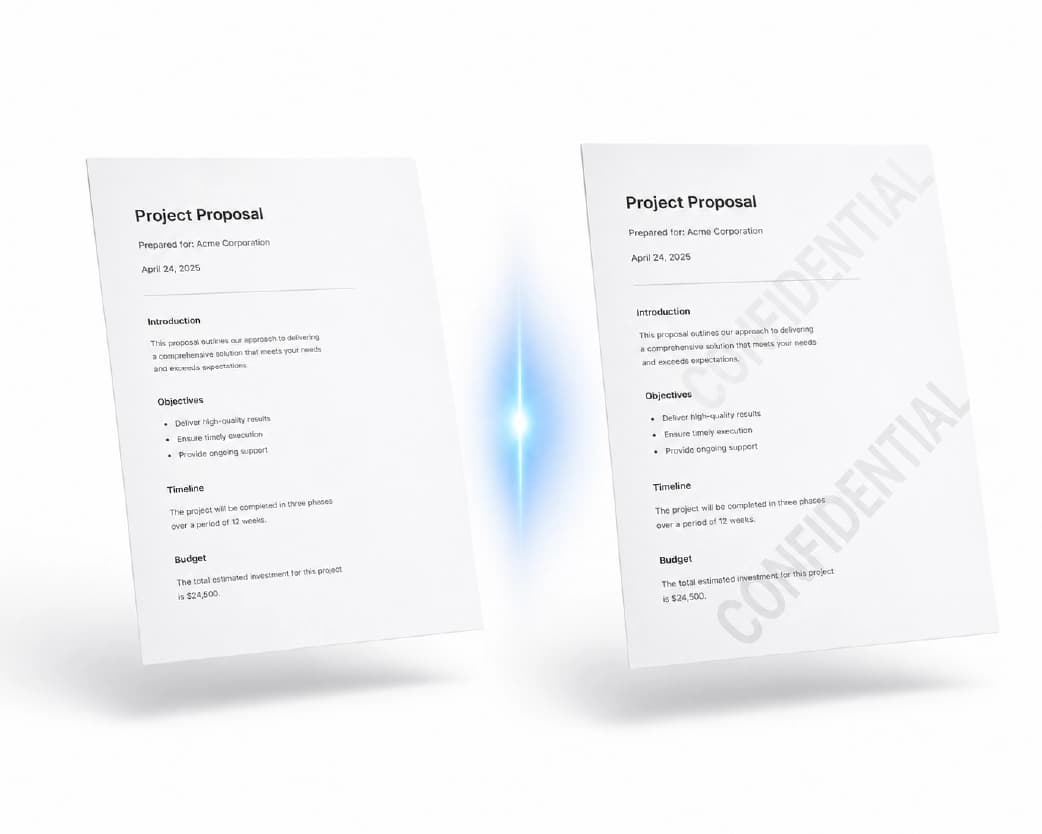
It’s a faint word or picture that sits on every page. You’ve seen them. “DRAFT” in big gray letters. “CONFIDENTIAL” across a contract. A company logo in the middle of a report.
Think of writing your name on your lunch bag. It doesn’t lock the lunch, but everyone knows whose it is.
Why Add One?
- To claim your work. Designers, writers, and consultants use watermarks to show who made something.
- To label a file. “DRAFT,” “SAMPLE,” or “DO NOT COPY” tells people what they’re holding before they read a word.
- To keep private things private. A “CONFIDENTIAL” mark reminds people not to pass it around.
- To look professional. A neat logo on each page makes a document feel finished.
Text or Logo?
Text
The quick option. Type a word or phrase, like “DRAFT” or “Property of Maya Studio,” and it goes on every page. Simple and clear.
Logo or image
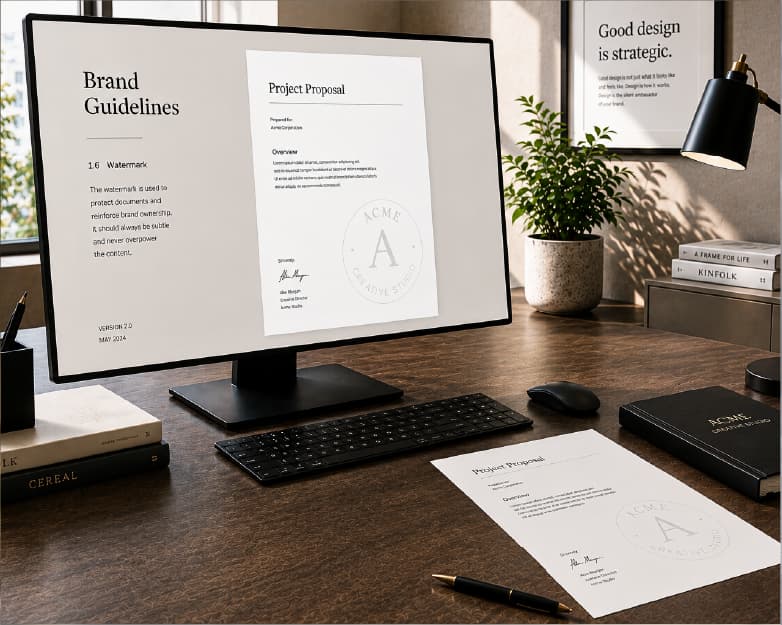
Upload a picture, usually your logo. It looks more polished. A transparent PNG works best, since it blends in and doesn’t leave a white box.
My rule: text for status labels, logos for branding.
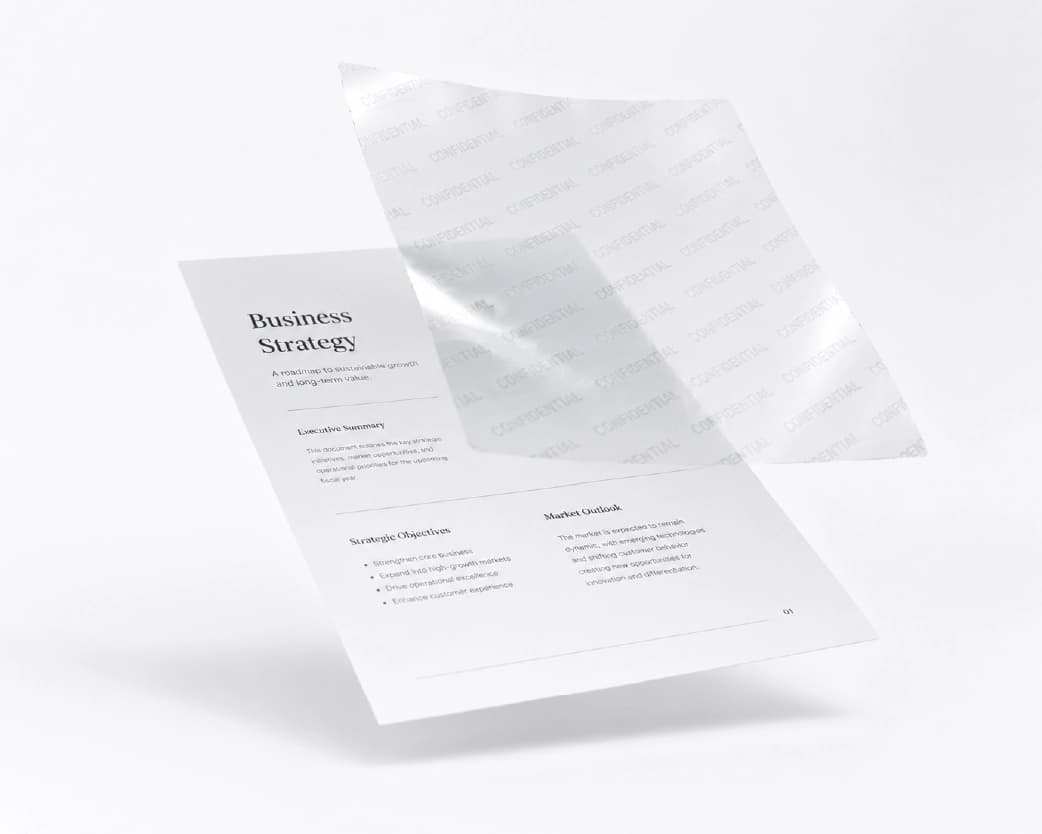
How to Add Watermark to PDF Online with Plainscan
Plainscan runs in your browser and has over 100 document tools. Nothing to download. Laptop, tablet, or phone, it all works.
Open the tool. Go to the tools page and find Add Watermark, or open the Add Watermark tool directly.
Upload your PDF. Drag it in or browse for it. Free accounts can upload up to 50 MB.
Choose your watermark. Type your text or upload your logo, then adjust how it looks. Plainscan lets you customize font size, color, opacity percentage, rotation angle (such as a 45-degree diagonal), and placement across the center or corners.
Download it. Flip through a few pages to make sure it looks right.
Is it free?
To start, yes. After you create a free account, you can process up to 4 documents a day with the basic PDF tools, and it resets every 24 hours. That’s plenty for most people. AI features and unlimited use need a paid plan, or you can buy credits and use them when you need them.
Continue Reading:How to Unlock PDF Online Free (When the File Is Yours to Open)
Making It Look Good
A bad watermark is worse than none. It either gets ignored or makes the page hard to read.
- Keep it see-through. Around 20 to 40 percent opacity is a good place to start. People should notice it and still read the text.
- Mind the size. Too big covers the content, too small vanishes. Across the middle, slightly slanted, is the classic look.
- Pick a calm color. Light gray works almost everywhere. Red can be loud, but it suits “DRAFT” or “CONFIDENTIAL” when you really want attention.
- Keep the words short. One or two words beat a whole sentence.
- And check the first and last pages. Make sure it doesn’t sit on a signature, a table, or an important number.
I always use light gray text at a 45-degree slant with 30 percent opacity across the center.

What a Watermark Can’t Do
Let’s be honest. A watermark is a sign, not a safe. Someone with the right software can crop or edit it out, especially if it’s tucked in a corner.
It also isn’t legal protection. If your work really matters, add a copyright notice, use a contract, or lock the file with a password. A watermark is one layer, not the whole wall.
Putting it across the middle, not in a corner, makes it harder to remove.
Who Uses This?
Freelancers sending proposals and samples. Designers sharing previews. Teachers marking drafts and answer keys. Business owners labeling documents confidential. Students sharing study guides they made.
Anyone who’s ever sent a file and wished it had their name on it.
Is Uploading Safe?
Fair question, especially for private files. Plainscan uses encrypted HTTPS connections, and uploaded files are deleted automatically within 24 hours.
Still, be careful with very sensitive stuff like ID scans or full bank details on any website. And skim the privacy policy of a new tool first.
Mistakes to Skip
Making it too dark. If people can’t read the page, they’ll get annoyed.
Putting it in a corner. Too easy to crop.
Covering important content. Check tables and signatures.
Losing your original. Keep a clean copy without the watermark somewhere safe.
Forgetting the limits. Check file size and your daily cap before a big batch.
Conclusion
Adding a watermark takes about a minute. Upload the file, pick your text or logo, adjust it until it looks clean, and download. It won’t stop everything, but it shows whose work it is and what state it’s in. If there’s a PDF you’re about to send out, try Plainscan on it today. It’s an easy way to add watermark to PDF online, and the other free PDF tools are worth a look too.
You may also like:How to Sign PDF Online Free (No Printer, No Scanner)
Related insights








Get the Plainscan App for iOS & Android