
How to Lock PDF Online Free (and Keep Your Files Private)
A friend of mine once emailed her tax papers to her accountant. Wrong accountant. Same first name, different last name. A total stranger got her personal details, sitting wide open. Nothing bad happened in the end. She still felt sick about it for a week. And the fix would have taken about a minute. One password, and that stranger would have seen a locked file and nothing else. So here’s how to lock PDF online free. No software, no fuss.
Why Lock a PDF at All?
Emails go to the wrong person. Phones get lost. Shared folders get opened by people who shouldn’t see everything in them. A PDF with no protection is like a letter with no envelope.
I’d lock anything like this:
- Tax forms, pay slips, and bank statements
- Contracts and legal papers
- ID copies, medical reports, and school records
- Client files and business plans
Simple rule. If you’d be uncomfortable with a stranger reading it, give it a password.
Two Kinds of PDF Locks
An open password
This is the one most people want. Without the password, the file won’t open. Think of a locked front door.
A permissions password
This one lets people read the file but blocks things like printing, copying, or editing. More of a “look, don’t touch” sign. Handy for files you share widely.
Not every tool offers both. Plainscan’s Lock PDF tool lets you set an open password to restrict viewing, plus permissions options so you stay in total control.
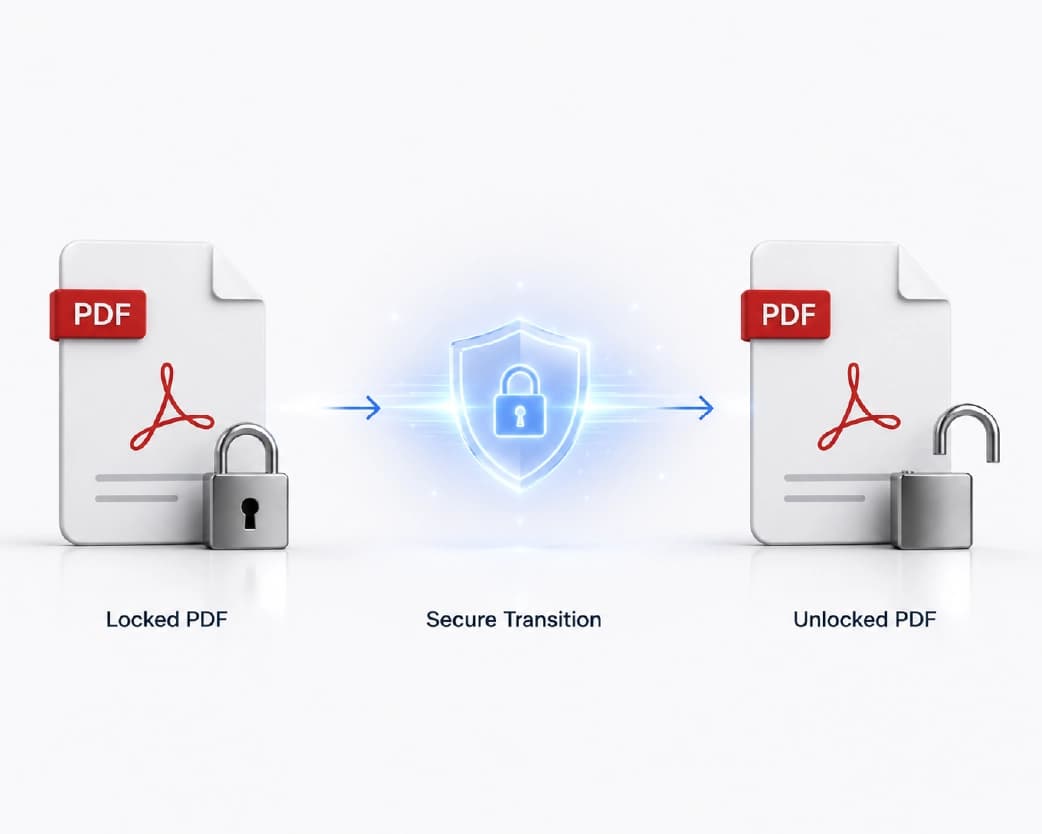
How to Lock PDF Online Free with Plainscan
Plainscan runs in your browser and has over 100 document tools. Nothing to download. Laptop, tablet, or phone, it all works.
Find the tool. Go to the tools page and look for the one that adds a password to a PDF, or open the Lock PDF tool directly.
Upload your PDF. Drag it in or browse for it. Free accounts can upload up to 50 MB.
Pick a password. Choose a strong one and save it somewhere safe. More on that below.
Download the locked file. Then open it yourself. If it asks for the password, you’re good.
Is it free?
To start, yes. After you create a free account, you can process up to 4 documents a day with the basic PDF tools, and it resets every 24 hours. That’s plenty for most people. AI features and unlimited use need a paid plan, or you can buy credits and use them when you need them.
What Makes a Good Password?
A lock is only as strong as its key, so this part matters.
You may also like:How to Extract Images from PDF Online Free (No Screenshots Needed)
Go long. Length beats fancy symbols. Four random words, like “purple bicycle lemon rain,” are harder to guess than “P@ssw0rd1” and easier to remember.
Skip the obvious. Birthdays, names, and “123456” are the first things anyone tries.
Don’t reuse your email or bank password. If one leaks, you don’t want it opening everything else.
I always generate a passphrase of four unrelated words and save it in a password manager before applying it.
The Biggest Mistake: Losing the Password
If you forget the password on a locked PDF, nobody can just open it for you. That’s the whole point of a lock. People lose important files this way, and it’s a horrible feeling.
So save the password before you delete anything. Even better, keep an unlocked copy somewhere safe, like a private drive.
Send the Password Separately
Don’t put the password in the same email as the file. If someone gets into that inbox, they get both.
Email the PDF, then text or call the password. It’s a bit of extra work, but it’s what makes the lock mean something.
Who Needs This?
Job seekers with resumes full of personal details. Freelancers sending invoices. Parents and teachers handling school records. Small shop owners sharing price lists with only certain clients. Families passing around medical or legal papers.
If a file has your name and numbers on it, a password is a good idea.
Wait, Isn’t Uploading a Private File Risky?
Fair question. You’re sending a private file to a website so you can protect it.
It makes sense if the site is trustworthy. Plainscan uses encrypted HTTPS connections, and uploaded files are deleted automatically within 24 hours.
Still, for something extremely sensitive, like a passport scan or full bank details, think twice about any website. And read the privacy policy first. Two minutes, tops.
What a Password Can’t Do
It isn’t magic. A weak password can be guessed. And once someone you trust opens the file, they can still screenshot it or pass it along.
So treat a password as one layer, not the only one. Be careful about who gets the file in the first place.
Mistakes to Skip
Weak passwords. Forgetting the password. Sending the password with the file. And not testing the locked file before you send it.
Recommended to Read:How to Extract Tables from PDF to Excel & CSV Online
Conclusion
Locking a PDF takes about a minute and can save you real stress. Upload the file, add a strong password, download it, and share the password another way. If there’s a PDF with private info sitting in your downloads folder, try Plainscan on it today. It’s an easy way to lock PDF online free, and the other free PDF tools are worth a look too.
Related insights







Get the Plainscan App for iOS & Android