
How to Extract Text from PDF Online Free (Scanned Ones Too)
I once spent a full evening retyping a single chapter from a PDF. Not because I had to, but because I didn’t know any better. Every time I copied the text, it pasted in broken. So I just typed it out, word by word, feeling a little silly the whole time. If you’ve done something similar, you’re in good company. And if you haven’t, you probably will at some point, because PDFs love to make simple jobs annoying. The good news is there’s a much easier way. Here’s how to extract text from PDF online free, right from your browser, plus a few things I wish someone had told me earlier.
So Why Does PDF Text Come Out So Weird?
PDFs were made to look the same everywhere. That’s their whole job. Your resume looks identical on your phone, on a friend’s laptop, and on the printer at the shop.
But looking the same and being easy to edit are two different things. A PDF doesn’t store your text as tidy paragraphs. It stores small bits, each one sitting at an exact spot on the page. When you copy, your computer has to guess how those bits fit together. Sometimes it gets it right. Often it doesn’t.
Tables are the worst. Paste one in and you get a long strip of numbers with no meaning at all.
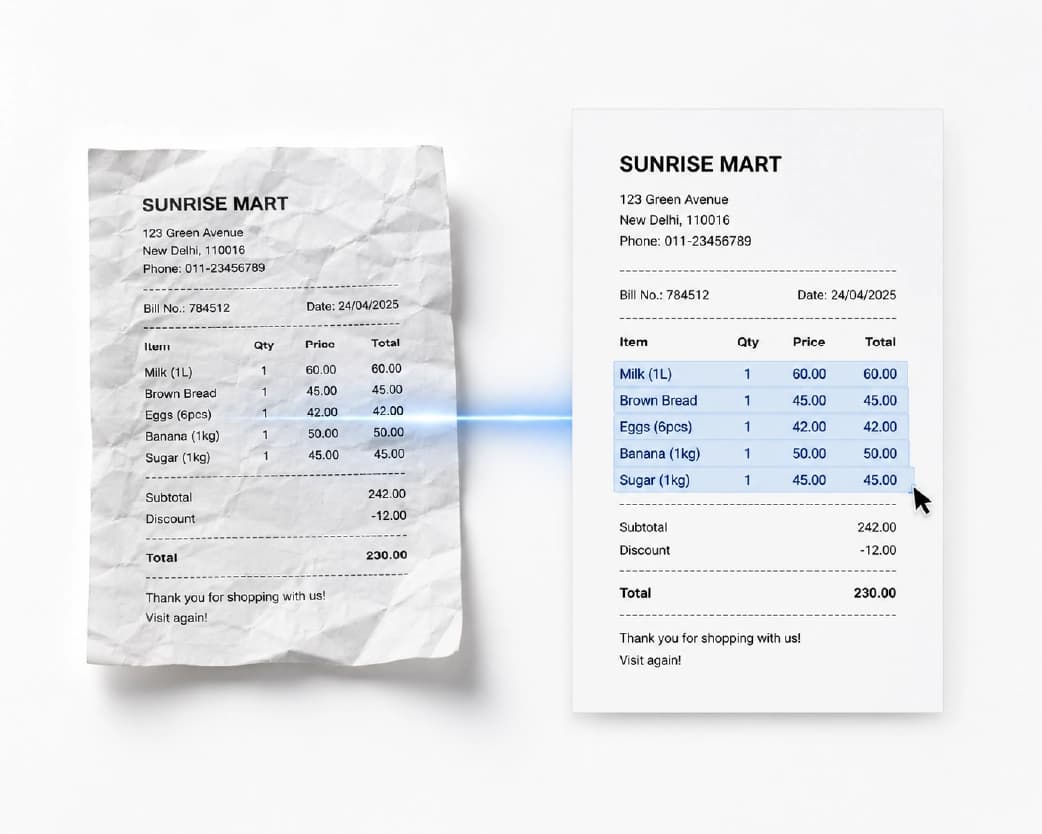
Then there are scanned PDFs, which are a different problem altogether. They don’t contain text. They contain a picture of text. You can’t copy a picture of a word, no matter how hard you drag your mouse.
The Five-Second Test
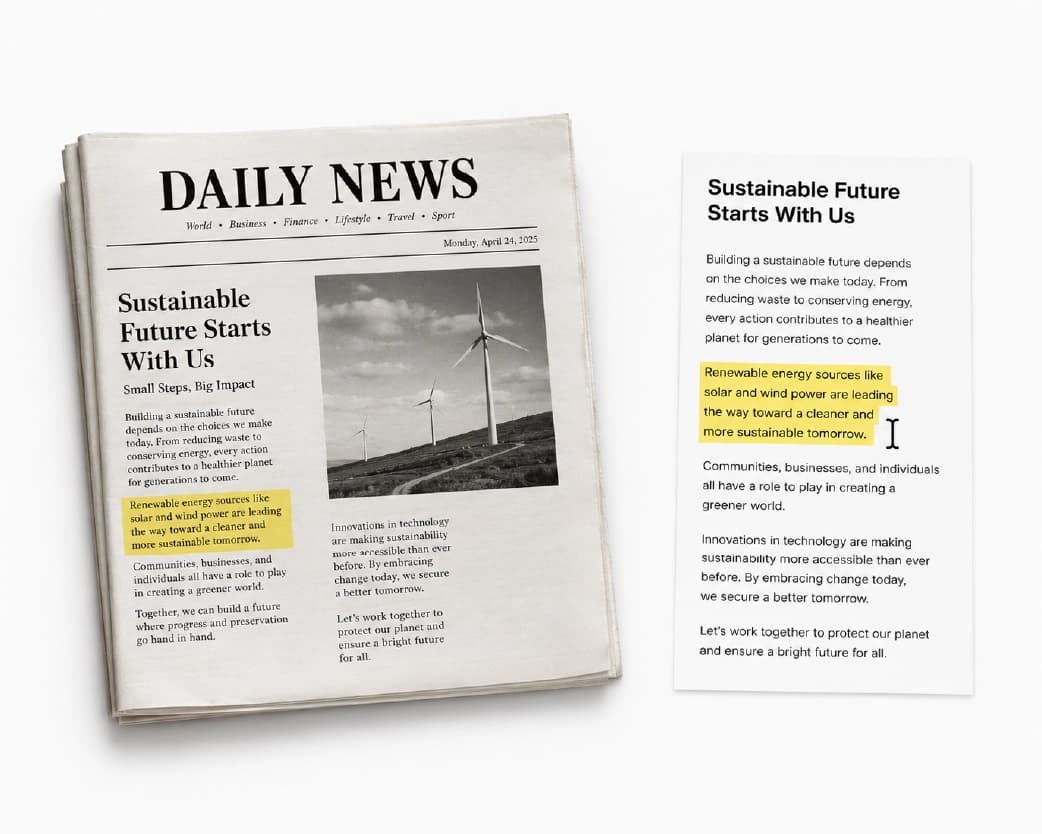
Before you pick a tool, check what kind of file you have. Just click and drag across a sentence.
It highlights
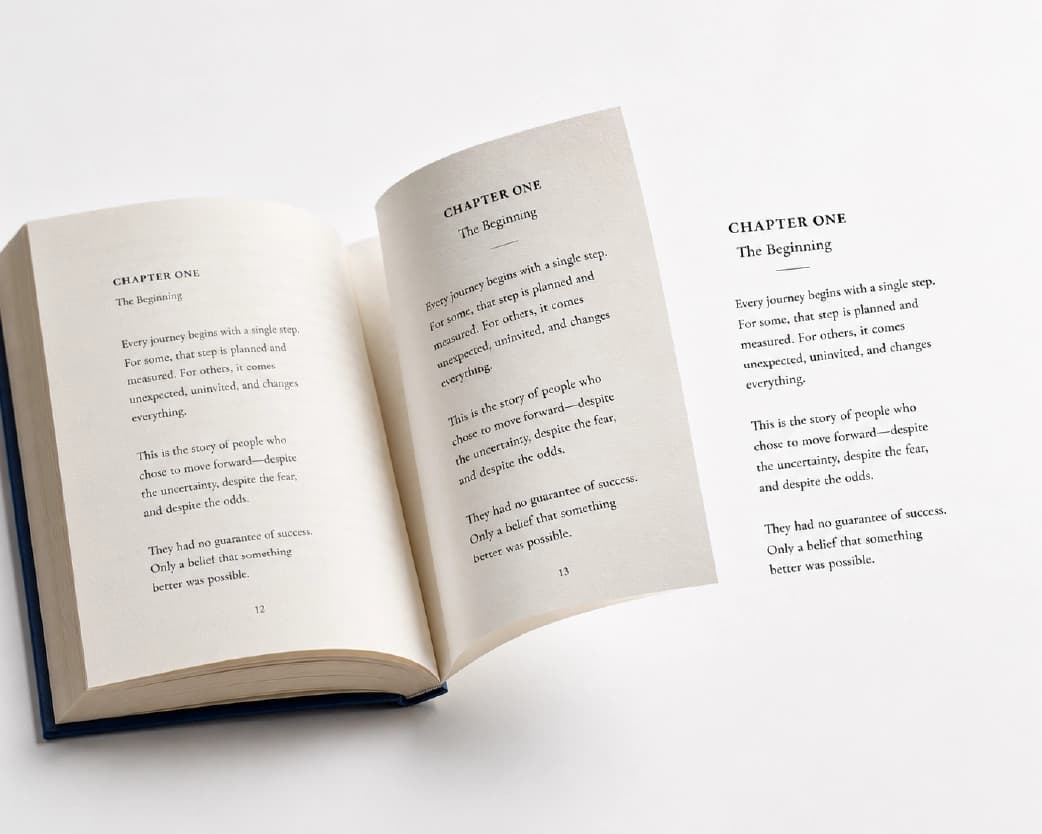
Perfect. That means it’s a text-based PDF, probably made in Word or Google Docs. These are the easy ones. A decent PDF text extractor can read them straight away.
It doesn’t
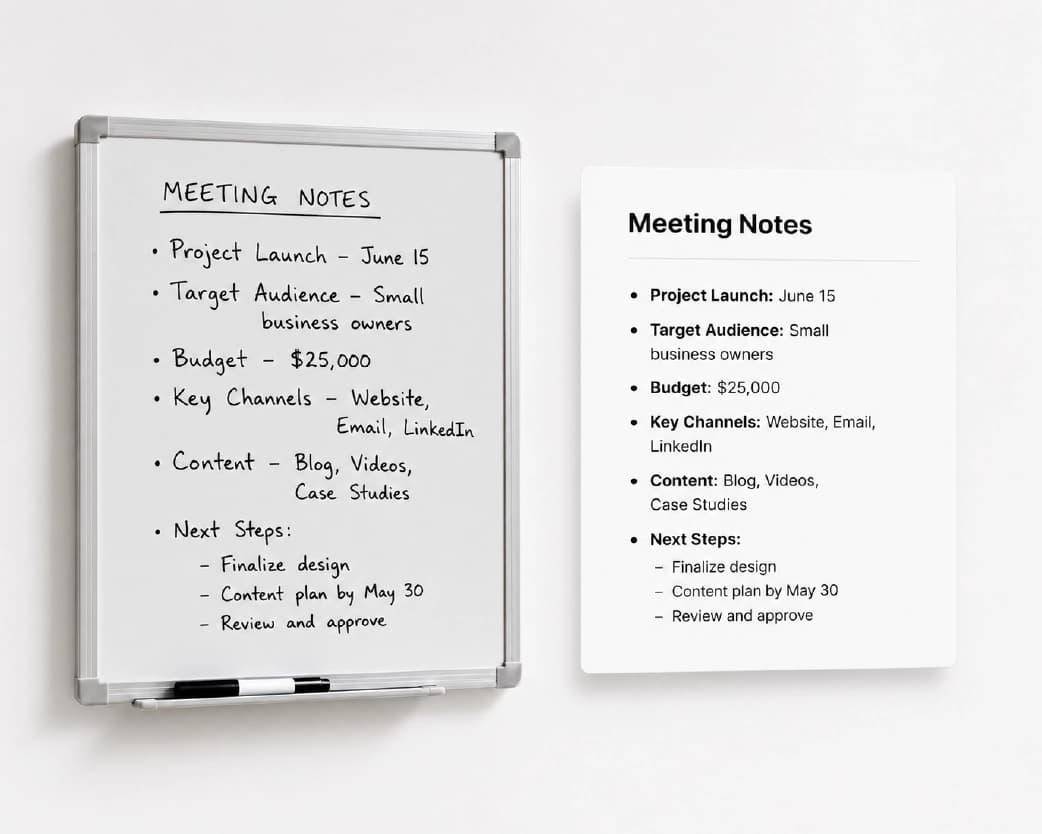
Then it’s a scan, and you’ll need OCR. That stands for optical character recognition, which is a fancy way of saying the software looks at the image, figures out the letters, and types them out for you.
I’ll be honest, OCR isn’t flawless. A clean scan comes out great. A crooked, shadowy phone photo comes out funny. But fixing a few typos still beats retyping a chapter, trust me.
One tip here. Choose a PDF to text converter online that handles both types. Nothing is more annoying than finding out halfway through that your tool only does one.
How to Extract Text from PDF Online Free with Plainscan
Plainscan runs in your browser and has over 100 document tools. No downloads. I like that part, because I’m always short on storage. It works on a laptop, a tablet, or a phone.
Pick the right tool. Go to the tools page. For scans and photos, use the Scan & OCR tool. For a regular PDF that you want to edit like a normal document, the PDF to Word tool is a good fit.
Upload your file. Drag it in or browse for it. Free accounts can upload up to 50 MB, and that’s more than enough for most school or work files.
Wait a bit. Press the button, then give it a few seconds. Bigger files take longer. Resist the urge to refresh the page. I’ve done that, and it never helps.
Copy or download. When it’s done, grab your text and paste it wherever you need it. Notes, email, spreadsheet, whatever.
Wait, is it really free?
You can start free, yes. Once you’ve made a free account, you can process up to 4 documents a day with the basic PDF tools, and that resets every 24 hours. For homework, or a handful of bills, that’s usually plenty. If you want the AI features or unlimited use, you’ll need a paid plan, or you can buy credits and use them only when you need to.
What Actually Gets You Better Results
A lot of it comes down to the file you start with. Dark, tilted, or fuzzy scans make messy text. If you took the photo yourself, try again near a window. Daylight does wonders. And if a page is upside down, fix it first with the Rotate PDF tool, or you’ll get nonsense back.
Read the result once, even if you’re in a hurry. OCR sometimes mistakes the letter O for a zero, or a small L for a one. That’s no big deal in a note to yourself. It’s a big deal in a phone number or a bank amount.
Also, you probably don’t need the whole document. If you only want pages 12 to 15, upload only those. It’s faster, and you won’t have a pile of extra text to delete.
And if the text comes out really long, try the AI Summarize tool. It trims things down to the main points, which is a lifesaver when you’ve got a long report and about an hour.
Who Is This Good For?
Students, for sure. Picture it’s 11 at night, you’ve got a paper due, and you need forty quotes from a research PDF. Copying them is a lot nicer than typing them.
People who work in offices get PDFs all day. Contracts, reports, invoices. Getting that text into an email or spreadsheet without retyping saves more time than you’d think over a week.
Freelancers and small shop owners can turn receipts and supplier bills into text they can search. Tax season gets a little less painful.
And then there’s regular life. A printed family recipe, an old school letter, a form you only have on paper. Scan it, extract it, and now you can actually find things in it.
Is It Safe to Upload a PDF?
Good question, and I’d ask it about any online tool. Plainscan uses encrypted HTTPS connections, and uploaded files are deleted automatically within 24 hours.
That said, use some common sense. I wouldn’t upload a passport or a bank statement to a site I didn’t know well. And before you upload anything personal anywhere, skim the privacy policy. It takes two minutes and could save you a headache.
Mistakes I See All the Time
The first is expecting perfect results from a terrible scan. If you have to squint at the page, the software will too.
The second is using the wrong tool. A basic text extractor on a scanned file gives you nothing, and people think they did something wrong. They didn’t. Just do the highlight test first.
The third is forgetting about limits. Check the file size and the daily cap before you start a big batch, so you’re not stuck halfway.
Conclusion
Getting text out of a PDF is a lot easier than it looks. See if your file is text-based or scanned, pick the matching tool, upload it, and copy your text. Most files take less than a minute. If you’ve got a PDF you’ve been putting off, give Plainscan a go today. It’s a simple way to extract text from PDF online free, and the other free PDF tools are worth a peek too. You might find one that fixes something you’ve been living with for ages.
Further Reading:How to Rotate PDF Pages (And Fix That Sideways Scan for Good)
Related insights






Get the Plainscan App for iOS & Android