
How to Annotate PDF Online Free (Notes, Highlights, and More)
Quick question. How many pages have you printed just so you could circle a line and write “check this” in the margin? I know people who’ve printed forty pages for that. Then the printout goes missing, or the ink runs out, or they have to scan the whole stack back in. Such a waste. You really don’t need paper for this. You can annotate PDF online free, right in your browser, and your notes stay put inside the file. I’ll show you how it works, who it helps, and a few habits that make your markups worth reading later.
You may also like:How to Edit PDF Online (Even If You’re Not a Tech Person)
So What Does “Annotate” Mean?
Sounds fancy. It isn’t. To annotate a PDF just means you mark it up. You add your own notes on top of the file, and the original content underneath stays exactly as it was.
Think of a textbook with sticky notes and a highlighter. Same book, but now it’s full of your thoughts. You might highlight one key line, drop a comment next to a paragraph, or draw an arrow to a chart.
You’ll hear other names for it too, like marking up a PDF, adding notes to a PDF, or writing on a PDF. All the same job.
Why Not Just Print It?
Honestly, there are a bunch of reasons.
Paper and time, for a start. No printer, no scanner, no walking to the office. Then there’s the problem of losing things. Digital notes stay glued to the file, so they can’t disappear under a pile of random papers. And sharing is easy. You can email a marked-up PDF to a teacher, a boss, or a client, and nobody has to decode your handwriting.
An online tool also works on your phone, which is great when you’re on the bus and need to mark up a document before a meeting.
How to Annotate PDF Online Free with Plainscan
Plainscan runs in your browser, so there’s nothing to install. Laptop, tablet, phone, whichever’s handy. The site has over 100 document tools, and it’s free to start.
First, open the annotate page on Plainscan. You’ll see an upload area right away.
Second, add your PDF. Drag it in or pick it from your device. If you’re on the free plan, you can upload files up to 50 MB, which covers most reports, forms, and study material.
Third, mark it up. Use the markup options on the screen to add your highlights and notes. Take your time and put things where they make sense, because a note on the wrong line can confuse people later.
Last, download the new file and open it. Scroll through the whole thing. Make sure your notes are where you put them and nothing else changed.
That’s all there is to it.
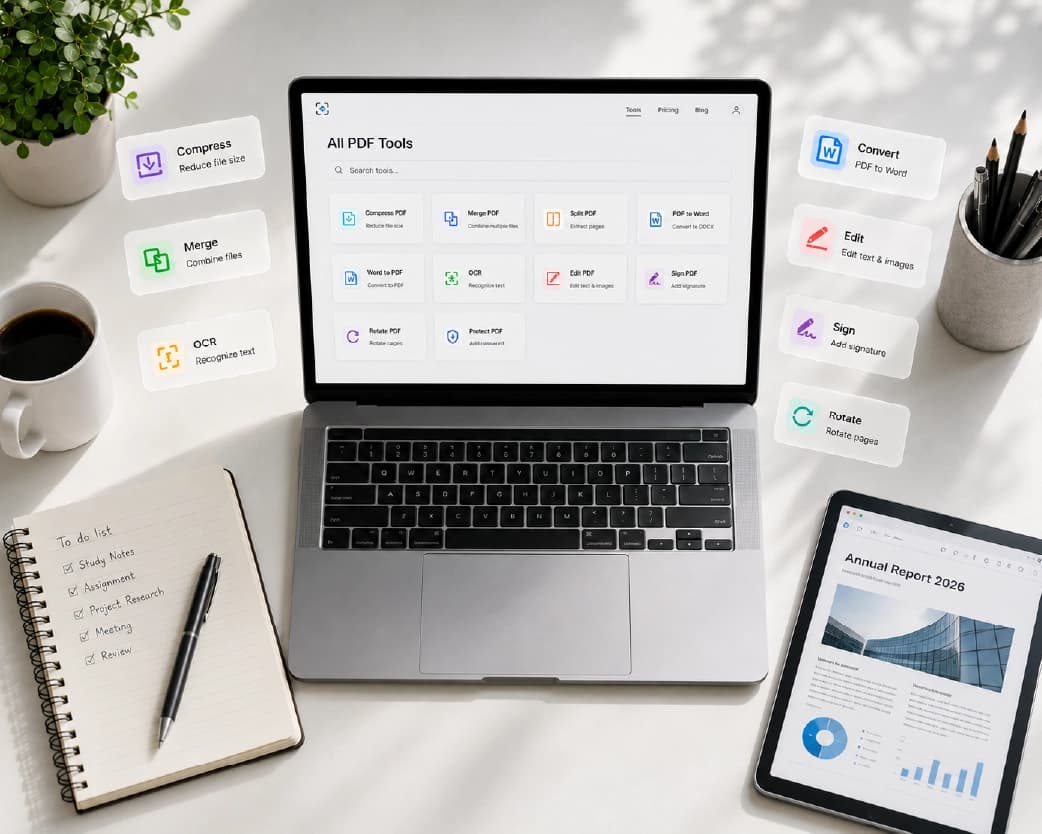
What Can You Do to a PDF?
You’ll probably settle into a few favorite moves.
Highlighting is the classic. Use it to pull out a key sentence, a date, or a number you can’t afford to miss. It works best when you’re picky, and I’ll come back to that in a second.
Notes and comments are perfect for questions and reminders. “Ask about this.” “Check the date.” “Nice point.” If you’re reviewing someone else’s file, comments let you give feedback without rewriting anything.
And sometimes marking up includes putting your name on it. Sign PDF lets you add your signature online, so you can finish a form without any printing.
Who Gets the Most Out of It?
Students, first of all. Study material gets heavy fast. Highlight the big ideas, add your own notes next to the confusing parts, and suddenly you’ve got a study guide that’s yours. If your notes are scanned pages, Scan & OCR can turn them into text you can search.
Recommended to Read:How to Reorder PDF Pages Online (Without Starting Over)
Teachers love it too. Grading is easier when you can write right on the file. Leave a comment where a student slipped up and send it back. No stacks of paper.
Office folks send reports, contracts, and proposals back and forth all day. A marked-up PDF makes it clear what needs to change, so you get fewer confused emails.
And if you freelance or run a small shop, clear feedback is gold. Mark up the draft, point at the problem spot, and send it along. No more “which page did you mean?” messages.
Tips for Better Markups
Don’t highlight everything. I know, it’s tempting. But when the whole page is yellow, nothing stands out. Pick the lines that really matter.
Keep your notes short. A few words are usually enough. You’ll be reading them later in a hurry.
Pick a system and stick with it. One color for key points, another for questions, for example. Your brain will thank you.
And keep a clean copy of the original. When you want a fresh version later, you’ll be glad it’s there.
What Comes Next?
If your marked-up file is too big for email, Compress PDF can shrink it. Got several documents going to the same person? Merge PDF puts them into one. And if a page came in sideways, Rotate PDF can fix it before you start.
Having everything on one site beats bouncing between five different ones.
Is It Safe to Annotate PDFs Online?
Smart question. Plainscan uses encrypted HTTPS connections, and uploaded files are deleted automatically within 24 hours. The site also says it doesn’t share your files with third parties.
For everyday stuff like notes, study material, and drafts, that sounds reasonable to me. But if your PDF has very private details, like bank info or ID numbers, think twice before uploading it to any website. That goes for every online tool, not just this one.
What Does “Free” Really Mean?
It means you can start without paying. Create an account and you can process up to four documents a day with the basic PDF tools. The count resets every 24 hours, so you get a fresh four tomorrow.
Need more? The Pro plan removes the daily limit and the file size cap. There’s also a pay-as-you-go option, where you buy credits only when you need them. If you only mark up a document now and then, free will probably be plenty.
Slip-Ups to Avoid
The big one is skipping the final check. Open the finished file and scroll through it. A minute can save you from sending a document with a note in the wrong place.
Another is leaving private comments in a file you share. Read through your notes before you hit send. That quick “this part is boring” comment is not for your boss to see.
Watch size limits too. Marked-up files can get bigger, so check what the form or email allows first.
And don’t delete your original too soon. Keep it until you’re sure everything went through.
Conclusion
Marking up a document shouldn’t mean a trip to the printer. Once you know how to annotate PDF online free, you can highlight, comment, and share a file in a few minutes. So next time you’ve got a PDF full of things to flag, open Plainscan, add your notes, and send it off. Your desk, your printer, and your ink cartridge will thank you.
Check Also:How to Split PDF Files Without the Stress
Related insights






Get the Plainscan App for iOS & Android