
How to Extract Tables from PDF to Excel & CSV Online
A friend of mine works in accounts at a small company. Every month, she gets a bank statement as a PDF, and every month she used to type it into Excel. Line by line. Two hours, give or take, plus a lot of sighing. One month she mistyped a single digit and spent another hour hunting for the error. When I showed her how to convert the PDF in about a minute, she looked genuinely annoyed. “Why didn’t anyone tell me this years ago?” So here it is, for anyone in the same boat. This is how to extract tables from PDF to Excel and CSV online, what to watch out for, and a few mistakes I’d skip if I were you.
Why Copy and Paste Fails on PDF Tables
Try it once and you’ll see. You select a table in a PDF, paste it into Excel, and everything lands in one column. Or the numbers shift sideways by a cell. Or you get a wall of text that looks like a cat walked on the keyboard.
Here’s why. A PDF is made to look right, not to hold data in an organized way. That neat table you see is really a pile of tiny text pieces, each sitting at an exact spot on the page. Your computer has to guess where one column ends and the next begins. Sometimes it nails it. A lot of the time it doesn’t.
A good PDF to Excel converter makes a smarter guess and gives you real rows and columns you can sort, filter, and add up.
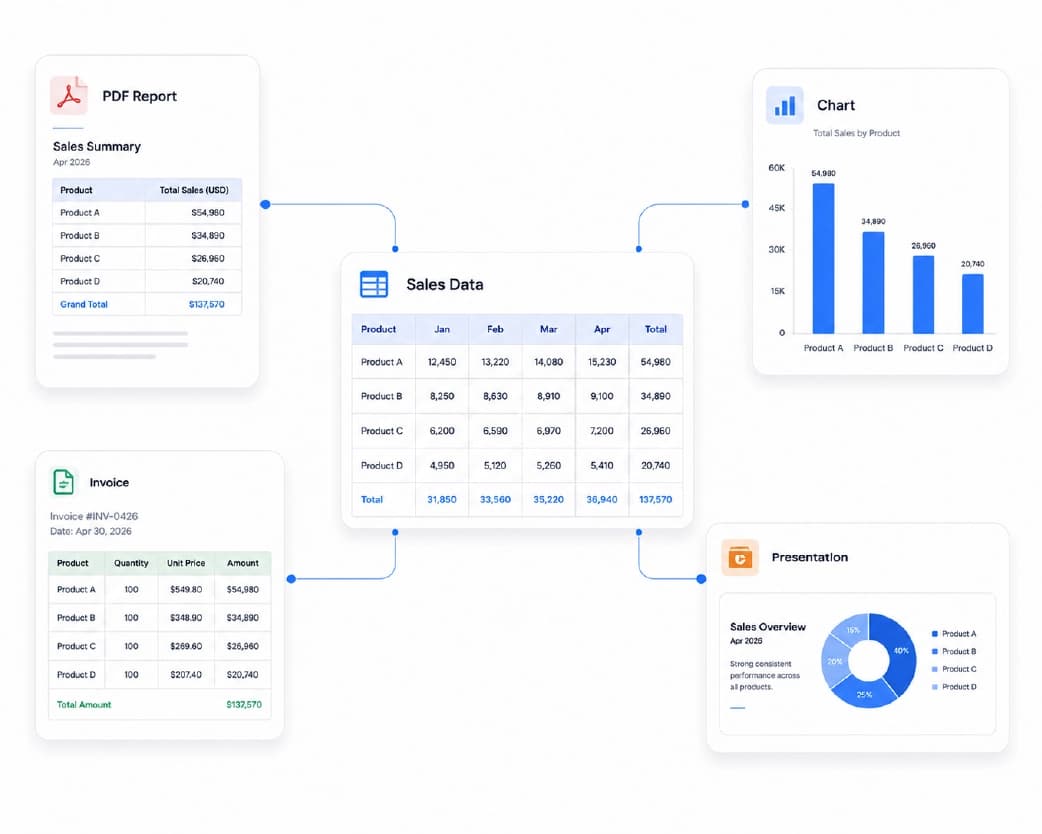
Excel or CSV? Here’s How I’d Choose
If you plan to work with the numbers yourself, pick Excel. You can sort, color, chart, and write formulas. It’s the friendly option, and it’s what most people want.
If another program needs the data, pick CSV. It stands for comma-separated values, which sounds scarier than it is. It’s a plain text file where every line is a row and commas split the columns. No colors, no styles. But almost every app can read it, which is why accounting tools and databases ask for it.
Still not sure? Go with Excel. Turning it into a CSV later takes about ten seconds, and I’ll show you how in a minute.
Is Your PDF Text-Based or Scanned?
Quick test. Click and drag your mouse over a number in the table.
If it highlights, you’re in good shape. The PDF has real text in it, and conversion usually goes smoothly.
If nothing happens, you’ve got a scan, which is basically a photo of a table. A scanned PDF to Excel job needs one extra step first, called OCR (optical character recognition). Think of it as a very quick reader that looks at the picture and types out what it sees. Once that’s done, the file can be converted like any other.
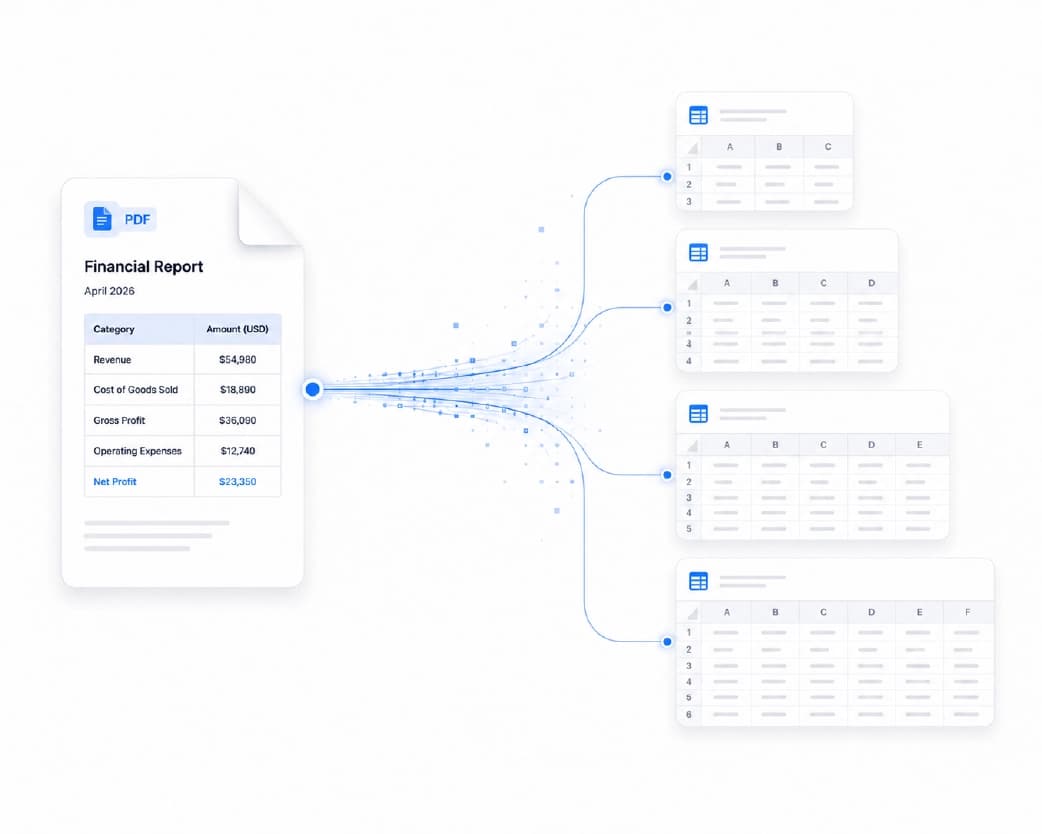
How to Extract Tables from PDF to Excel & CSV Online with Plainscan
Plainscan runs in your browser and has over 100 document tools. Nothing to install, which is nice if your computer is already stuffed. It works on a laptop, a tablet, or your phone.
First, open the tool. Go to the tools page and choose PDF to Excel. If your file is a scan, run it through Scan & OCR first.
Next, upload the file. Drag it in or browse your device. Free accounts can upload up to 50 MB, which is more than enough for most reports and statements.
Then convert. Press the button and give it a few seconds. Bigger files take longer, and I know it’s tempting to refresh the page when nothing seems to happen. Don’t.
Download and open it. Take a look at the Excel file. Does it make sense? Great.
You may also like:How to Annotate PDF Online Free (Notes, Highlights, and More)
Need a CSV instead? Open the Excel file, click File, then Save As, and choose CSV from the file type list. That’s the whole trick.
So what does free really mean?
You can start without paying. After you make a free account, you can process up to 4 documents a day with the basic PDF tools, and that resets every 24 hours. For a few statements or a school project, it’s plenty. If you want AI features or unlimited use, there’s a paid plan, or you can buy credits and only use them when you need to.
Small Things That Make a Big Difference
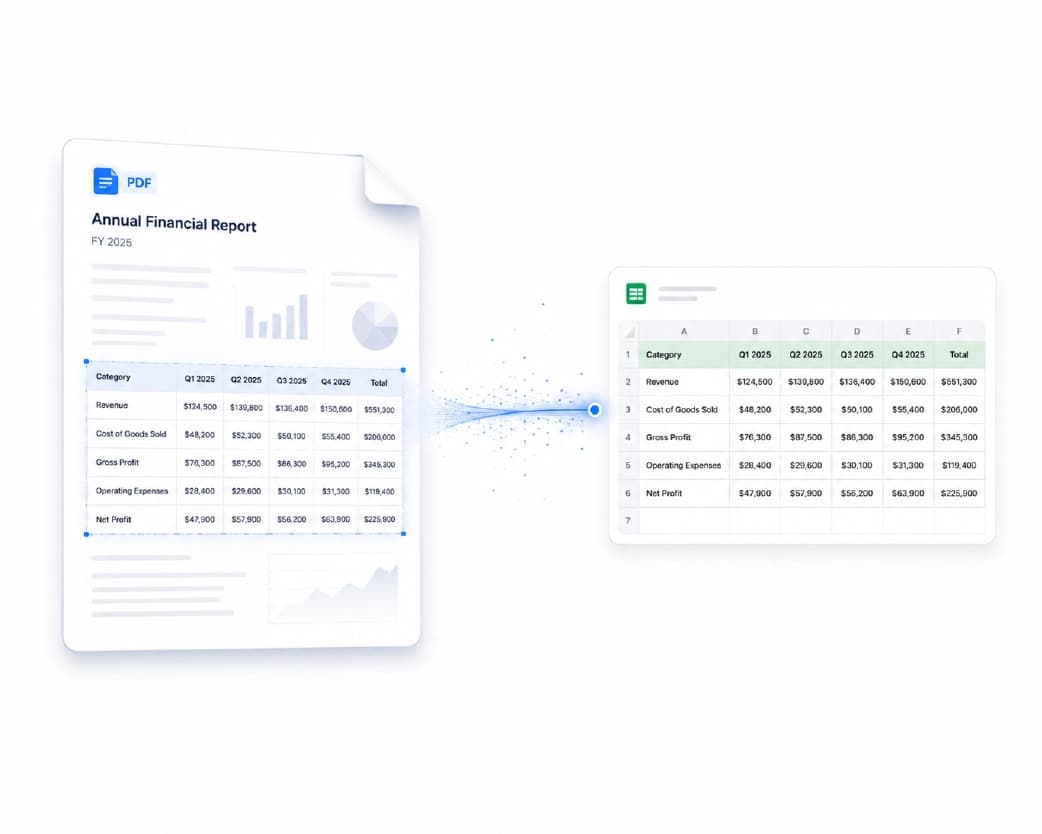
Honestly, the PDF matters most. Simple tables with clear lines convert the best. If your table has tiny text, boxes inside boxes, or a layout that makes your eyes hurt, expect to do some cleanup afterward. That’s normal and not a sign you did something wrong.
Look at the top rows when it’s done. Headers and totals tell you quickly whether things went well. It takes ten seconds, and it’s saved me from a few embarrassing mistakes.
Don’t expect formulas. A PDF only keeps the numbers you see, not the math behind them. So you’ll get plain values, and you’ll need to type the formulas in again. Annoying, but that’s how PDFs work.
If you only need page three of a thirty-page report, upload just page three. It’s faster, and you won’t have a mountain of extra rows to delete. And if a page is sideways, fix it first with the Rotate PDF tool, or the result will be a mess.
Who Gets the Most Out of This?
My accountant friend, obviously. But also students who need data from a lab report to make a chart. Small shop owners who want to compare price lists from two suppliers side by side. Developers who need a CSV to feed into something else and would rather not build a parser for it.
Really, it’s for anyone who has stared at a PDF table and thought, “I do not want to type this.”
Is It Safe to Upload Your PDF?
Good thing to ask about any online tool. Plainscan uses encrypted HTTPS connections, and uploaded files are deleted automatically within 24 hours.
That said, I’d still be careful with anything really private. Full bank account numbers or ID documents, for example, deserve a second thought before going on any website. Skim the privacy policy of a new tool first. It’s boring, but it’s worth two minutes.
Mistakes I’d Avoid
Skipping OCR on a scan. The tool can’t read a picture, so you’ll get nothing back and wonder why.
Trusting every number. A single shifted column can change a total. Check the important ones.
Ignoring the limits. Look at the file size and your daily cap before starting a big batch. Hitting it halfway through is a bad feeling.
Recommended to Read:How to Edit PDF Online (Even If You’re Not a Tech Person)
Conclusion
You don’t have to retype tables anymore. Check whether your PDF is text-based or scanned, upload it, convert it, and save it as Excel or CSV. Most files take a minute or two. If you’ve got a PDF full of numbers sitting in your downloads folder, try Plainscan on it today. It’s an easy way to extract tables from PDF to Excel and CSV online, and there are plenty of other free PDF tools worth poking around in while you’re there.
Related insights







Get the Plainscan App for iOS & Android