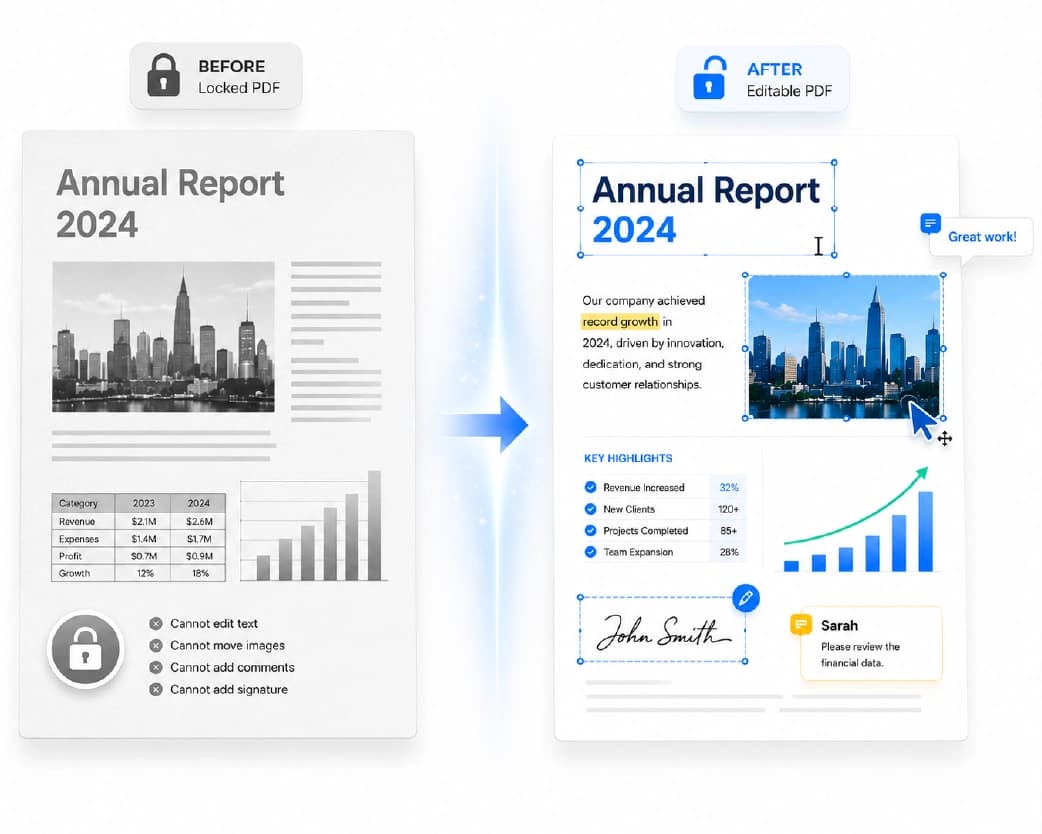
How to Fill PDF Forms Online (No Printer Needed)
A friend of mine had to fill out a rental form last spring. One page. Name, address, phone number, the usual stuff. She printed it, wrote on it, messed up the second box, and printed it again. Then her handwriting ran out of space on the address line. Print number three. Three sheets of paper for one page of info. Then she had to scan it to send it back. You can skip all of that. Here's how to fill PDF forms online, and what to do when a form won't cooperate.
Two Kinds of PDF Forms
Nobody tells you this, and it clears up a lot of confusion.
Fillable forms
These have real boxes built in. You click, you type, it works. Some also have checkboxes and dropdown menus. These are the easy ones.
Non-fillable forms
These look like forms, but they're really just a picture of a page with blank lines. Clicking does nothing. It's common when someone scanned a paper form, or saved a regular document as a PDF without adding boxes.
Quick test: click a blank spot where you'd write. If a box lights up or a cursor blinks, it's fillable. If nothing happens, it isn't.
You can fill out both kinds online. The second kind just needs a tool that lets you place text anywhere on the page.
Why Bother Doing It on Screen?
- It's faster. No printing, no hunting for a pen that works.
- It's neater. Typed text is easy to read, and nobody has to guess if your 1 is a 7.
- It's easy to fix. Typo? Change it in a second. No scribbling out.
- And if you don't own a printer, it saves you a trip to the print shop.
How to Fill PDF Forms Online with Plainscan
Plainscan runs in your browser and has over 100 document tools. Nothing to download. Laptop, tablet, or phone, it all works.
Find the tool. Go to the tools page and look for the one that lets you fill or edit a PDF, or open the Edit PDF tool directly.
Upload your form. Drag it in or browse for it. Free accounts can upload up to 50 MB, plenty for almost any form.
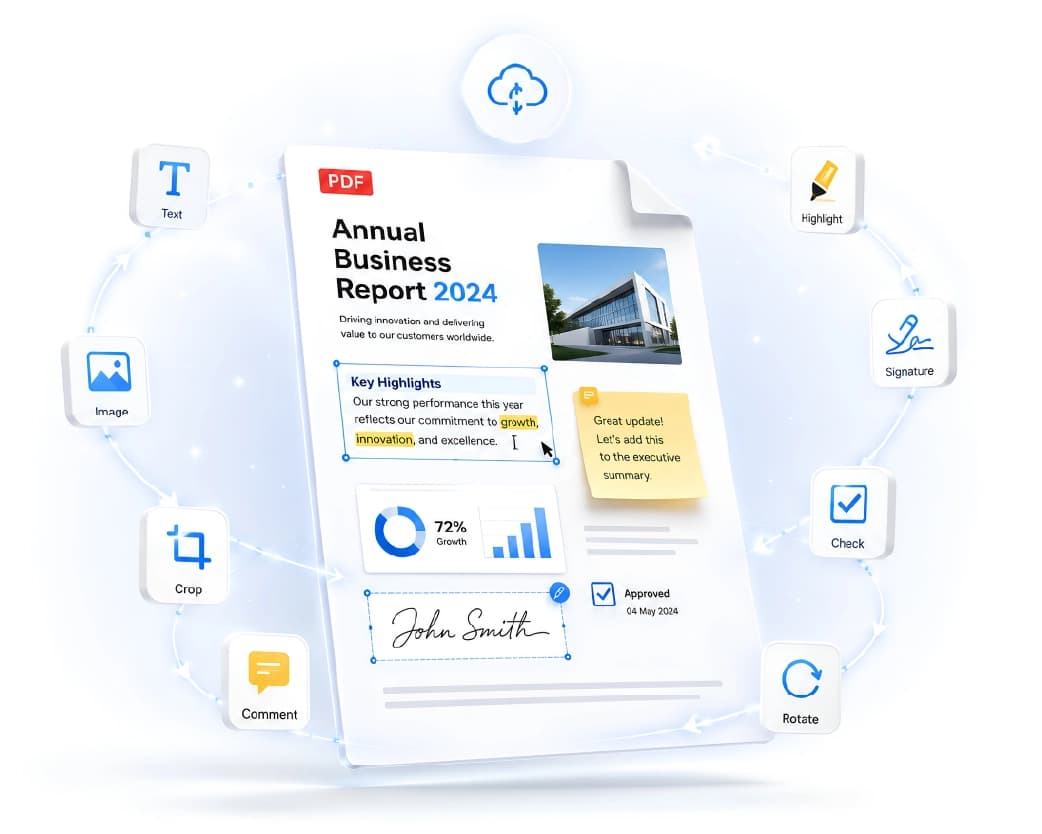
Fill it in. Click a box and type. On a non-fillable form, click where you want the text and add it there. Plainscan lets you add custom text boxes, insert checkmarks, add dates, and place electronic signatures anywhere on the document.
Download your copy. Check every field once, then save the finished PDF. That's the file you'll send.
Is it free?
To start, yes. After you create a free account, you can process up to 4 documents a day with the basic PDF tools, and it resets every 24 hours. That's usually plenty for forms. AI features and unlimited use need a paid plan, or you can buy credits and use them when you need them.
What If the Form Is a Scan?
Further Reading:How to Add Header and Footer to PDF (Free and Easy)
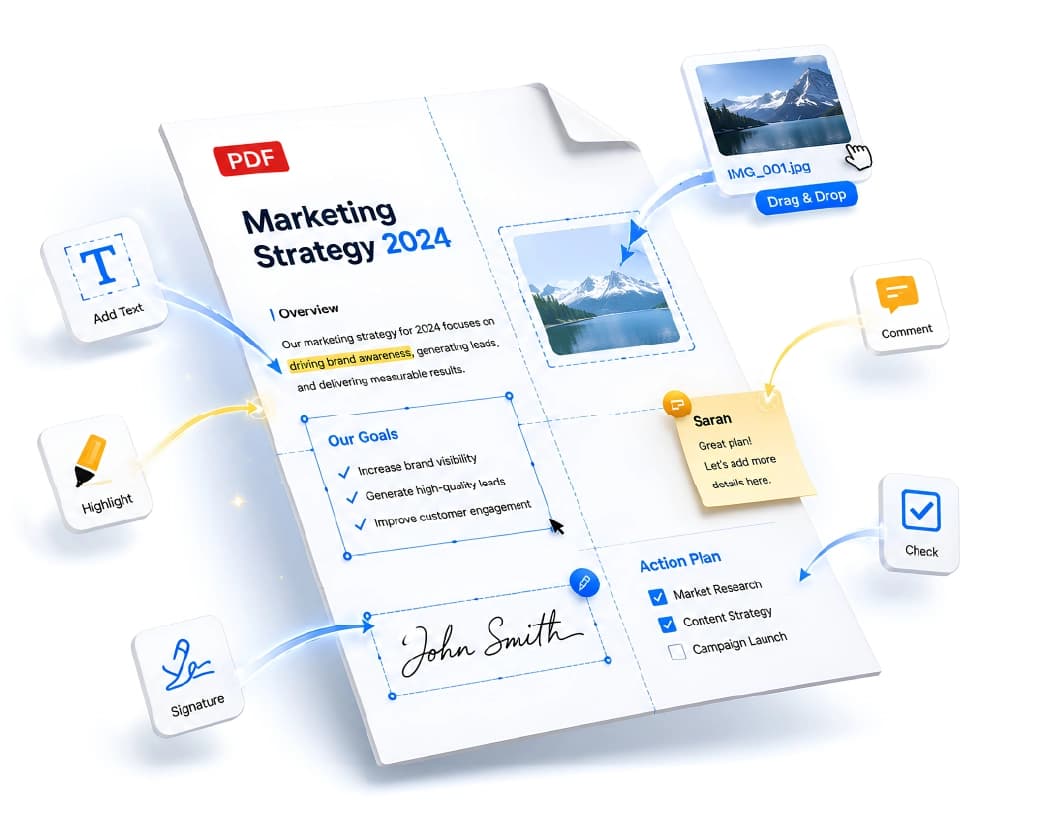
You can still type on it. You just place each piece of text yourself, line by line.
If the scan is crooked or sideways, fix that first. The Rotate PDF tool turns a page the right way up. And if you ever need the words from a scanned page as plain text, the Scan & OCR tool can read it for you.
Tips for a Clean Form
- Read the whole thing first. Half of all form mistakes come from jumping in too fast.
- Have your info ready. ID numbers, dates, and addresses should be nearby, so you're not hunting for them halfway through.
- Keep the text readable. If it's too big or small, resize it so it fits the line without touching the edges.
- Use one date format all the way through. If the form says MM/DD/YYYY, stick to that.
- Don't leave required fields blank. Write "N/A" if something doesn't apply, so nobody thinks you skipped it.
- Zoom in and proofread before you download. A wrong digit in a phone number or bank detail can cause real headaches.
I always read the form out loud to catch typos before hitting download.
What About the Signature?
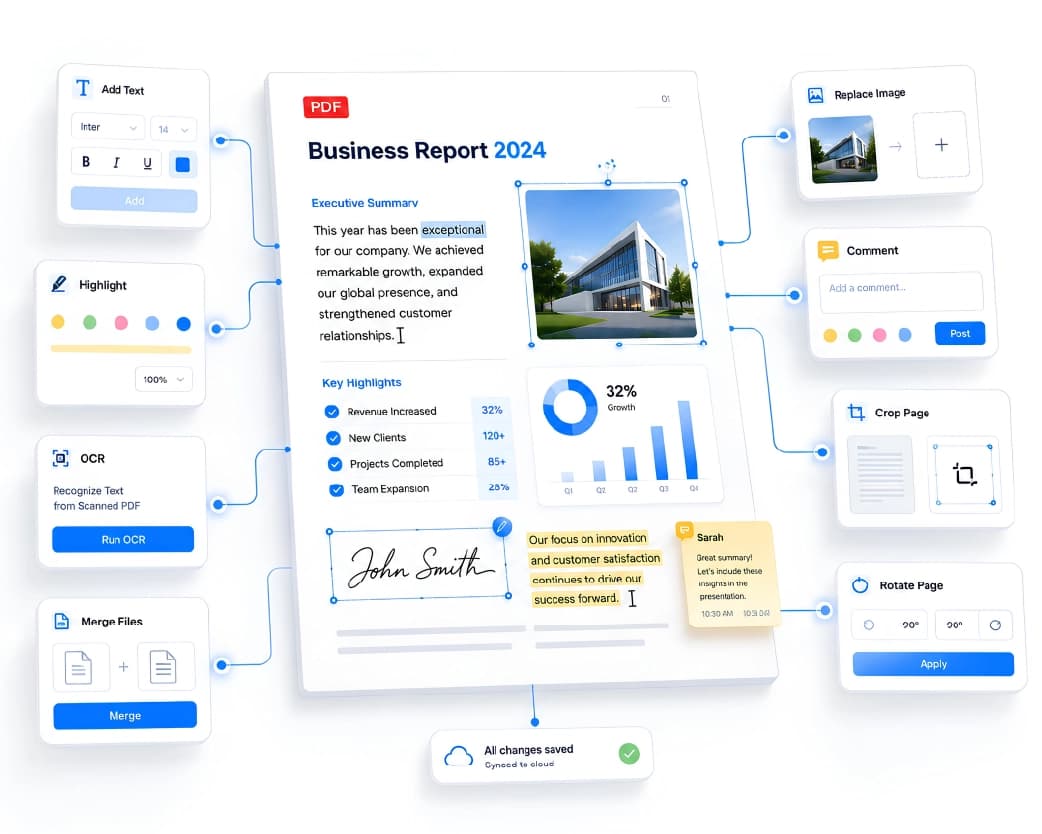
Lots of forms need one at the bottom. You don't have to print the page to sign it. A tool can add a drawn or typed signature for you. Check whether the form tool offers that, or open the Sign PDF tool (or check our guide on how to sign PDF online free).
One catch. Some legal or government forms need a certain kind of signature. If you're not sure, ask whoever sent it.
Who Needs This?
Renters with lease papers. Job seekers filling in applications. Parents with school forms. Patients with medical intake sheets. Small business owners with tax and supplier forms. Students with scholarship paperwork.
Basically anyone who's been handed a PDF full of blank lines.
Is It Safe to Upload a Form?
Fair question, since forms are full of personal stuff. Plainscan uses encrypted HTTPS connections, and uploaded files are deleted automatically within 24 hours.
Still, be careful with ID numbers, bank details, and medical info on any website. Skim the privacy policy of a new tool first. And once you've saved your finished form, delete extra copies you don't need.
Mistakes to Skip
Not saving the final file. Download it before you close the tab, or you'll start over.
Sending the blank version. Sounds silly, but it happens. Open the downloaded file before you attach it.
Typing in the wrong spot on a scan. Zoom in and line things up.
Skipping the proofread. One typo in an email address and the reply never shows up.
Forgetting the limits. Check file size and your daily cap, especially if you've got a few forms in a row.
Conclusion
Forms are boring, but they don't have to be painful. Upload the PDF, type in your details, check them twice, and download your copy. Most forms take a few minutes. If there's a form sitting on your desk or in your inbox, try Plainscan on it today. It's an easy way to fill PDF forms online, and the other free PDF tools are worth a look too. No printer, no pen, no third copy.
Continue Reading:How to Redact PDF Online Free (Without the Classic Mistake)
Related insights







Get the Plainscan App for iOS & Android