
AI Resume Formatter: How to Turn a Messy Resume Into a Clean, Job-Ready One
Here’s a story that happens more than people admit. You spend a whole evening on your resume. You pick the fonts. You line up every bullet. You hit save, feel proud, and send it off to a company you really want to work for. Then a friend opens it on their phone and says, “Um, the whole thing looks weird.” The dates are on the wrong line. A section floats off to the side. Your carefully chosen font is gone. It’s not a great first impression, and it’s not even your fault. Resumes can be surprisingly fragile. That’s where an AI resume formatter earns its keep.
What Is an AI Resume Formatter?
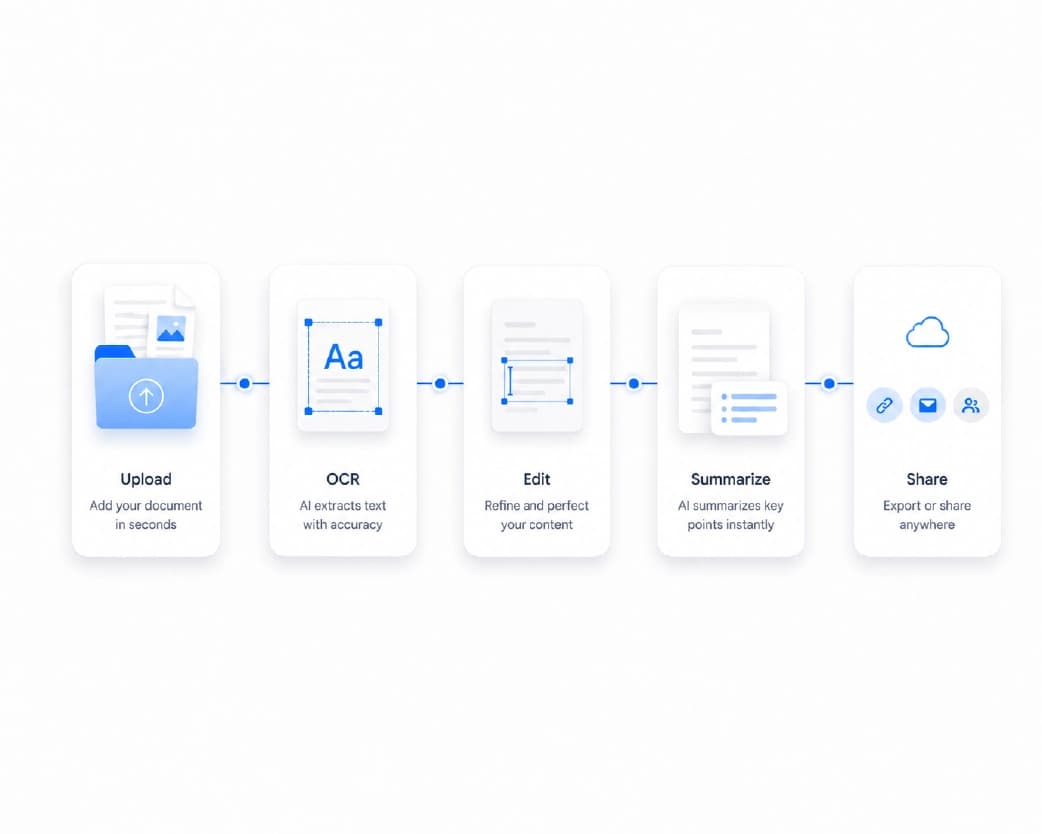
It’s a tool that takes the content of your resume and arranges it into a clean, professional layout. You bring the words. It handles the spacing, headings, fonts, and structure.
Think of it as a friend with great design taste who tidies up your work while you focus on what you actually want to say.
Some tools also help improve your writing, like tightening long bullet points or fixing small grammar slips. You might see this called a resume builder, a resume layout tool, or a resume enhancer. The names change, but the goal stays the same: help you look sharp without spending hours dragging text boxes around.
Why Resume Formatting Matters More Than You Think
Content is king, sure. But layout is the front door.
Hiring Managers Are Busy
People who read resumes often look at a lot of them. A clear layout makes your best points easy to spot. A cluttered one makes them easy to miss.
Software Reads Your Resume First
Many companies use applicant tracking systems, usually called ATS, to scan resumes before a human sees them. If your file has fancy columns, odd symbols, or text stuck inside images, the software may read it wrong. A clean, simple format is far safer.
Small Details Show Care
Consistent spacing, matching fonts, and tidy dates quietly say, “I pay attention.” It’s a small thing that can leave a good feeling.
Common Resume Formatting Problems
If you’ve ever fought with a resume file, you’ll recognize these.
Text jumps to a new page for no reason. Bullet points look different from section to section. Fonts change after you send the file. Dates don’t line up. The whole thing is almost two pages, but not quite, so there’s a lonely half page hanging at the end.
Fixing all this by hand takes a lot of patience. And if you edit one line, something else tends to shift. Annoying.
How an AI Resume Formatter Helps
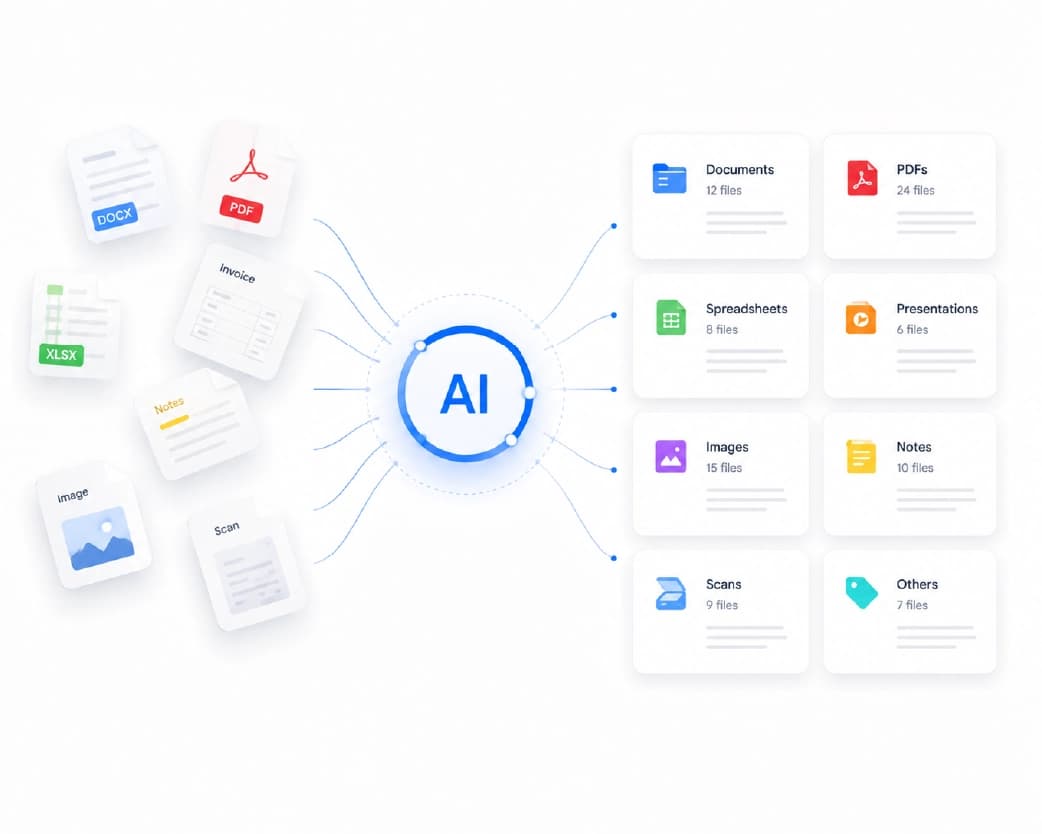
Here’s what a good one can do for you.
- It Saves Time: Instead of adjusting margins for an hour, you paste in your info and get a neat layout in minutes. That’s more time for practicing interview answers.
- It Keeps Things Consistent: Headings, spacing, and bullets stay uniform from top to bottom. No more mismatched sections.
- It Helps With ATS-Friendly Structure: A simple layout with clear headings like Experience, Education, and Skills is easier for software to read. A good formatter tends to follow that kind of structure.
- It Can Polish Your Wording: Some tools help trim wordy bullets and make your achievements sound stronger. “Responsible for handling customer calls” can become “Handled 40+ customer calls daily,” as long as the number is true.
How to Use One Step by Step
You don’t need design skills for this. Just follow a simple routine.
- Step 1: Gather Your Info: Write down your jobs, school details, skills, and achievements. Don’t worry about order yet.
- Step 2: Pick a Clean Style: Choose a layout that’s easy to read. Simple usually beats fancy, especially if a company uses ATS software.
- Step 3: Add Your Content: Paste in your details, or upload your existing resume. Let the tool arrange it.
- Step 4: Read Every Line: Seriously, don’t skip this. Check spelling, dates, job titles, and contact info. A typo in your email address could cost you a call.
- Step 5: Save It the Right Way: PDF is usually the safest choice because it keeps your layout locked in. Some employers ask for Word, though, so read the job post.
Tips for a Stronger Resume
A formatter handles the look, but you still control the substance. Keep these in mind.
Stick to one or two pages. Most people don’t need more. Start your bullets with action words like “led,” “built,” or “improved.” Use numbers when you can, since they make results feel real. Tailor your resume to each job by using words from the job post. And keep your design calm. Two fonts and one accent color is plenty.
Mistakes That Hurt Your Resume
Over-designing is the big one. Fancy graphics, photos, and heavy colors can confuse ATS software and distract from your actual skills.
Another is trusting the tool blindly. AI can polish your wording, but it can’t know your real story. Never let a tool add skills or numbers you don’t have. Interviewers will ask, and honesty always wins.
Then there’s sending the same resume everywhere. A quick tweak for each job takes ten minutes and makes a real difference.
Finally, don’t forget privacy. Your resume has your phone number, address, and work history. Check how any site handles your files before you upload.
Building Your Resume With Plainscan
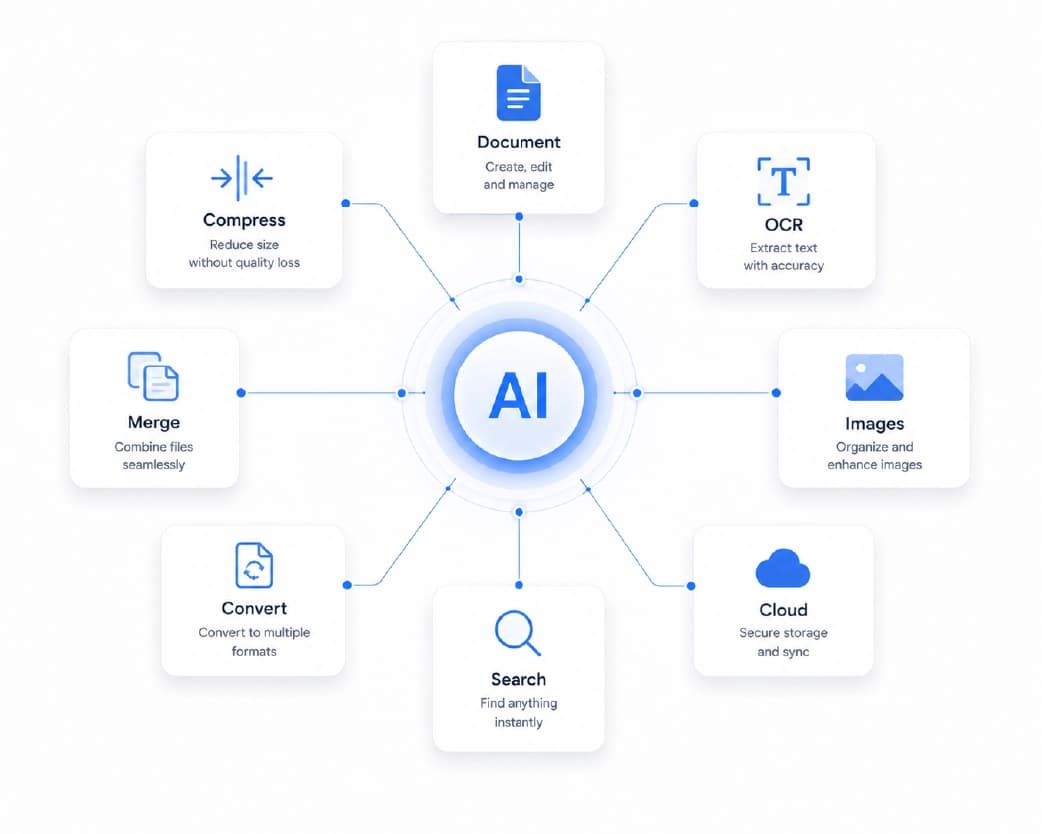
If you’d like an easy place to start, Plainscan is worth a look. It’s a browser-based workspace with 100+ tools for documents, plus a library of ready-made templates, so there’s nothing to install.
Plainscan has several resume styles to choose from, including Classic Professional, Modern Minimal, Executive, Bold Accent, and Sidebar Pro. You can browse them on the resume templates page. If you’re also applying with a cover letter, there’s a template category for that too.
What makes it handy is everything else sitting right there. Need your resume as a PDF? Done. Need to merge your resume and cover letter into one file? There’s a Merge PDF tool. Want to convert a PDF back to Word to make edits? PDF to Word has you covered. And Plainscan highlights AI formatting and enhancement for resumes as part of its professional toolkit.
A couple of things worth knowing. Plainscan says uploaded files are deleted automatically within 24 hours, which helps with privacy. AI features run on credits, where one credit covers one tool use. Check the pricing page for details.
What to Look For in a Good Tool
Before you commit, ask yourself a few things. Does it offer clean, simple layouts? Can you download in PDF and Word? Does it keep your resume easy for ATS software to read? Is it quick to learn? And does the site explain how it treats your personal info?
Good answers to those save you headaches later.
Recommended to Read:AI Document Condenser: How to Shrink a 50-Page File Into the Parts That Matter
Conclusion
A great resume doesn’t have to take all weekend. An AI resume formatter handles the boring layout work, so you can focus on what really matters, which is showing who you are and what you can do. Keep it simple, check every detail, stay honest, and save it as a clean PDF. That’s a winning recipe. Ready to give your resume a fresh start? Visit Plainscan, pick a template, and build something you’re proud to send.
Related insights










Get the Plainscan App for iOS & Android