
How to Extract Keywords from Any Document Instantly (Even If It’s 80 Pages Long)
Let’s say a friend hands you a thick stack of papers and says, “Tell me what this is about.” You could read all of it. That’s a few hours gone. Or you could scan for the words that keep popping up and the ideas that clearly matter. Within minutes, you’d have a pretty good picture. That second way is what keyword extraction is all about. And the good news is you don’t have to do it by hand anymore.
What Does “Extracting Keywords” Mean?
Keywords are the words and short phrases that carry the most meaning in a document. In a report about healthy eating, they might be “protein,” “daily intake,” or “balanced diet.” In a business plan, you might see “target market,” “cash flow,” or “launch date.”
When you extract keywords from a document, you pull those important terms out and look at them on their own. It’s like taking the main ingredients out of a recipe so you can see what it’s made of.
You may also hear people call this finding key terms, text analysis, or document analysis. Different names, same idea.
Why People Do This All the Time
You might be surprised how many everyday jobs rely on it.
Students Studying for Tests
Instead of rereading a whole chapter, you can pull out the key terms and use them as a study checklist. If you can explain each term, you probably understand the lesson.
Writers and Bloggers Doing SEO Research
Looking at a competitor’s article or a long guide? Pulling out the repeated terms shows you which topics matter in that space. It’s a smart starting point for SEO keyword research and planning your own content.
Professionals Sorting Through Reports
When you have ten reports and one afternoon, keywords help you decide which files need your attention first. They also make it easier to name, tag, and organize your files.
Job Seekers Fixing Their Resume
Many companies use software to scan resumes. If you pull keywords from a job description, you can check whether your resume uses the same important terms. It’s a small trick that can help you get noticed.
How to Extract Keywords from Any Document Instantly
Here’s a simple routine that works for most files.
- Step 1: Get a Clean Copy of Your File: If your file is a normal PDF or Word document, you’re ready to go. If it’s a scan or a photo, the words are stuck inside an image. You’ll need to turn that image into real text first, which is what OCR does.
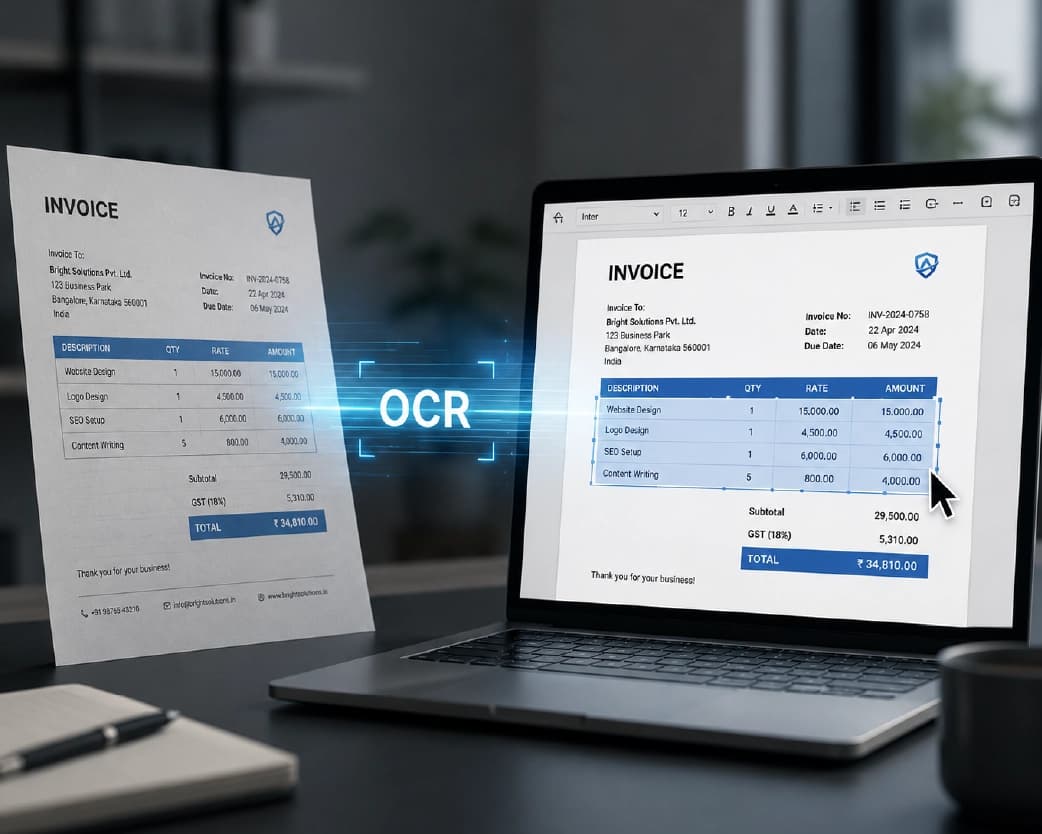
- Step 2: Turn Images Into Text If Needed: OCR stands for optical character recognition. It sounds fancy, but all it does is look at a picture of a page and work out which letters are on it. Once you’ve got that text, you can work with it like any other document.
- Step 3: Look for Repeated Words and Phrases: Words that show up again and again usually matter. Pay special attention to short phrases, like “customer support” or “annual budget,” because they often carry more meaning than single words.
- Step 4: Ignore the Filler: Words like “the,” “and,” “is,” and “of” show up everywhere, but they tell you nothing. Skip them and focus on the nouns and ideas.
- Step 5: Group Related Terms: If you find “revenue,” “sales,” and “income,” they probably belong together. Grouping terms helps you see the bigger topics hiding inside the document.
Tips to Get Better Results
A few simple habits go a long way.
Start with a clear file. A blurry scan leads to wrong letters, and wrong letters lead to wrong keywords. If you’re taking a photo of a page, use good light and hold your phone flat above it.
Think about your goal. Studying, SEO, and file organization each need slightly different keywords. Know what you’re after before you start.
Don’t count on frequency alone. A word used once can still be the most important idea in the whole document. Always use your own judgment.
And skim the original around your top keywords. It helps you understand how each term is used, so you don’t misread the meaning.
Mistakes That Waste Your Time
One big mistake is trusting a list of words without any context. A keyword out of place can be misleading, so always check how it appears in the text.
Another is stuffing a pile of keywords into your own writing once you find them. If you’re using keywords for SEO, use them naturally. Search engines can tell when a page repeats the same word too often, and readers can tell even faster.
Then there’s the privacy side. If your document holds private info, like bank details or health records, check how any tool handles your files before you upload.
Getting Started With Plainscan
If you want one place to prepare your documents, Plainscan can help. It’s a browser-based workspace with 100+ tools for PDFs, images, and documents, and there’s nothing to download.
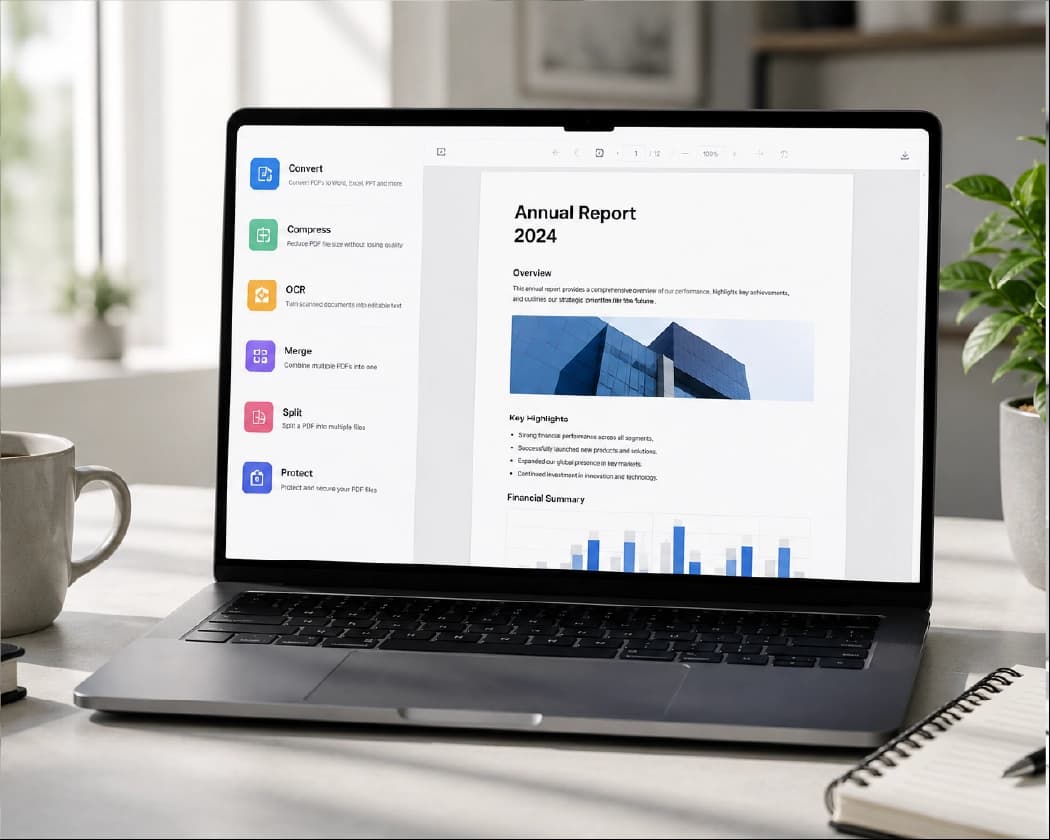
For this job, a few tools are especially useful. Scan & OCR turns scanned pages and photos into text you can copy and search. AI Summarize boils a long file down to the main ideas, which is a fast way to spot the key terms and themes. PDF to Word gives you an editable version of a file, so you can search, highlight, and copy terms easily.
A simple way to use them together: run your file through Scan & OCR if it’s an image, use AI Summarize to see the big picture, then pull out the key terms you spot and use them for notes, tags, or research.
You can try it from the Plainscan tools page.
A few things worth knowing. Plainscan says uploaded files are deleted automatically within 24 hours, which is nice when your document is private. AI features run on credits, where one credit covers one tool use. The pricing page explains the details.
What to Look for in a Good Tool
Before you pick one, ask a few quick questions. Does it work with the file types you use? Can it read scanned pages, not just typed text? Does it explain what happens to your files? Is it easy enough to figure out in a couple of minutes? And does it fit with the other things you do with documents, like converting or summarizing?
The more yeses, the better.
You may also like:How to Extract Data from Any Document (Without Losing Your Weekend)
Conclusion
You don’t need to read every page to understand what a document is about. When you know how to extract keywords from any document instantly, a giant pile of text turns into a short list of ideas you can actually use. Start with a clean file, turn scans into text, look for the terms that really matter, and always check them against the original. It’s quick, and it saves a lot of tired eyes. Got a long file waiting in your downloads folder? Head over to Plainscan, try the tools, and see how fast you can get to the good stuff.
Recommended to Read:AI Document Translator: How to Translate Files Without the Headache
Related insights










Get the Plainscan App for iOS & Android