
How to Extract Data from Any Document (Without Losing Your Weekend)
Picture a Sunday night. You’re tired, your tea is cold, and there’s a folder on your desktop with forty invoices in it. Some are neat PDFs. Some are blurry phone photos. One is a crooked scan that looks like it was taken during an earthquake. And all of it has to end up in one spreadsheet by morning. So you start typing. Invoice one, fine. Invoice six, your eyes are crossing. Invoice fifteen, you notice a typo, but you have no idea which row it’s in. We’ve all been there, or somewhere close to it. The good news is you really don’t have to do it this way anymore.
Continue Reading:AI Document Translator: How to Translate Files Without the Headache
So, What Does “Extracting Data” Even Mean?
It’s simpler than it sounds. You’ve got a document full of information, and you want that information somewhere more useful. Maybe in Excel. Maybe in Word. Maybe just as plain text you can copy and paste.
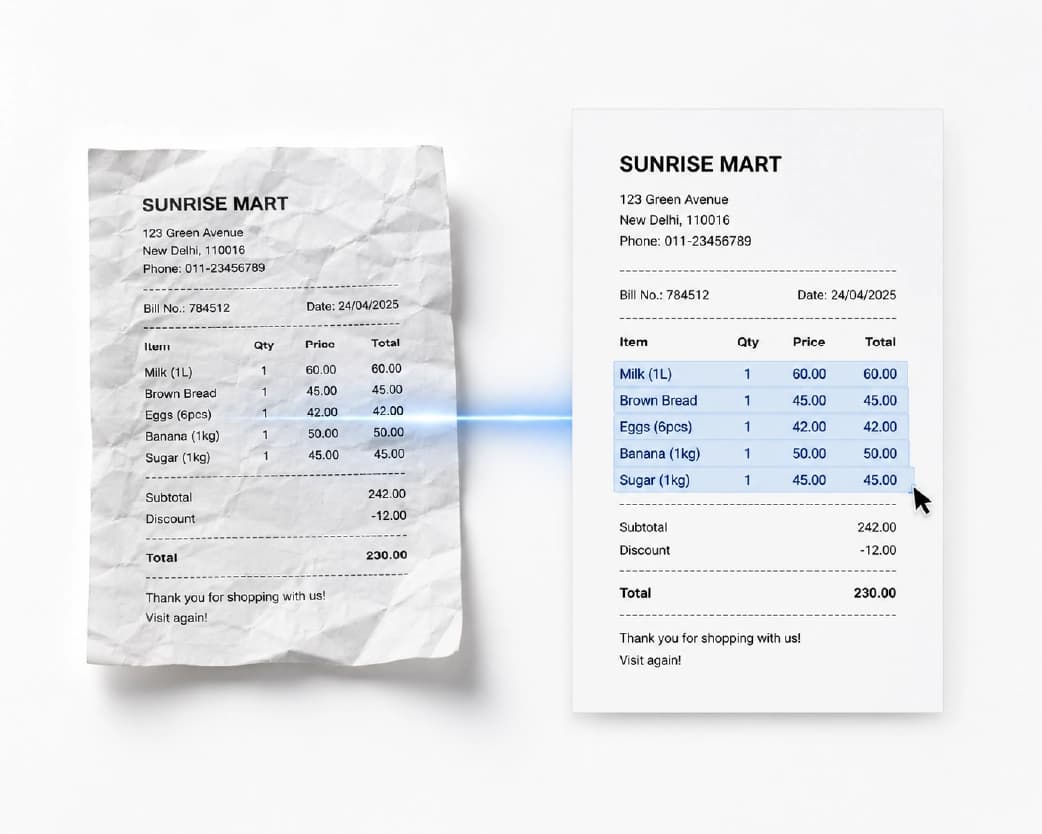
Extracting data means a tool reads the page so you don’t have to. It finds the words, the numbers, and sometimes whole tables, and hands them back in a form you can actually use.
People call it different things. Data extraction, text extraction, document processing. Don’t let the fancy names scare you. It’s just a smarter way to avoid retyping.
Why Typing It All Out Is Such a Bad Idea
Let’s be real for a second. Manual data entry is slow, boring, and weirdly easy to mess up.
A single page with a table can take ten minutes. Multiply that by a stack of files and, well, there goes your evening. Tired eyes swap numbers all the time. A 3 turns into an 8, and now your totals are off by a few hundred.
The worst part? You usually don’t notice until later. Awkward.
Not All Documents Are the Same
This is where a lot of people get stuck, so it’s worth a minute.
The Easy Ones: Digital PDFs
If a file was made on a computer, like a bank statement or a report exported from software, the text is already sitting inside it. Pulling it out is usually quick and clean. You can extract text from a PDF like this in a few seconds.
The Tricky Ones: Scans and Photos
Here’s the catch. A scanned page or a photo isn’t really text. It’s a picture of text. Your computer sees dots, not words.
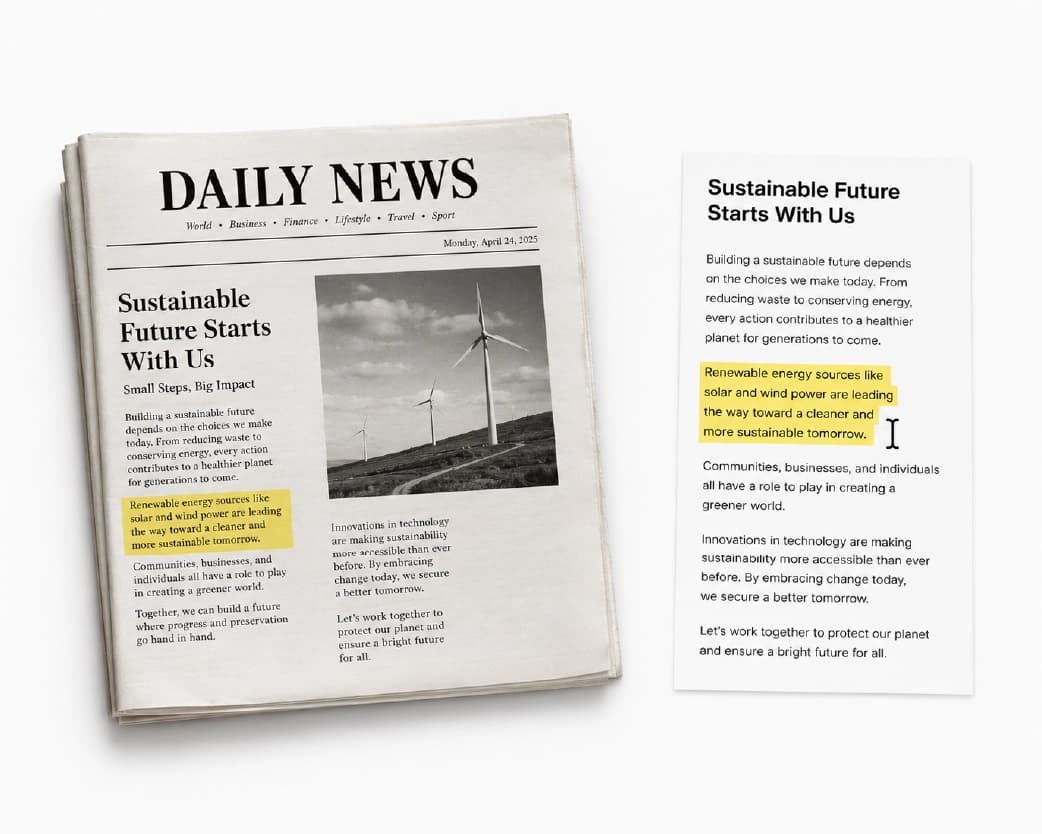
That’s where OCR comes in. It stands for optical character recognition, which is a mouthful, but the idea is easy. The software looks at the picture and figures out which letters are there. Think of it like a very fast reader who never gets tired.
OCR has come a long way. Still, it works best when the image is clear, which we’ll get to in a minute.
What Can You Actually Pull Out?
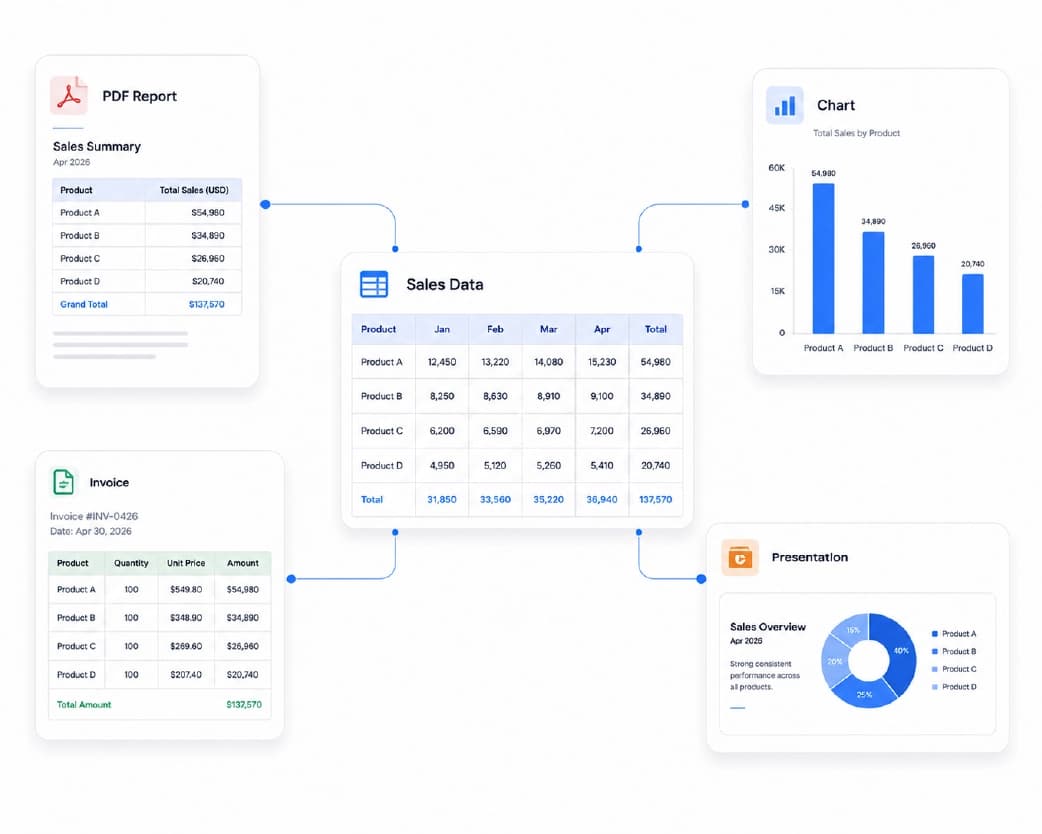
More than you’d guess. Totals and invoice numbers. Names and dates from forms. Contact details from a business card photo. Notes from a scanned textbook page. Even tables, which is a big one, because you can extract tables from a PDF and drop them straight into a spreadsheet instead of rebuilding them cell by cell.
If it’s printed or typed on a page, there’s a good chance a tool can read it.
How to Extract Data from Any Document, Step by Step
You don’t need a tech degree for this. Here’s a simple way to go about it.
- Start with the Best File You Have: If you can pick between a PDF and a photo of that same PDF, grab the PDF. Cleaner file, cleaner result. Easy win.
- Pick the Right Tool: Need plain text? Use an OCR scanner. Need rows and columns? A PDF to Excel tool is what you want. Need to edit the whole thing like a normal document? PDF to Word does that.
- Take a Careful Look at the Result: This step is the one people skip, and it’s the one that saves you. Scroll through. Check the numbers. If something looks weird, it probably is.
- Fix It, Save It, Move On: A couple of small fixes are normal. Clean them up, save the file, and you’re done. Look at that, your Sunday night is back.
A Few Habits That Make a Big Difference
None of these take long, and they help more than you’d think.
When you take a photo of a paper, hold your phone flat above it and use good light. Shadows and weird angles confuse the software. A flat page reads much better than a crumpled one. Higher quality scans beat blurry ones every time. And no matter how good the tool is, always double-check amounts, dates, and ID numbers. Those are the ones that cause trouble.
Got a huge pile? Do a few files at a time. It’s easier to catch a pattern of mistakes early than to find out at the end.
Where Plainscan Fits In
If you’d like everything in one spot, Plainscan is a handy place to try this. It runs in your browser, so there’s nothing to download or install, and it has over 100 tools for PDFs, images, and documents.
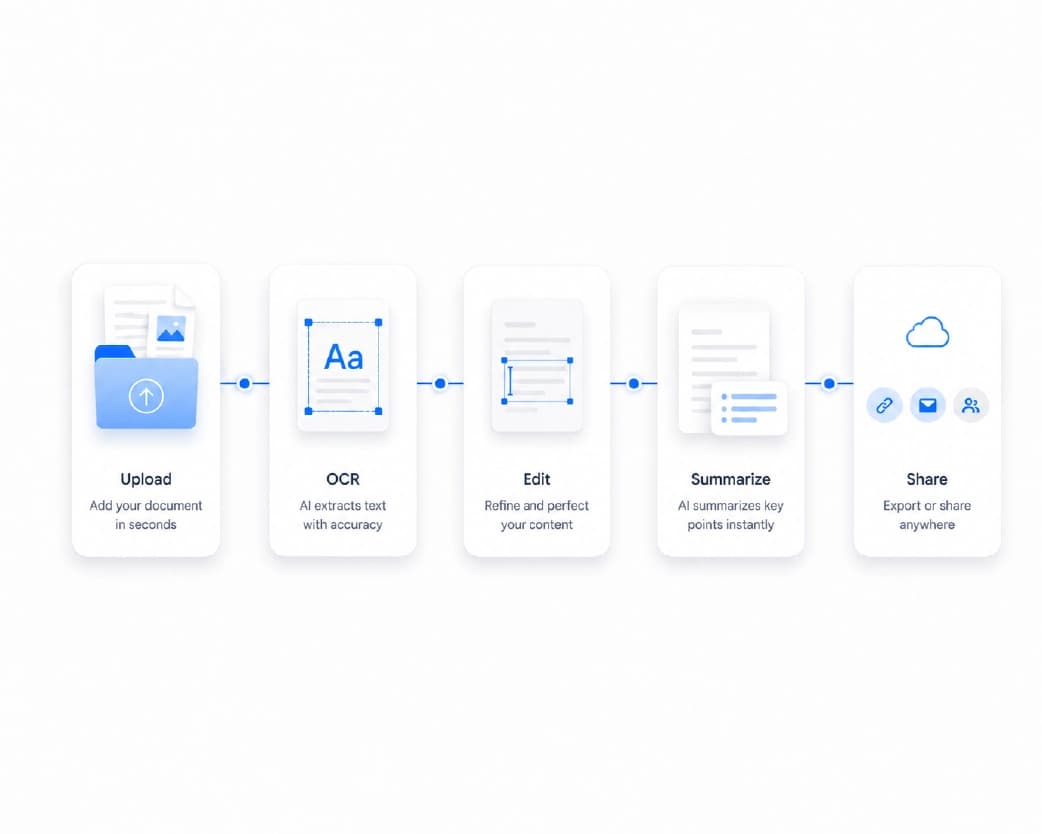
For this kind of work, a few tools matter most. Scan & OCR turns scanned pages and photos into text you can copy and edit. PDF to Excel moves tables into a spreadsheet. PDF to Word gives you an editable version of the whole file. And AI Summarize can boil a long document down to the main points when you don’t have time to read every line.
The best part is that they all live side by side. You can scan a page, grab the text, convert it, and summarize it without hopping between five different websites. That alone saves a surprising amount of time.
If you’re a developer, Plainscan also offers an API with OCR, so you can build document reading into your own apps and let software do the boring parts.
A few things to know before you jump in. Plainscan says uploaded files are deleted automatically within 24 hours, which is a nice comfort when your documents have private info. There’s a free plan with a daily limit on basic PDF tools, and AI features run on credits, where one credit covers one tool use. The pricing page explains it all.
Want to see it in action? Open the Plainscan tools page, pick the tool that fits your file, and test it on one document first.
Mistakes People Make (So You Don’t Have To)
The big one is trusting the output without looking. OCR is good, but it isn’t magic. A smudged 6 can come out as a 5, and you won’t know unless you check.
Privacy is another one. If your file has bank details, health info, or ID numbers, find out how the tool handles your data before you upload. Clear rules and quick deletion are what you want to see.
Last, don’t use one approach for everything. A scan, a table, and a plain PDF all work a little differently, so choose the tool that matches the job.
You may also like:AI Document Summarizer: How to Get the Key Points From Long Files Fast
Conclusion
Getting information out of a document shouldn’t feel like punishment. Once you know how to extract data from any document, that scary folder of invoices, forms, and scans turns into a quick task you can finish before your tea gets cold. Start with a clear file, pick the right tool, and always give the important numbers a second look. That’s really all it takes. So go ahead. Find that one document you’ve been avoiding, head over to Plainscan, and give it a try. Future you will be grateful.
Recommended to Read:OCR to Excel: How to Turn Scanned Tables Into Spreadsheets You Can Use
Related insights










Get the Plainscan App for iOS & Android