
OCR to Excel: How to Turn Scanned Tables Into Spreadsheets You Can Use
Picture a printed price list. Four pages. Teeny tiny numbers. And your boss says, “Can you get me the totals by tonight?” You scan it, open the file, and try to add up a column. Nothing. Because it’s a picture, and Excel has no idea there are numbers in there. So now you’re looking at four pages of retyping, and it’s already 4 p.m. Lovely. Here’s the thing, though. You don’t have to type any of it. OCR to Excel can read the numbers for you and help build a real spreadsheet. I’ll walk you through it, and I’ll tell you what to double-check, because that part really matters.
What Does “OCR to Excel” Even Mean?
OCR stands for optical character recognition. It’s software that looks at a picture, finds the letters and numbers, and turns them into text.
“To Excel” means you want it all to land in a spreadsheet, with the rows and columns kept in place. Then you can sort it, add it up, filter it, and make a chart, instead of squinting at a photo of a table.
Picture a fast assistant who reads your scan and types it into Excel, row by row. You still have to check their work. But they save you hours.
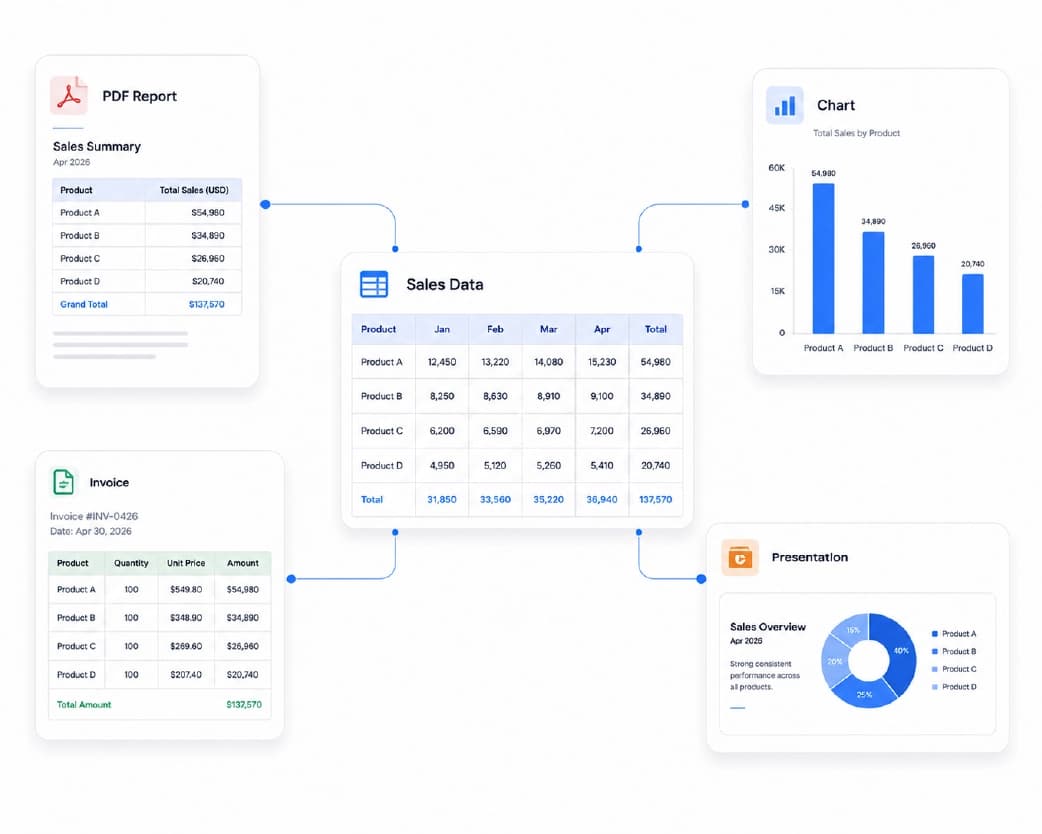
Why Are Tables Such a Pain?
Because a table isn’t only words. It’s how the words line up.
A scanner doesn’t see rows and columns. It just sees dark dots and light dots. The software has to read the characters, then guess which ones belong in the same cell. That’s a lot harder than reading a paragraph.
Borders, shaded boxes, and cells that stretch across several columns can throw it off. A clean, simple table usually comes out great. A crowded one might need some fixing. Just know that going in, and it won’t bug you later.
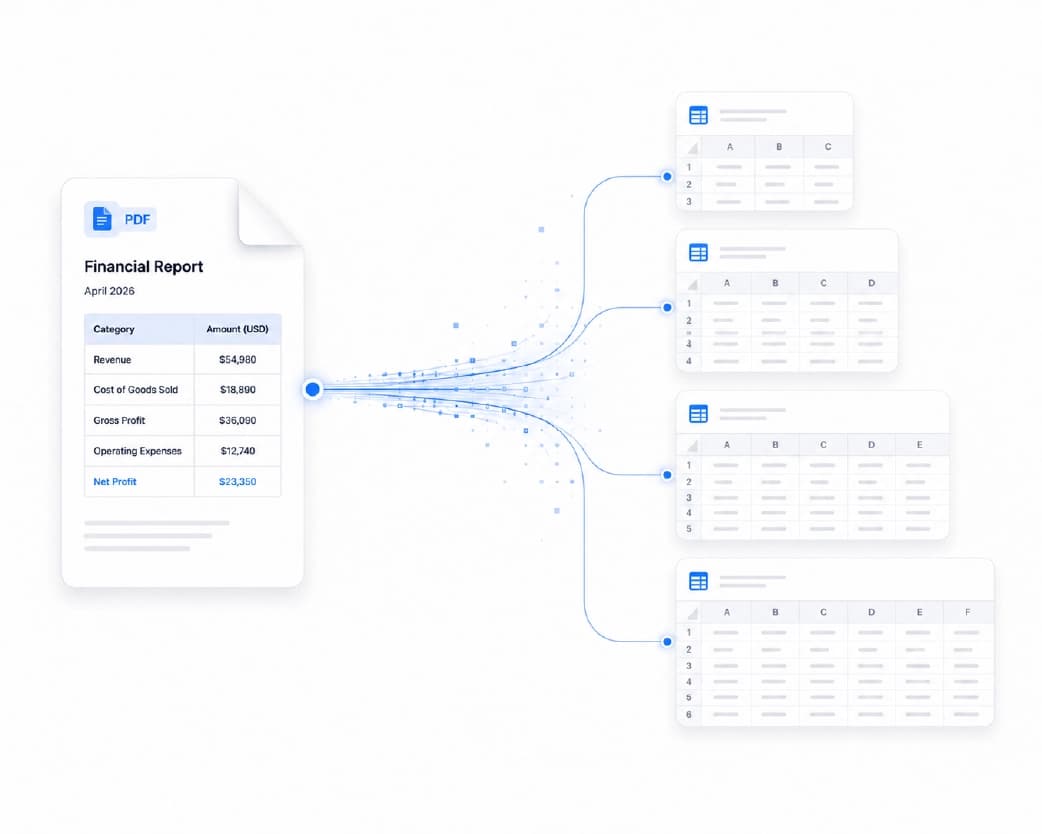
Two Steps, Not One
Going from a scan to Excel usually takes two steps. Not hard, just two.
Step one gives your scan real text. A scanned PDF is only a picture, so you run it through OCR first. Plainscan’s Scan & OCR tool handles that.
Step two builds the spreadsheet. A PDF to Excel converter reads the text and rebuilds the rows and columns.
Do them in that order, and your odds of a clean sheet go way up.
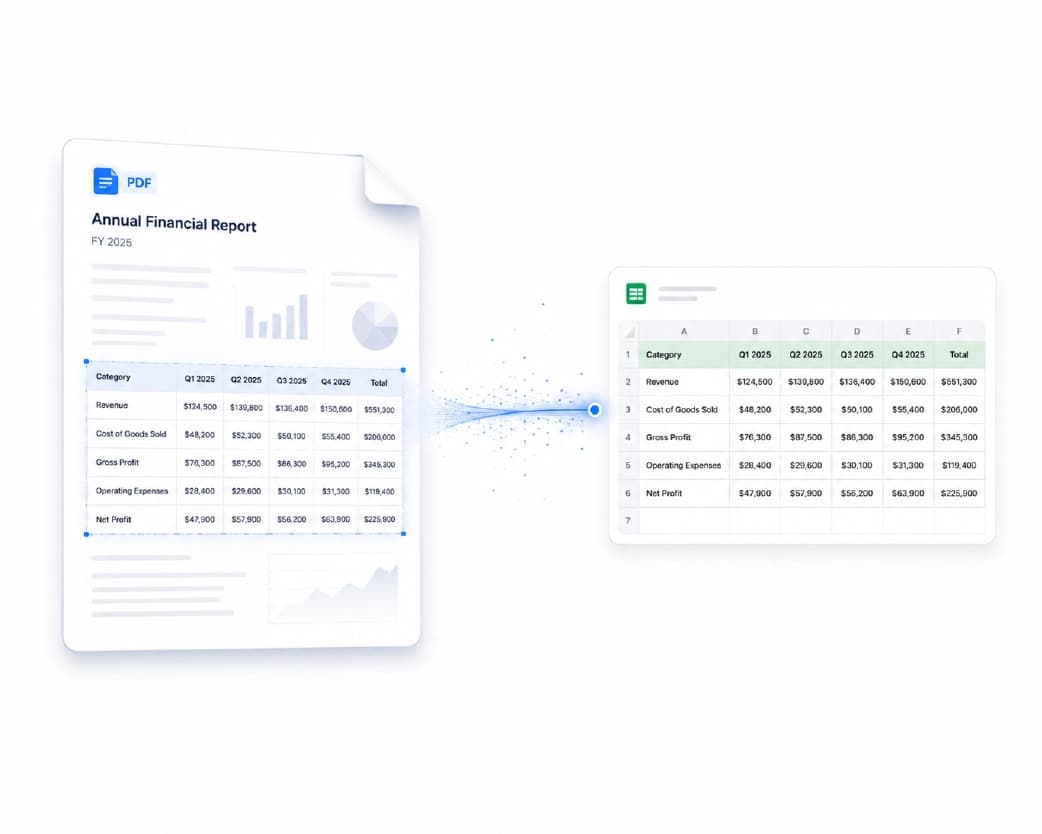
Doing It on Plainscan
Plainscan works right in your browser. No installs. Phone, tablet, laptop, whichever’s closest. The site has over 100 document tools, and it’s free to start.
- Start with the OCR. Open the Scan & OCR page, drag in your scanned file or pick it from your device, and run it. On the free plan, files can be up to 50 MB, so most scans are fine.
- Then convert. Take the result to the PDF to Excel page, upload it, and start the conversion. A table with a ton of rows might take longer, so no need to refresh the page ten times.
- Download and open it. Look at the headers and the first few rows. Are the numbers in the right columns?
- Now check the numbers. Seriously. I’ll explain how below.
Continue Reading:OCR to Word: How to Turn Scanned Pages Into Editable Documents
How to Check Your Work
Don’t skip this. It takes five minutes and can save you from a very awkward email.
- Add up a column and compare the total with the one on the original page. If they don’t match, something got misread. Easy way to catch a problem.
- Pick five or six rows at random and compare them against the scan. Look for swapped digits, missing decimal points, and letters where numbers should be, like an O instead of a zero.
- If a column refuses to add up, check the format. Sometimes the numbers come in as text, and Excel won’t total text. Convert the column to numbers and try again.
- Dates can be weird, too. They sometimes show up in odd formats, so make sure they say what you expect.
- And watch for cells that got split or shifted. Merged cells are famous for that. Fix them by hand.
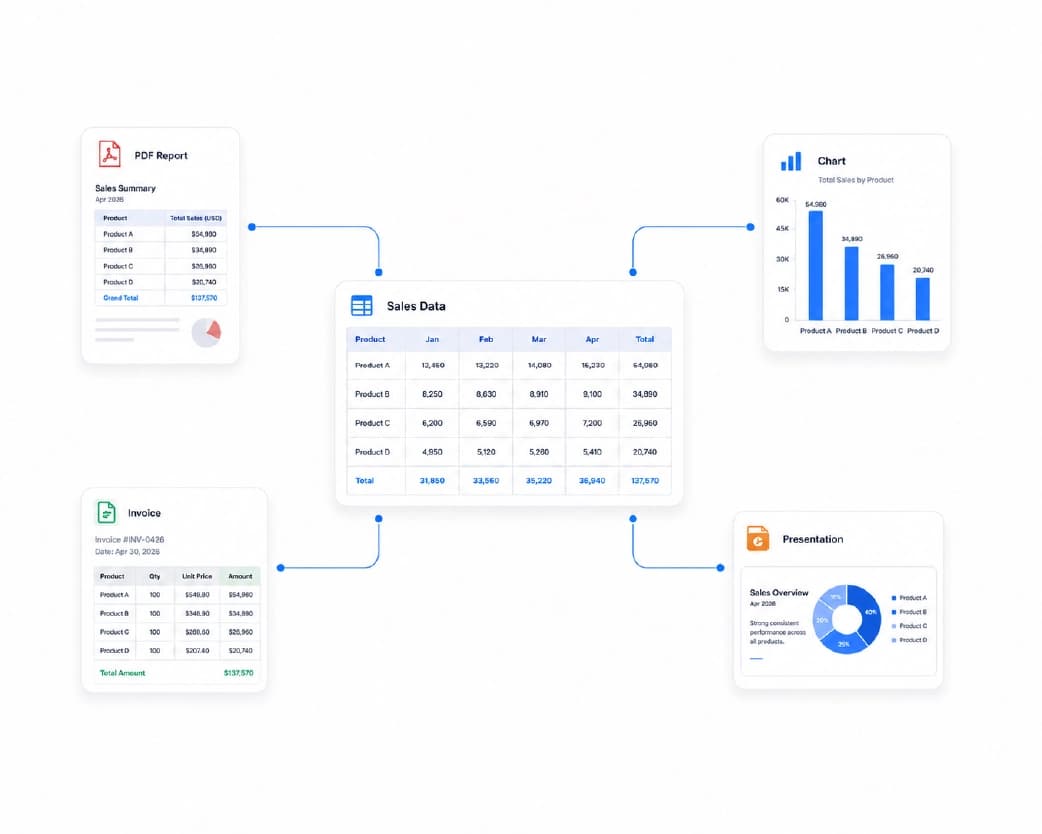
Make Your Scan Better, Get a Better Sheet
Garbage in, garbage out. It’s an old saying because it’s true.
- Good light is a must. Shadows across the page confuse the software. Take your photo near a window and keep your own shadow off the paper.
- Keep the page flat and the camera straight above it. A curled corner or a tilted shot makes straight lines look bent.
- Sharp beats blurry. If the numbers look fuzzy to you, they’ll look fuzzy to the software. Retake it.
- Fix sideways pages first. If a page came out sideways, turn it first with Rotate PDF.
- Merge scattered files. And if one table is spread over a few files, Merge PDF puts them together so you only convert once.
- Keep the original scan, too. You’ll want it for double-checking.
Who Needs This?
- Small business owners, a lot. Invoices, receipts, and price lists become sheets you can total and track. No more typing numbers by hand.
- Accountants and office teams deal with old paper statements and reports all the time. Turning them into data saves hours each month.
- Students and researchers get tables from printed papers and handouts that they can chart and analyze.
- Anyone with a drawer full of old paperwork. Bills, schedules, records. Once they’re in a spreadsheet, you can finally sort and search them.
Is It Safe to Use Online OCR?
You should always ask, especially with money stuff.
Plainscan uses encrypted HTTPS connections, and uploaded files are deleted automatically within 24 hours. The site also says it doesn’t share your files with third parties. For everyday documents, that sounds fine to me.
But if your scan has really private details, like bank account numbers or ID information, think twice before uploading it to any website. That goes for every online tool, not just this one.
What’s Free?
You can start without paying. Make an account and you get up to four documents a day with the basic PDF tools. The count resets every 24 hours.
If you need more, the Pro plan removes the daily limit and the file size cap. There’s also pay-as-you-go, where you buy credits only when you need them. If you only convert a scanned table once in a while, free will probably cover you.
Ways to Mess It Up
- Trusting the numbers without checking is number one. A single wrong digit on an invoice can cause real problems.
- Starting with a bad scan is number two. A dark, crooked, or blurry page gives you a mess. Retake it, and you’ll save yourself a ton of cleanup.
- Expecting a perfect copy is number three. You’re going for usable data, not a pretty replica of the page. Some cleanup in Excel is normal.
- And number four, deleting your original scan too soon. Hold on to it until everything checks out.
Conclusion
Retyping a scanned table is slow, boring, and easy to get wrong. Once you know how OCR to Excel works, you can let the software do the heavy lifting and spend your time on the part that really matters, checking the results. Next time a printed table lands on your desk and you feel that familiar dread, don’t type a thing. Open Plainscan, run the OCR, convert to Excel, and give the numbers a quick check. Then go get a coffee.
You may also like:Scan & OCR: How to Turn Scanned Pages and Photos Into Editable Text
Related insights










Get the Plainscan App for iOS & Android