
OCR to Searchable PDF: How to Find Any Word in a Scanned Document
Back to Blog

OCR to Searchable PDF: How to Find Any Word in a Scanned Document

P
Plainscan Team
October 30, 2026
4 min read
Share

You’ve got a folder with 300 scanned files. Somewhere in there is an invoice from March. You remember the client’s name, so you open a file, press Ctrl+F, type the name, and hit enter. “No results found.” You try another file. Same thing. Now you’re opening them one by one like a person searching for a lost sock in a giant laundry pile. The problem isn’t your computer. Your scans are just pictures, so there’s nothing to search. The fix is called OCR to searchable PDF, and it’s simpler than the name makes it sound. Let me explain what it does and how to make your own files searchable.

What Is a Searchable PDF?

It’s a PDF that has real text in it, not only a picture of a page.

Here’s how it works. A scanned page is basically a photo. OCR (optical character recognition) reads that photo and figures out which letters and numbers are on it. Then it adds that text to the file, hidden behind the image. This hidden layer is often called the text layer.

You still see the original page, looking exactly the way it was scanned. But now your computer can read the words underneath. You can search, highlight, and copy them. It’s like putting an invisible label on every word.
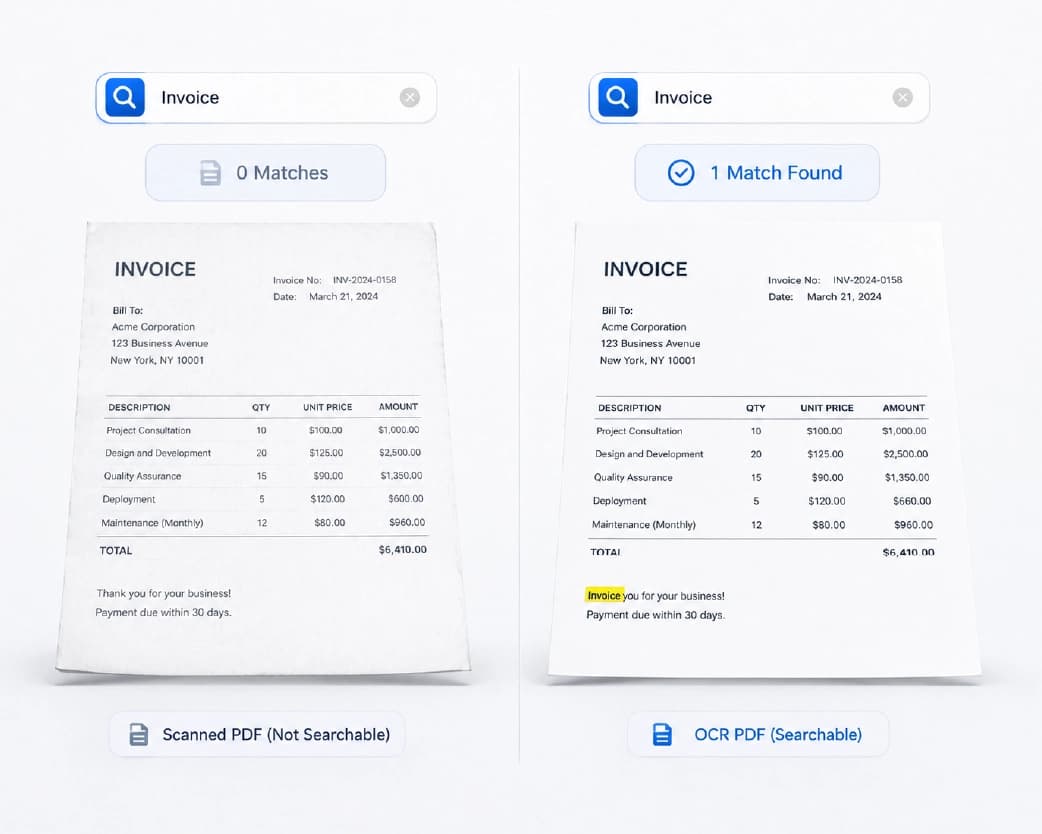
What Is a Searchable PDF and How Invisible Text Layers Work

How Can You Tell If Your PDF Is Searchable?

There’s an easy test. Open the file and press Ctrl+F on Windows, or Cmd+F on a Mac. Type a word you know is on the page.

If the word lights up, your PDF is already searchable. If you get “no results,” it’s a plain scan. Another quick check is to try highlighting a sentence with your mouse. If nothing highlights, or the whole page gets selected as a single block, it’s just an image.

Don’t feel bad if yours isn’t searchable. Most phone scans and a lot of office scanners save plain images by default.
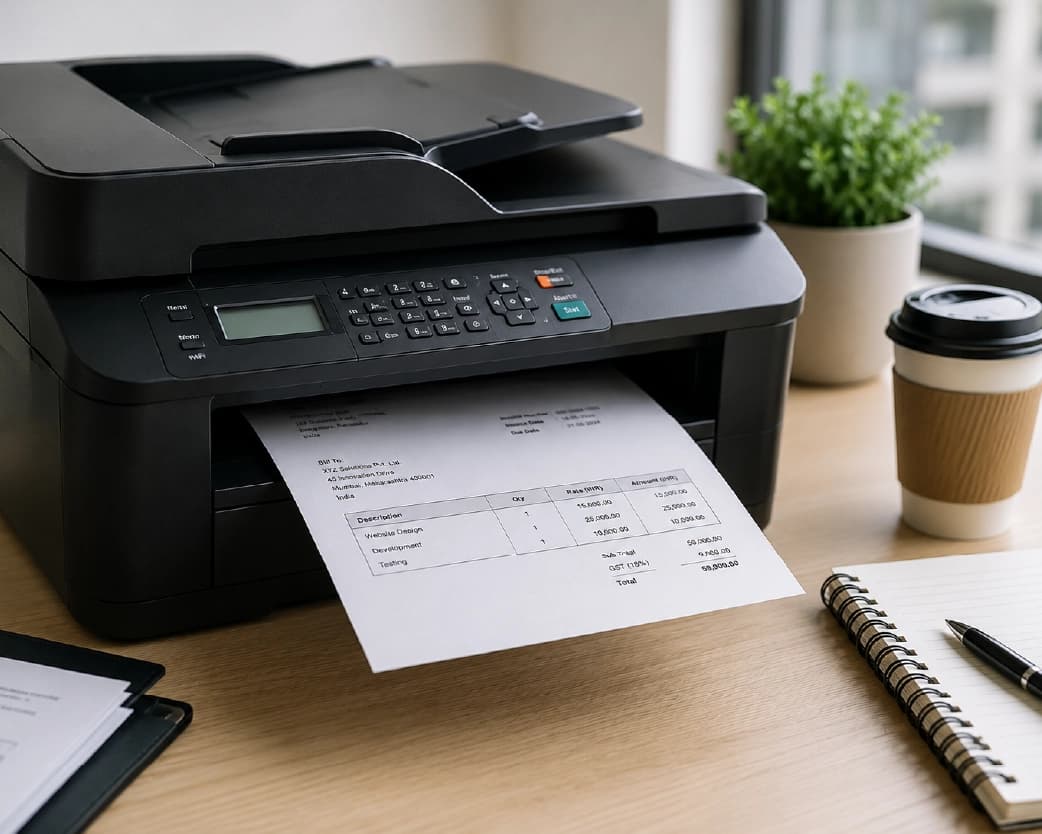
Testing Whether a Scanned PDF Has Searchable Text

Why Bother Making Scans Searchable?

A few reasons come up again and again.

  • Finding things is the big one. Searching for a word in a 60-page scan beats flipping through every page.
  • Copying text is another. Need a number or a paragraph? Highlight it and paste it, instead of retyping.
  • Desktop search integration. Your computer’s file search can often find words inside searchable PDFs, too. That means you might type a name into your folder search and have the right file pop up. Handy when you’ve got hundreds of documents.
  • Accessibility support. Screen readers can read text out loud, but they can’t read a picture. A searchable PDF makes your document easier for people who rely on that kind of tool.

How to Do OCR to Searchable PDF with Plainscan

Plainscan works in your browser, so there’s nothing to install. Phone, tablet, laptop, whichever’s handy. The site has over 100 document tools, and it’s free to start.

  • Open the tool. Go to the Scan & OCR page on Plainscan. You’ll see an upload area right away.
  • Add your scan. Drag in your scanned PDF or your photo of a page, or pick it from your device. If you’re on the free plan, files can be up to 50 MB.
  • Start the OCR. Click the button and wait a bit. Long documents take more time, so be patient. Clicking again won’t speed things up.
  • Download and test it. Save the result, open it, and run the Ctrl+F test. Search for a word you know is in there. If it lights up, you did it.
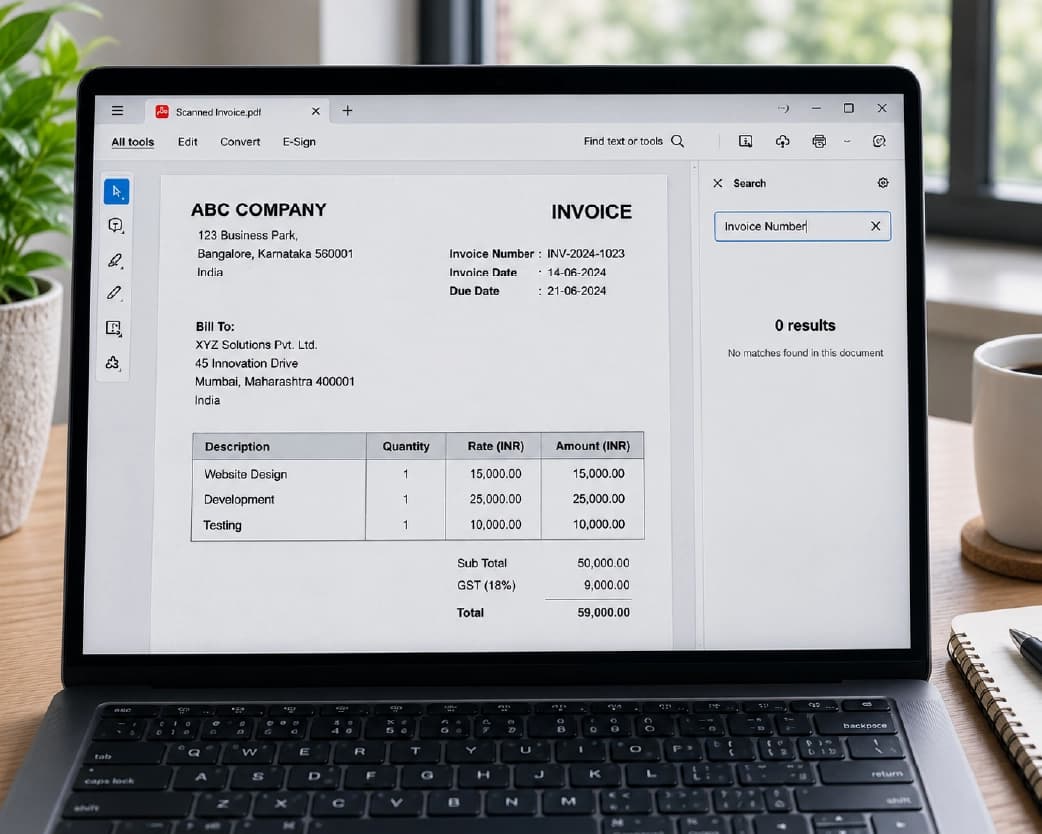
Plainscan OCR to Searchable PDF Online Tool Interface

Tips for a Good Result

The cleaner the scan, the better the text. That’s the golden rule.

  • Scan in good light and keep the page flat. Shadows, curled corners, and tilted photos make the words harder to read. Hold your phone straight above the page and avoid your own shadow.
  • Fix sideways pages first. If one came out rotated, turn it with Rotate PDF before you run the OCR. Text that’s upside down is hard for the software to read.
  • Combine scattered pages before you start. If one document is spread across several files, Merge PDF puts them together, so you only have to do the OCR once.
  • Always spot-check. OCR can mix up similar characters, like the number 0 and the letter O. Search for a few key words and numbers to make sure they were picked up correctly.
  • Compress oversized documents. And if the final file is big, Compress PDF can shrink it so it’s easier to email or store.
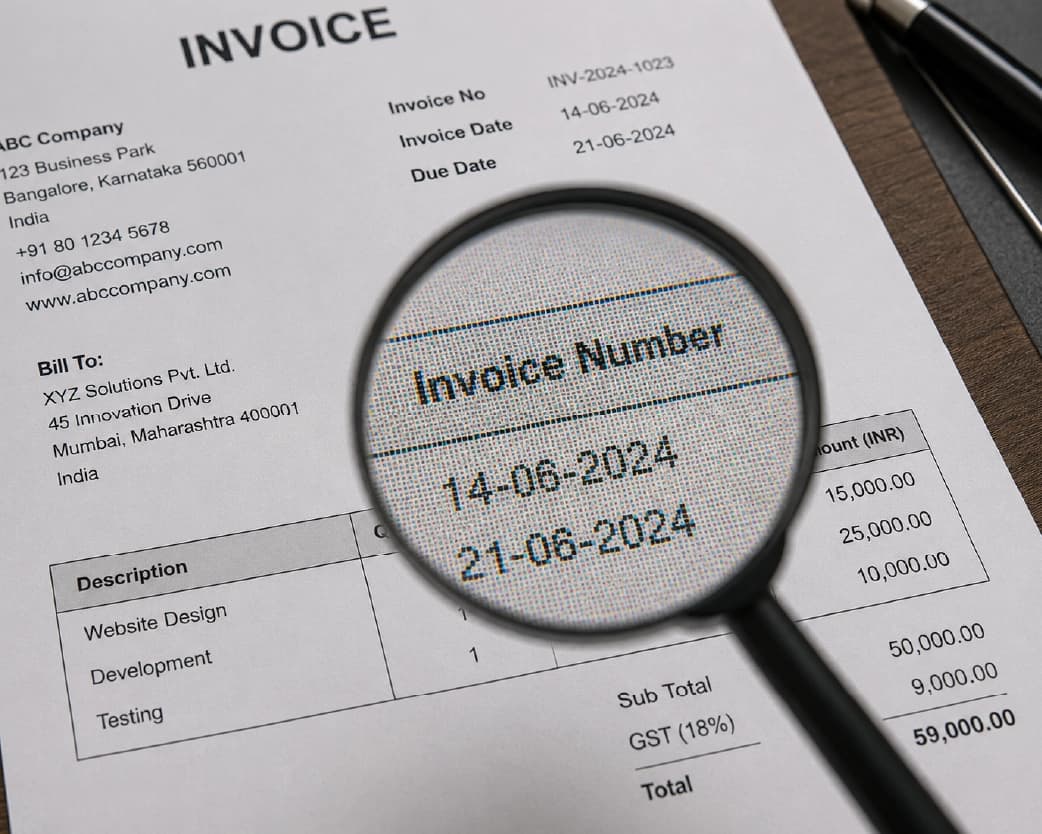
Tips for Clean Scans and Accurate Searchable PDF Results

What OCR Struggles With

Be realistic about this part.

Handwriting is hard. Neat printing might work, but messy cursive usually doesn’t. Faded or stained pages cause trouble, and so do very small or fancy fonts. If your scan is blurry, the text will have mistakes. In that case, it’s better to rescan than to fight with it.

Who Gets the Most Out of This?

  • Small business owners: Invoices, receipts, and contracts pile up fast. A searchable archive lets you find a client name or an amount in seconds.
  • Students: Scanned textbook pages and handouts become much easier to study from when you can search for a keyword.
  • Office teams: Shared folders full of old paper files turn into something people can actually search. That saves real time every week.
  • Families and home paperwork: Medical bills, warranties, and old letters finally become easy to find when you need them.

Is It Safe to Use Online OCR?

Good thing to ask, since scans often hold personal details. Plainscan uses encrypted HTTPS connections, and uploaded files are deleted automatically within 24 hours. The site also says it doesn’t share your files with third parties.

For everyday documents, that sounds reasonable. But if your scan has very private details, like bank information or ID numbers, think twice before uploading it to any website. That goes for every online tool, not just this one.

What About the Free Plan?

You can start without paying. Create an account and you can process up to four documents a day with the basic PDF tools. The count resets every 24 hours.

If you need more, the Pro plan removes the daily limit and the file size cap. There’s also a pay-as-you-go option where you buy credits only when you need them. If you only make a file searchable once in a while, free will probably be enough.

Mistakes to Avoid

  • Skipping the test is a big one. Always run a quick search after the OCR to see that it worked.
  • Another is starting with a poor scan. A dark or blurry page gives messy text. Retake the picture and you’ll save yourself a lot of trouble.
  • Don’t forget about sideways pages. Turn them first.
  • And keep your original scan. If something looks wrong later, you’ll want the picture to check against.

Conclusion

A scanned PDF you can’t search is like a library with no catalog. You know the answer is in there somewhere, but you have to dig. OCR to searchable PDF gives every word a label, so your computer can find it for you. Next time you’re about to open scan number 47 to look for one name, stop. Open Plainscan, run the OCR, and let the search bar do the digging.

Related insights

AI Resume Formatter: How to Turn a Messy Resume Into a Clean, Job-Ready One

ARTICLE

AI Resume Formatter: How to Turn a Messy Resume Into a Clean, Job-Ready One

Here’s a story that happens more than people admit. You spend a whole evening on your resume. You pick the fonts. You line up every bullet. You hit save, feel proud, and send it off to a company you really want to work for. Then a friend opens it on their phone and says, “Um, the whole thing looks weird.” The dates are on the wrong line. A section floats off to the side. Your carefully chosen font is gone. It’s not a great first impression, and it’s not even your fault. Resumes can be surprisingly fragile. That’s where an AI resume formatter earns its keep.

Plainscan Team·October 31, 2026
4 min read
How to Extract Keywords from Any Document Instantly (Even If It’s 80 Pages Long)

ARTICLE

How to Extract Keywords from Any Document Instantly (Even If It’s 80 Pages Long)

Let’s say a friend hands you a thick stack of papers and says, “Tell me what this is about.” You could read all of it. That’s a few hours gone. Or you could scan for the words that keep popping up and the ideas that clearly matter. Within minutes, you’d have a pretty good picture. That second way is what keyword extraction is all about. And the good news is you don’t have to do it by hand anymore.

Plainscan Team·October 31, 2026
4 min read
AI Document Condenser: How to Shrink a 50-Page File Into the Parts That Matter

ARTICLE

AI Document Condenser: How to Shrink a 50-Page File Into the Parts That Matter

Picture this. It’s Monday morning, and you open your email. There’s a 60-page report from your manager with a note that says, “Please read before our 2 pm meeting.” You look at the clock. You look at the report. You look at the clock again. Most of us have been in this spot. Maybe it was a thick contract, a class reading, or a research paper full of words you had to Google. The info matters, but the time just isn’t there. This is exactly why people are turning to an AI document condenser.

Plainscan Team·October 31, 2026
4 min read
AI Text Expander: How to Turn a Few Lines Into Clear, Full Writing

ARTICLE

AI Text Expander: How to Turn a Few Lines Into Clear, Full Writing

We’ve all done this. You sit down to write, get your main point on the page in two sentences, and then stare at the screen wondering what else there is to say. It’s not that you’re a bad writer. Short and to the point is actually a good habit. The problem is that many situations need more. A school essay needs depth. A product page needs detail. A report needs context so the reader doesn’t have to guess what you meant. That’s where an AI text expander comes in handy.

Plainscan Team·October 31, 2026
4 min read
How to Extract Data from Any Document (Without Losing Your Weekend)

ARTICLE

How to Extract Data from Any Document (Without Losing Your Weekend)

Picture a Sunday night. You’re tired, your tea is cold, and there’s a folder on your desktop with forty invoices in it. Some are neat PDFs. Some are blurry phone photos. One is a crooked scan that looks like it was taken during an earthquake. And all of it has to end up in one spreadsheet by morning. So you start typing. Invoice one, fine. Invoice six, your eyes are crossing. Invoice fifteen, you notice a typo, but you have no idea which row it’s in. We’ve all been there, or somewhere close to it. The good news is you really don’t have to do it this way anymore.

Plainscan Team·October 31, 2026
4 min read
AI Document Translator: How to Translate Files Without the Headache

ARTICLE

AI Document Translator: How to Translate Files Without the Headache

Got a PDF in a language you can’t read? You’re not stuck anymore. An AI document translator can turn pages of foreign text into something you understand in minutes. Here’s how it works, where it shines, and how to get better results. Picture this. A landlord sends you a lease in a language you barely know. Or your college sends a form written in another language. Or a supplier emails an invoice, and you have no clue what half of it says. Not fun. A few years ago, you’d have copied it line by line into a website or paid someone to do it. Now there’s an easier way.

Plainscan Team·October 31, 2026
4 min read
AI Text Rewriter: The Easy Way to Fix Writing That Sounds Off

ARTICLE

AI Text Rewriter: The Easy Way to Fix Writing That Sounds Off

You know the feeling. You write a sentence and it comes out too stiff, too long, or somehow both at once. It happens to everyone, even people who write for a living. The good news? You don’t have to fix it alone anymore. Let’s talk about what a rewriter really does, and how to use it so your writing still sounds like you.

Plainscan Team·October 31, 2026
4 min read
AI Document Summarizer: How to Get the Key Points From Long Files Fast

ARTICLE

AI Document Summarizer: How to Get the Key Points From Long Files Fast

Quick answer, in case you’re in a rush. An AI document summarizer reads a long file and gives you a short version with the main points. You upload, click, and read a few paragraphs instead of forty pages. Now the longer version, because there are a few things worth knowing before you trust it with your Monday morning.

Plainscan Team·October 31, 2026
4 min read
OCR to Excel: How to Turn Scanned Tables Into Spreadsheets You Can Use

ARTICLE

OCR to Excel: How to Turn Scanned Tables Into Spreadsheets You Can Use

Picture a printed price list. Four pages. Teeny tiny numbers. And your boss says, “Can you get me the totals by tonight?” You scan it, open the file, and try to add up a column. Nothing. Because it’s a picture, and Excel has no idea there are numbers in there. So now you’re looking at four pages of retyping, and it’s already 4 p.m. Lovely. Here’s the thing, though. You don’t have to type any of it. OCR to Excel can read the numbers for you and help build a real spreadsheet. I’ll walk you through it, and I’ll tell you what to double-check, because that part really matters.

Plainscan Team·October 31, 2026
4 min read
Free OCR to Text Converter Online: How to Copy Text From Any Image

ARTICLE

Free OCR to Text Converter Online: How to Copy Text From Any Image

Okay, let’s be real. We’ve all done this. You see something useful in a picture. A recipe in a screenshot. Notes on a whiteboard. A page from a library book. And you think, “I’ll just copy that.” You drag your mouse across it. Nothing. Not a single word highlights. Because it’s a picture. Your computer can see it, but it has no clue it’s reading words. Now you’ve got two choices. Type everything by hand, or use a free OCR to text converter online and let it do the typing in a few seconds. I’m voting for option two. Here’s how it works.

Plainscan Team·October 31, 2026
4 min read

Get the Plainscan App for iOS & Android








