
AI Document Summarizer: How to Get the Key Points From Long Files Fast
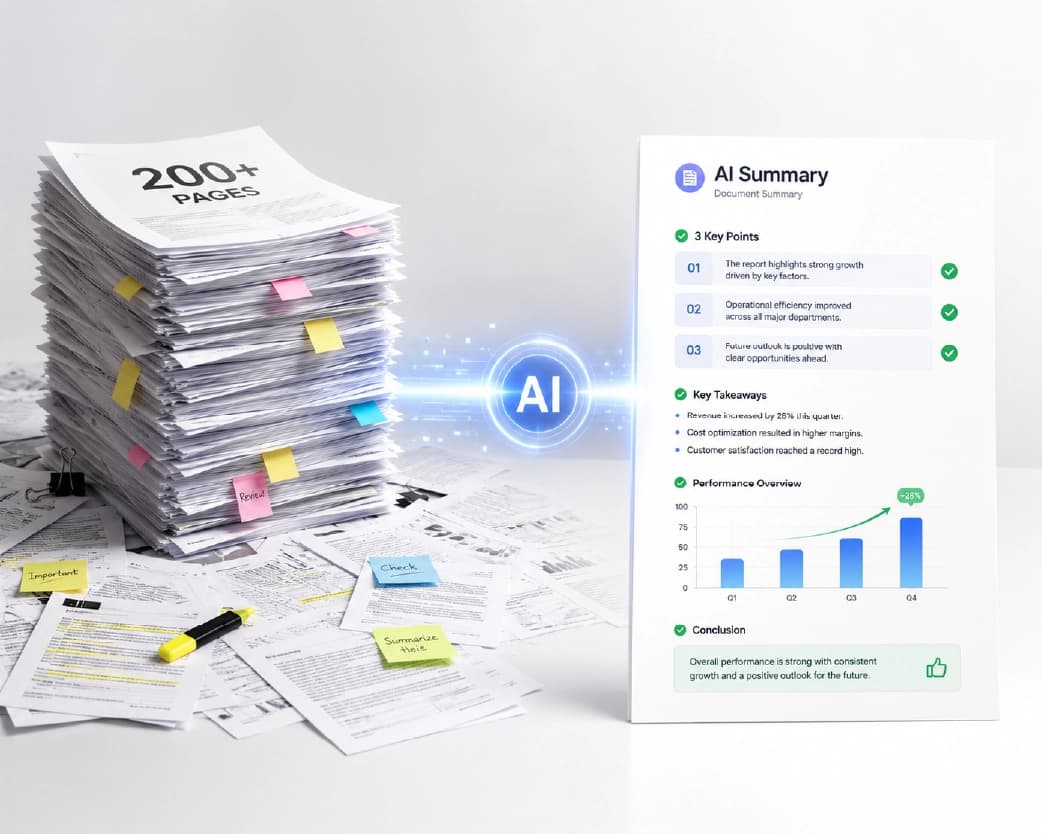
Quick answer, in case you’re in a rush. An AI document summarizer reads a long file and gives you a short version with the main points. You upload, click, and read a few paragraphs instead of forty pages. Now the longer version, because there are a few things worth knowing before you trust it with your Monday morning.
The “I’ll Read It Later” Pile
You know the pile. Everybody has one.
A report from work. A PDF a classmate sent. A contract you keep meaning to open. Three articles you saved for “when I have time.” That time never shows up, does it?
The pile grows, the guilt grows, and eventually you either skim a page and hope for the best or ignore the whole thing. Neither feels great.
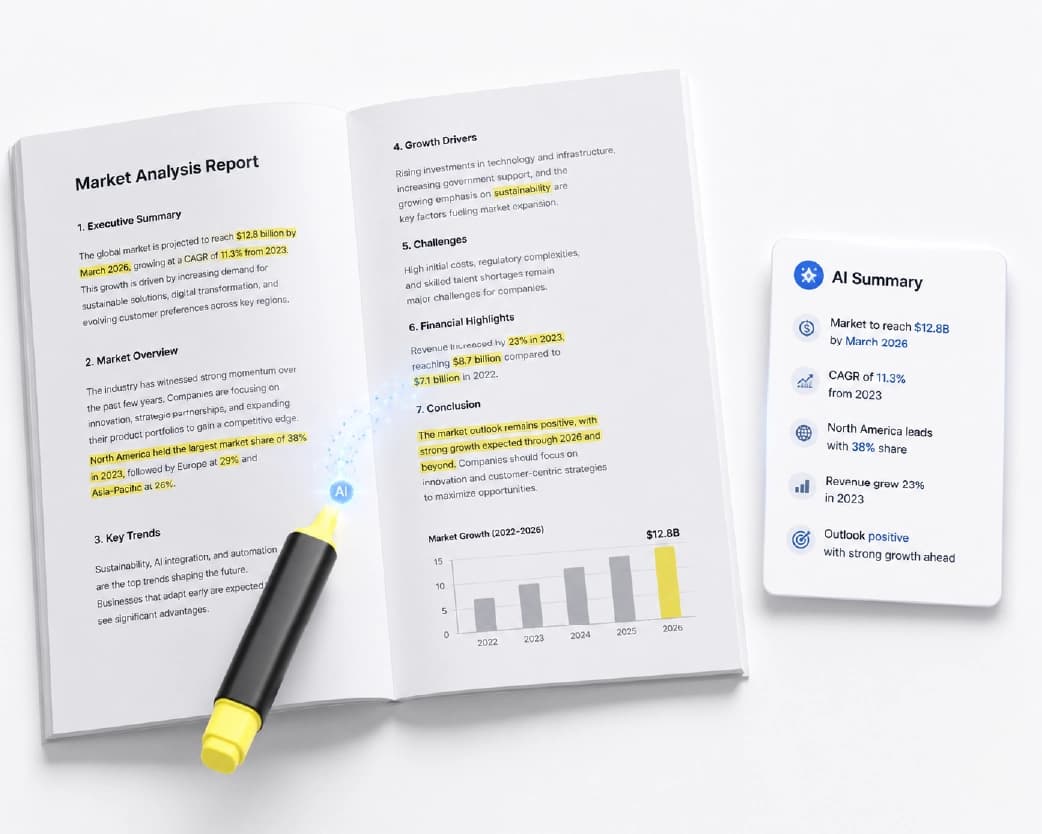
An AI document summarizer helps you break that cycle. It reads the file, picks out the main ideas, and rewrites them in a short, simple version. Think of it as a very fast friend who read everything and now gives you the quick version. You still decide what to dig into. You just start from a better place.
Trying It on Plainscan
Plainscan runs in your browser, so there’s nothing to install. Phone, tablet, laptop, use whatever’s closest. The site has over 100 document tools, including AI ones, and it’s free to start.
- Open the tool. Head to the AI summarizer page. The upload area is the first thing you’ll see.
- Add your file. Drag it in or pick it from your device. A long file may need a minute, so don’t panic if nothing happens instantly.
- Pick your options and go. If the tool lets you choose things like length, choose what fits. Short for a quick look, longer when you need more. Then start it.
- Read it and spot-check it. Read the summary. See a number, date, or name that matters? Check it against the original. Then copy the summary wherever you need it.
That’s the whole routine. Upload, click, read, check.
Garbage In, Garbage Out
The AI can only work with what you hand it.
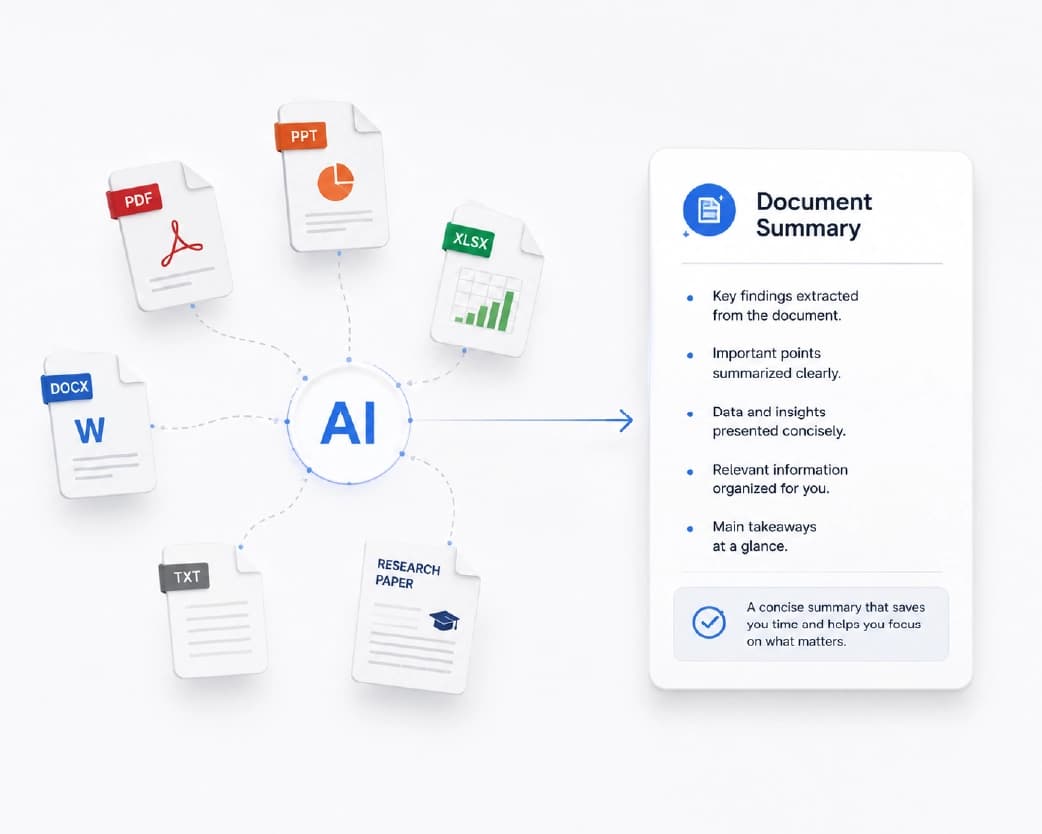
If your file is a normal PDF with real text, you’re in great shape. But if it’s a scan, which is really a photo of a page, the AI can’t read it yet. Run it through Scan & OCR first. That turns the picture into text. Then summarize.
Got a monster file, like 200 pages? Don’t throw it all in at once. Break it into chapters or sections and summarize each one. The results are usually clearer, and you’ll spot which parts deserve a closer look.
And know what you’re after. If all you care about is deadlines or costs, look for those first. Use the summary as a guide to where the good stuff is.
Where Summaries Fall Short
I’d rather tell you this now than let you find out the hard way.
A summary is a shortcut. It leaves stuff out. That’s the point, but it also means small details, odd exceptions, and tricky wording can disappear. Sometimes a number comes out wrong. Sometimes a careful, balanced paragraph turns into something blunt.
So how much should you trust it? For the big picture, a lot. For the fine print, not on its own. If you’re dealing with a contract, a legal paper, medical information, or anything involving money, read the original, or ask someone who knows the field. A summary can tell you where to look. It shouldn’t be the last word.
Use It Like a Map
Here’s the way I’d use it.
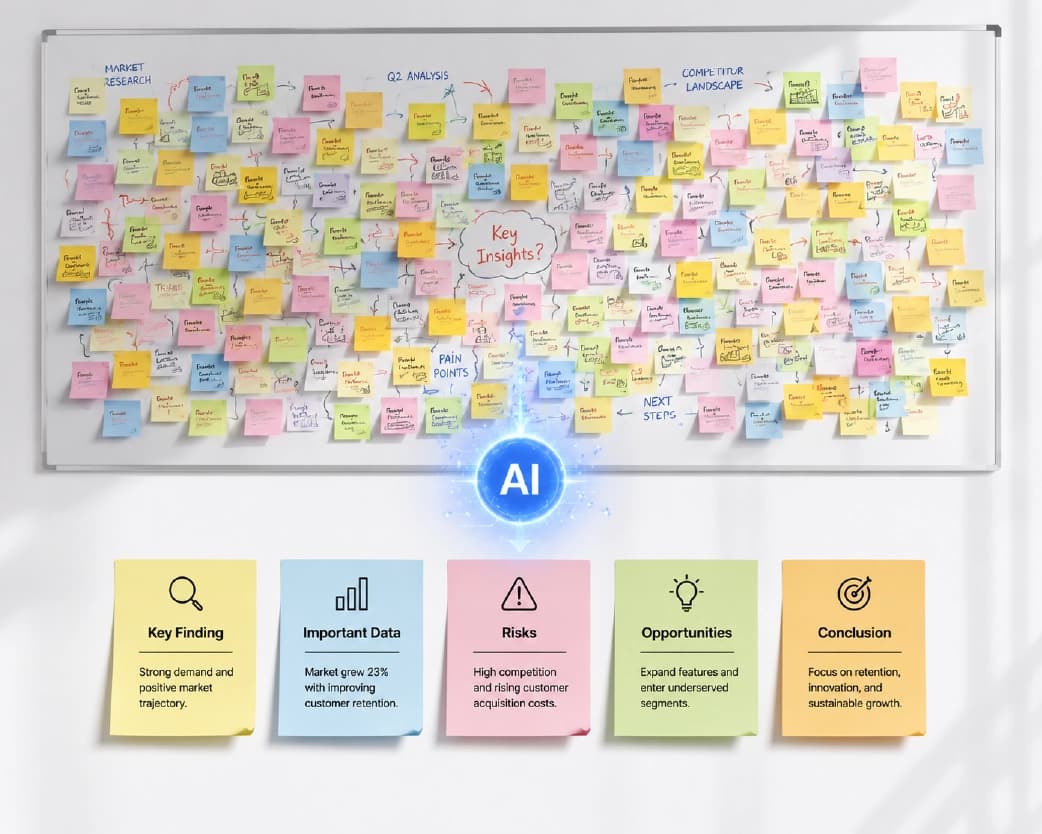
Read the summary first. It shows you how the document is laid out and what the main points are. Then go straight to the parts of the original that matter to you. You read less, but you read smarter.
It beats the two usual options. Skimming blindly means you miss things. Reading all 40 pages with a tired brain means you miss things too, just more slowly.
Who Gets the Most Out of This?
- Students, mostly. Long articles and study material feel less scary when you see the main ideas first.
- People at work, too. Reports, meeting notes, and long email threads become easier to follow, so you walk into meetings knowing what’s going on.
- Writers and researchers use it to sort through lots of sources fast. You can see what each one is about before you commit.
- Small business owners. Proposals, vendor papers, and contracts feel less intimidating when you start with a plain-language overview.
Plainscan also has other AI tools, like chatting with a PDF and making quizzes, which can help with studying. Check the site to see what’s currently available.
Quick Word on Privacy
You’re handing over a whole document, so it’s smart to ask where it goes.
Plainscan uses encrypted HTTPS connections, and uploaded files are deleted automatically within 24 hours. The site also says it doesn’t share your files with third parties. For everyday documents, that sounds fine to me.
But if your file has really private details, like bank information, ID numbers, or confidential company secrets, think twice before uploading it to any website. That’s true for every online tool, not just this one.
The Free Part
You can start without paying. Plainscan has a free plan with daily limits, plus a Pro plan if you need more. There’s also pay-as-you-go, where you buy credits only when you need them. If you only summarize a file now and then, free will probably cover you. Check the tool page for the current limits.
Don’t Do These Things
- Don’t trust every detail. Numbers, dates, and names that matter deserve a second look.
- Don’t feed it a scan without OCR first. If the AI can’t read the text, you’ll get a thin or empty summary, and you’ll wonder what went wrong.
- Don’t use a summary as your only source for an important decision. It’s a helper, not a judge.
- And don’t delete the original. You’ll want it for everything the summary skipped.
Continue Reading:OCR to Word: How to Turn Scanned Pages Into Editable Documents
Conclusion
Nobody has time to read everything. That’s just life. An AI document summarizer helps you figure out what deserves your attention, so you can put your energy where it counts. So next time a giant file shows up ten minutes before a meeting, take a breath. Open Plainscan, get the summary, check the key facts, and walk in ready. Then maybe, finally, tackle that “read later” pile.
Related insights










Get the Plainscan App for iOS & Android