
Free OCR to Text Converter Online: How to Copy Text From Any Image
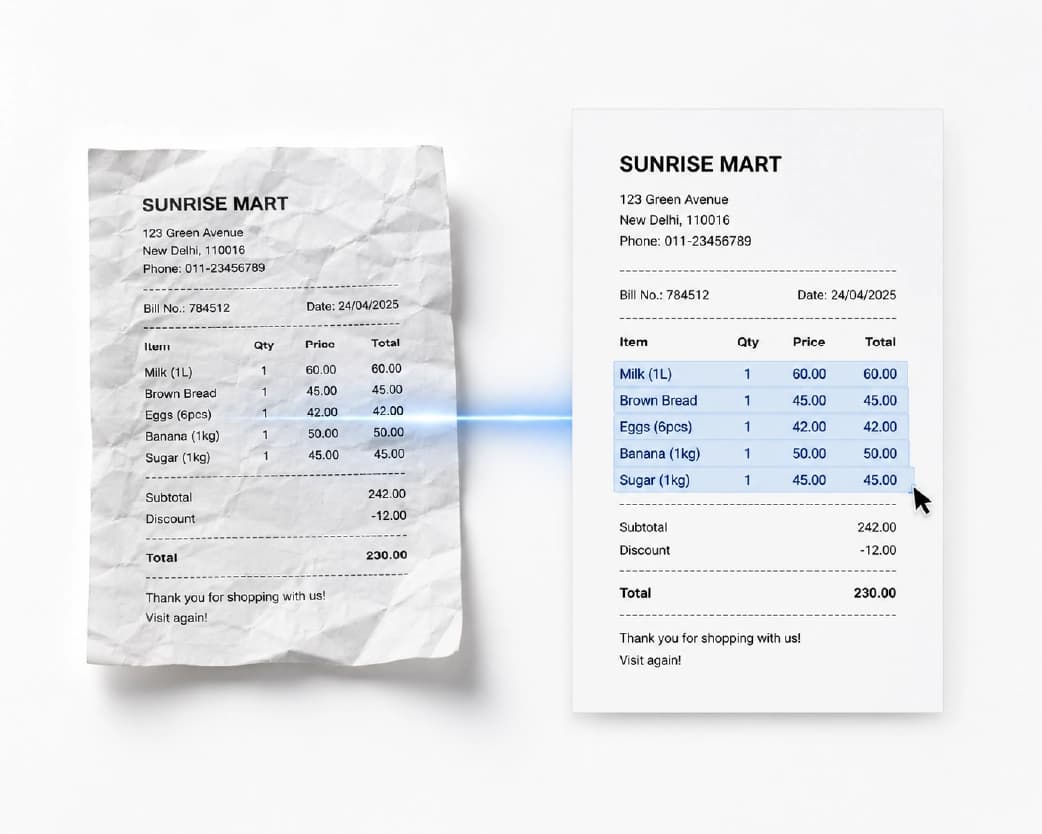
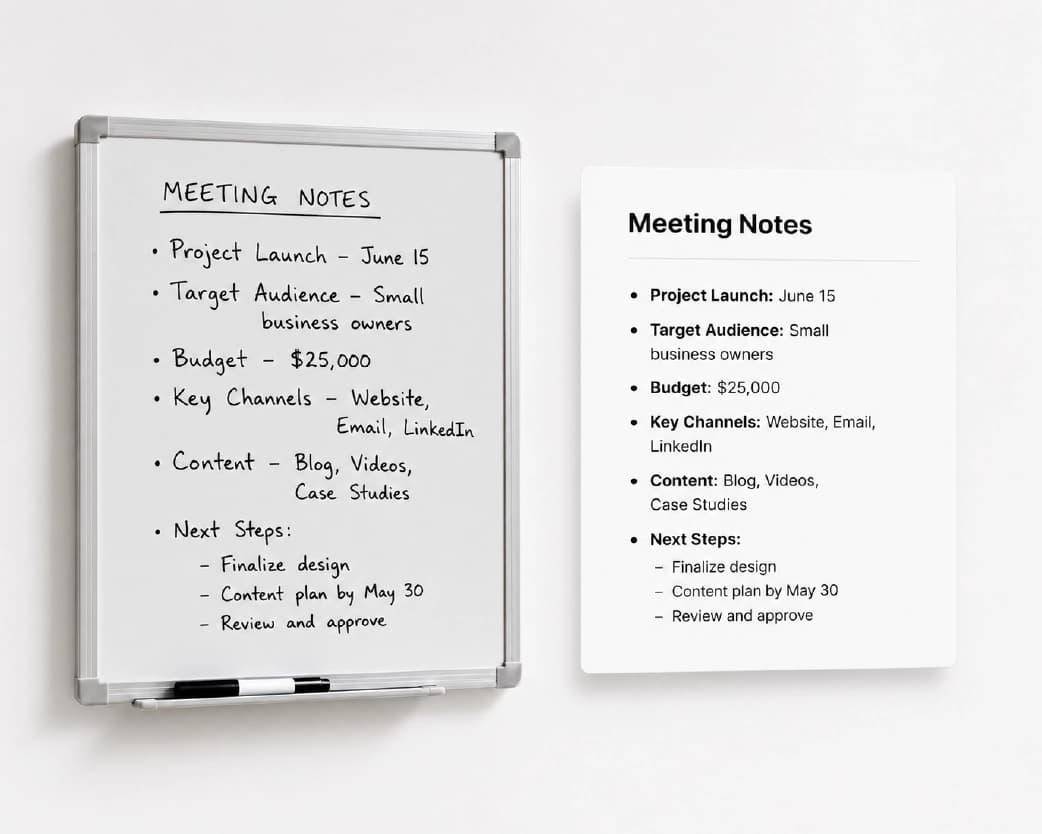
Okay, let’s be real. We’ve all done this. You see something useful in a picture. A recipe in a screenshot. Notes on a whiteboard. A page from a library book. And you think, “I’ll just copy that.” You drag your mouse across it. Nothing. Not a single word highlights. Because it’s a picture. Your computer can see it, but it has no clue it’s reading words. Now you’ve got two choices. Type everything by hand, or use a free OCR to text converter online and let it do the typing in a few seconds. I’m voting for option two. Here’s how it works.
What’s OCR, Really?
OCR stands for optical character recognition. Big name, simple job. It looks at a picture, spots the letters and numbers, and turns them into real text.
What you get back is plain text. Just the words. No fancy fonts, no colors, no layout. You can copy it, paste it into an email, drop it in a note, or save it wherever you like.
Think about a photo of a stop sign versus the words “STOP” typed in a message. One is a picture. The other is something you can search, copy, and change. OCR turns the first into the second.
When Would You Actually Use This?
All the time, honestly. Once you start, you’ll find reasons everywhere.
- A screenshot of a phone number or a message you want to save.
- A photo of a whiteboard after class.
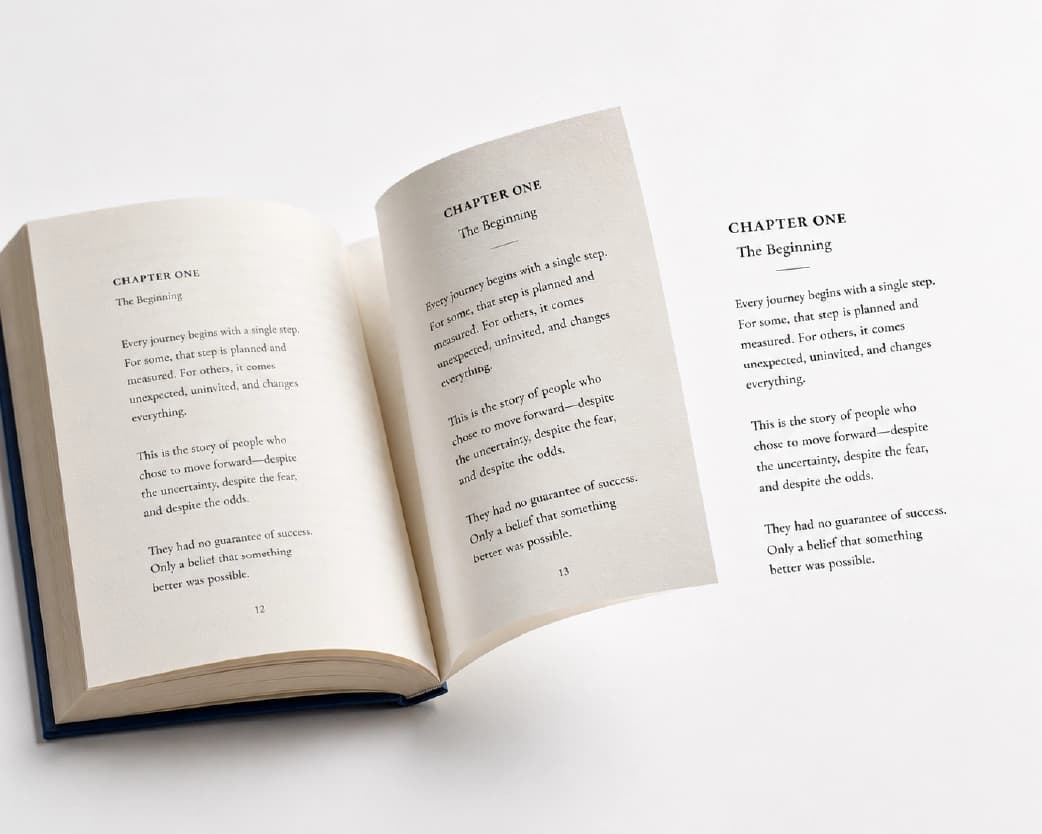
- A book page you want to quote.
- A receipt where you need the numbers.
- A scanned letter that’s secretly just a big picture.
- Even a sign you photographed on vacation, and now you want the words.
If you’d otherwise be squinting at a picture and typing, OCR can probably save you the trouble.
How to Use a Free OCR to Text Converter Online with Plainscan
Plainscan works in your browser. No downloads, no installs. Phone, tablet, laptop, whatever you’ve got nearby. It has over 100 document and image tools, and it’s free to start.
- First, open the tool. Go to the Scan & OCR page on Plainscan. The upload box is right there.
- Second, add your picture or scan. Drag it in or pick it from your device. If you’re on the free plan, files can be up to 50 MB, which handles most things.
- Third, run the OCR. Give it a moment. A longer document needs more time, so resist the urge to click again and again.
- Last, copy your text. Read through the result, copy it, and paste it where you need it.
Four steps. Done.
Why Some Results Come Out Messy
OCR is clever, but it can’t read your mind. The picture you give it makes a huge difference.
- Light matters. Shadows and glare confuse the software. If you’re taking a photo, stand by a window, and keep your own shadow off the page.
- Flat and straight wins. A tilted photo or a curled-up page makes lines of text look wavy. Hold your phone right above the paper.
- Sharp and big beats blurry and tiny. If the photo is fuzzy, just retake it. Trust me, it’s faster than fixing a mess later.
- Contrast helps too. Dark words on a light page are easy. Light gray words on white, or text on top of a busy picture? Not so much.
- Fix sideways pages first. And if the page is sideways, fix that first with Rotate PDF. The software reads far better when the words are the right way up.
Continue Reading:OCR to Searchable PDF: How to Find Any Word in a Scanned Document
Plain Text, Word, or Searchable PDF?
Quick way to pick.
- Just need the words? Plain text is perfect. Fast, simple, works everywhere.
- Want to edit a document and keep headings or columns? Try PDF to Word after the OCR.
- Want to keep the original scan but search it? A searchable PDF is the move.
Choose based on what you’re doing next.
Stuff That Might Go Wrong
- Weird characters sneak in sometimes. OCR can confuse lookalikes, like the number 0 and the letter O. Give the result a quick read and fix the odd bits.
- Line breaks can get strange. A neat paragraph might turn into a bunch of short lines. A little cleanup in your text editor sorts it out.
- Columns can get tangled. If your page has two columns, the text might read straight across instead of down. Copy one column at a time if that happens.
- Handwriting is the big one. Neat printing might work. Messy cursive usually doesn’t. Don’t be shocked if you have to type that part yourself.
Who Benefits Most?
- Students, for sure. Photos of slides, whiteboards, and book pages turn into notes you can search.
- Office folks get a lot out of it too. Receipts, forms, and printed letters become text you can drop into a spreadsheet or an email. No more squinting and typing.
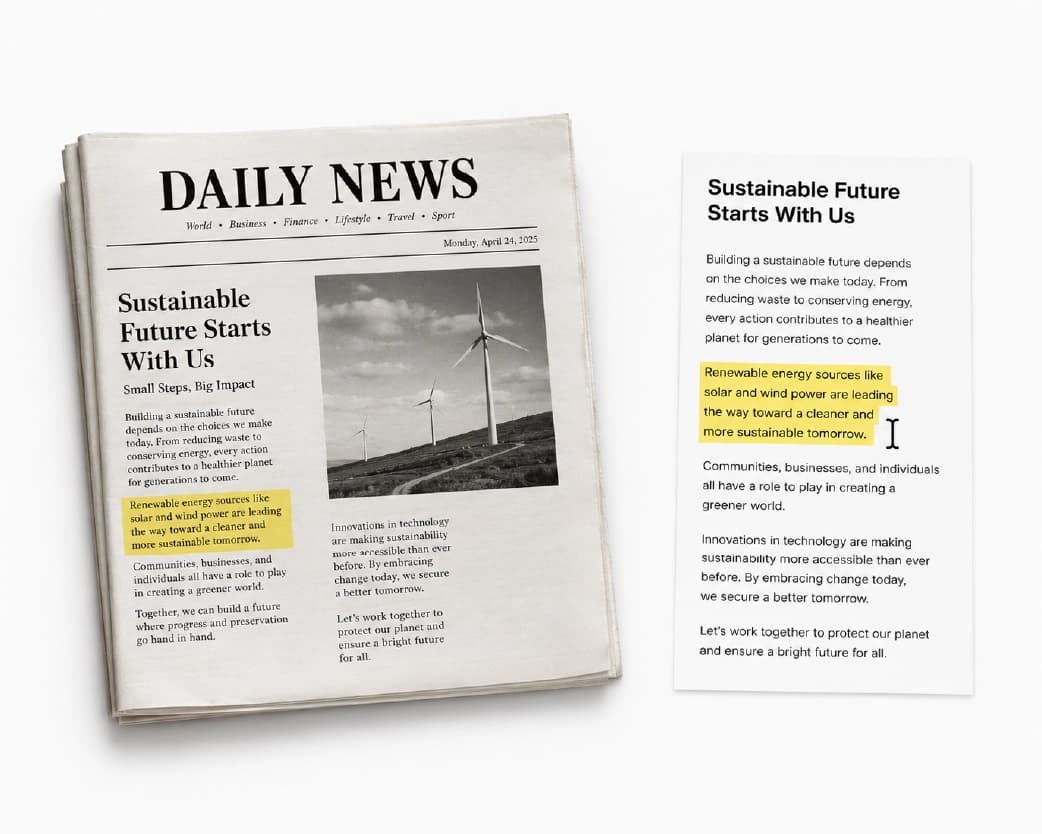
- Writers and researchers can collect quotes from printed sources without retyping every word.
- Anyone with a phone full of screenshots. You know the folder I mean. Pull the text out of the important ones, and suddenly they’re easy to find.
Is It Safe to Upload Pictures?
You should always ask. Pictures can hold personal stuff.
Plainscan uses encrypted HTTPS connections, and uploaded files are deleted automatically within 24 hours. The site also says it doesn’t share your files with third parties. For everyday pictures and documents, that sounds fine to me.
But if your image has really private details, like bank information or ID numbers, think twice before uploading it to any website. That’s true for every online tool, not just this one.
So What Does “Free” Mean Here?
It means you can start without paying. Make an account and you get up to four documents a day with the basic PDF tools. The count resets every 24 hours, so you get a fresh set tomorrow.
If you need more, the Pro plan removes the daily limit and the file size cap. There’s also pay-as-you-go, where you buy credits only when you need them. If you only pull text from an image once in a while, free will probably cover you.
Easy Ways to Mess It Up
- Trusting the text without reading it is the biggest one. One wrong digit in a phone number or a price can cause real trouble, so check the important parts.
- Starting with a bad picture is another. A dark, blurry photo gives you a pile of nonsense. Retake it and things get way better.
- Forgetting to turn a sideways image is a common slip. Fix that before you start.
- And deleting the original picture. Keep it. If something looks off later, you’ll have the real thing to compare against.
Conclusion
Retyping text from a picture is slow, boring, and easy to get wrong. A free OCR to text converter online turns that job into a copy and paste. So next time you’re looking at a screenshot or a photo and dreading all that typing, stop. Open Plainscan, run the OCR, and copy your text. Then go do something more fun with the time you saved.
You may also like:How to Convert TIFF to JPG or PNG Online Free (And Which One to Pick)
Related insights










Get the Plainscan App for iOS & Android