
AI Text Rewriter: The Easy Way to Fix Writing That Sounds Off
Back to Blog

AI Text Rewriter: The Easy Way to Fix Writing That Sounds Off

P
Plainscan Team
October 31, 2026
4 min read
Share

You know the feeling. You write a sentence and it comes out too stiff, too long, or somehow both at once. It happens to everyone, even people who write for a living. The good news? You don’t have to fix it alone anymore. Let’s talk about what a rewriter really does, and how to use it so your writing still sounds like you.

So, What Is an AI Text Rewriter?

Simple version: you give it your writing, and it hands back a new version that means the same thing but reads better.

Maybe the new one is shorter. Maybe it’s less repetitive. Maybe it just sounds like a normal person talking. You can keep it, tweak it, or toss it and try again.

You’ll hear other names for this kind of tool too. Paraphrasing tool, sentence rewriter, content rewriter. Different labels, same basic idea. You’re asking software for a second opinion on your wording.
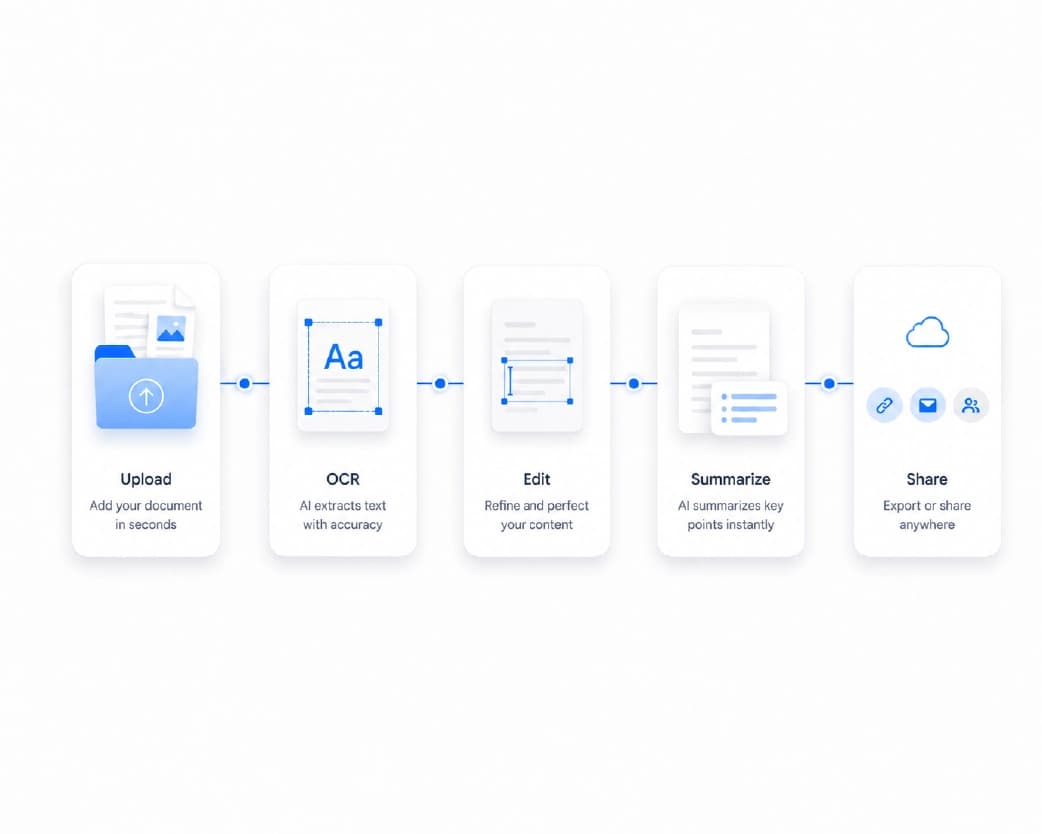
What Is an AI Text Rewriter and How It Improves Writing Clarity

Why Folks Love Using One

Because Deadlines Are Real
Picture this. An essay is due at midnight and one paragraph just won’t behave. Fixing it by hand could take fifteen minutes. A rewriter gives you something to work with in seconds, so you can save your energy for the actual ideas.

Because We All Ramble
Most of us write long sentences when we’re nervous. Then we add a second sentence that says the same thing. A rewriter helps you rephrase sentences so they get to the point. Your readers will thank you. So will Google, honestly, since clear writing keeps people on the page longer.

Because “Very Important” Gets Old
Check your last email. How many times did you write “really,” “very,” or “important”? A good tool throws out other options, so your writing doesn’t feel stuck on repeat.

Because English Can Be Tricky
If English is your second or third language, you probably know this one. The sentence is grammatically fine, but something sounds off and you can’t say why. Seeing a smoother version next to yours is like getting a free mini lesson.
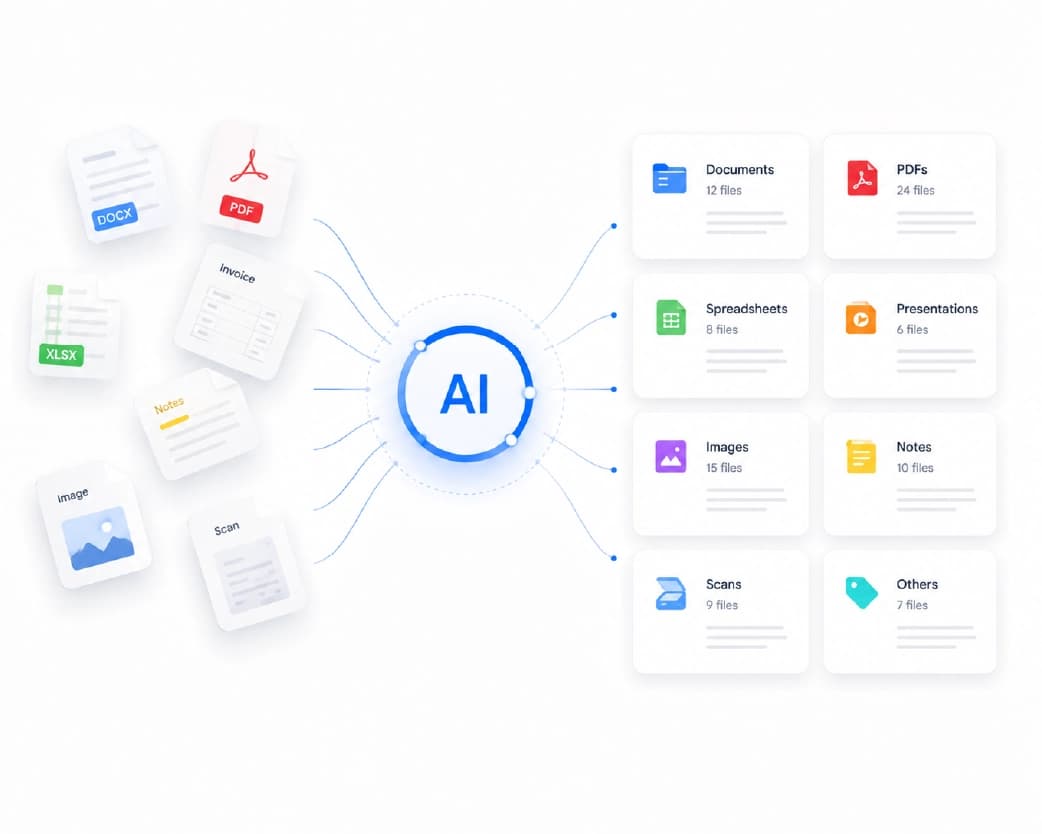
Overcoming Writer's Block, Wordiness, and Repetition with AI

Who Actually Needs This?

Anyone who writes. Students trimming essays. Bloggers whose drafts feel flat. Shop owners trying to describe the same candle ten different ways. Job hunters sweating over a cover letter at 11 pm.

Even strong writers use rewriters, mostly to get unstuck faster. If you’ve ever stared at a blinking cursor while your brain went blank, yep, that’s you.

How to Use It Without Sounding Fake

Here’s the part most people skip. The tool is good at fixing words. It’s not good at being you. That’s your job.

  • Write Something Ugly First: Don’t wait for the perfect sentence. Dump your thoughts down, typos and all. The rewriter needs your ideas to work with, and your messy draft carries your personality.
  • Work in Small Bites: One paragraph at a time. Pasting a whole report and hoping for the best usually leaves you with a pile to untangle, and it’s hard to notice what changed.
  • Say It Out Loud: Seriously, try it. If you stumble while reading, or you’d feel silly saying it to a friend, rewrite it. It takes ten seconds and catches almost everything.
  • Put Yourself Back In: Change a word. Drop in a quick example from your own day. Make a sentence shorter than the tool did. These little edits are what make a text feel like it came from a real person, because it did.
  • Double-Check the Facts: A rewriter shuffles words around. It doesn’t know your meeting is on Friday, not Thursday. Always check names, dates, and numbers before you hit send.
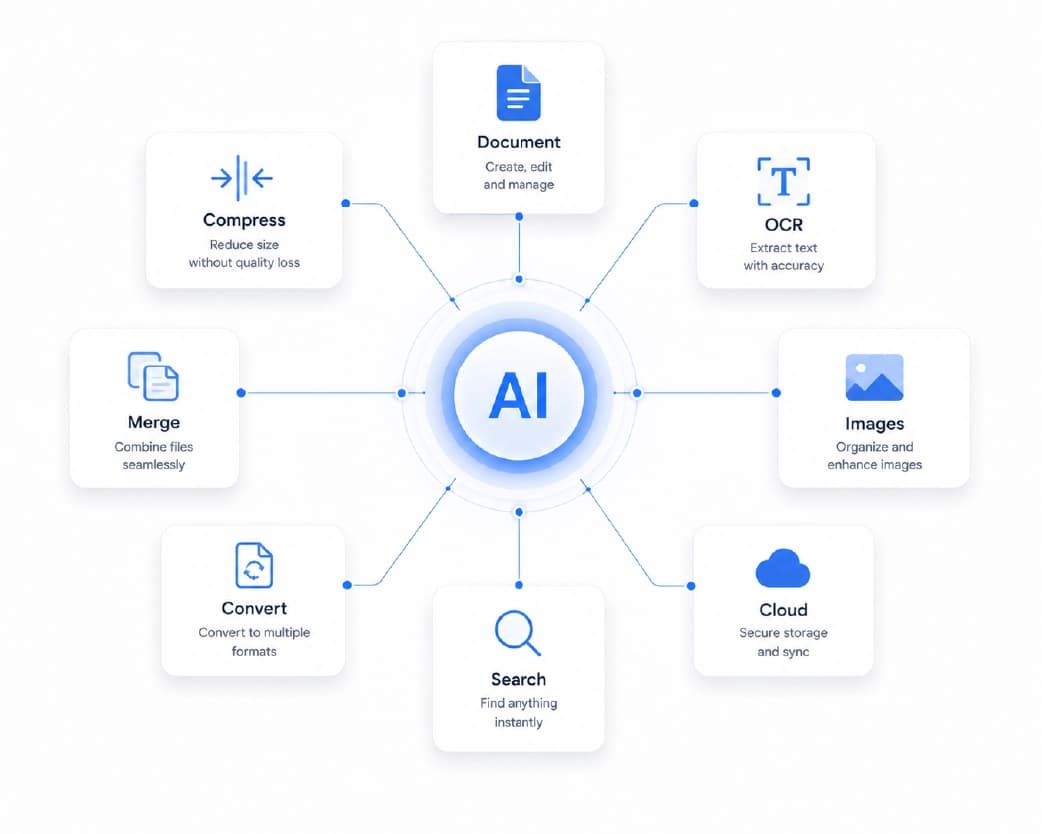
How to Use an AI Text Rewriter Without Sounding Robotic

Mistakes That Make Rewritten Text Fall Flat

  • Copy and paste without reading. Sometimes the meaning drifts a little, and nobody wants to send an email that says something they didn’t mean.
  • Running someone else’s article through a tool and calling it yours. Please don’t. It’s unfair to the person who wrote it, and search engines are better at spotting recycled content than most people think.
  • Ignoring tone. What works in a text to your cousin won’t work in an email to your boss.
  • Smoothing out every single line. Real writing has a few bumps. A short sentence here, a casual phrase there. That’s what keeps it human.

Rewriting Text Online With Plainscan

If you want an easy place to start, Plainscan has an AI Rewriter in its AI Tools section. You use it right in your browser, so there’s nothing to download.

What I like about it is that Plainscan does a lot more than rewriting. It has over 100 tools for PDFs, images, and documents, plus templates and practice exams. So you can polish your text, then drop it into a resume template or turn it into a PDF, all without hopping between five different sites.

Here’s how to try it. Open the Plainscan AI Rewriter, paste in your text, run it, and then edit the result until it sounds like you.

One small note: AI features run on credits, and one credit covers one tool use. The pricing page lays it all out.
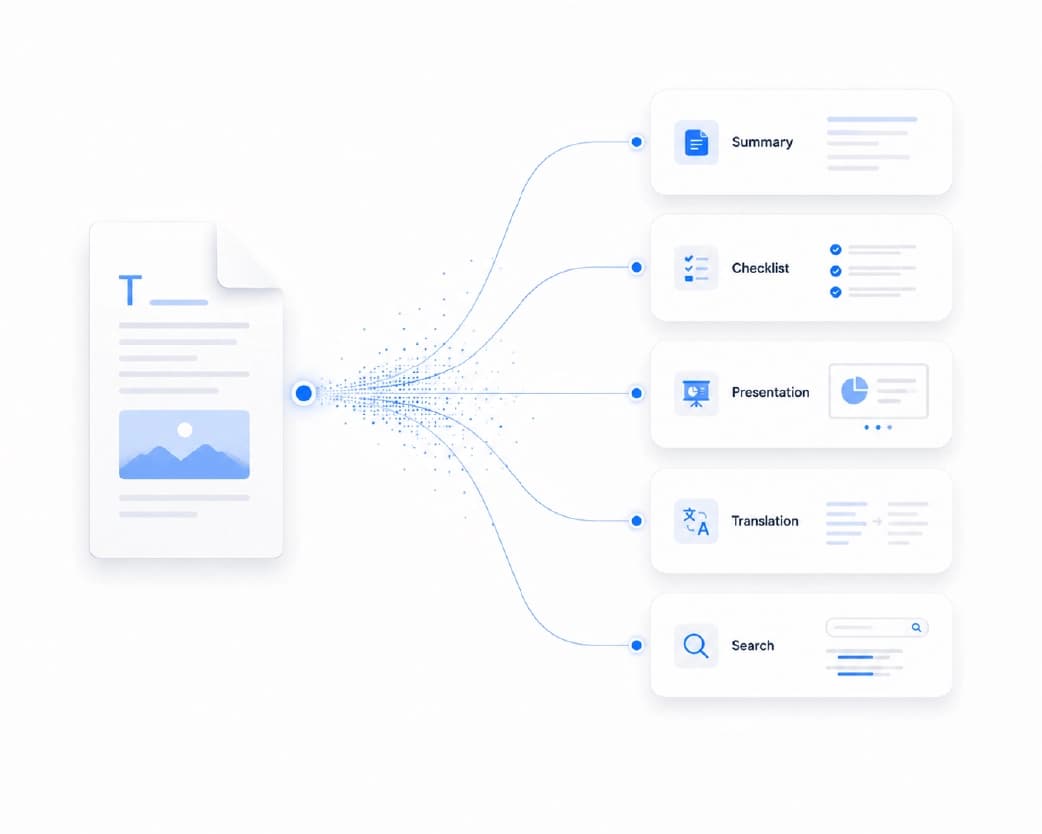
Plainscan AI Rewriter Online Interface and Document Workspace

What to Look for in a Rewriting Tool

Before you pick one, ask a few easy questions. Does it keep my meaning? Does the result sound like a person said it? Can I figure it out without watching a tutorial? Does the site tell me what happens to my text and files?

That last one matters more than people think. And if the tool sits next to your other document tools, even better. Less switching, less hassle.

Conclusion

Good writing doesn’t need big words. It needs clear ones. An AI text rewriter gets you there faster, especially on those tired, stuck, deadline-is-tomorrow days. Just keep your hands on the wheel. Write your own draft, let the tool smooth the rough patches, read it out loud, and add yourself back in. Curious how it feels? Head over to Plainscan and test the AI Rewriter on that one paragraph you’ve been avoiding.

Related insights

AI Resume Formatter: How to Turn a Messy Resume Into a Clean, Job-Ready One

ARTICLE

AI Resume Formatter: How to Turn a Messy Resume Into a Clean, Job-Ready One

Here’s a story that happens more than people admit. You spend a whole evening on your resume. You pick the fonts. You line up every bullet. You hit save, feel proud, and send it off to a company you really want to work for. Then a friend opens it on their phone and says, “Um, the whole thing looks weird.” The dates are on the wrong line. A section floats off to the side. Your carefully chosen font is gone. It’s not a great first impression, and it’s not even your fault. Resumes can be surprisingly fragile. That’s where an AI resume formatter earns its keep.

Plainscan Team·October 31, 2026
4 min read
How to Extract Keywords from Any Document Instantly (Even If It’s 80 Pages Long)

ARTICLE

How to Extract Keywords from Any Document Instantly (Even If It’s 80 Pages Long)

Let’s say a friend hands you a thick stack of papers and says, “Tell me what this is about.” You could read all of it. That’s a few hours gone. Or you could scan for the words that keep popping up and the ideas that clearly matter. Within minutes, you’d have a pretty good picture. That second way is what keyword extraction is all about. And the good news is you don’t have to do it by hand anymore.

Plainscan Team·October 31, 2026
4 min read
AI Document Condenser: How to Shrink a 50-Page File Into the Parts That Matter

ARTICLE

AI Document Condenser: How to Shrink a 50-Page File Into the Parts That Matter

Picture this. It’s Monday morning, and you open your email. There’s a 60-page report from your manager with a note that says, “Please read before our 2 pm meeting.” You look at the clock. You look at the report. You look at the clock again. Most of us have been in this spot. Maybe it was a thick contract, a class reading, or a research paper full of words you had to Google. The info matters, but the time just isn’t there. This is exactly why people are turning to an AI document condenser.

Plainscan Team·October 31, 2026
4 min read
AI Text Expander: How to Turn a Few Lines Into Clear, Full Writing

ARTICLE

AI Text Expander: How to Turn a Few Lines Into Clear, Full Writing

We’ve all done this. You sit down to write, get your main point on the page in two sentences, and then stare at the screen wondering what else there is to say. It’s not that you’re a bad writer. Short and to the point is actually a good habit. The problem is that many situations need more. A school essay needs depth. A product page needs detail. A report needs context so the reader doesn’t have to guess what you meant. That’s where an AI text expander comes in handy.

Plainscan Team·October 31, 2026
4 min read
How to Extract Data from Any Document (Without Losing Your Weekend)

ARTICLE

How to Extract Data from Any Document (Without Losing Your Weekend)

Picture a Sunday night. You’re tired, your tea is cold, and there’s a folder on your desktop with forty invoices in it. Some are neat PDFs. Some are blurry phone photos. One is a crooked scan that looks like it was taken during an earthquake. And all of it has to end up in one spreadsheet by morning. So you start typing. Invoice one, fine. Invoice six, your eyes are crossing. Invoice fifteen, you notice a typo, but you have no idea which row it’s in. We’ve all been there, or somewhere close to it. The good news is you really don’t have to do it this way anymore.

Plainscan Team·October 31, 2026
4 min read
AI Document Translator: How to Translate Files Without the Headache

ARTICLE

AI Document Translator: How to Translate Files Without the Headache

Got a PDF in a language you can’t read? You’re not stuck anymore. An AI document translator can turn pages of foreign text into something you understand in minutes. Here’s how it works, where it shines, and how to get better results. Picture this. A landlord sends you a lease in a language you barely know. Or your college sends a form written in another language. Or a supplier emails an invoice, and you have no clue what half of it says. Not fun. A few years ago, you’d have copied it line by line into a website or paid someone to do it. Now there’s an easier way.

Plainscan Team·October 31, 2026
4 min read
AI Document Summarizer: How to Get the Key Points From Long Files Fast

ARTICLE

AI Document Summarizer: How to Get the Key Points From Long Files Fast

Quick answer, in case you’re in a rush. An AI document summarizer reads a long file and gives you a short version with the main points. You upload, click, and read a few paragraphs instead of forty pages. Now the longer version, because there are a few things worth knowing before you trust it with your Monday morning.

Plainscan Team·October 31, 2026
4 min read
OCR to Excel: How to Turn Scanned Tables Into Spreadsheets You Can Use

ARTICLE

OCR to Excel: How to Turn Scanned Tables Into Spreadsheets You Can Use

Picture a printed price list. Four pages. Teeny tiny numbers. And your boss says, “Can you get me the totals by tonight?” You scan it, open the file, and try to add up a column. Nothing. Because it’s a picture, and Excel has no idea there are numbers in there. So now you’re looking at four pages of retyping, and it’s already 4 p.m. Lovely. Here’s the thing, though. You don’t have to type any of it. OCR to Excel can read the numbers for you and help build a real spreadsheet. I’ll walk you through it, and I’ll tell you what to double-check, because that part really matters.

Plainscan Team·October 31, 2026
4 min read
Free OCR to Text Converter Online: How to Copy Text From Any Image

ARTICLE

Free OCR to Text Converter Online: How to Copy Text From Any Image

Okay, let’s be real. We’ve all done this. You see something useful in a picture. A recipe in a screenshot. Notes on a whiteboard. A page from a library book. And you think, “I’ll just copy that.” You drag your mouse across it. Nothing. Not a single word highlights. Because it’s a picture. Your computer can see it, but it has no clue it’s reading words. Now you’ve got two choices. Type everything by hand, or use a free OCR to text converter online and let it do the typing in a few seconds. I’m voting for option two. Here’s how it works.

Plainscan Team·October 31, 2026
4 min read
OCR to Word: How to Turn Scanned Pages Into Editable Documents

ARTICLE

OCR to Word: How to Turn Scanned Pages Into Editable Documents

Somebody hands you a printed report. Ten pages, tiny font, and you need to change a few numbers and send it back by tonight. You scan it. You open the file in Word. And it’s just a picture of a page. You can’t click on a single word. Now you’re looking at ten pages of retyping. Fun. Not. Thankfully, there’s a way out, and it’s called OCR. It reads the letters from your scan and turns them into text you can edit. Here’s how OCR to Word works, how to do it with Plainscan, and what to fix once you’ve got your text.

Plainscan Team·October 30, 2026
4 min read

Get the Plainscan App for iOS & Android









