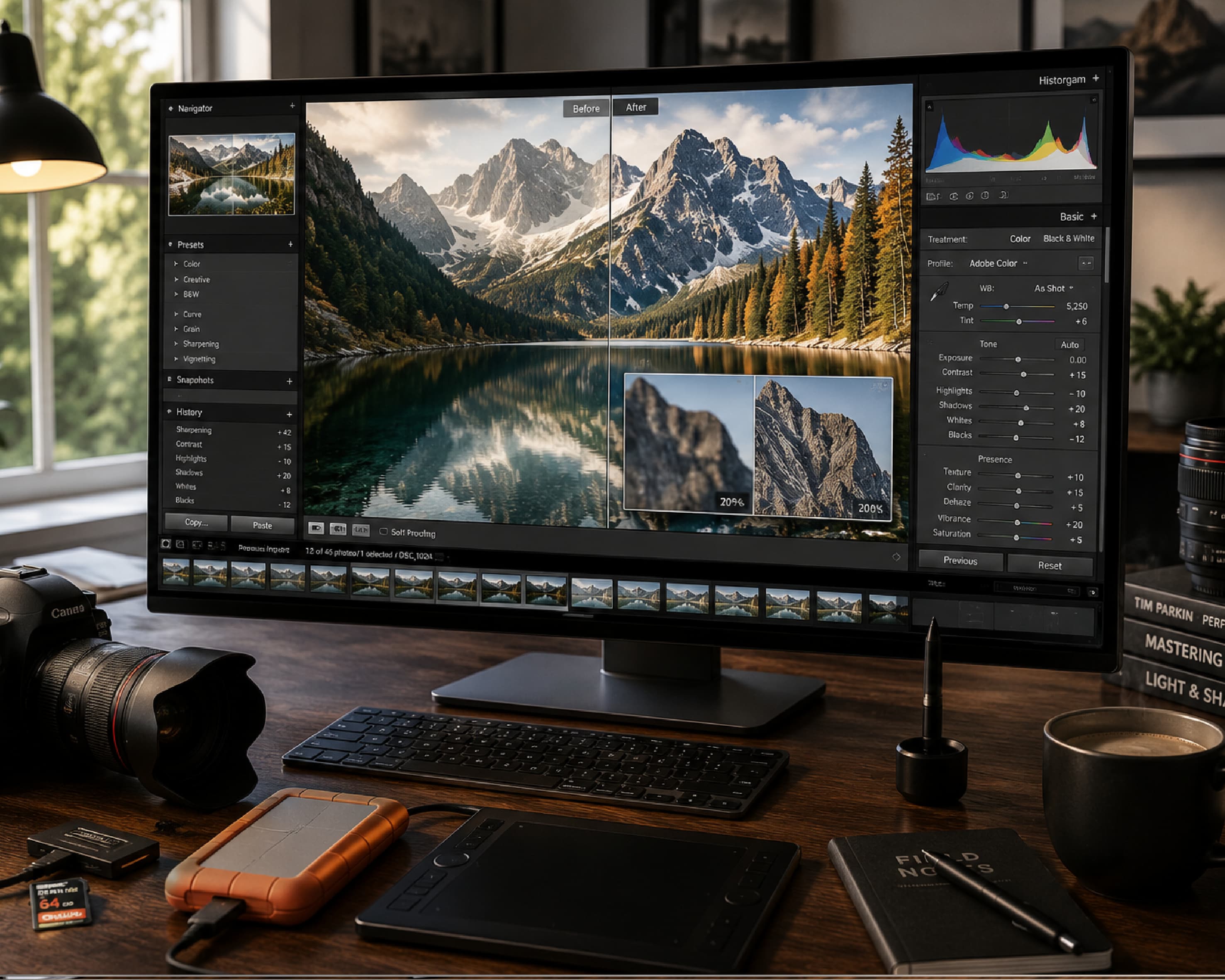
How to Convert HEIC to PNG Online Free (And Why Your iPhone Photos Won’t Open)
Back to Blog

How to Convert HEIC to PNG Online Free (And Why Your iPhone Photos Won’t Open)

P
Plainscan Team
October 30, 2026
4 min read
Share

You take a great photo on your iPhone. You send it to your Windows laptop to print or upload. And your computer says it can’t open the file. Or the website you’re using says “unsupported file type.” You stare at the screen. It’s a photo. It looks fine on your phone. What’s the problem? The problem is a format called HEIC, and it’s a very common headache. The fix is simple, though. You can convert HEIC to PNG online free in a minute, with no app and no software. Here’s what HEIC is, why PNG works so well, and how to make the switch without any drama.

So What Is HEIC, Anyway?

HEIC is the default photo format on iPhones and iPads. Apple switched to it because it saves space. A HEIC photo looks great but takes up a lot less storage than the older formats. That’s why you can fit so many pictures on your phone.

The catch is that many other devices and websites don’t know what to do with it. Older Windows computers, some Android phones, plenty of online forms, and a lot of design tools can’t open HEIC without extra help. You’ll sometimes see the related name HEIF, which is the same family.

So HEIC is great on your iPhone, and a bit of a stranger everywhere else.
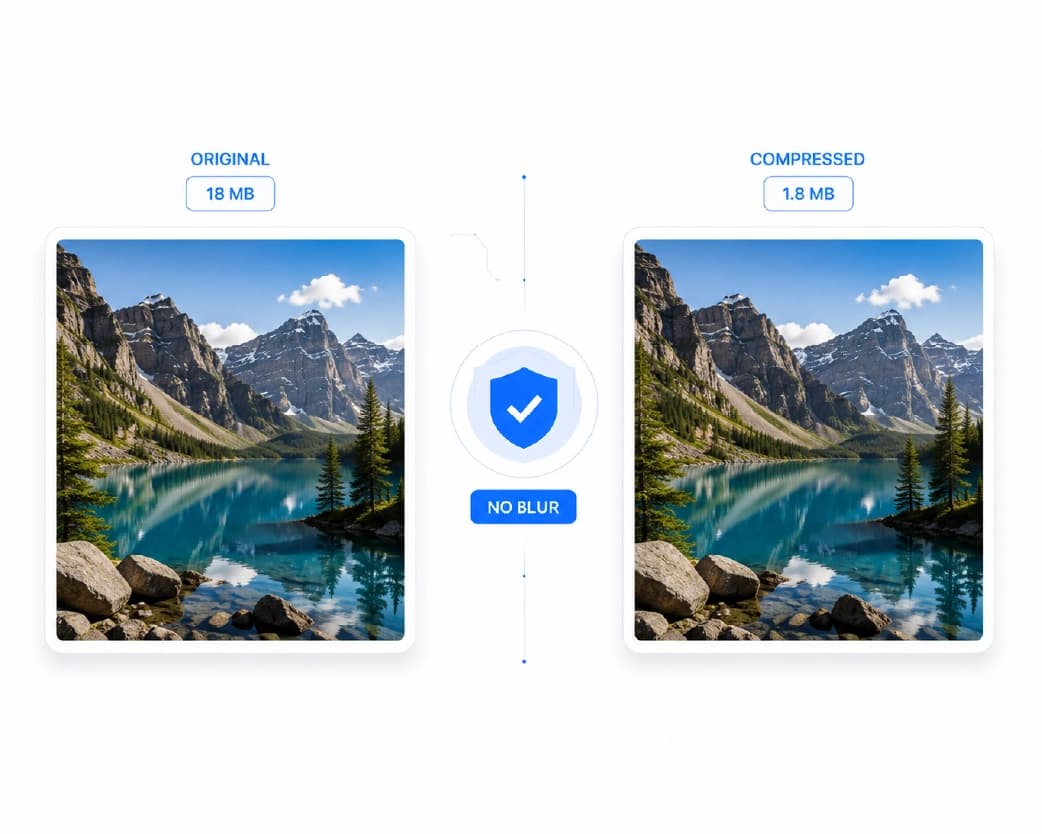
What Is HEIC and Why iPhone Photos Need Conversion to PNG

Why Convert to PNG?

PNG is the opposite. Almost everything can open it. Browsers, phones, computers, editing apps, forms, you name it. It’s one of the most widely used image formats out there.

It’s also a lossless format. That means it doesn’t squeeze away any detail when it saves a picture. When your HEIC photo becomes a PNG, you don’t lose extra quality in the conversion. What you see is what you had.

PNG can also keep see-through areas, called transparency, which JPG can’t do. And it keeps text and sharp edges looking crisp, which is great for screenshots and graphics.

One Thing to Know: PNG Files Are Bigger

Here’s the honest part. Because PNG keeps all that detail, the file usually ends up much larger than the HEIC you started with. A small photo can easily turn into something several times bigger.

That’s fine most of the time. But if you’re uploading to a site with a strict size limit, or sending a lot of photos by email, it can be a problem. In that case, you can shrink the PNG afterward with Plainscan’s Compress Image tool, or think about converting to JPG instead, which gives smaller files.
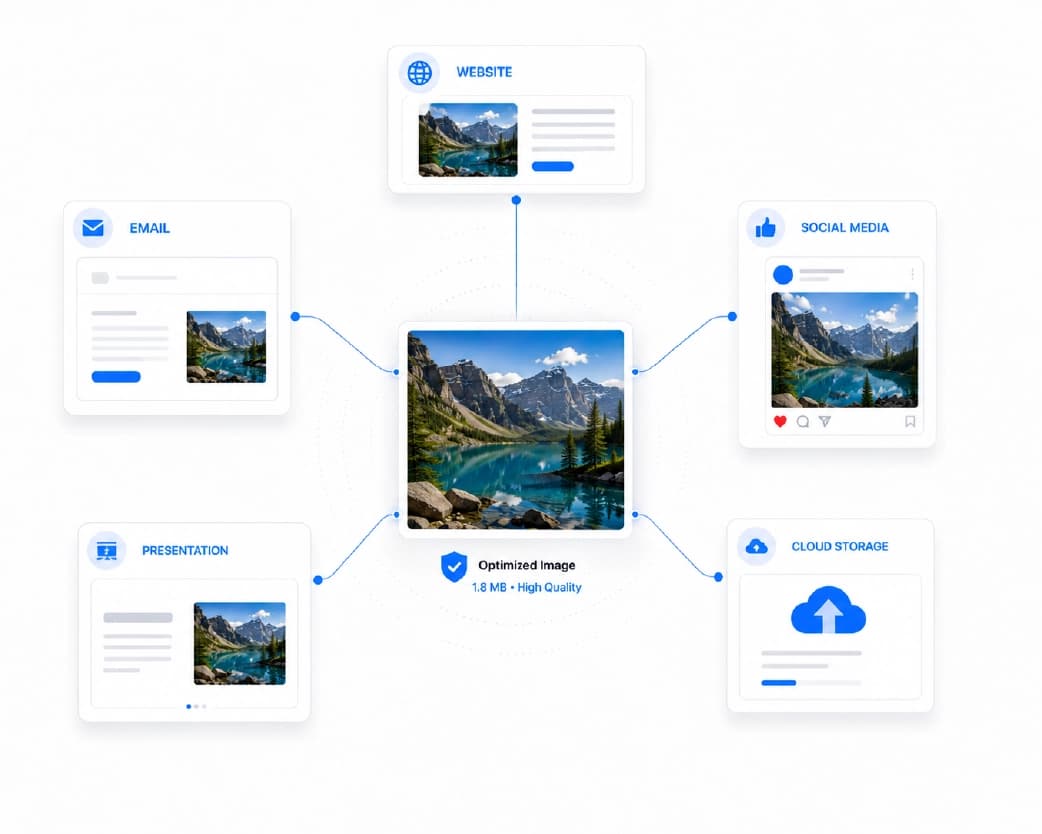
Plainscan HEIC to PNG Online Converter Interface

How to Convert HEIC to PNG Online Free with Plainscan

Plainscan works in your browser, so there’s nothing to install. Laptop, tablet, phone, whichever is handy. The site has over 100 document and image tools, and it’s free to start.

  • Open the tool. Go to the HEIC to PNG converter page on Plainscan. The upload area is the first thing you’ll see.
  • Add your HEIC photo. Drag it in or pick it from your device. If you’re on a phone, you can choose it straight from your photo library.
  • Convert it. Start the conversion and give it a moment. A single photo is usually quick. Bigger files can take a little longer.
  • Download your PNG. Save the new file and open it. Check that it looks the way it should. Then you’re ready to upload, print, or share it.

HEIC, PNG, or JPG? How to Choose

Not sure which format you actually need? Here’s a simple way to think about it.

  • Use PNG when you want the best quality, when you need transparency, or when the image has text and sharp lines, like a screenshot. It’s also a safe pick when a site doesn’t say exactly what it accepts.
  • Use JPG when you care more about a small file than perfect detail. For everyday photos, JPG is usually plenty good, and it’s much lighter than PNG.
  • Keep HEIC if you’re staying inside the Apple world. It’s the most space-friendly of the three.
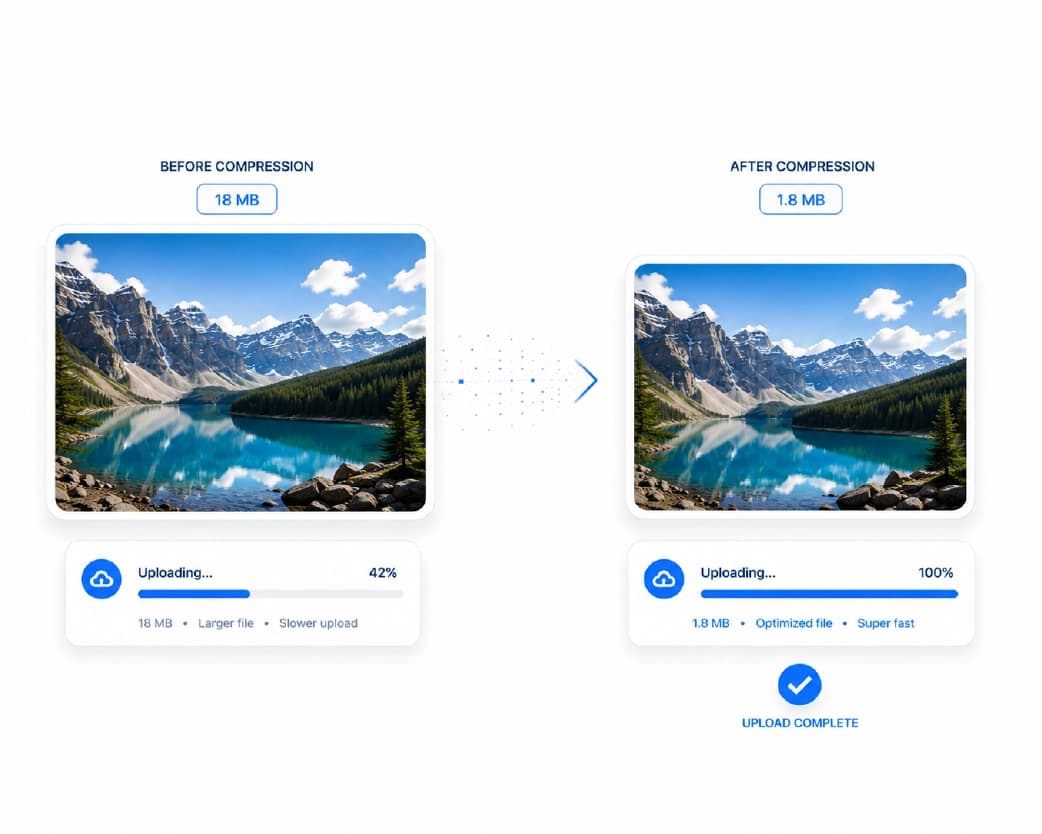
HEIC vs PNG vs JPG Image Quality and File Size Comparison

Tips for a Smooth Conversion

  • Start with the original photo. If you’ve already sent a picture through a chat app, it may have been squeezed and lost detail. Go back to the version on your phone for the best result.
  • Think about your iPhone settings. If you’re tired of converting, you can tell your iPhone to take photos in a more compatible format. It’s in the camera settings, under Formats. That way, new photos work everywhere from the start.
  • Convert only what you need. PNG files are big, so don’t turn your whole photo library into PNGs unless you really need them.
  • Check the file size afterward. If a form has a limit, look at the new file and shrink it if you have to.
  • And keep your originals. The HEIC file is the smallest, so it’s the best one to keep as a backup.

Who Gets the Most Out of This?

  • iPhone users with a Windows PC: You take photos on one device and edit or print on another. Converting solves the “can’t open this file” problem right away.
  • Students and job seekers: Online forms are picky about file types. A PNG usually gets accepted, so you avoid rejected uploads.
  • Bloggers and website owners: Not every website platform handles HEIC. Converting before you upload saves you from error messages.
  • Designers and creators: PNG works with almost every design tool and keeps edges and transparency clean, so it’s a good format to work with.
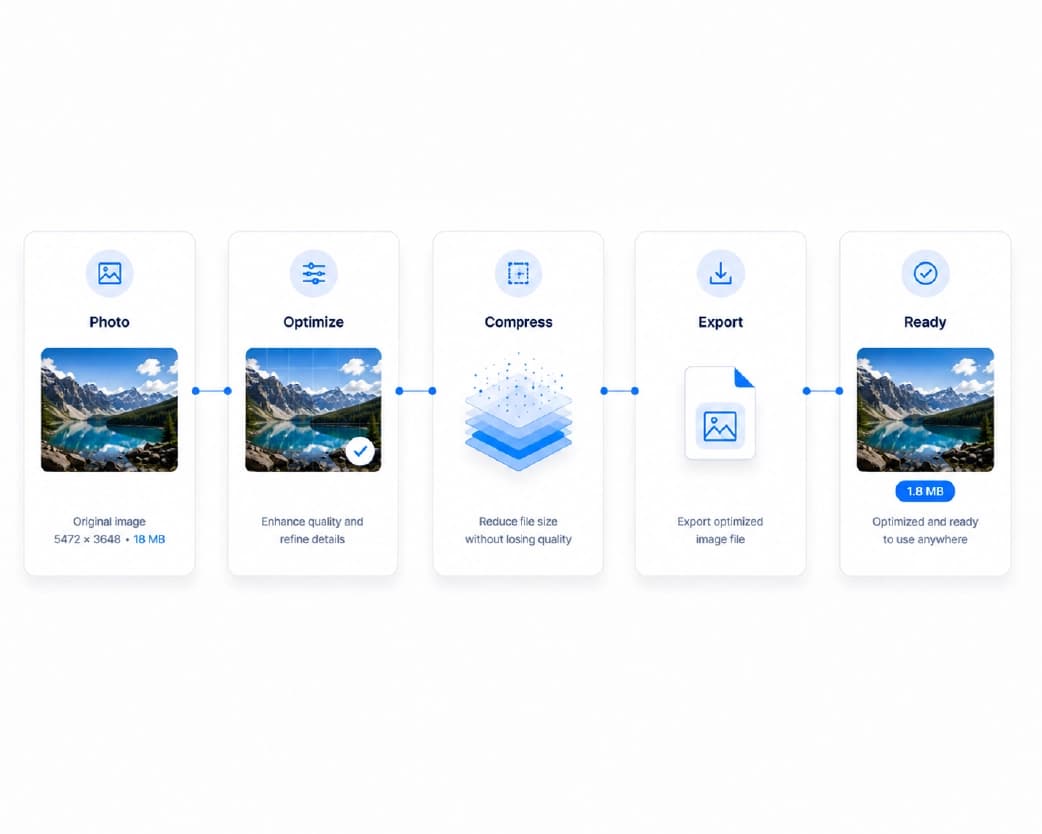
Optimizing and Compressing PNG Images for Web Uploads

Is It Safe to Convert Photos Online?

Smart question. Plainscan uses encrypted HTTPS connections, and uploaded files are deleted automatically within 24 hours. The site also says it doesn’t share your files with third parties.

For everyday photos, that sounds reasonable. But if your image shows something very private, like an ID card or a bank paper, think twice before uploading it to any website. That’s true for every online tool, not just this one.

What About the Free Plan?

You can start without paying. Plainscan has a free plan with daily limits, plus a Pro plan if you need more. There’s also a pay-as-you-go option where you buy credits only when you need them. If you only convert a photo now and then, free will probably be enough. Check the tool page for the current limits.

Mistakes to Avoid

  • Forgetting how big PNGs get is the classic one. A folder of converted photos can fill up your storage fast.
  • Another is converting a photo that’s already been squeezed by a chat app. The conversion can’t bring back detail that’s gone.
  • Don’t assume PNG is always the best choice, either. For simple photos with a size limit, JPG might fit better.
  • And don’t delete your originals until you’ve checked the new files. A quick look can save you a lot of trouble.

Conclusion

HEIC is great on an iPhone and annoying everywhere else. Once you know how to convert HEIC to PNG online free, a photo that won’t open turns into one that works anywhere in just a few clicks. So next time your computer or a website refuses to open an iPhone photo, don’t give up. Open Plainscan, upload it, convert it, and get on with your day.

Related insights

AI Resume Formatter: How to Turn a Messy Resume Into a Clean, Job-Ready One

ARTICLE

AI Resume Formatter: How to Turn a Messy Resume Into a Clean, Job-Ready One

Here’s a story that happens more than people admit. You spend a whole evening on your resume. You pick the fonts. You line up every bullet. You hit save, feel proud, and send it off to a company you really want to work for. Then a friend opens it on their phone and says, “Um, the whole thing looks weird.” The dates are on the wrong line. A section floats off to the side. Your carefully chosen font is gone. It’s not a great first impression, and it’s not even your fault. Resumes can be surprisingly fragile. That’s where an AI resume formatter earns its keep.

Plainscan Team·October 31, 2026
4 min read
How to Extract Keywords from Any Document Instantly (Even If It’s 80 Pages Long)

ARTICLE

How to Extract Keywords from Any Document Instantly (Even If It’s 80 Pages Long)

Let’s say a friend hands you a thick stack of papers and says, “Tell me what this is about.” You could read all of it. That’s a few hours gone. Or you could scan for the words that keep popping up and the ideas that clearly matter. Within minutes, you’d have a pretty good picture. That second way is what keyword extraction is all about. And the good news is you don’t have to do it by hand anymore.

Plainscan Team·October 31, 2026
4 min read
AI Document Condenser: How to Shrink a 50-Page File Into the Parts That Matter

ARTICLE

AI Document Condenser: How to Shrink a 50-Page File Into the Parts That Matter

Picture this. It’s Monday morning, and you open your email. There’s a 60-page report from your manager with a note that says, “Please read before our 2 pm meeting.” You look at the clock. You look at the report. You look at the clock again. Most of us have been in this spot. Maybe it was a thick contract, a class reading, or a research paper full of words you had to Google. The info matters, but the time just isn’t there. This is exactly why people are turning to an AI document condenser.

Plainscan Team·October 31, 2026
4 min read
AI Text Expander: How to Turn a Few Lines Into Clear, Full Writing

ARTICLE

AI Text Expander: How to Turn a Few Lines Into Clear, Full Writing

We’ve all done this. You sit down to write, get your main point on the page in two sentences, and then stare at the screen wondering what else there is to say. It’s not that you’re a bad writer. Short and to the point is actually a good habit. The problem is that many situations need more. A school essay needs depth. A product page needs detail. A report needs context so the reader doesn’t have to guess what you meant. That’s where an AI text expander comes in handy.

Plainscan Team·October 31, 2026
4 min read
How to Extract Data from Any Document (Without Losing Your Weekend)

ARTICLE

How to Extract Data from Any Document (Without Losing Your Weekend)

Picture a Sunday night. You’re tired, your tea is cold, and there’s a folder on your desktop with forty invoices in it. Some are neat PDFs. Some are blurry phone photos. One is a crooked scan that looks like it was taken during an earthquake. And all of it has to end up in one spreadsheet by morning. So you start typing. Invoice one, fine. Invoice six, your eyes are crossing. Invoice fifteen, you notice a typo, but you have no idea which row it’s in. We’ve all been there, or somewhere close to it. The good news is you really don’t have to do it this way anymore.

Plainscan Team·October 31, 2026
4 min read
AI Document Translator: How to Translate Files Without the Headache

ARTICLE

AI Document Translator: How to Translate Files Without the Headache

Got a PDF in a language you can’t read? You’re not stuck anymore. An AI document translator can turn pages of foreign text into something you understand in minutes. Here’s how it works, where it shines, and how to get better results. Picture this. A landlord sends you a lease in a language you barely know. Or your college sends a form written in another language. Or a supplier emails an invoice, and you have no clue what half of it says. Not fun. A few years ago, you’d have copied it line by line into a website or paid someone to do it. Now there’s an easier way.

Plainscan Team·October 31, 2026
4 min read
AI Text Rewriter: The Easy Way to Fix Writing That Sounds Off

ARTICLE

AI Text Rewriter: The Easy Way to Fix Writing That Sounds Off

You know the feeling. You write a sentence and it comes out too stiff, too long, or somehow both at once. It happens to everyone, even people who write for a living. The good news? You don’t have to fix it alone anymore. Let’s talk about what a rewriter really does, and how to use it so your writing still sounds like you.

Plainscan Team·October 31, 2026
4 min read
AI Document Summarizer: How to Get the Key Points From Long Files Fast

ARTICLE

AI Document Summarizer: How to Get the Key Points From Long Files Fast

Quick answer, in case you’re in a rush. An AI document summarizer reads a long file and gives you a short version with the main points. You upload, click, and read a few paragraphs instead of forty pages. Now the longer version, because there are a few things worth knowing before you trust it with your Monday morning.

Plainscan Team·October 31, 2026
4 min read
OCR to Excel: How to Turn Scanned Tables Into Spreadsheets You Can Use

ARTICLE

OCR to Excel: How to Turn Scanned Tables Into Spreadsheets You Can Use

Picture a printed price list. Four pages. Teeny tiny numbers. And your boss says, “Can you get me the totals by tonight?” You scan it, open the file, and try to add up a column. Nothing. Because it’s a picture, and Excel has no idea there are numbers in there. So now you’re looking at four pages of retyping, and it’s already 4 p.m. Lovely. Here’s the thing, though. You don’t have to type any of it. OCR to Excel can read the numbers for you and help build a real spreadsheet. I’ll walk you through it, and I’ll tell you what to double-check, because that part really matters.

Plainscan Team·October 31, 2026
4 min read
Free OCR to Text Converter Online: How to Copy Text From Any Image

ARTICLE

Free OCR to Text Converter Online: How to Copy Text From Any Image

Okay, let’s be real. We’ve all done this. You see something useful in a picture. A recipe in a screenshot. Notes on a whiteboard. A page from a library book. And you think, “I’ll just copy that.” You drag your mouse across it. Nothing. Not a single word highlights. Because it’s a picture. Your computer can see it, but it has no clue it’s reading words. Now you’ve got two choices. Type everything by hand, or use a free OCR to text converter online and let it do the typing in a few seconds. I’m voting for option two. Here’s how it works.

Plainscan Team·October 31, 2026
4 min read

Get the Plainscan App for iOS & Android








