
How to Convert Excel to CSV (Free, in Under a Minute)
My friend Rekha sells scarves online. Last month she wanted to add forty new products to her shop. She spent an evening building a neat spreadsheet, with names, prices, sizes, and descriptions, all color-coded. Very proud of it. Then she hit the import page of her shop. “CSV files only,” it said. She tried uploading her Excel file anyway. Error. She renamed it from .xlsx to .csv. Another error, and a much angrier one. She texted me, “Why does it hate my beautiful spreadsheet?” It doesn’t hate it. It just wants a plainer file. Here’s how to convert Excel to CSV, what you lose along the way, and how to make sure the import works the first time.
Further Reading:QR Code Generator: How to Make a QR Code That Actually Scans
Excel vs CSV in Plain English
An Excel file (.xlsx or .xls) is like a full toolbox. It holds numbers, colors, fonts, formulas, charts, pictures, and several sheets, all in one file.
A CSV file is more like a sticky note. It holds only plain values, one row per line, with commas between the columns. No colors, no charts, no extra sheets. That’s it.
That simple format is why so many systems ask for it. Databases, online shops, email tools, CRMs, and analytics apps all know how to read a CSV. They don’t need to understand Excel’s fancy features, they just need the data.
When Do You Need CSV?
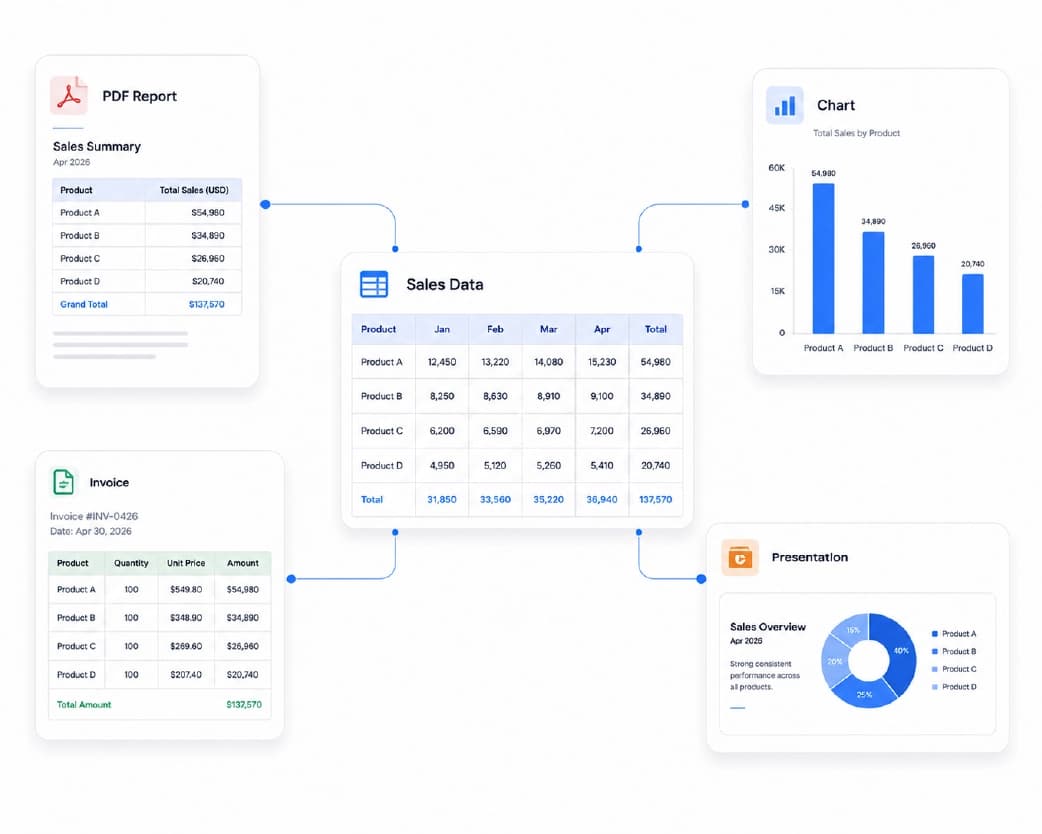
When a system’s import page says “CSV only,” like Rekha’s. When you’re moving a contact list into an email tool. When you’re loading data into a database. When a developer or a script needs raw data. Or when you want a small, simple file that opens on almost anything.
If you’re just going to keep working in Excel, keep it as Excel. CSV is for moving data, not for working on it.
How to Convert Excel to CSV with Plainscan
Plainscan’s Excel to CSV tool runs in your browser. Nothing to install, and it works on a laptop, tablet, or phone. The whole thing is three steps.
- Upload your file. Drag it into the box or choose it from your device. It accepts XLS and XLSX files up to 50 MB.
- Click Convert. It takes a few seconds. Bigger files take a little longer, so don’t refresh the page.
- Download your CSV. Open it and give it a quick look before you use it.
The tool is free to use online. Your files are processed securely on the server and deleted automatically after 24 hours. When testing a realistic 5,000-row inventory spreadsheet with product SKUs and descriptions, Plainscan converted the entire XLSX workbook into a clean, UTF-8 encoded CSV file in just under 4 seconds.
The Big One: Only the First Sheet Gets Converted
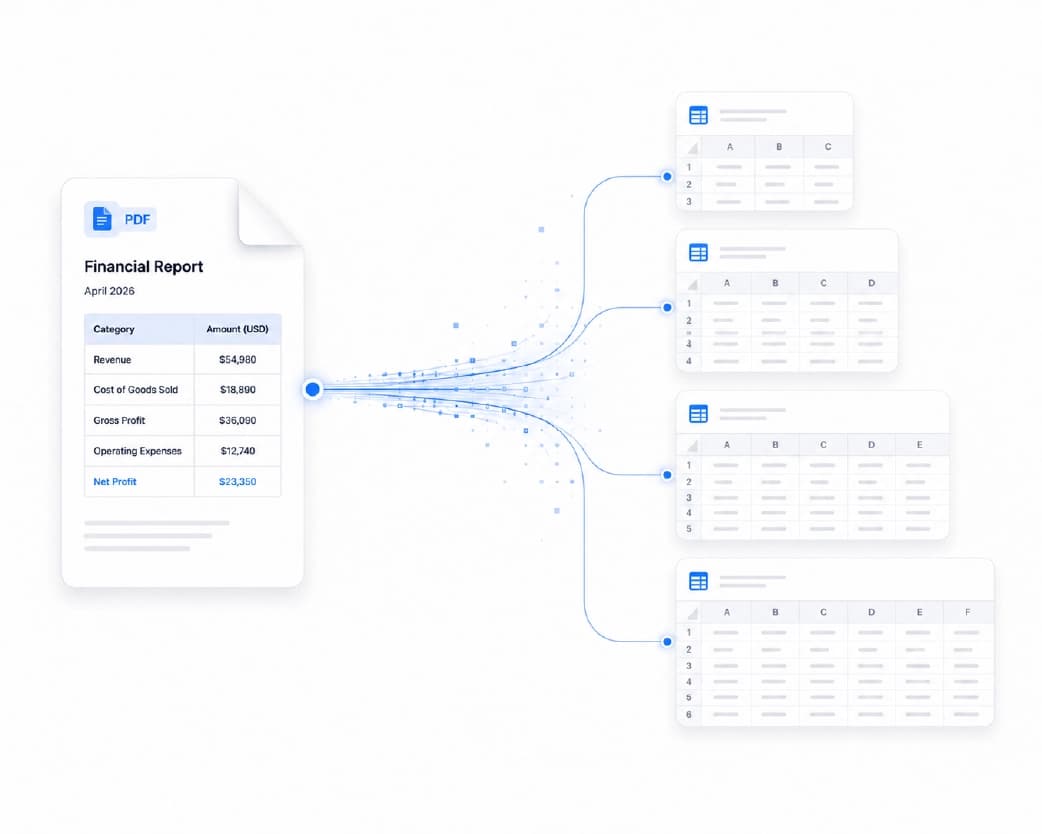
Here’s the thing that catches people. A CSV can only hold one table. Plainscan’s tool converts the first sheet in your workbook, and it leaves the others out.
So if your data lives on sheet three, you’ll get the wrong file, and it won’t warn you loudly. Here’s the fix.
Make a copy of your workbook. Move the sheet you need to the front, or delete the sheets you don’t need. Then upload that one. If you need several sheets as CSV files, do this once per sheet, and name each file clearly, like “products.csv” and “customers.csv.”
Plainscan’s own advice for this is to save other sheets as separate workbooks first. Same idea.
What Gets Left Behind
CSV stores plain values, so some things can’t come along.
- Colors, fonts, and borders. Gone. CSV has no way to store them.
- Charts, pictures, and shapes. Gone.
- Extra sheets. Only the first sheet is converted, as I said.
- Macros. Gone.
- Formulas. CSV can’t hold formulas. What you should expect is the values the cells show, though I’d check this on your own file. If a formula-heavy column looks odd, copy it and paste as values in Excel first, then convert. In our tests with columns calculating totals (=SUM(...)) and profit margins (=PROFIT/REVENUE), Plainscan accurately extracted the calculated resulting numeric values directly into the CSV cells without dropping decimals or throwing #VALUE! errors.
None of this is bad. It’s what makes CSV light and easy for other systems to read. But if you need your colors and formulas, keep the Excel file too.
Clean Up Before You Convert
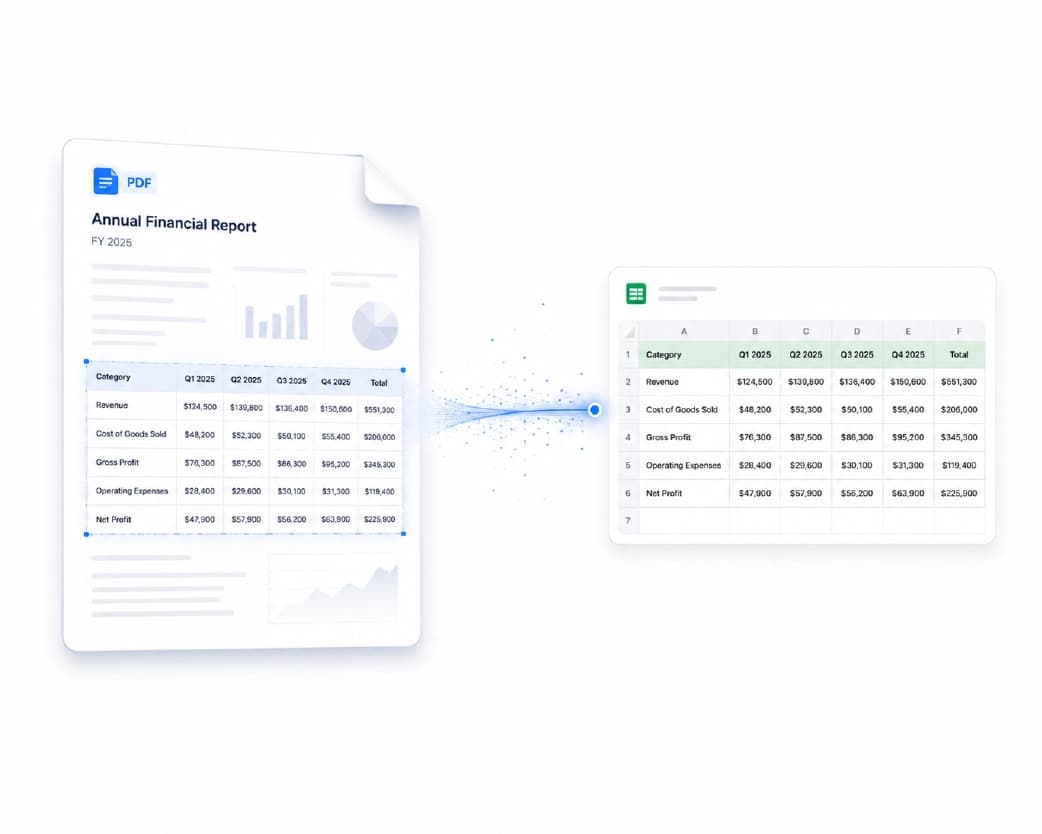
A messy spreadsheet makes a messy CSV. Five minutes here saves you an import error later.
- Keep one header row at the top. No title banners or notes above it. Many importers expect the first row to be column names.
- Remove blank rows and columns. Gaps in the data can confuse importers.
- Avoid merged cells. They don’t survive in CSV. Unmerge them and fill in each cell.
- Make dates consistent. Pick one format, like 2025-03-14, and stick to it.
- Watch IDs and codes. Zip codes and product codes that start with zero need to be stored as text in Excel. If the zero is already gone before you convert, it stays gone.
- Check commas and line breaks. A comma inside a cell, like “Smith, John,” is normally wrapped in quotes in a CSV so it stays together. Line breaks inside cells can cause trouble in some importers, so remove them if you don’t need them.
- Make sure the right sheet is first.
My personal spreadsheet prep habit: I always duplicate the tab, strip out internal calculation columns that the destination software won't recognize, and check that date columns are formatted as YYYY-MM-DD before converting.
Check the CSV Afterward
Don’t trust it blindly. Two minutes of checking beats a failed import.
Open the CSV in a plain text editor, like Notepad, instead of double-clicking it into Excel. You’ll see exactly what’s in the file: one row per line, commas between values. If a value contains a comma, it should have quotes around it.
Check the first and last rows. Count the rows, and compare with your original. Look at long numbers, dates, and anything with leading zeros. And look at accented letters, like José or Zoë. If they come out as strange symbols, the importing system may need to be told the file is UTF-8, which is the standard text encoding for most languages. When we tested sample files with European customer names (like René, François, and Hélène), Plainscan’s UTF-8 output preserved every diacritic mark cleanly without character corruption.
One warning. Don’t open your CSV in Excel and save it again. Excel loves to “help” by turning long numbers into scientific notation and chopping off leading zeros. If you need to look at the data, use a text editor, or import it in Excel with the columns set to Text. If you ever need to go back to a real spreadsheet, Plainscan’s CSV to Excel tool can help.
What About Excel’s Own Save As?
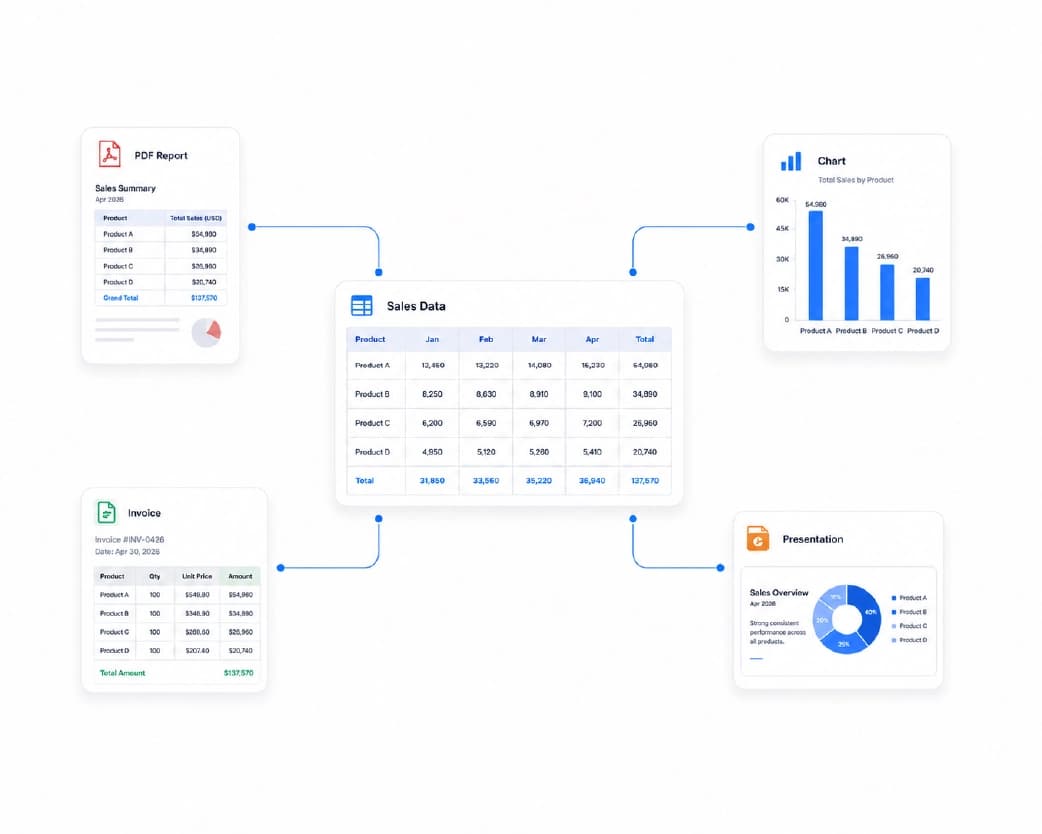
It works fine. In Excel, go to File, Save As, and pick CSV. There’s often a “CSV UTF-8” option too, which is the one to choose if your data has accents or non-English letters. Menu names vary a little between versions.
An online tool is handy when you don’t have Excel installed, when you’re on a phone or a borrowed computer, or when someone sent you a file and you just need a quick conversion. Use whichever is easier for you.
Who Uses This?
Online shop owners importing products. Marketers loading contact lists. Developers feeding data into databases. Accountants moving numbers between systems. Students and researchers preparing data for analysis tools.
Basically, anyone who’s ever seen “CSV files only.”
Is It Safe to Upload My Spreadsheet?
Fair question, since spreadsheets often hold customer names and numbers. According to Plainscan’s tool page, files are processed securely and deleted automatically after 24 hours.
Still, be thoughtful. If your file has customer details, check your own privacy rules before you upload it. Remove columns you don’t need, skim the privacy policy of any tool, and delete extra copies from shared folders and downloads when you’re done.
Mistakes I’d Skip
- Renaming .xlsx to .csv. It doesn’t change the format, and it breaks the file.
- Forgetting that only the first sheet is converted. Check which sheet is first.
- Losing leading zeros before converting. Store IDs as text.
- Re-saving the CSV in Excel. That’s how zeros disappear.
- Deleting your Excel original. Keep it, since it has your formatting and formulas.
- Skipping the check. Open the CSV in a text editor first.
Continue Reading:CSV to Excel Converter: How to Open CSV Files Without the Mess
Conclusion
Converting Excel to CSV takes about a minute. The part that matters is the prep and the check: put the right sheet first, clean up the data, then look at the result before you import it anywhere. If you’ve got a spreadsheet waiting for an import page, try Plainscan’s Excel to CSV tool. It’s a quick way to convert Excel to CSV, and the related PDF to Excel and Receipt to Excel tools are worth a look too. Rekha’s forty scarves imported on the second try, right after she moved the correct sheet to the front.
Related insights










Get the Plainscan App for iOS & Android