Free Online Barcode Generator: How to Make Barcodes That Actually Scan
My friend Nisha sells hand-painted mugs at weekend markets. Last spring she decided to get organized. She wanted a barcode on every mug so she could scan stock in and out with her phone, instead of counting them on the back of an envelope. She made the barcodes in a free tool, printed three hundred little stickers, and spent a whole evening sticking them on boxes. Then she tried to scan one. Nothing. Another. Nothing. She stood in her garage holding a sheet of sticker rolls like a very sad parade. The problem wasn’t the generator. She’d made the barcodes too small, printed them in light gray, and squeezed them right up against the edge of the label. Three small mistakes, three hundred wasted stickers. So here’s how to avoid that: how a free online barcode generator works, which type to choose, and how to print one that scans.
What a Barcode Really Is
A barcode is just a way of turning a number or short text into a pattern of lines that a scanner can read. The scanner shines light across the lines, sees where it bounces back, and works out the characters. It doesn’t “know” what your product is. It reads a code, and then your app or system looks up what that code means.
That’s an important point. A barcode only stores a short piece of data, like 1004582. The details, like price and name, live in your inventory system.
Which Type Should You Pick?
There are lots of barcode types. Most people only need a few.
- Code 128. My default for inventory and labels. It handles letters and numbers, it’s compact, and nearly every scanner reads it.
- Code 39. An older style that handles letters and numbers. It’s common in some industries, but takes more space than Code 128.
- EAN-13 and UPC-A. These are the numbers-only barcodes on products in shops. They follow strict rules, and I’ll explain the catch below.
- QR codes. These are square, 2D codes that can hold links and more text. They’re a different tool, so check whether your generator makes them separately.
If you’re labeling your own stock or office equipment, Code 128 is usually the safe choice.
The Catch With Store Barcodes
This is the part most people don’t hear, and it can cost money. If you plan to sell products in shops or on big online marketplaces, you often can’t just invent an EAN or UPC number. Those numbers are issued by an official organization, and your company gets its own prefix. A random generator can make something that looks right and scans fine, but it may not be allowed on a retail product, and it can clash with another company’s number.
So here’s the simple rule. For internal use, like stock counts, shelves, tool tracking, event tickets, and library books, a free barcode generator is perfect. For selling in stores, check the rules in your country and get official numbers first. I’m not a legal advisor, so check with the official body or your marketplace if you’re unsure.
How to Use a Free Online Barcode Generator with Plainscan
Plainscan runs in your browser and has over 100 document and image tools. Nothing to download. It works on a laptop, a tablet, or a phone. Here’s the general flow.
- Find the tool. Go to the tools page and look for the barcode generator, or open the Barcode Generator tool directly.
- Choose a barcode type. Pick Code 128 unless you have a reason not to. Plainscan supports over 20 standard 1D and 2D formats, including Code 128, EAN-13, UPC-A, Code 39, QR Code, Data Matrix, and PDF417.
- Enter your number or text. Keep it short and double-check it. Some types allow only digits.
- Adjust the look. You can customize bar height, bar width, quiet zone margins, choose custom bar and background colors, and toggle whether human-readable numbers appear beneath the bars.
- Download the image. Save it as a sharp PNG, scalable vector SVG, or print-ready PDF.
- Test it before you print anything. More on that in a second.
When I tested Plainscan's Barcode Generator to create a Code 128 inventory label, generating and downloading the high-res PNG took less than 10 seconds.
Is it free?
You can start for free. After you create a free account, you can process up to 4 documents a day with the basic tools, and that resets every 24 hours. Because Plainscan's Barcode Generator runs locally right in your browser, generating and downloading custom barcodes is completely free with no watermarks and no daily processing restrictions. If you want AI features or unlimited use, there’s a paid plan, or you can buy credits and use them only when you need to.
How to Make a Barcode That Scans
This is what went wrong for Nisha, and it’s the most important section in this post.
- Use dark bars on a light background. Black on white is best. Light gray, or colored bars on a colored background, can fail.
- Leave empty space around it. Barcodes need a blank margin on both sides, called the quiet zone. Don’t squeeze them against the edge of the label or put text right next to them.
- Don’t make it too small. A tiny barcode is hard for scanners and phone cameras to read. If in doubt, go bigger.
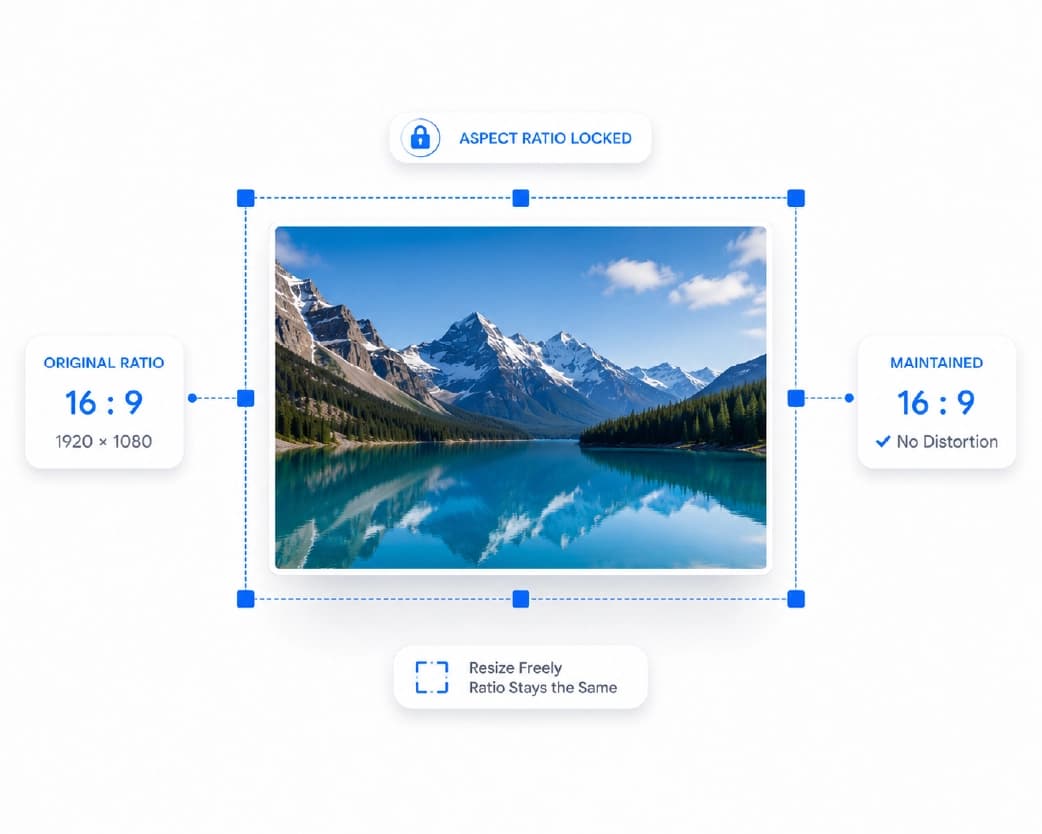
- Don’t stretch or squish it. Resize it evenly. Changing only the width or height can break the proportions.
- Keep the lines sharp. Blurry edges make scanning harder. Export a sharp image, and don’t screenshot a barcode and resize it.
- Print at good quality. Low ink, smudges, or a cheap printer on draft mode can ruin the bars.
- Keep it flat. A barcode wrapped around a curved bottle may need a bigger size or a different design.
My personal rule for barcodes: always print a single test label on actual sticker stock and verify it with your phone camera before printing a whole batch.
Test Before You Print a Hundred
If you remember one thing from this post, make it this. Print a single copy at the real size on the real label, then scan it with the same app or scanner you’ll actually use. Try it in normal light, and try it from a couple of angles. Your phone camera can read most common types, and plenty of free scanning apps exist.
If it scans on the first try, print the rest. If it doesn’t, fix it now. That’s the whole difference between Nisha’s three hundred stickers and a quick, happy afternoon.
Useful Image Tools for Barcodes
If your barcode image has extra white space, trim it with the Crop Image tool. If you’re putting it on a label design, you may want a transparent background, which works best as a PNG. If the file is heavy, the Compress Image tool can lighten it, but check that the bars stay crisp. And please don’t enlarge a small barcode image with an upscaler. Re-generate it at the size you need instead, because sharp edges matter more than anything.
If you need a whole sheet of labels, you can place your barcode images into a document and export it as a PDF (check out our guide on how to use an images to PDF converter).
Who Uses This?
Small shop owners and market sellers tracking stock. Offices labeling equipment. Teachers and librarians organizing books. Event organizers making tickets and wristbands. Warehouses and hobby builders with shelves of parts.
Anyone who has ever counted stock on the back of an envelope.
Is It Safe to Use?
Barcodes are generally not sensitive, but don’t encode private information in them. Anyone with a phone can scan them. Plainscan uses encrypted HTTPS connections, and uploaded files are deleted automatically within 24 hours. Still, skim the privacy policy of any new tool, and avoid putting personal details like phone numbers or ID numbers in a barcode that will be stuck on something public.
Mistakes I’d Skip
- Printing a whole batch before testing.
- Using light colors or low contrast.
- Removing the blank margin around the barcode.
- Inventing EAN or UPC numbers for products you plan to sell in stores.
- Typos in the number. One wrong digit means a wrong code.
- Forgetting the limits. Check file size and your daily cap before a big batch.
Conclusion
A free online barcode generator can save you hours of counting and guessing, as long as you pick the right type, leave enough space, print it sharp, and test one before you commit. Use Code 128 for your own labels, and get official numbers if you plan to sell in stores. If you’ve got stock that needs labels, try Plainscan today. It’s an easy way to use a free online barcode generator, and there are plenty of other free image and PDF tools worth a look while you’re there. Nisha reprinted her labels at a bigger size on white stickers, and every mug scanned on the first try.
Related insights










Get the Plainscan App for iOS & Android