Bank Statement to Excel: How to Turn a PDF Statement Into a Sheet You Can Actually Use
My friend Mehul runs a small print shop. Every month his bank emails him a PDF statement, and every month he sits down with a coffee and types the numbers into a spreadsheet. Date, description, amount. Date, description, amount. Around transaction forty, the coffee goes cold and his eyes glaze over. Last year, in tax season, he did this for twelve months in a row. He told me he found three typos only because his total was off by exactly 90. He spent an evening hunting for the mistake, found a 540 typed as 450, and said a few words I’ll leave out. You don’t have to type any of this. Here’s how to convert a bank statement to Excel, what usually goes wrong, and how to check that the numbers are right.
First, Check If Your Bank Already Offers Excel or CSV
This is the easy win, and plenty of people miss it. Many banks let you download your transactions as a CSV or Excel file from online banking, often under “download transactions” or “export.” That data comes straight from the bank, with no guessing, so it’s usually cleaner than anything converted from a PDF.
Look for it before you do anything else. If your bank offers it, use it.
If it doesn’t, or if you only have old PDF statements, or statements sent by email, then a converter is your friend.
Why PDF Statements Are Annoying
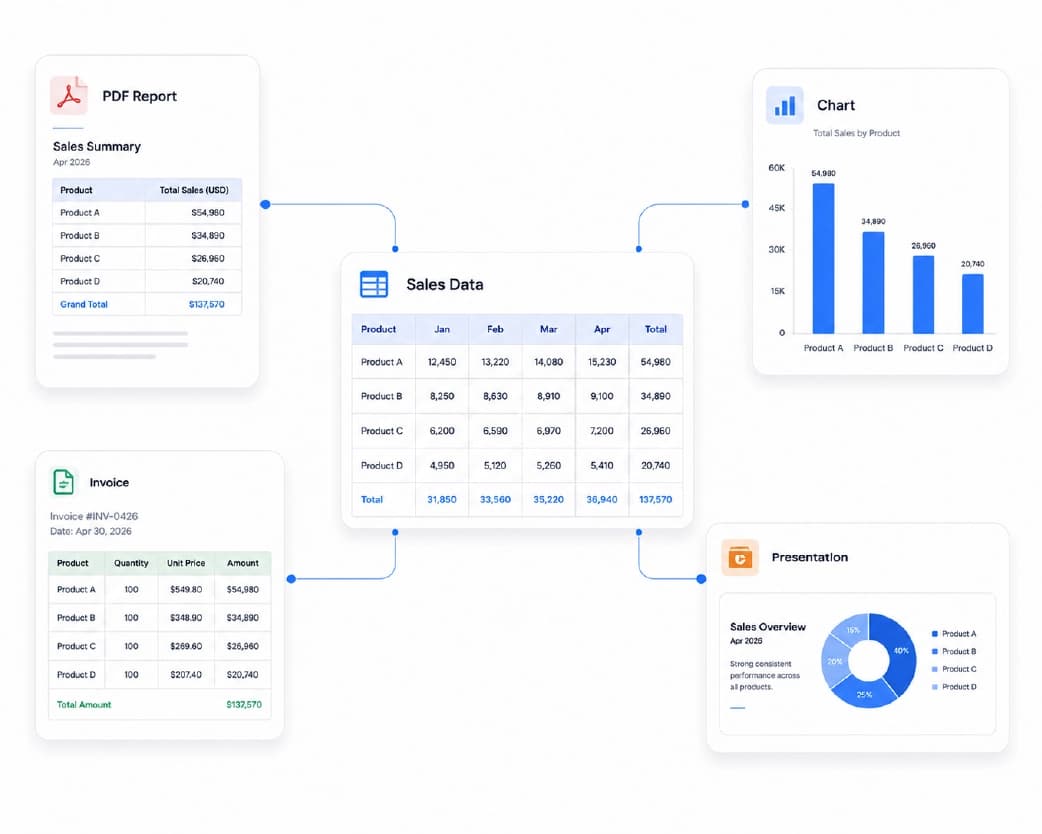
A PDF is built to look the same everywhere. It’s like a photo of a table. The numbers sit in neat rows, but there’s no real spreadsheet underneath. When you copy and paste, dates mash into descriptions, columns shift, and amounts land in the wrong cell.
Bank statements add their own headaches. Tables run across several pages. Header rows repeat on every page. Running balances sit in a column next to the amounts. Some banks put debits and credits in separate columns, and some use one column with minus signs. A good PDF to Excel converter handles a lot of this, but not all of it, so you’ll want to check.
Text-Based or Scanned?
Do a quick test. Try to highlight a number in the statement with your mouse.
If it highlights, the statement has real text inside. That’s the easy kind, and conversion usually works well.
If nothing happens, it’s a scan, which is just a picture of a paper statement. You’ll need OCR first, which stands for optical character recognition. It reads the picture and turns it into real text. Plainscan’s Scan & OCR tool does that. OCR can mix up characters, like 8 and 3, or 1 and 7, so with money, you must check every number.
What About Password-Protected Statements?
Many banks lock statement PDFs with a password, often something like your date of birth or part of your account number. Most converters can’t read a locked file. You’ll need to unlock it first, using the password your bank gave you. Plainscan features a dedicated Unlock PDF tool (and a detailed guide on how to unlock PDF online free) that decrypts your statement so you can safely convert it to a spreadsheet.
Only unlock files that are yours, or that you have permission to open.
How to Convert Bank Statement to Excel with Plainscan
Plainscan runs in your browser and has over 100 document tools. Nothing to download. It works on a laptop, a tablet, or a phone. Here’s the general flow.
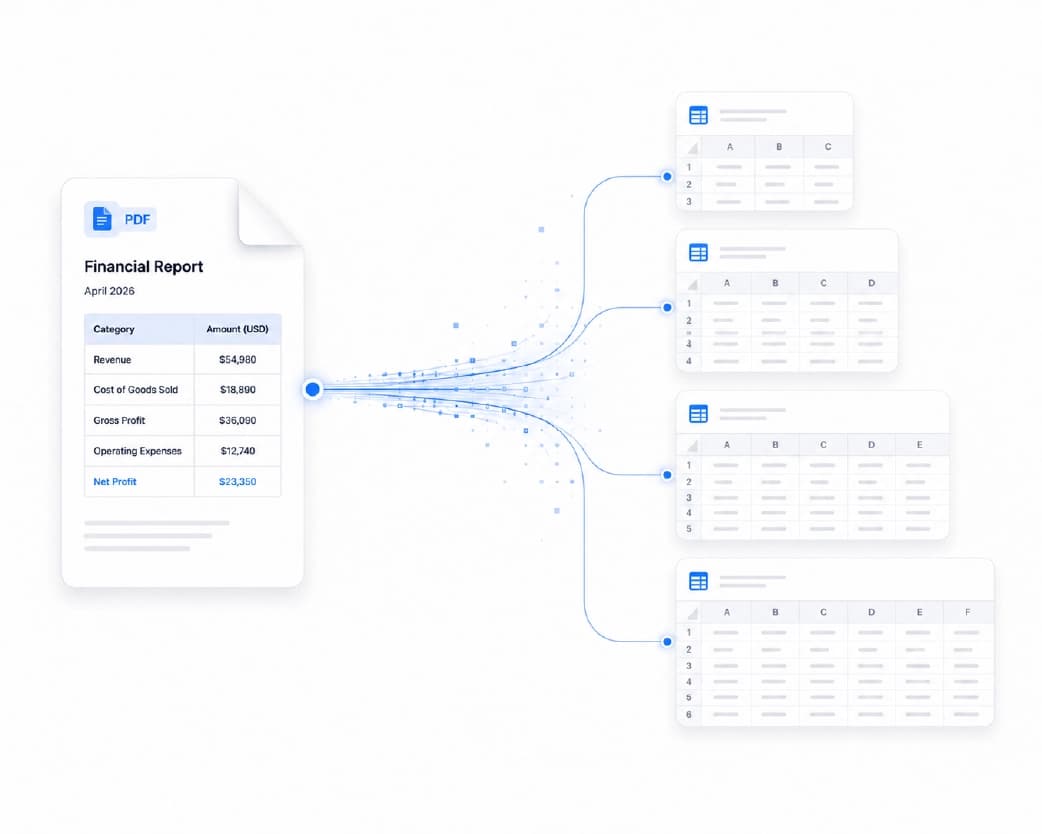
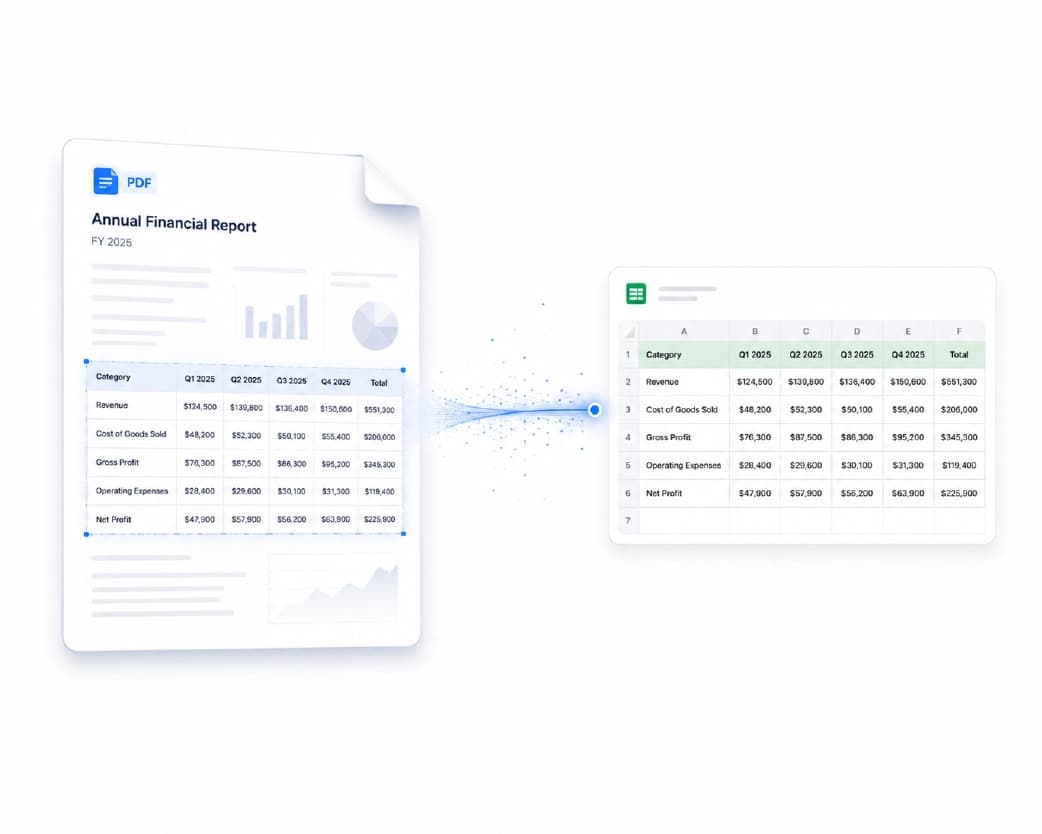
- Open the tool. Go to the PDF to Excel tool. It automatically detects row and column grid lines, isolating transaction tables from surrounding header text and footer notes to produce cleanly formatted XLSX sheets.
- Upload your statement. Drag it in or browse for it. Free accounts can upload files up to 50 MB, which covers most statements.
- Convert it. Click the button and wait a few seconds. Longer statements take longer, so don’t refresh the page.
- Download the Excel file. Open it and look at the first and last pages first.
- Check and clean. The next section matters most.
When I tested a six-page sample bank statement containing over 180 transaction rows, Plainscan extracted all tabular data into an Excel spreadsheet in under four seconds.
Is it free?
You can start for free. After you create a free account, you can process up to 4 documents a day with the basic PDF tools, and that resets every 24 hours. The PDF to Excel converter is fully included under your daily free allowance, letting you convert multi-page bank statements with zero fees and no watermarks. If you want AI features or unlimited use, there’s a paid plan, or you can buy credits and use them only when you need to.
Check the Numbers
Please don’t skip this part. It’s the reason Mehul’s story ended the way it did. A conversion that’s 99 percent right can still have one wrong digit, and in money, one digit matters.
- Compare the totals. Add up the money in and the money out in Excel, then compare them with the totals printed on the statement. If they match, you’re in good shape. If they don’t, something moved or got misread.
- Check the opening and closing balance. The first and last balance should match the statement.
- Count the rows. If the statement lists 86 transactions and your sheet has 83, three went missing.
- Look at page breaks. Rows near the top and bottom of each page are where problems hide.
- Spot-check a few random lines. Pick five and compare them with the PDF.
I always run a simple =SUM formula on the debits and credits columns and compare the difference against the net balance change printed right at the top of the statement.
Common Cleanup Jobs
Here’s what usually needs fixing.
- Numbers stored as text. If Excel won’t add them up, they might be text. Select the column and convert to numbers. Watch for commas and currency symbols that confuse it.
- Dates that look odd. Some come through as text, or in a different order, like 03/04 meaning March 4 or April 3. Make sure Excel reads them the way your bank wrote them.
- Repeated header rows. The column titles may appear on every page. Delete the extras, or they’ll mess up sorting.
- Merged or shifted cells. If a description is split across two cells, join them back.
- Debits and credits. If everything is in one column, use minus signs for money out. If they’re in two columns, make sure each amount is in the right one.
- Running balance column. Handy for checking. You can also delete it if you don’t need it.
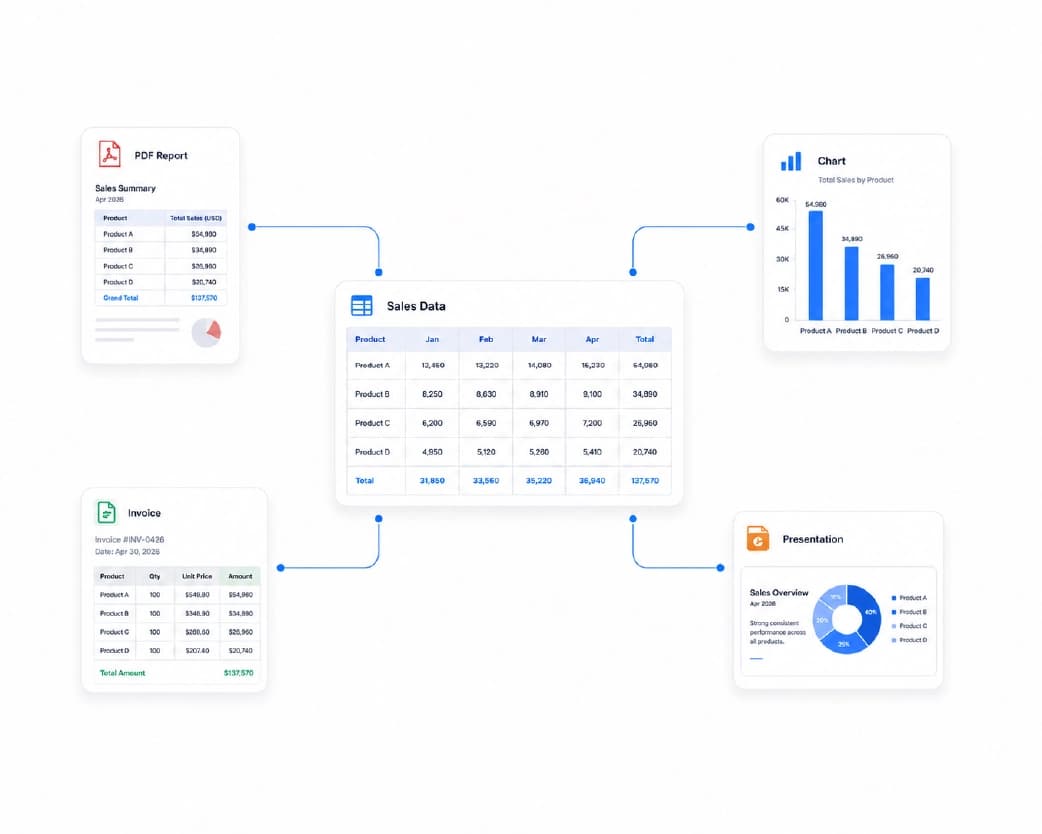
Once it’s clean, you can sort, filter, add formulas, make a pivot table, or tag each transaction by category, like rent, groceries, and fuel.
Tips for Better Results
- Use the best file you have. The original PDF from your bank is better than a photo of a printout.
- Fix sideways pages first with the Rotate PDF tool.
- Convert one statement at a time. It’s easier to check, and mistakes don’t pile up.
- Keep the original PDF next to your spreadsheet. You’ll want it if a number looks strange.
- If you need a CSV instead of Excel, open the Excel file and use Save As, then pick CSV. You can also use Plainscan’s Extract Tables tool to export your tabular data directly to CSV format in one click.
- Name your files clearly. “Bank-Statement-2025-03.xlsx” is easy to find. “Book1 final.xlsx” is not.
Who Uses This?
Small business owners tracking expenses. Freelancers getting ready for tax time. Accountants and bookkeepers reconciling accounts. Students and families building a budget. Landlords tracking rent payments.
Anyone who has ever thought, “I wish I could just sort this by amount.”
Is It Safe to Upload a Bank Statement?
This deserves a real answer, because bank statements are some of the most sensitive files you have.
Plainscan uses encrypted HTTPS connections, and uploaded files are deleted automatically within 24 hours. That’s a good start. Still, I’d be careful.
Read the privacy policy of any tool before you upload a financial document. Only upload your own statements, or ones you have permission to use. Think about whether you need to upload the whole file, since some people cover or remove account numbers first. And delete the PDF and the spreadsheet from places you don’t need them, like shared folders and downloads. Keep them somewhere safe, ideally protected with a password.
If you aren’t comfortable uploading a statement to any website, use your bank’s export option instead.
Mistakes I’d Skip
- Skipping the totals check. One wrong digit can ruin a tax return.
- Trusting OCR on scans. Check every number.
- Not looking at page breaks. That’s where rows go missing.
- Leaving files in random folders. These are sensitive documents.
- Deleting the original PDF. Keep it.
- Forgetting the limits. Check file size and your daily cap before a batch.
Conclusion
Getting a bank statement to Excel saves hours and cuts down on typing mistakes, as long as you check your work. Try your bank’s own export first, convert the PDF if you need to, and compare the totals before you trust a single number. If you’ve got statements stacking up, try Plainscan on one today. It’s an easy way to convert a bank statement to Excel, and there are plenty of other free PDF tools worth a look while you’re there. Mehul did his next tax season in twenty minutes, and his totals matched on the first try.
Continue Reading:PDF to Markdown Converter: How to Turn a PDF Into a Clean .md File
Related insights










Get the Plainscan App for iOS & Android