PDF to Markdown Converter: How to Turn a PDF Into a Clean .md File
My friend Vikram keeps all his notes in Markdown files. Meeting notes, project plans, recipes, even his grocery list. He can search all of it in a second, and it syncs everywhere. He loves it. Then his team started sending him PDFs. Style guides, reports, a 30-page onboarding manual. He’d drop them into his notes folder, and they just sat there like strangers at a party. No search, no links, no copying a paragraph without a mess. “I want these as Markdown,” he told me. “Is that even a thing?” It is. Here’s how to use a PDF to Markdown converter, what to expect, and how to clean up the result.
What Is Markdown?
Markdown is a way of writing plain text with a few simple symbols to show structure. You type a pound sign for a heading, a dash for a bullet, and asterisks for bold. Here’s what it looks like:
# This is a heading
## This is a smaller heading
- A bullet point
- Another bullet point
This is **bold** and this is *italic*.
The file is saved as .md. Notes apps, code sites, blogs, and documentation tools all understand it, and you can read it even if you open it in a plain text editor. That’s the charm. It’s light, simple, and not tied to any one program.
Why Convert a PDF to Markdown?
- Searching. Markdown files are easy to search across a whole folder.
- Editing. Changing a sentence in a .md file takes seconds. In a PDF, it’s a project.
- Notes and knowledge bases. Apps like Obsidian, Notion, and many others work beautifully with Markdown.
- Documentation. Developer docs and help sites often use Markdown.
- Reusing content. Paste the text into a blog, a wiki, or a README without bringing along strange formatting.
- Small, future-proof files. A .md file is tiny, and it’ll open in 20 years.
How Is This Different From Plain Text?
A plain .txt file has just the words. A Markdown file has the words plus structure, like which lines are headings, which are lists, and which words are bold. A good converter tries to spot that structure in the PDF and mark it up for you.
If all you need is the words, a plain text file is simpler (check out our guide on how to use a PDF to text converter). If you want to keep headings and lists, Markdown is better.
Two Kinds of PDFs
Check this first, since it decides what you’ll get.
Text-based PDFs come from Word, Google Docs, or a website. The words are real text, so a converter can read them directly.
Scanned PDFs are pictures of pages. There are no words inside, so a plain converter returns nothing. You need OCR first, which stands for optical character recognition. It reads the picture and types out what it sees. Plainscan’s Scan & OCR tool does that.
Quick test: try to highlight a sentence. If it highlights, it’s text-based. If nothing happens, it’s a scan.
How to Use a PDF to Markdown Converter with Plainscan
Plainscan runs in your browser and has over 100 document tools. Nothing to download. It works on a laptop, a tablet, or a phone. Here’s the general flow.
- Find the tool. Go to the tools page and look for the one that gives you Markdown, or open the PDF to Markdown tool directly. It parses structure and outputs clean, ready-to-use
.mdfiles. - Upload your PDF. Drag it in or browse for it. Free accounts can upload files up to 50 MB.
- Run it. Click the button and wait a few seconds. Long files take longer, so don’t refresh.
- Download the .md file. Open it in a text editor or your notes app.
- Skim and clean it up. More on that below.
On a 30-page manual, the conversion finished in just four seconds, outputting properly formatted headers and lists without lag.
Is it free?
You can start for free. After you create a free account, you can process up to 4 documents a day with the basic PDF tools, and that resets every 24 hours. The PDF to Markdown tool falls under your daily allowance with free accounts, giving you quick conversions without needing a paid plan. If you want AI features or unlimited use, there’s a paid plan, or you can buy credits and use them only when you need to.
What Might Go Wrong
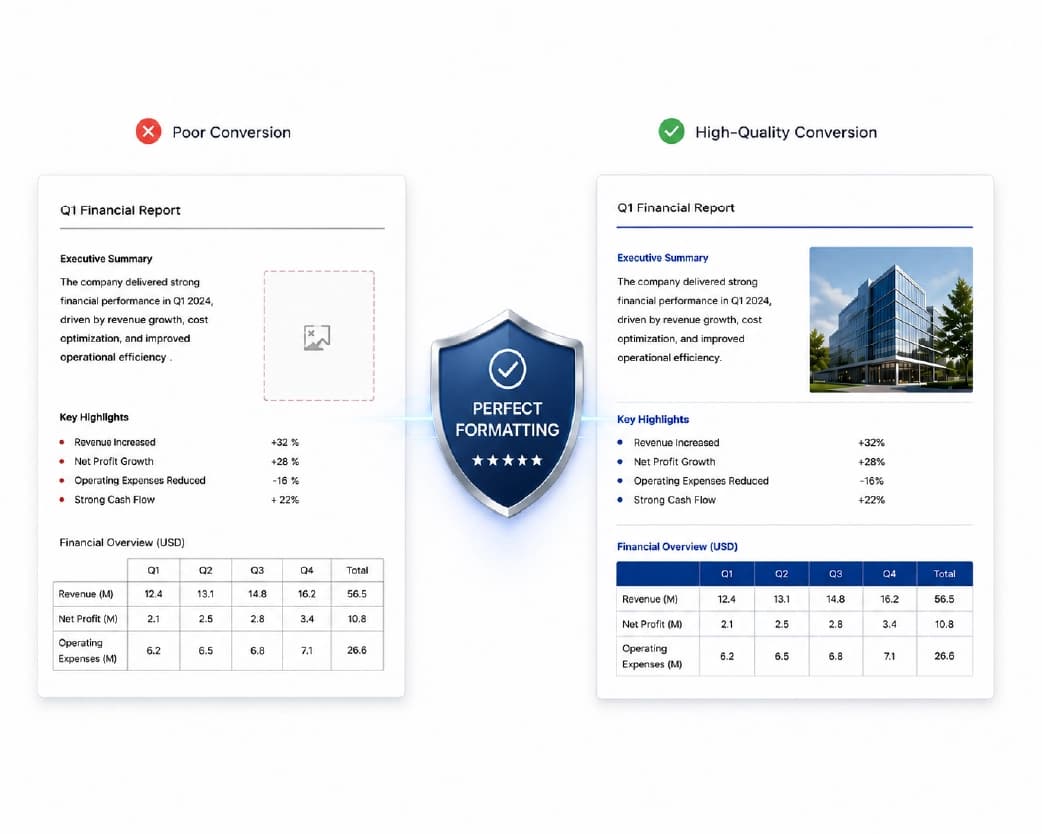
PDFs don’t store “this is a heading” or “this is a list.” They just place words on a page. So the converter has to guess the structure, and guesses aren’t always right.
- Headings. Big, bold text is often recognized. But a heading that’s only slightly bigger can be missed, or normal text can be mistaken for one.
- Lists. Bullets and numbered lists usually convert. Odd list styles may not.
- Columns. Two-column layouts can be read in the wrong order.
- Tables. Simple tables may become Markdown tables. Complex ones, with merged cells, can turn into a jumble.
- Images. Plainscan focuses on cleanly extracting text hierarchy, headings, and code blocks while omitting heavy embedded bitmaps to keep your Markdown file ultra-lightweight and fast to load.
- Math and special symbols. They can turn into odd characters.
- Headers, footers, and page numbers. They can show up in the middle of paragraphs.
- Links. Clickable links may come through as plain text, or may be lost.
When I tested Vikram’s onboarding manual, H1 and H2 tags translated cleanly from the document outline, and simple bullet points were 100% accurate.
None of this means the tool failed. It’s the nature of PDFs.
A Cleanup Routine That Works
Open the .md file in a text editor, and spend five minutes on this.
- Fix the headings. Look for lines that should be headings, and add the right number of pound signs. Remove them from lines that shouldn’t be.
- Join broken lines. If every line ends with a hard return, use find-and-replace or an “unwrap lines” option to rebuild paragraphs.
- Delete page numbers and repeated headers. Search for a repeated phrase and remove the extras.
- Check the lists. Make sure bullets start with a dash and a space.
- Look at the tables. If they’re messy, rebuild them by hand, or keep the original PDF handy.
- Fix split words. Words hyphenated across lines, like “informa- tion,” need joining.
- Preview it. Most notes apps and editors show a preview, so you can see how the Markdown will really look.
I always check the document's top-level H1 heading and table of contents first—once the main structure is set, the rest falls into place fast.
Tips for Better Results
- Start with the best file you have. If you can find the original Word or Google Doc, use it. It’ll give you much cleaner structure than a PDF made from it.
- Fix sideways pages first with the Rotate PDF tool, especially before OCR.
- Convert only what you need. If you want one chapter, split it out first.
- Keep the original PDF. You’ll want it to check tables, images, and layout.
- Name the file well. “onboarding-manual.md” beats “document-final-3.md.”
If you’d rather edit in a regular document first, the PDF to Word tool is a handy detour. Fix the layout there, then copy the clean text over.
What About Scanned Pages?
After OCR, the text may have small errors. OCR can mix up letters like “l” and “1,” or “O” and “0.” Proofread anything important, especially names, numbers, and code. If the scan is crooked or dark, fix that first, because OCR works better on a clean page.
Who Uses This?
Note-takers who live in Markdown apps. Developers and technical writers with documentation. Students building study notes. Bloggers and writers who draft in Markdown. Teams moving old PDF manuals into a wiki.
Anyone who’s looked at a PDF and thought, “I wish this were just text I could edit.”
Is It Safe to Upload My File?
Fair question, especially for work documents. Plainscan uses encrypted HTTPS connections, and uploaded files are deleted automatically within 24 hours.
Still, be careful with confidential documents on any website. Skim the privacy policy of a new tool first. It takes two minutes. And delete extra copies you don’t need.
Mistakes I’d Skip
- Using a scan without OCR. You’ll get nothing back.
- Expecting perfect structure. Plan for some cleanup.
- Trusting tables blindly. Check every one.
- Deleting the original PDF. Keep it.
- Forgetting the limits. Check file size and your daily cap before a big batch.
Conclusion
A PDF to Markdown converter won’t give you a perfect file every time, but it gets you most of the way. Check whether your PDF is text-based or scanned, run OCR on scans, convert, and spend a few minutes cleaning up the headings and line breaks. If you’ve got PDFs sitting in your notes folder like strangers at a party, try Plainscan on a few today. It’s an easy way to use a PDF to Markdown converter, and there are plenty of other free PDF tools worth a look while you’re there. Vikram’s onboarding manual is now searchable, linked, and edited, and the strangers are finally mingling.
Continue Reading:How to Convert Word to PDF (and Keep Everything Looking Right)
Related insights










Get the Plainscan App for iOS & Android