
AI Image Upscaler Online: How to Make Small, Blurry Photos Bigger and Sharper
My friend Kabir called me last month in a small panic. His grandfather’s birthday was coming up, and he wanted to print an old photo of him for the family party. A good one, young, in a white shirt, squinting into the sun and grinning like he knew a secret. The only copy Kabir had was a tiny picture an aunt had sent on a messaging app. On his phone it looked great. Blown up to poster size, it looked like someone had spilled soup on it. Fuzzy squares everywhere. His grandfather’s face was basically a rumor. He tried the resize tool in a photo app. Worse. He tried sharpening it. Now it was fuzzy squares with crunchy edges, which is somehow even sadder. Then a coworker said, “Have you tried an AI upscaler?” He hadn’t. He tried one that night, and the squares turned back into a face. Not a perfect one, but a face with a nose and a grin. He printed it. So here’s how an AI image upscaler online works, how to use one, and the stuff nobody warns you about.
Why Stretched Photos Look So Bad
A photo is made of tiny dots called pixels. A small photo has fewer of them. When you make it bigger the normal way, your computer has to invent new pixels to fill the gaps, and it does that by averaging the ones next to them. That’s why the result looks soft and blocky.
Picture a little drawing on a balloon. Blow the balloon up and the lines get thick and wobbly. Same idea.
So What Does the AI Part Do?
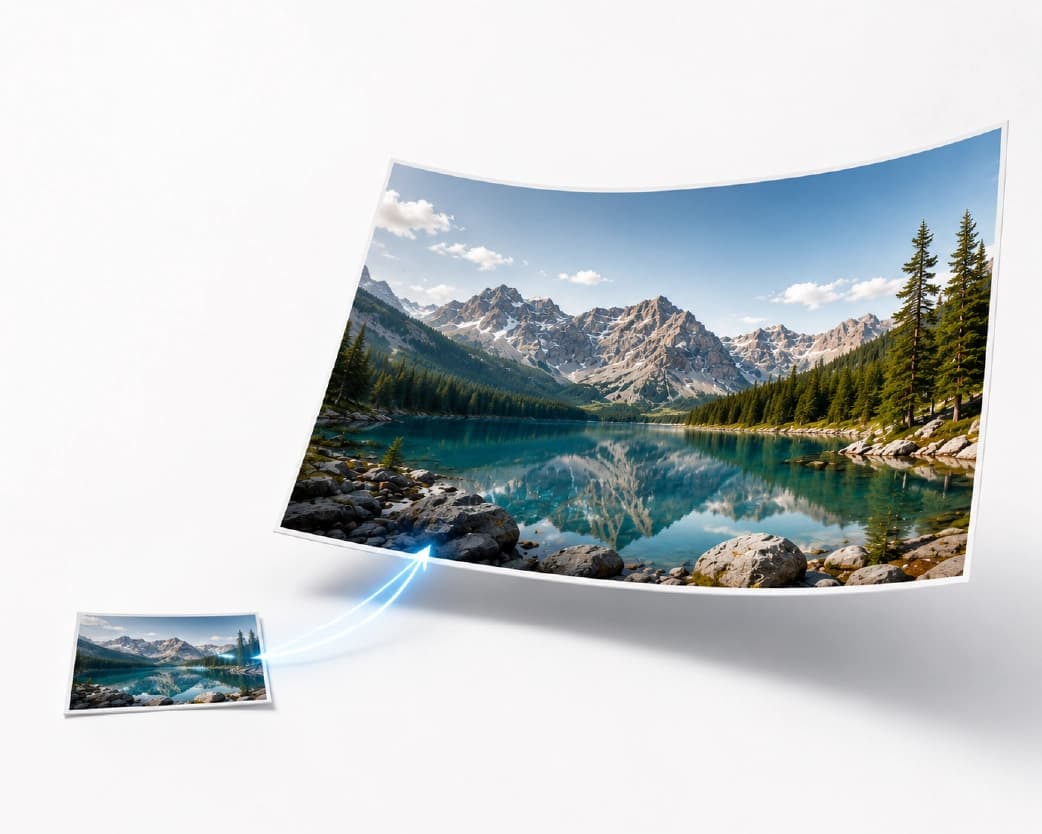
An AI upscaler doesn’t just average pixels. It has learned, from looking at a huge number of images, what edges, skin, hair, text, and textures usually look like. So when it enlarges a photo, it makes an educated guess about what the missing detail should be, and it adds it in.
That’s why the result looks sharper than a regular resize. Edges come out cleaner. Textures look more natural. Small text gets easier to read.
The Honest Part
It’s a smart guess, not a time machine. I want you to hear that before you get excited.
AI upscaling doesn’t bring back the real detail that was never captured. It makes up believable detail. Usually that’s great. Sometimes it’s not.
If the photo is tiny, very blurry, or badly squashed, the result will look better, but not perfect. Don’t expect a miracle from a thumbnail.
It can also invent things. Faces, small text, and fine patterns can come out a little different from how they really were. So never use an upscaled picture as proof of what something looked like. A street sign or a license plate might not match reality.
And sometimes it overdoes it. Skin can end up looking smooth and plasticky, especially at big enlargements. A small jump, like 2x, usually looks natural. A giant jump asks the AI to guess a lot, and its guesses get wilder.
Think of it as a talented art restorer, not a camera that was there on the day.
When It’s Worth Trying
Printing a small photo. Rescuing an old family picture that someone scanned or sent at a tiny size. Fixing images you saved from the web or a chat app that lost quality along the way. Making a supplier’s small product picture big enough for your shop. Enlarging a small graphic for a slide.
Basically any time you think, “I like this picture, I just wish it were bigger.”
How to Use an AI Image Upscaler Online with Plainscan
Plainscan runs in your browser and has over 100 document and image tools. Nothing to download, which I love, because my laptop is already a junk drawer. It works on a laptop, a tablet, or a phone.
- Open the tool. Go to the Image Upscaler on Plainscan.
- Upload your image. Drag it in or browse for it. Free accounts can upload files up to 50 MB, which is plenty for a photo. Plainscan supports JPG, PNG, WebP, and HEIC files.
- Pick how much to enlarge it. Choose your scale factor—Plainscan gives you clean 2x, 3x, and 4x super-resolution options.
- Process it and wait a bit. Click the button and give it a moment. Bigger images take longer. Please don’t refresh the page because it feels slow. I’ve done it. It never helps.
- Download and zoom in. Compare it with the original. Zoom in on faces, eyes, text, and edges. That’s where you’ll spot trouble.
On most everyday photos, the AI super-resolution processing finishes in under eight seconds, instantly reconstructing sharp edges and natural texture.
Is it free?
You may also like:How to Convert PDF to Word (and Keep Your Layout Looking Right)
You can start for free. After you create a free account, you can process up to 4 documents a day with the basic tools, and that resets every 24 hours. The Image Upscaler falls under your daily allowance with free accounts, giving you quick super-resolution enhancements without needing a credit card. If you want AI features or unlimited use, there’s a paid plan, or you can buy credits and use them only when you need to.
Little Things That Help
- Start with the best copy you can find. If there’s a bigger or cleaner version somewhere, like the original email attachment instead of the chat app version, use that. Upscaling a decent small photo works better than upscaling a terrible small one.
- Go in steps. If you need a really big image, try 2x first, look at it, then do another round if it still looks good. Jumping straight to the biggest option is where AI goes off the rails.
- Zoom in on the parts that matter. Eyes, faces, and text. If those look right, the rest usually does too.
- Don’t sharpen it again afterward. Upscaling already adds sharpness, and extra sharpening can make the edges look crunchy, like a photo that’s been through a toaster.
- Fix sideways photos first. A tilted picture gives the AI an extra reason to get confused.
I always zoom straight in on the eyes and hairline first—if the fine lines and pupils look natural and sharp, the rest of the portrait will look great in print.
Other Tools That Pair Nicely
If you only want part of the photo, crop first with the Crop Image tool. You’ll get a faster result and a cleaner picture.
If you need a cutout, like a product with no background, the Remove BG tool can help. It exports transparent PNG files ready for e-commerce stores and slide decks.
And upscaled images get big. If yours is too heavy for email or a website, the Compress Image tool can lighten it. For instance, a 300 KB family photo enlarged 4x easily turns into a 2.5 MB high-resolution file that you can quickly compress back to under 800 KB for email.
What About Printing?
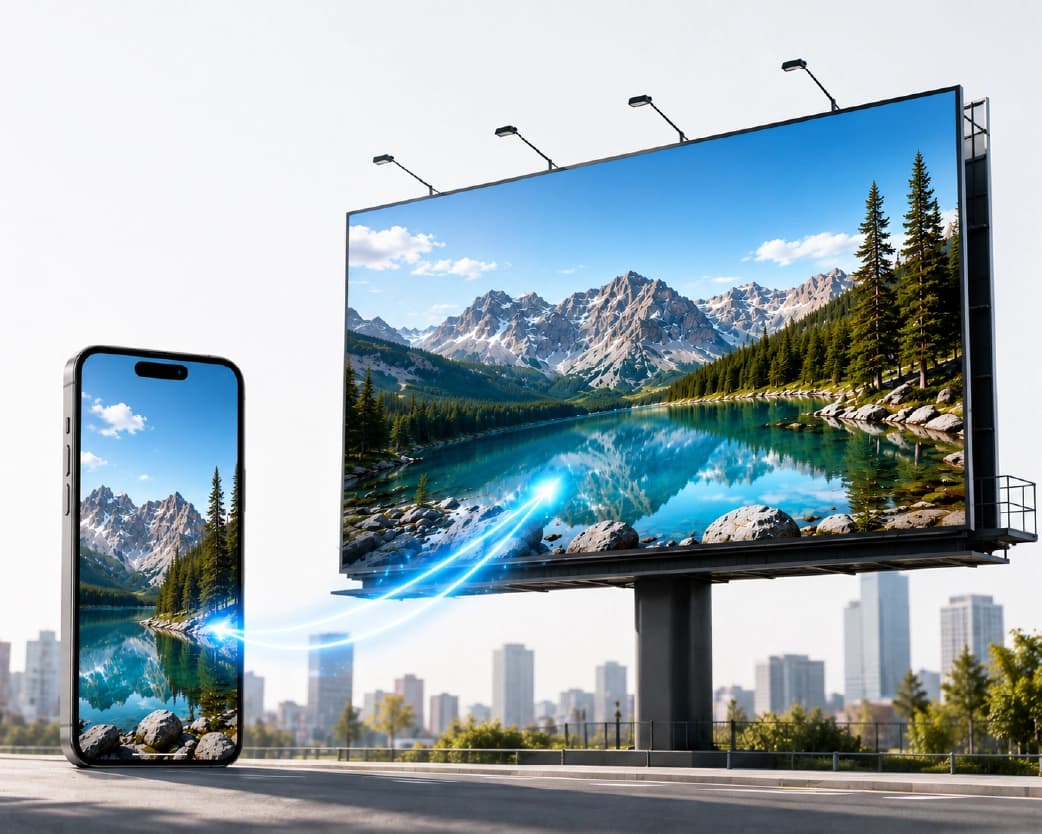
Here’s the thing about printing. Print shops like about 300 DPI, which just means 300 dots of detail per inch. A small photo enlarged a lot may still look soft on a huge poster, even after upscaling. For a framed picture on a desk, upscaling usually does a wonderful job. For a giant banner, expect more softness, and know that people will view it from a distance anyway.
And please print one test copy first. I know I keep saying that. I keep saying it because I keep seeing the 20 wasted posters.
A Few Notes on Being a Decent Human
Only upscale images you have the right to use. Be careful with photos of other people, especially kids, and don’t post them without permission. And again, an upscaled image is a guess. Don’t treat it as evidence.
Who Uses This?
Families rescuing old photos. Small business owners with small product pictures. Bloggers fixing low-quality images. Students making posters. Designers with tiny logos that need to grow up.
Anyone who has ever stretched a photo and watched it collapse.
Is It Safe to Upload My Image?
Good question, especially for personal photos. Plainscan uses encrypted HTTPS connections, and uploaded files are deleted automatically within 24 hours.
Still, be careful with very private images on any website. Skim the privacy policy of a new tool first. It takes two minutes. And delete extra copies you don’t need.
Mistakes I’d Skip
- Expecting a miracle from a tiny, blurry image.
- Jumping straight to the biggest enlargement.
- Trusting upscaled faces and text as exact.
- Deleting the original. Keep it.
- Forgetting the limits. Check file size and your daily cap before a big batch.
Recommended to Read:Free PDF Invoice Generator Online: Make a Professional Invoice in Minutes
Conclusion
An AI image upscaler online can turn a small, fuzzy picture into something you can actually use. It makes smart guesses, so it works best on decent images and moderate enlargements. Check the details, keep your original, and don’t treat the result as proof. If you’ve got a photo that falls apart when you stretch it, try Plainscan on it today. It’s an easy way to use an AI image upscaler online, and there are plenty of other free image tools worth poking around in while you’re there. Kabir printed his grandfather’s photo, and the whole family stood around it for a long time. His grandfather squinted at it and said, “Who’s that handsome man?”
Related insights









Get the Plainscan App for iOS & Android