
Passport Photo Maker Online: How to Make a Photo That Won’t Get Rejected
My neighbor Rohit needed a passport photo on a Sunday. His renewal appointment was Tuesday, the photo studio near his house was closed, and the next one was an hour away. He stood in front of his bedroom wall, handed his phone to his sister, and said, “Just take it.” The first photo had a shadow on the left side of his face. The second had his eyes half closed. The third was fine, except his head took up almost the whole frame, and the background looked more cream than white. He sent me all three and asked which one I thought would pass. I said, “None of them yet, but we can fix one.” Here’s how to do that, and how a passport photo maker online fits in.
Why Passport Photos Get Rejected
It’s rarely because the photo is ugly. It’s because of small technical rules. Most countries are picky about the same handful of things:
- Size. The photo has to be a set width and height.
- Head position. Your face must fill a certain part of the frame, and it has to be centered and straight.
- Background. Usually plain white or a light color, with no shadows or patterns.
- Expression. Neutral face, mouth closed, eyes open and looking at the camera.
- Quality. Sharp, evenly lit, not blurry, not pixelated, and not edited too heavily.
- Recent. Taken in the last few months, and looking like you today.
Break one of these and the photo can bounce. Then you’re back at the studio, paying again.
Important: Rules Differ by Country
I can’t tell you one size that works everywhere, and neither can any tool. Some countries use 2 x 2 inches (51 x 51 mm). Others use 35 x 45 mm. Visas and ID cards can have their own rules too, and online applications often add file size limits and format rules.
So before you do anything else, open the official guidelines for the document you’re applying for, and write down the size, the background color, and any file limits. Then make your photo to match. Always check official portals like the US State Department Travel Guidelines, UK Passport Photo Standards, or your local passport seva office.
Take a Good Photo First
A tool can fix size and background. It can’t fix a bad photo. Spend five minutes on this part and everything else gets easier.
- Use daylight. Stand facing a window, so the light hits your face evenly. Avoid harsh sun that creates shadows.
- Pick a plain wall. A light, empty wall works well. Stand a little away from it so you don’t cast a shadow on it.
- Put the camera at eye level. Ask someone to hold it, or prop it up. Don’t take it from above or below.
- Keep a straight, neutral face. Look right into the lens. No big smile, no tilted head.
- Skip the filters. No beauty modes, no heavy retouching. Many offices reject edited-looking photos.
- Follow the rules on glasses and accessories. Many places don’t allow glasses or head coverings unless there’s a specific reason. Check yours.
- Take several. You’ll pick the best one, so snap ten.
How to Use a Passport Photo Maker Online with Plainscan
Plainscan runs in your browser and has over 100 document and image tools. Nothing to download. It works on a laptop, a tablet, or a phone. Here’s the general flow.
- Find the tool. Go to the tools page and look for the one that makes passport or ID photos, or open the Passport Photo Maker directly. Plainscan includes preset biometric dimensions for the US, UK, Schengen Europe, India, Canada, and China.
- Upload your photo. Drag it in or browse for it. Free accounts can upload files up to 50 MB.
- Set the size. Pick the size your document needs—such as standard 2x2 inches (US, India) or 35x45 mm (UK, Schengen Europe, Australia).
- Crop and center. Line up your face so the head fits the required area.
- Check the background. If it’s not plain and light enough, fix it (more on that next).
- Download and review. Compare it against the official checklist.
On most standard uploads, Plainscan’s AI aligns your face, replaces the background, and generates a print-ready file in about four seconds.
Is it free?
You can start for free. After you create a free account, you can process up to 4 documents a day with the basic tools, and that resets every 24 hours. The Passport Photo Maker is included under your daily free allowance, giving you standard single-photo downloads and compliant formatting without paying upfront. If you want AI features or unlimited use, there’s a paid plan, or you can buy credits and use them only when you need to.
Fixing the Background
Backgrounds are the number one headache at home. Rohit’s wall looked white to him, but in the photo it came out cream with a gray shadow.
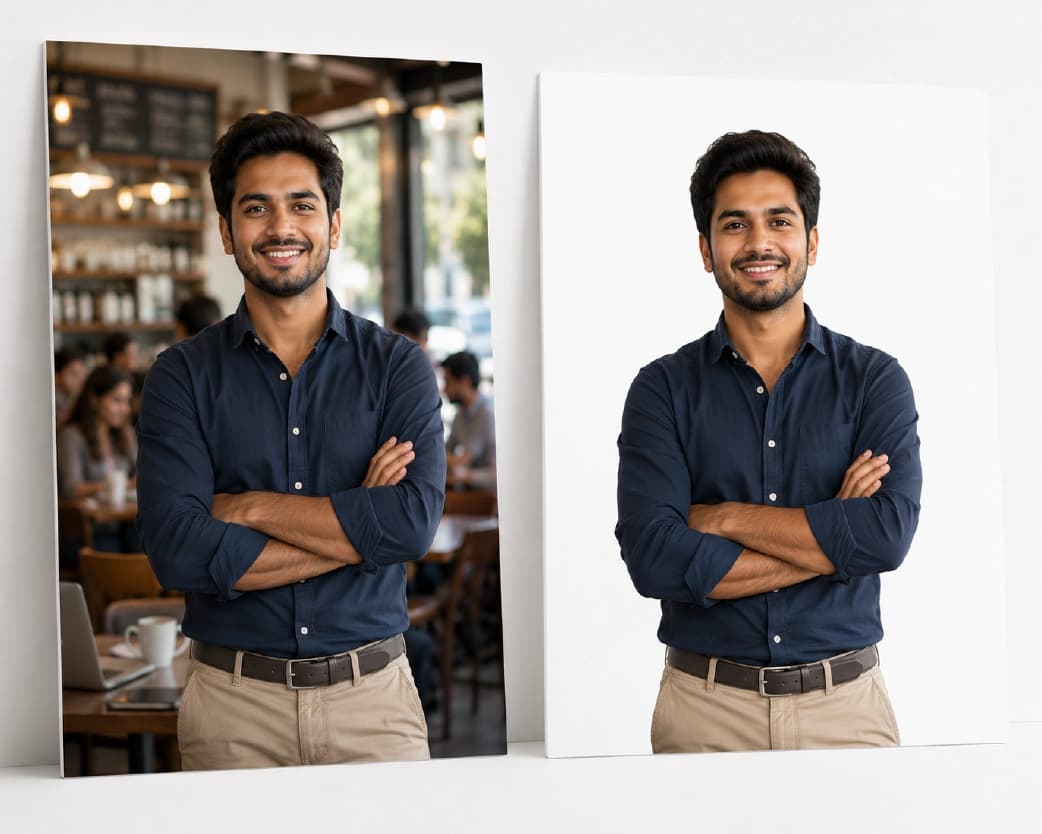
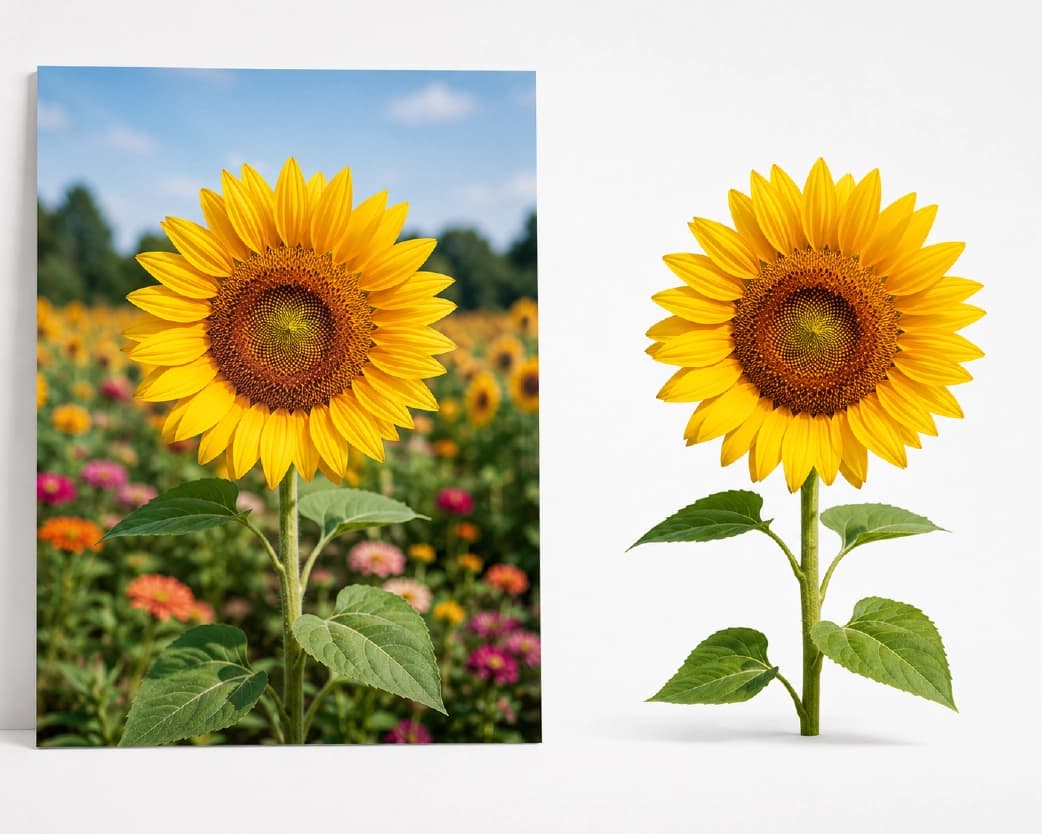
If your background isn’t clean, the Remove BG tool can take it out, and you can then place your photo on a plain white one. The Remove BG tool exports transparent PNG cutouts that you can save directly or place over a crisp white backdrop with Plainscan's background color picker. Zoom in on the edges after, especially around hair. Messy edges look obvious, and some offices will reject a photo that looks cut out.
A better plan is to get the background right in the first place, since a clean wall needs less fixing.
Continue Reading:How to Convert Word to PDF (and Keep Everything Looking Right)
Cropping and Resizing
If your photo has too much space around your face, trim it with the Crop Image tool. Keep your head centered and make sure there’s some space above it, since cutting off the top of the head is a classic mistake.
Don’t stretch the photo to fit a size. Squished or stretched faces get rejected. Crop to the right shape instead.
If the photo is small and looks soft, the Image Upscaler can help a little, though it can’t create detail that was never there. Retaking the photo in better light is usually the smarter fix.
Meeting the File Size Limit
Online applications often limit the file size, like under 200 KB or 1 MB, and want a JPG. If your photo is too heavy, the Compress Image tool can shrink it. Check that your face still looks sharp afterward. When I compressed Rohit’s original 3.2 MB phone photo with the Compress Image tool, it shrank to a crisp 185 KB JPG while keeping all facial features razor-sharp.
Printing at Home
If you need a paper copy, you can print several photos on one 4 x 6 inch sheet and cut them out. Plainscan automatically arranges multiple copies onto a formatted, print-ready A4 sheet so you can print multiple identical photos at home or take them to a local drugstore. Use real photo paper for a sharper result, print at full size without “fit to page” scaling, and measure one print with a ruler before you cut the rest.
Some offices want prints from a photo lab, so check whether home prints are accepted. When in doubt, ask.
What No Tool Can Do
Here’s the honest part. A passport photo maker can crop, resize, and clean up a background. It can’t:
- Guarantee that the photo will be accepted
- Fix a bad expression, a tilted head, or bad lighting
- Make an old photo look recent
- Replace the official checklist
Always check your final photo against your country’s rules before you submit it.
A Note on Editing
Light fixes like cropping, resizing, and cleaning a background are normal. Heavy retouching isn’t. Don’t smooth your skin, change your features, or alter your face. Official photos need to look like you, and altered photos can cause real trouble.
Who Uses This?
People renewing passports and visas. Students applying for exams and ID cards. Job seekers with ID photo requirements. Parents handling kids’ documents. Anyone whose nearest photo studio happens to be closed on a Sunday.
Is It Safe to Upload My Photo?
Good question, since an ID photo is personal. Plainscan uses encrypted HTTPS connections, and uploaded files are deleted automatically within 24 hours.
Still, be thoughtful with photos of other people, especially children. Skim the privacy policy of any new tool first, and delete extra copies once you’re done.
Mistakes I’d Skip
- Using a shadowy or cream-colored wall. Fix it before you shoot.
- Stretching the photo to fit. Crop instead.
- Over-editing. Keep it natural.
- Skipping the official checklist. Rules differ by country.
- Ignoring file size limits. Check them before you upload.
- Forgetting the limits on the tool. Check file size and your daily cap before a batch.
Conclusion
A passport photo maker online can save you time and money, but only if you start with a good photo and follow the real rules. Take a clear picture in daylight, use the right size, keep the background plain, and check everything against the official checklist. If you need a photo today, try Plainscan on yours. It’s an easy way to use a passport photo maker online, and there are plenty of other free image tools worth a look while you’re there. Rohit used his third photo, fixed the size and background, and got through his appointment on Tuesday without a second trip.
Related insights









Get the Plainscan App for iOS & Android