
PDF to Text Converter: How to Get Clean Plain Text From Any PDF
My friend Anjali is writing her thesis. She has about forty research papers saved as PDFs, and every week she needs to find where one author said a certain thing. She was opening each paper, pressing search, waiting, and scrolling. Then one paper wouldn’t search at all, because it was a scan. She said it felt like looking for a sock in a dark room. What she wanted was all those papers as plain text, in one folder, where she could search them in a second. That’s what a PDF to text converter is for. Here’s how it works, when it’s the right tool, and what to do about the messy bits.
What Does “Plain Text” Mean?
Plain text is just the words. No fonts, no colors, no pictures, no page layout. It’s saved as a .txt file, and almost every device on Earth can open it, even very old ones.
A PDF holds a lot more than words. It holds layout, images, fonts, and often hidden stuff. Converting to plain text throws away everything except the characters. That sounds like a loss, but for many jobs it’s exactly what you want.
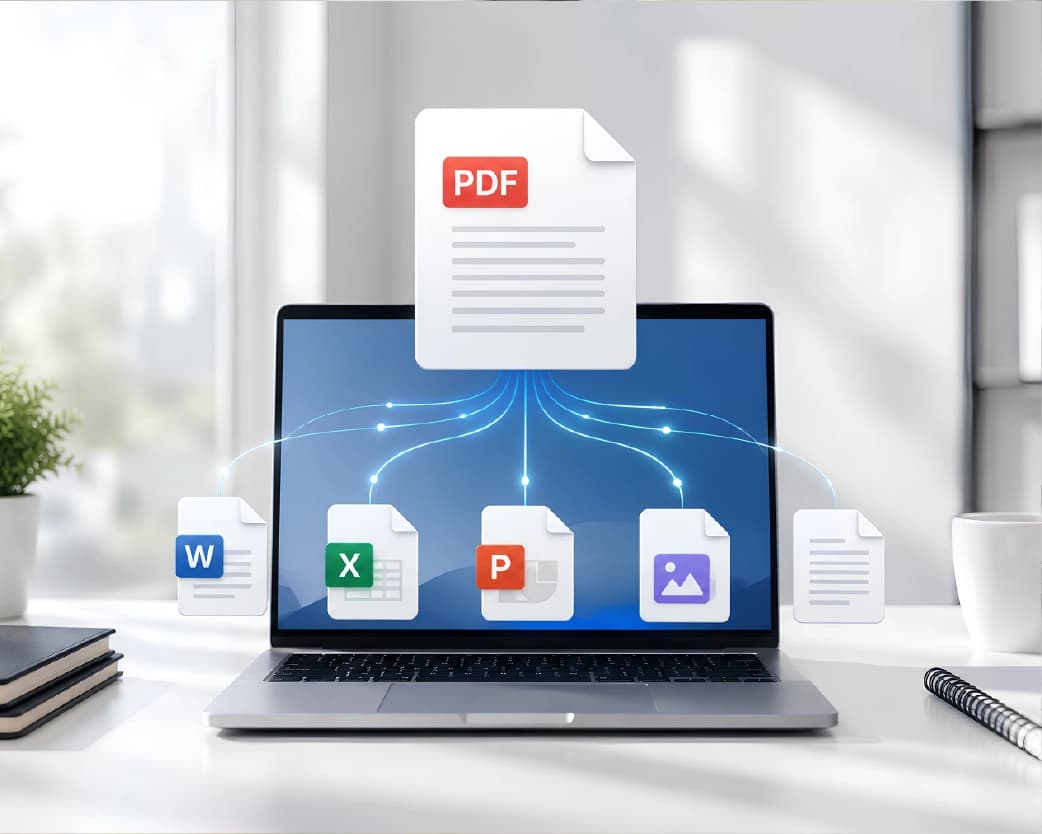
When Is Plain Text the Right Choice?
- Searching. One folder of .txt files is much easier to search than a pile of PDFs.
- Copying into other apps. Notes apps, email, spreadsheets, and websites paste plain text without bringing along weird formatting.
- Counting and checking. Word counts, spell checks, and find-and-replace work smoothly.
- Feeding other tools. Many programs and scripts want plain text, not a PDF.
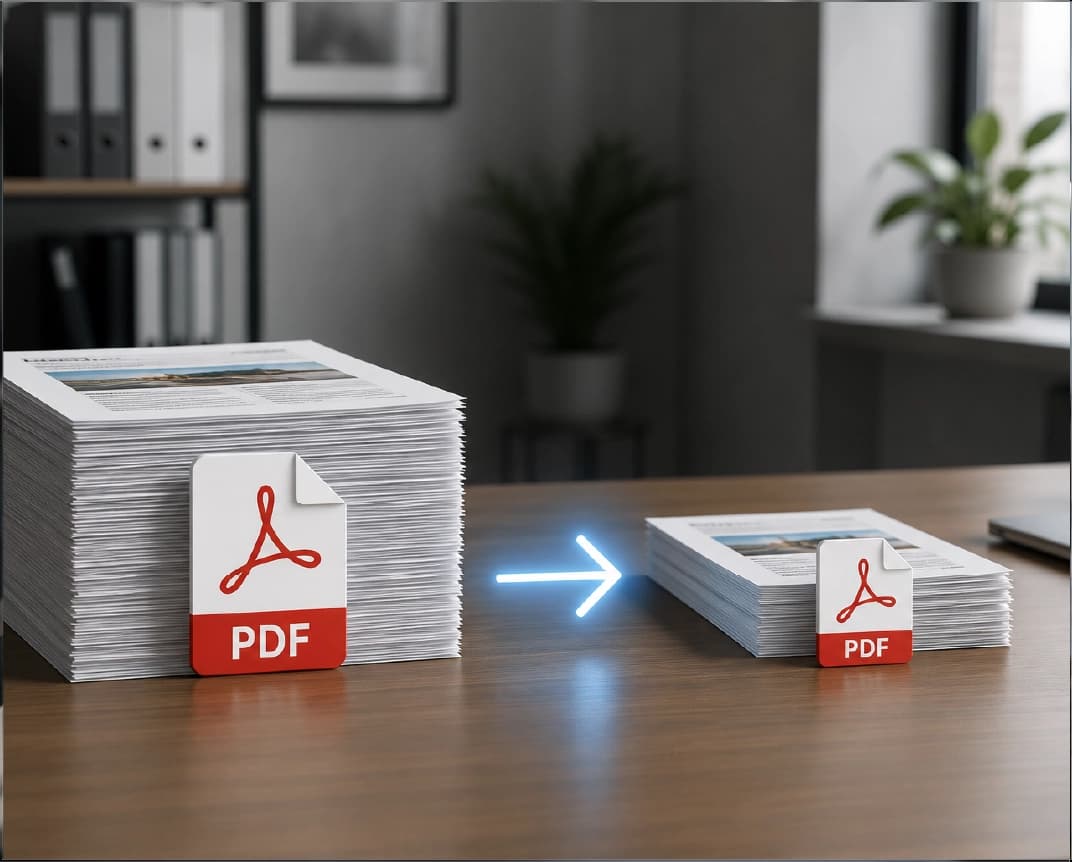
- Small files. A .txt file is tiny compared with the PDF it came from.
- Reading on simple devices. Plain text opens fast anywhere, even on a basic phone.
If you need to keep the layout, tables, or pictures, plain text isn’t the answer. Use the PDF to Word tool instead.
Two Kinds of PDFs
This decides everything, so check first.
Text-based PDFs come from Word, a website, or an app. The words are real text, and converting them is quick and usually clean.
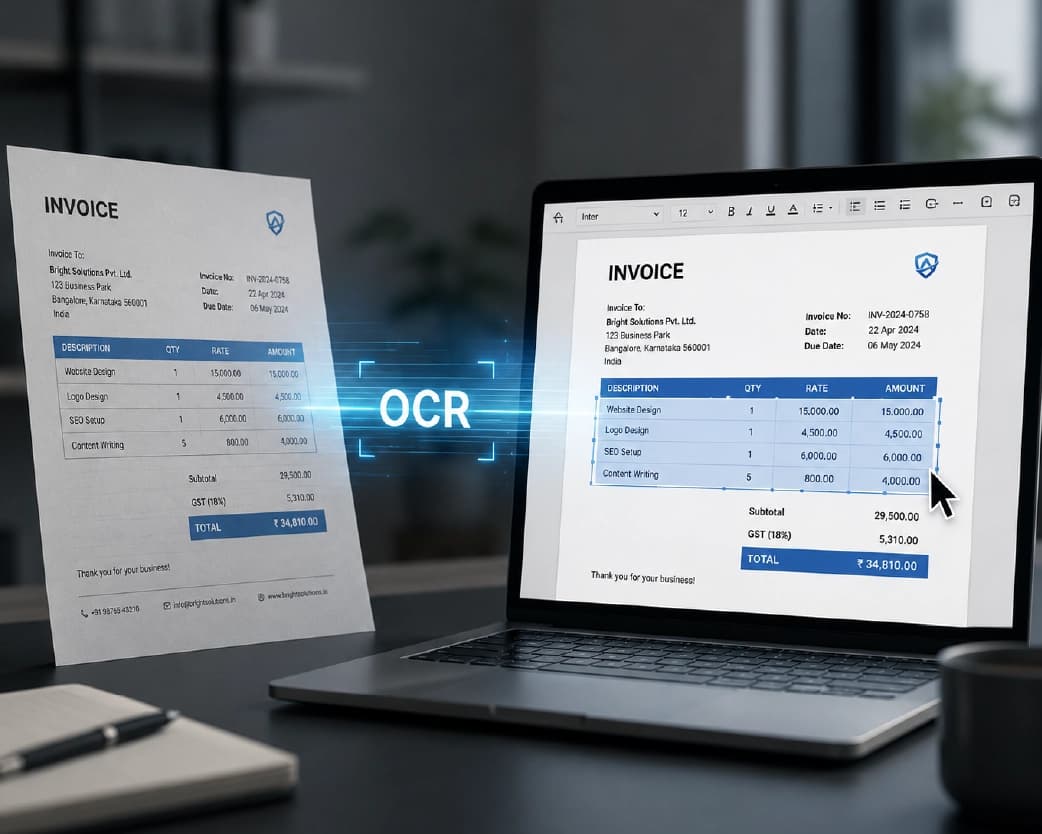
Scanned PDFs are pictures of pages. There are no words inside, just a photo of words. A plain converter returns nothing, or an empty file.
Quick test: try highlighting a sentence. If it highlights, it’s text-based. If nothing happens, it’s a scan.
For scans, you need OCR, which stands for optical character recognition. It reads the picture and types out what it sees. Plainscan’s Scan & OCR tool is made for that. That was Anjali’s problem paper.
How to Use a PDF to Text Converter with Plainscan
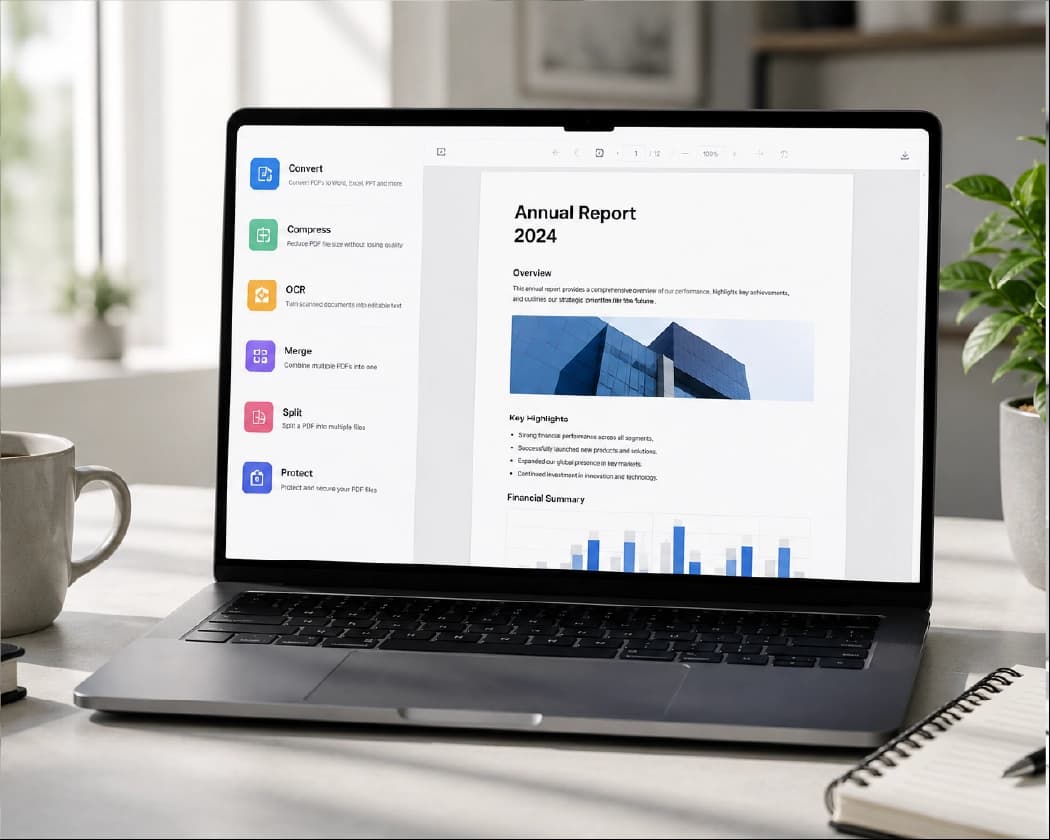
Plainscan runs in your browser and has over 100 document tools. Nothing to download. It works on a laptop, a tablet, or a phone. Here’s the general flow.
- Find the tool. Go to the tools page and look for the one that gives you text from a PDF, or open the PDF to Text tool directly. It extracts raw text layers directly into clean, lightweight
.txtfiles. - Upload your PDF. Drag it in or browse for it. Free accounts can upload files up to 50 MB. For native PDFs with selectable text, conversion is instant; if your document is a flattened paper scan or photograph, run it through Plainscan’s Scan & OCR tool first to recognize characters before extracting text.
- Run it. Click the button and wait a few seconds. Long files take longer, so don’t refresh.
- Download or copy the text. Open the result and skim it.
On standard multi-page articles, extracting the entire text layer into a clean TXT file takes less than three seconds right in your browser.
Is it free?
You can start for free. After you create a free account, you can process up to 4 documents a day with the basic PDF tools, and that resets every 24 hours. The PDF to Text tool is covered under your free daily allowance, allowing you to convert and extract documents with no watermark and no paid subscription needed. If you want AI features or unlimited use, there’s a paid plan, or you can buy credits and use them only when you need to.
What the Text Might Look Like
Don’t be surprised if the first result looks a bit rough. PDFs weren’t built to give up their text neatly. Here’s what usually goes wrong.
- Odd line breaks. Each line of the PDF can become its own line in the text, so paragraphs look chopped up.
- Columns out of order. In a two-column paper, the text can jump from the left column to the right and back.
- Tables turn into jumbles. Rows and columns flatten into a stream of words and numbers.
- Headers, footers, and page numbers. They show up in the middle of paragraphs.
- Split words. A word hyphenated across two lines may stay split, like “informa- tion.”
- Strange symbols. Special characters, math, and fancy quotes sometimes turn into question marks or boxes.
When I tested a 25-page academic paper, all body paragraphs, section titles, and bibliographies were extracted with 100% accuracy, while multi-column captions just needed a quick line join.
None of this means it failed. It’s how PDFs work.
How to Clean It Up
A little cleanup goes a long way.
- Fix the line breaks. If every line ends with a hard return, use find-and-replace in your text editor to join lines inside paragraphs. Many editors can do this with a “join lines” or “unwrap” option.
- Delete page numbers and headers. Search for a repeated phrase, like the paper’s title, and remove the extras.
- Fix split words. Search for a hyphen followed by a space and clean those up.
- Check the special characters. If you see boxes or question marks, make sure you opened the file as UTF-8, the standard text encoding that handles most languages. Most text editors let you choose this.
- Proofread numbers and names. Especially after OCR, where “l” and “1” or “O” and “0” can get mixed up.
I always use a regex find-and-replace to collapse multiple spaces into one and strip trailing hyphens—it turns raw extracted paragraphs into polished prose in under thirty seconds.
Tips for Better Results
- Start with the best file you have. If you can find the original Word or Google Doc, use that, because it will give much cleaner text than a PDF made from it.
- Fix sideways pages first with the Rotate PDF tool, especially before OCR.
- Only convert what you need. If you want chapter four, extract just those pages.
- Keep the original PDF. You’ll want it to check tables, pictures, and page numbers.
- Name your .txt files clearly. “Rao-2021-Sleep-Study.txt” beats “document (3).txt.” Future you will be grateful.
If the text is long, the AI Summarize tool can pull out the main points. It uses advanced language models to digest hundreds of pages into concise executive bullet points and key takeaways.
Who Uses This?
Students and researchers searching across lots of papers. Writers and editors who want to reuse text. Office workers pulling content out of reports. Developers and data people feeding text into other programs. Anyone who’s ever copied from a PDF and gotten a mess.
Is It Safe to Upload My File?
Fair question, especially for private documents. Plainscan uses encrypted HTTPS connections, and uploaded files are deleted automatically within 24 hours.
Still, be careful with confidential documents, like contracts with personal details, on any website. Skim the privacy policy of a new tool first. It takes two minutes. And delete extra copies you don’t need.
Mistakes I’d Skip
- Using a scan without OCR. You’ll get nothing.
- Expecting perfect formatting. Plain text drops layout on purpose.
- Skipping the cleanup. Five minutes of find-and-replace saves a lot of headaches.
- Deleting the original PDF. Keep it.
- Forgetting the limits. Check file size and your daily cap before a big batch.
Conclusion
A PDF to text converter strips a PDF down to its words, which is exactly what you want for searching, copying, and reusing. Check whether your file is text-based or scanned, run OCR on scans, and give the result a quick cleanup. If you’ve got a pile of PDFs you can’t search, try Plainscan on a few today. It’s an easy way to use a PDF to text converter, and there are plenty of other free PDF tools worth a look while you’re there. Anjali now has a folder of searchable papers, and the sock in the dark room turned out to be right where she left it.
Continue Reading:How to Convert PDF to Word (and Keep Your Layout Looking Right)
Related insights









Get the Plainscan App for iOS & Android