
Free Image Converter: How to Pick the Right Format and Convert in Seconds
My cousin Aarav was applying for a part-time job. The form asked for a profile photo, so he picked one from his phone and hit upload. “File type not supported,” it said. He tried another photo. Same message. Then a third. He sent me a screenshot with the message, “Why is my own photo not allowed?” I looked at the file name. It ended in .heic. That’s the iPhone’s default photo format, and plenty of websites can’t read it. Aarav didn’t need a better photo. He needed the same photo in a different format. Here’s how a free image converter fixes that, how to choose the right format, and a few things a converter can’t do.
Why So Many Formats?
Every image format makes a different trade-off. Some make tiny files. Some keep every detail. Some can be see-through. Some can move. There’s no single best one, which is why people end up confused.
Here’s the quick tour.
JPG (or JPEG)
The everyday photo format. It squeezes the picture to make the file small, so it’s great for photos, sharing, and uploads. The trade-off is that a tiny bit of detail is lost, and it can’t have a see-through background.
PNG
The sharp one. It keeps every pixel, so text, logos, screenshots, and graphics stay crisp. It can also have a see-through background. The trade-off is bigger files, especially for photos.
WebP
Made by Google for websites. Files are usually smaller than JPG or PNG at a similar look, and it can handle see-through backgrounds too. The trade-off is that some older apps and upload forms don’t accept it.
HEIC
The format many iPhones use. It makes small, good-looking photo files. The trade-off is that lots of websites, forms, and older computers can’t open it. That was Aarav’s problem.
GIF
The old one for simple animations. It’s limited to a small set of colors, so it’s not great for photos.
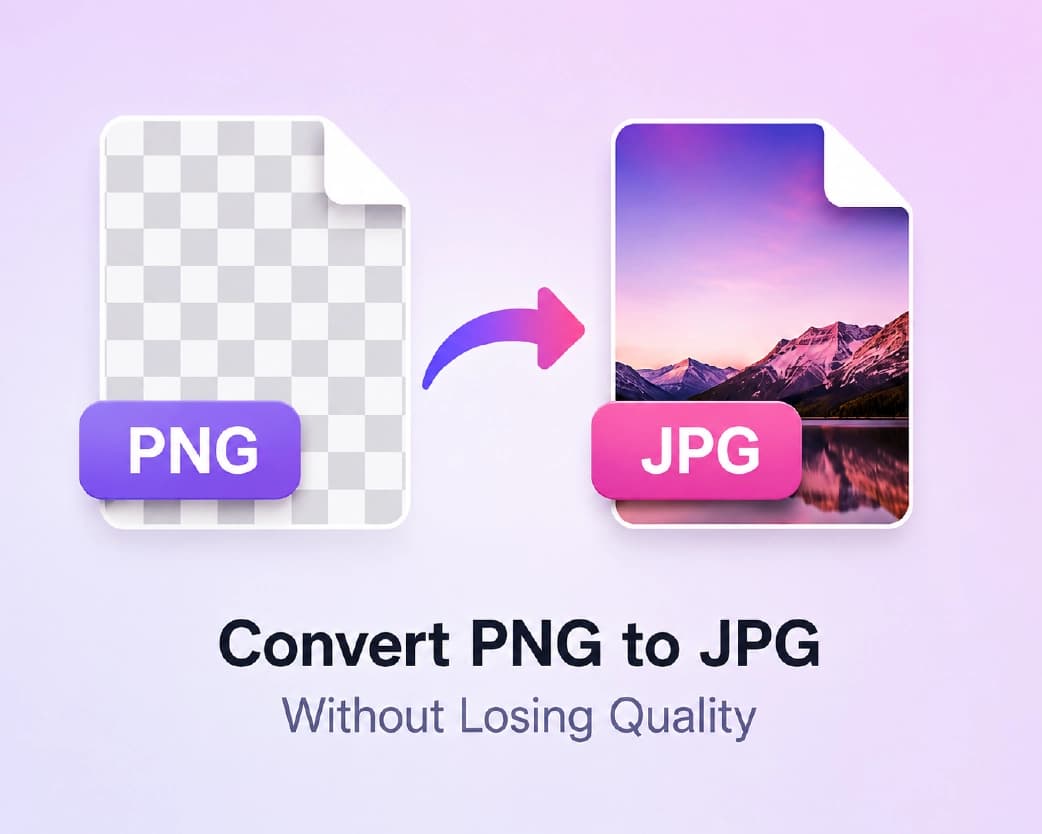
Quick Guide: Which One Should You Use?
- Photo for a website or a normal upload form? JPG is the safe pick.
- Website where speed matters? WebP.
- Logo, icon, or screenshot with sharp text? PNG.
- Need a clear background? PNG or WebP.
- Photo from an iPhone that a form won’t accept? Convert HEIC to JPG.
- Short, simple animation? GIF.
If you’re not sure, ask what the place you’re uploading to accepts, and pick JPG if it’s a general photo.
What a Converter Can’t Do
This part saves people a lot of frustration, so listen up.
- It can’t make a blurry image sharp. Converting changes the format, not the quality. A fuzzy JPG becomes a fuzzy PNG.
- It can’t bring back lost detail. Once a JPG has squeezed out detail, switching to PNG won’t restore it. PNG just stops it from getting worse.
- It can’t add a clear background. JPG to PNG doesn’t make the background disappear. You need to remove it first with the Remove BG tool, and keep the result as a PNG or WebP. Plainscan’s background remover outputs directly to transparent PNG so you can place your subject onto any background seamlessly.
- It can lose a clear background going the other way. PNG to JPG fills see-through areas with a solid color, usually white.
- It can change file size in surprising ways. JPG to PNG often makes a file much bigger. PNG to JPG usually makes it smaller.
- And please don’t rename the file. Changing .heic to .jpg on the end doesn’t change what’s inside. It just puts a fake name tag on it, and some programs will choke.
Continue Reading:HTML to PDF Converter: How to Save Any Web Page as a Clean PDF
How to Use a Free Image Converter with Plainscan
Plainscan runs in your browser and has over 100 document and image tools. Nothing to download. It works on a laptop, a tablet, or a phone. Here’s the general flow.
- Find the tool. Go to the tools page and look for the image converter, or open the Convert Image Format tool directly.
- Upload your image. Drag it in or browse for it. Free accounts can upload files up to 50 MB. Plainscan supports JPG, PNG, WebP, HEIC, TIFF, BMP, and GIF, and allows you to upload single pictures or batches of multiple files.
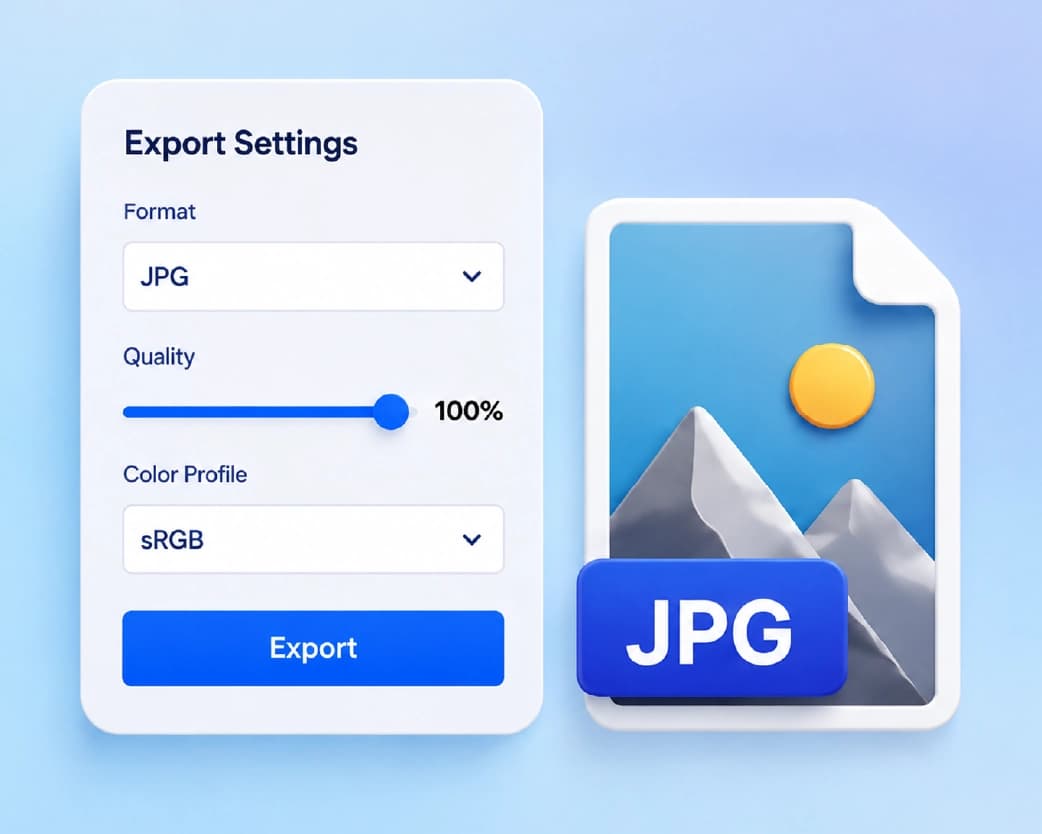
- Choose the format you want. You can select JPG, PNG, WebP, or other common target formats, and adjust compression quality settings to balance clarity and file weight.
- Convert and download. Click the button, wait a few seconds, and save the file.
- Check the result. Open it, zoom in, and make sure it works where you need it.
When I tested Aarav’s 8 MB HEIC photo, Plainscan converted it to a crisp, high-resolution JPG in under two seconds.
Is it free?
You can start for free. After you create a free account, you can process up to 4 documents a day with the basic tools, and that resets every 24 hours. The Image Converter tool is fully covered by your free daily allowance—offering watermark-free conversions without charging you a cent. If you want AI features or unlimited use, there’s a paid plan, or you can buy credits and use them only when you need to.
Want More Detail on a Specific Conversion?
Each pair has its own quirks. If you’re doing one of these, the guides below go deeper:
- Our JPG to PNG tool – Best for editing and keeping quality.
- Our Convert PNG to JPG Guide – Best for shrinking files.
- Our JPG to WebP and PNG to WebP converter – Best for faster websites.
- Our HEIC to JPG Guide and WebP to JPG and PNG converter – Best for files that won’t open.
Tips for Good Results
- Start with the best copy you have. If you can find a bigger or cleaner version, use it.
- Keep your original. Conversions are easy to repeat, but you can’t always undo them.
- Don’t convert back and forth. Each trip through a squeezing format like JPG loses a bit more detail.
- Check the file size after. If it’s too heavy for an upload or email, the Compress Image tool can lighten it.
- Trim extra space first with the Crop Image tool. If a small image looks soft when enlarged, the Image Upscaler can help a little, though it can’t create detail that was never there.
I always convert iPhone HEIC photos to standard JPG right before emailing them or uploading them to job portals so nobody gets a blank thumbnail or error message.
Who Uses This?
Job seekers and students uploading photos to forms. Bloggers and website owners speeding up their pages. Designers moving between apps. Online sellers prepping product pictures. Anyone who’s seen “file type not supported.”
Is It Safe to Upload My Image?
Fair question, especially for personal photos. Plainscan uses encrypted HTTPS connections, and uploaded files are deleted automatically within 24 hours.
Still, be careful with very private images, like ID photos, on any website. Skim the privacy policy of a new tool first. It takes two minutes. And delete extra copies you don’t need.
Mistakes I’d Skip
- Renaming a file instead of converting it.
- Expecting a converter to fix a blurry photo.
- Converting a see-through logo to JPG and wondering where the background went.
- Deleting the original.
- Forgetting the limits. Check file size and your daily cap before a big batch.
Conclusion
Image formats look confusing, but the choice is usually simple. JPG for photos, PNG for sharp graphics and clear backgrounds, WebP for fast websites, and a quick HEIC to JPG when a form says no. Pick the one that fits, convert, check the result, and keep your original. If you’ve got a picture that won’t upload or open, try Plainscan on it today. It’s an easy way to use a free image converter, and there are plenty of other free image and PDF tools worth a look while you’re there. Aarav converted his photo to JPG, the form accepted it, and he got the job.
You may also like:PDF to Text Converter: How to Get Clean Plain Text From Any PDF
Related insights










Get the Plainscan App for iOS & Android