HTML to PDF Converter: How to Save Any Web Page as a Clean PDF
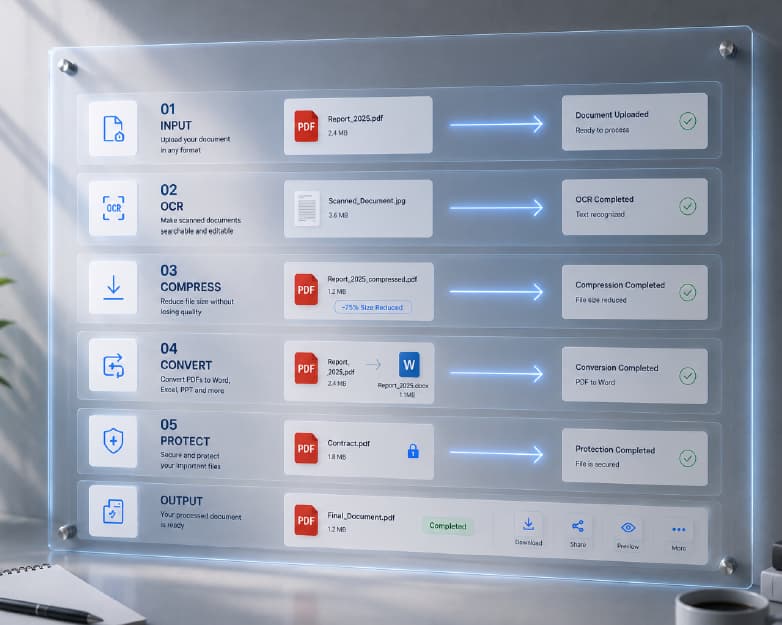
My friend Neel bought a pair of headphones online. Nice ones, with a price tag that made him wince. The order page had everything on it: the price, the date, the serial number, the return policy, even a little photo of the box. Two weeks later the headphones stopped working. Left ear only, like they’d decided to give him half a concert. He went back to that order page to find the proof of purchase, and the whole site had been redesigned. The page was gone. Not moved, not hidden. Gone, replaced by a cheerful “Welcome to our new look!” banner. He spent forty minutes digging through old emails and still couldn’t find the serial number. He told me later, “I thought about saving it. I really did. And then I just didn’t.” Good news, this takes about a minute. Here’s how an HTML to PDF converter works, what can go sideways, and how to get a copy that looks decent.
Why Bother Saving a Page as a PDF?
Because web pages aren’t permanent. Prices change. Articles get edited. Whole sites disappear. A PDF is a snapshot, and it stays exactly the way you saved it, even if the page doesn’t.
I save pages for all kinds of reasons. Receipts and order confirmations, obviously. Articles I want to read on a plane. Terms and policies that I might need as proof later. Research I need to cite. And anything I want to send to someone who can’t or won’t click a link.
Two Ways to Convert
This part confuses people, so here’s the easy version.
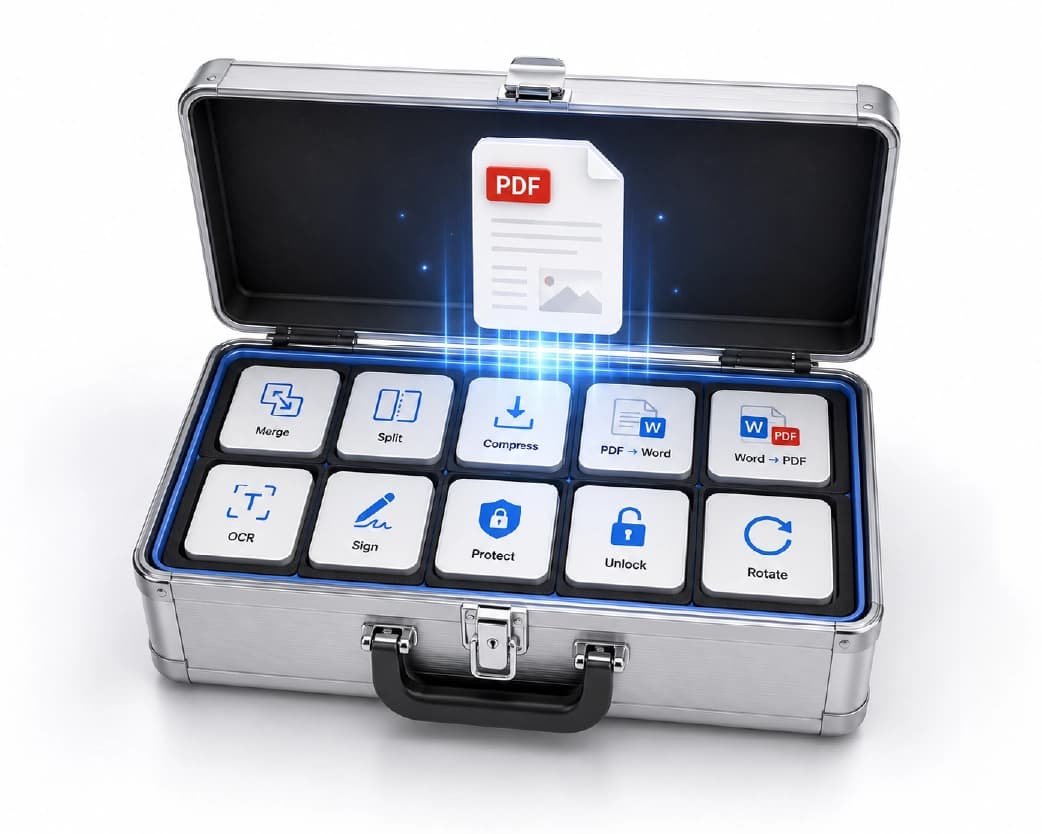
One way is with a web address. You hand the tool a link, it loads the page, and it turns what it sees into a PDF.
The other way is with HTML itself. You already have a .html file, or a block of HTML code, and you turn that into a PDF. Developers do this all the time for invoices, tickets, and reports.
Not every tool does both. Plainscan’s tool lets you enter a public webpage URL or paste raw HTML code directly with an instant preview rendering, making both workflows seamless.
Can’t I Just Use Print to PDF?
You can, and honestly, for a quick save it’s fine. Most browsers have it hiding in the print menu.
But the print view often looks worse than the real page. Menus jump around, ads sit in strange spots, and a picture might get sliced across two pages like a sandwich. A converter gives you another option. It also helps when you’re on a phone, on a borrowed computer, or you have an HTML file instead of a live page. Use whichever gives you the cleaner result. I use both.
How to Use an HTML to PDF Converter with Plainscan
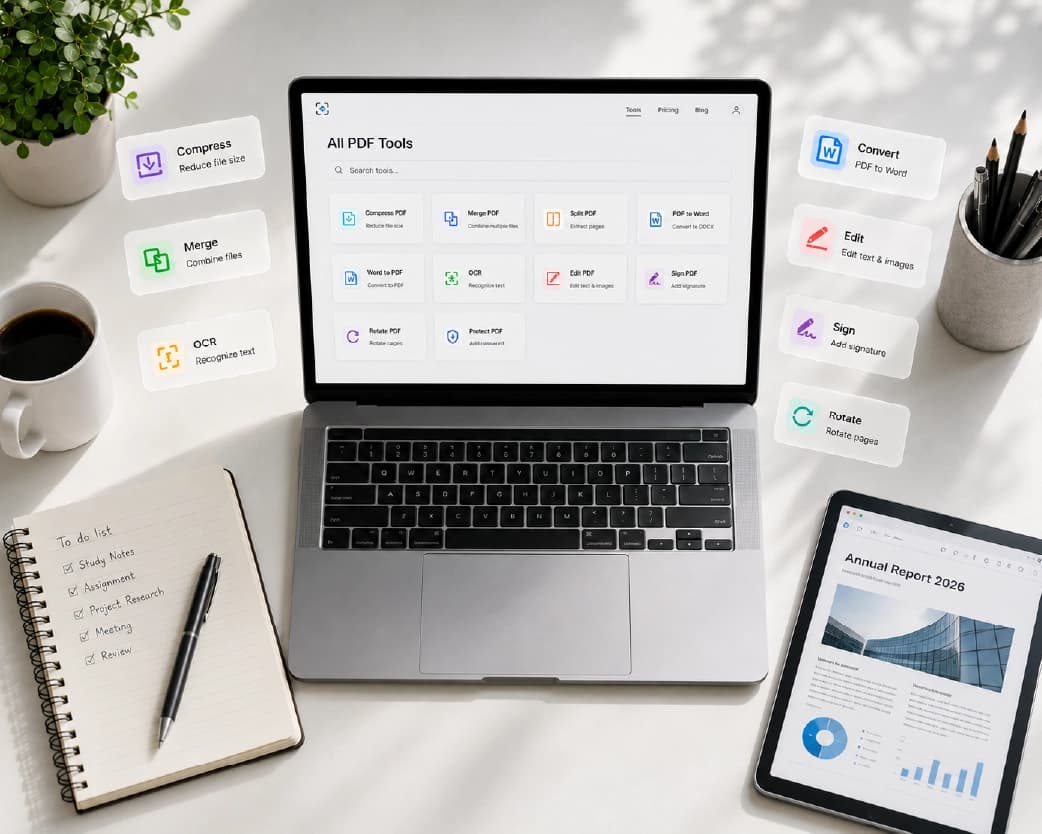
Plainscan runs in your browser and has over 100 document tools. Nothing to download, which I love, because my laptop storage is basically a junk drawer. It works on a laptop, a tablet, or a phone.
- Find the tool. Go to the tools page and look for the one that turns HTML into PDF, or open the HTML to PDF tool directly.
- Add your page. Paste the web address, or upload your HTML file. Free accounts can upload files up to 50 MB. Plainscan accepts direct URLs, uploaded .html files, and pasted HTML markup.
- Pick your settings, if there are any. You can choose standard page sizes like A4 or US Letter, set portrait or landscape orientation, and customize margin spacing to ensure your content fits cleanly.
- Convert and wait a bit. Click the button and give it a few seconds. Long pages take longer. Please don’t refresh just because it feels slow. I’ve done that. It never helps.
- Download and flip through. Scroll through the whole PDF before you trust it. Every page. I’ll tell you why in a second. When I tested it on a multi-page receipt and product description, the entire document was processed and ready to download in under four seconds.
Is it free?
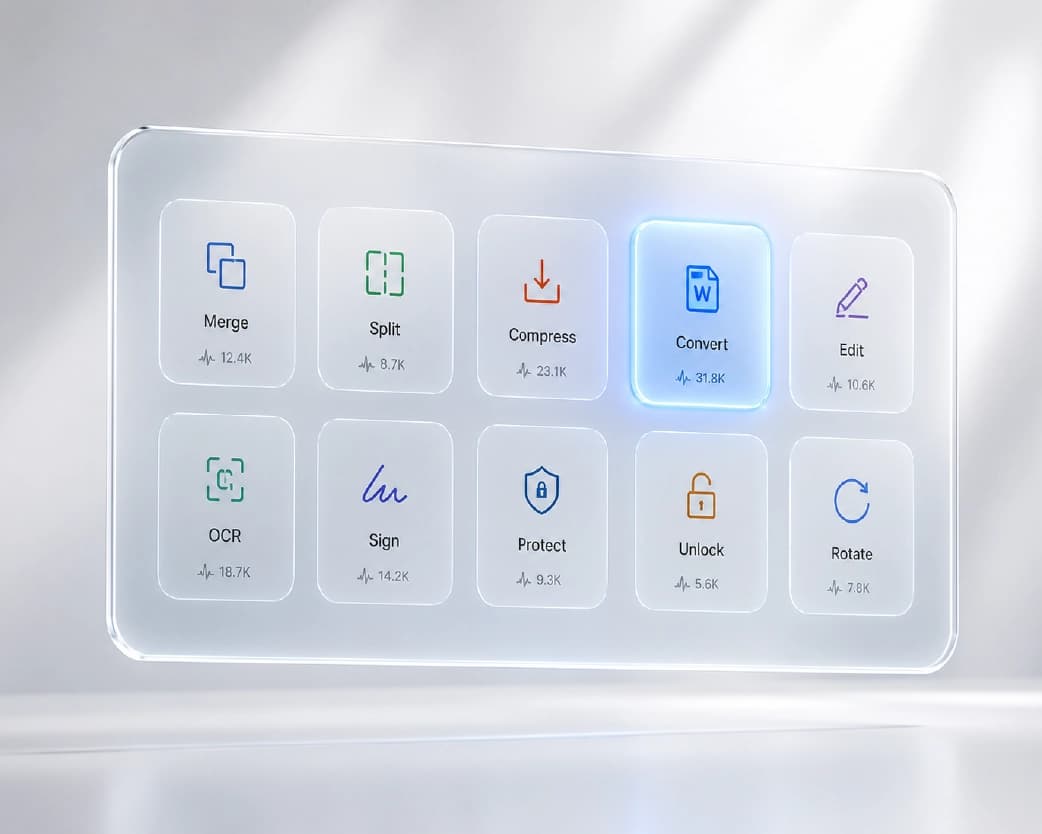
You can start for free. After you create a free account, you can process up to 4 documents a day with the basic PDF tools, and that resets every 24 hours. Yes, Plainscan’s HTML to PDF converter falls under this daily free allowance, giving you clean conversions at zero cost. If you want AI features or unlimited use, there’s a paid plan, or you can buy credits and use them only when you need to.
What Can Go Wrong
Here’s the honest part. Web pages were never built to be paper, so the result isn’t always pretty.
Page breaks can chop a sentence in half or cut a picture across two pages. A long page can turn into one extremely tall, extremely awkward PDF page. Menus, pop-ups, and cookie banners can show up right on top of the thing you wanted to read. Those cookie banners are the worst. Fonts can change if the converter doesn’t have the same ones. Pages that load more content as you scroll can come out half empty. And pages behind a login usually won’t convert from a link, because the tool can’t sign in as you.
Continue Reading:PDF to Text Converter: How to Get Clean Plain Text From Any PDF
That last one matters for things like order confirmations. If the page lives behind your account, use your browser’s own print to PDF, since you’re already signed in. Or save the page as an HTML file and convert that instead. Because Plainscan’s server cannot access private accounts or session cookies, it cannot fetch pages behind a login via URL; for those, save the authenticated page locally as an HTML file first, or use your browser’s print dialog.
When I tested the tool on dense web pages, text clarity remained razor-sharp, custom web fonts retained their weighting, and page breaks avoided splitting text lines awkwardly.
My Quick Check After Converting
Scroll the whole PDF. Look for cut-off text, missing pictures, and overlapping junk. Check the top and the bottom, since headers and footers can go strange. Click a couple of links to see if they still work. Standard web hyperlinks stay active and clickable inside the output PDF document, making it easy to navigate reference sources later.
And find the date. Seriously. A saved page without a date is hard to trust later. If the page doesn’t show one, put it in the file name.
If the layout is a mess, try again with a different page size, like A4 or Letter, or switch to landscape. Wide tables often fit much better that way.
A Few Tips
- Close pop-ups before you save a live page. Cookie banners love to photobomb.
- If you only need part of a page, convert the whole thing and keep just the pages you want.
- If the PDF is heavy because of big images, shrink them with the Compress Image tool first.
- If you want to edit the content afterward, the PDF to Word tool can turn it into an editable document.
- And name the file well. “headphones-order-2025-03-12.pdf” is easy to find. “page (4).pdf” is a trap you set for future you.
If You Build Pages for a Living
An HTML to PDF converter is great for invoices, certificates, tickets, and reports. A few things help. Keep your CSS simple and print-friendly. Set a clear page size. Avoid fixed or floating elements, which can smear across pages. And test with real, long content, since a short sample hides page break problems.
A Quick Note About Rights
Saving a page for your own use, like a receipt or an article for research, is generally fine. Posting or selling someone else’s content isn’t. If you’re not sure, check the site’s terms.
Who Gets the Most Out of This?
Shoppers saving receipts. Students and researchers saving sources. Freelancers keeping client pages and contracts. Developers turning HTML into invoices and reports. And anyone who has ever gone back to a page and found it gone.
Is It Safe to Upload My Page?
Good question. Plainscan uses encrypted HTTPS connections, and uploaded files are deleted automatically within 24 hours.
Still, I’d be careful with pages that have private details, like banking, medical, or account pages, on any website. Skim the privacy policy of a new tool first. It takes two minutes. And delete extra copies you don’t need.
Mistakes I’d Skip
- Waiting until the page is gone. That’s the Neel mistake.
- Skipping the flip-through.
- Forgetting to save the date.
- Trying to convert a login page from a link.
- Forgetting the limits. Check file size and your daily cap before a big batch.
Conclusion
An HTML to PDF converter turns a page that might vanish into a file you control. Save it, flip through it, and give it a clear name with a date. It takes about a minute, and it can save you a lot of trouble later. If there’s a web page you’d hate to lose, try Plainscan on it today. It’s an easy way to use an HTML to PDF converter, and there are plenty of other free PDF tools worth poking around in while you’re there. Neel now saves every receipt the same day. His headphone refund came through, and the left ear is back in business.
Related insights










Get the Plainscan App for iOS & Android