Images to PDF Converter: How to Turn Photos and Scans Into One Clean PDF
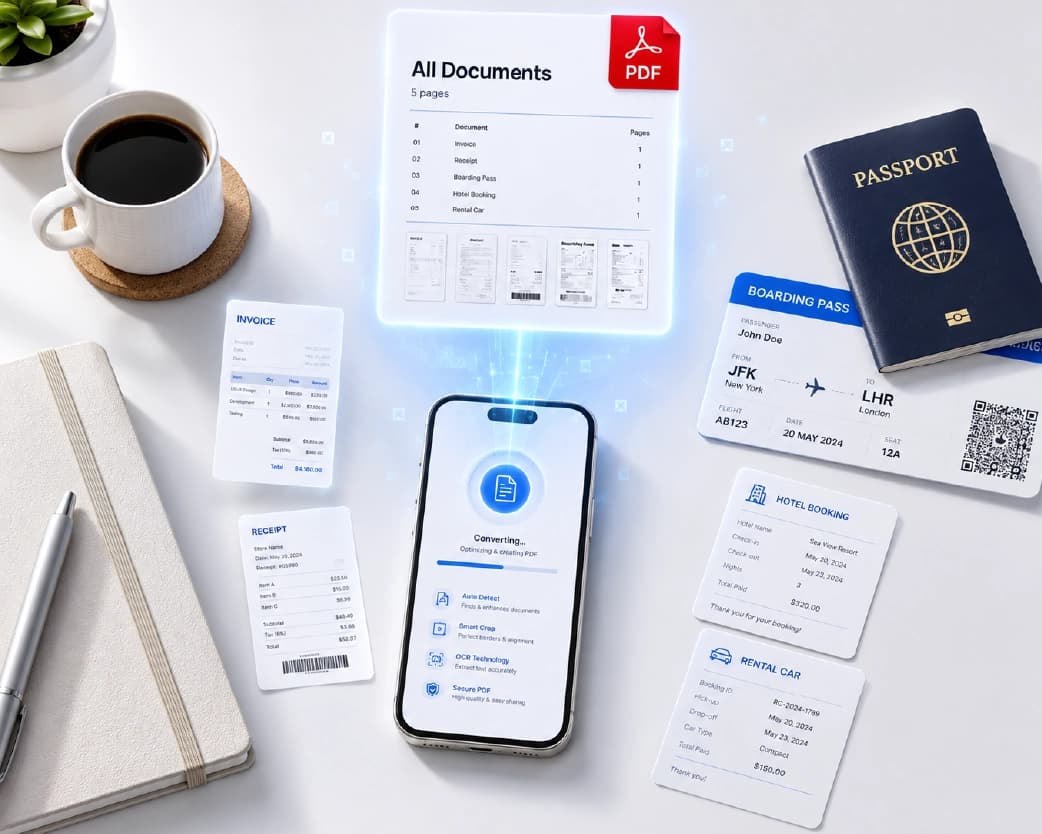
My friend Divya had to file an insurance claim. The portal asked for her receipts, the doctor’s note, and a copy of the bill. She had all of it on her phone, as photos. Fourteen of them. Some sideways, some blurry, one with her thumb in the corner. Then she hit the upload box. “Please attach one file.” One. She stared at it for a while and then texted me, “Do I have to send fourteen separate emails?” You don’t. You turn the photos into a single PDF. It takes a couple of minutes, and the result looks way more professional than a pile of pictures. Here’s how an images to PDF converter works, and how to keep the final file looking sharp.
Recommended to Read:HTML to PDF Converter: How to Save Any Web Page as a Clean PDF
Why Turn Images Into a PDF?
A pile of photos is messy. A PDF is one file, in the right order, that opens the same way on any device.
It helps when a form or portal only accepts one upload. It helps when you’re sending a few receipts or pages to someone and don’t want ten attachments. It helps when you want to print, since a PDF prints pages in order at the right size. And it keeps things together, so page three doesn’t wander off from page two.
It also looks better. Nobody enjoys opening a message with a dozen loose pictures and trying to work out which one comes first.
What Kinds of Images Work?
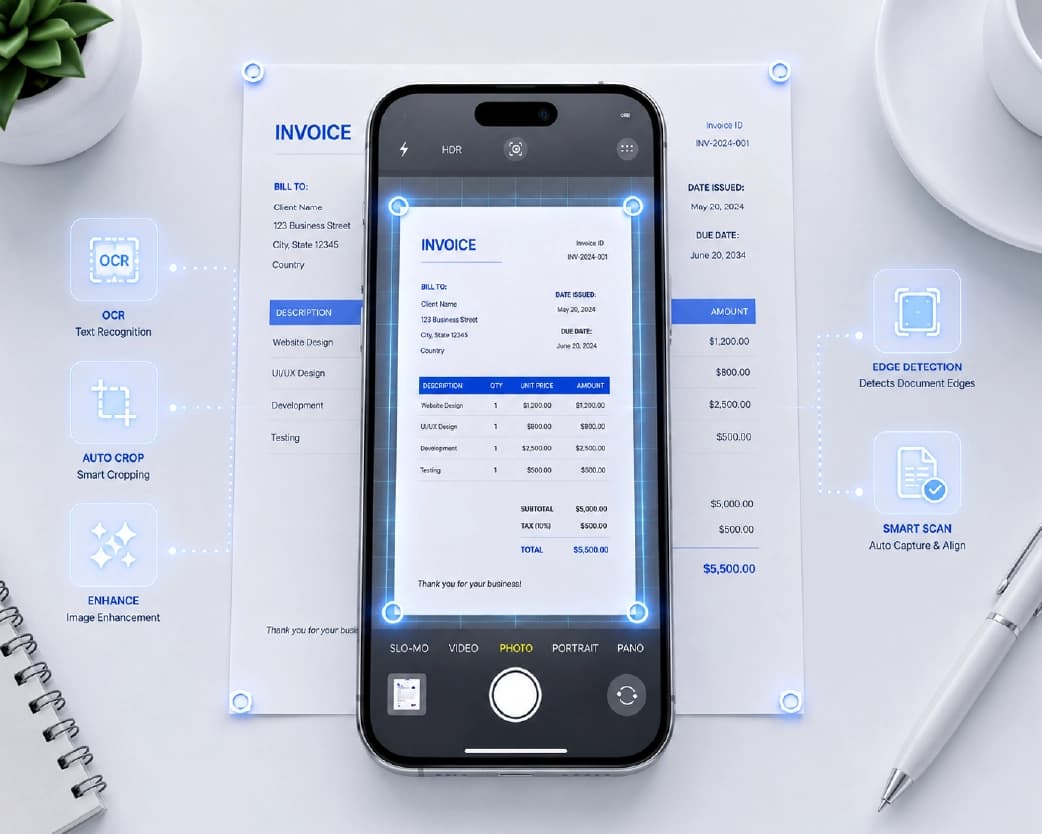
Most converters take the common ones, like JPG, PNG, and sometimes WebP or HEIC from iPhones. Plainscan directly accepts JPG, JPEG, PNG, WebP, and BMP files. If a format isn’t supported, convert it first. Plainscan has image tools for that (check out our guide on how to convert PNG to JPG or our HEIC to JPG converter for iPhone photos).
Phone photos, screenshots, scans, and downloaded pictures all work. How good the PDF looks depends on how good the images are.
How to Use an Images to PDF Converter with Plainscan
Plainscan runs in your browser and has over 100 document and image tools. Nothing to download. It works on a laptop, a tablet, or a phone. Here’s the general flow.
- Find the tool. Go to the tools page and look for the one that turns images into a PDF, or open the Images to PDF tool directly.
- Upload your images. Drag them in or browse for them. Free accounts can upload files up to 50 MB. You can select and upload multiple pictures at once in a single batch, or add more as you go.
- Put them in order. Drag them around until page one is first. Plainscan provides an interactive drag-and-drop grid so you can quickly rearrange the thumbnails until the page order is exactly right.
- Pick settings, if you get any. You can select standard paper dimensions like A4 or US Letter, switch between portrait and landscape orientations, and choose between no margins or neat border padding.
- Convert and download. Click the button, wait a few seconds, and open the PDF.
- Flip through every page. Don’t skip this.
When I tested Divya’s batch of fourteen high-resolution photos, Plainscan compiled and rendered the full multi-page PDF in under five seconds.
Is it free?
You can start for free. After you create a free account, you can process up to 4 documents a day with the basic PDF tools, and that resets every 24 hours. The Images to PDF tool is fully included under your free daily allowance—giving you clean, watermark-free multi-page PDFs with zero subscription fees. If you want AI features or unlimited use, there’s a paid plan, or you can buy credits and use them only when you need to.
Fix Your Photos First
This is where you save the most time. A converter can only work with what you give it.
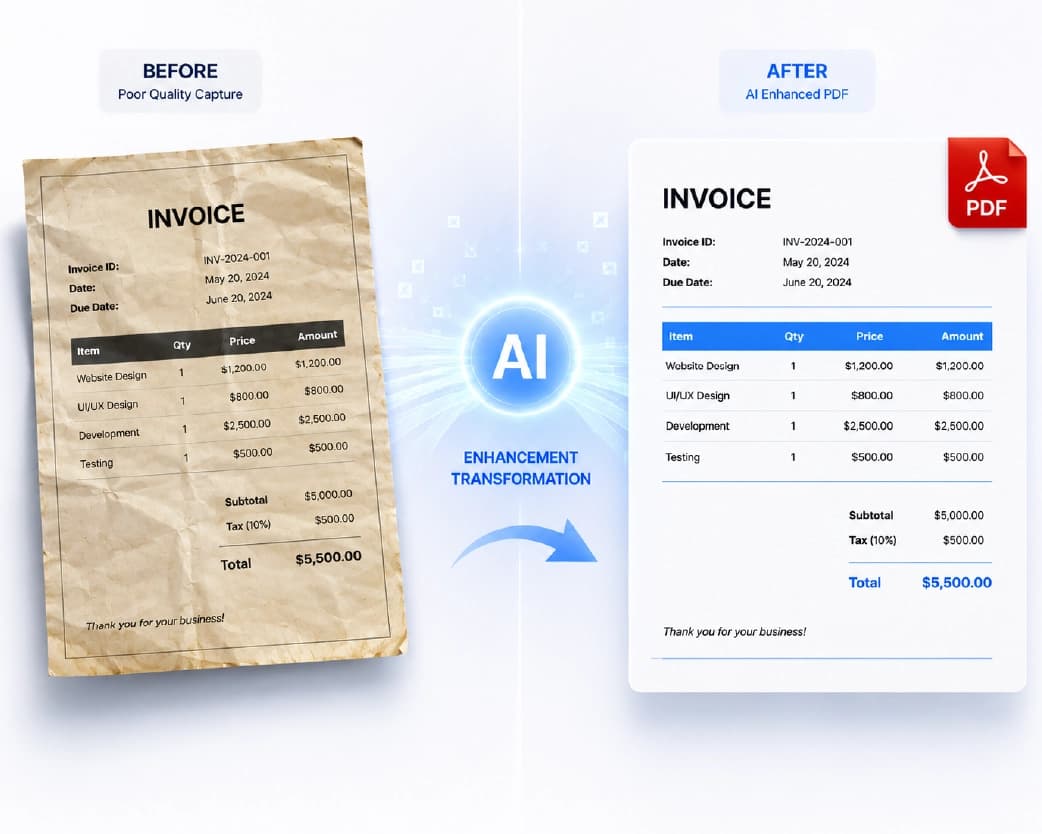
- Straighten sideways photos. If a picture is turned the wrong way, fix it before converting. Otherwise page six will be lying on its side. Plainscan’s Rotate PDF tool can fix pages after the fact too.
- Crop out the junk. Table edges, your thumb, a carpet. The Crop Image tool trims it. A tight crop makes a document photo look like a scan.
- Use good light. Shadows and glare make text hard to read. Daylight near a window is your friend. Hold the phone straight above the page, not at an angle.
- Check the focus. Zoom in on one line of text. If you can’t read it, retake it.
- Name the files in order. If you call them page1, page2, page3, the tool will often keep them in that order. IMG_4821 and IMG_4822 can be a coin toss.
I always lay the paper on a dark, contrasting tabletop so the camera autofocuses sharply and the page edges stand out clearly for clean cropping.
Pay Attention to File Size
Here’s the catch with phone photos. They’re big. Twelve photos at 4 MB each is nearly 50 MB, and a portal that accepts 10 MB will say no.
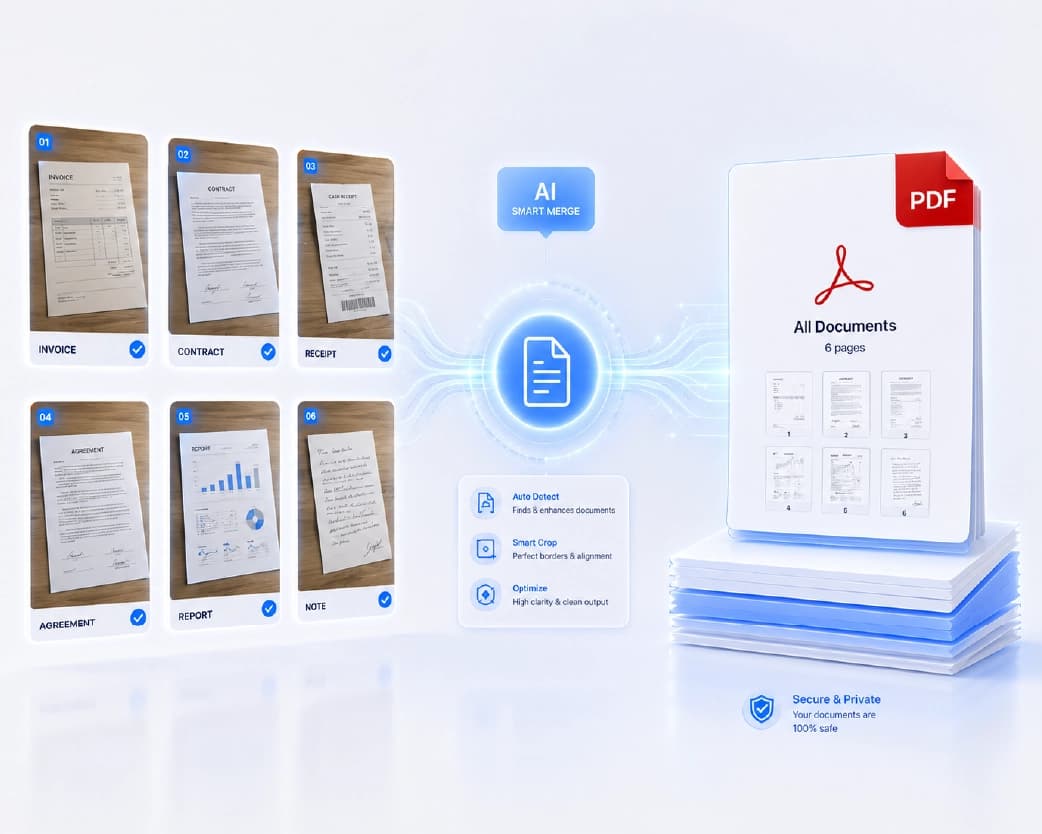
If your PDF comes out too heavy, shrink the images before you convert. The Compress Image tool can lighten them. Check that text is still readable afterward, since too much squeezing makes it blurry. When I tested Divya’s fourteen phone photos, the raw images initially produced a 42 MB PDF; running them through the image compressor first brought the final PDF down to just 5.8 MB without losing any text sharpness.
A good target for documents is sharp enough to read at full zoom, and no bigger than it needs to be.
Page Size and Margins
If the tool lets you choose, think about where the PDF is going.
For printing, pick the paper size you’ll use, like A4 or Letter, so the pages fit without odd scaling. For on-screen reading, fitting each page to the image is fine. Small margins make a document look tidy, and zero margins make a photo fill the page.
A photo of a document usually works best fitted to the page. A big photo of a landscape may look better with some margin around it.
What the PDF Won’t Do
A PDF made from photos is still pictures. The text inside can’t be searched, selected, or copied, because the computer sees an image of words, not words. If you need that, run the PDF through the Scan & OCR tool, which reads the pictures and turns them into real text. Check the result for typos, since OCR can mix up letters like “l” and “1.”
If you only want to edit the text afterward, the PDF to Word tool can help, once the text is real.
Who Uses This?
People filing claims, applications, and tax papers. Students turning in handwritten homework as one file. Freelancers sending receipts. Landlords and renters sharing documents. Teachers collecting photo assignments. Anyone who has stared at an upload box that wants one file.
Is It Safe to Upload My Photos?
Fair question, since document photos are often private. Plainscan uses encrypted HTTPS connections, and uploaded files are deleted automatically within 24 hours.
Still, be careful with IDs, bank details, and medical papers on any website. Skim the privacy policy of a new tool first, and delete extra copies once you’re done. And remember that a photo of a document can include things you didn’t mean to show, like an address on the table next to it.
Mistakes to Skip
- Sending a sideways page. Check every page.
- Wrong order. Reorder before you convert.
- A huge file. Compress images first.
- Blurry text. Retake the photo.
- Keeping only the PDF. Hold on to the original photos for a while.
- Forgetting the limits. Check file size and your daily cap before a big batch.
Conclusion
An images to PDF converter takes a messy pile of photos and gives you one clean file in the right order. Fix and crop your photos first, put them in order, watch the file size, and flip through the result before you send it. If you’ve got a stack of pictures waiting to become a PDF, try Plainscan on them today. It’s an easy way to use an images to PDF converter, and there are plenty of other free PDF and image tools worth a look while you’re there. Divya sent her claim as one PDF, with the sideways page fixed and her thumb cropped out.
Related insights










Get the Plainscan App for iOS & Android